Student and guardian portals
When you turn the portal on, guardians can sign in with their own mobile number and see their child's attendance, results, fees due, routine and notices. If they have several children, they get everyone's details in one account. Guardians do not have to remember any password; they only enter the code that comes by SMS each time.
Students can also sign in to a separate portal with their own ID and password if they want. Which guardians can sign in and which cannot is fully in your hands. The portal can be turned off at any time too.
Turning the portal on or off needs permission to change the institution's settings (the Super Admin at the start). The student and guardian portals are on the Standard plan. On the Free plan, the portal page shows only the institution's name and the office phone number, and nobody can sign in.
- Turning the portal on
- Allowing sign-in
- A guardian's sign-in
- What the family sees
Check these before turning the portal on
Whether the students are added to their classes
Whether the guardians' accounts are made, and whether their mobile numbers are right
Whether the institution has SMS balance (the sign-in code goes by SMS)
What this tutorial covers
See which job is in which step.
Step by step
Follow along as each step appears on your screen.
Open the portal settings
In the menu, press People → Students, then go to the Guardians tab at the top. If the portal is off, the top of the list says: "The family portal is off, so these accounts cannot sign in yet."
Press Turn it on next to it, or press More at the top and choose Portal settings. A box called Portal settings opens.

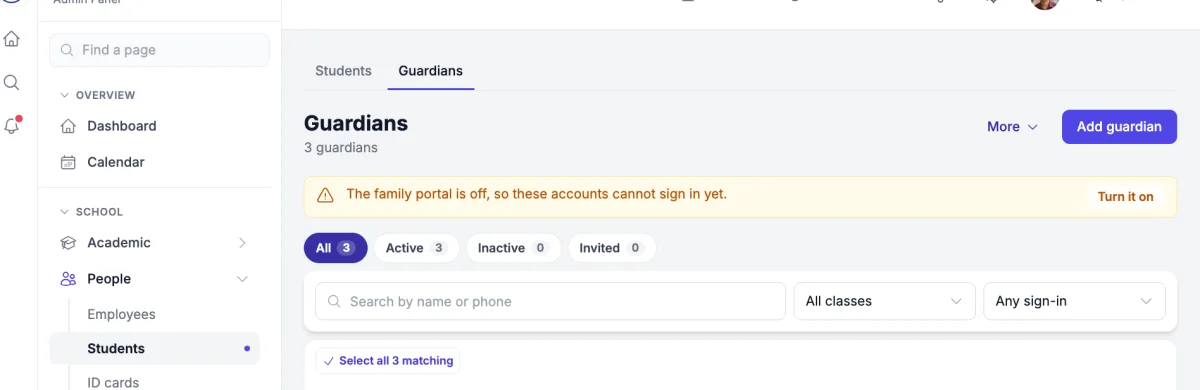 12345
- 1People → Students
- 2Guardians tab
- 3Portal-off notice
- 4Turn it on
- 5More

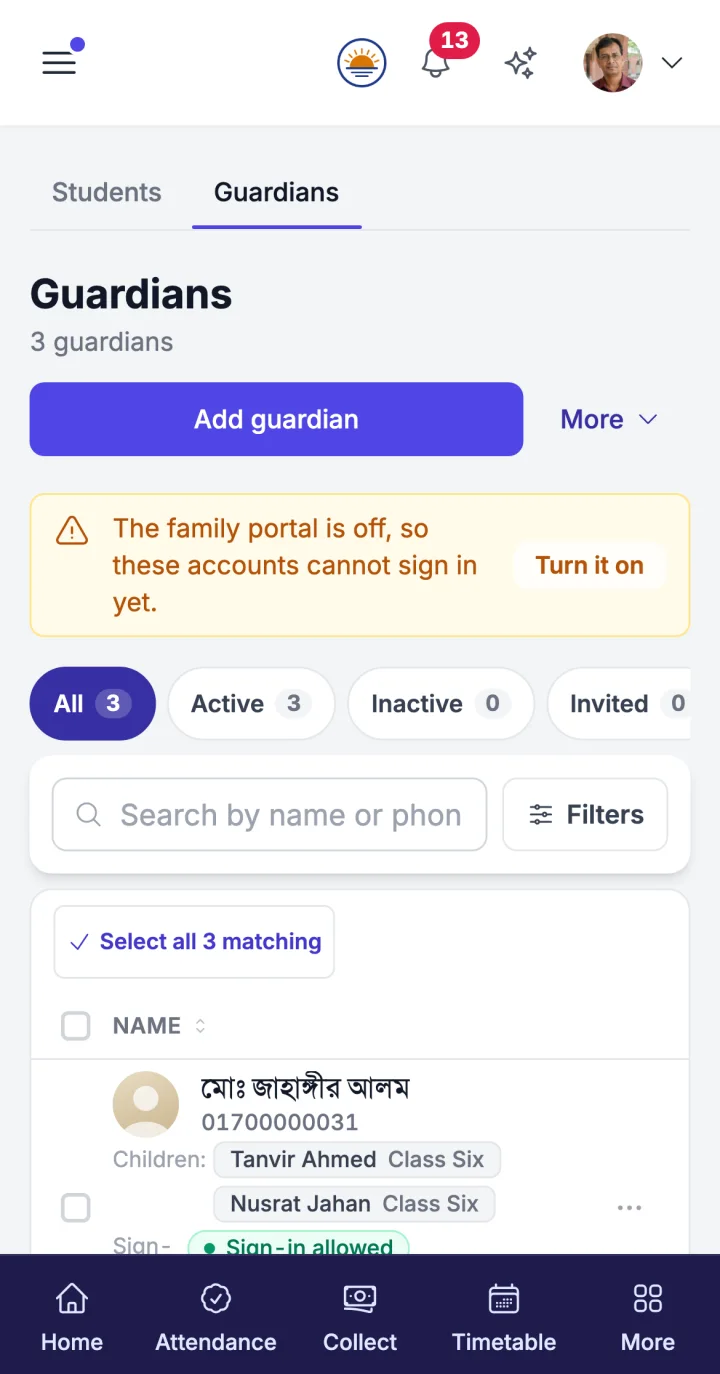 1234
- 1Guardians tab
- 2Portal-off notice
- 3Turn it on
- 4More
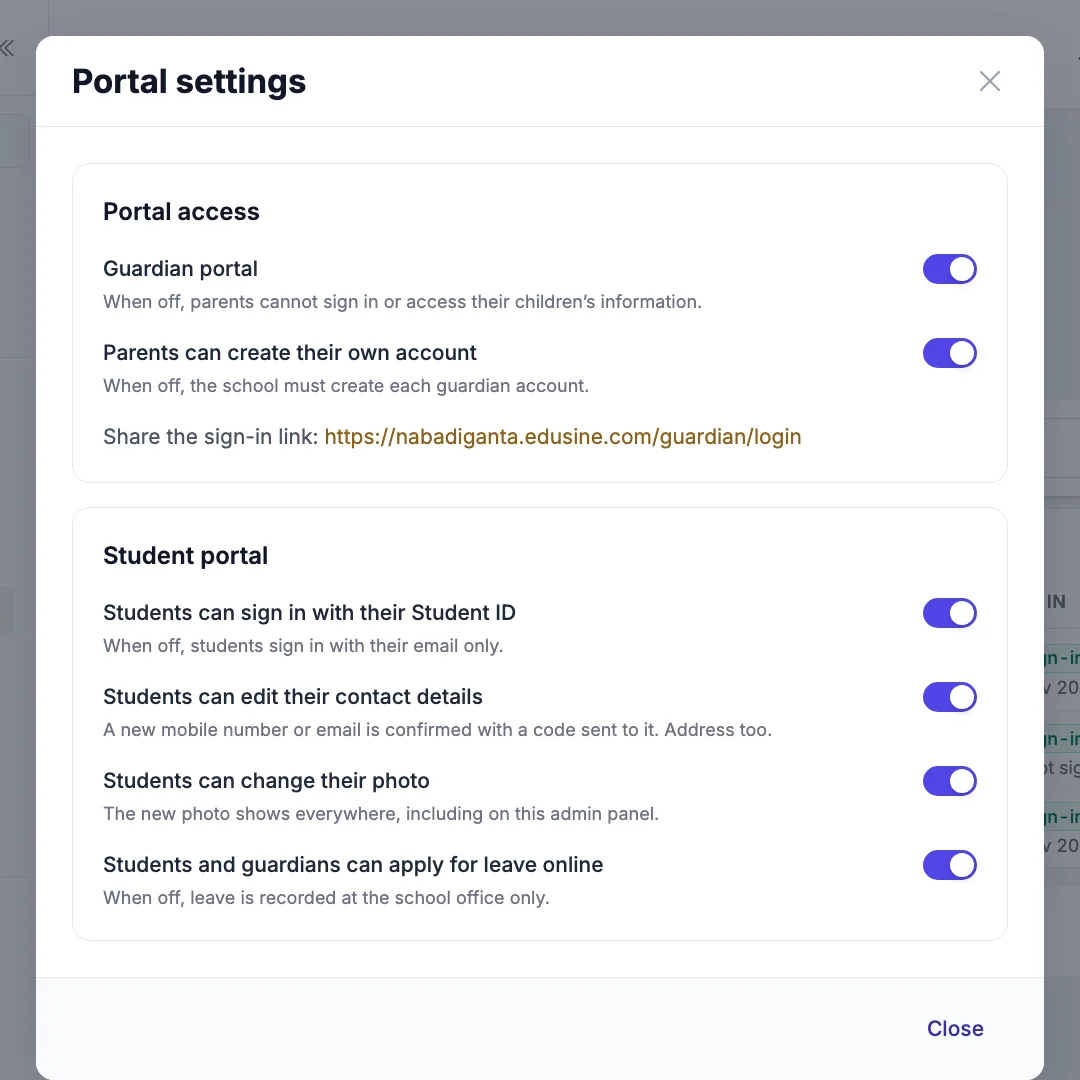
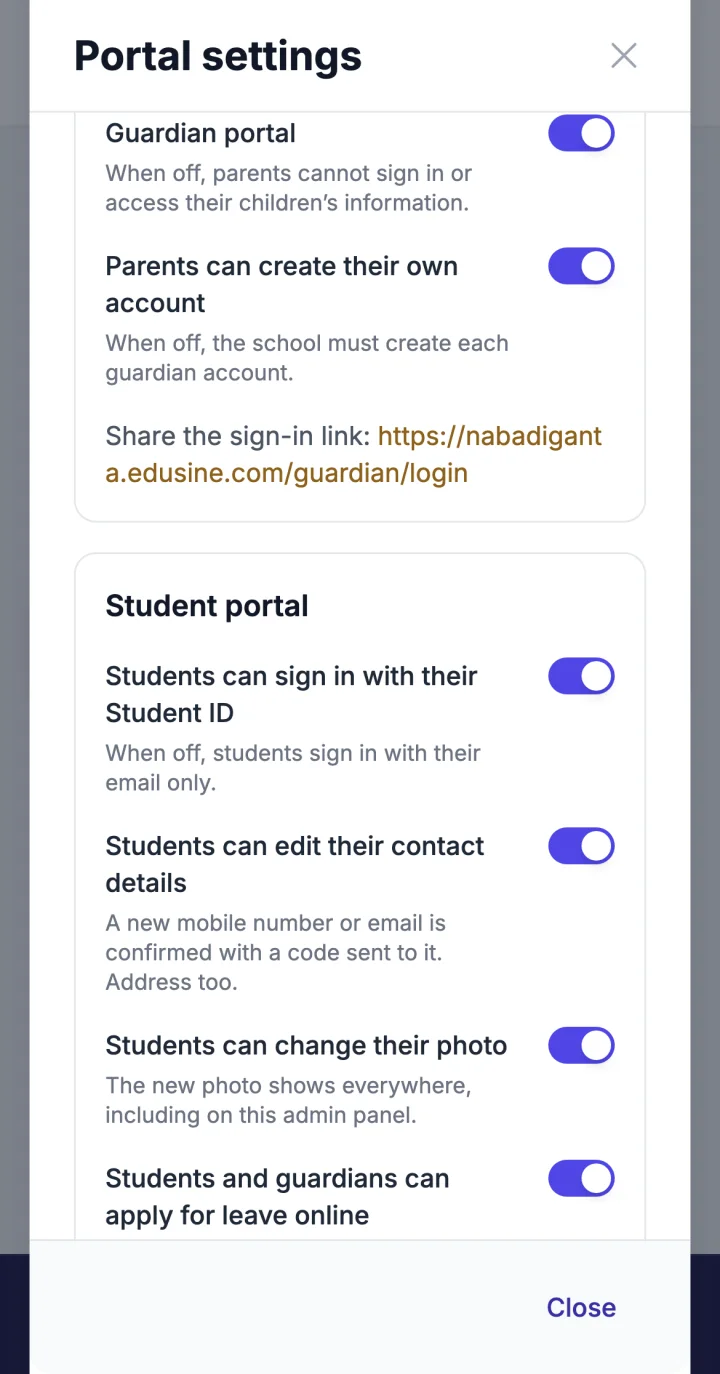
Turn on the guardian portal
In the Portal access part, turn on the Guardian portal switch. It is saved as soon as you press the switch; you do not need to save separately.
If the Parents can create their own account switch below is on, a guardian whose account you did not open can also open an account by verifying their mobile number. If you want to open every account yourselves, keep it off.
In the box, next to Share the sign-in link:, is your institution's guardian portal link, for example nabadiganta.edusine.com/guardian/login. Tell guardians this link by SMS, in a notice or at a guardians' meeting.

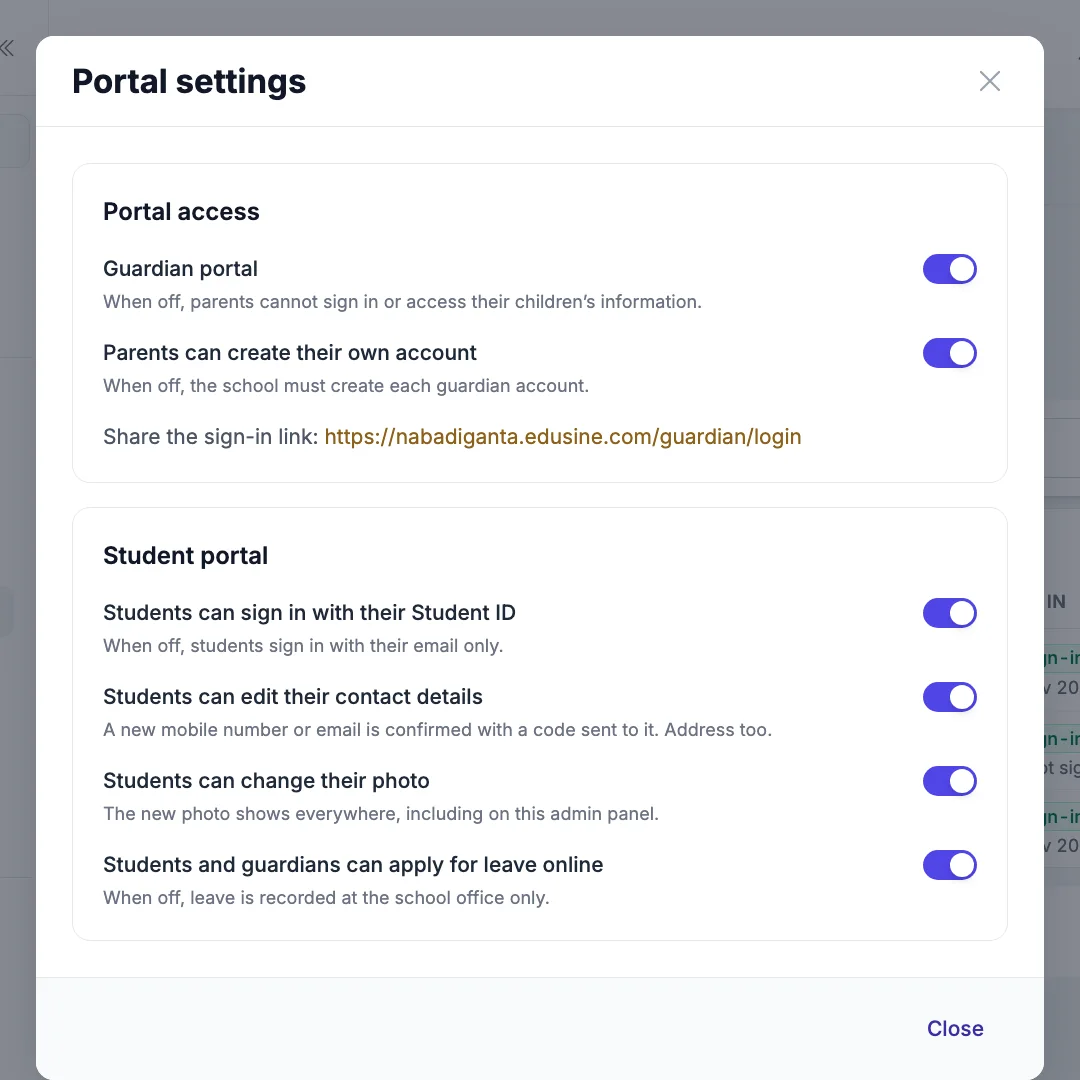 123
- 1Guardian portal
- 2Parents can create their own account
- 3Sign-in link

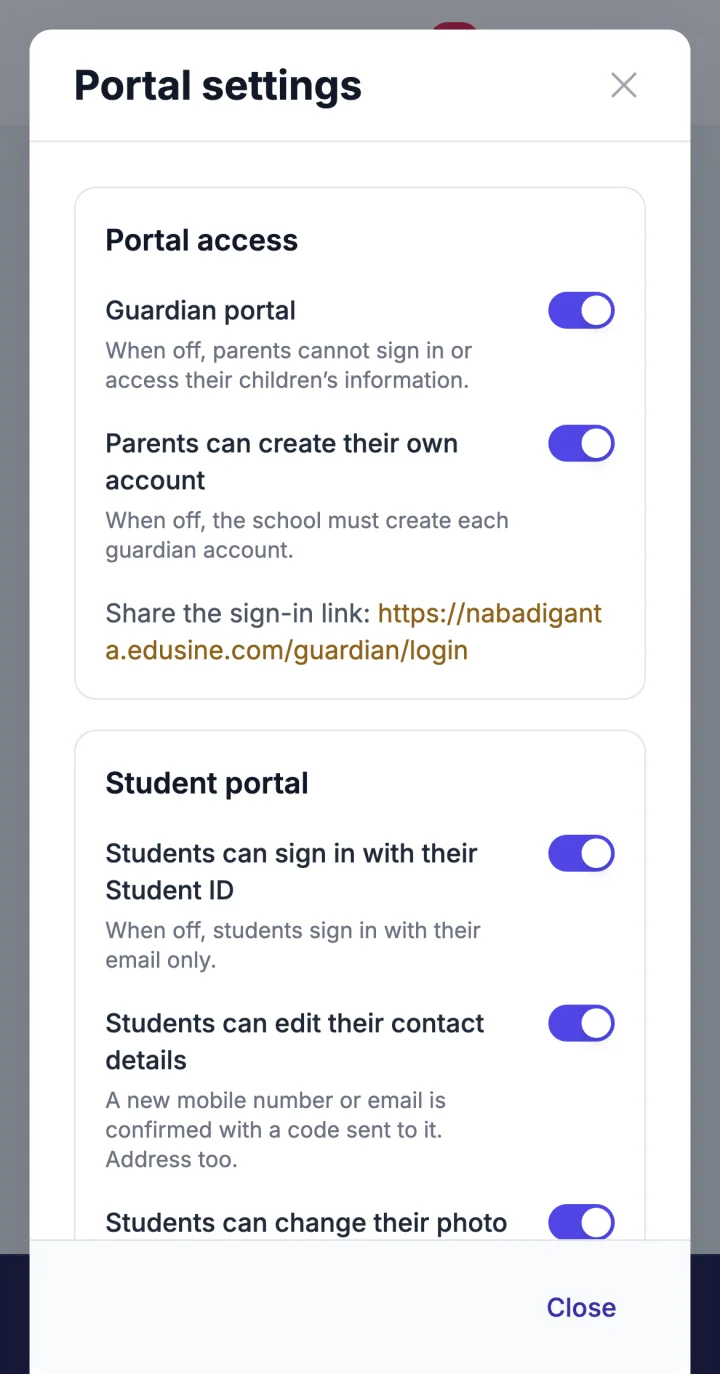 123
- 1Guardian portal
- 2Parents can create their own account
- 3Sign-in link
Check the student portal switches
The Student portal part of the same box has four switches. They are all on at the start, and usually you can leave them that way.
- Students can sign in with their Student ID. If you turn it off, they can sign in only with email.
- Students can edit their contact details. A code goes to the new number or email, and they must confirm with that code.
- Students can change their photo.
- Students and guardians can apply for leave online. If you turn it off, leave applications are taken only at the office.
When you are done, press Close.
 1
- 1Student portal switches

 1
- 1Student portal switches
Check which guardians can sign in
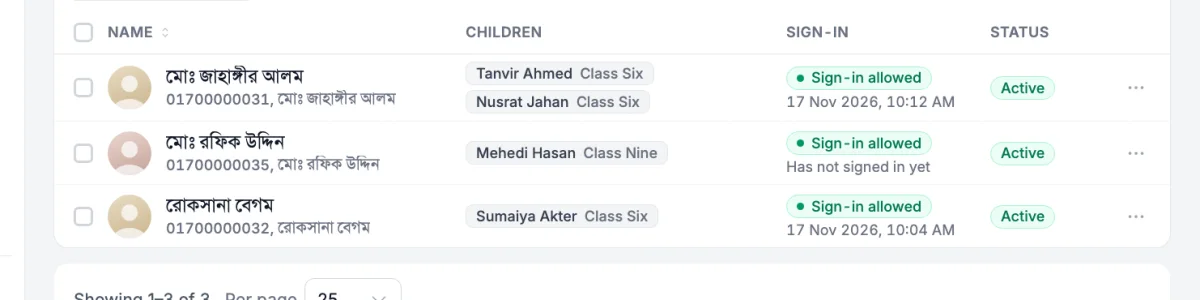
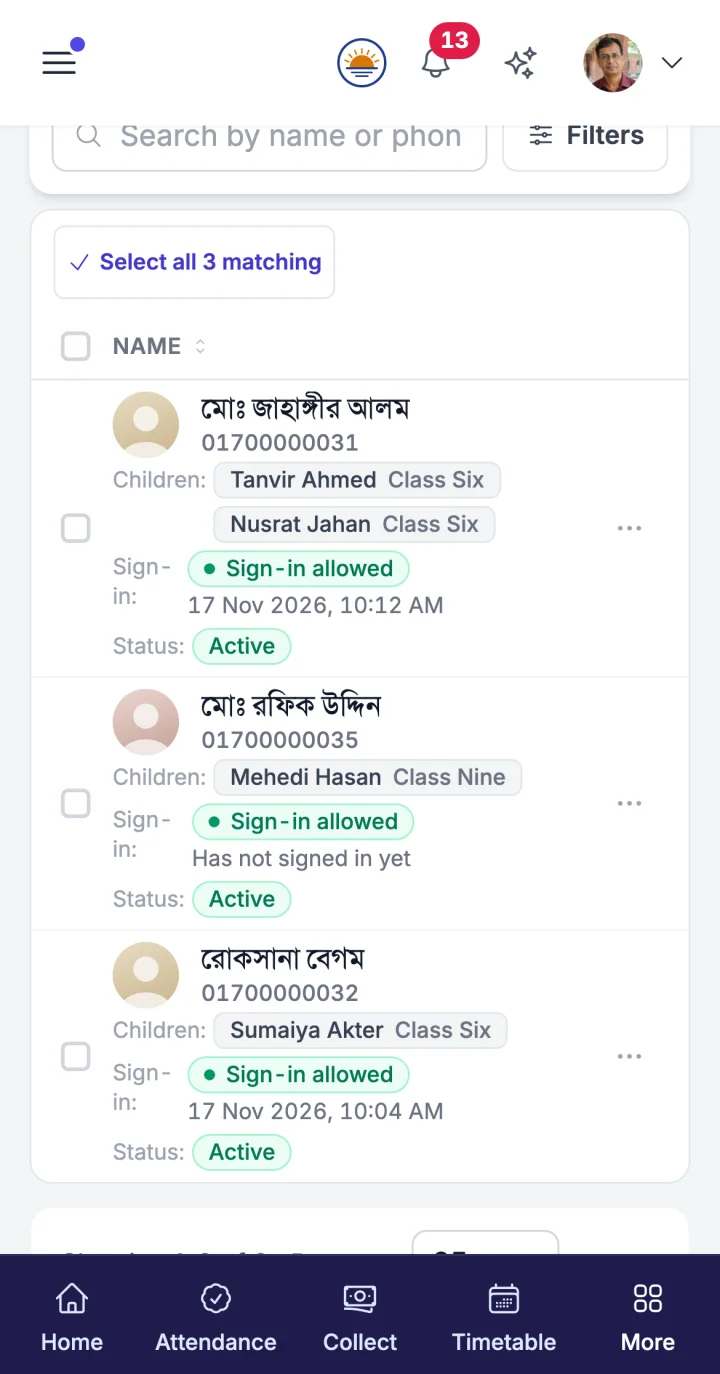
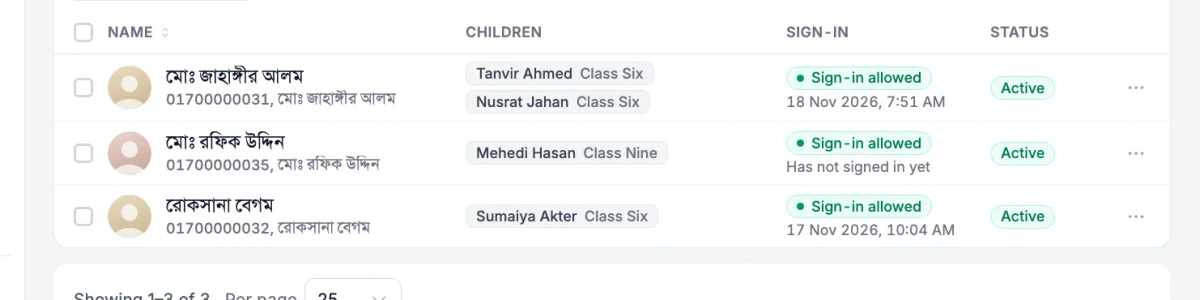
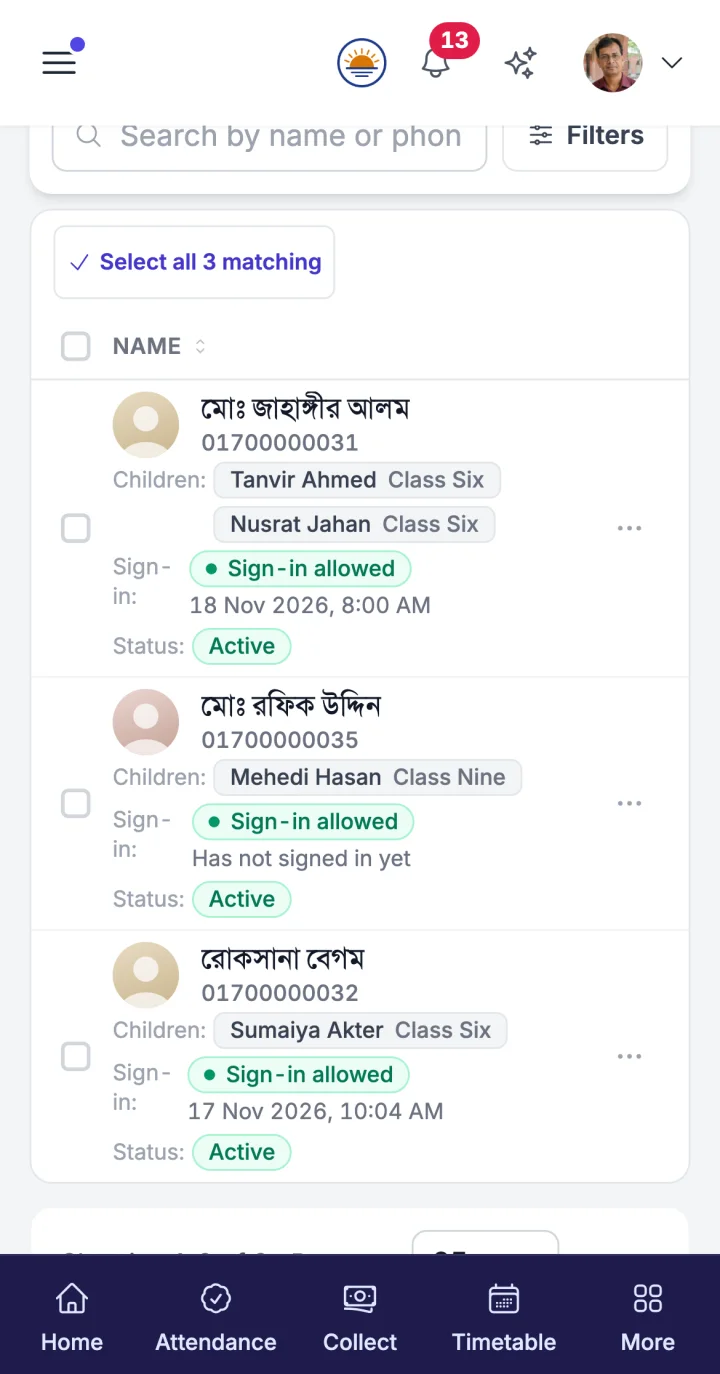
In the list on the Guardians tab, if Sign-in allowed is written next to a guardian, they can sign in as soon as the portal is on. The Children column shows the names and classes of all their children.
To keep someone's sign-in off, press their name to open their page, press Edit, turn the Allow sign-in switch off and save. To do it for several people together, tick them in the list and press Block sign-in in the bar at the top.
If there are no guardian accounts at all, press More and choose Create guardian accounts from student records. From the parents' mobile numbers in the students' records, EduSine makes everyone's accounts at once and links them to their children.

 12
- 1Sign-in allowed
- 2Children column

 12
- 1Sign-in allowed
- 2Children column

 1
- 1Create guardian accounts from student records

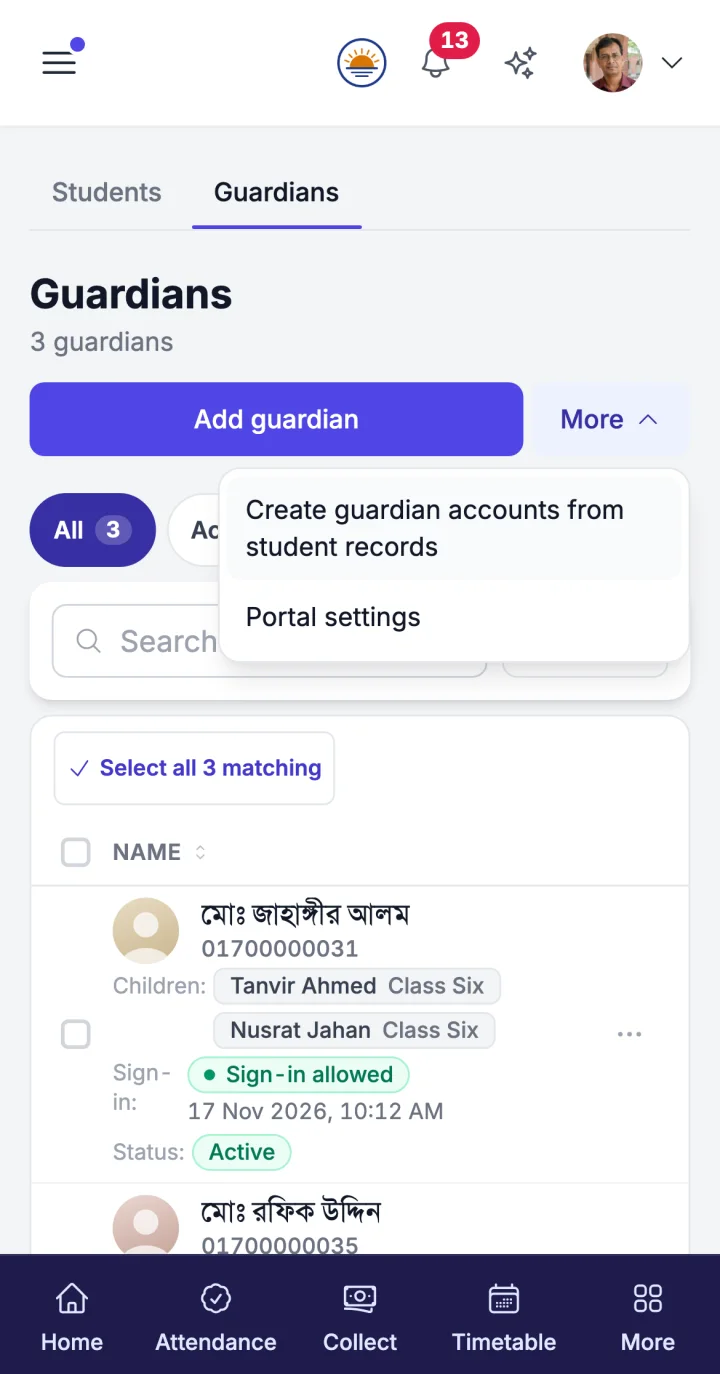 1
- 1Create guardian accounts from student records
Tip: When you make accounts or turn the portal on, no SMS goes to the guardian by itself. You must tell them the link yourself.
How a guardian signs in
The guardian opens the portal link in their phone's browser. A page titled Guardian portal opens.
They type their number in the Mobile number box and press Send code. The number can be typed in Bangla or English digits.
Then a six-digit code comes by SMS. When they type the code in the Six-digit code box and press Verify code, they are signed in. If the code does not come, the text below says after how long they can send it again. When that time is over, press Resend code.
If the guardian has a password set, they can also get in with their mobile number and password by pressing Use a password instead.

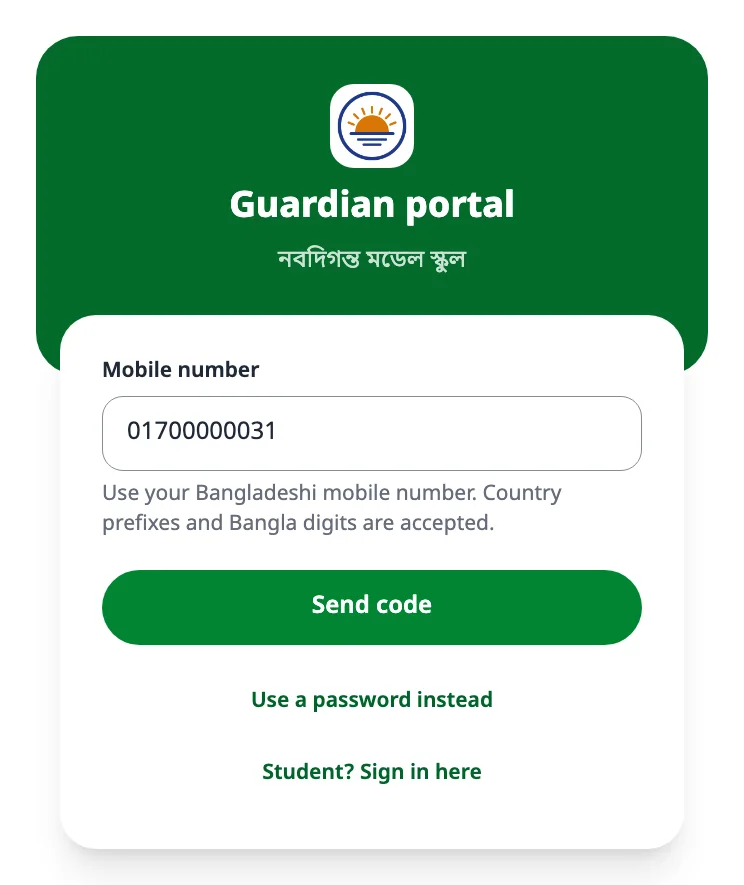 123
- 1Mobile number
- 2Send code
- 3Use a password instead

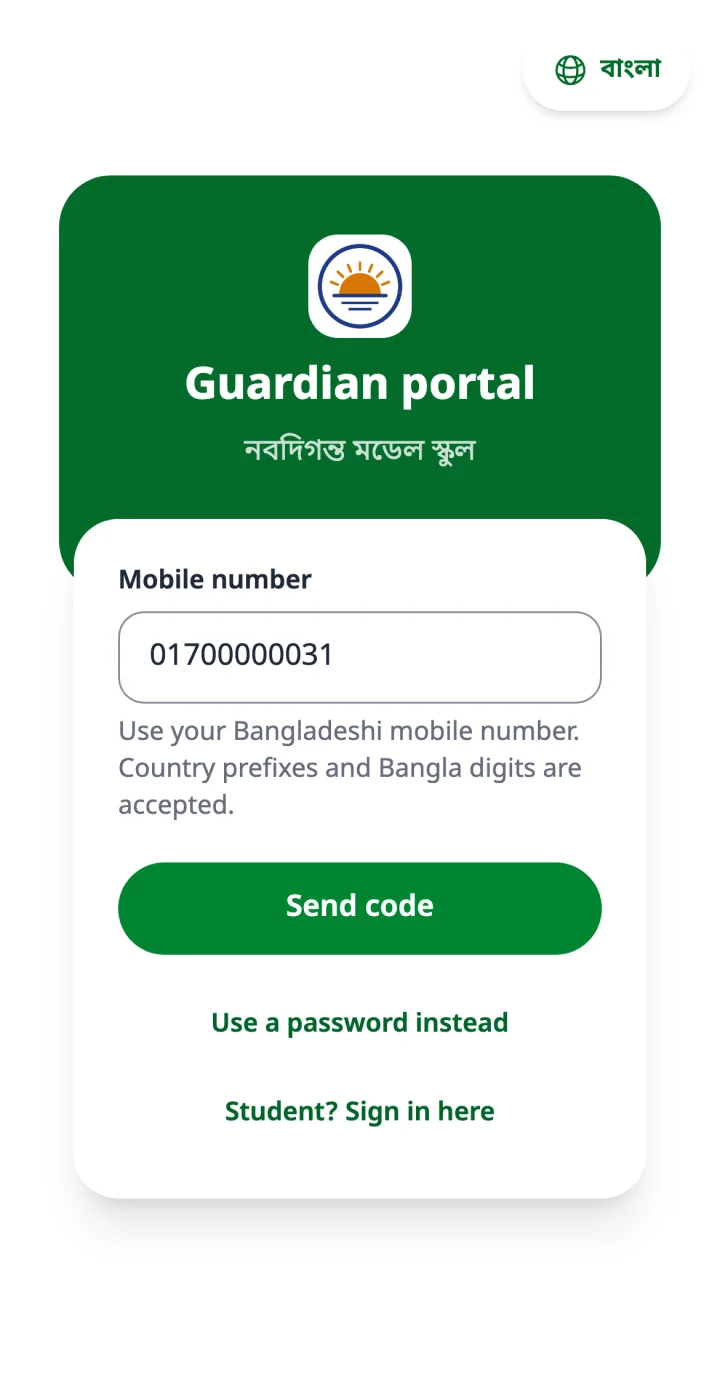 123
- 1Mobile number
- 2Send code
- 3Use a password instead

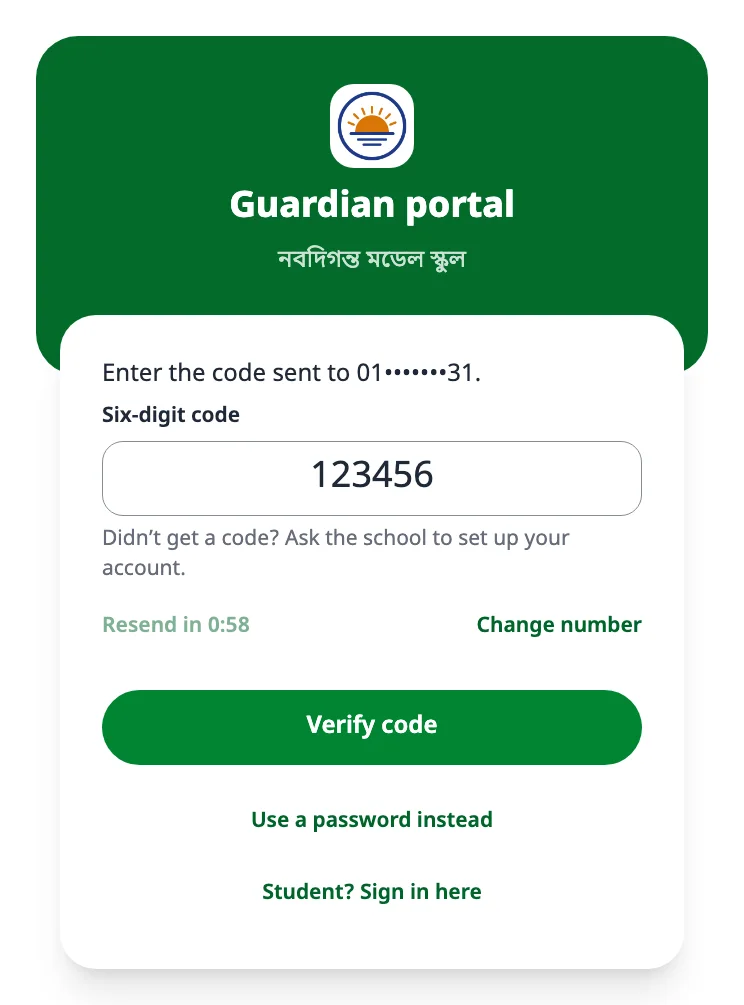 12
- 1Six-digit code
- 2Verify code

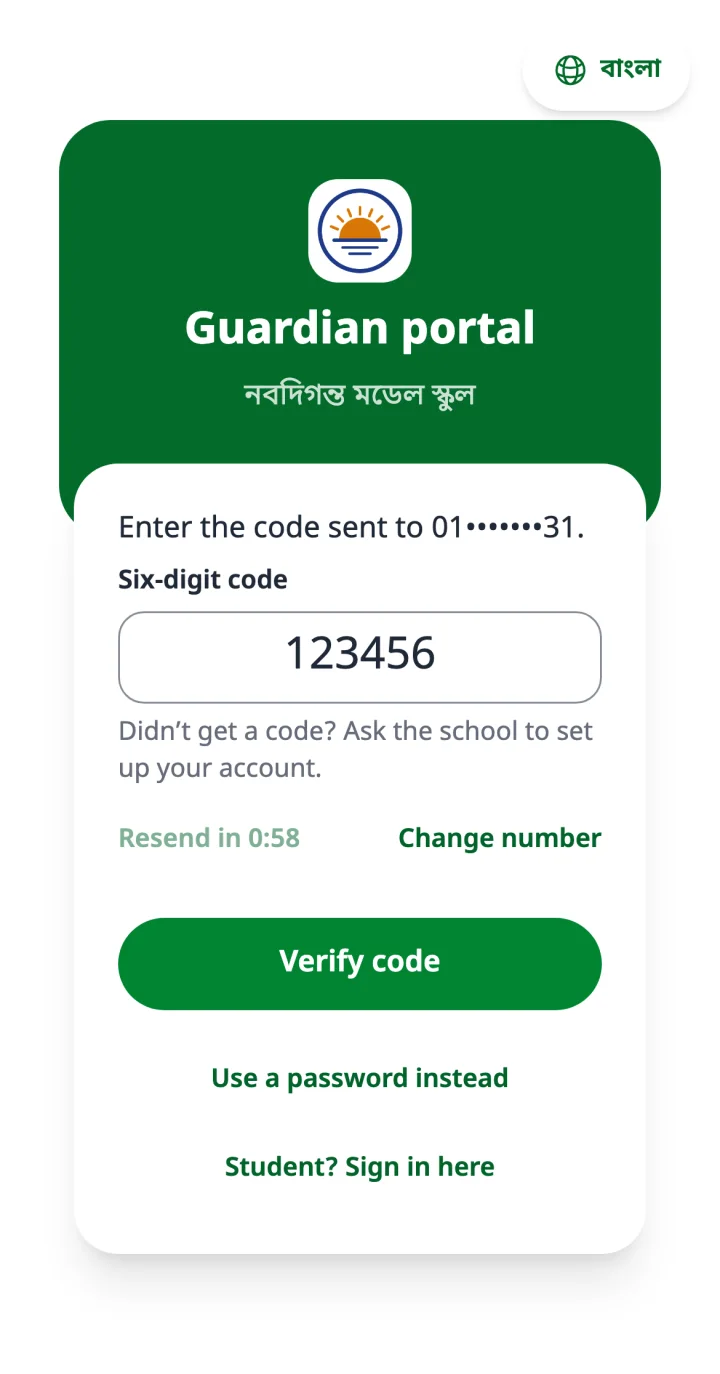 12
- 1Six-digit code
- 2Verify code
Tip: The code SMS is paid from the institution's SMS balance. There is a limit on how many codes can be sent each day, so that nobody can waste SMS for no reason.
What a guardian sees first
After signing in, the Family page opens. At the top is a greeting with the guardian's name, and above it a button with each child's name.
The Family dues card shows the total due for all the children. Press Pay dues to see which fee of which child is unpaid.
Below, each child has their own card: class, section, roll, today's attendance, dues and the latest result. At the very bottom, the Coming up part shows the institution's upcoming events, such as the guardians' meeting.

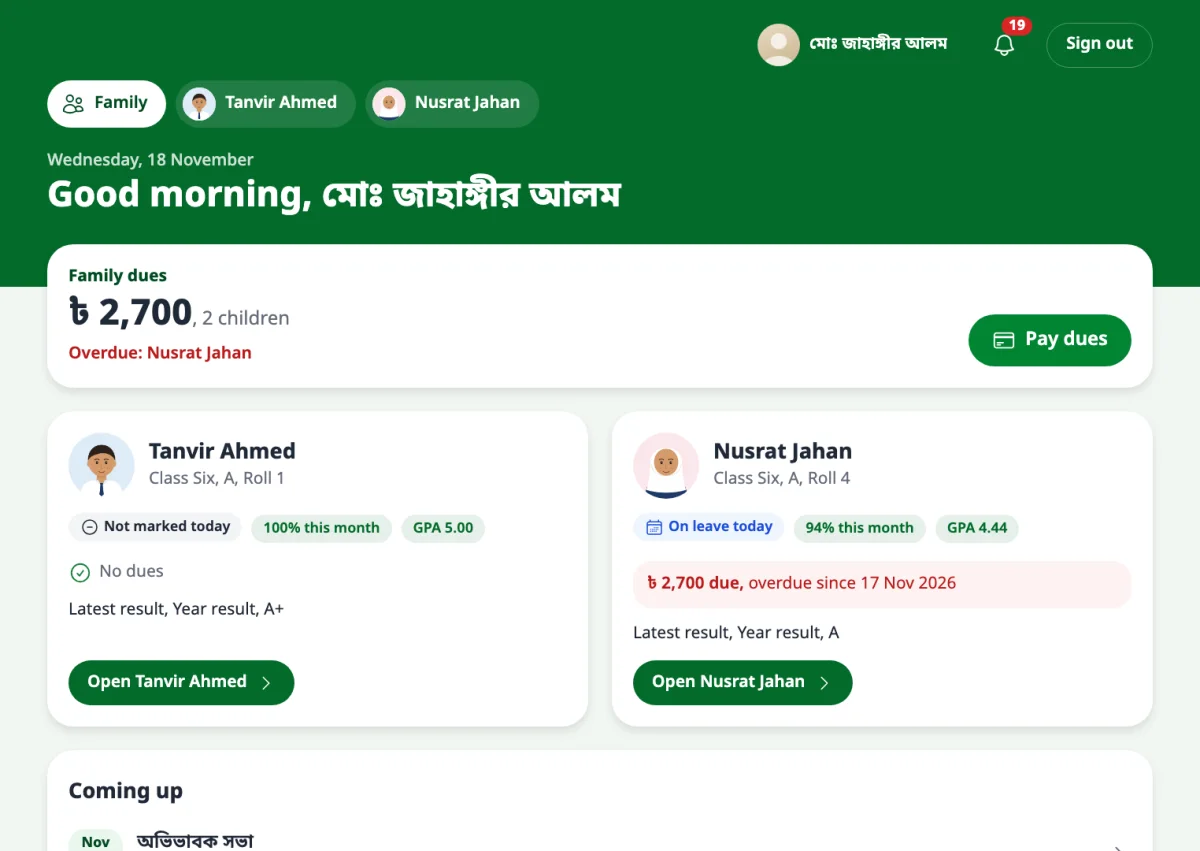 123
- 1The children's name buttons
- 2Family dues
- 3A child's card

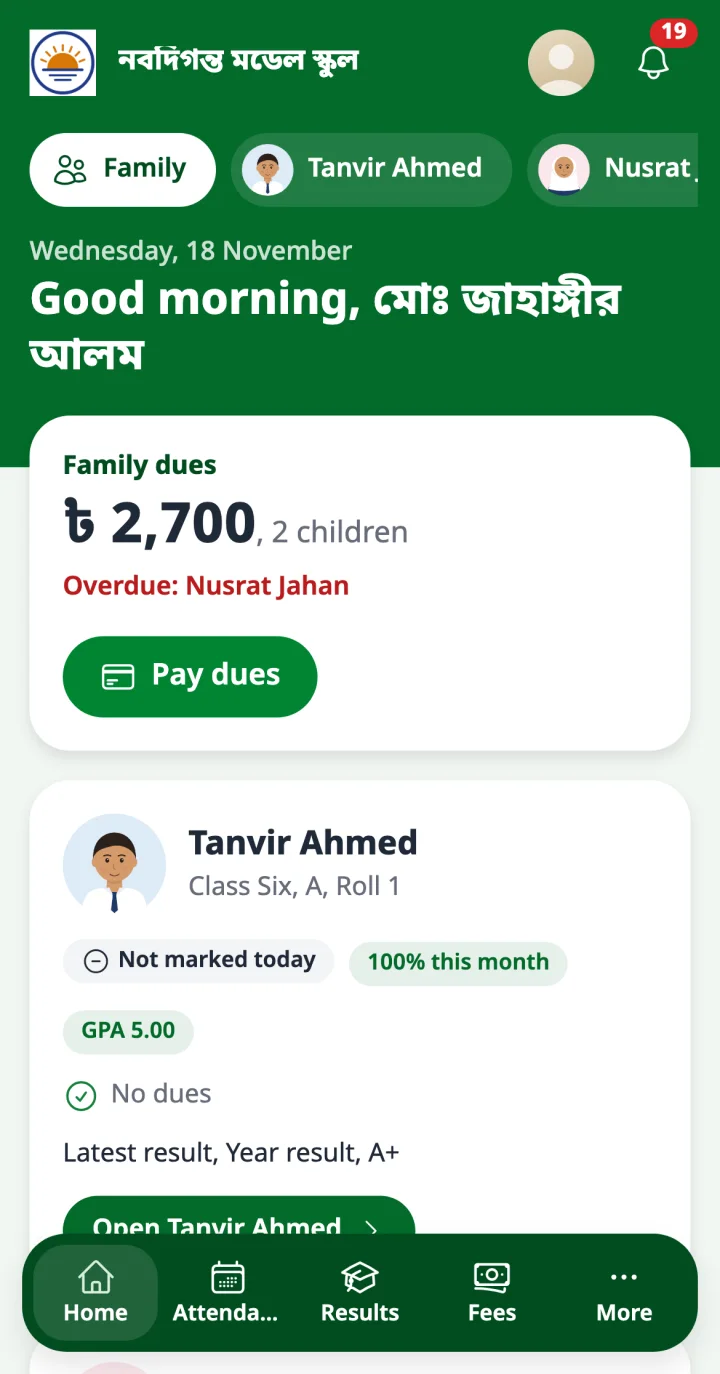 12
- 1The children's name buttons
- 2Family dues

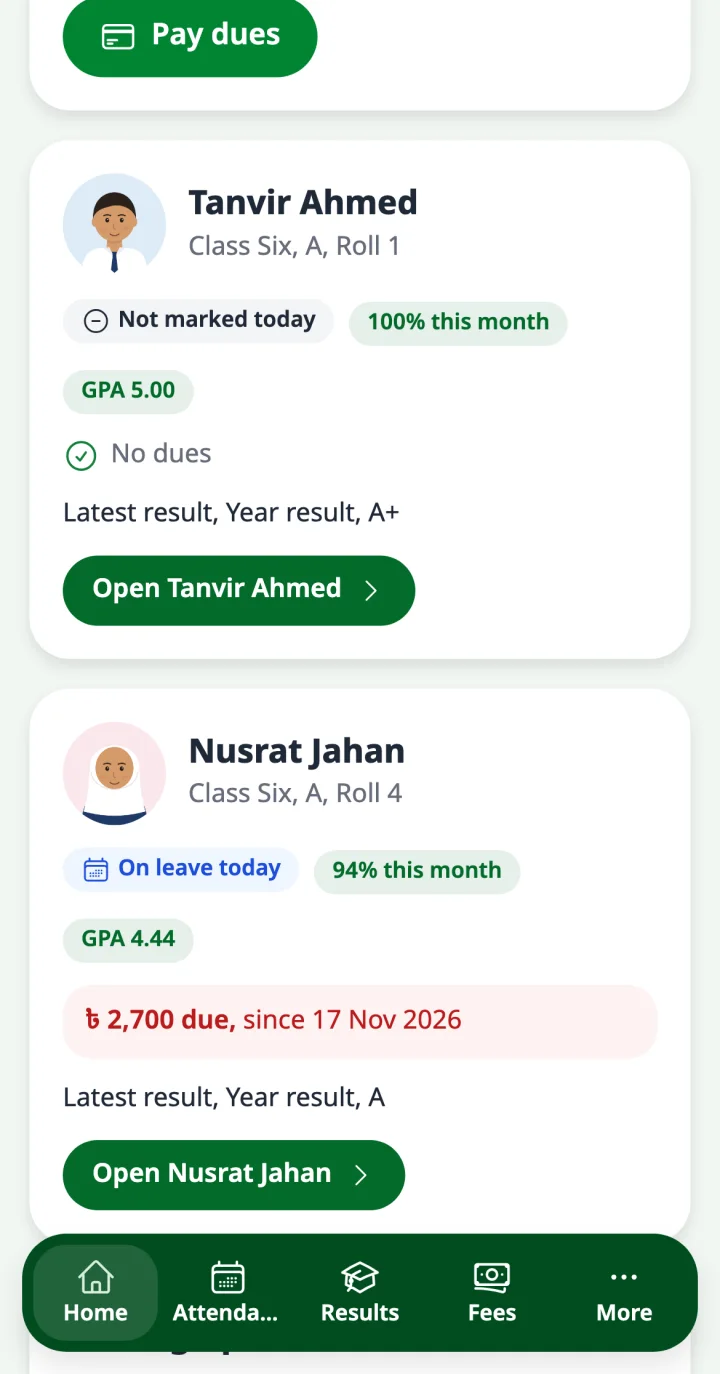 1
There is no computer screenshot for this step. Showing the phone screen.
- 1A child's card
1- 1A child's card

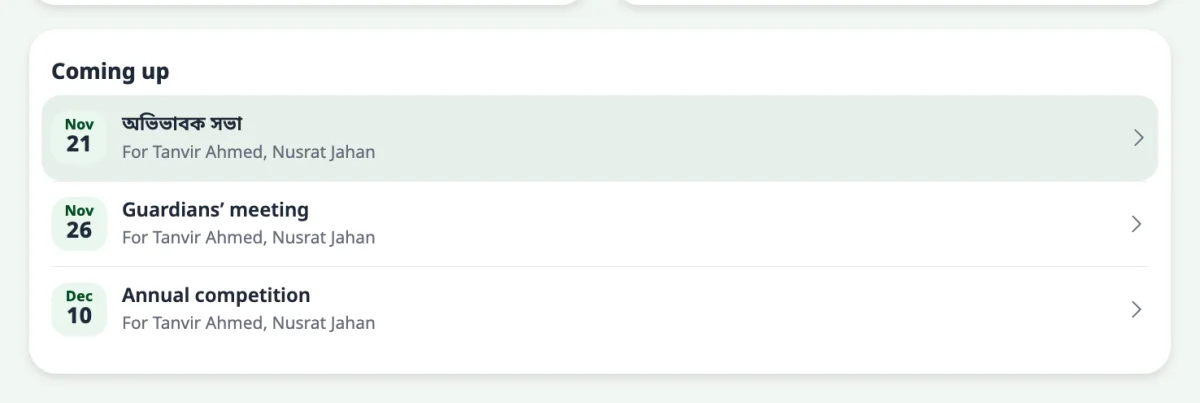 1
- 1Coming up

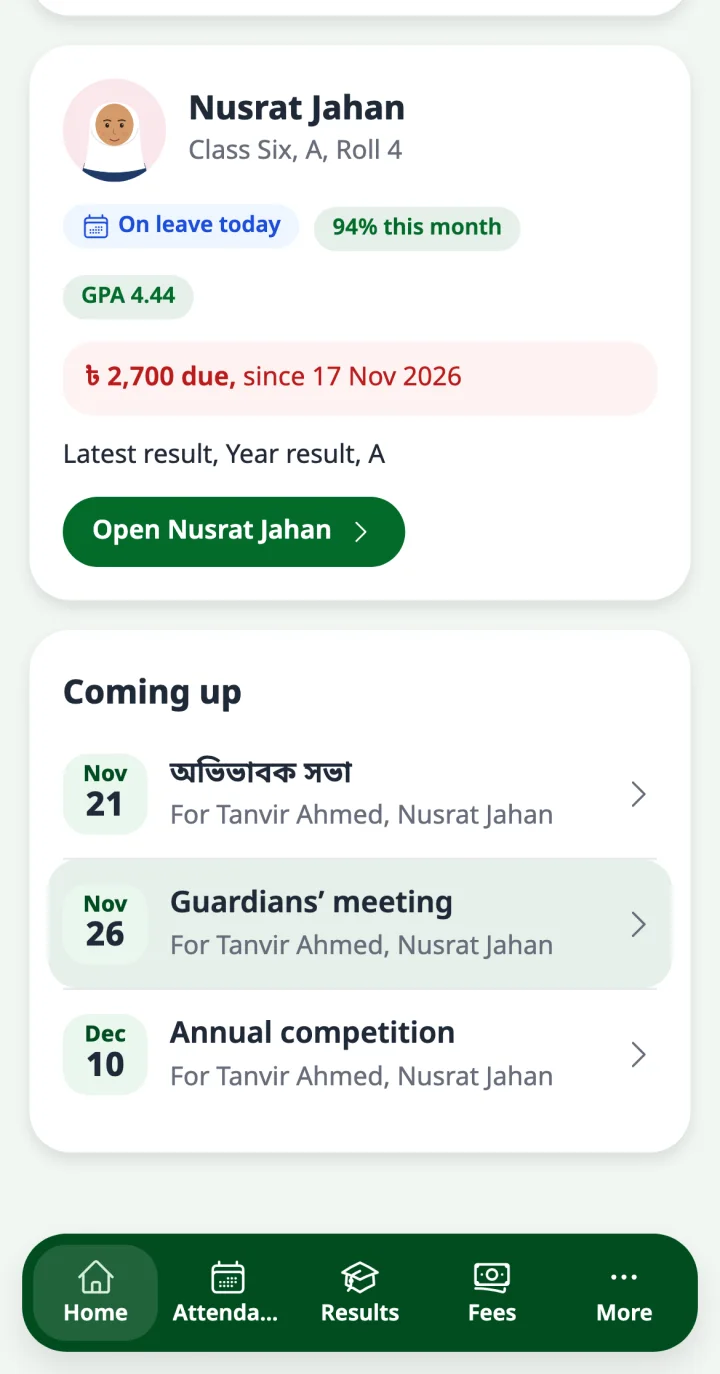 1
- 1Coming up
See one child's page
Press "Open …" on the child's card, or press their name at the top, and that child's page opens. It shows this month's attendance, the latest GPA, fees due, today's routine and homework.
The bar at the bottom has Home, Attendance, Results, Fees and More. Press More to see all the pages: Routine, Subjects, Exams & Results, Events, Notices, Materials, Homework & tests, Announcements, Leave and Profile. The same list also has Family dues, Notifications, Account, changing the language and Sign out.

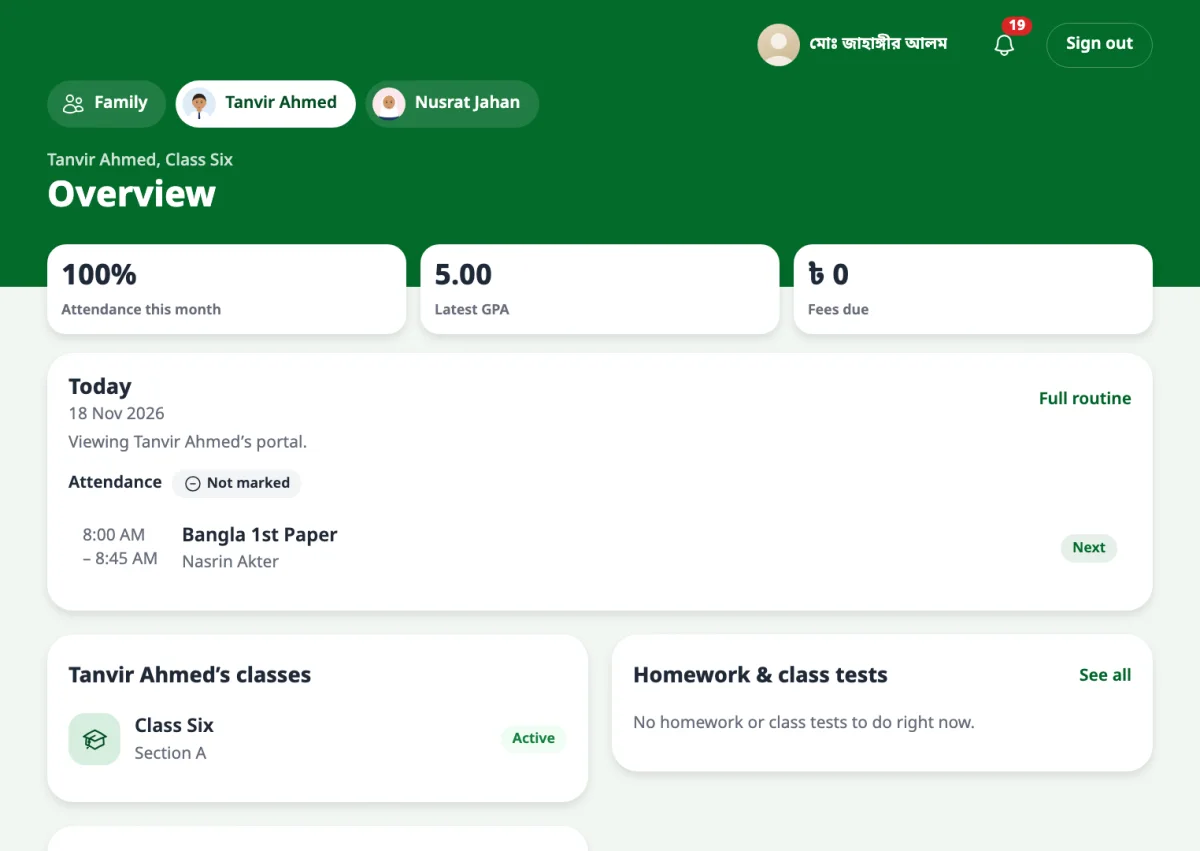

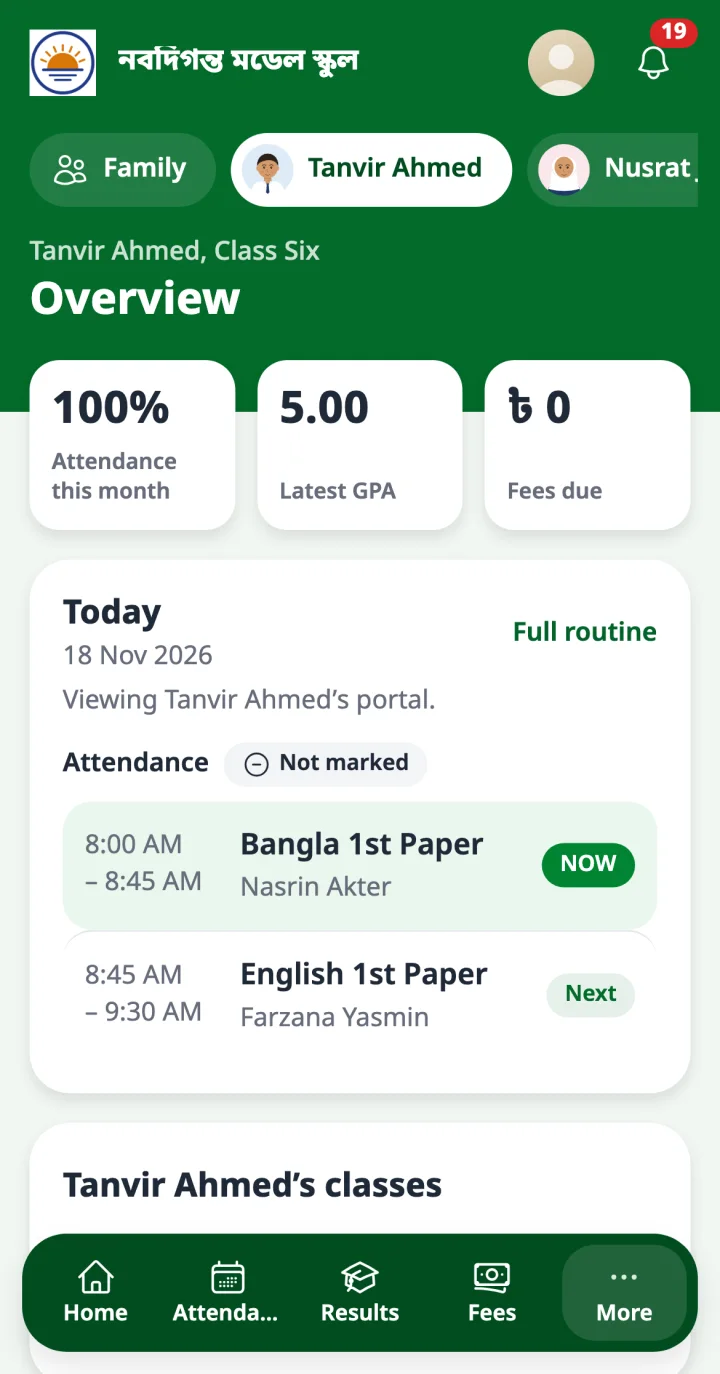

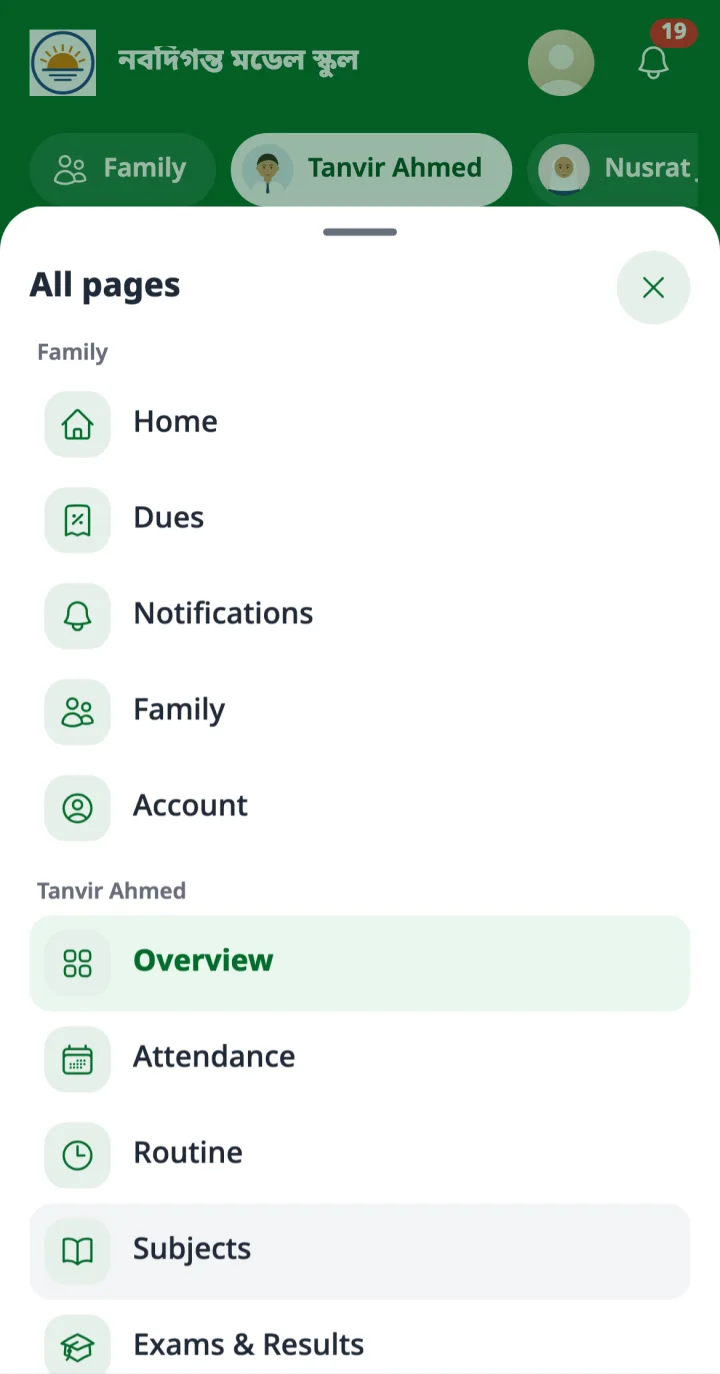
There is no computer screenshot for this step. Showing the phone screen.
How a student signs in
There is a separate portal for students. It opens when they press Student Login in the website's menu, or Student? Sign in here at the bottom of the guardian portal.
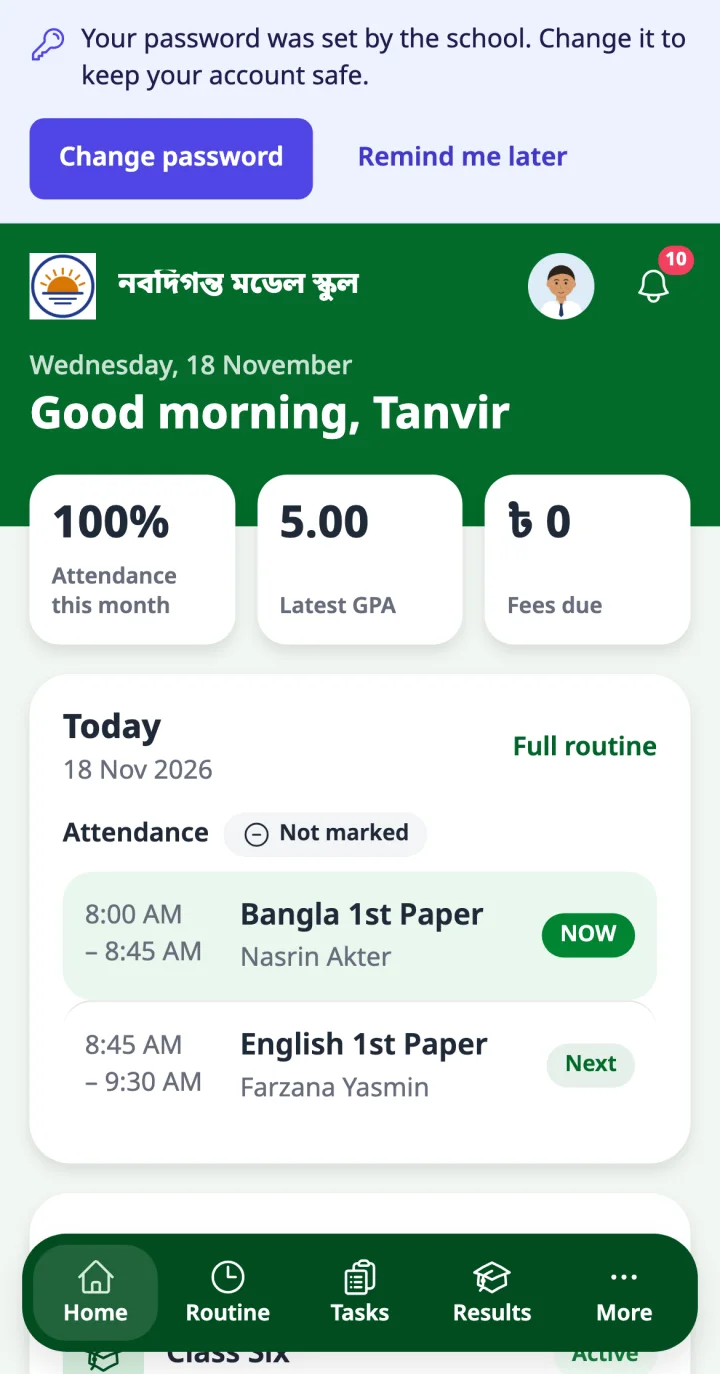
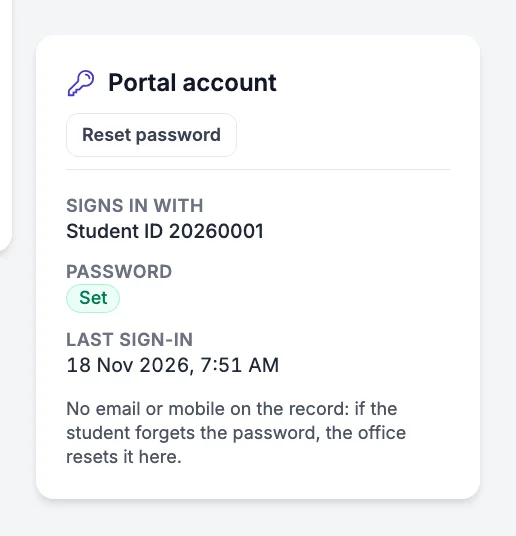
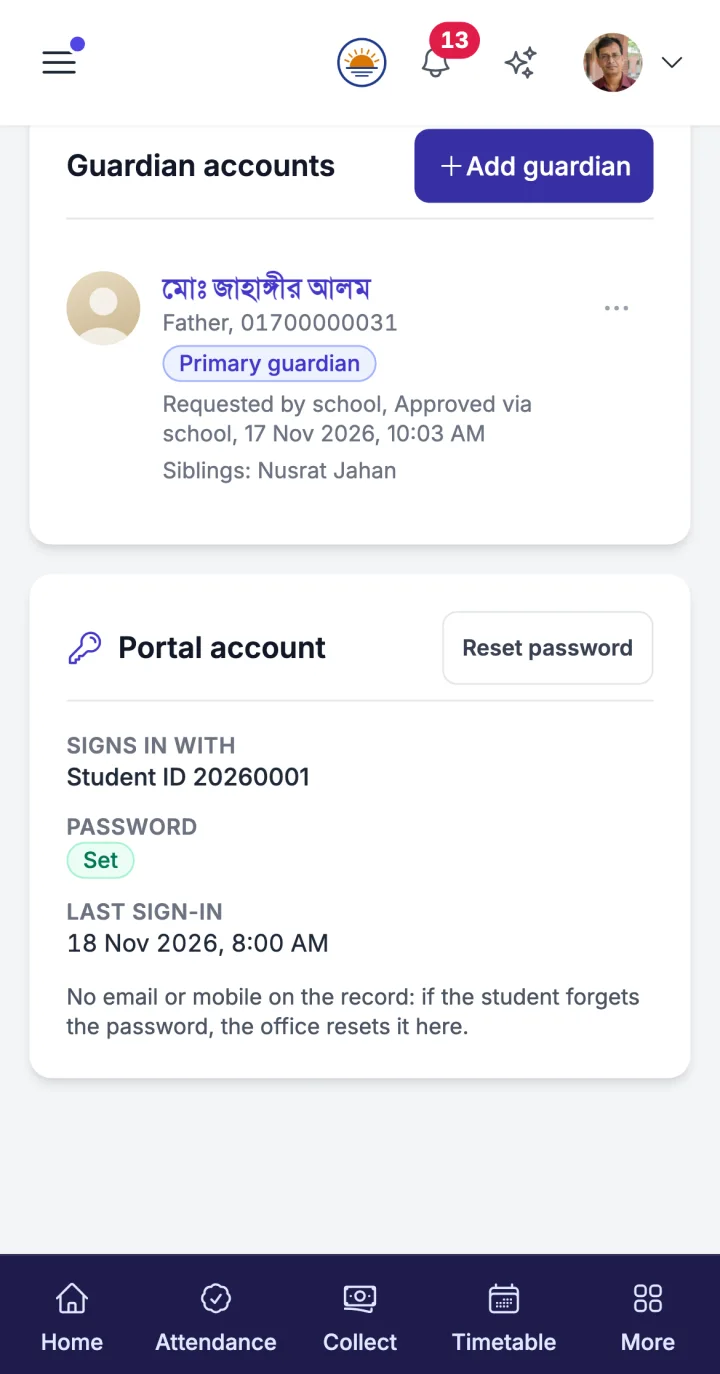
In the Email or Student ID box they type their own ID (for example 20260001) and their password, and press Sign In. You set this password by pressing Set password on the Portal account card of the student's page.
The first time they get in, the top says that the password was set by the institution. They can press Change password to set their own password, or press Remind me later.
In the student portal, the bar at the bottom has Home, Routine, Tasks, Results and More. The ID card, fees and notices are there too.

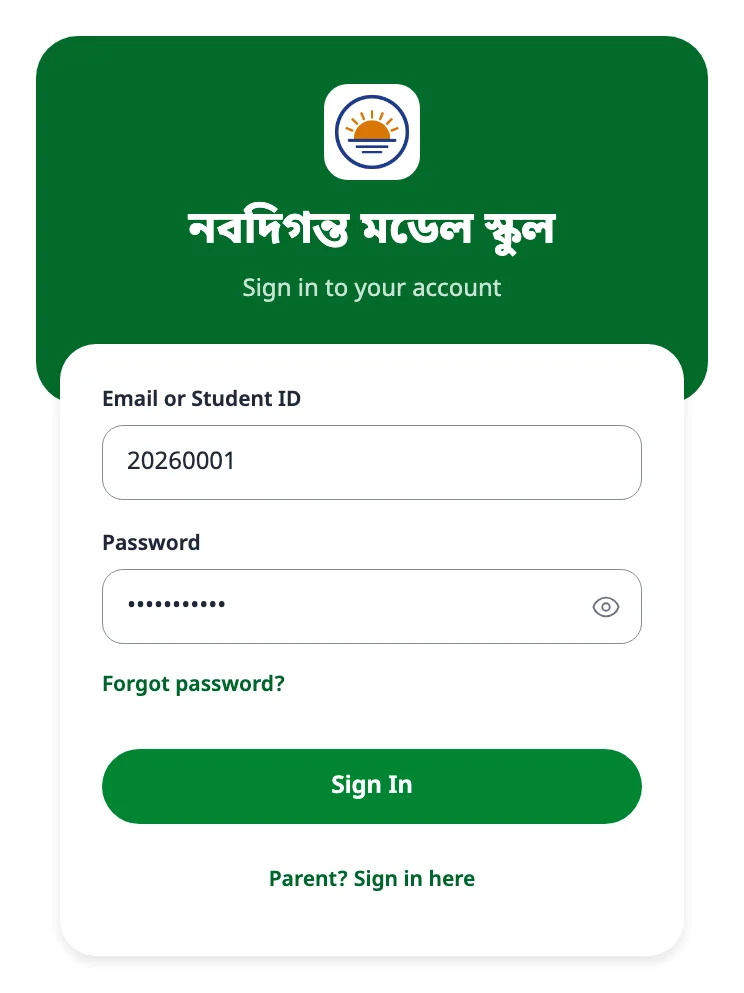 1
- 1Email or Student ID

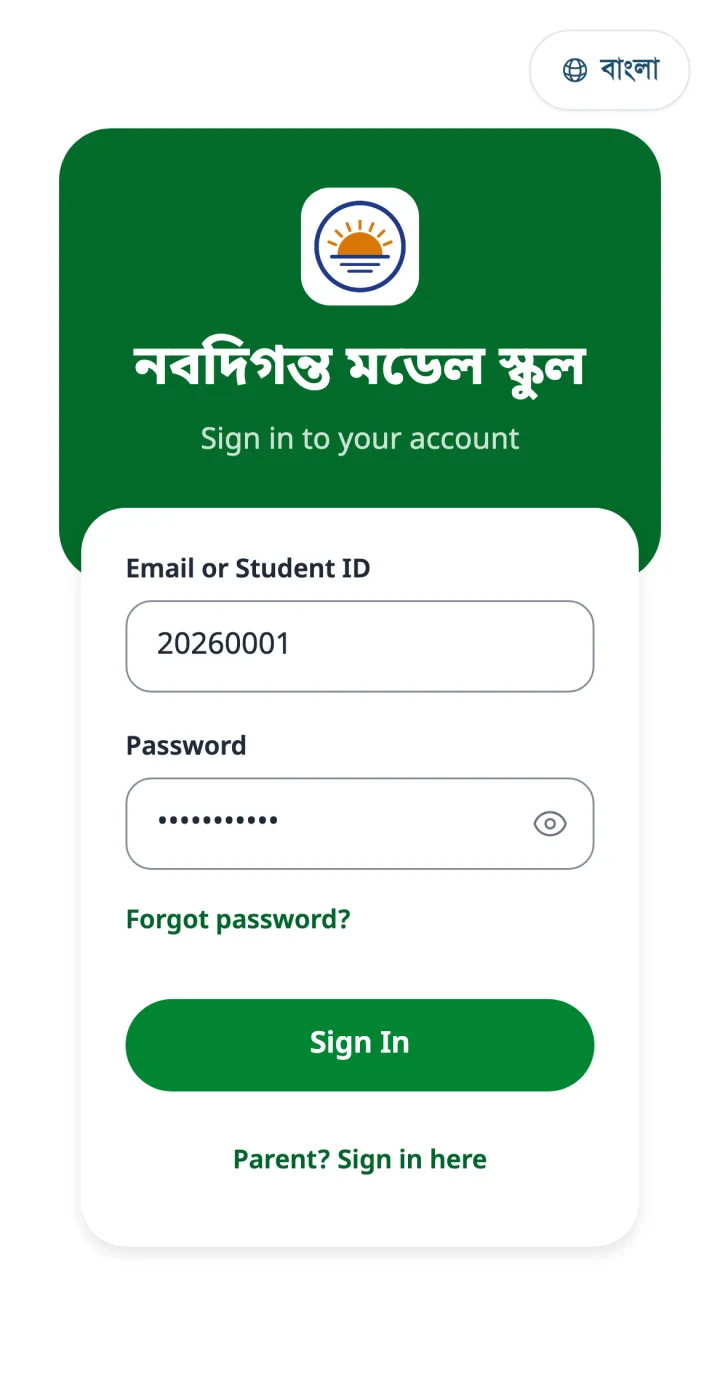 1
- 1Email or Student ID

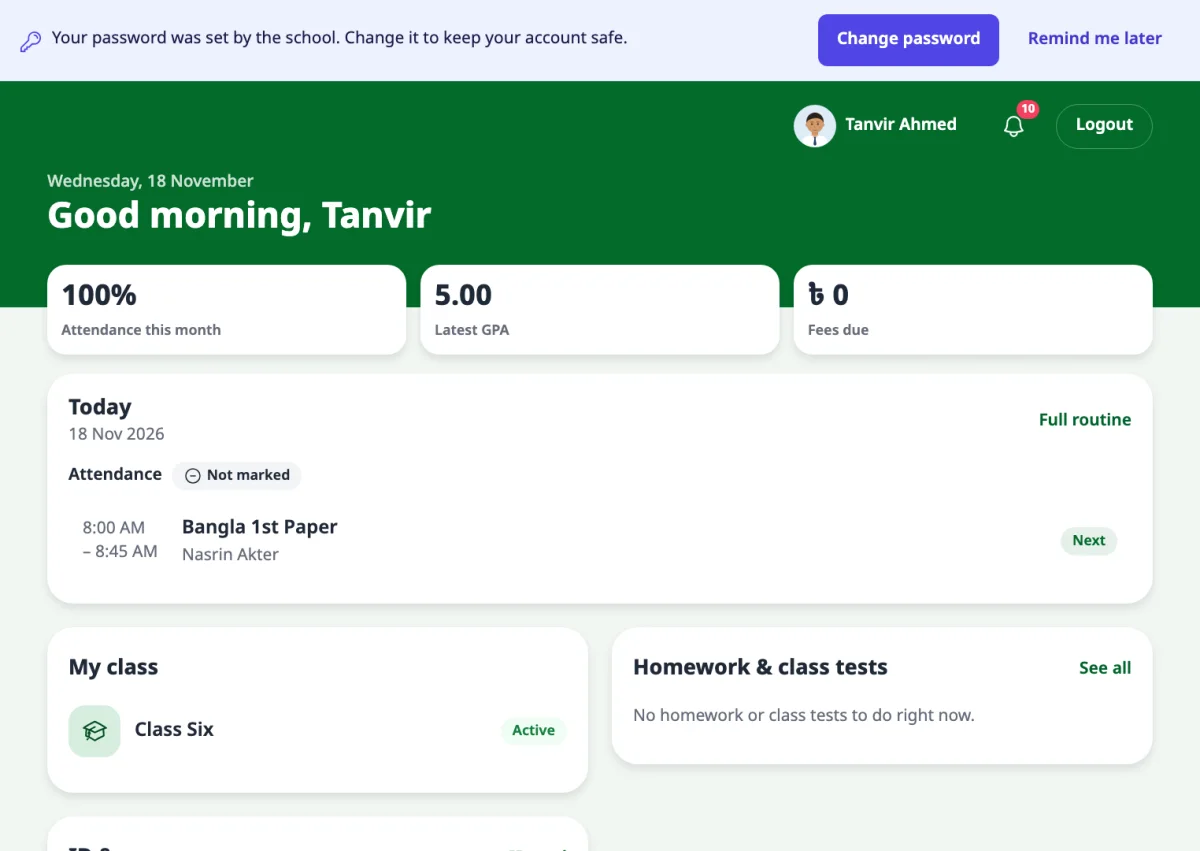 1
- 1Change password

Sign someone out of every device
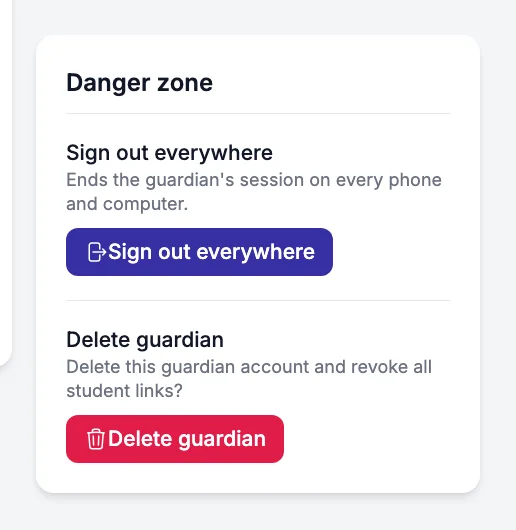
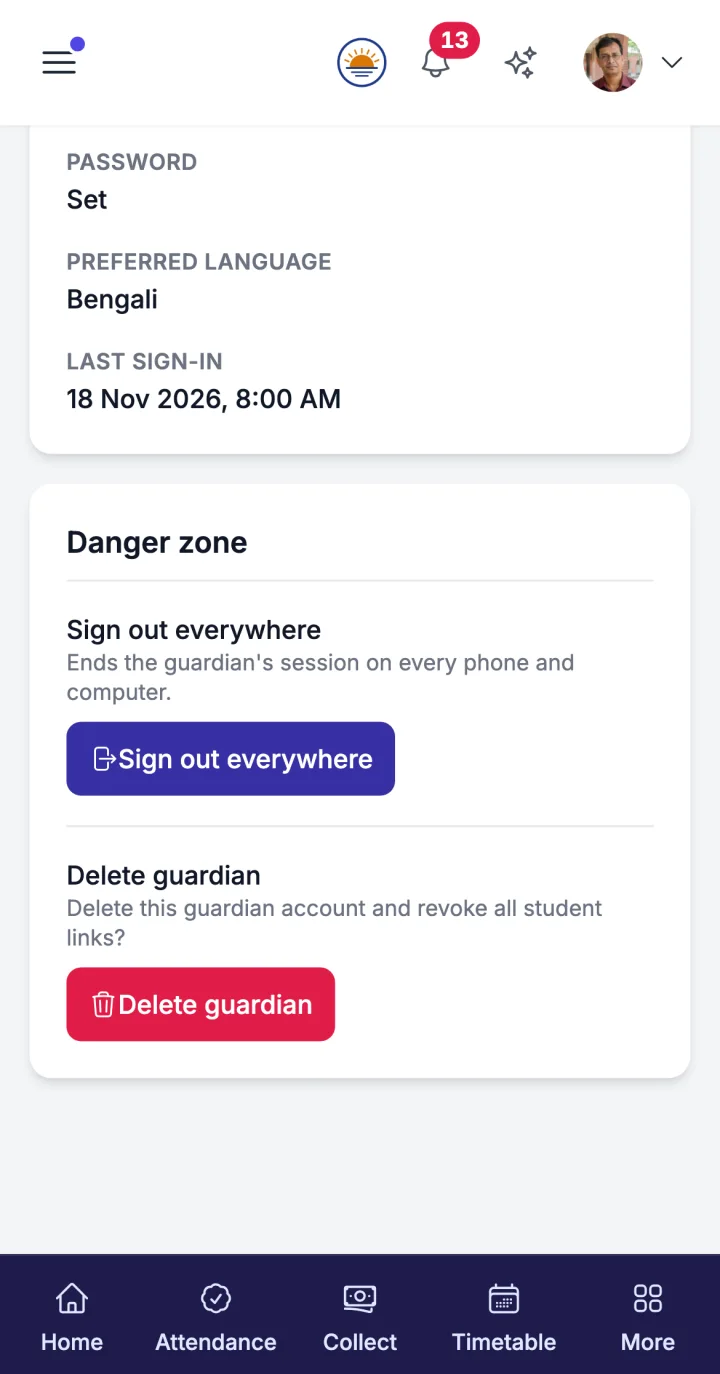
If a guardian loses their phone, or you think someone has got into their account, press Sign out everywhere at the bottom of the guardian's page. The sessions on each of their phones and computers end. Later they can sign in again with a code.
If a student forgets their password, press Reset password on the Portal account card of the student's page and give a new password.

 1
- 1Sign out everywhere

 1
- 1Sign out everywhere

 1
- 1Portal account

 1
- 1Portal account
What to do next
In the first week, sign a few guardians in on their own phones at the office and show them. The Sign-in column on the Guardians tab shows who last signed in and when, and who has not yet.
How news of absence, results and receipts reaches guardians can be set in the notifications part of the settings.


If something goes wrong
"The school has not enabled the guardian portal."
The Guardian portal switch is off in the portal settings. Turn it on as in Step 2.
A guardian says the code does not come
The page says "Didn't get a code? Ask the school to set up your account." On the Guardians tab, check that their mobile number is right and that sign-in is allowed. Check the institution's SMS balance too.
"The school has disabled sign-in for this account. Please contact the office."
The guardian's sign-in is not allowed. On their page, open Edit and turn the Allow sign-in switch on.
"No children are linked to your account yet."
The guardian has signed in, but no child is linked. On the guardian's page, press Add child to link the child.
"The email, Student ID or password is wrong."
Ask them to check the student ID and password again. If they do not remember the password, press Reset password on the student's page and give a new password.
More tutorials
See how to do the other jobs in EduSine, step by step.
Institution settings
Check and change your institution's name, logo, address, signatures, website language, weekly holiday and other settings.
ReadPlan & billing
See your plan and usage, take the Standard plan, pay invoices, and recharge SMS and AI credits.
ReadMobile app
Put your institution's app on an Android or iPhone home screen, without downloading anything separate.
ReadCan’t find what you’re looking for?