Get your institution found on Google
Most parents look an institution up on Google first. If your website, address, mobile number and map are right there, they do not need to ask anyone. This guide shows which details to keep right in EduSine and how to set up a Google Business Profile.
None of this costs money. Nobody can pay Google to rank higher in the normal search results, so treat any such promise with care. When your details are complete, Google starts showing your institution by itself, usually within a few days to a few weeks.
The EduSine steps can be done by an admin, or by anyone allowed to manage the website or theme. For the Google Business Profile you need the institution's own Google account (Gmail). Use the institution's account, not someone's personal one, so the profile stays with the institution when people change roles.
Keep these at hand to finish quickly
The institution's own Google account (Gmail) and its password
The full address and the office mobile number
The days and hours the office is open
The logo and a few good photos (building, classroom, playground)
A smartphone to record the verification video, and being at the institution yourself
What this guide covers
Which task is in which step.
What Google shows
The search result and the Maps panel
Fix your details in EduSine
Publish, description, logo, EIIN, text, pictures and notices
Google Business Profile
Create, verify, link and reviews
With your own domain
Google Search Console and the sitemap
Share your link and check
Facebook, YouTube and searching Google
Step by step
Follow along as each step appears on your screen.
How your institution looks on Google
When someone searches your institution's name on Google, they usually see two things:
- The search result: your website's name and address, and a short two-line description under it. You write that description yourself in EduSine (step 5).
- The Google Business Profile panel: a separate box on the right on a computer, and near the top on a phone. It has the map, address, mobile number, opening hours, photos and parents' reviews. Parents can press Call to phone you, or Website to open your site. This panel comes from a Google Business Profile, which you create yourself (steps 10 to 14).
The picture is an example we drew to explain this. Google's real page may look a little different, and it changes over time.

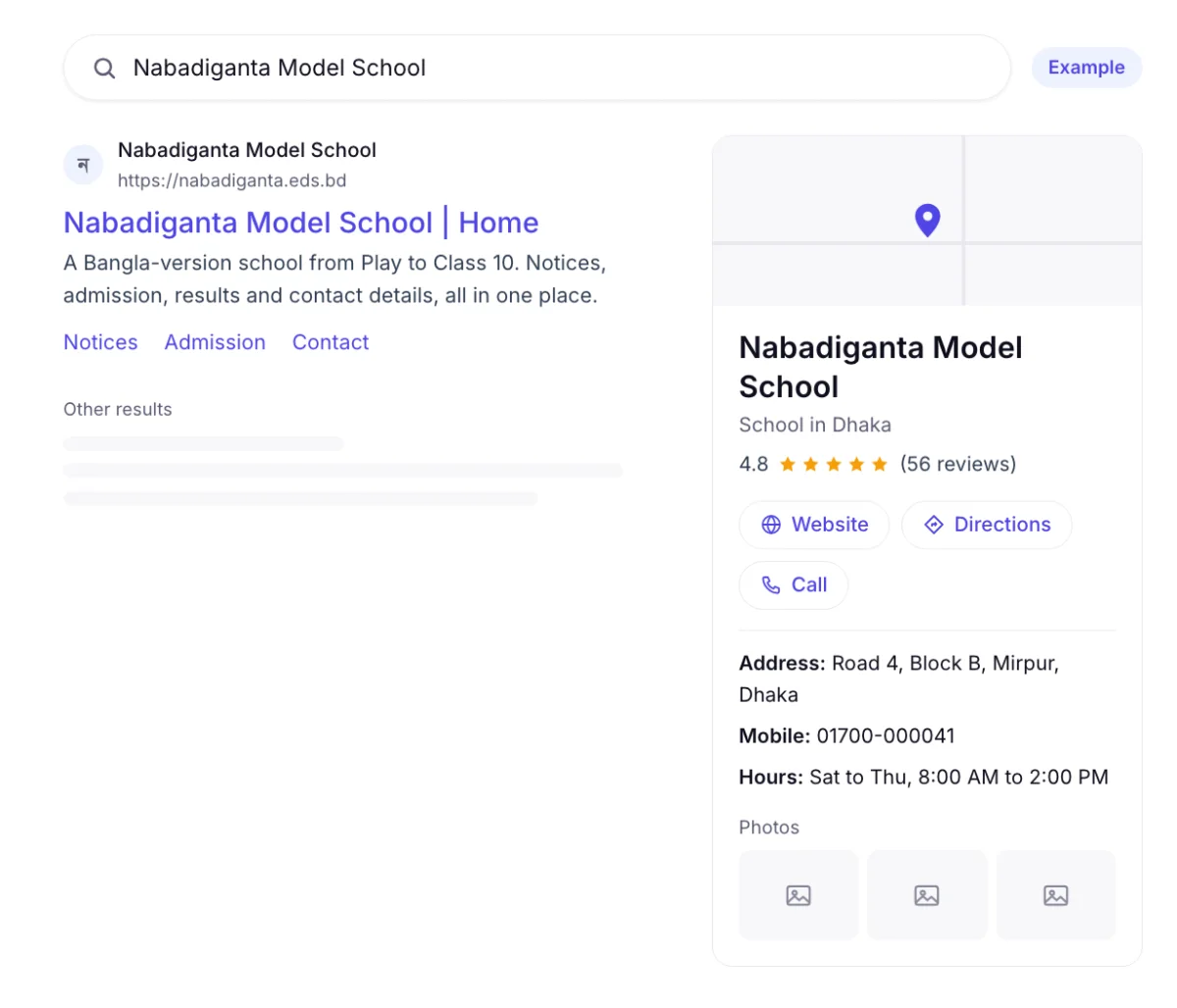 123
- 1Your website
- 2Your website's short description
- 3Google Business Profile panel

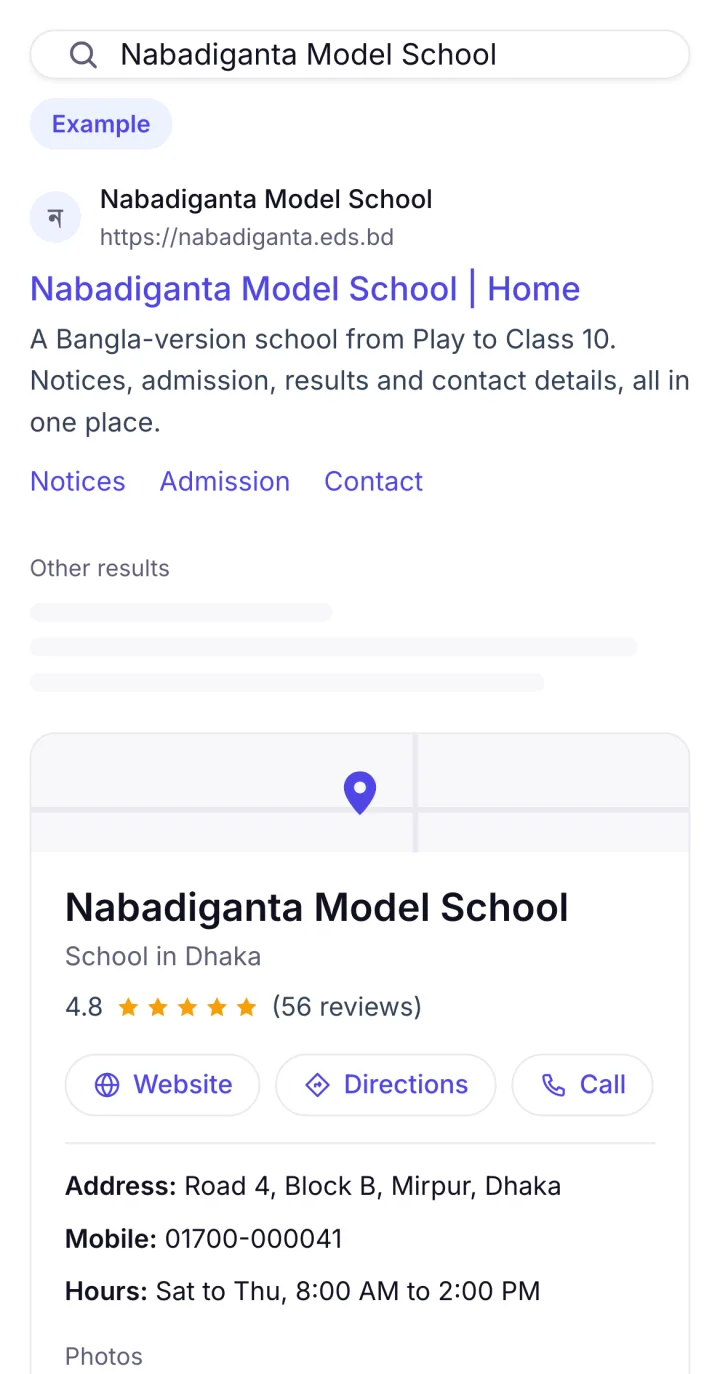 123
- 1Your website
- 2Your website's short description
- 3Google Business Profile panel
See what is left on the dashboard
Lower down on the dashboard there is a card called Search health. It lists, one under the other, what is still left so Google can show you well. When a task is done, its row disappears by itself.
On a phone the card sits inside the Office part, so press Show next to Office to open it. Press any row to open the screen that fixes it. The next steps follow the rows of this card. When everything is done the card leaves the dashboard, but the top of Website & Content → Theme Editor still shows a green "All done".
Press Read the step-by-step guide at the top of the card to open this guide in a new tab.

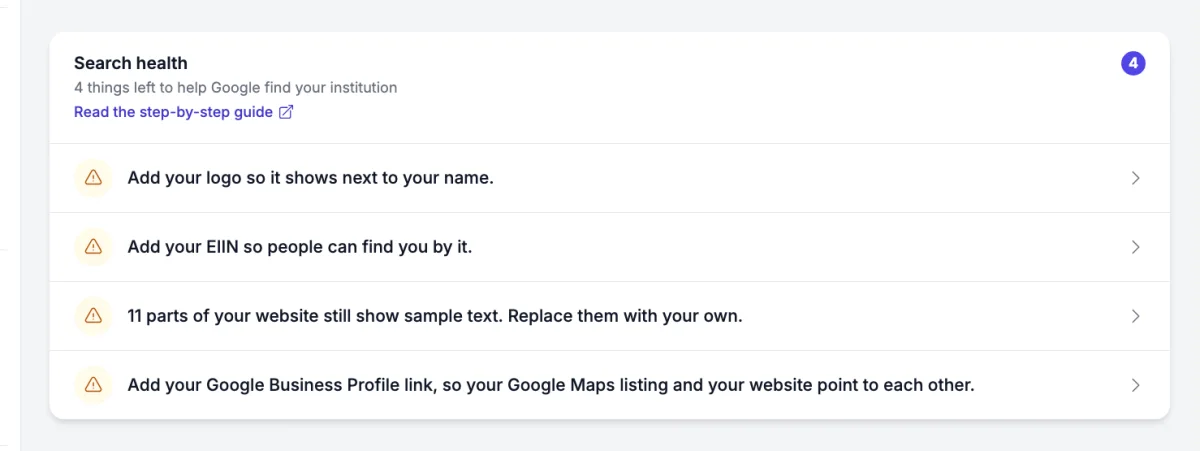 123
- 1Search health
- 2Read the step-by-step guide
- 3A task still left

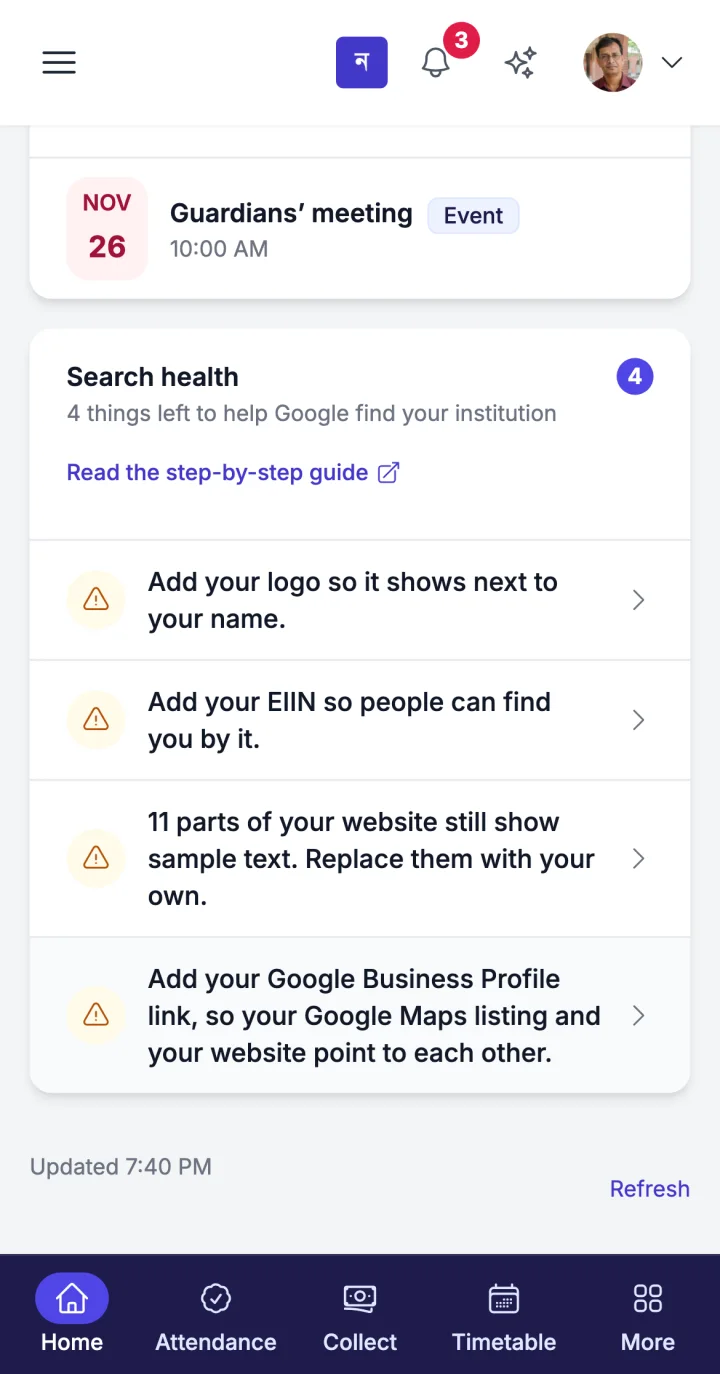 123
- 1Search health
- 2Read the step-by-step guide
- 3A task still left
Publish your website
A new account's website starts with sample text and stays hidden from Google until you publish it. If the card says "Your website is still hidden from Google", it has not been published yet.
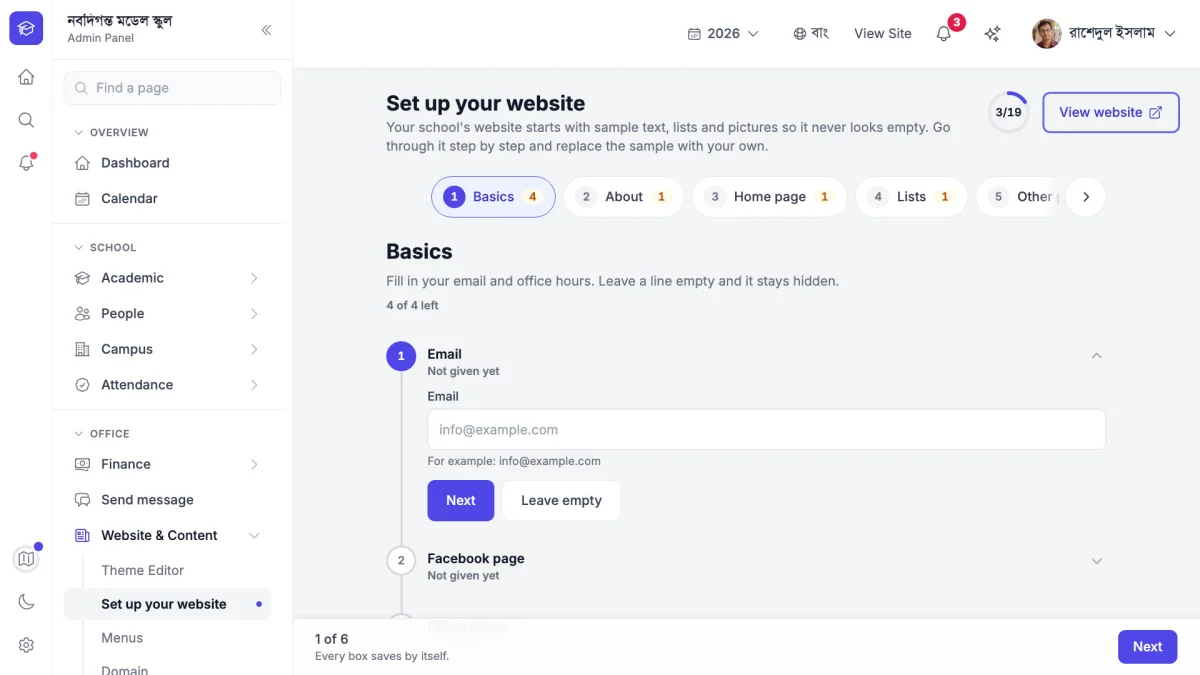
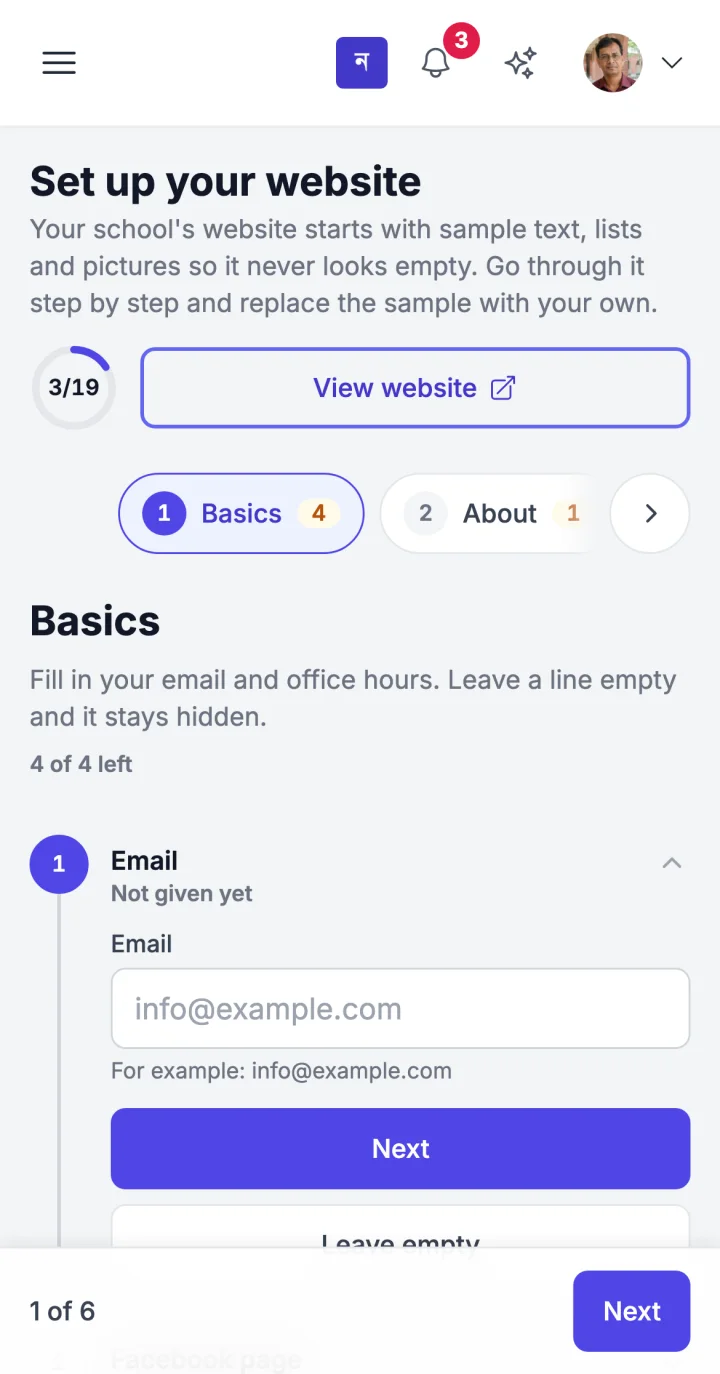
Go to Website & Content → Set up your website. In each part, put your own details in place of the sample text and press Next to move on. On the last step press Publish website. From then on Google can read and show your website.
Add your address and mobile number
In Website & Content → Content → Website details, press the address and mobile number rows, type the full address and the office number in English and Bangla, and press Save. EduSine puts these details into your website in a form Google understands as your institution's address and number.
Use exactly the same address and number in your Google Business Profile (step 11). When both places match, Google trusts your details more.
Tip: For the whole task step by step, see the Website details tutorial.
Write a short description in Bangla and English
The two lines Google shows under your name come from here. Go to Website & Content → Theme Editor and press Edit website. If the card has a description row, pressing it also opens the editor straight on the home page. In the editor, press the page name at the top (Home Page ▾), then the Page settings button (the gear) next to the home page.
Under SEO & Social Sharing, write one or two sentences in SEO description: what your institution is, where it is, and up to which class you teach. For example: "A Bangla-version school in Mirpur, Dhaka, teaching from Play to Class 10." EduSine starts you with a general description; change it to fit your institution.
Switch the language button at the top right of the window and write the other language too: both are needed. Changes save as you type, so press Close, then Publish at the top to put the change on your website.

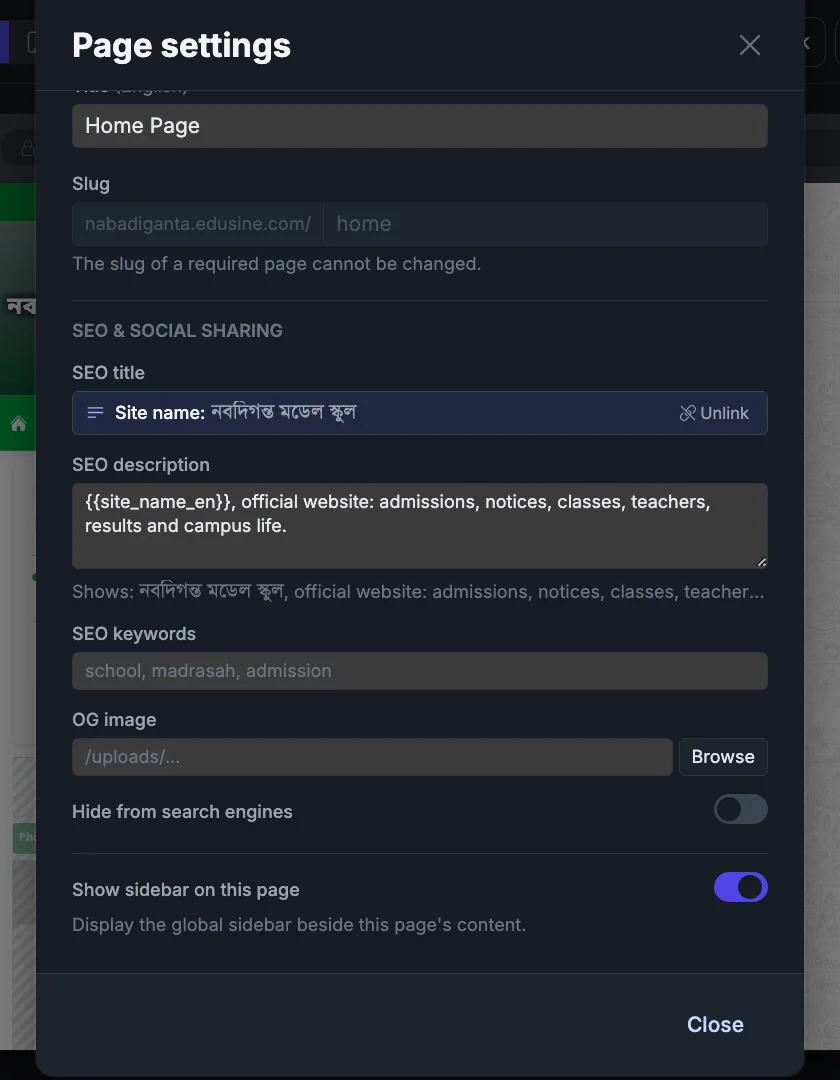 1
- 1SEO description
1There is no phone screenshot for this step. Showing the computer screen.
- 1SEO description
Tip: Editing the website needs a computer (a screen at least 1024 px wide), so this step cannot be done from a phone.
Add your logo and EIIN
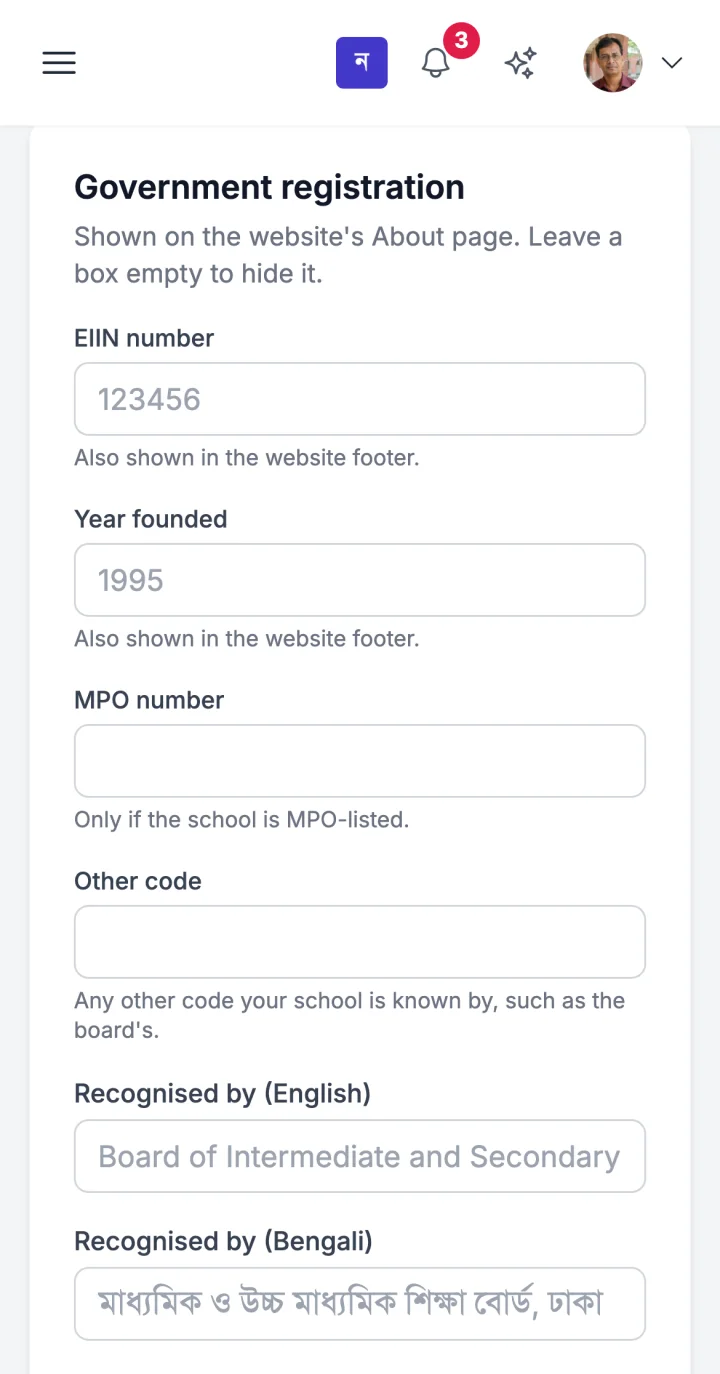
Go to Administration → Settings and stay on the School tab. Under Your school, drag your logo into the Logo box, or press browse to pick it from your computer or phone (JPG, PNG or WebP). Google often shows this logo next to your name.
A little lower, under Government registration, type your six-digit EIIN in EIIN number, then press Save in the bar at the bottom. Many parents and teachers search by EIIN.
Qawmi and Hifz madrasahs and coaching centres usually have no EIIN, so their card has no EIIN row. That is fine.

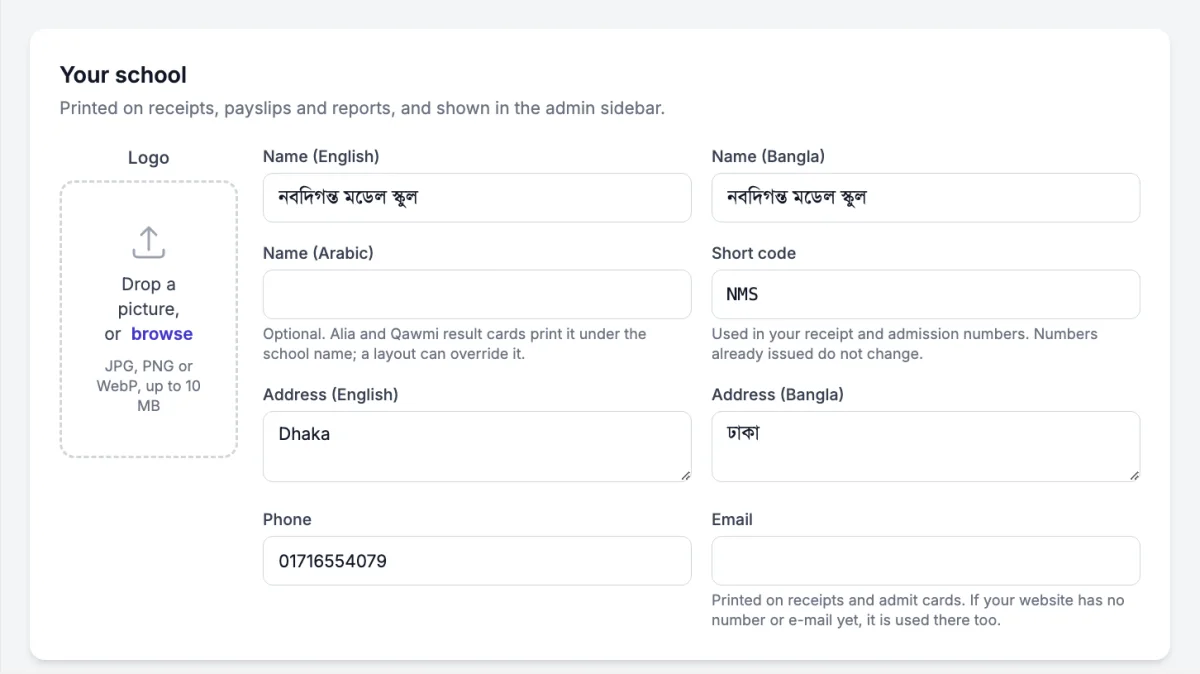 1
- 1Logo

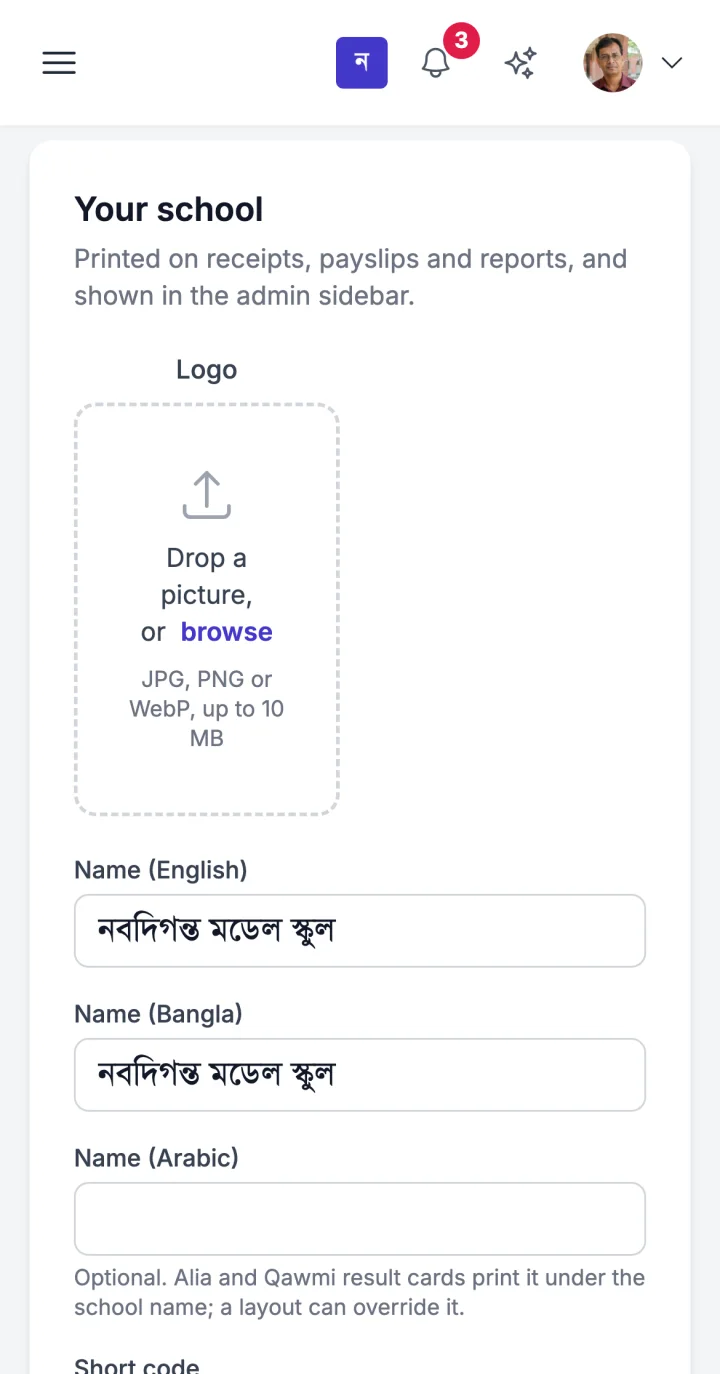 1
- 1Logo

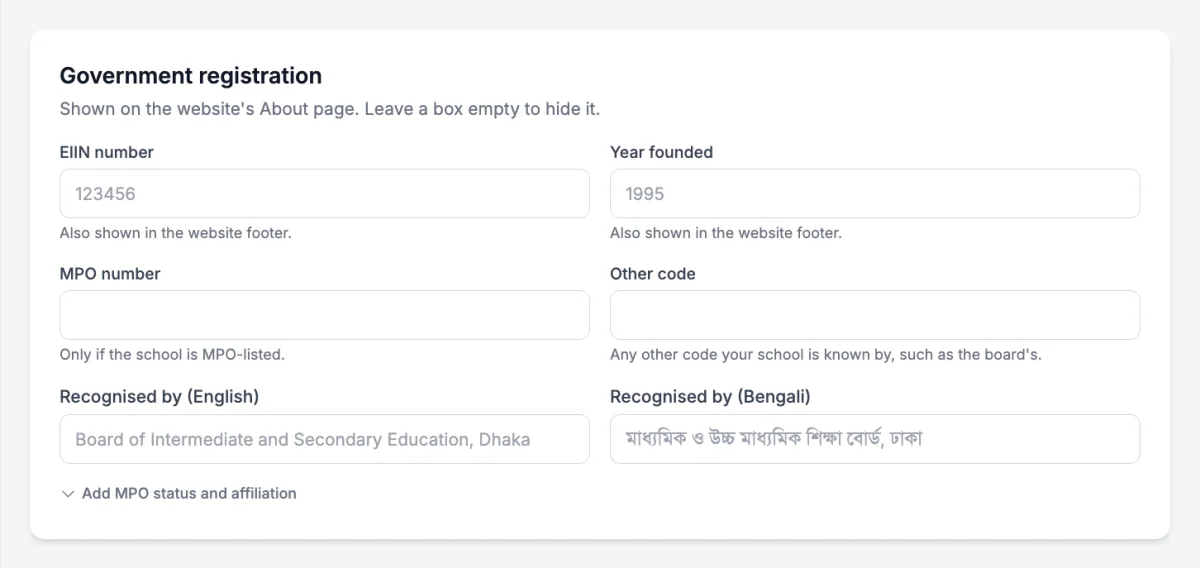 1
- 1EIIN number

 1
- 1EIIN number
Replace sample text and write real text on your pages
If the card says "… still show sample text", press that row. Set up your website opens. In each part with a number beside it, replace the sample text with your institution's real details. Google may take the sample text for your own, so this matters.
If the card says "… have very little text", the page names are listed under it. Pressing the row opens the first page in the theme editor. Write a few more sentences on each in your own words, for example the founding year, the classes you teach and what is special about your institution on the About page. With too little text, Google cannot tell what a page is about.


Describe your pictures
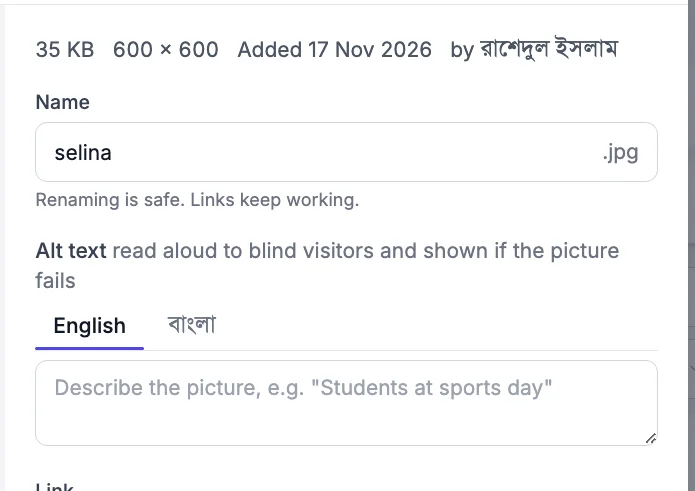
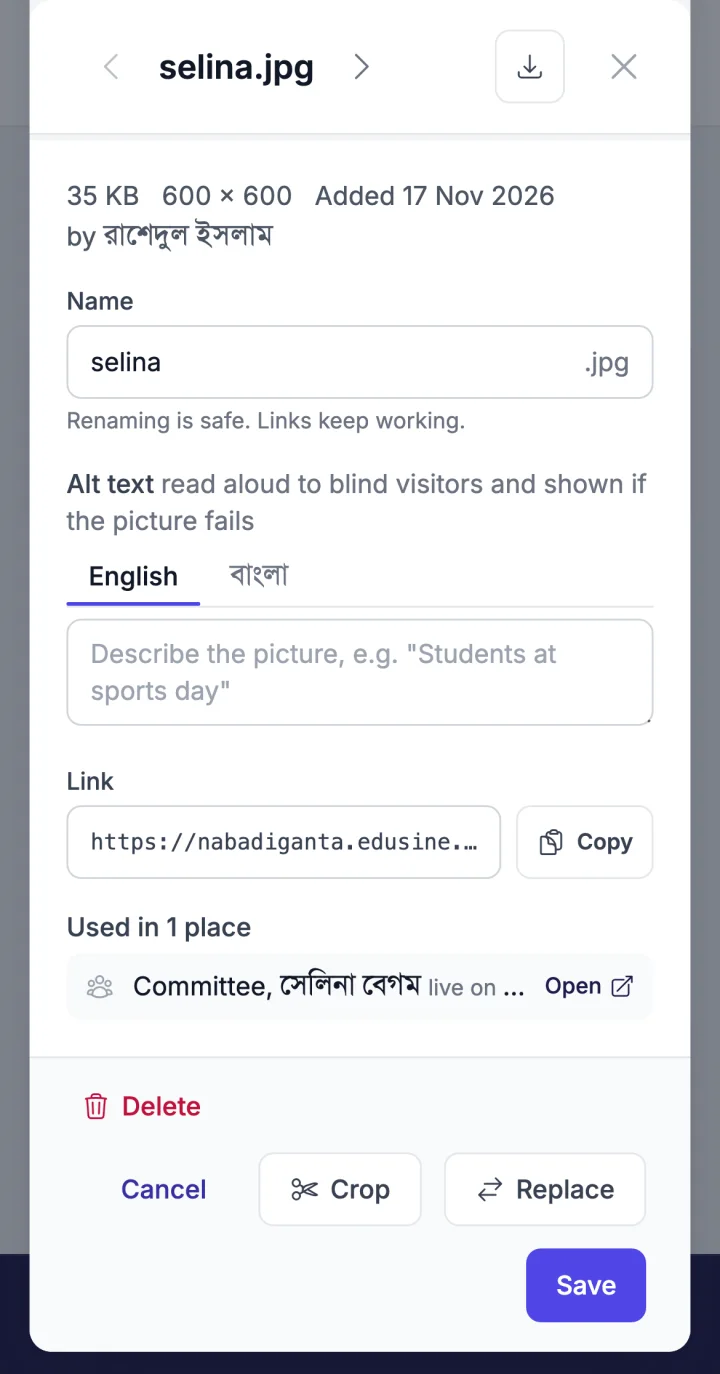
Google cannot see what is in a picture; it reads the description that goes with it. Go to Website & Content → Media → Files and press any website picture to open its details.
Under Alt text, write a few words in the English and বাংলা tabs about what the picture shows, for example "Students racing at the annual sports day". Then press Save. The same text is read aloud to visitors who cannot see.

 1
- 1Alt text

 1
- 1Alt text
Type your notices, not only a photo or PDF
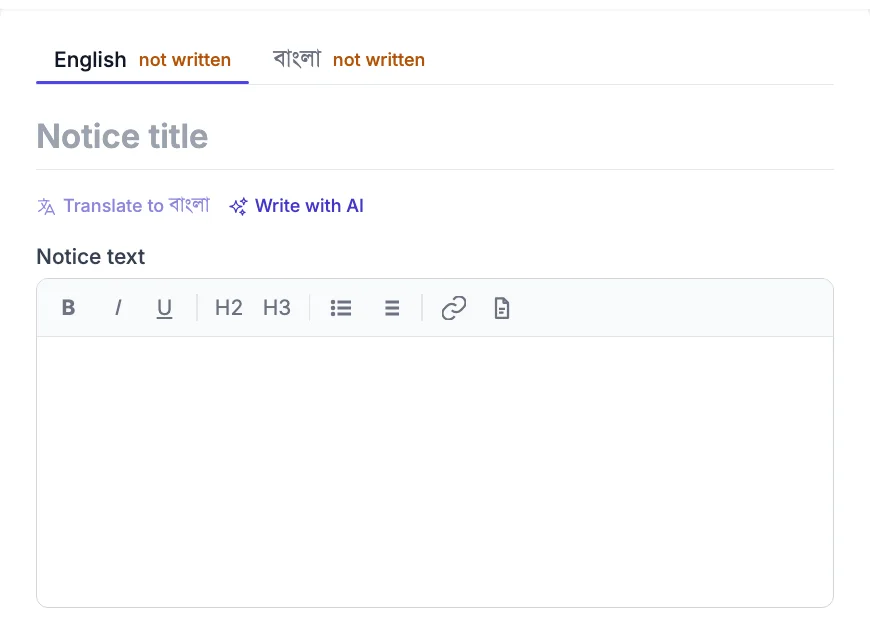
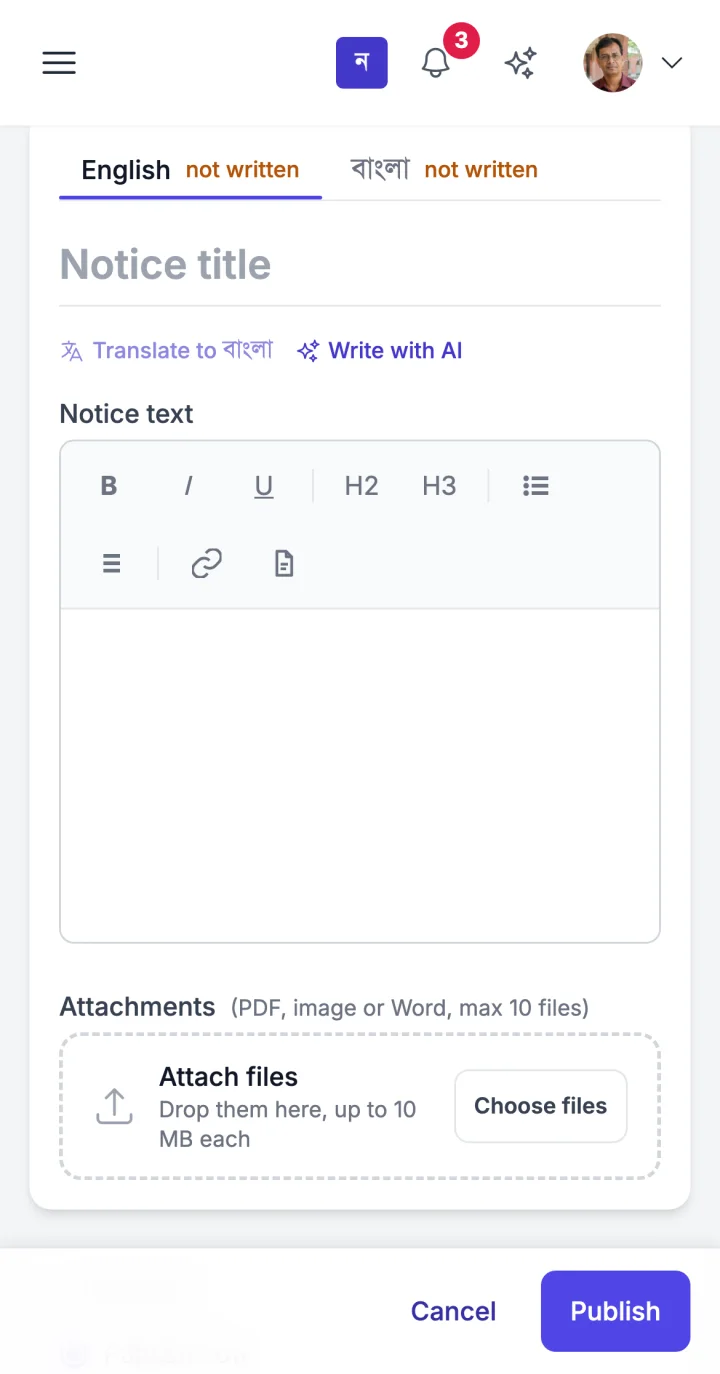
Many institutions post a notice as a photo or PDF of the paper copy. Google cannot read the words inside a picture or a scanned PDF, so nobody finds that notice by searching.
When you post a notice, type its main points in Notice text: when the exam starts, how much the fee is, where to pay. Attach the picture or PDF as well if you like. Open older notices that only have a file, add the text and save them again. The card counts such notices from the last 90 days.

 1
- 1Notice text

 1
- 1Notice text
Tip: Short of time? Press Write with AI and give a few points. EduSine writes a draft for you to check.
Create or claim your Google Business Profile
On a computer or phone, go to business.google.com, sign in with the institution's Google account, and press the button to add a new profile. Google changes its pages from time to time, so the button names may differ a little.
Start by typing the institution's name. A list may appear under it. If your institution is in that list, Google already has a profile for it (someone may have added it to Maps). Choose it and claim it instead of creating a new one. With two profiles for one institution, Google shows both less.
Tip: After creating the profile, add another responsible person as a manager in the Business Profile settings, so the profile is not lost when someone leaves.
Add the name, category, address and other details
Google asks for these one at a time:
- Name: exactly the name on your signboard. Do not add words like "best school", "admission open" or your area's name. Google can suspend a profile for that.
- Category: start typing and pick from Google's own list, for example School, Primary school, High school, Higher secondary school, College, Kindergarten, Preschool or Coaching center. For a madrasah, try typing Madrasa; if it is not offered, choose Religious school or School. You can add more categories later.
- Address and map pin: type the full address, then drag the pin onto your institution's gate.
- Mobile number and website: the office number, and your EduSine website address in the website box, for example https://nabadiganta.eds.bd, or your own domain if you have one.
- Hours: the days and hours the office is open, with the weekly holiday closed. Add special hours for Eid and other long holidays so parents do not come on a closed day.
- Photos: the logo, the outside of the building, a classroom and the playground. Ask parents' permission before adding photos where students' faces are clear.
Verify the profile
Until it is verified, the profile does not fully show on Google. Google itself picks how you verify: a code by phone or text, email, a video recording, a live video call, or a postcard code by post.
Most often Google asks for a video. At the institution, record at least 30 seconds in one go, without stopping, from the verification page of the Business Profile on your phone. Show:
- Where you are: start outside. Show the street name and nearby shops or landmarks, so it is clear the institution is at the address on the map.
- The signboard: a permanent sign or wall lettering with the institution's name. It must match the profile name.
- That you run it: something only staff can do, such as unlocking the office, entering the staff room or opening a classroom.
Keep other people's faces, bank account numbers and any private details out of the video. Google usually replies within 5 working days. A postcard code can take up to 14 days to arrive. Do not change the name, address or category while you wait.
Add the profile link in EduSine
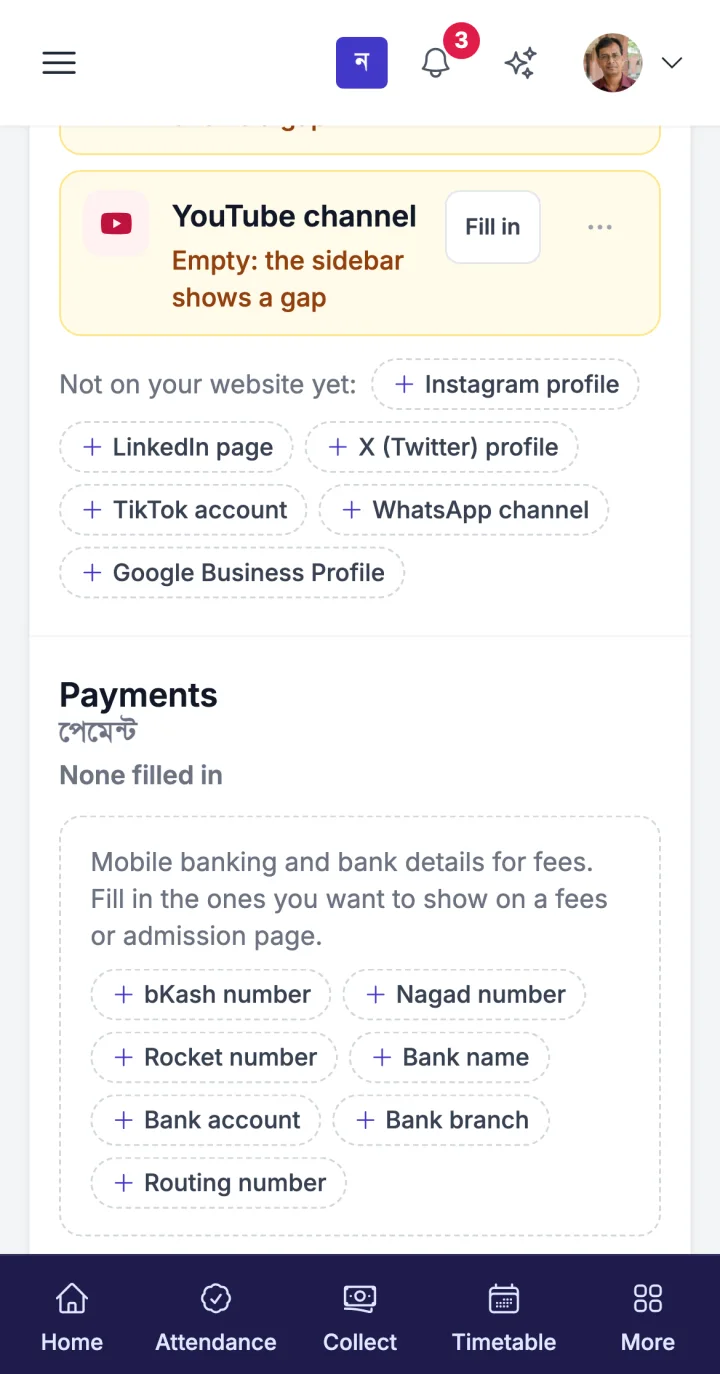
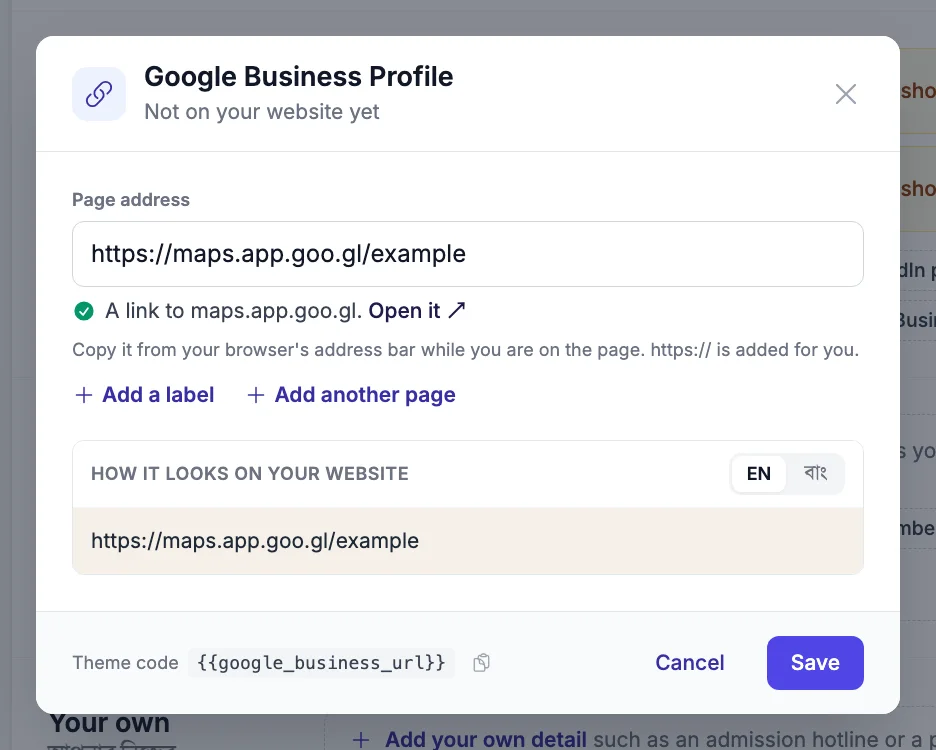
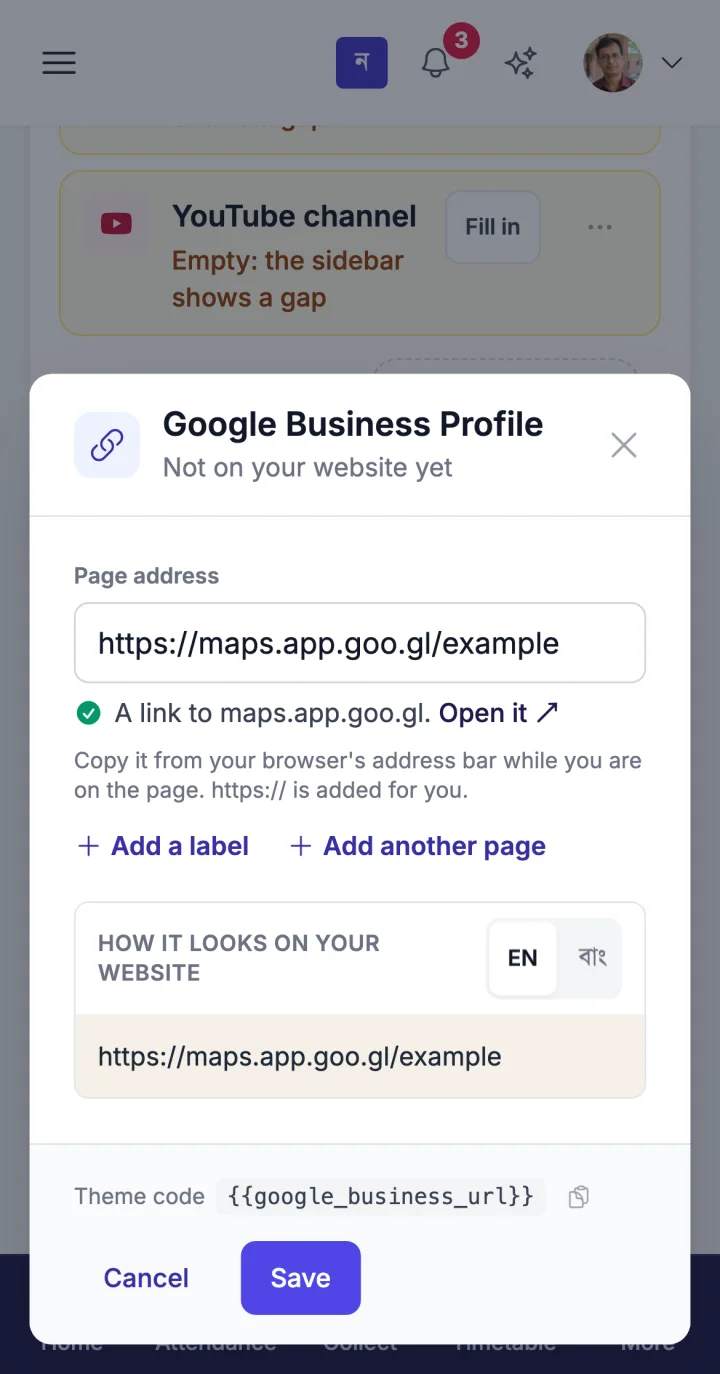
Open your institution on Google Maps, press Share and copy the link. It usually starts with https://maps.app.goo.gl/…
In EduSine, go to Website & Content → Content → Website details. In the Social group, next to "Not on your website yet:", press Google Business profile. Paste the link in Page address and press Save.
This links your website and your Google Maps profile to each other, so Google knows they are the same institution. The row also leaves the dashboard card.

 1
- 1Google Business profile

 1
- 1Google Business profile

 1
- 1Page address

 1
- 1Page address
Ask parents for reviews, and reply
New parents get a feel for an institution from its reviews and rating. Copy the review link from your Business Profile and send it in a guardian meeting notice or an SMS.
Ask everyone for an honest opinion. Never give money or favours for reviews, and never write fake reviews yourself or have anyone write them. Google removes them and may suspend the profile.
Reply politely to every review, the bad ones too. If someone raises a problem, thank them and ask them to contact the office. Everyone can see your replies.
With your own domain, add it to Search Console
This step is only for institutions that connected their own domain in EduSine, such as nabadigantaschool.com. You do not need it on EduSine's free address (such as nabadiganta.eds.bd): EduSine itself gives search engines the list of those websites, and tells them when a new notice or page is published.
Google Search Console is Google's free tool that shows which words people search to find you and whether Google has trouble reading any page. To add your domain:
- Open search.google.com/search-console and sign in with the institution's Google account.
- Press Add property, choose URL prefix and type your full address, for example https://nabadigantaschool.com.
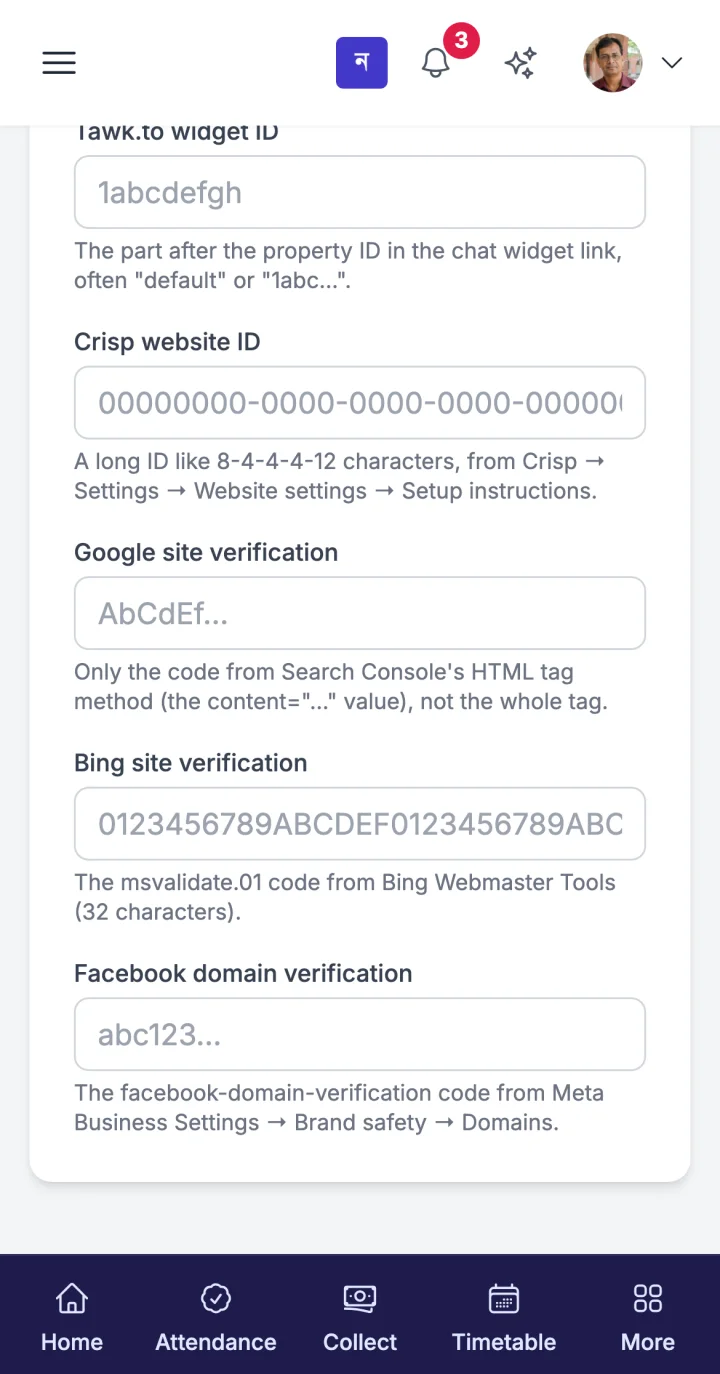
- Under Other verification methods choose HTML tag. Copy only the code inside content="…".
- In EduSine, open Integrations: press the Search Console row on the dashboard card, or press Open Integrations in the Search Console part of Website & Content → Domain. Press Show the IDs, paste the code in Google site verification and press Save.
- After a minute, go back to Search Console and press Verify.

 1
- 1Google site verification

 1
- 1Google site verification
Tip: A Domain property in Search Console needs a TXT record at your domain provider instead of the code. To keep it simple, choose URL prefix.
Submit your sitemap
A sitemap is a list of every page on your website. EduSine makes it for you and keeps it up to date when you add a notice, page or blog post. You only need to tell Google once.
In Search Console's left menu press Sitemaps. In Add a new sitemap type sitemap.xml (the full address is like https://nabadigantaschool.com/sitemap.xml) and press Submit. When the status shows Success after a while, Google has the list.
Link your website from other places
Wherever your institution's name appears, add the website address too. Parents find the website, and Google sees these all belong to the same institution:
- Facebook Page: put the website address in the Website box of the Page's About section. You can also add the link to a pinned post.
- YouTube channel: add the website link in the channel description and its Links section.
- Google Business Profile: check once more that the website box is right.
- Paper: print the website address on letterheads, admission forms, banners and visiting cards.
Link the other way too: put your Facebook Page and YouTube channel links in the Social group of Website details.
Search for yourself on Google
After a few days, search your institution's full name on Google, in both Bangla and English. Search it on Google Maps too.
To see which pages of your website Google knows, type site: followed by your address with no space, for example site:nabadiganta.eds.bd. Each result is a page Google knows.
Nothing yet? Do not worry. A new website takes a few days to a few weeks to appear on Google. Meanwhile, finish the rest of the card's tasks and keep posting notices as text.
What to do next
When everything is done, the Search health card leaves the dashboard. After that, search your institution on Google once a month, reply to new reviews in your Business Profile, and update the profile when your holidays or office hours change.
When the address or mobile number changes, change it in both places: EduSine's Website details and your Google Business Profile.
If something goes wrong
It has been a while and Google still does not show my website
Check whether the dashboard card says "Your website is still hidden from Google". If so, publish your website first. If it is published, search site:your-address. If nothing shows, give it a few more days. With your own domain, submit the sitemap in Search Console.
Google shows the wrong address, number or hours for my institution
If the profile is yours, sign in to your Business Profile and edit it. If not, open the institution on Google Maps, press Suggest an edit and send the right details, or claim the profile. Check that EduSine's Website details are right too.
Someone else has already claimed our institution's profile
When you try to claim it, Google says someone else manages it and offers to request access. Send the request. If the current owner does not reply within a few days, Google usually lets you verify it yourself. If someone at your institution created it earlier, ask them to add you as a manager.
My verification video was rejected
Google gives the reason. Usually the street or surroundings were not clear, the signboard did not match the profile name, or the video stopped in the middle. Record again in daylight, starting outside and showing the signboard and the office in one go. If needed, make the profile name match the signboard.
Google shows two profiles for our institution
Keep the one you manage. For the other, open it on Google Maps and use Suggest an edit to report it as a duplicate. If you manage both, contact Business Profile support to remove one.
Our institution changed its name
Change the name in EduSine first (Administration → Settings) and put up the new signboard. Then change the name in your Business Profile. Google may ask you to verify again after a name change, so change it only once the new signboard is up.
More tutorials
See how to do the other jobs in EduSine, step by step.
Contact messages and forms
Reply to messages from the website, build your own forms, place them on a page and read the answers.
ReadOnline admission
Take admission applications on your website, collect the fee, and run the admission test, merit list and result.
ReadSMS and email
Send SMS or email to the people you choose, check the cost before sending, and see who it reached.
ReadCan’t find what you’re looking for?