Plan, invoices and SMS credit
Every institution starts on the Free plan. The Free plan has no limit on the number of students, and you can do the main daily work, including fee collection, ID cards, admit cards and promotion. If you need features such as the portals, homework, accounts and payroll, you can take the Standard plan from the Plan & billing page.
On every plan, SMS and emails beyond the free number cost extra and are taken from the message balance. Recharge only as much as you need; the balance never expires.
Seeing the page needs permission to view billing. Only people with permission to manage billing (usually the admin) can change the plan, pay invoices and recharge.
Keep these at hand to finish the payment quickly
What you need to pay on the payment page, at hand
Whose name the invoice goes to (name, email, phone number, address)
What this tutorial covers
See which job is in which step.
Your plan
What the Free plan has, how much is used, and what shows when you reach a limit
Changing the plan
Choose the Standard plan and pay
Invoices
See invoices, pay unpaid ones and download PDFs
Message balance
Recharge for SMS and email, and the record of spending
AI credits and contact
Buy credits for EduPilot, and choose who gets the invoices
Step by step
Follow along as each step appears on your screen.
Open the Plan & billing page
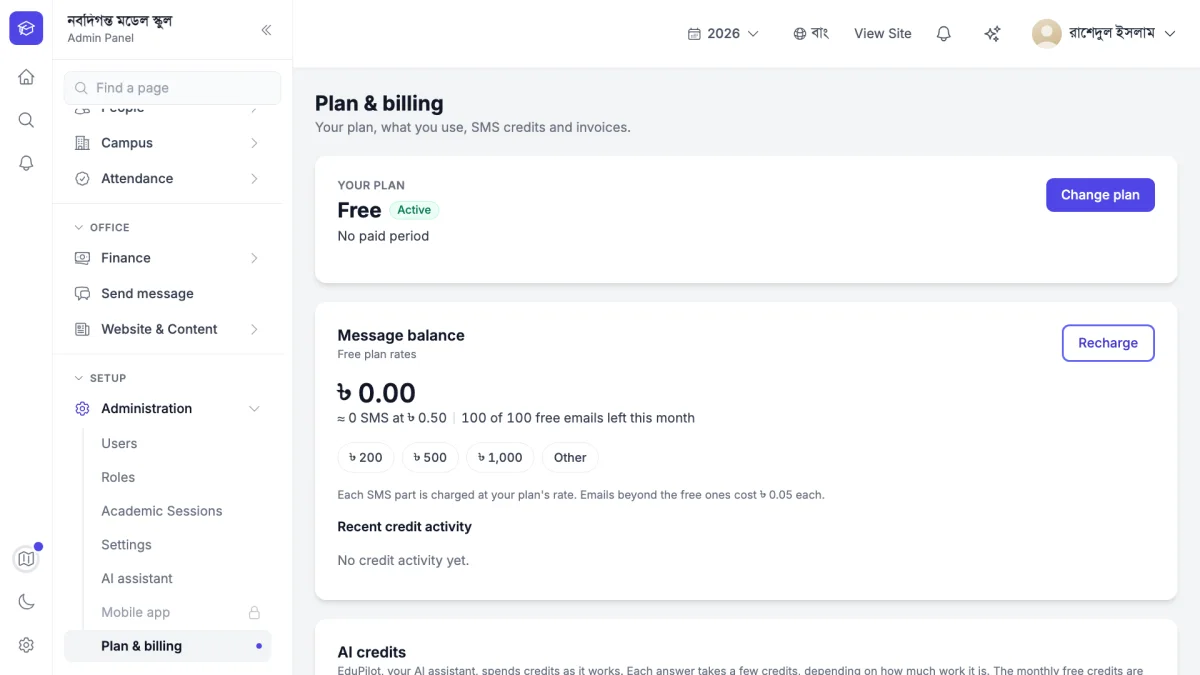
In the menu on the left, press Administration → Plan & billing. The top says "Your plan, what you use, SMS credits and invoices."
The page is arranged in parts from top to bottom: Your plan, Message balance, AI credits, What you use, Support, Your own SMS sender name, Invoices and Billing contact.

 1
- 1Administration → Plan & billing

Check your plan
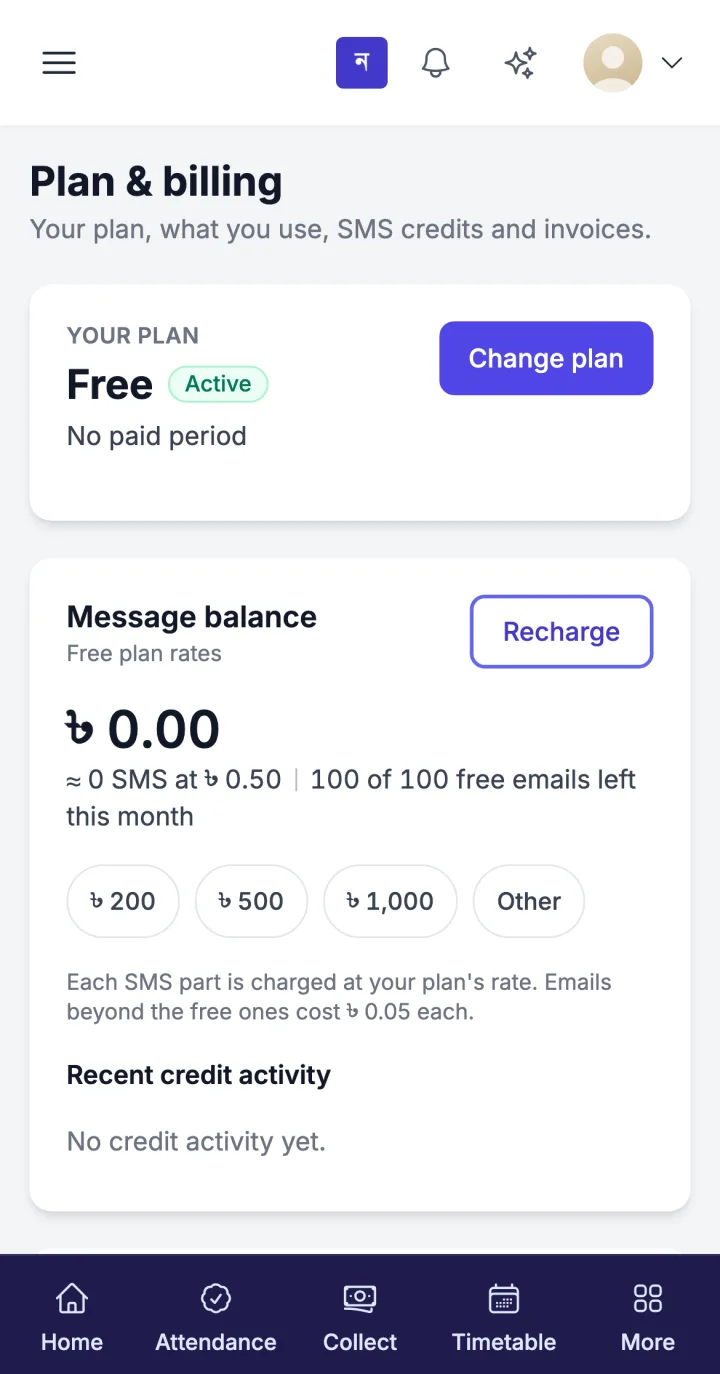
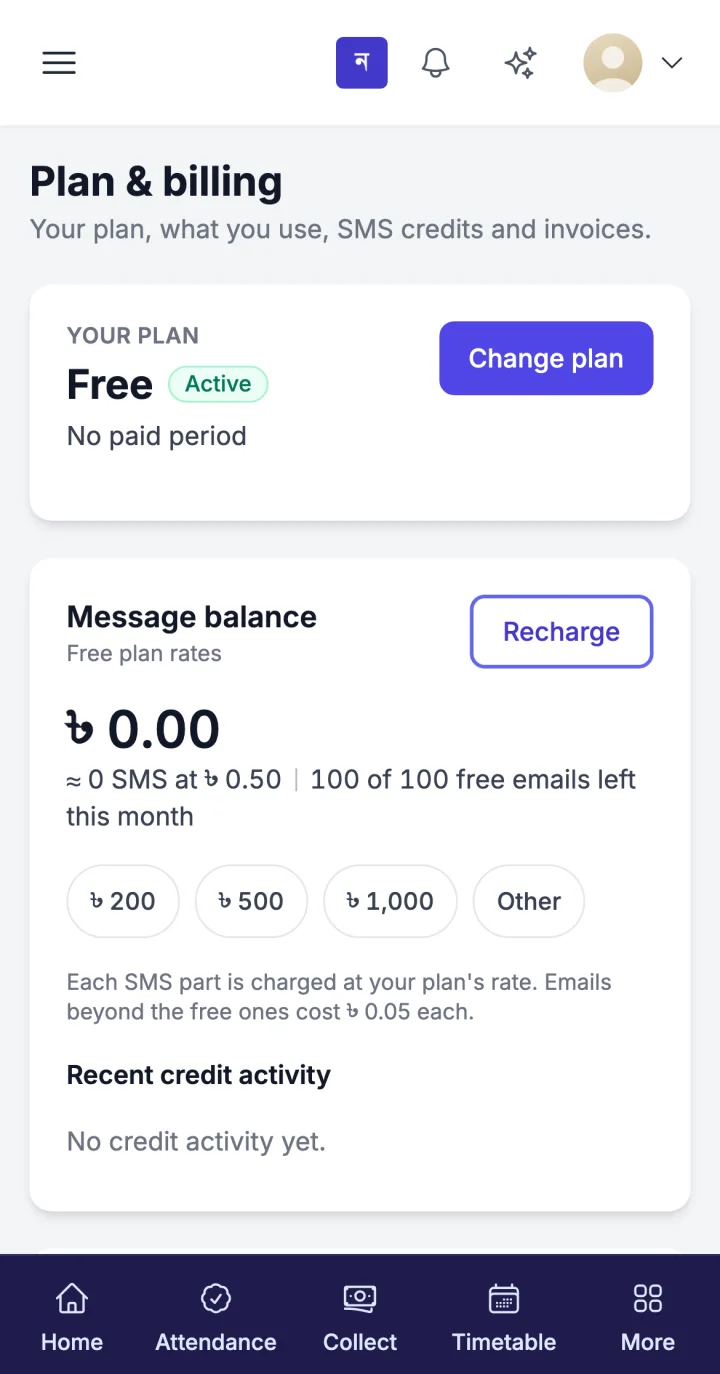
The Your plan part at the very top has the plan's name and status, for example Free, Active, and below it "No paid period". On a paid plan, it says until which date it is paid.
What you get on the Free plan:
- Any number of students, and sign-in for up to 5 employees
- One curriculum, one section in each class, and one exam a year in each class
- Fee collection, sending SMS, ID cards, admit cards, promoting students, importing students from Excel, and employee attendance
- Recording up to ৳ 50,000 of income and up to ৳ 50,000 of spending in the accounts each month
- 100 MB of file storage, and 100 free emails a month
- EduPilot: 50 credits once at the start, and 10 credits free each month
On the Standard plan (৳ 1,000 a month or ৳ 10,000 a year) you also get the student and guardian portals, homework and class tests, whole-year results, accounts, payroll, your own domain, the hostel, fingerprint machines (2) and sign-in for 50 employees. There is no limit on curriculums, sections, exams or amounts of money.

 12
- 1Your plan
- 2Plan name and status
 12
- 1Your plan
- 2Plan name and status
See how much is used
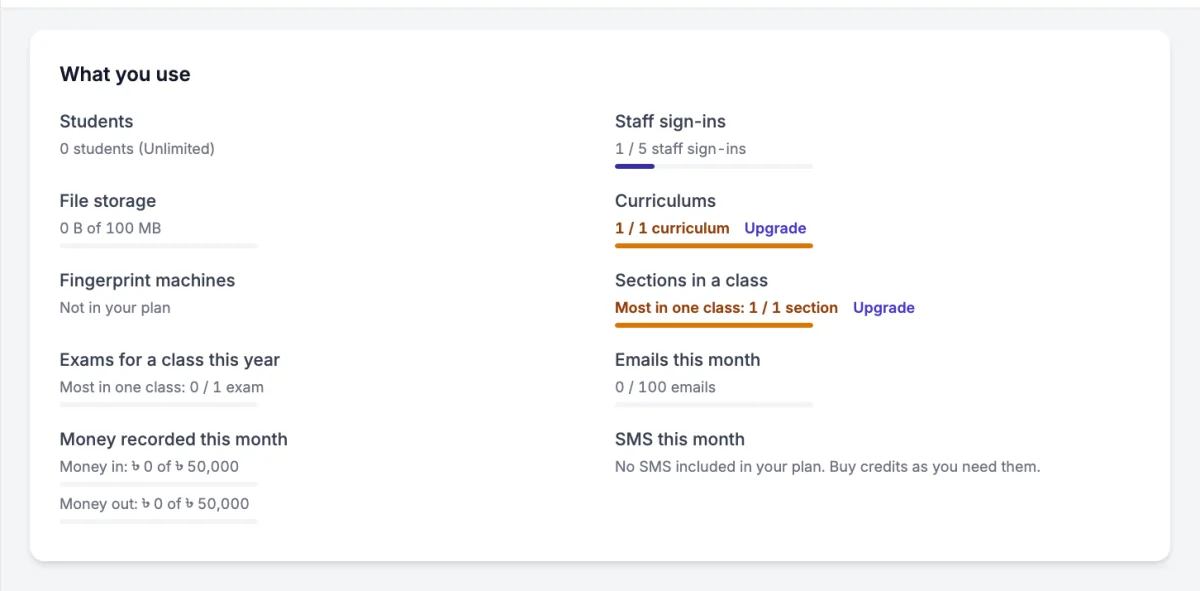
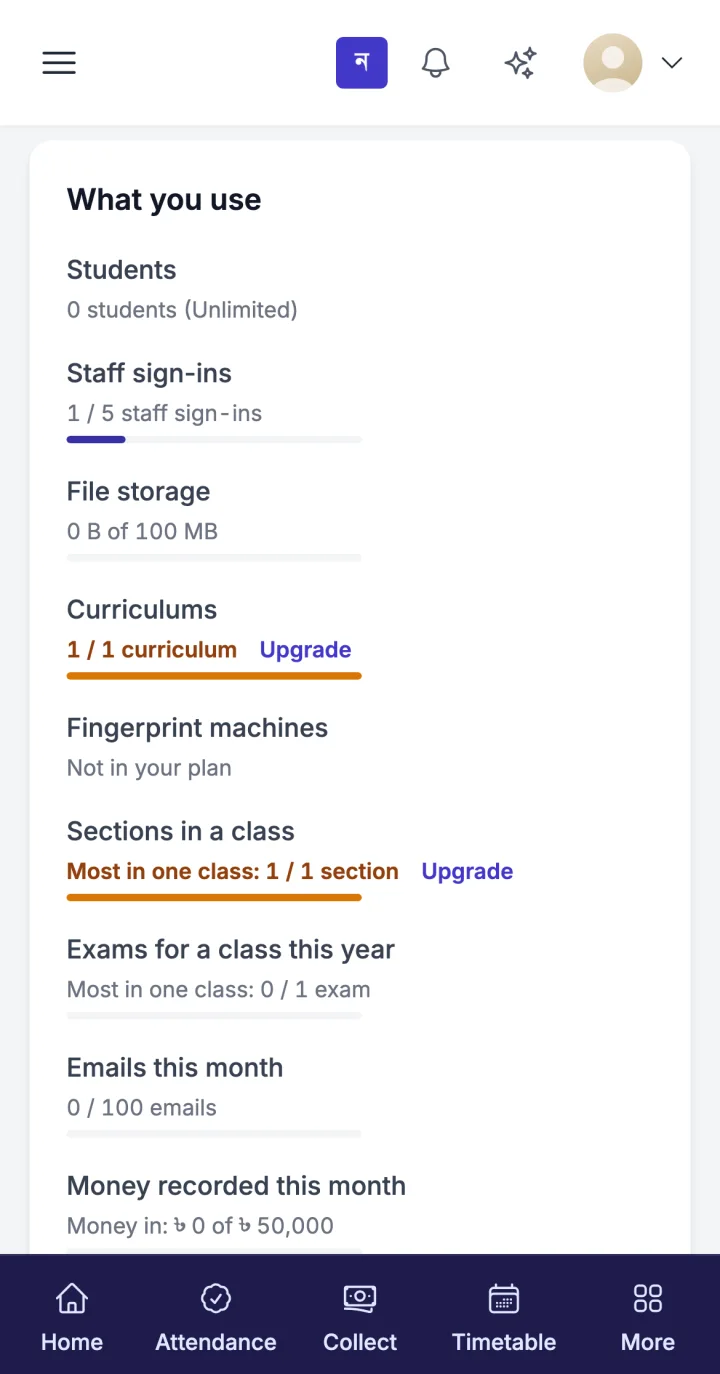
In the What you use part below, each limit shows how much is used now: students, staff sign-ins, file storage, curriculums, fingerprint machines, sections in a class, exams for a class this year, emails this month, SMS this month, and money recorded this month.
When you get close to a limit, the bar turns yellow. That is when you know whether it is time for a bigger plan.

 12
- 1What you use
- 2Usage bar

 12
- 1What you use
- 2Usage bar
Know what shows for a feature not in your plan
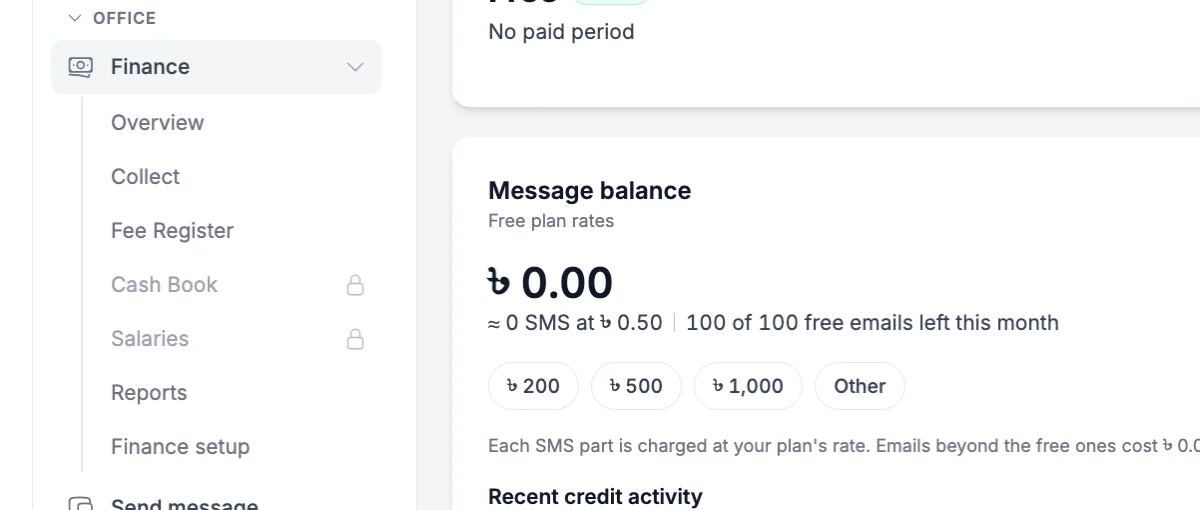
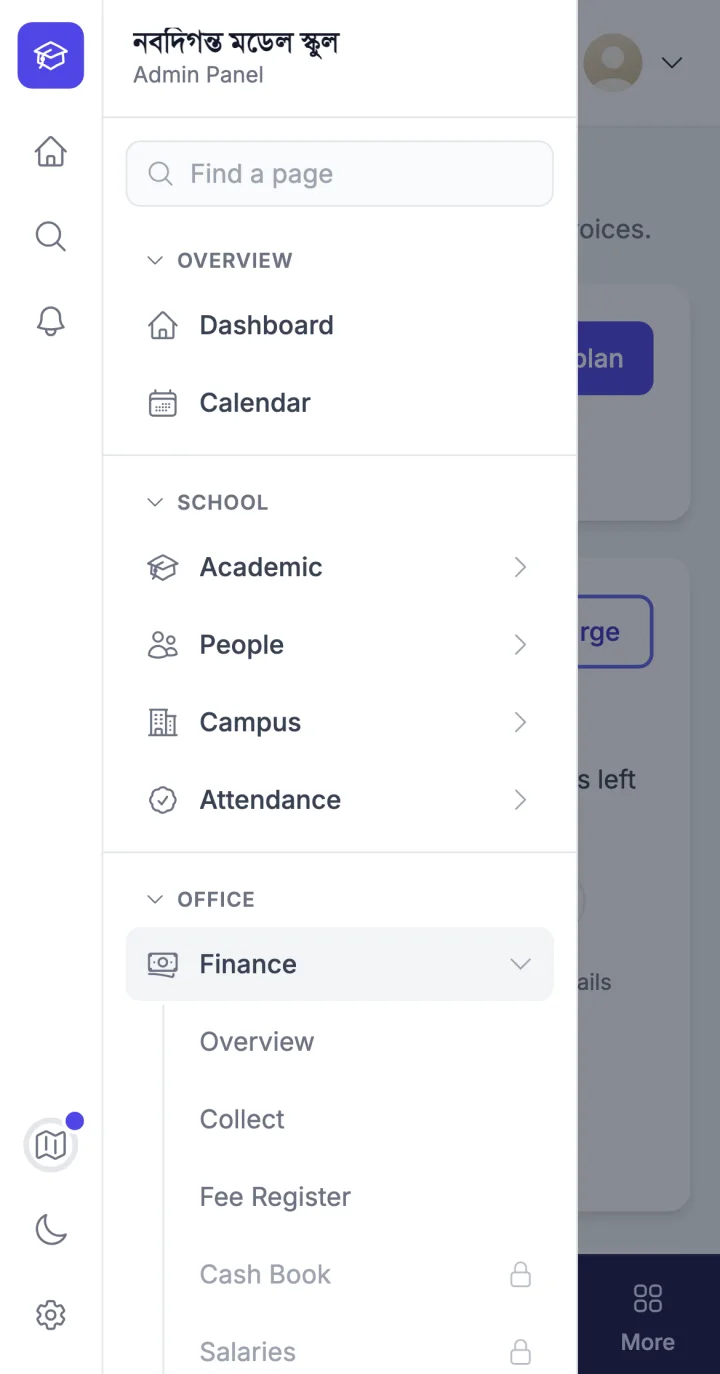
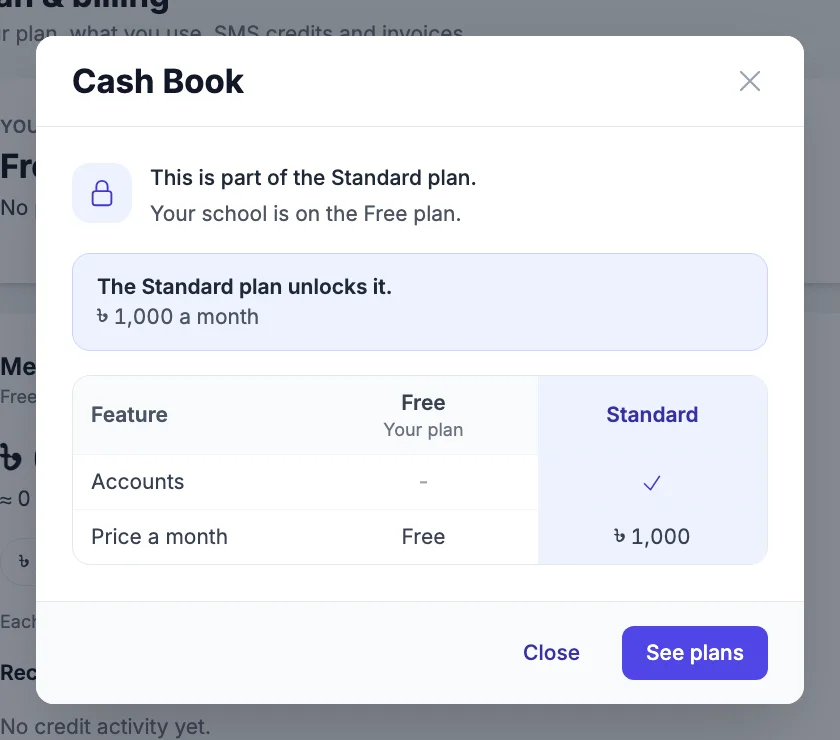
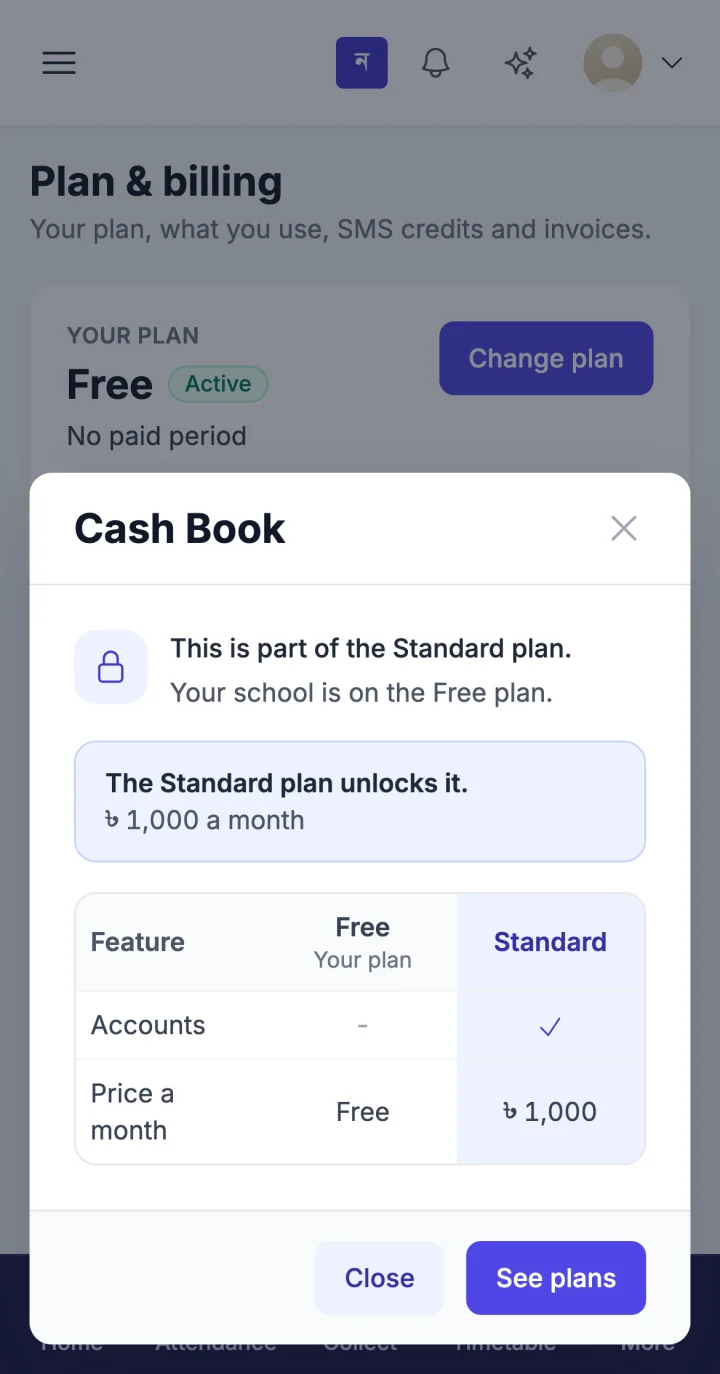
A page or feature that is not in the Free plan has a lock (🔒) next to it. Press it and a small window opens, saying the feature is not in your plan and which plan has it. Press See plans to come to this page.
When a limit is full, "You've reached your plan's limit." appears. A limit only stops you adding something new. No earlier data is deleted.

 1
- 1Lock sign

 1
- 1Lock sign

 1
- 1See plans

 1
- 1See plans
Open the Change plan window
In the Your plan part, press Change plan. A window opens.
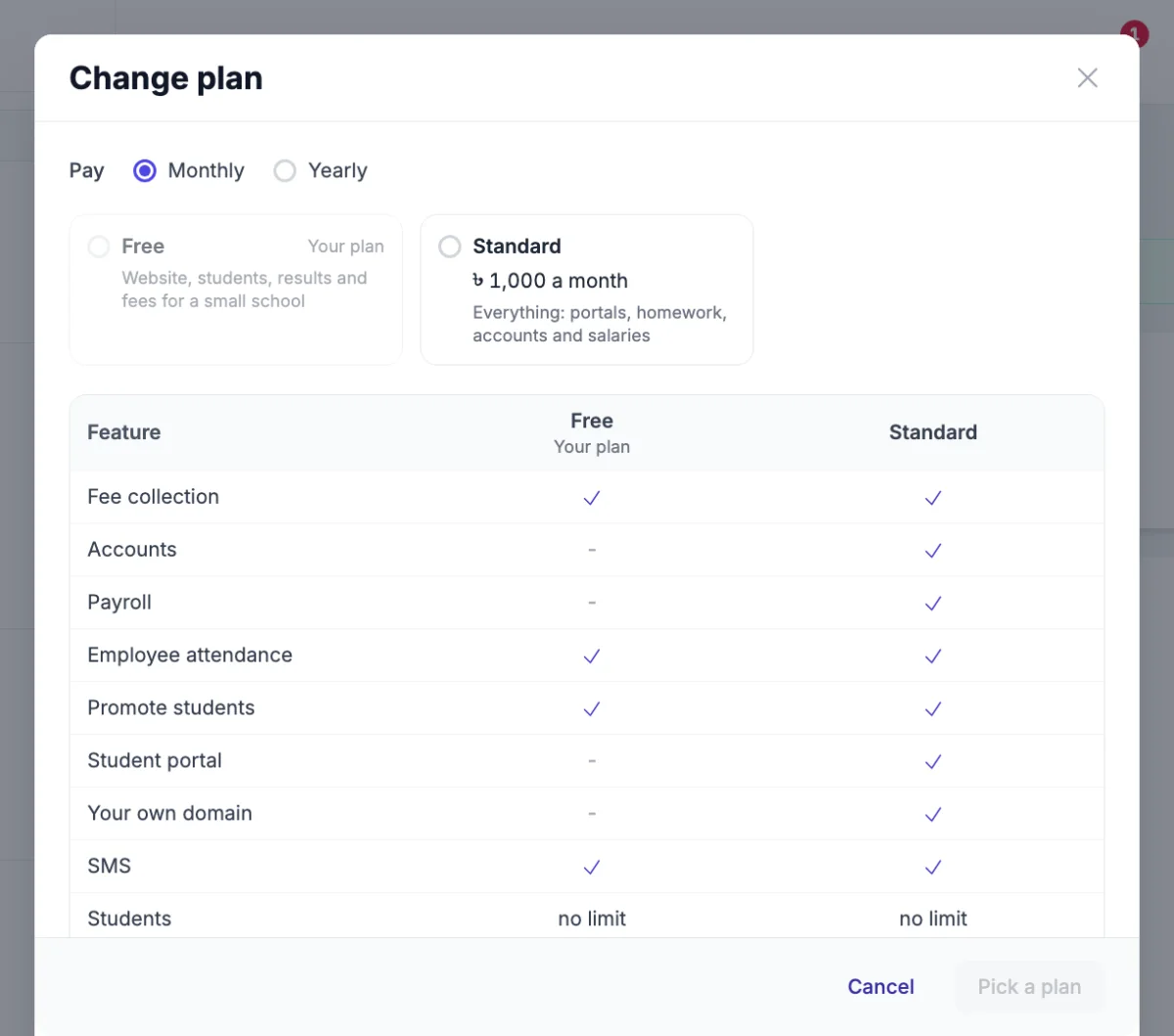
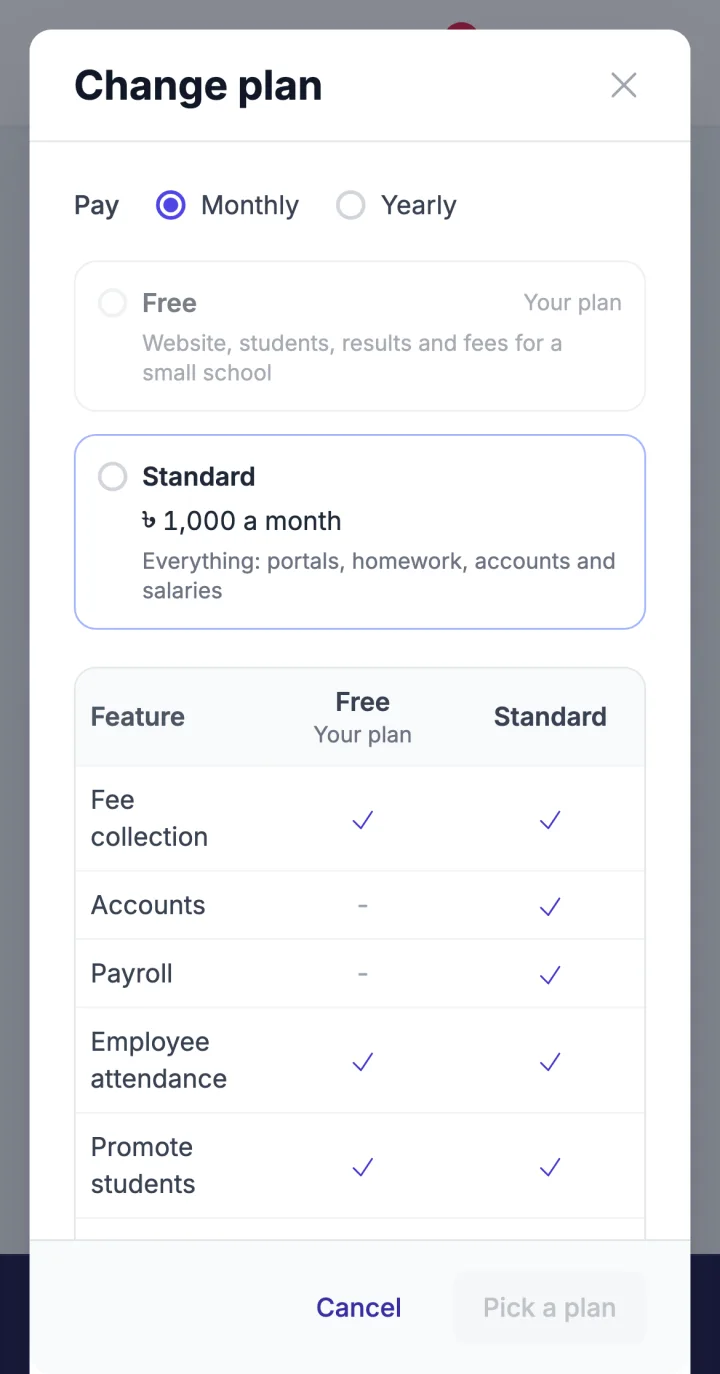
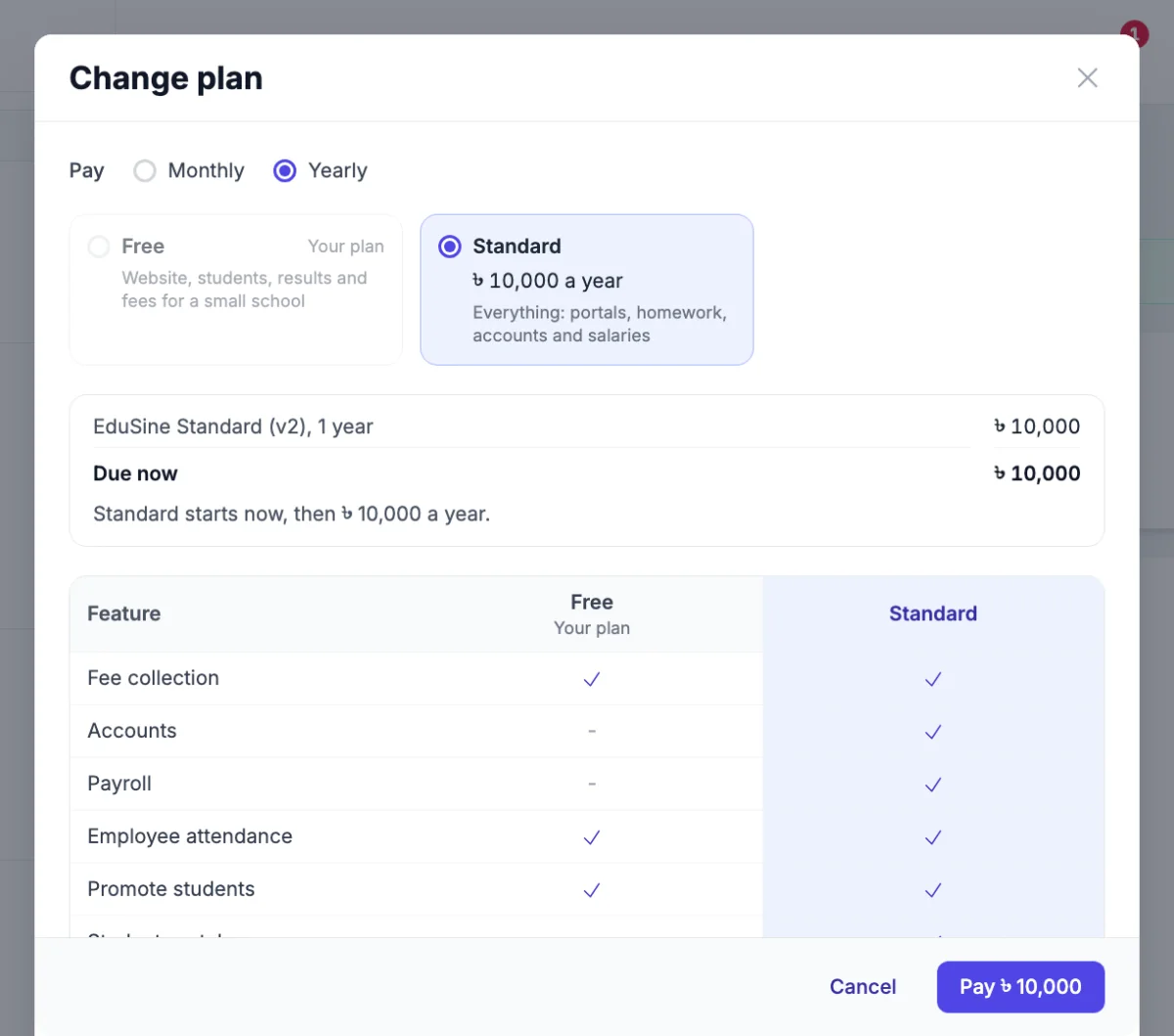
At the top, next to Pay, there are two options: Monthly and Yearly. Choose whether you want to pay the whole year's subscription at once or month by month.
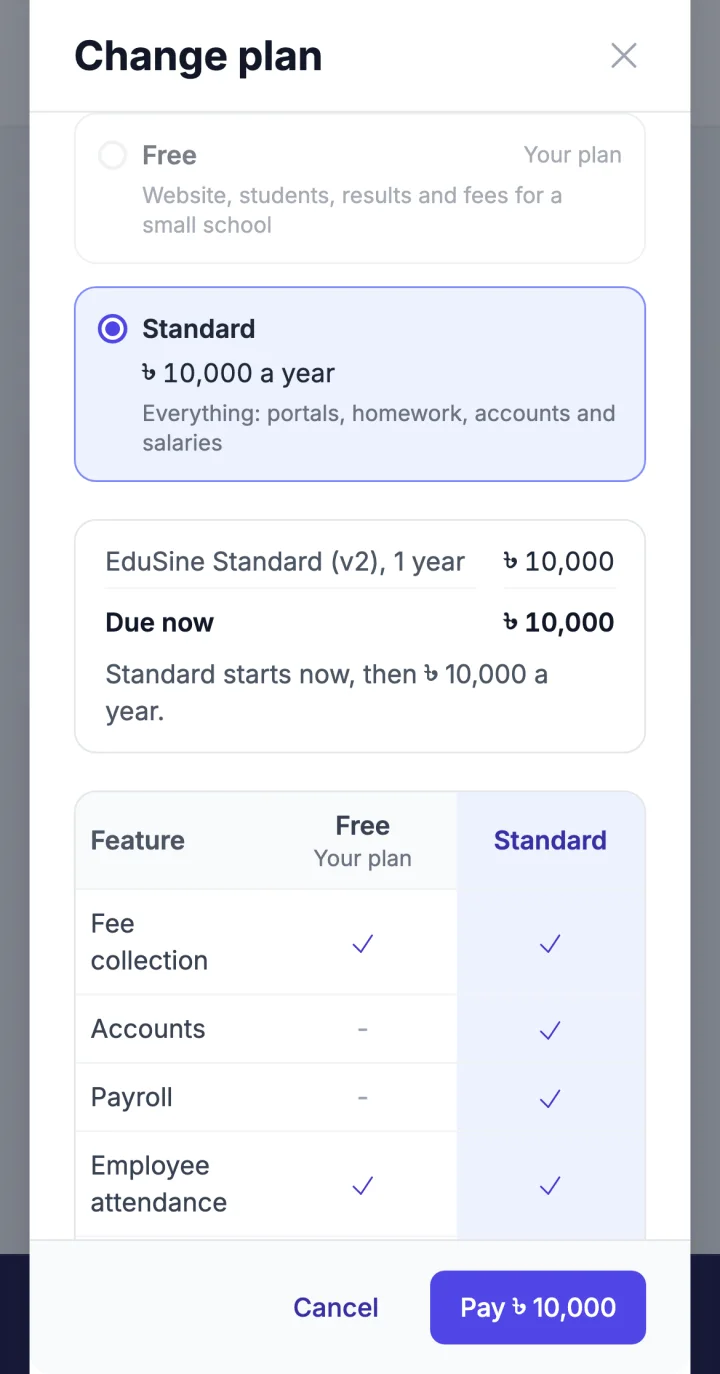
Below are two cards, Free (your plan) and Standard, with their prices. In the table below them, you can compare side by side which plan has which feature.

 1
- 1Change plan

 1
- 1Change plan

 123
- 1Monthly and Yearly
- 2Free and Standard
- 3Feature table

 123
- 1Monthly and Yearly
- 2Free and Standard
- 3Feature table
Choose Standard and pay
Press the Standard card. A summary comes below, for example "EduSine Standard, 1 year, ৳ 10,000, Due now ৳ 10,000", and it says "Standard starts now, then ৳ 10,000 a year."
If everything is right, press "Pay ৳ 10,000". You go to the payment page. Pay there by following the page's instructions.
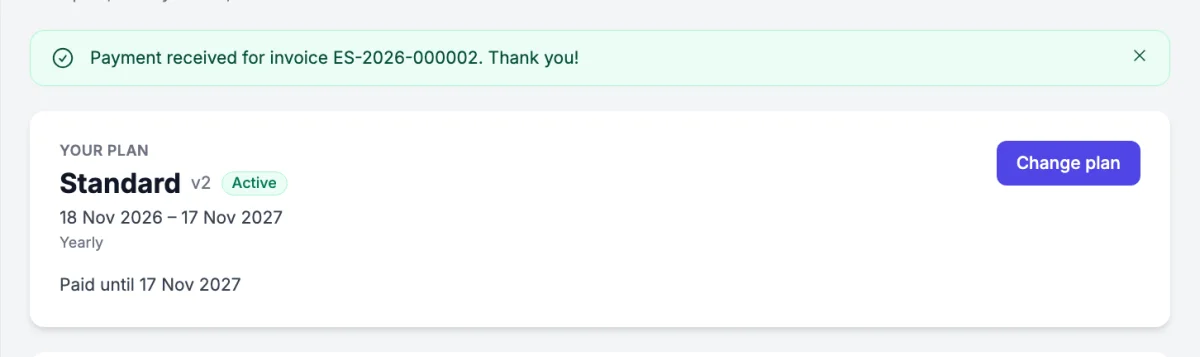
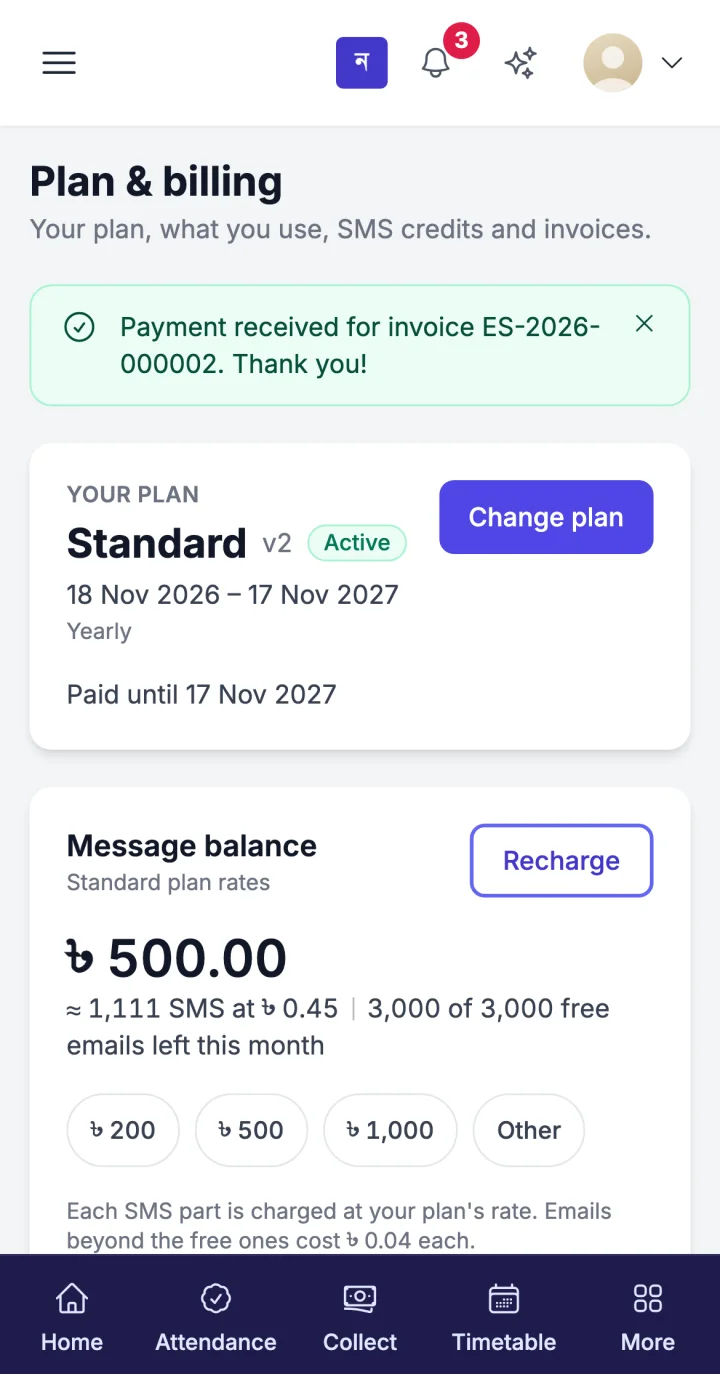
When the payment is finished, you come back to the Plan & billing page. "Checking your payment…" shows, then "Payment received for invoice … Thank you!", and the Standard plan starts at once.
If you change your mind, press Cancel. Nothing changes.

 12
- 1Due now
- 2Pay

 12
- 1Due now
- 2Pay


Tip: To move from a paid plan to a smaller plan, choose it the same way from Change plan. The plan changes only when the time already paid for ends. Until then the top says from which date it will change. If you change your mind, press "Cancel scheduled change".
See invoices and pay unpaid ones
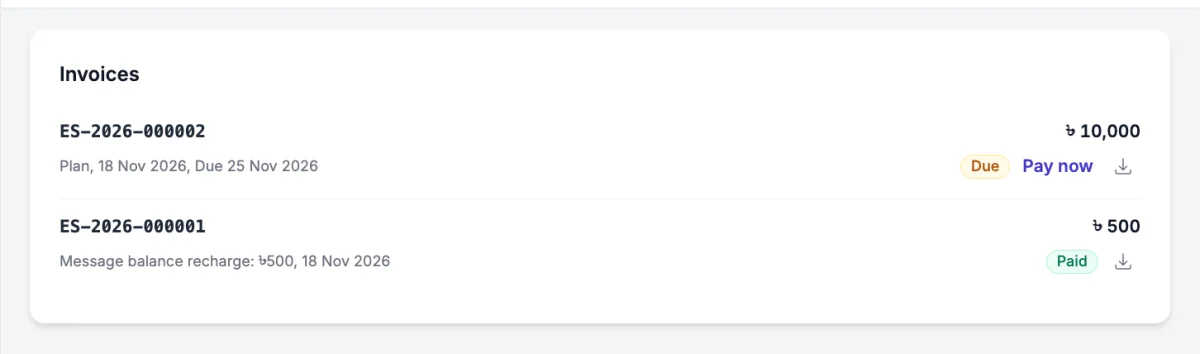
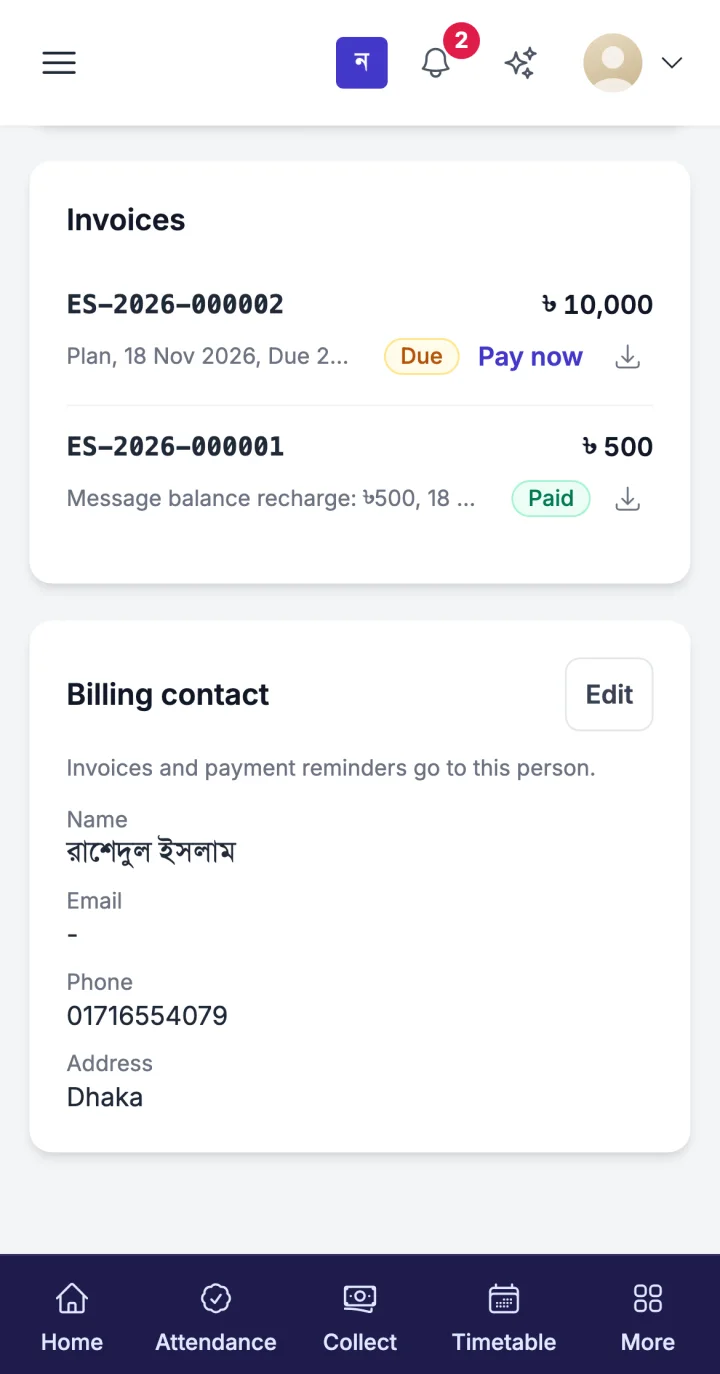
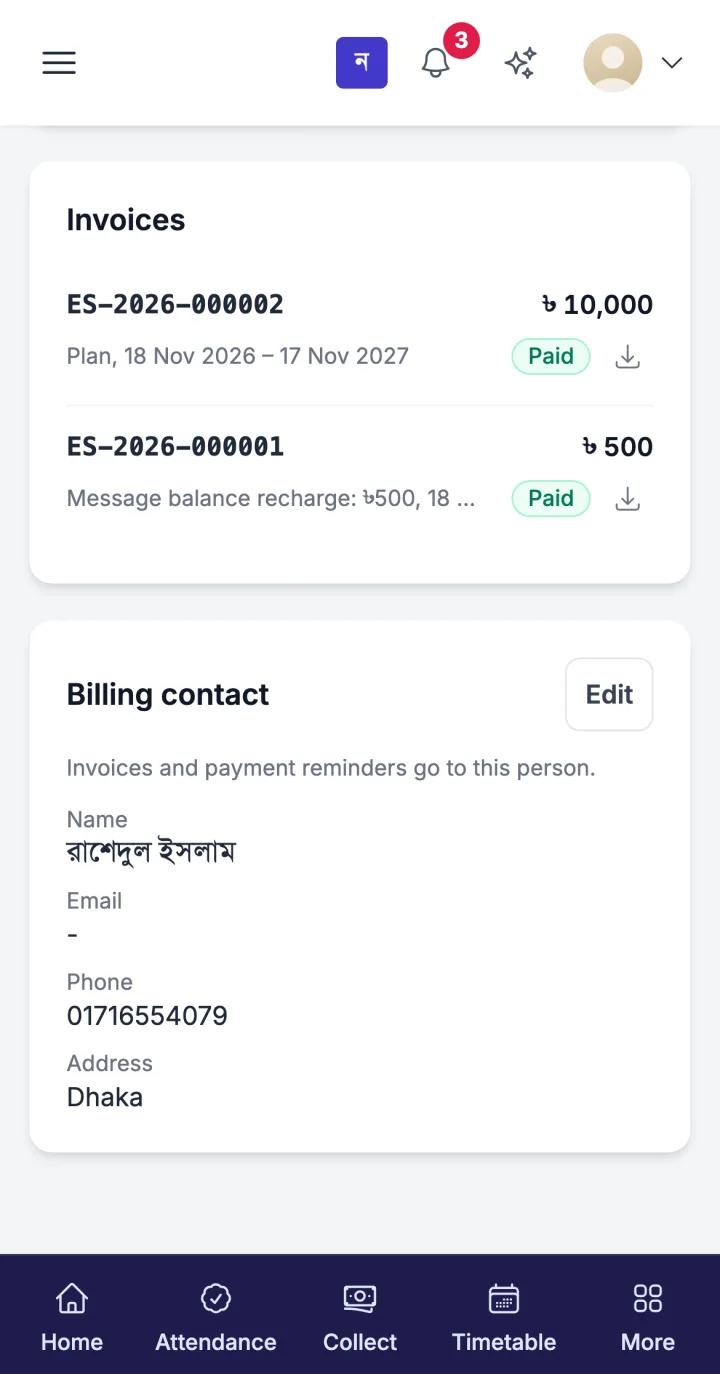
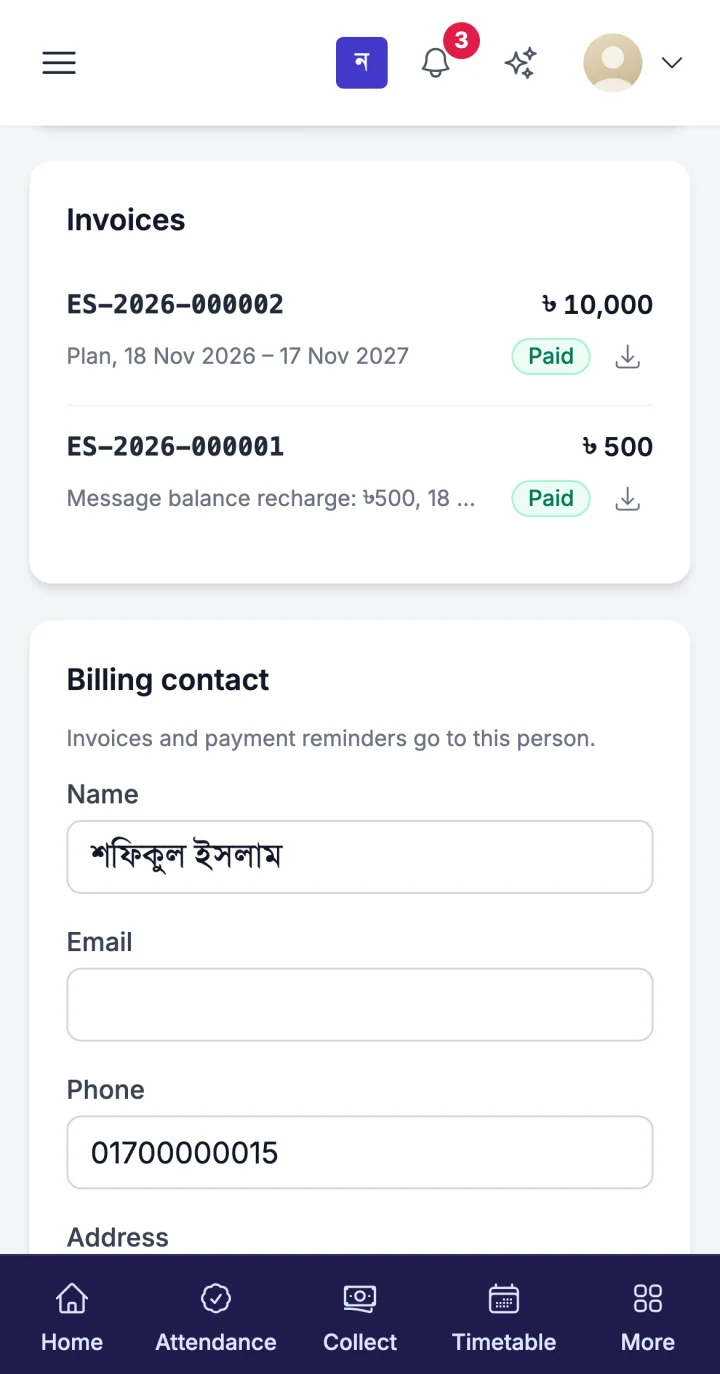
The Invoices part below shows each invoice's number (for example ES-2026-000001), amount, what it is for and its status: Due, Paid, Overdue or Being checked.
Press Pay now next to an unpaid invoice and the same payment page opens. Press the download (↓) sign and the invoice downloads as a PDF. Recharge receipts are here too.
Before a paid plan ends, the next period's invoice comes here, and a reminder goes to the billing contact.

 123
- 1Invoices
- 2Pay now
- 3Download

 123
- 1Invoices
- 2Pay now
- 3Download
Tip: If the button says How to pay instead of Pay now, pressing it shows a window with how to send the money and a contact number. Send the money that way. When the money arrives, EduSine marks the invoice paid.
Recharge the message balance
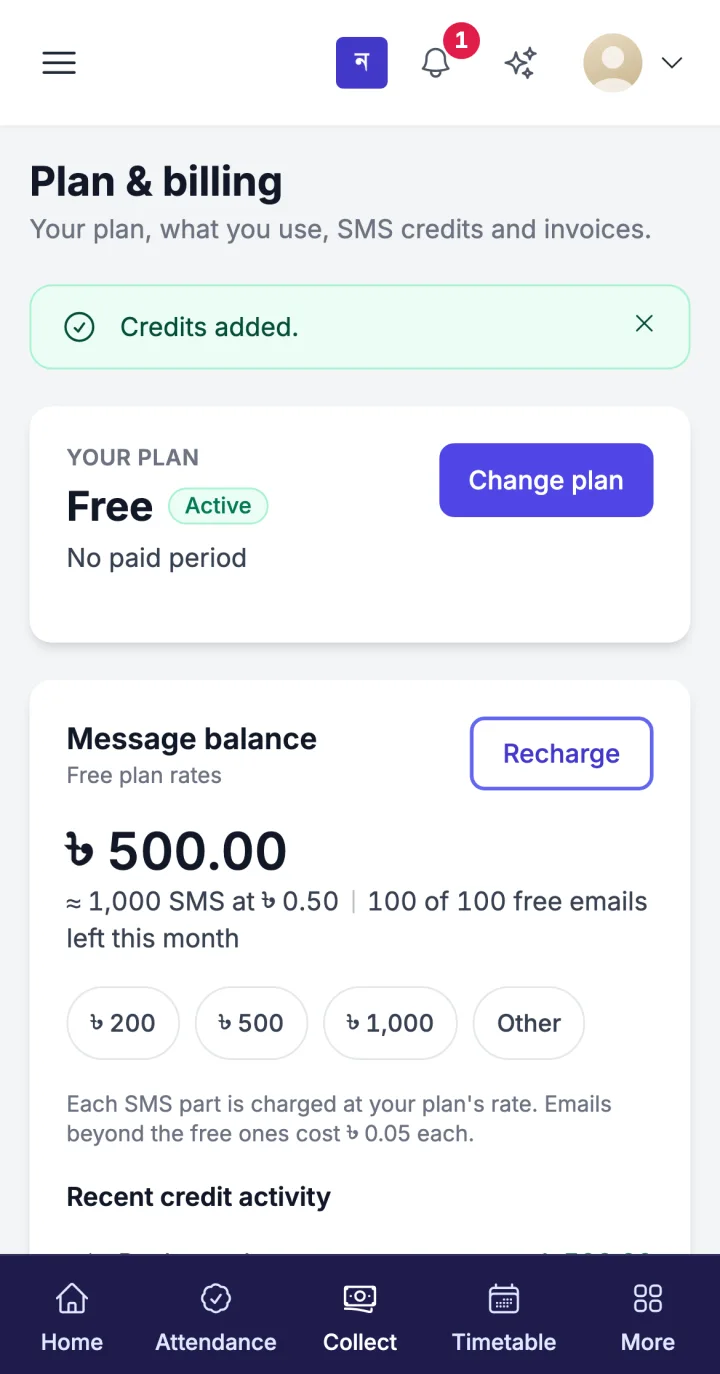
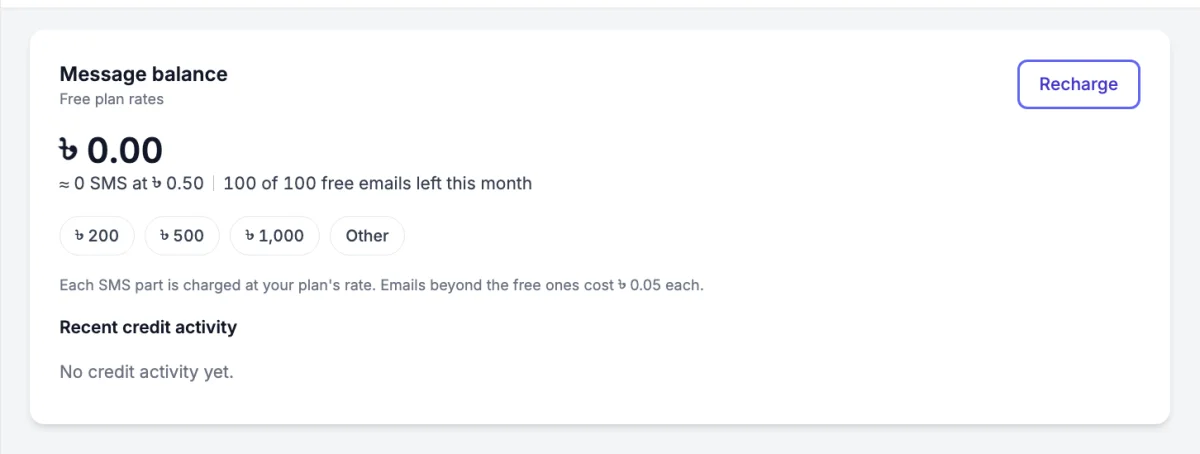
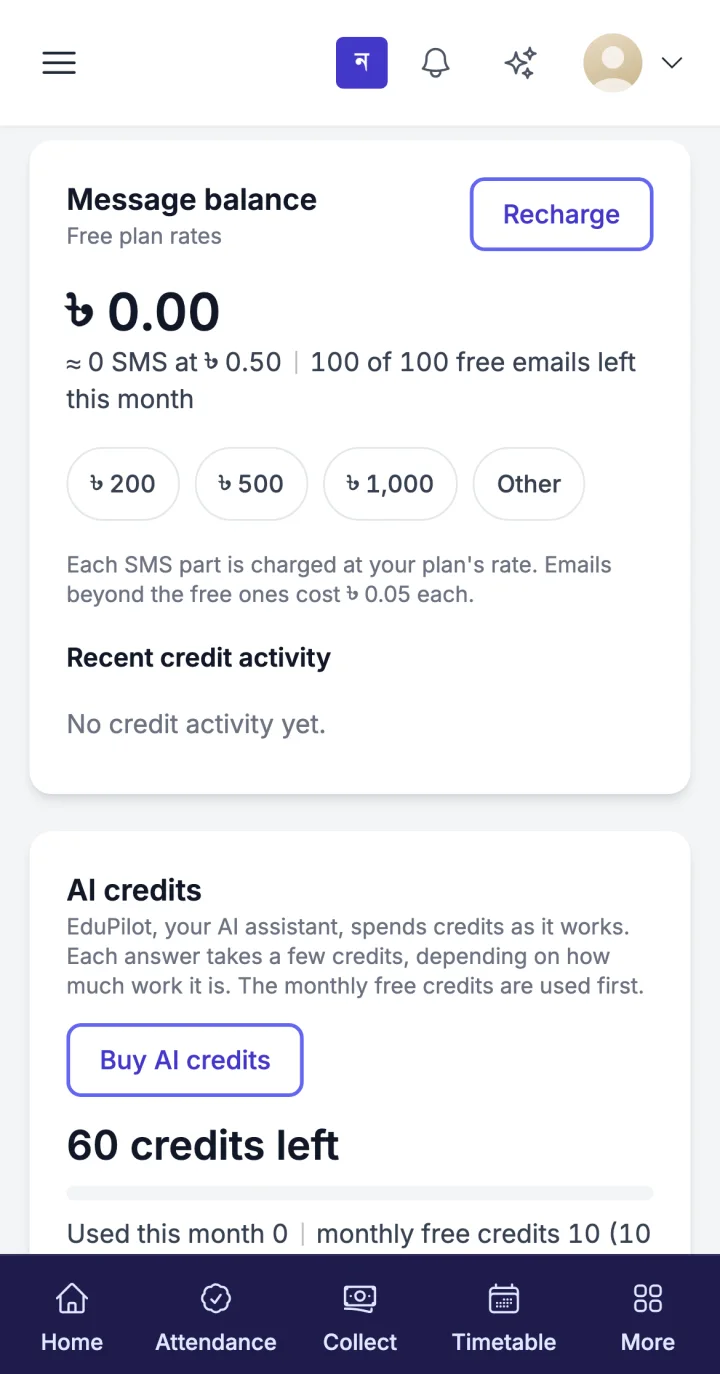
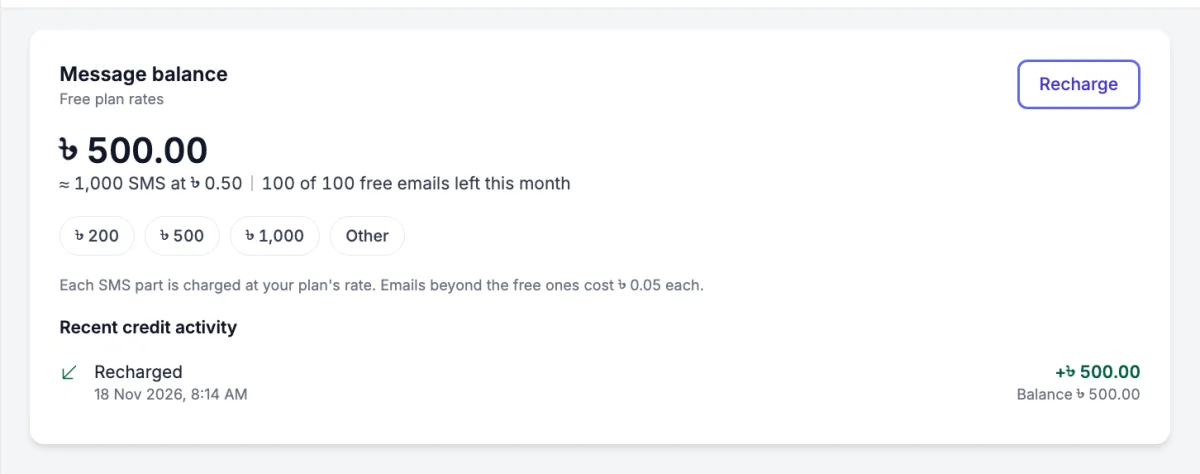
The Message balance part is just below Your plan. It shows in large text how much money there is, for example ৳ 195.50, and below that roughly how many SMS it can send, for example "≈ 391 SMS at ৳ 0.50".
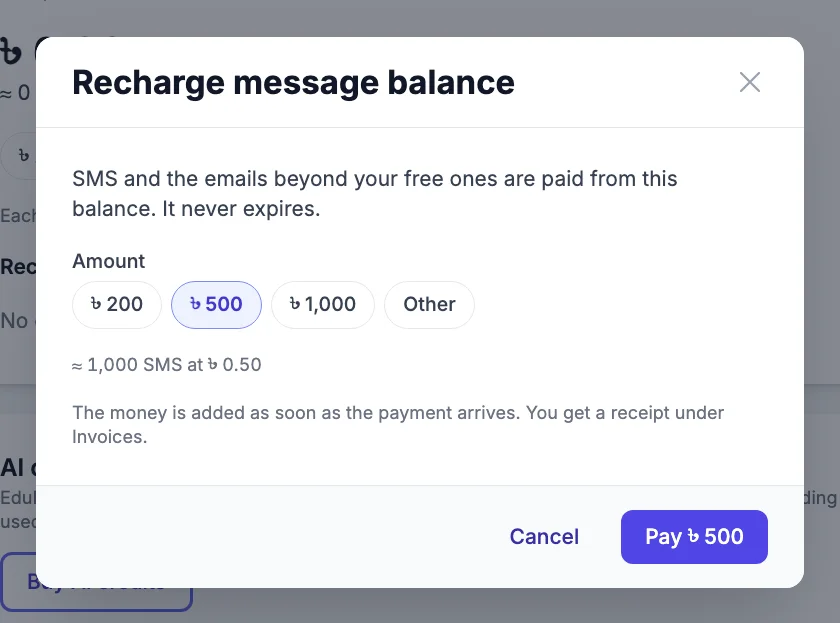
Press ৳ 200, ৳ 500 or ৳ 1,000. For another amount, press Other and type the amount (at least ৳ 100, in whole taka without paisa).
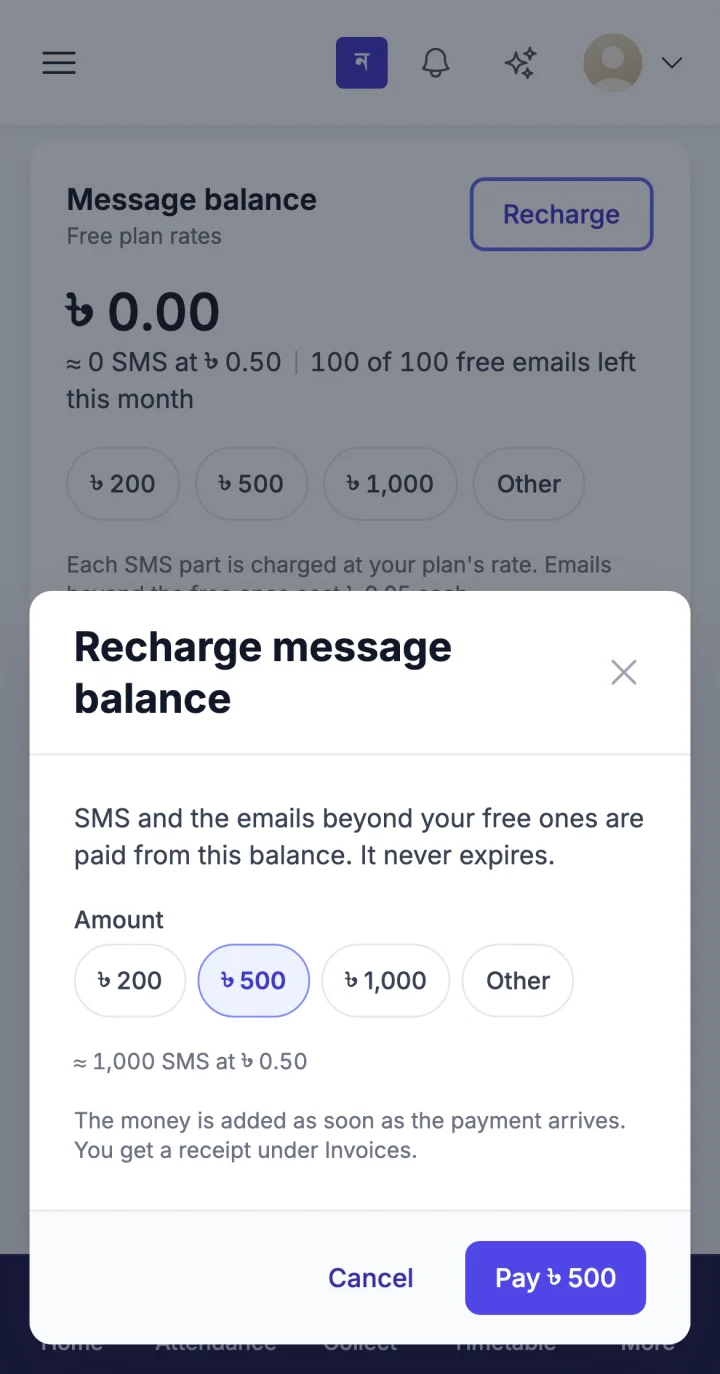
The Recharge message balance window opens. It shows roughly how many SMS this money will send, and, once there is spending to go by, how long it will last at your current spending. Then press "Pay ৳ 500", and pay on the payment page.
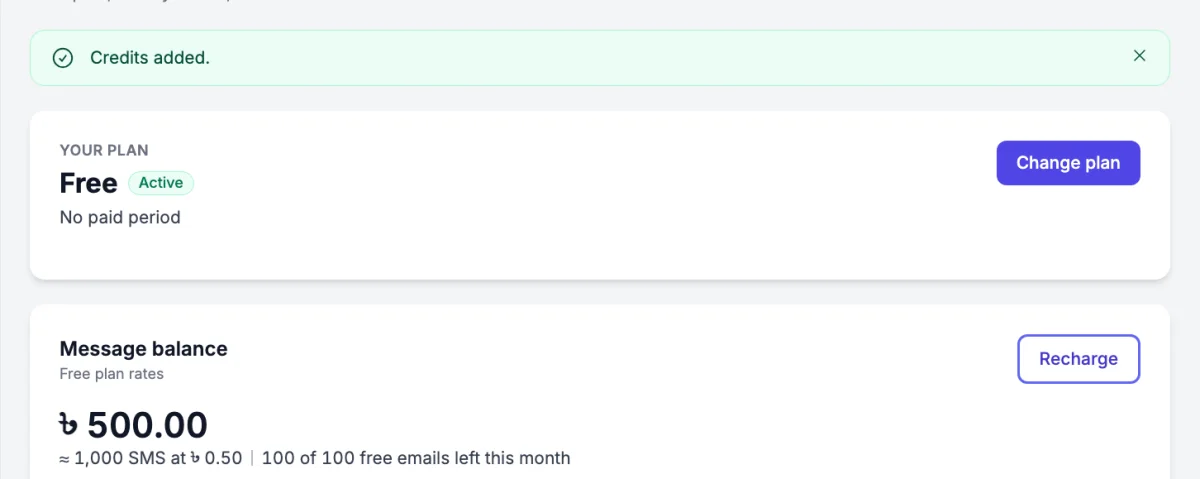
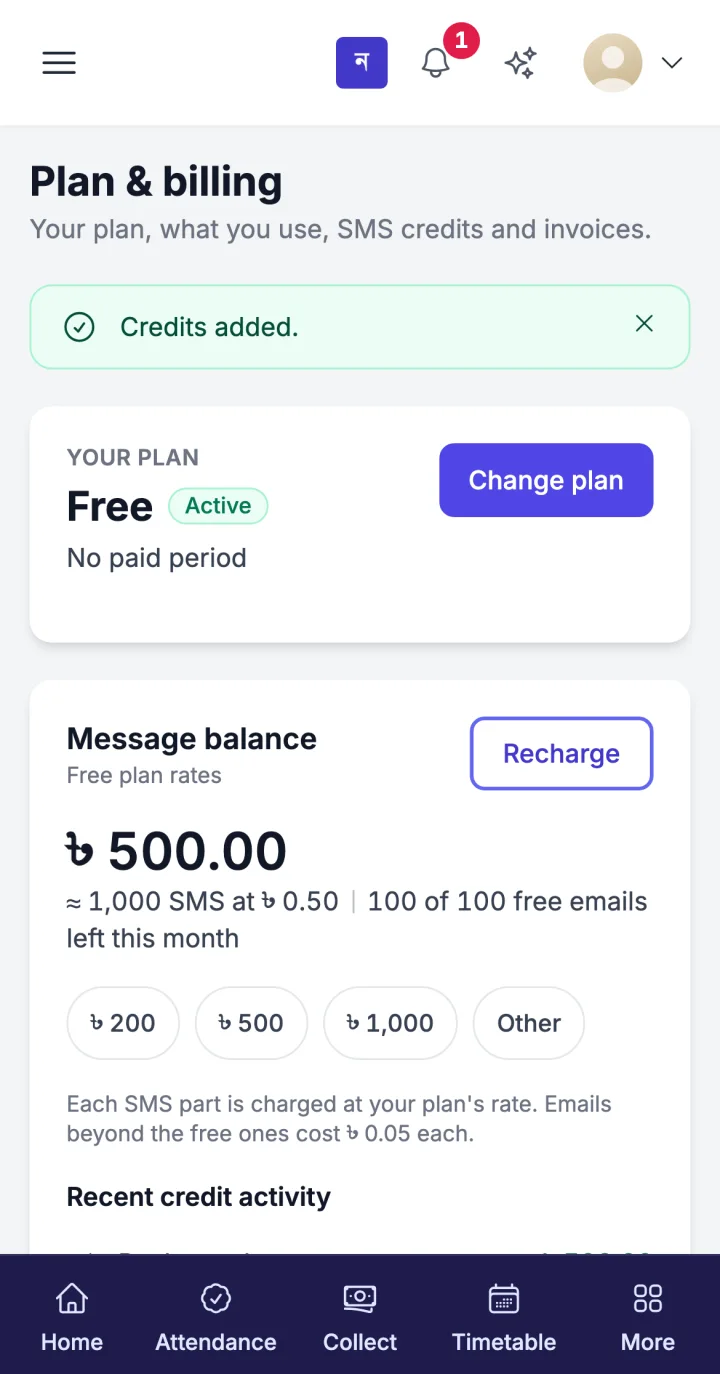
As soon as the payment arrives, the money is added to the balance, and "Credits added." appears. You get the receipt in the Invoices part.

 123
- 1Message balance
- 2Recharge amounts
- 3Other

 12
- 1Message balance
- 2Recharge amounts

 1
- 1Pay

 1
- 1Pay


Tip: Sending one SMS part (about 70 characters in Bangla, about 160 in English) costs ৳ 0.50 on the Free plan. After the month's free emails run out, each email costs ৳ 0.05. Both are taken from this balance.
Look at the record of spending
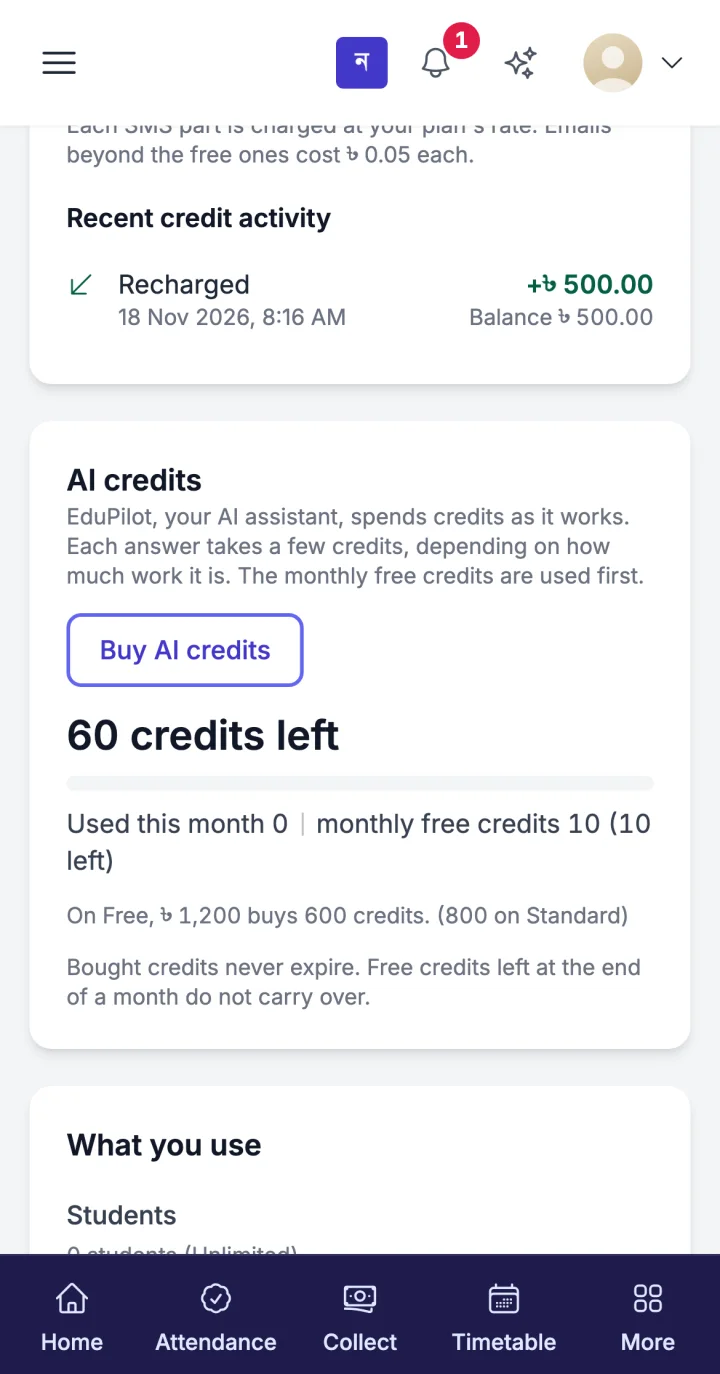
Below the Message balance part is the Recent credit activity. Each row says what the money was spent on (for example "SMS sent, 2 parts"), when, how much, and what the balance was after it. Press Show more to see earlier rows.
When the balance gets low, a yellow warning comes here, and a red one when it runs out. When the balance runs out, receipt and notification SMS stop going.

 1
- 1Recent credit activity

 1
- 1Recent credit activity
Tip: Even when the balance is empty, sign-in codes are sent on credit for a while, so that nobody gets stuck. That money is taken first from the next recharge, and the recharge window says so. If any SMS did not go because the balance was empty, they are listed in the "… SMS were not sent because the balance was empty" part. After recharging, choose there which ones to send.
Buy AI credits (if needed)
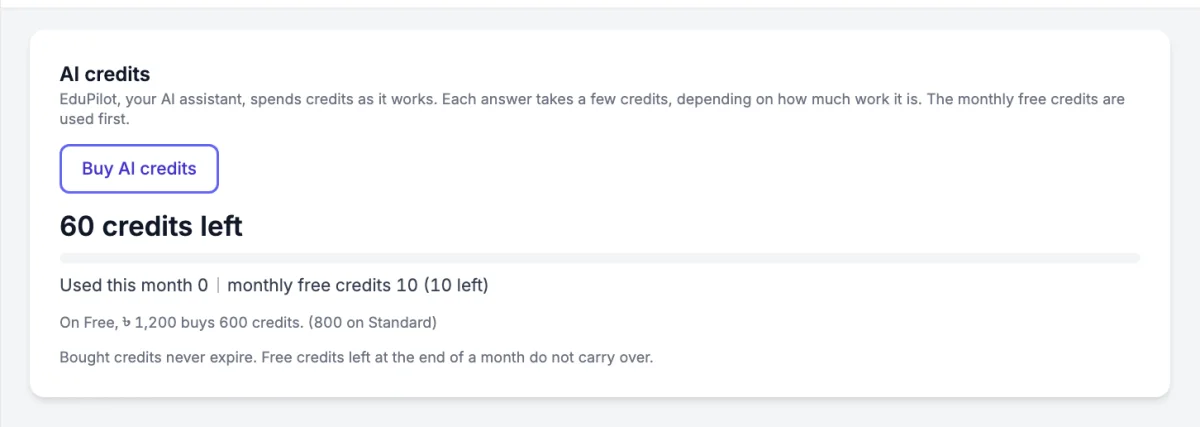
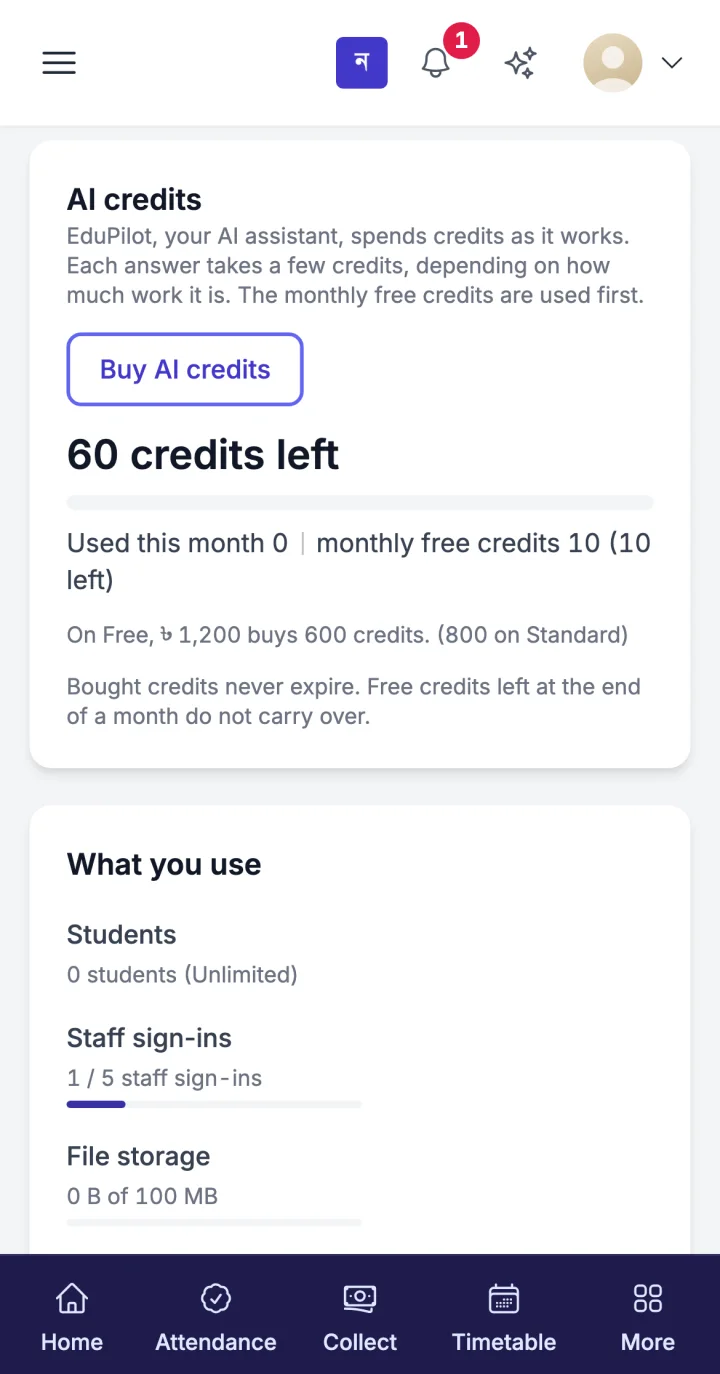
The AI credits part shows how many credits are left, how many were used this month, and the monthly free credits. EduPilot spends a few credits on each answer, depending on how much work it is. The monthly free credits are used first, then the bought credits.
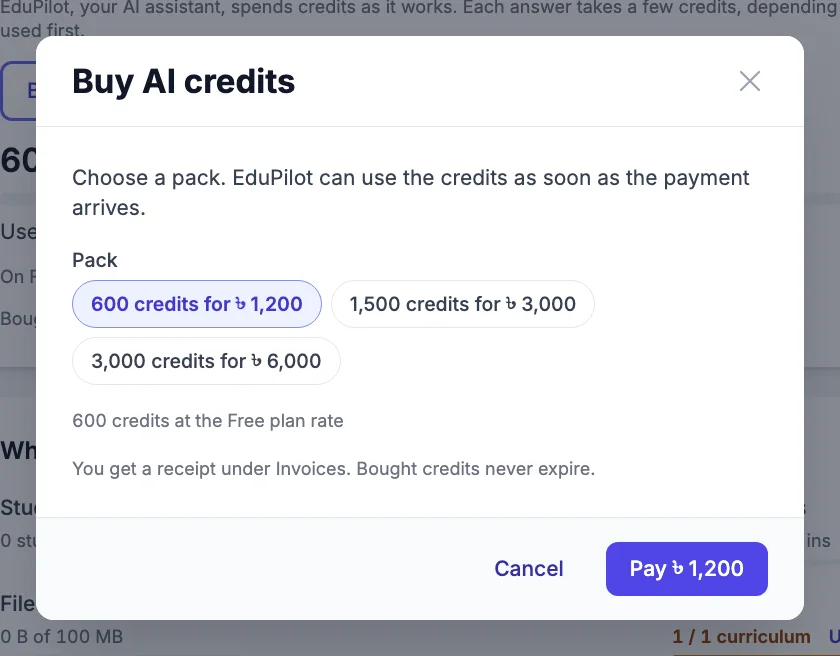
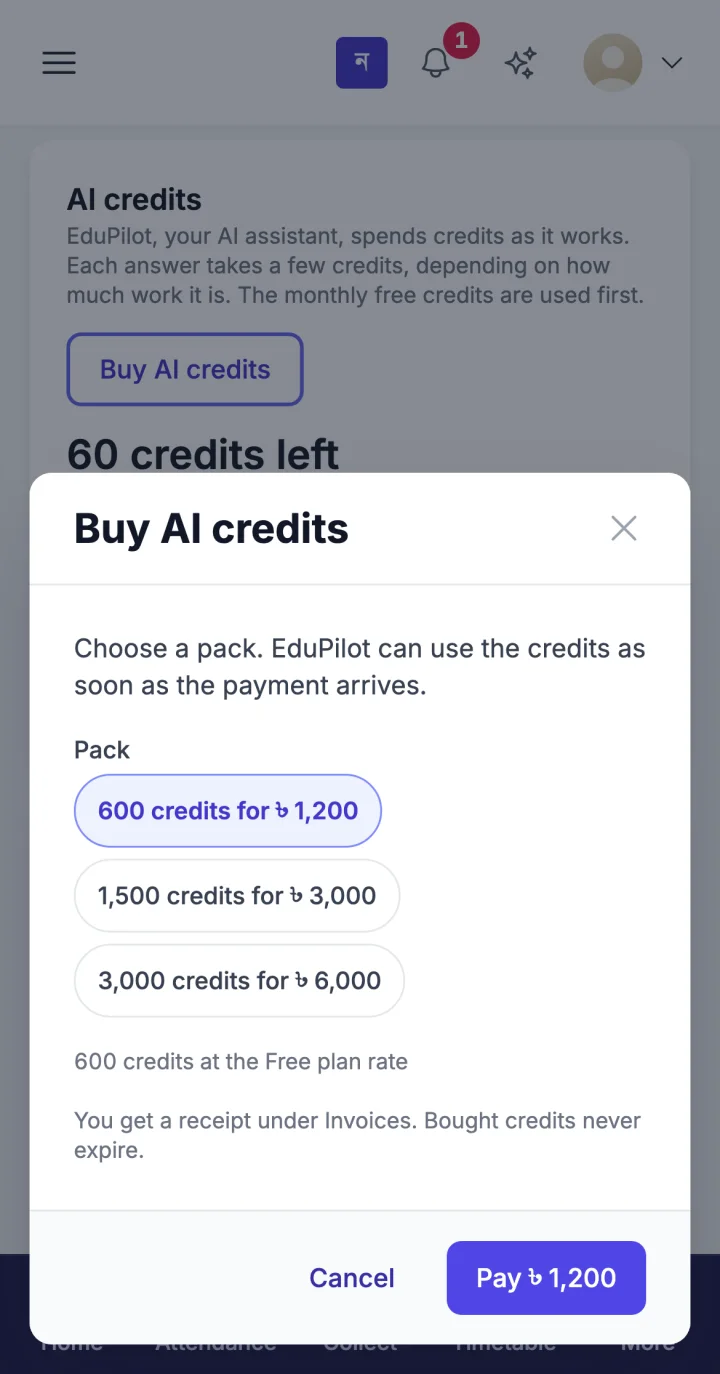
If you need more, press Buy AI credits. There are three packs: 600 credits for ৳ 1,200, 1,500 credits for ৳ 3,000, and 3,000 credits for ৳ 6,000 (at the Free plan rate). Choose one and press "Pay ৳ 1,200".
Bought credits never expire. But free credits left at the end of a month do not carry over to the next month.

 12
- 1AI credits
- 2Buy AI credits

 12
- 1AI credits
- 2Buy AI credits

 1
- 1The three packs

 1
- 1The three packs
Tip: On the Standard plan you get more credits for the same price (800 for ৳ 1,200), and 100 credits free each month.
Choose who gets the invoices
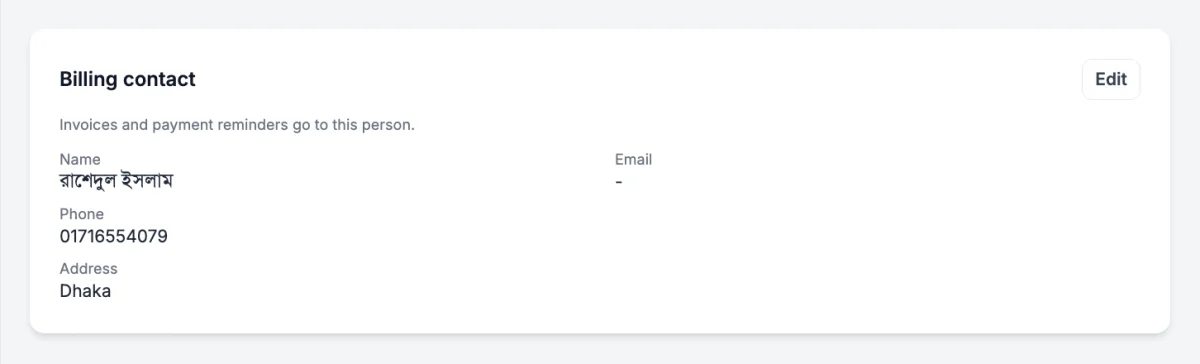
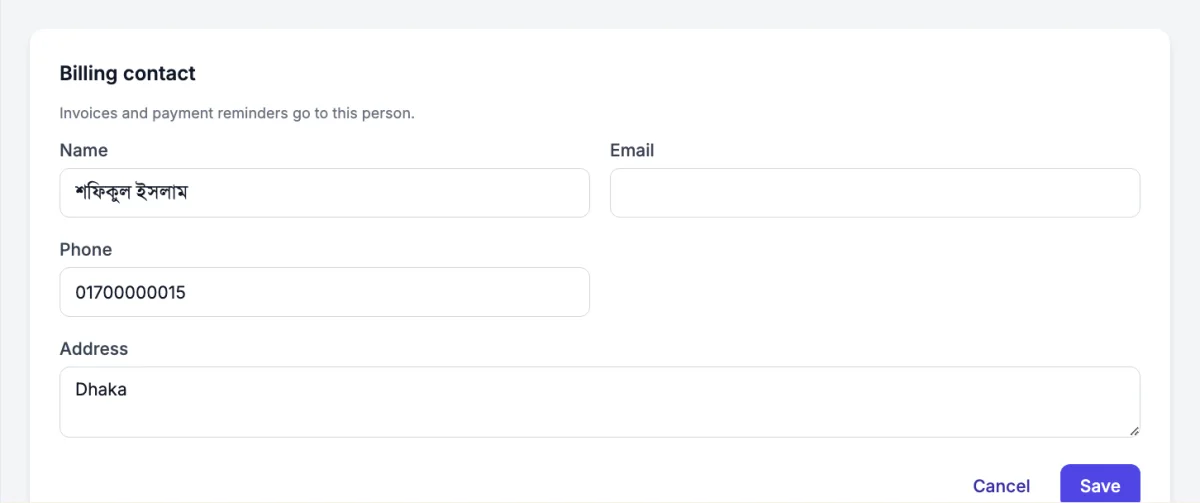
The Billing contact part at the very bottom has a name, email, phone number and address. At the start it holds the institution's own details. Invoices and payment reminders are sent to this person, and this name and address are printed on the invoice PDF.
To change it, press Edit, give the details and press Save. For example, to send invoices to the accountant Shafiqul Islam, give his name and phone number.

 1
- 1Billing contact

 1
- 1Billing contact


What to do next
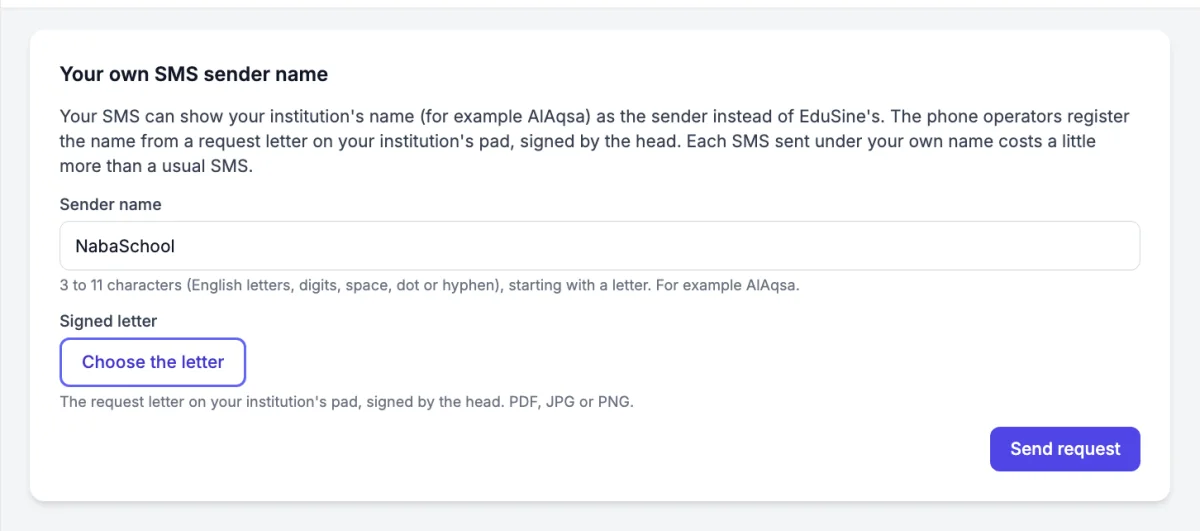
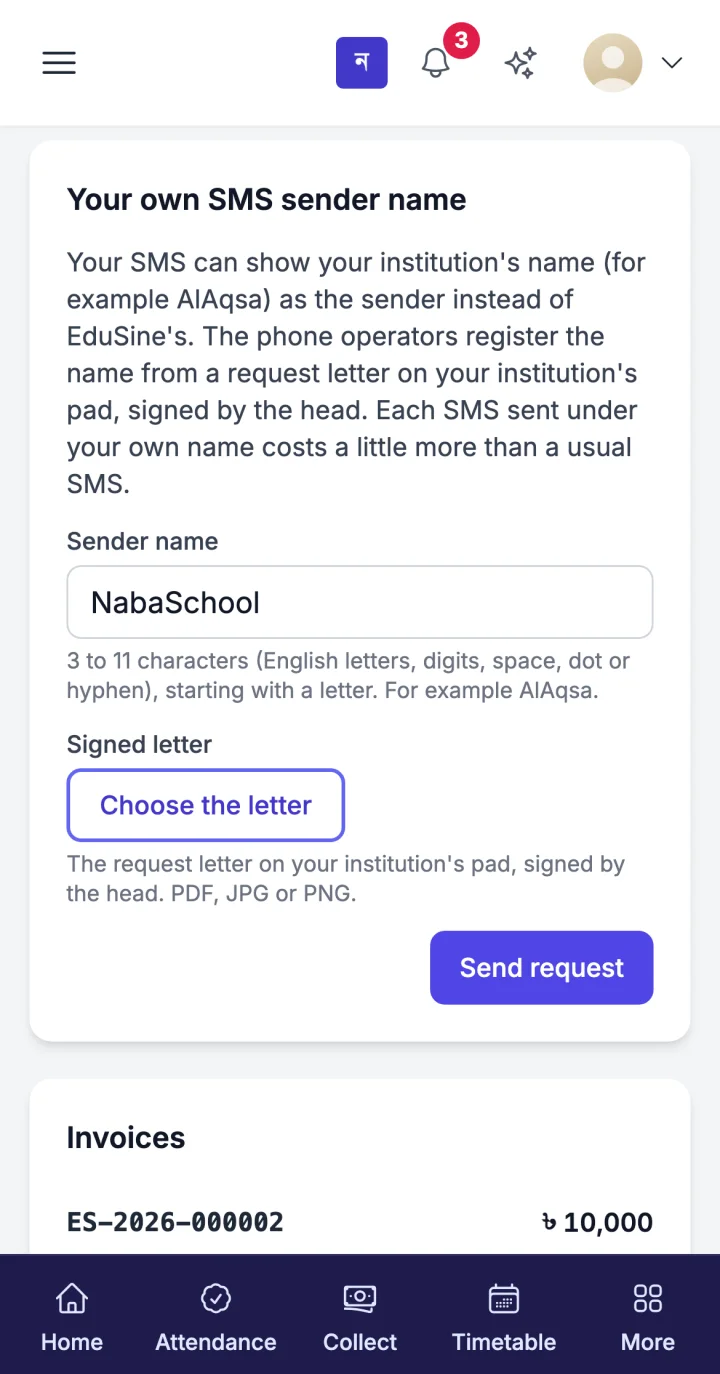
To send SMS in your institution's name, type a Sender name (for example NabaSchool) in the Your own SMS sender name part, and press Send request with an application signed by the head on the institution's letterhead. When the mobile operators register the name, SMS go in your institution's name instead of EduSine's. Each SMS sent this way costs a little more.
Look at the What you use part now and then, to see whether you are getting close to any limit.

 1
- 1Your own SMS sender name

 1
- 1Your own SMS sender name
If something goes wrong
"Payment failed. The invoice is still due."
or "You cancelled the payment." No money was taken from you. Press Pay now in the Invoices part and try again. If money was taken but this message came, wait a little until "Payment being checked" shows, then contact us.
"Payment overdue. Pay by … to keep Standard."
The new period's invoice has not been paid yet. If you pay by the date shown, no feature stops. If you do not, the institution moves to the Free plan, and the paid features' data can only be viewed. When you pay later, it all works again as before.
"Recharge at least ৳ 100"
or "Enter a whole number of taka, without paisa" In the Other box, type a whole amount of 100 or more, for example 300.
"Only people allowed to manage billing can change the plan or pay."
You can only view the page. Ask your institution's admin to change the plan or pay the invoice.
More tutorials
See how to do the other jobs in EduSine, step by step.
Can’t find what you’re looking for?