Pay salaries
Once your employees' salaries are set, each month a single button prepares that month's salary sheet. Who was absent for how many days, who gets more for extra work, whose advance is taken off: put it all on this sheet. EduSine works out each person's total payable for you.
Starting the sheet does not pay anyone. Check everything, and when you are sure, pay people one by one or everyone together. After paying, you can print everyone's payslip in one click.
A Super Admin, or someone with the Accountant access level, can do this. Before you start, the employees' joining dates and salaries must be set. The payroll module is part of the Standard plan.
- Before the month starts
- Making the sheet
- Sending to the bank
- Paying salaries
- Papers and bonus
Keep these at hand to pay salaries quickly
Who was absent for how many days this month (from the attendance register)
Who has any extra allowance or deduction (for example exam duty, overtime, a fine)
If someone needs an advance, how much, and how much is taken back each month
Which account you pay salaries from (office cash or the bank), and whether it has enough money
What this tutorial covers
See which job to do in which order.
Before the month starts
Giving an advance and checking the sheet first
Making the sheet
Starting the month, and adding absences and extra lines
Sending to the bank
Printing the bank salary advice
Paying salaries
Paying one person or everyone together
Papers and bonus
Printing payslips and paying the festival bonus
Step by step
Follow along as each step appears on your screen.
Open the Salaries page and check the month
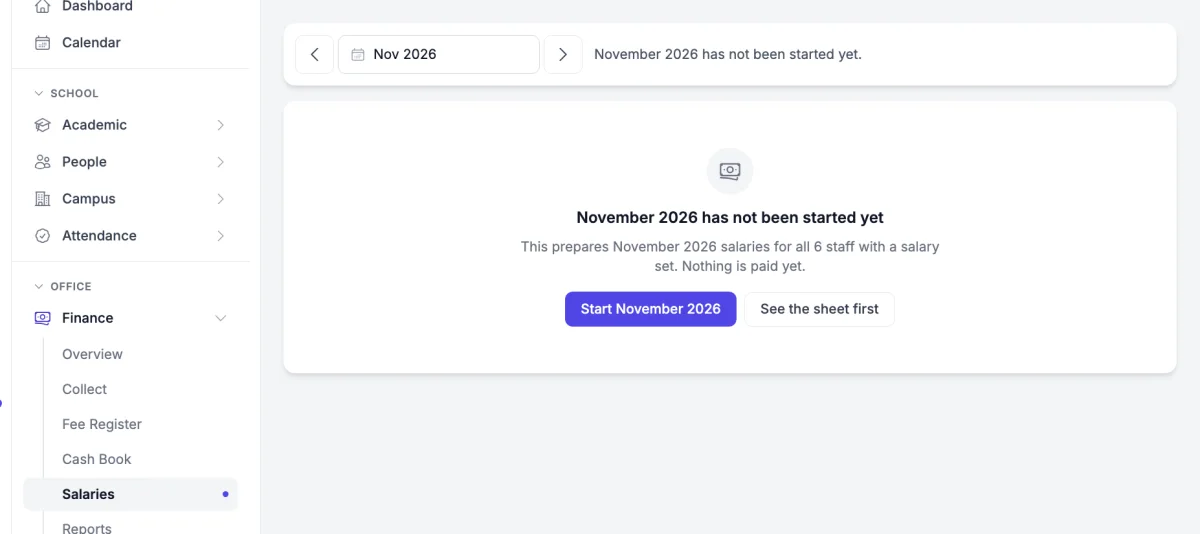
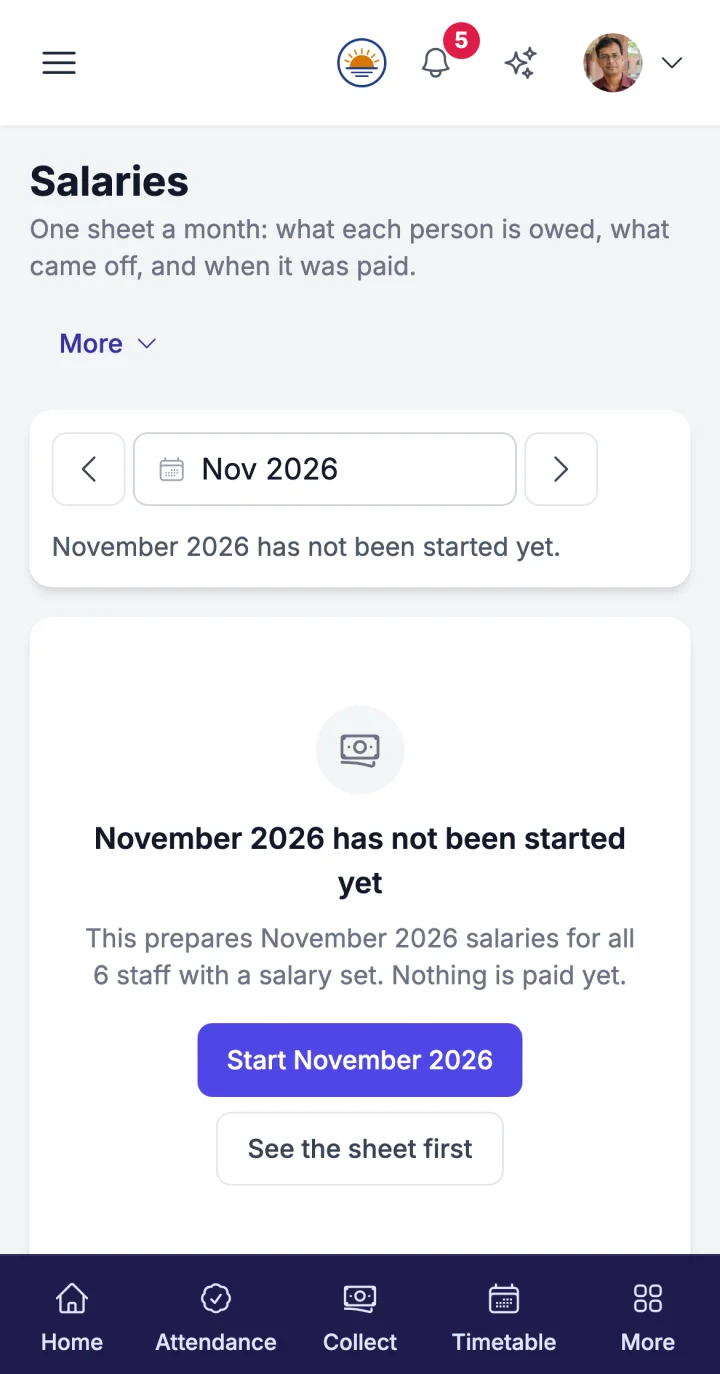
From the menu on the left, open Finance → Salaries. The month box at the top already has the current month. To see another month's sheet, press the arrows on either side of the month box. On a phone, first press ☰ at the top left to open the menu.
If the month's sheet has not been started, it says "… has not been started yet", and below it you see how many people's salaries will be prepared. If someone has no joining date or salary set, a yellow note says so at the top. Press "See the list →" beside it and fix them.

 123
- 1Finance → Salaries
- 2The month
- 3The month has not been started yet

 12
- 1The month
- 2The month has not been started yet
Give an advance if someone needs one (optional)
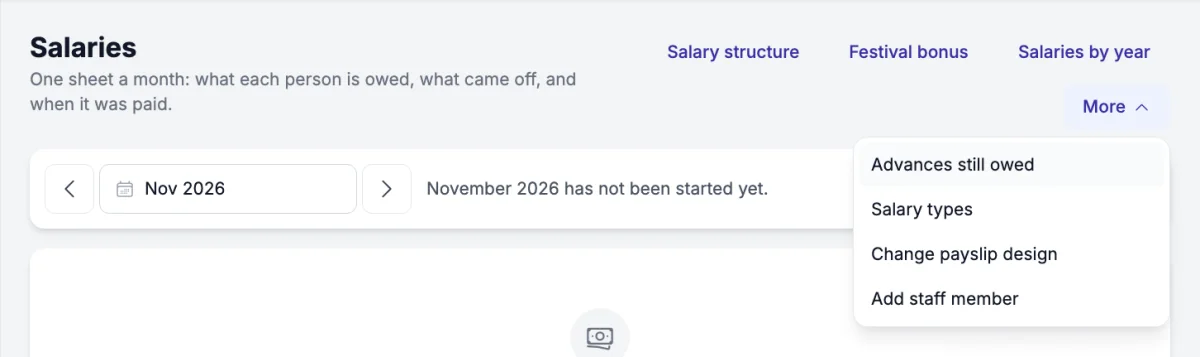
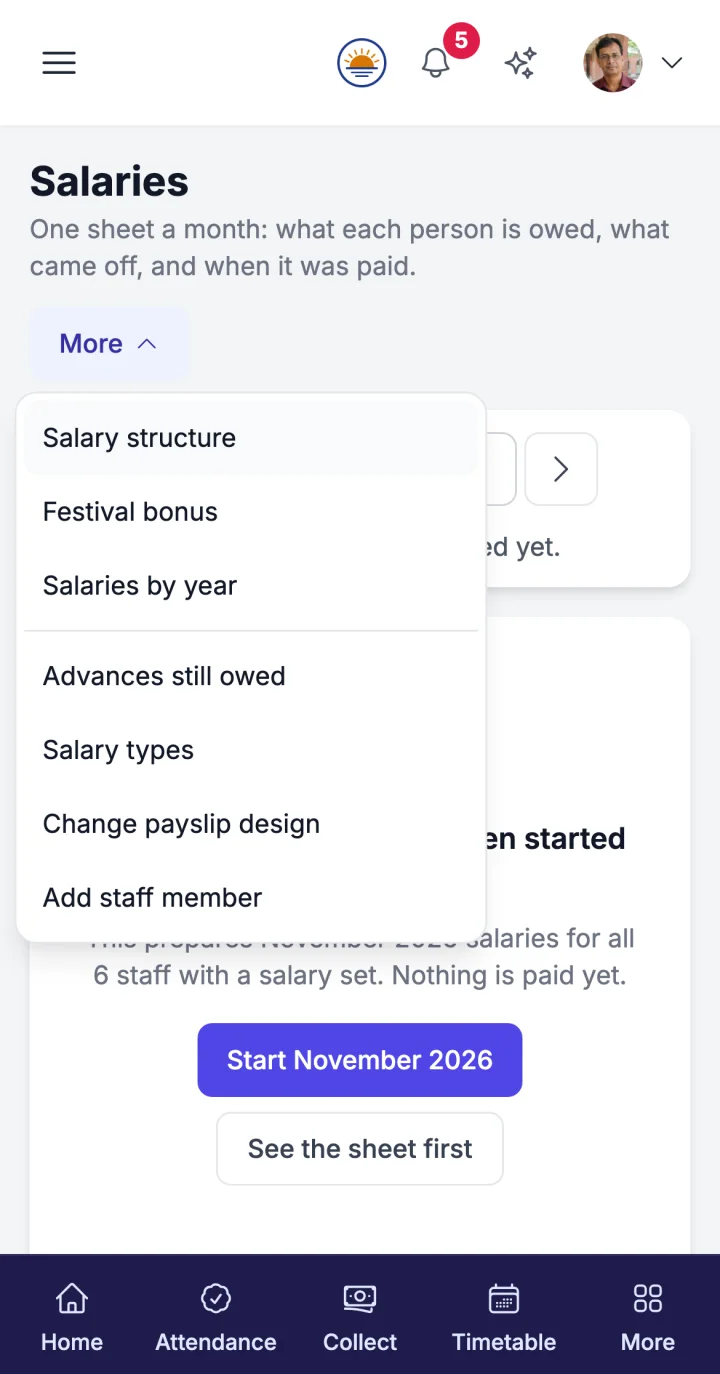
If an employee asks for an advance in the middle of the month, open More → Advances still owed at the top and press Give advance. Whenever you give it, before or after starting the month's sheet, the first instalment is taken on this month's sheet.
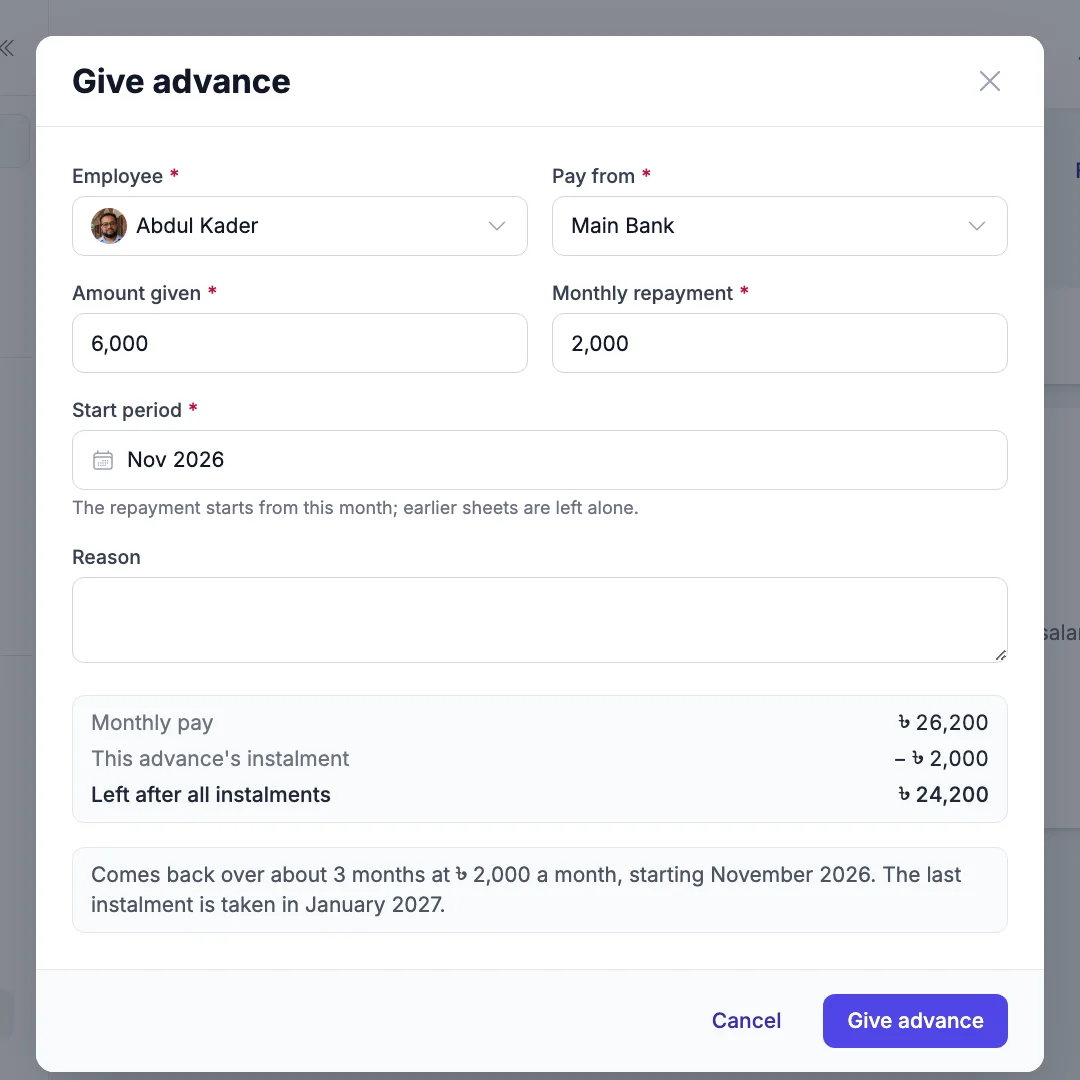
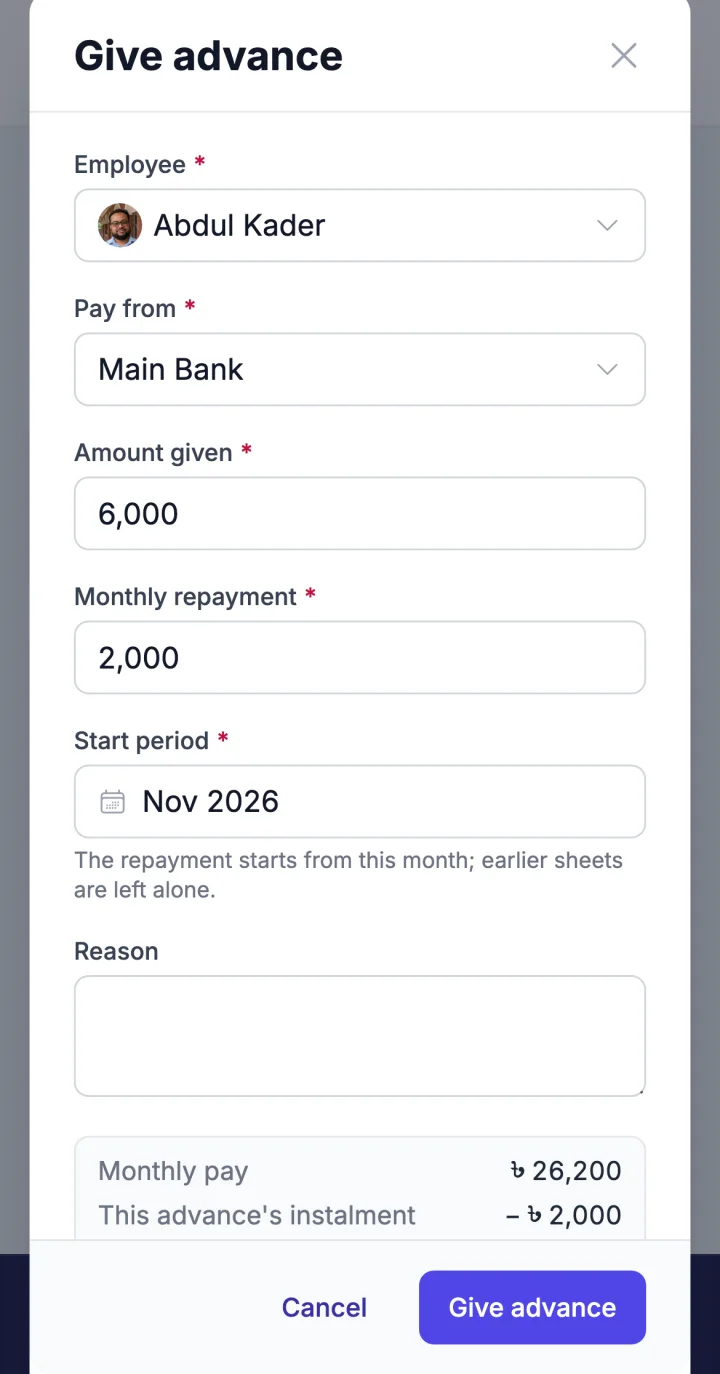
Choose the employee (for example Abdul Kader). Enter the account you are paying from (for example Main Bank), the amount given (6,000) and the monthly repayment (2,000). The start period is the month whose salary the instalments start coming out of. You can also note a reason if you like.
As soon as you choose the employee, the figures show below: "Monthly pay", "Instalments of other advances" if an earlier advance of theirs is still being repaid, "This advance's instalment" and "Left after all instalments". Under them it says "Comes back over about 3 months at ৳ 2,000 a month, starting …". The figures change as you type, so you can check them before saving. If you change the start period, the figures are worked out again. When they add up, press Give advance. From then on, the instalment is taken from their Advance column on each month's sheet by itself.
You can give an advance even when the month's sheet has already been started. Then it says "Advance given. The instalment now shows on the Nov 2026 salary sheet.", and on the sheet their row at once shows the instalment in the advance box and the lower total payable. Nothing changes on a sheet where salaries have already been paid; the instalments start from the next sheet.
If the instalment is as much as the monthly pay or more, the advance cannot be given at all: a red box says "This instalment is as much as the monthly pay or more, so the advance cannot be given." (if instalments of another advance are still running, it starts "With the other instalments"). It also says the most that can be taken each month and in about how many months that repays it, and the Give advance button stays off. Make the instalment smaller and repay over more months, and the button turns on. An instalment one taka less than the pay is allowed. If the amount given is smaller than the instalment (for example a ৳ 5,000 advance with a bigger instalment), it is not stopped, because the whole amount is taken at once. If the instalments of someone's earlier advances already take the whole pay, it says "The running instalments already take the whole monthly pay, so a new advance cannot be given now."
For someone whose salary is not set, the figures are replaced by "No salary is set for this employee. Nothing can be deducted until a salary is set.", and the advance can still be given. Under this note there is no "Comes back" line.

 1
- 1More

 1
- 1More

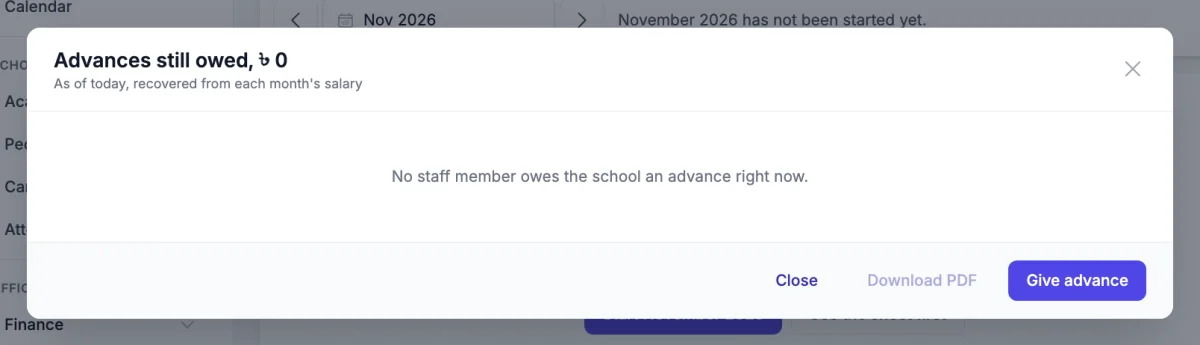 1
- 1Give advance

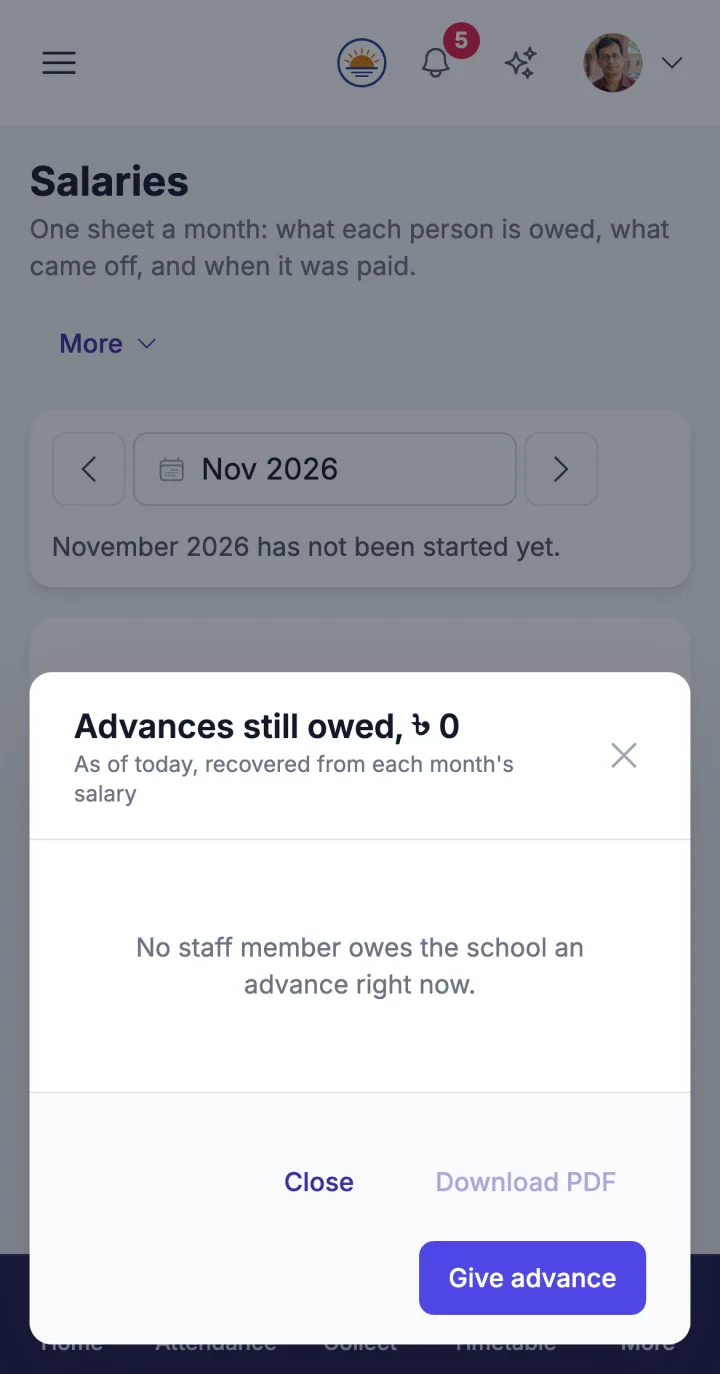 1
- 1Give advance

 12
- 1Employee, account, amount and monthly repayment
- 2How the advance comes back

 1
- 1Employee, account, amount and monthly repayment

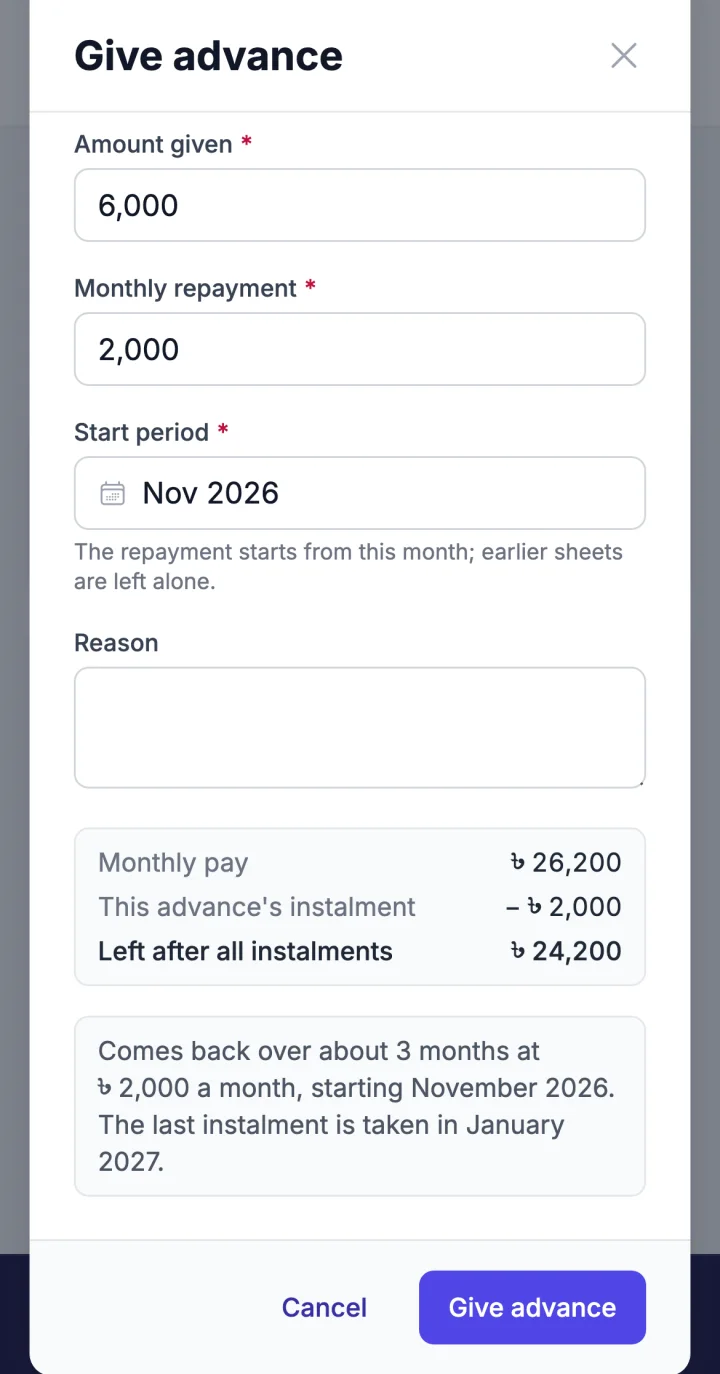 1
There is no computer screenshot for this step. Showing the phone screen.
- 1How the advance comes back
1- 1How the advance comes back
Check the sheet first
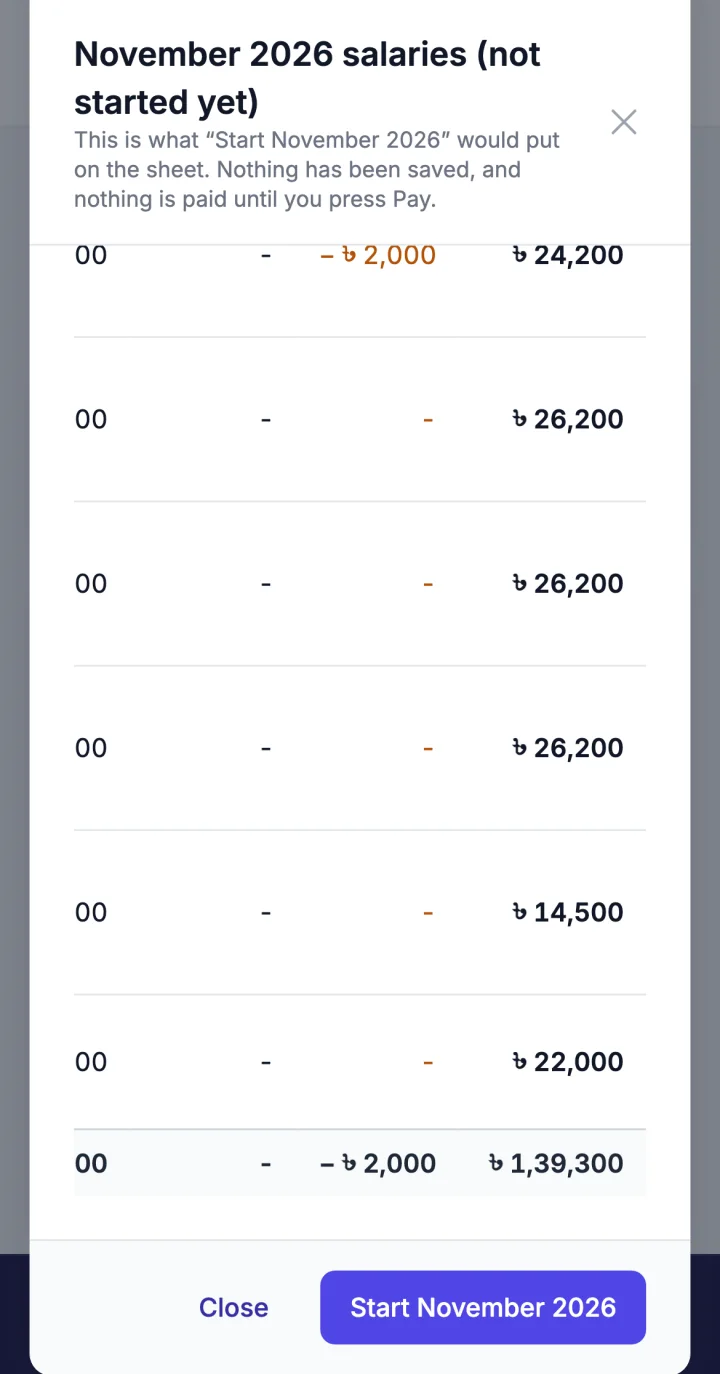
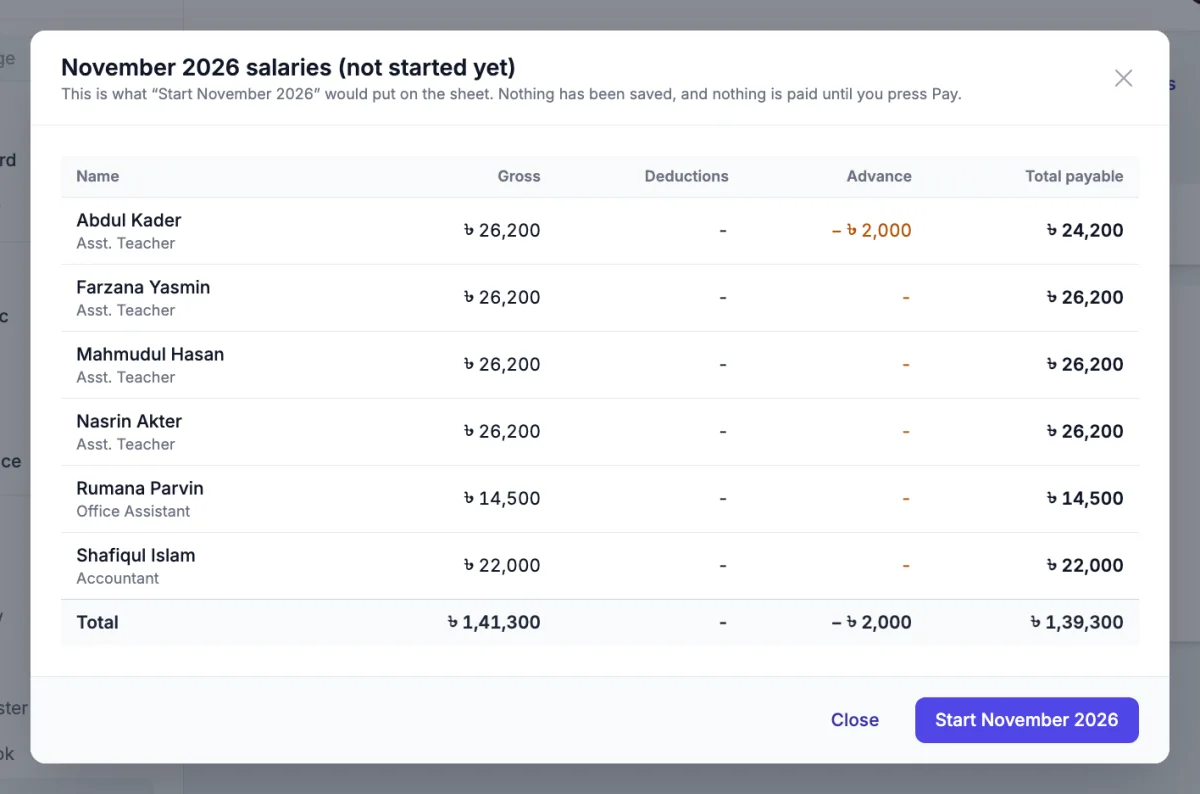
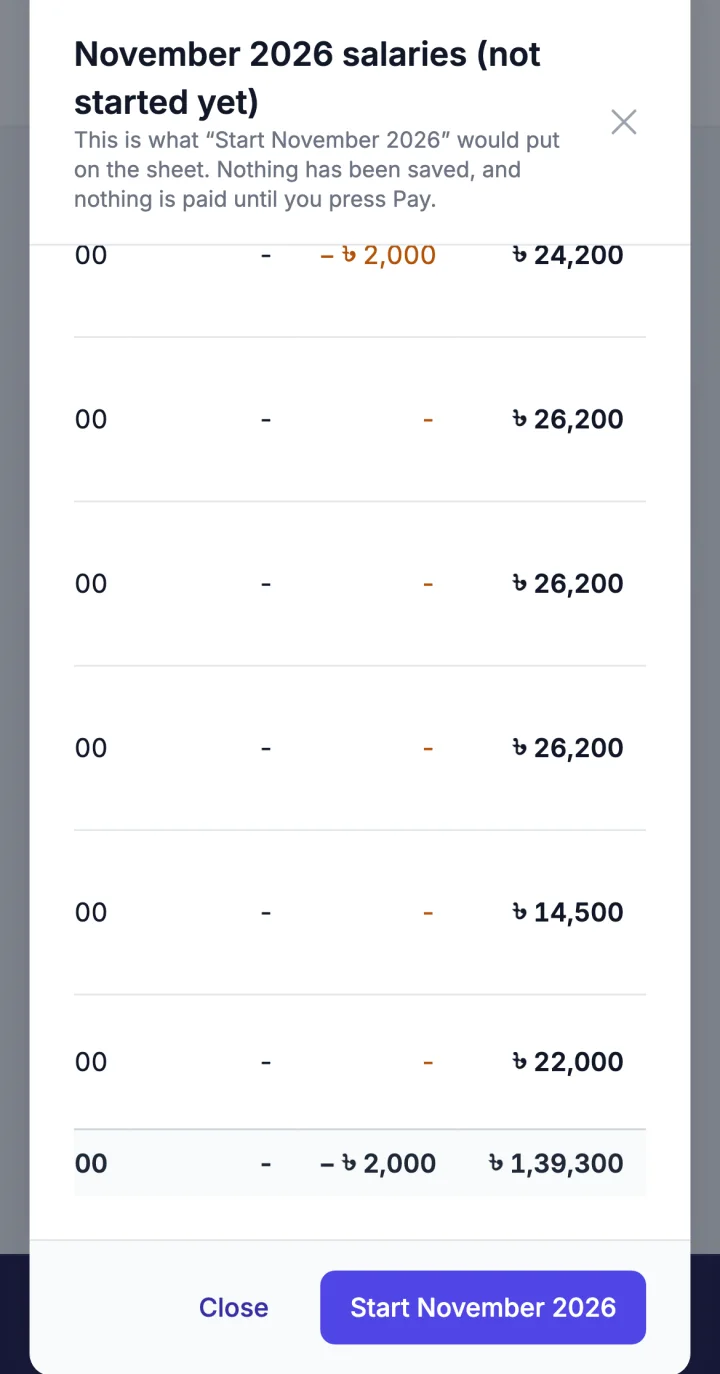
Press See the sheet first. A list shows each person's name, gross salary, deductions, advance and total payable, with everyone's totals at the bottom. In the example, the 6 people's total payable is ৳ 1,39,300 (after Abdul Kader's ৳ 2,000 advance is taken off).
Nothing is saved yet, so check it calmly. On a phone, swipe the list left to see the total payable. If someone's salary looks wrong, press Close and first fix it in the salary structure.

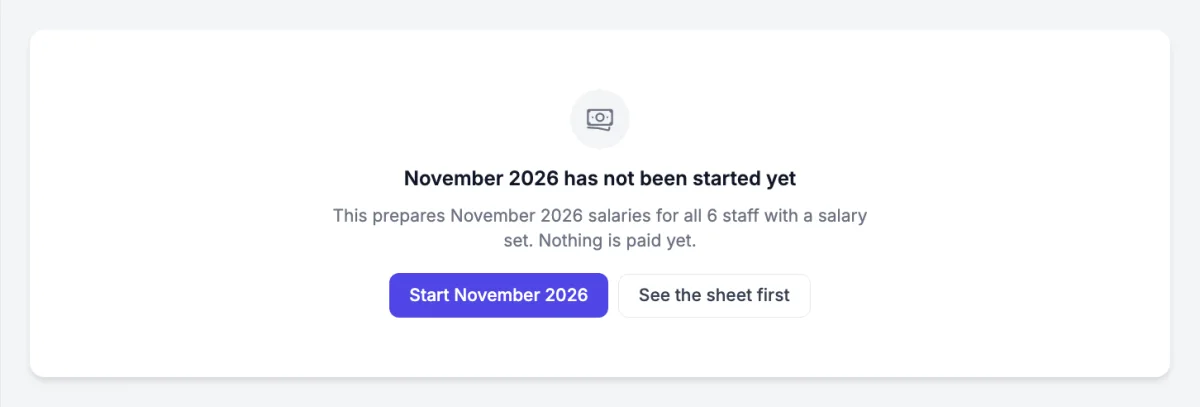 1
- 1See the sheet first

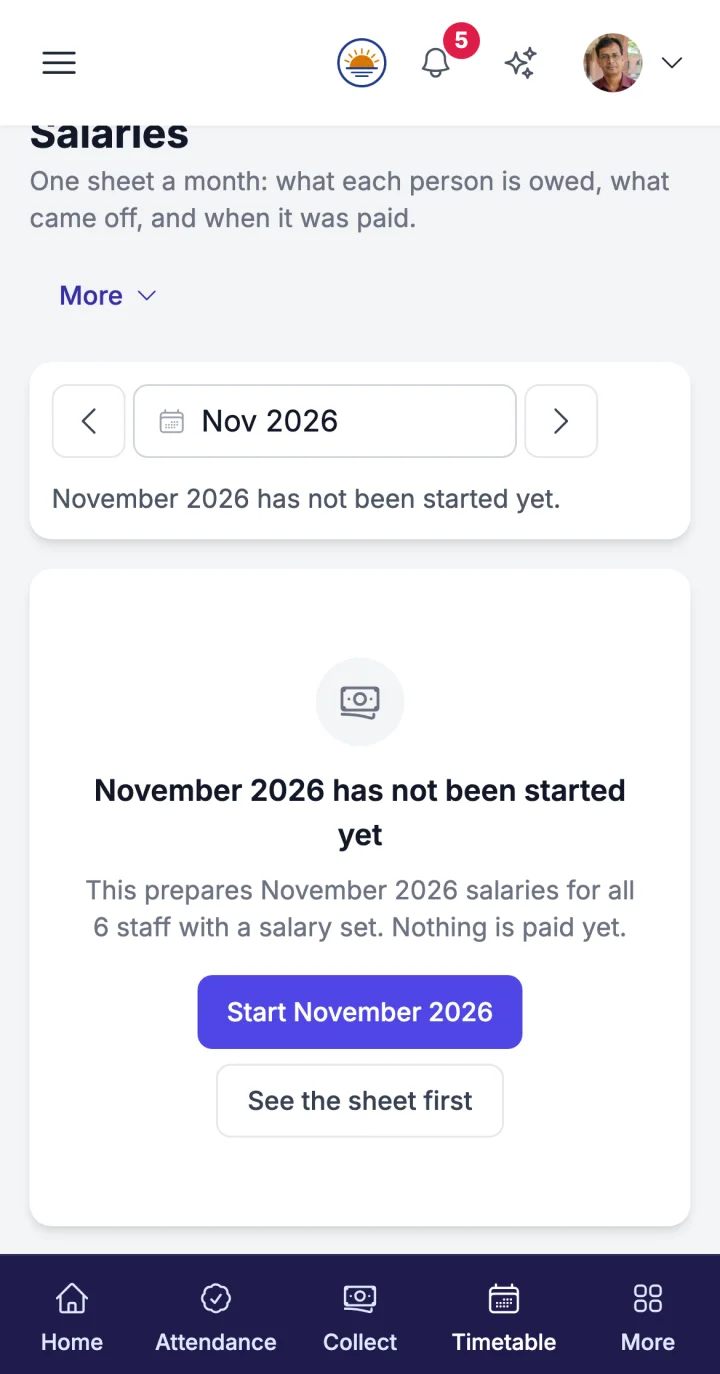 1
- 1See the sheet first

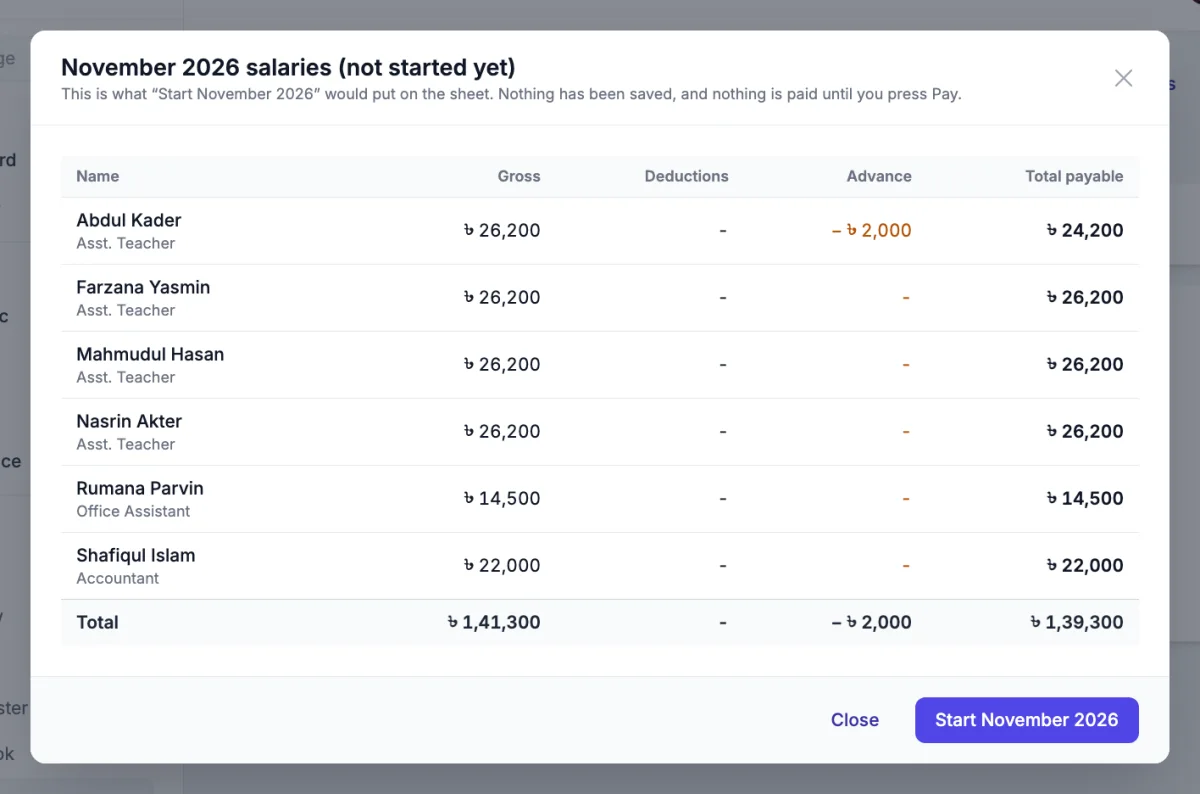 1
- 1The totals

 1
- 1The totals
Start the month
If everything is right, press "Start …" (the same button is also under the preview). It says "… prepared: 6 staff on the sheet".
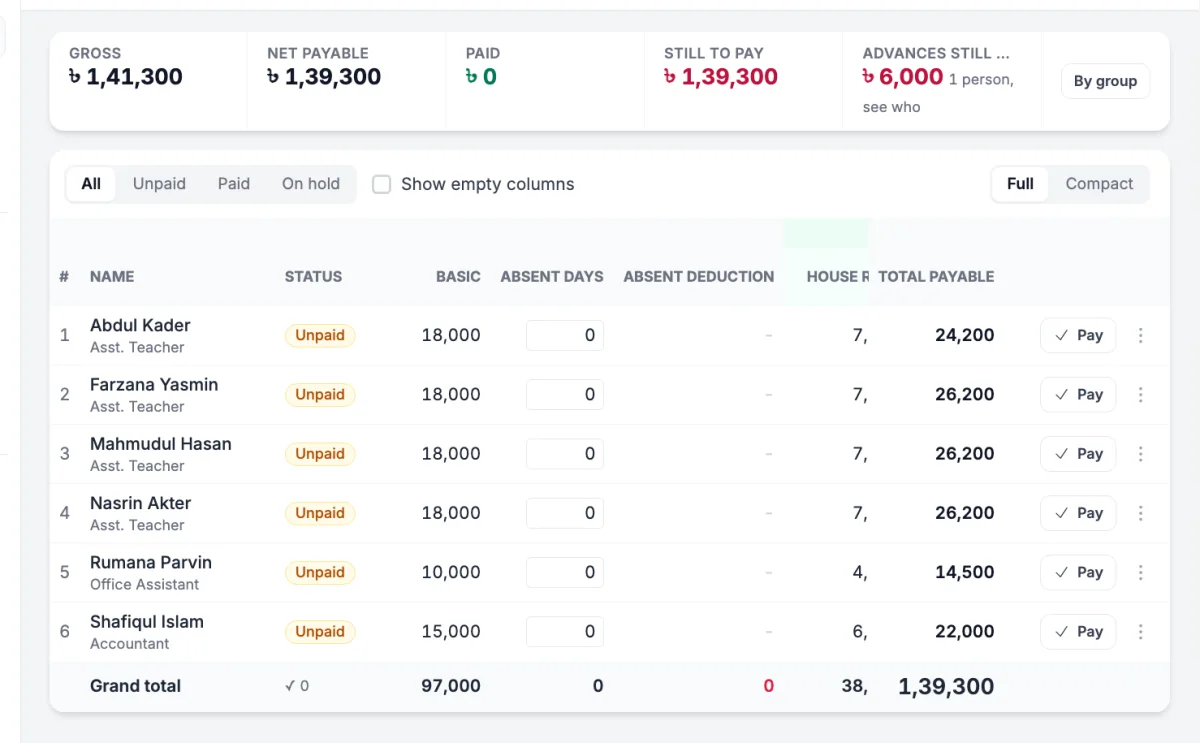
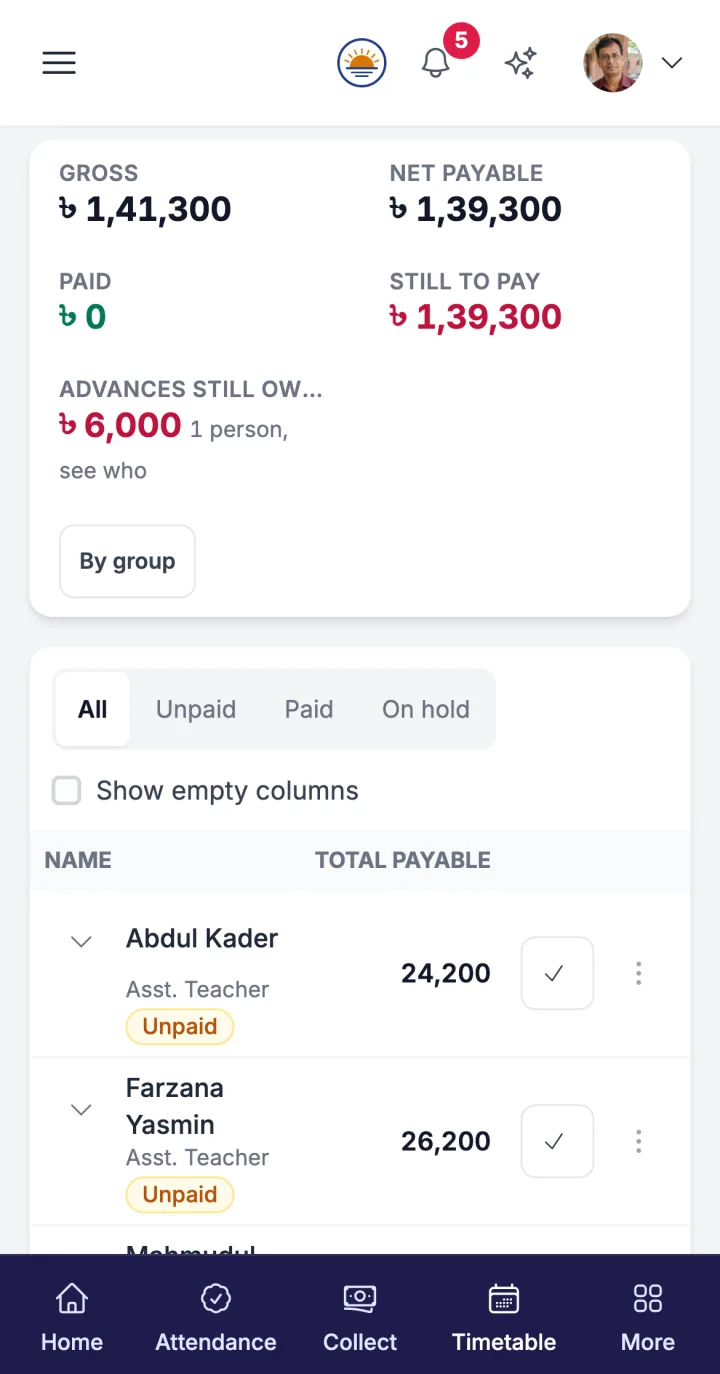
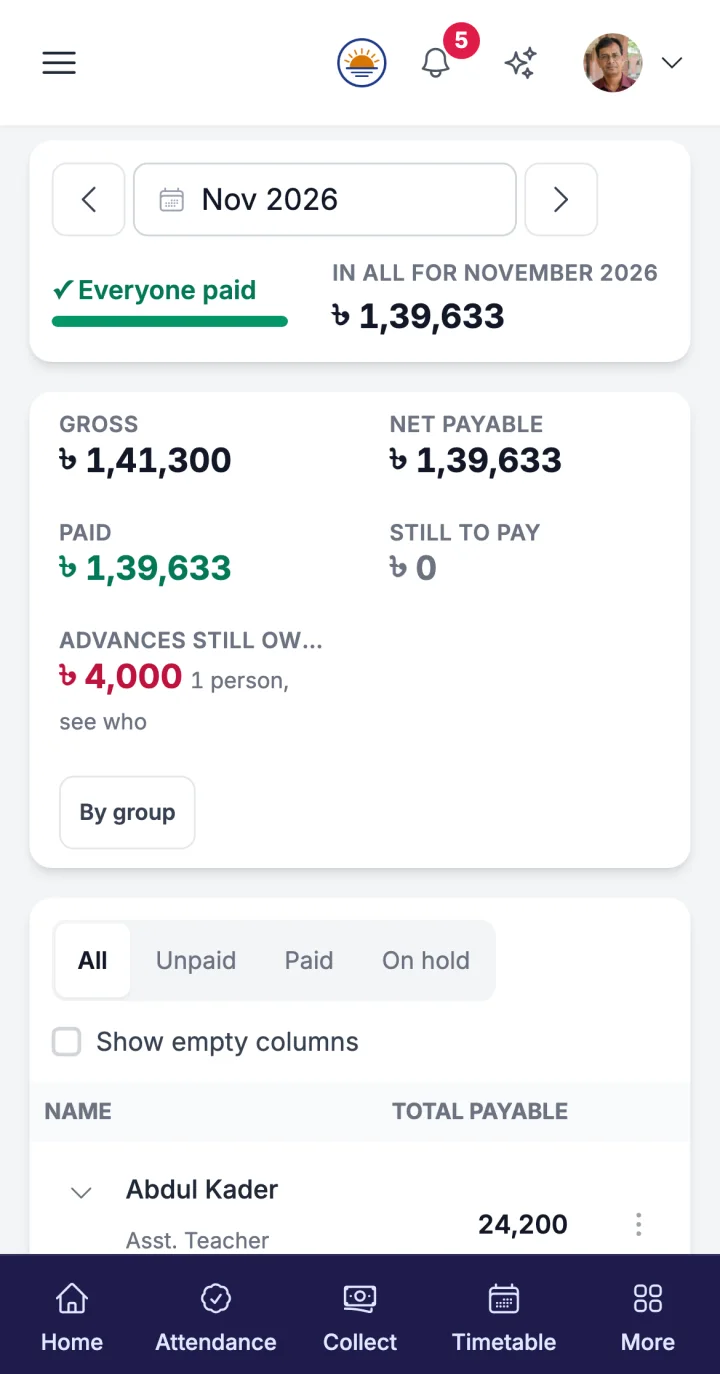
The page now shows this month's sheet. At the top, boxes show Gross, Net payable, Paid and Still to pay, and Advances still owed when someone owes an advance. The table below shows each person's basic salary, each allowance, absences, advance and total payable, and each person's status is "Unpaid".
 1
- 1Start the month
 1
- 1Start the month

 1
- 1Gross, Net payable, Paid, Still to pay

 1
- 1Gross, Net payable, Paid, Still to pay
Tip: If the table feels too wide, press Compact at the top. Press All, Unpaid, Paid and On hold to see only some employees.
Enter the absent days
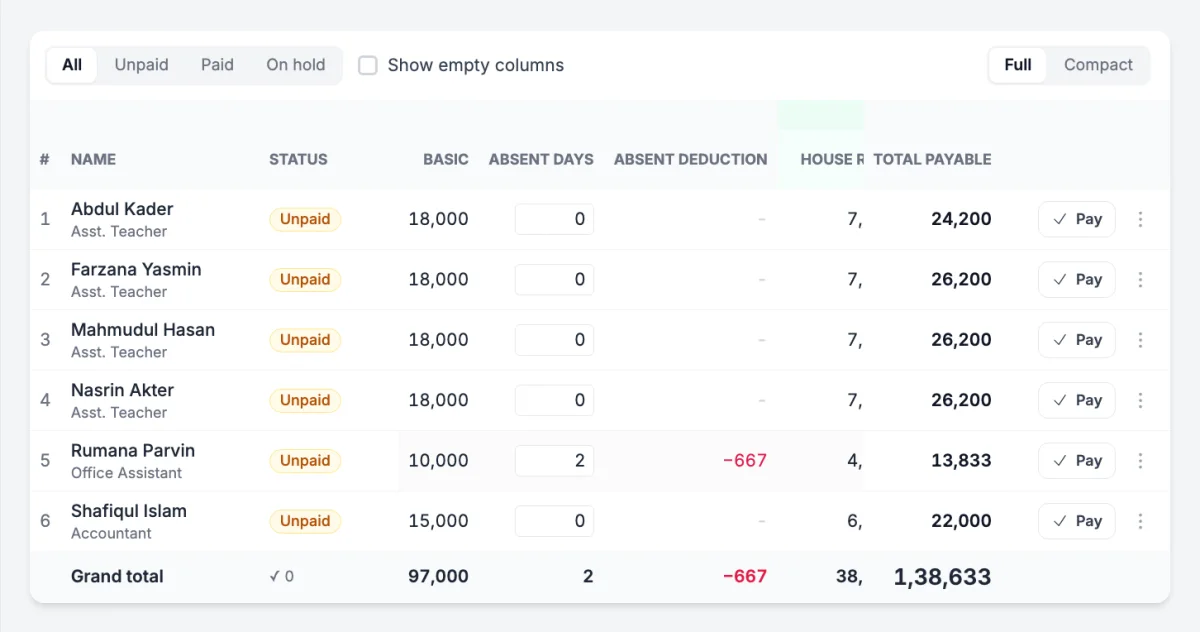
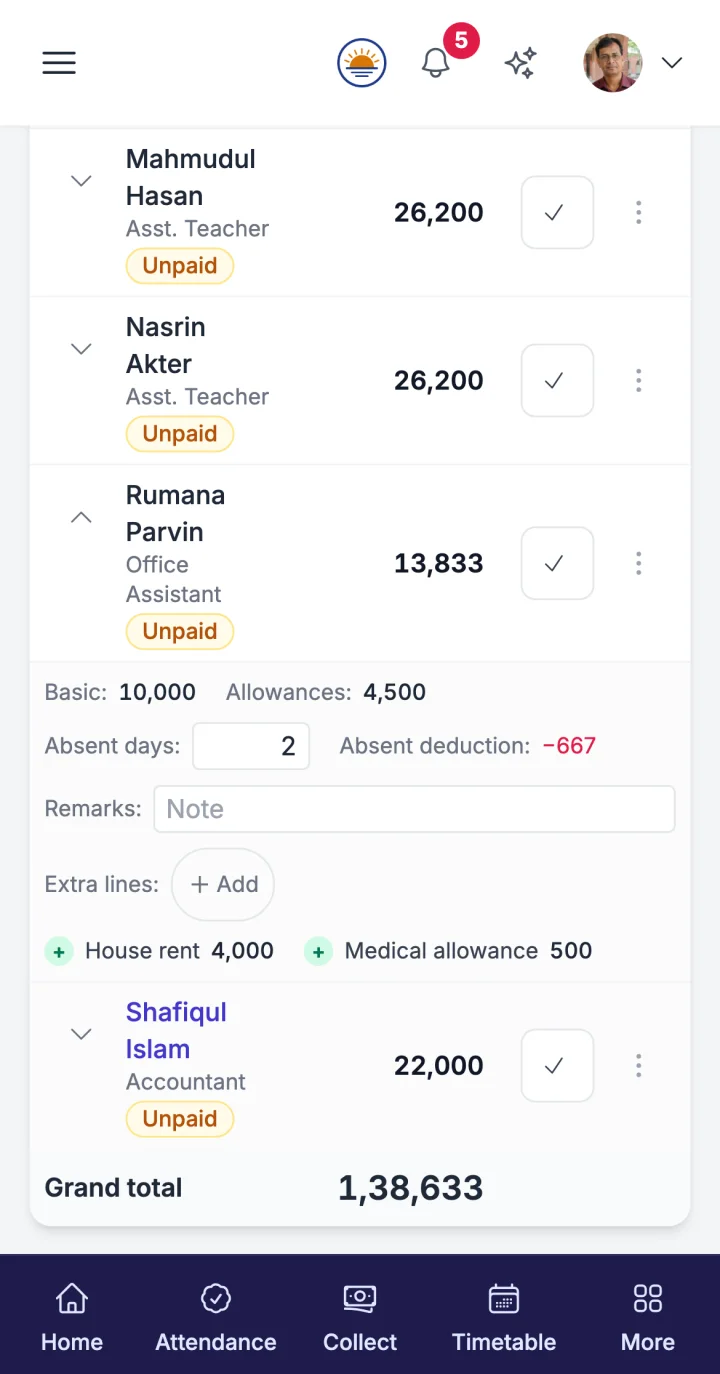
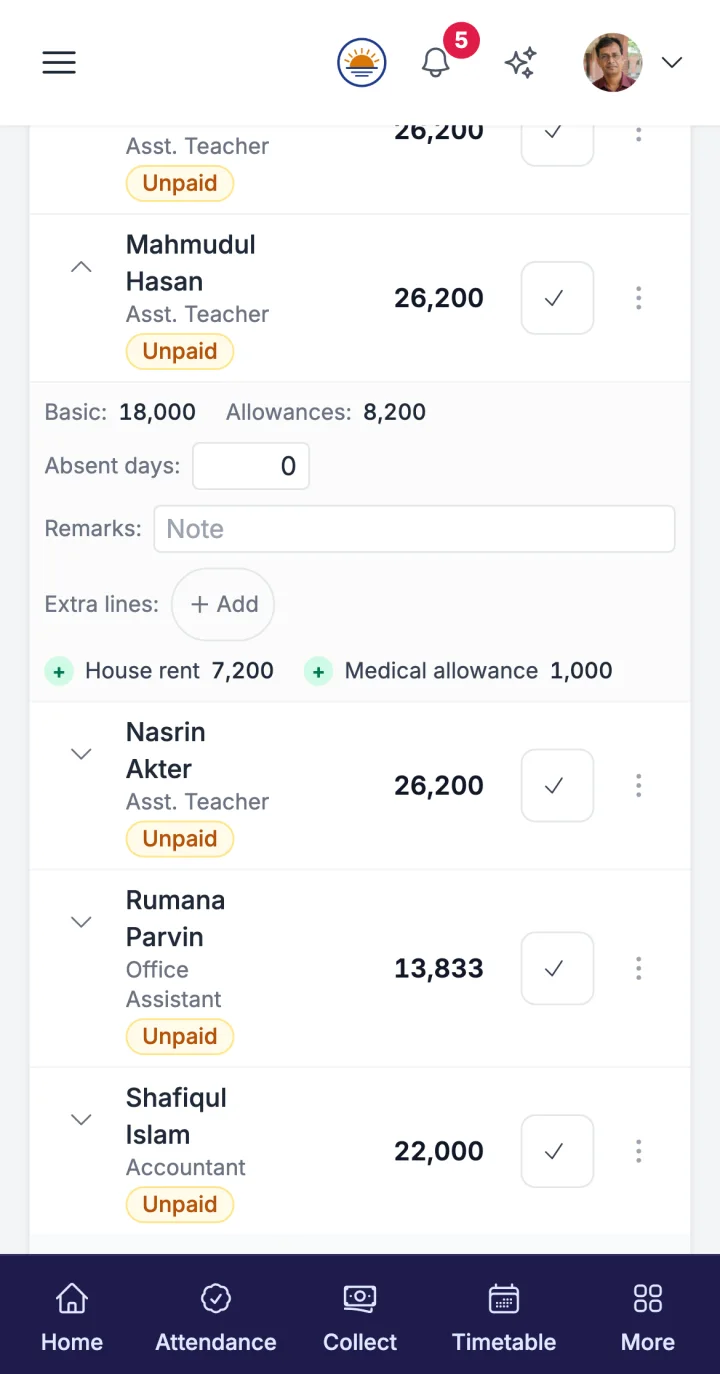
For anyone who was absent, type the number of days in the Absent days box of their row (for example 2 for Rumana Parvin). As soon as you leave the box, EduSine works out the absence deduction: basic salary ÷ 30 × absent days. In the example, 10,000 ÷ 30 × 2 = ৳ 667, so her total payable comes down from ৳ 14,500 to ৳ 13,833.
If you make a mistake, just type the right number again. On a phone, first press the small arrow beside the name to show the Absent days box.

 1
- 1Absent days

 1
- 1Absent days
Add this month's extra pay or deduction
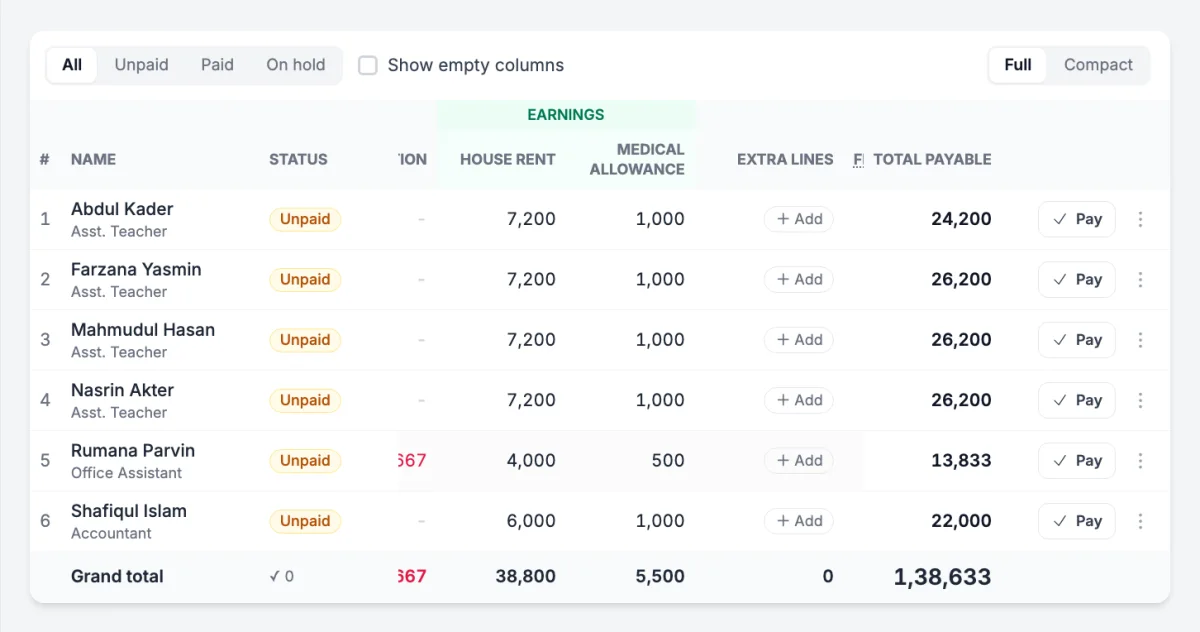
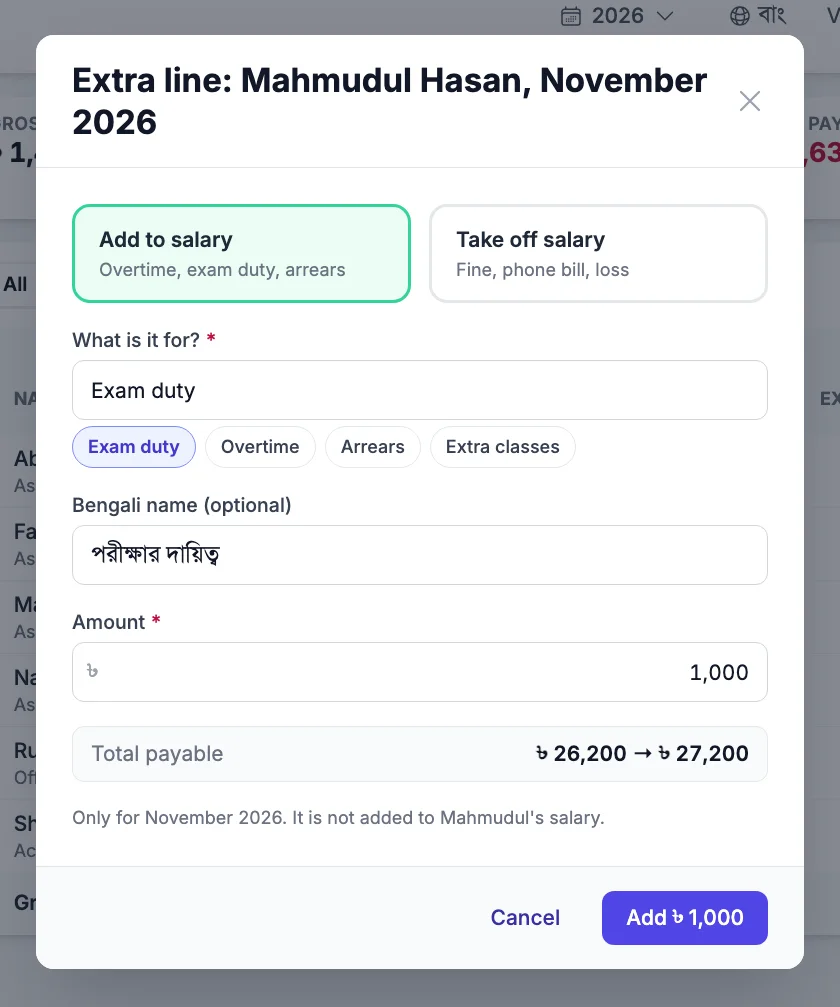
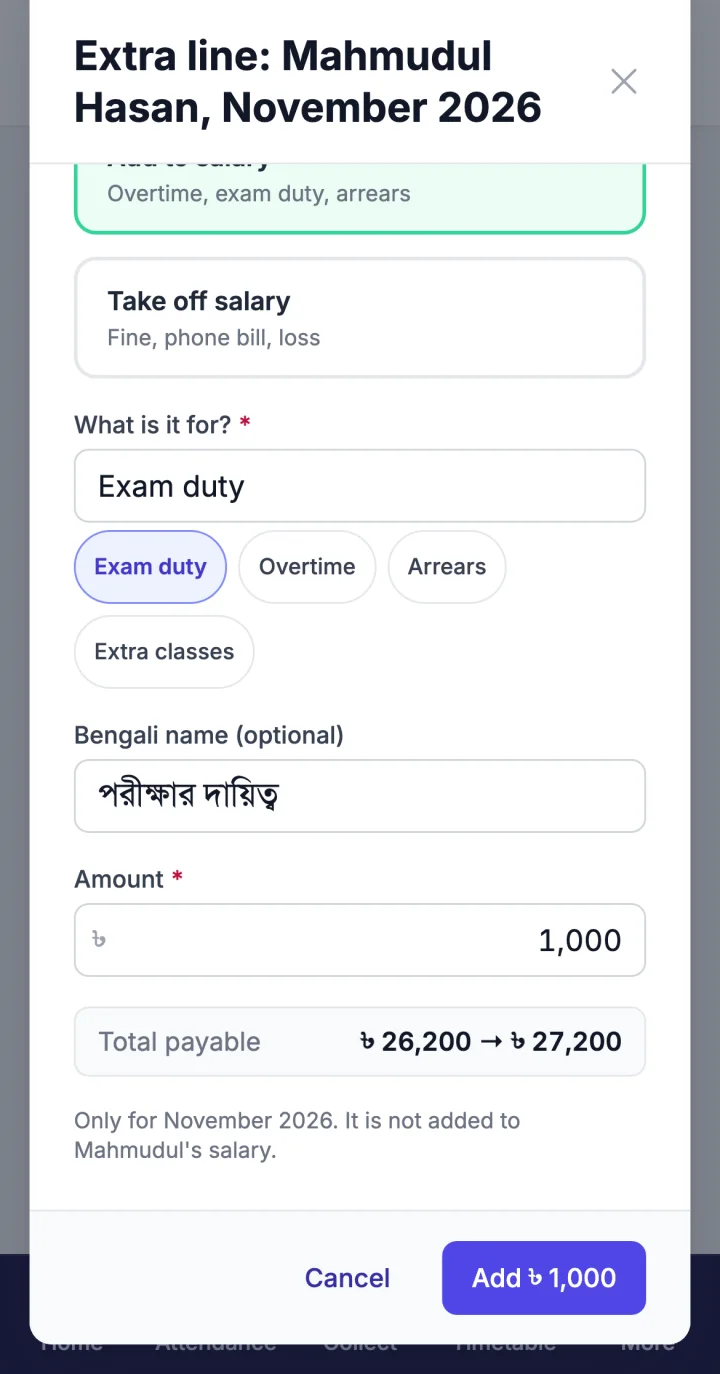
In the Extra lines column of the employee's row, press "+ Add" (for example Mahmudul Hasan's). First choose whether the money is added to the salary or taken off it. On a phone, "+ Add" shows after you press the small arrow beside the name.
What is it for? Press one of Exam duty, Overtime, Arrears or Extra classes under the box, or type your own. Type 1,000 in the amount box. Check that the total payable goes from ৳ 26,200 → ৳ 27,200, then press "Add ৳ 1,000".
This is only for this month. Nothing changes in their regular salary. If you make a mistake, press the × beside the line to remove it.

 1
- 1+ Add

 1
- 1+ Add

 12
- 1What is it for?
- 2Add ৳ 1,000

 12
- 1What is it for?
- 2Add ৳ 1,000
Tip: To hold back someone's salary this month, press Hold from the row's ⋮ and write the reason. An employee on hold is left out of "Pay everyone". Later, press Release and they can be paid again.
Print the salary advice for the bank
If you pay salaries through the bank, you can make a bank advice with the salary list. This is the letter of instructions you give the bank. Just making or printing the letter does not send money to anyone's account. When you hand the letter in at the bank, the bank sends the money.
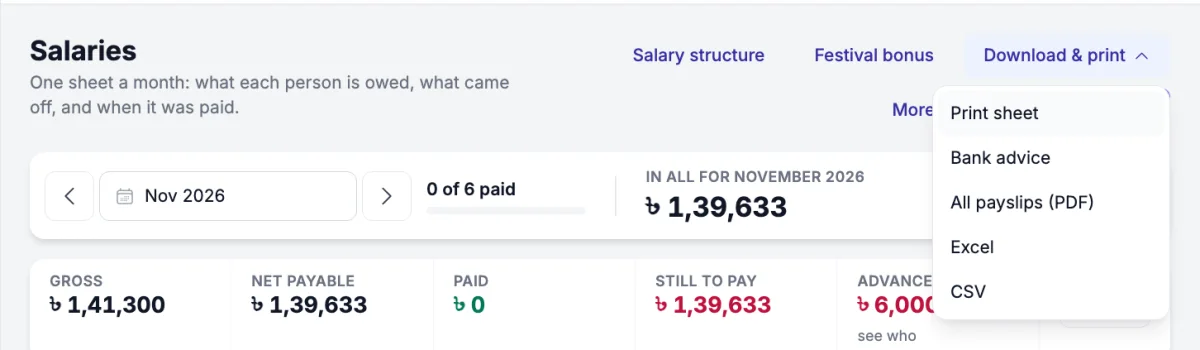
Press Download & print → Bank advice at the top. On a phone, everything under Download & print is in the More menu.
A small window shows how many of the people still to be paid have a bank account on record. Choose whether the letter is in বাংলা or English. Then print it.
The letter has a request to the bank manager, each person's name, account number, routing number and amount, the total in words, and in a separate list the people with no bank account (they must be paid in cash or by cheque). At the bottom there are places to sign for the person who prepared it, the person who checked it and the person who approved it.
Keep in mind that the advice only lists people whose salary is still to be paid. So print the advice before you record the salaries as paid.

 12
- 1Download & print
- 2Bank advice

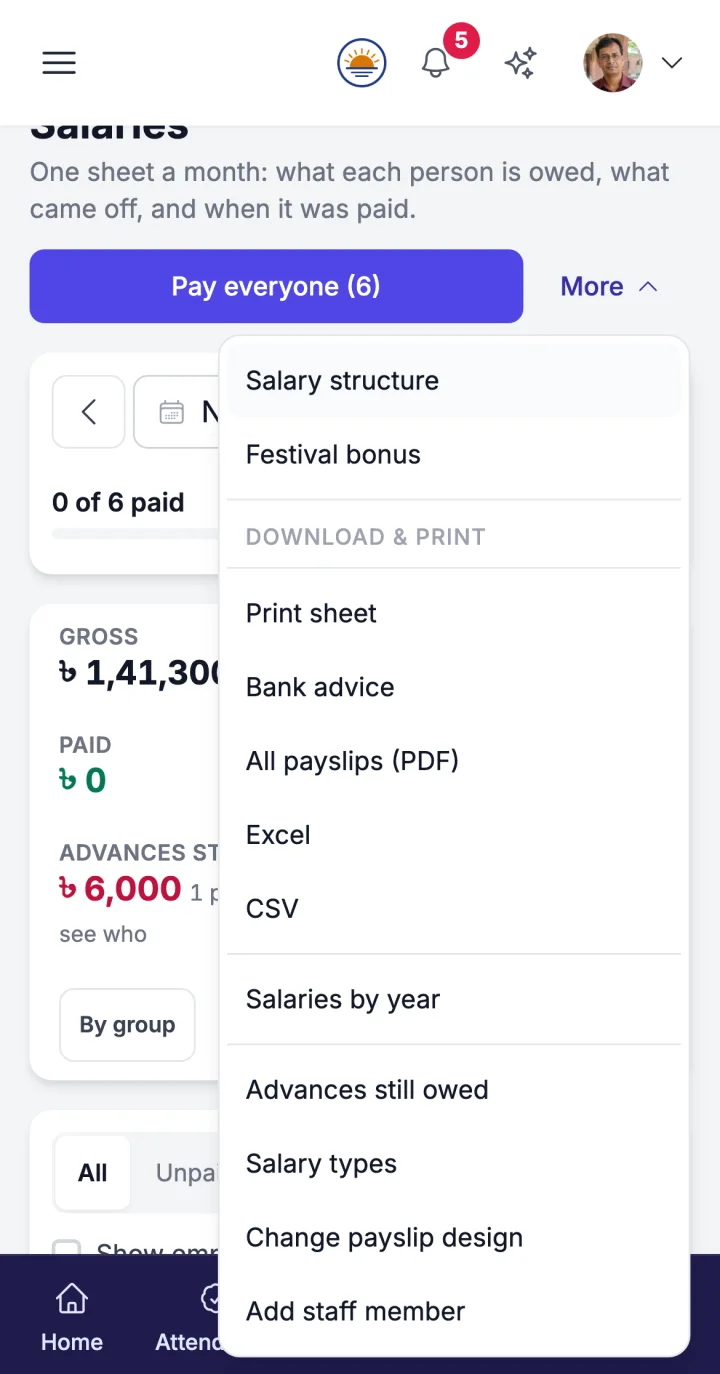 12
- 1Download & print
- 2Bank advice

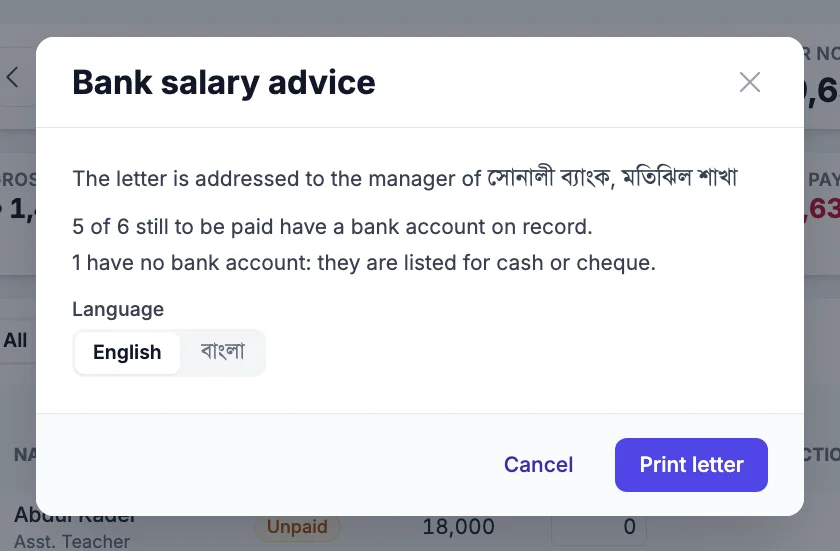 1
- 1Bangla or English

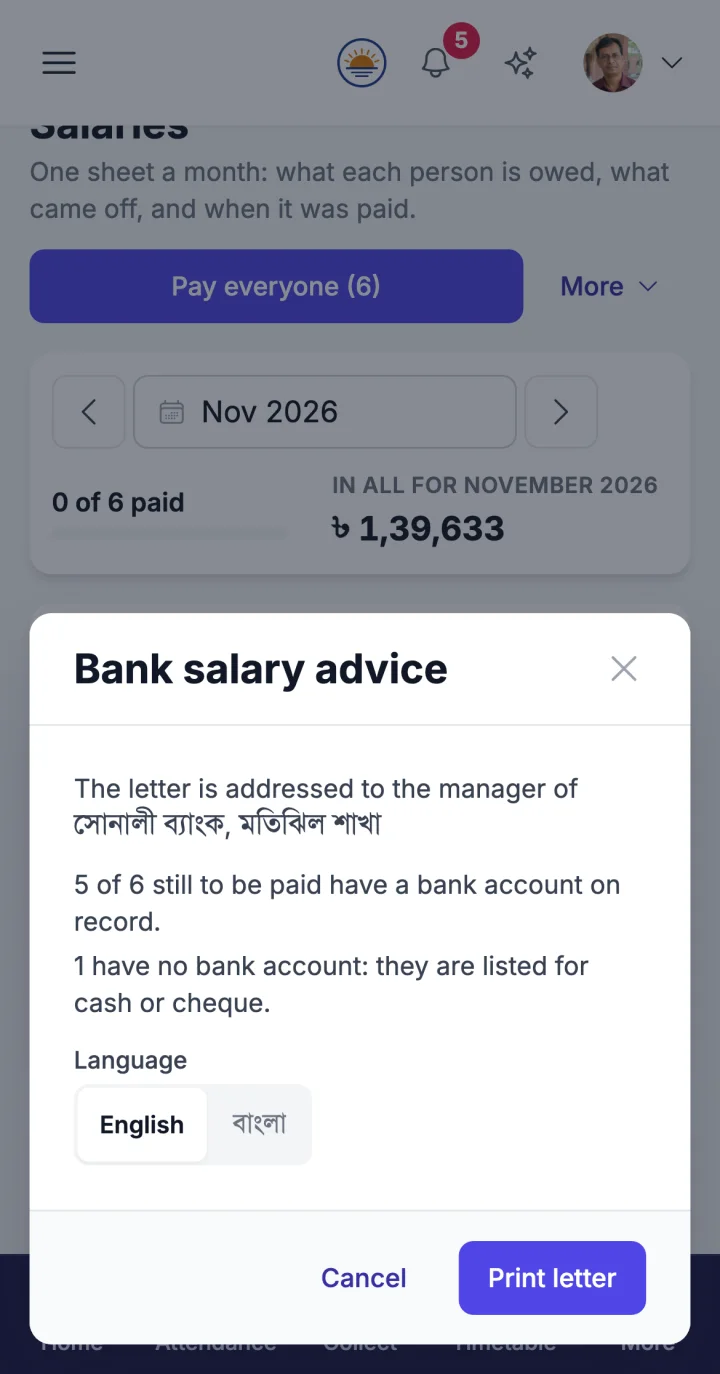 1
- 1Bangla or English
Tip: If your institution's own bank name and account number are not entered, a yellow warning shows in the window. Press Open Cash & bank and enter them. You can still press "Print with blank lines", and the letter will have blank lines to fill in by hand.
Pay one person
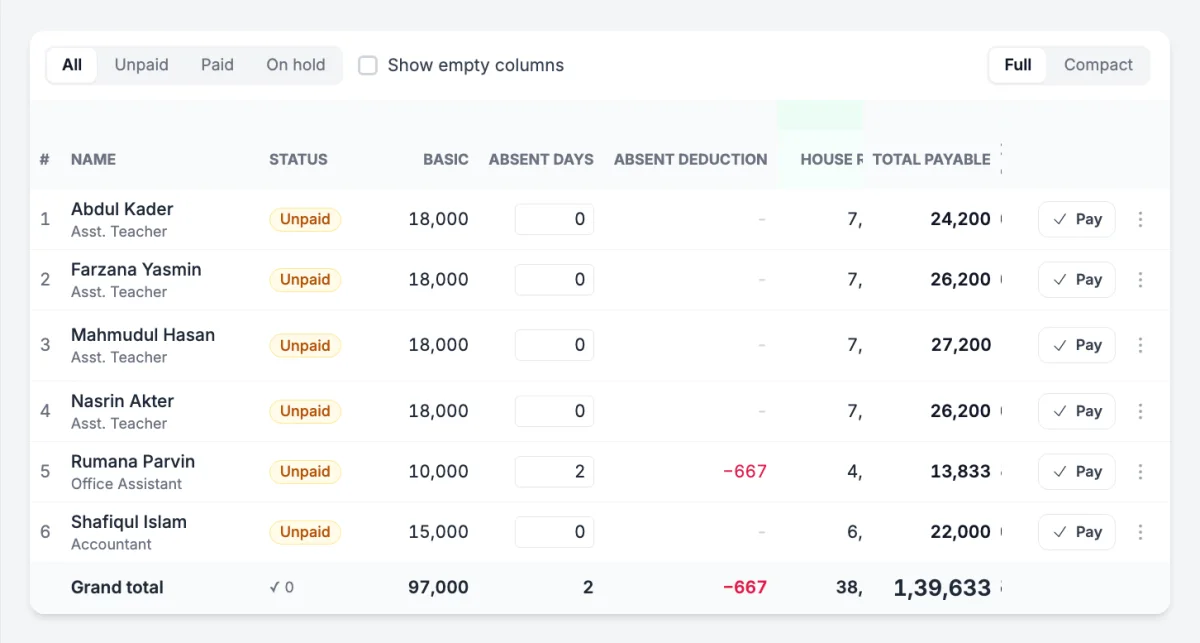
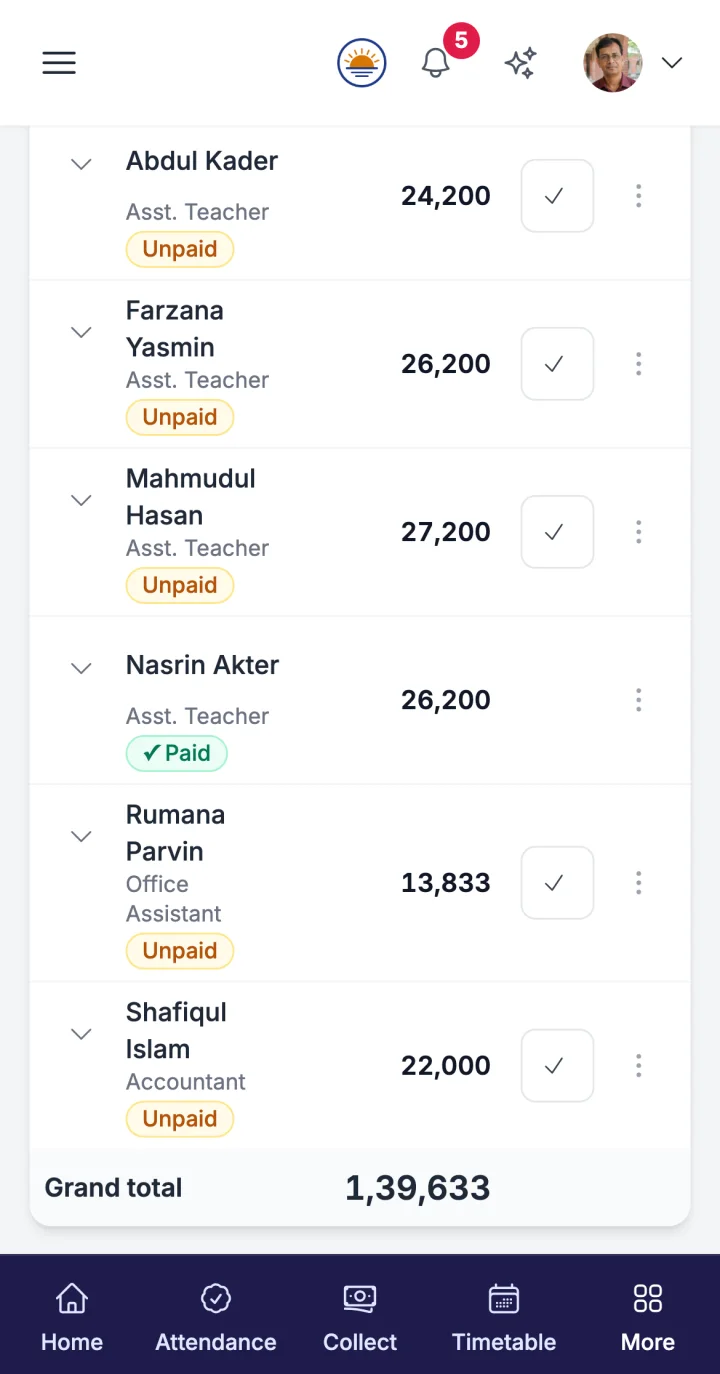
Press Pay on the right of the employee's row (for example Nasrin Akter). The amount box already holds their full payable, with "Still owed: ৳ 26,200" below. If you are not paying all of it today, type a smaller amount; the status then becomes "Part paid". On a phone the button shows only a ✓.
In the Paid from box, choose the account the money comes from (for example Main Bank), then press Pay.
The row now shows "✓ Paid" with the date and the account's name. The money also goes into the cash book as money out, so you do not need to write it there separately.


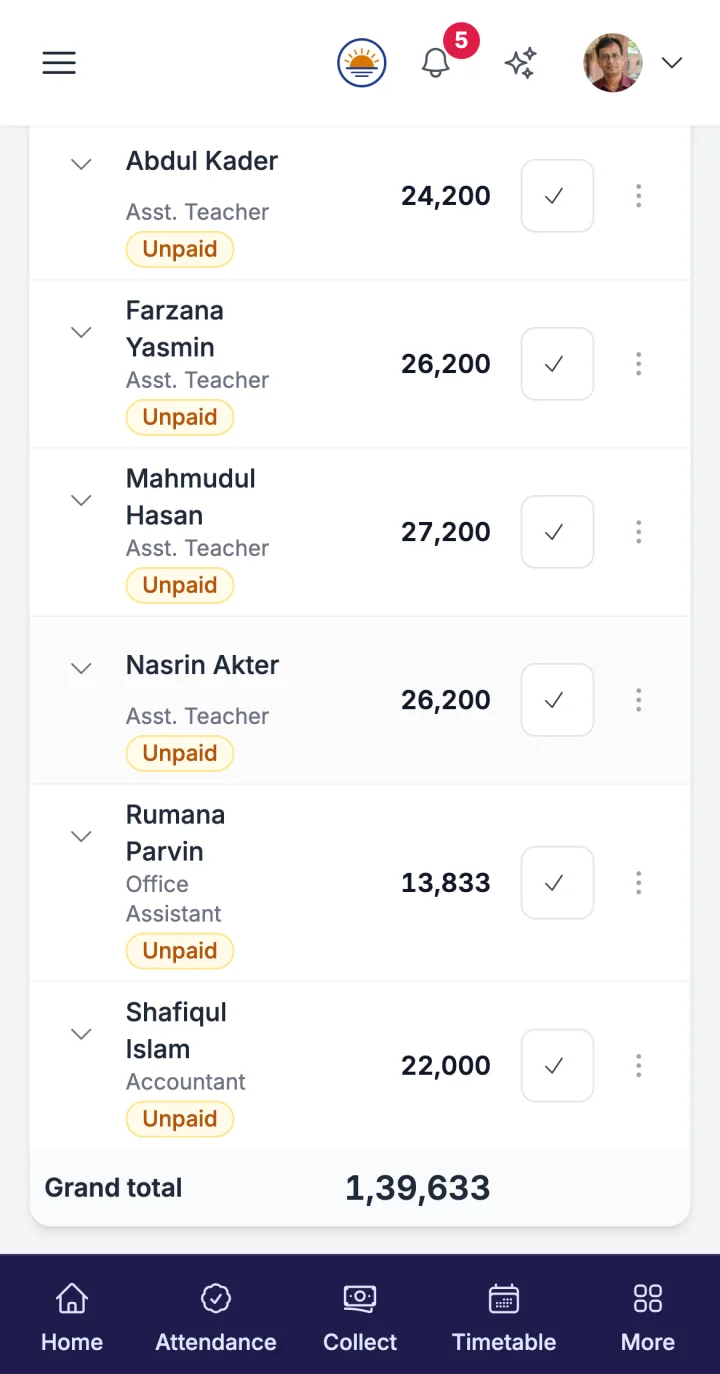 1
- 1Pay

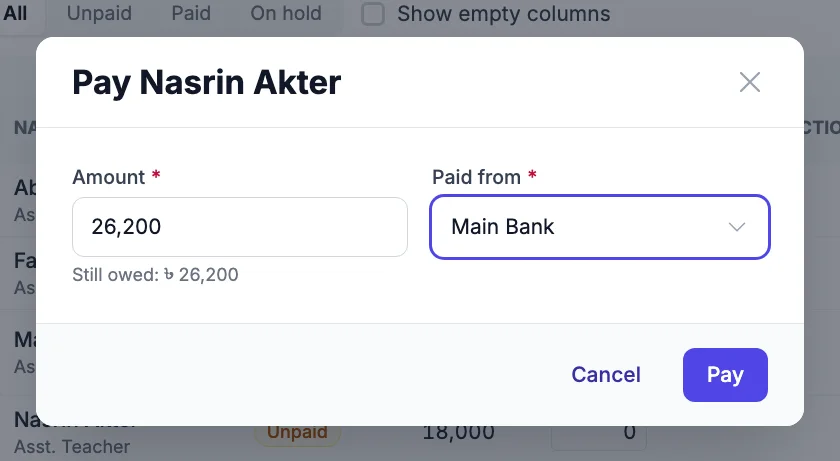 12
- 1Paid from
- 2Pay

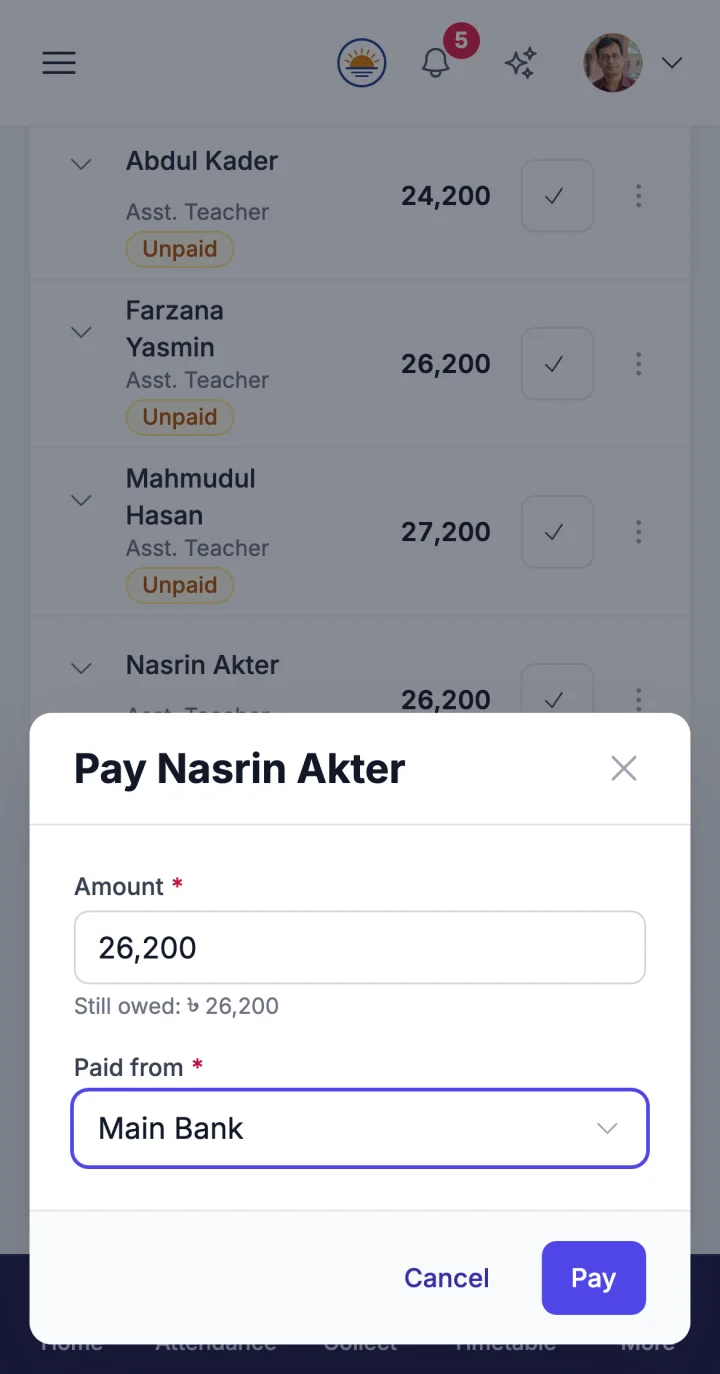 12
- 1Paid from
- 2Pay

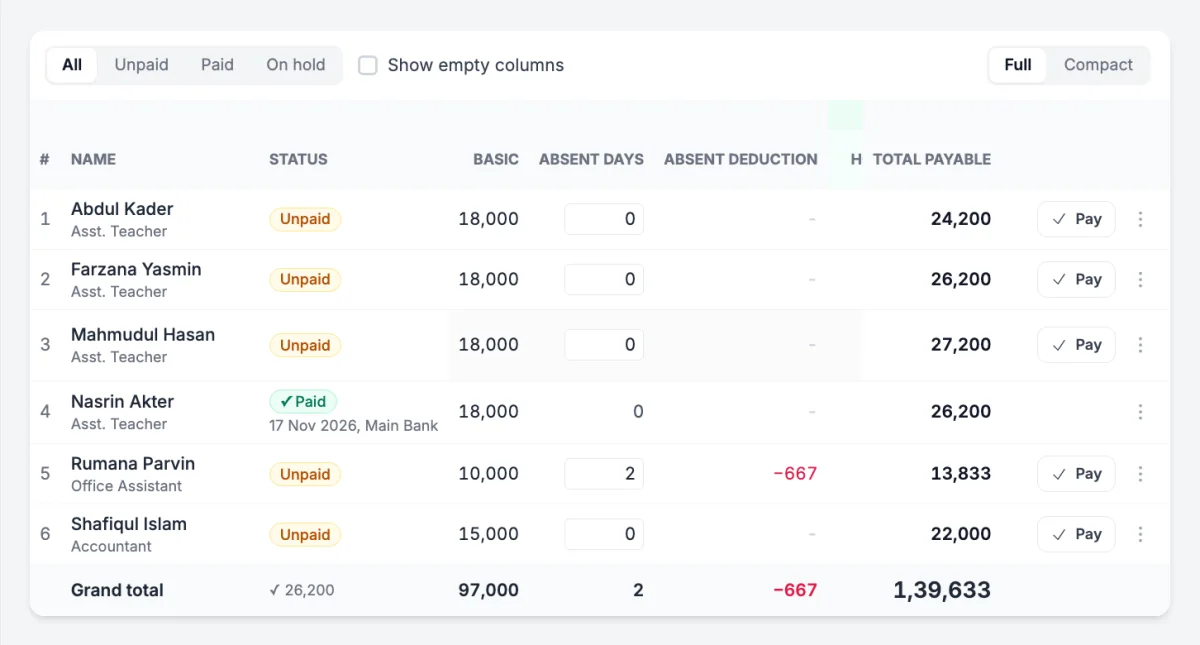 1
- 1✓ Paid

 1
- 1✓ Paid
Pay everyone together
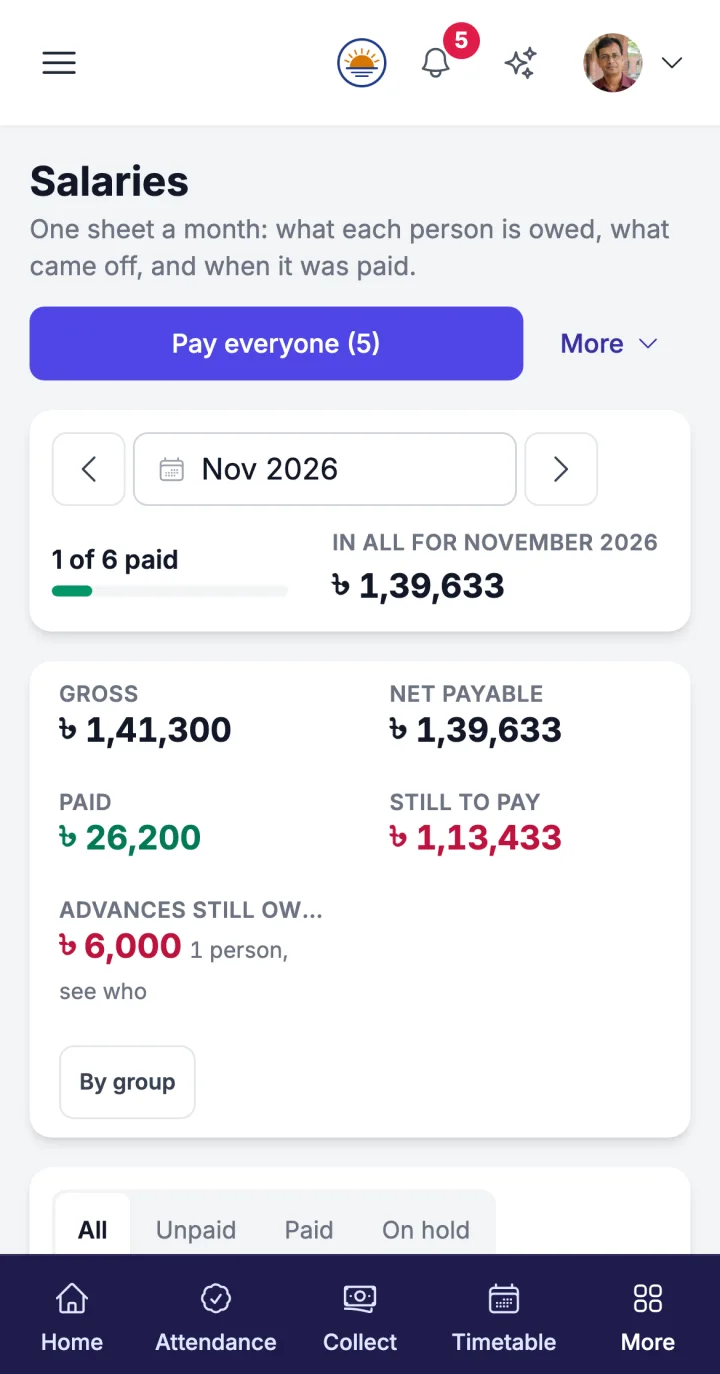
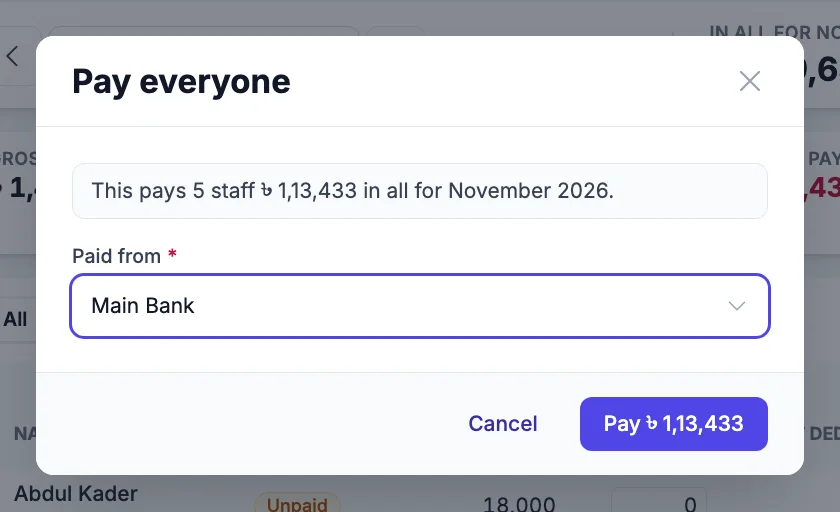
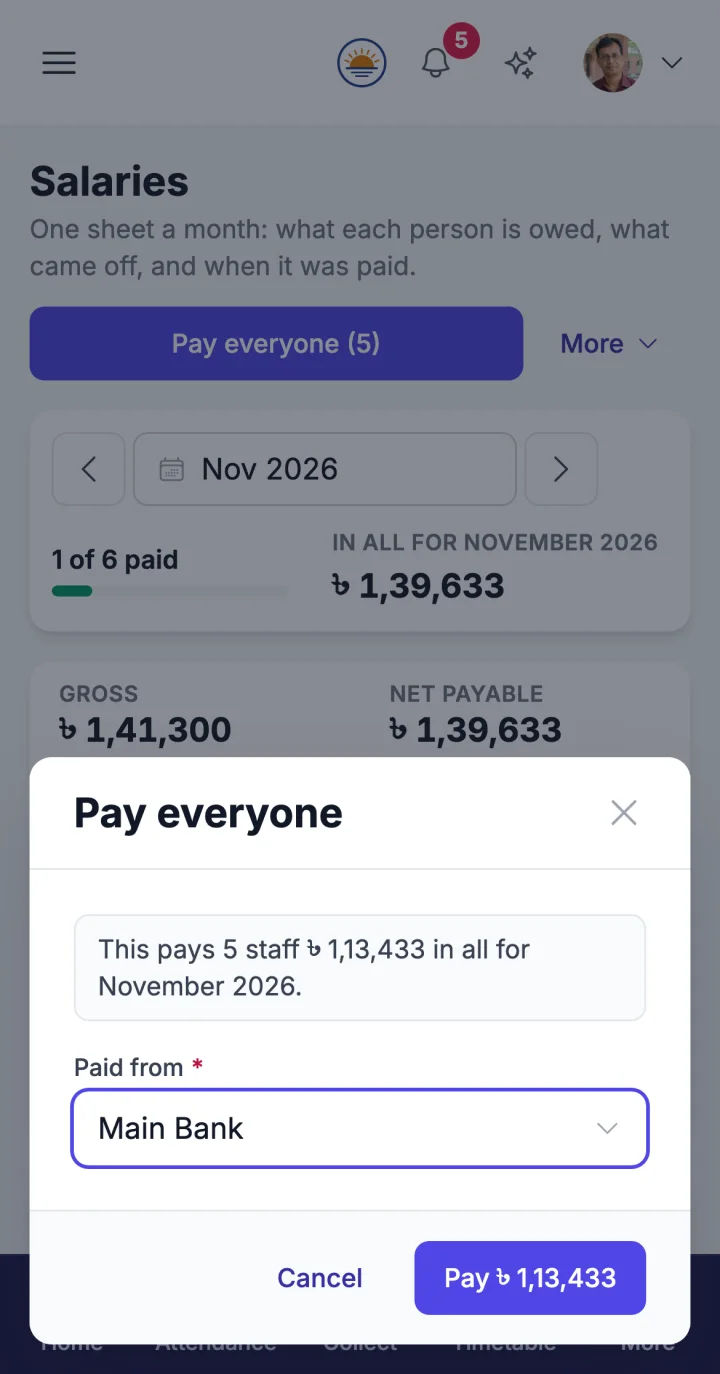
Press "Pay everyone (5)" at the top. The number in brackets is how many are still to be paid. The window says how much will be paid to how many people.
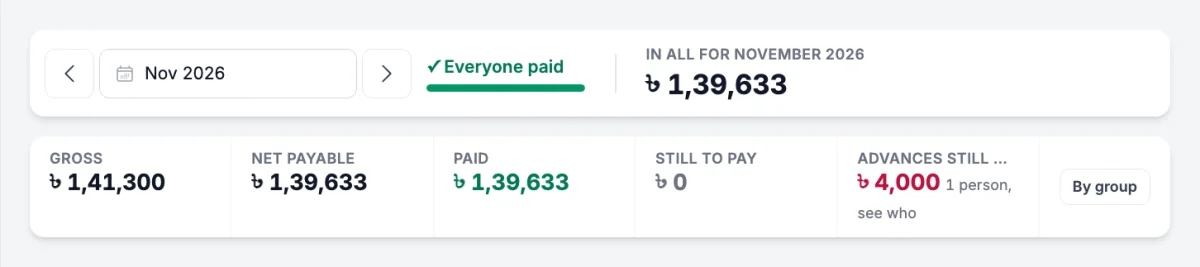
Choose the account in the Paid from box, then press the button that shows the amount, such as "Pay ৳ 1,13,433". At the top you see "✓ Everyone paid", and the Still to pay box shows ৳ 0.
If the chosen account does not have enough money, a warning says "Not enough in …". If you chose the wrong account, go back and fix it. If you want to pay knowing this, press Pay anyway.

 1
- 1Pay everyone


 12
- 1Paid from
- 2The button with the amount

 12
- 1Paid from
- 2The button with the amount
Tip: If "Salary sheets need a second signature before paying" is on in Settings → Money, another person with permission to approve must first press Approve sheet. Salaries cannot be paid before that. If anything on the sheet changes, it must be approved again. In most institutions this is off.
Print the payslips
For one person's payslip, press ⋮ (More) → Payslip in their row. A PDF opens in a new browser tab; print or save it from there.
For everyone's payslips together, press Download & print → "All payslips (PDF)" at the top.
The payslip has the employee's name, designation and month, each line of earnings, the deductions, the net payable, how much was paid, the amount in words and a place to sign. The Payroll tab on the employee's own page also has all their monthly payslips. An employee who can sign in can see their own payslips from My space.

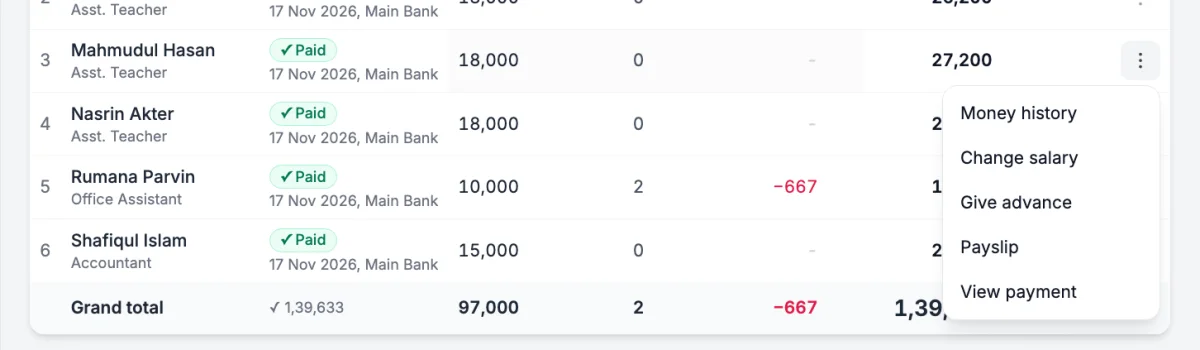 1
- 1Payslip

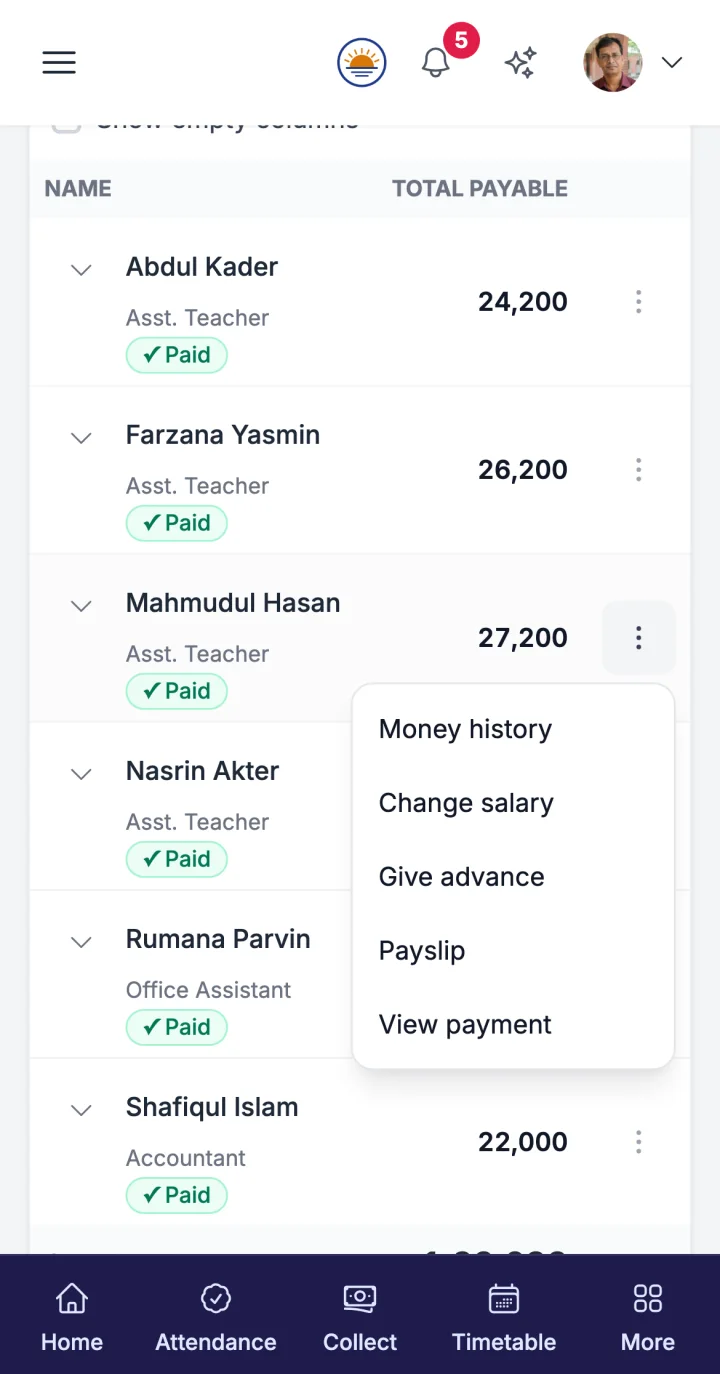 1
- 1Payslip

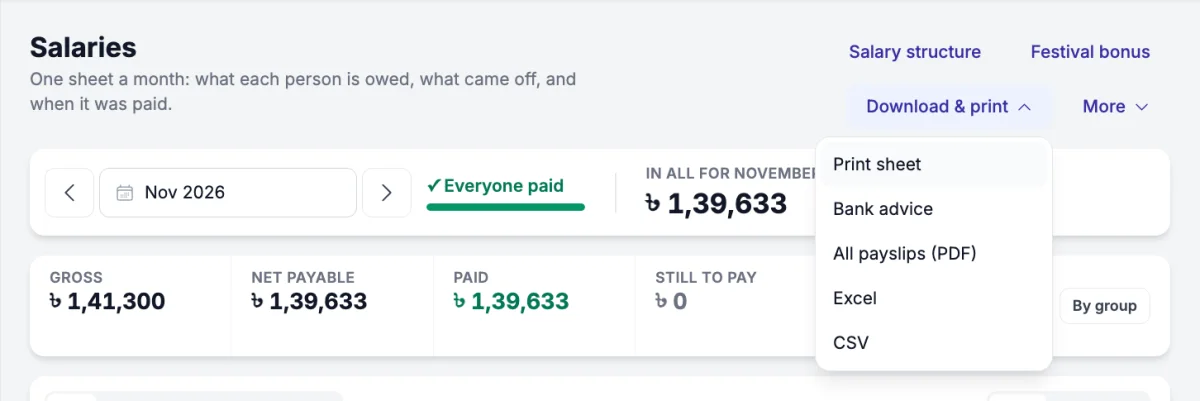 1
- 1All payslips (PDF)

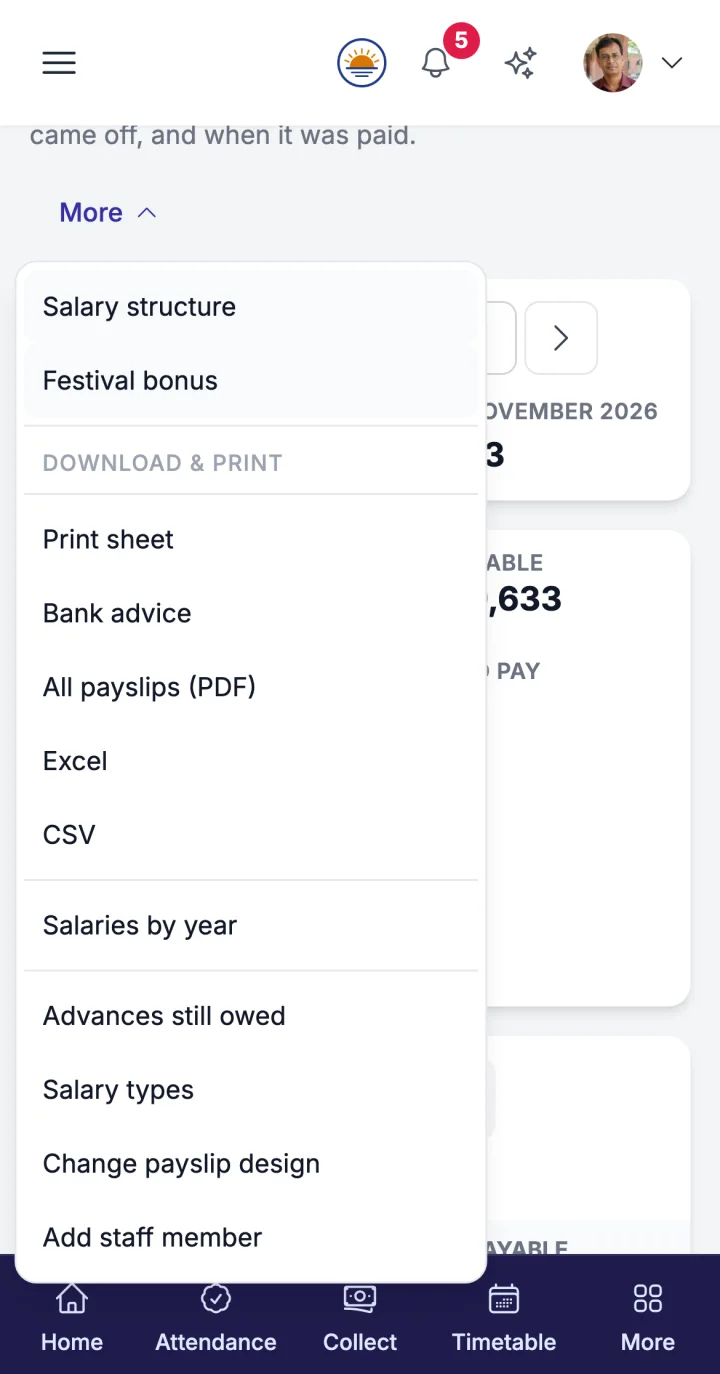 1
- 1All payslips (PDF)
Tip: To keep the whole sheet on paper, press Download & print → Print sheet. You can also download an Excel or CSV file.
Pay the festival bonus
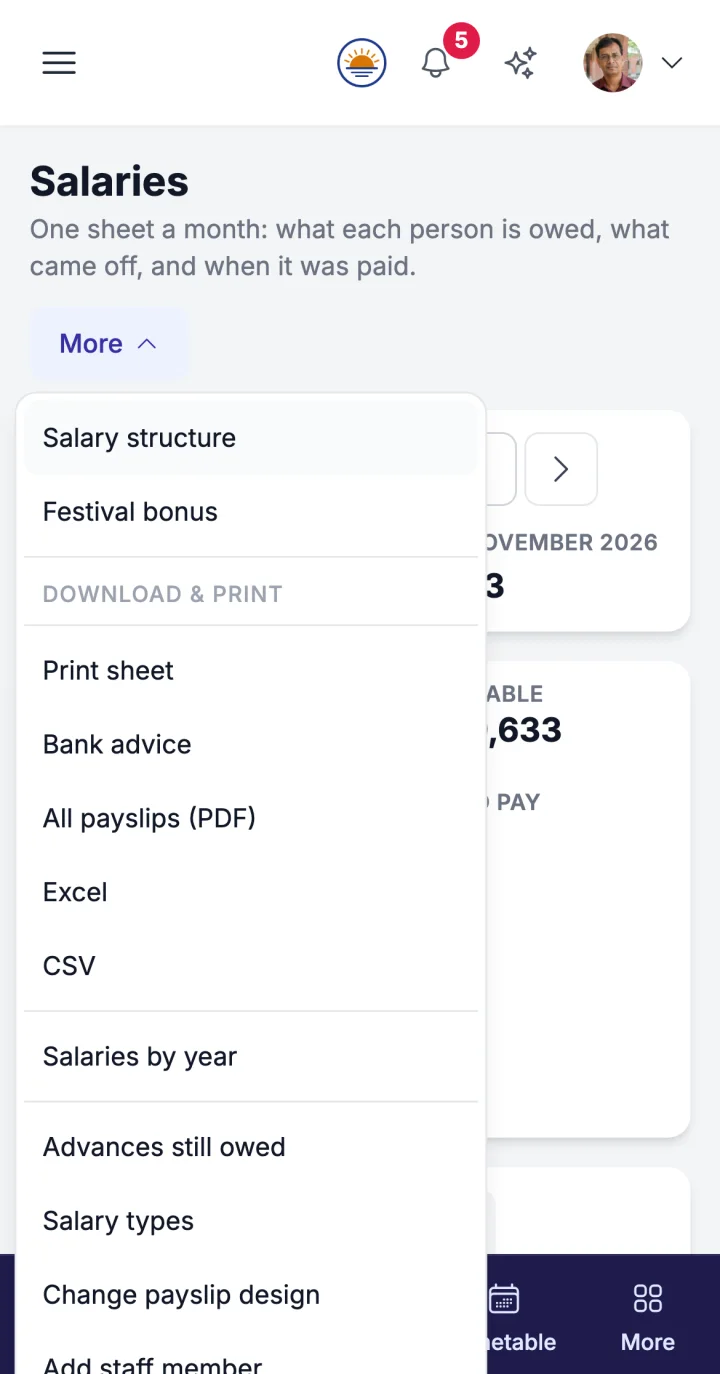
Press Festival bonus at the top. A list opens of which festival bonuses were paid to whom, when, this year. Press Pay festival bonus below. On a phone, Festival bonus is in the More menu.
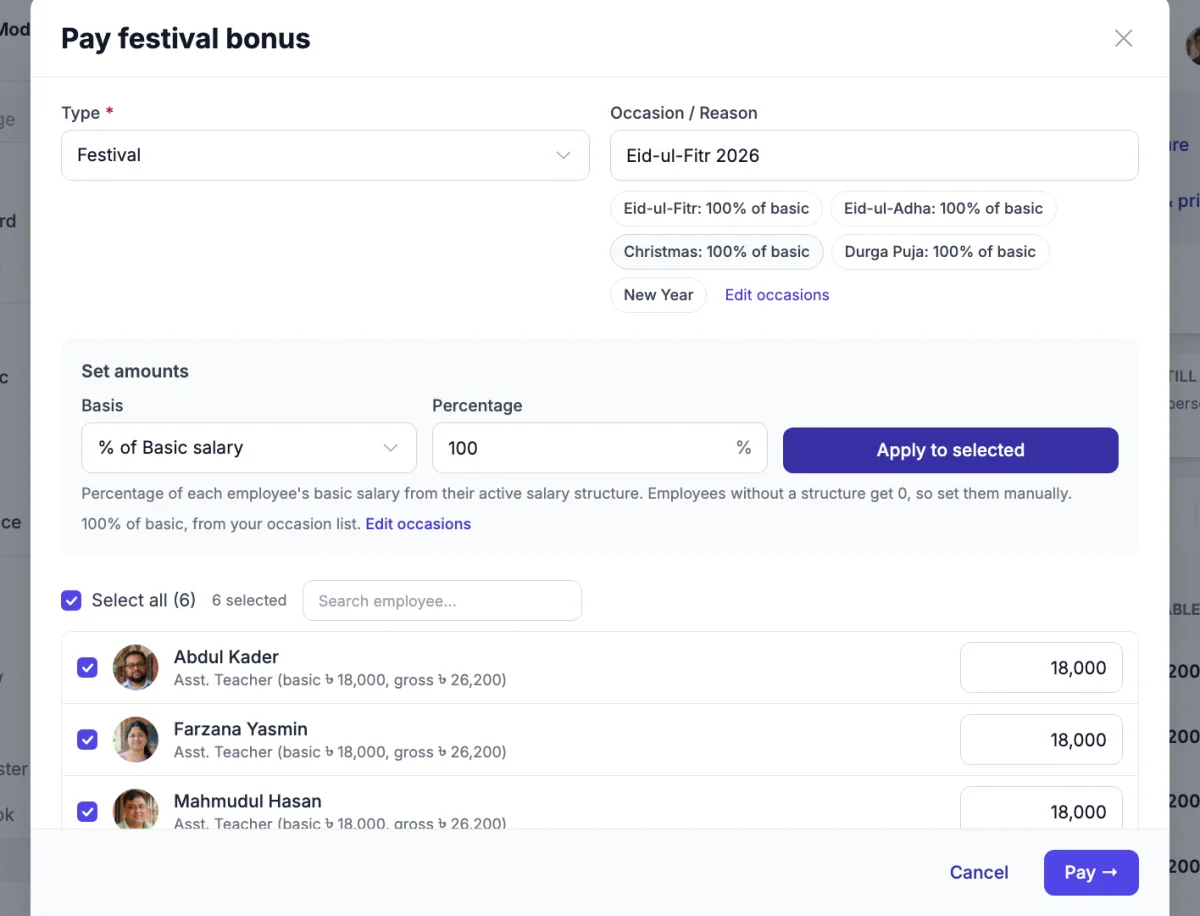
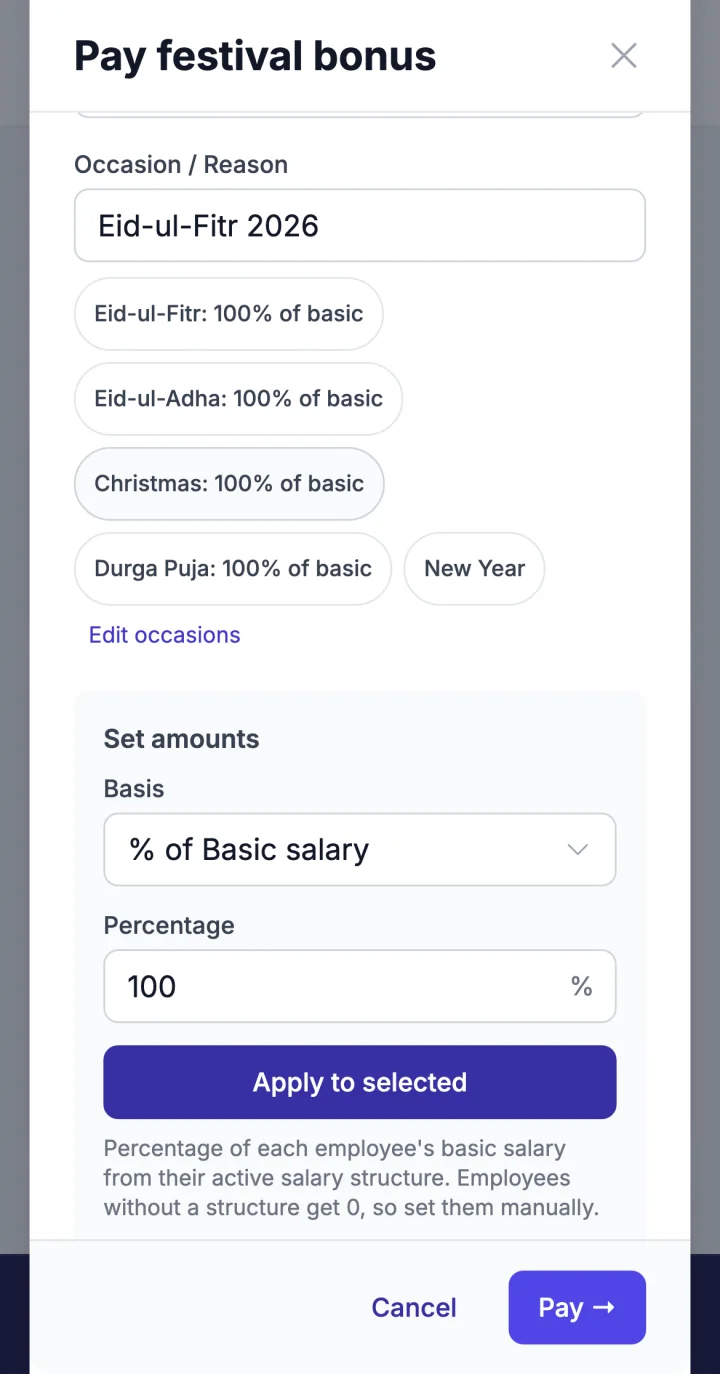
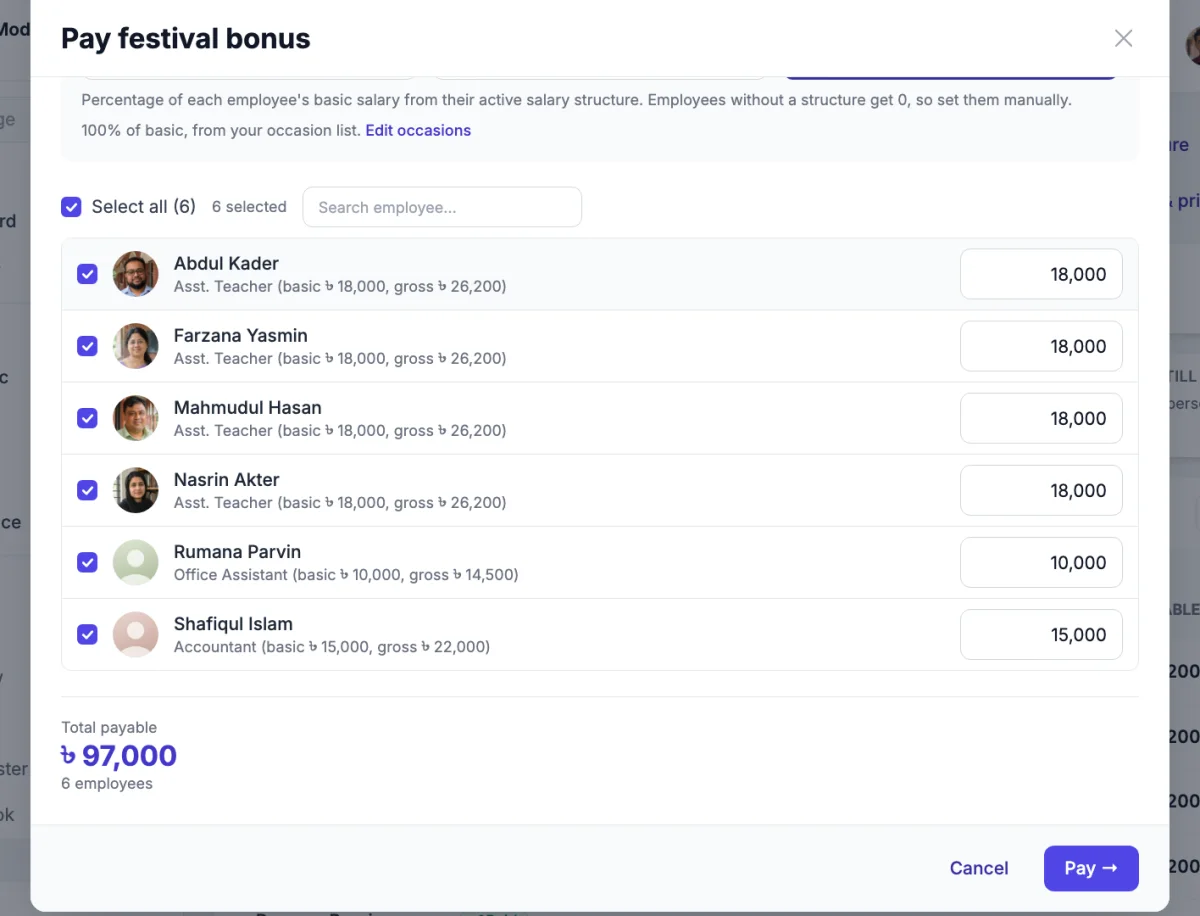
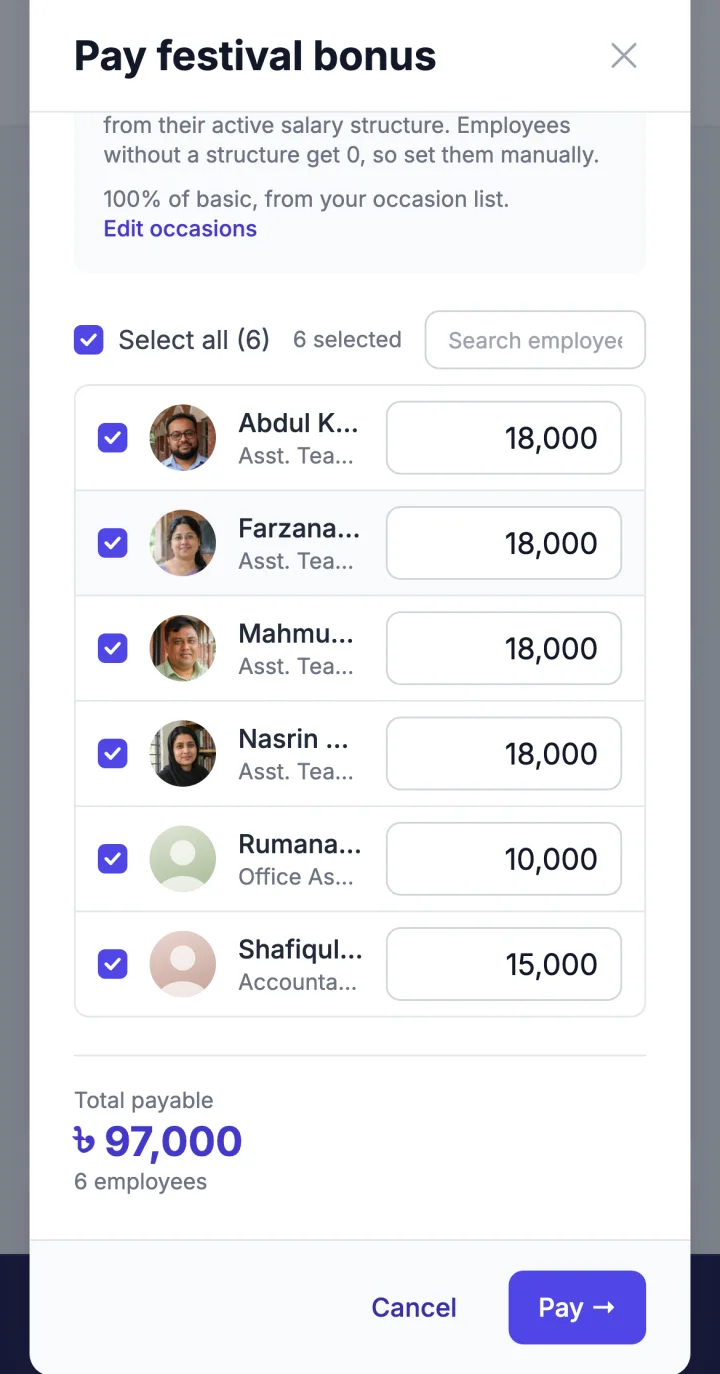
Press one under Occasion / Reason (for example "Eid-ul-Fitr: 100% of basic"). Each person's bonus is then filled in, equal to their basic salary. You can change the basis to "Fixed amount (each)" or "% of Gross salary" if you like. Tick the people you will pay. The total payable shows below (৳ 97,000 in the example).
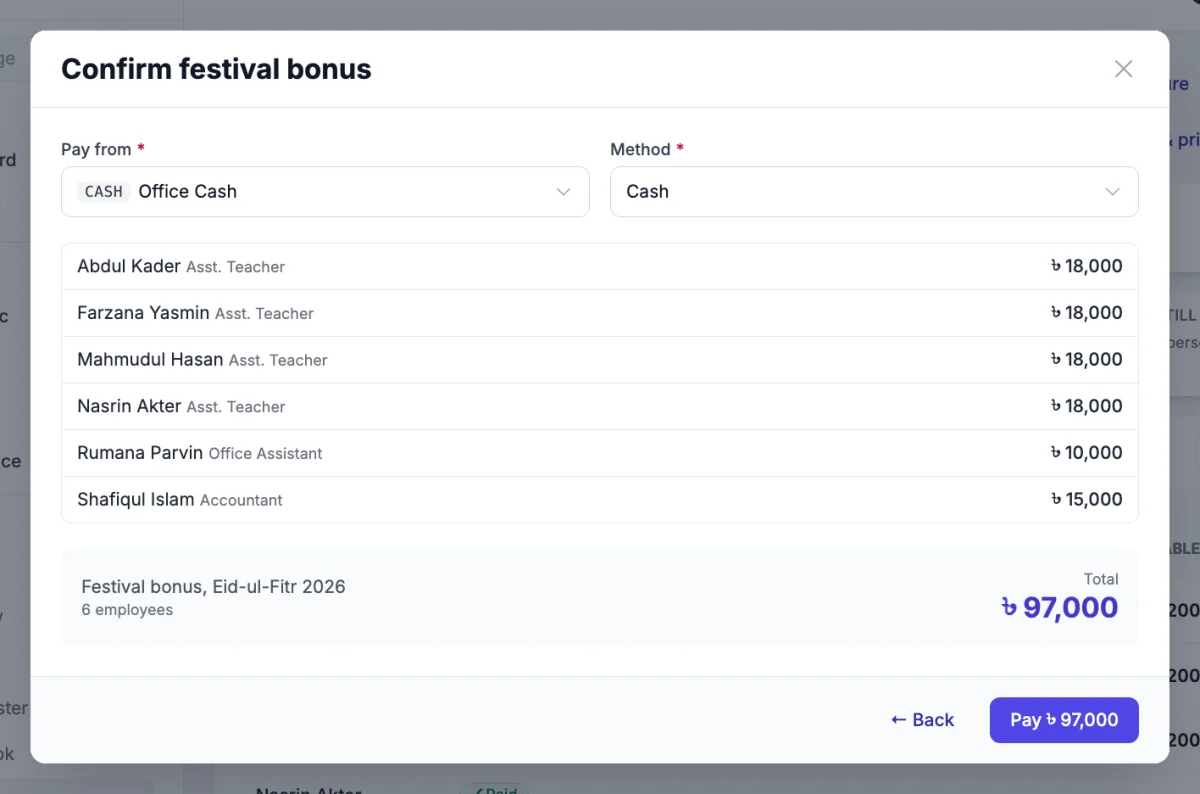
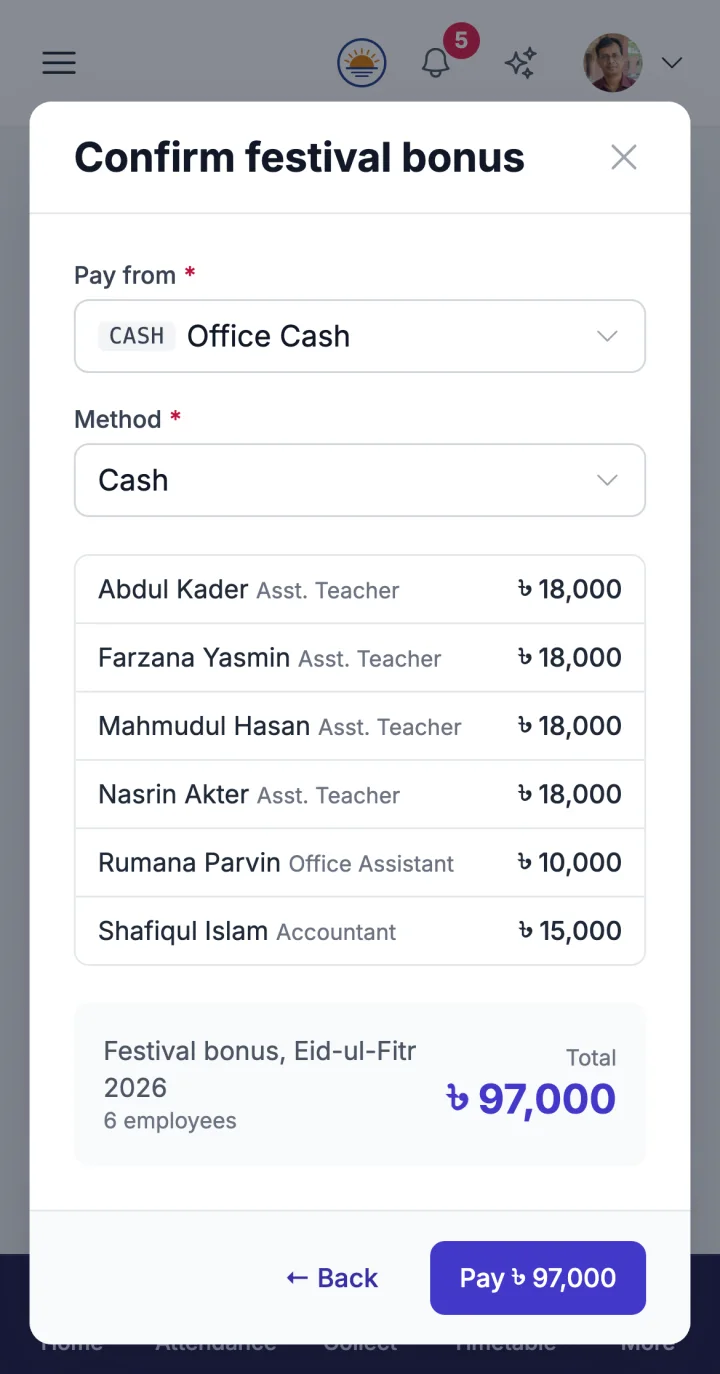
Press "Pay →" to see each person's name and amount once more. Choose the account you are paying from and the method, then press the last button.
The festival bonus is paid apart from the salary sheet, but it shows in the Festival bonus column of that month's sheet. To add your institution's own occasions, press "Edit occasions".

 1
- 1Festival bonus

 1
- 1Festival bonus

 1
- 1Occasion / Reason

 1
- 1Occasion / Reason

 1
- 1Total payable

 1
- 1Total payable


Check the year's figures
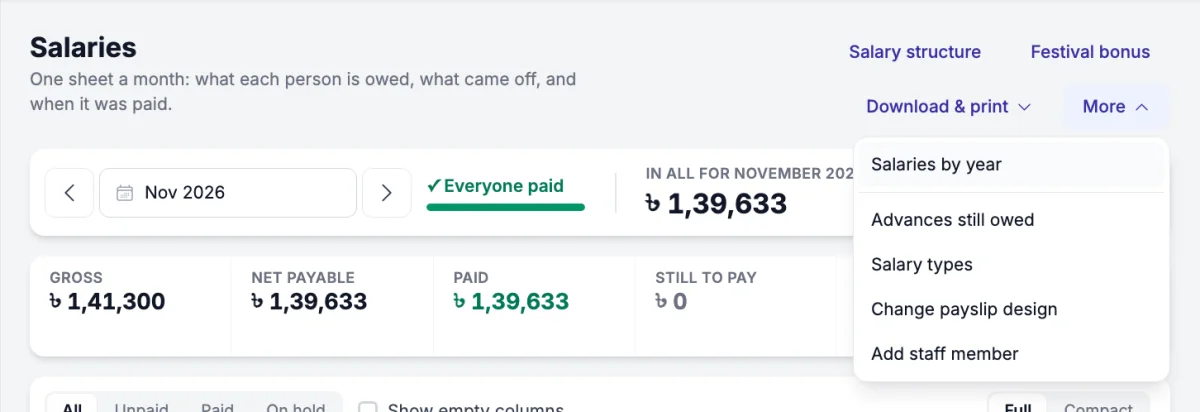
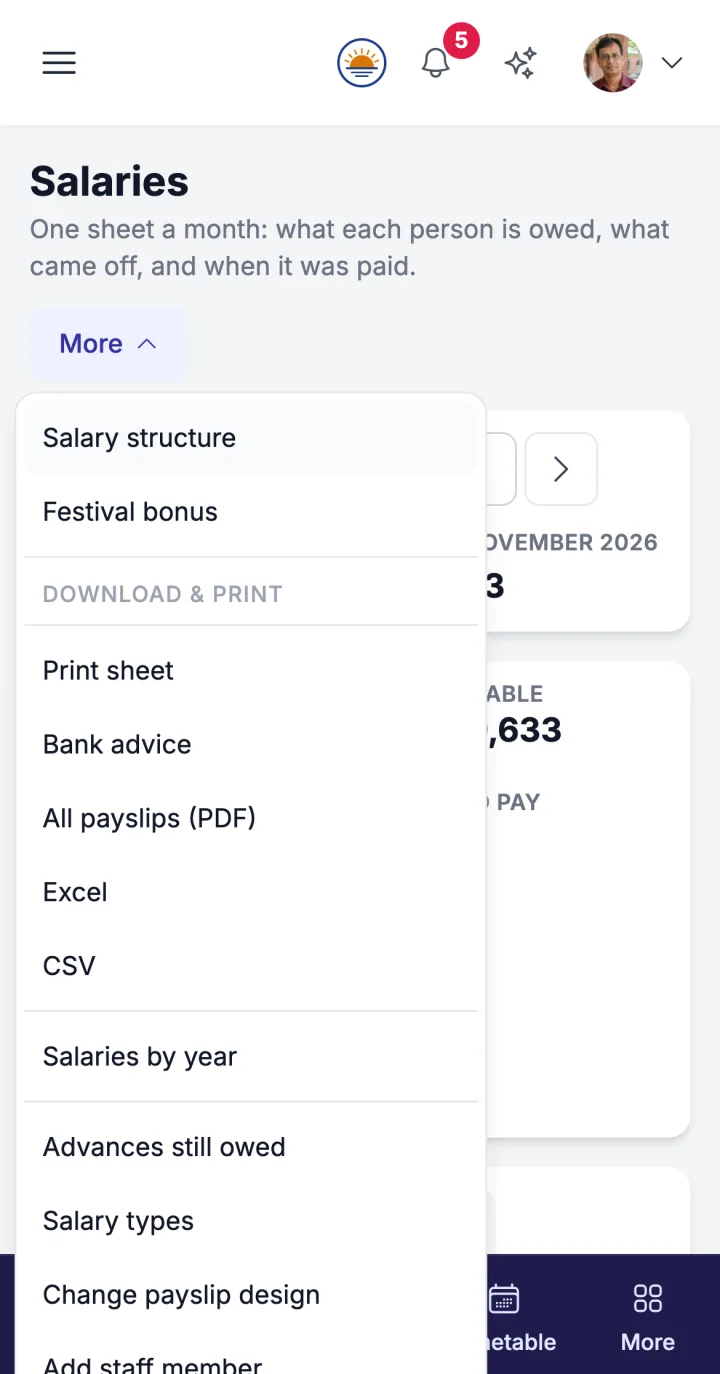
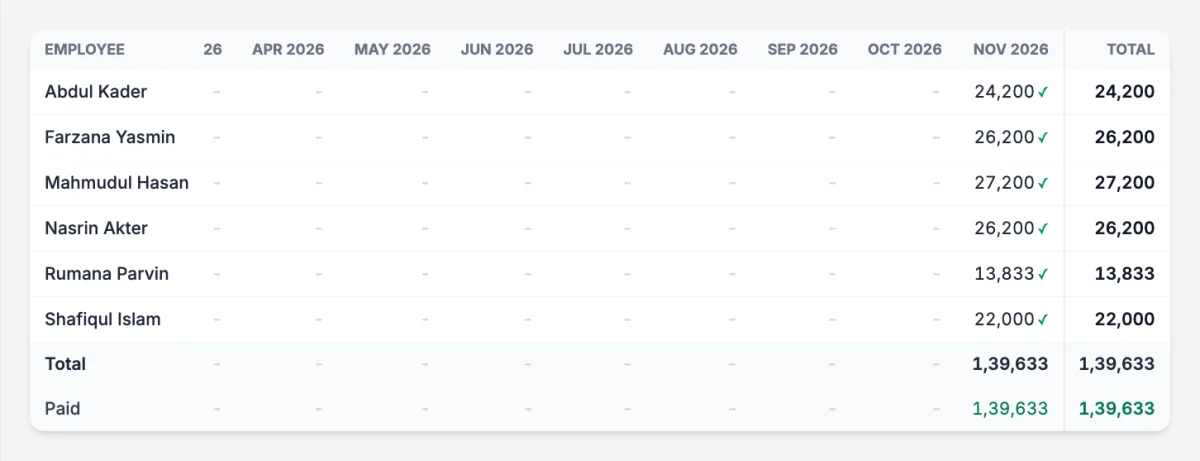
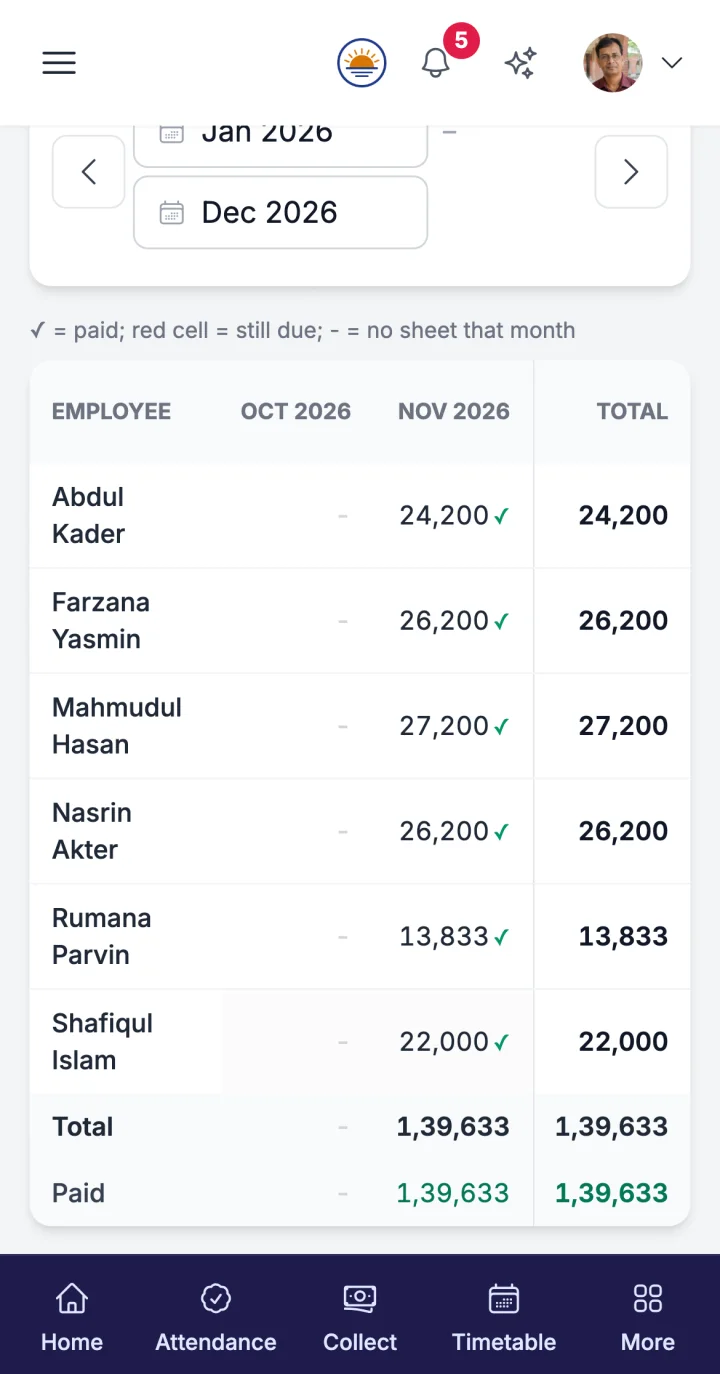
Press More → Salaries by year at the top. One table shows each person's net salary for every month and whether it was paid. ✓ means paid; a red box means still to be paid.
If an employee needs a statement of the whole year's salary (for the income tax return), press the "Annual statement" button in the Payroll tab of their page.

 1
- 1Salaries by year
 1
- 1Salaries by year


What to do next
The top of the sheet now says "✓ Everyone paid". The salaries box on the Finance → Overview page also shows how many people were paid this month. Next month, press the arrow at the top to go to the new month, then press Start again. Advance instalments keep being taken on the next sheets by themselves.

 1
- 1✓ Everyone paid

 1
- 1✓ Everyone paid
If something goes wrong
An employee is not on the sheet.
Check whether their joining date and salary are set. Press "See the list →" in the yellow note at the top to find their names. If you set someone's salary after the sheet was started, an "Add them to this sheet" button shows at the top of the sheet.
The sheet still shows the old amount after a raise.
The sheet keeps the salary that was in force when it was prepared. If the new salary starts this month, press Use new salary from the row's ⋮. Once anything has been paid to the person, it can no longer be changed.
It says "Not enough in …".
The chosen account holds less money than the salaries. Choose the right account, or first write the missing money in into the cash book. If you want to pay knowing this, press Pay anyway.
It says "This salary sheet has not been approved yet".
In your institution, salary sheets need a second signature. Have someone other than the person who prepared or last changed the sheet approve it. The person who approved it cannot pay the salaries themselves.
The advance box on the sheet says "Not taken".
That month the employee's pay fell, for a reason such as absence, to less than or equal to the instalment, so nothing was taken from the pay that month. When the pay is normal again next month, the instalment is taken again. Check in the Advances still owed list how much will be taken in which month.
The Give advance button cannot be pressed.
Read the red box at the bottom of the form. This happens when the instalment is as much as the monthly pay or more. Type an instalment smaller than the highest amount written in the box.
Nobody is on the bank advice.
The advice only lists people whose salary is still to be paid. Once everyone is paid, nobody is on the letter. So print the advice first, then pay the salaries.
More tutorials
See how to do the other jobs in EduSine, step by step.
Cash book
Write every money in and money out other than fees and salaries in the cash book, reverse a wrong entry, and check the accounts at the end of the day.
ReadFinance reports
See each day's figures on the Overview page, and print or download reports on collections, dues, salaries and income and expenditure.
ReadReceipt and payslip design
Choose a style for your receipts and payslips, then set out the logo, language, items, signatures and paper size your way.
ReadCan’t find what you’re looking for?