Hostel
When you give a student a bed, the residents list shows which bed of which room of which building they live in. If the seat rent and the khana (meals) charge are set, these fees are added to the student's monthly fees from the month you choose for billing to start. You do not need to make separate bills for this. Free seats for students who stay on Lillah or Zakat money can also be given from here.
The first time takes a little while: you have to set up the room types, the khana charge and the building. After that, giving a bed to a new student takes no more than a minute. You can change the rooms, the rent and the khana amount at any time later. Bills already made do not change.
The hostel is on the Standard and Custom plans, not on the Free plan. The admin (Super Admin) can do this job, or anyone who has permission to manage the hostel. Changing the seat rent and the khana amount needs the Fee Setup permission in finance. The students must already be added to EduSine.
Keep these at hand to start the hostel quickly
The hostel building's name, how many floors, and whether it is for boys or girls
The room types: how many beds each room has and the monthly seat rent
The monthly khana charge, and the deposit amount if you take one
Which student will stay in which room, and who will stay on Lillah or Zakat
The teacher or employee who will be in charge as warden
What this tutorial covers
See which job is in which step.
First-time setup
Set the room types, the khana charge and the deposit
Building, rooms and beds
Add the hostel building and residential rooms
Resident students
Give beds, free seats (Lillah), move beds and leave the hostel
Fees and deposit
How seat rent and khana go into the monthly fees, taking and refunding the deposit
Wardens, meals and reports
Set wardens, the weekly menu, download reports
Step by step
Follow along as each step appears on your screen.
Open the hostel page
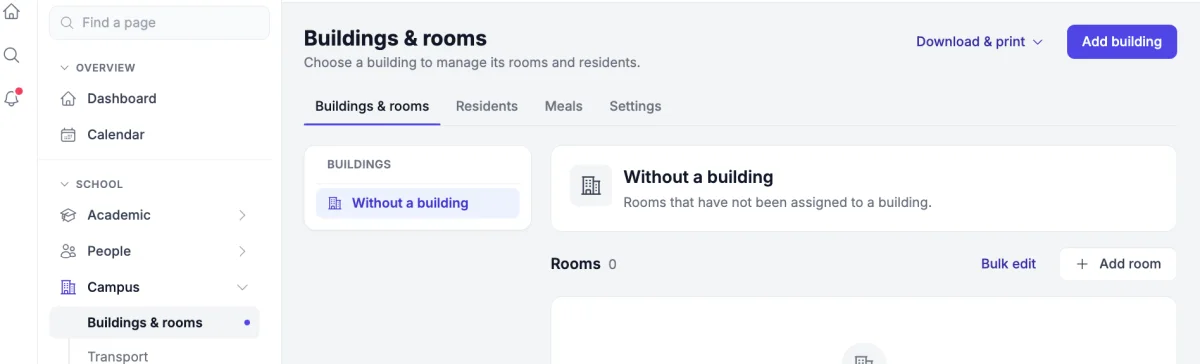
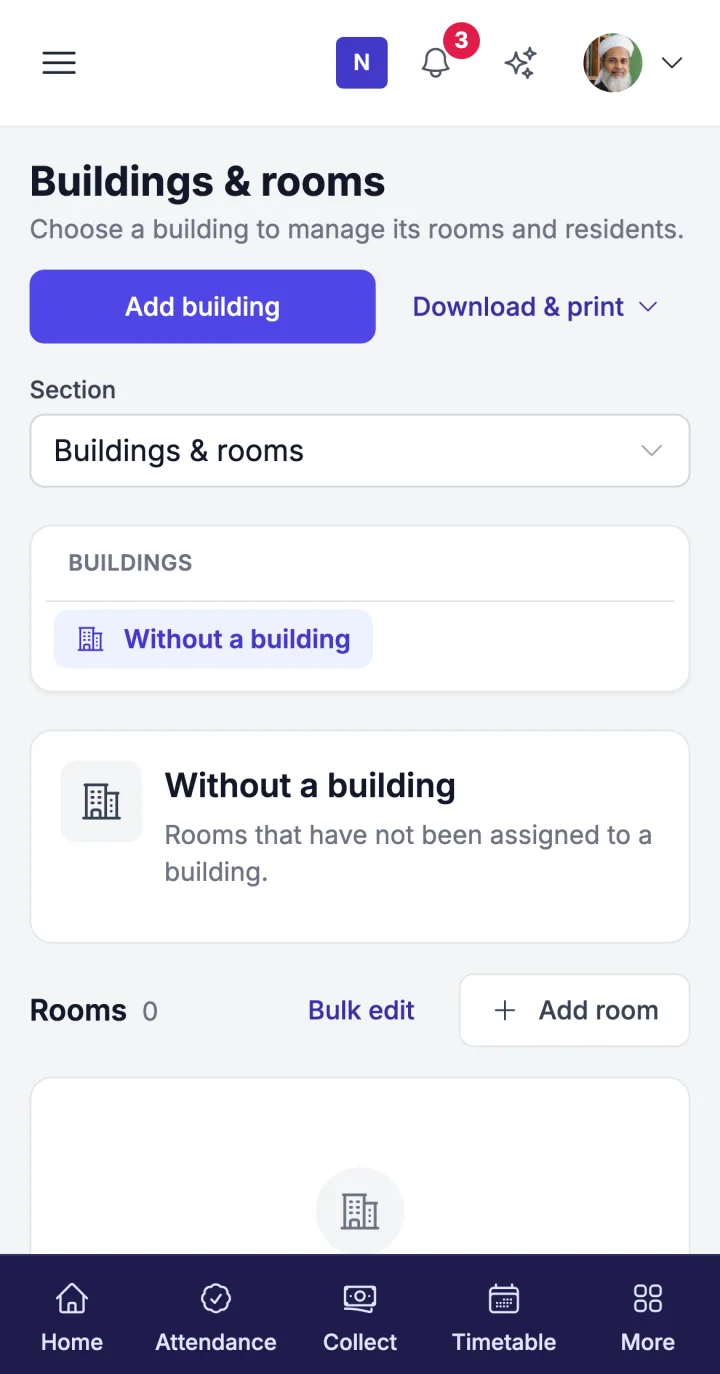
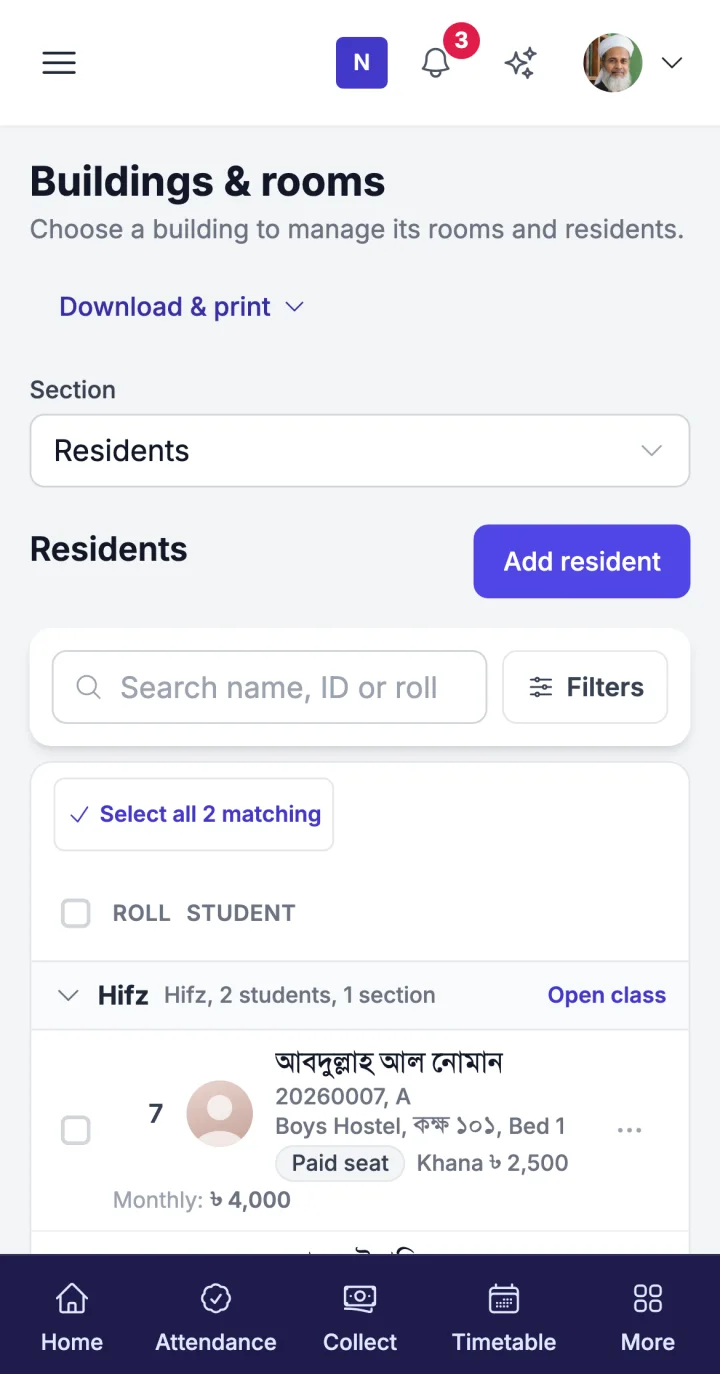
In the menu on the left, press Campus → Buildings & rooms. The screen uses the word "Room" for a room. There are four tabs at the top: Buildings & rooms (buildings, rooms and beds), Residents (the list of resident students), Meals (the weekly menu) and Settings. On a phone the tabs are replaced by a list named Section at the top: choose from there.
The first time, start from the Settings tab. If you set a few things there, the amounts fill in by themselves later each time you give a bed.

 12
- 1Campus → Buildings & rooms
- 2Buildings & rooms, Residents, Meals, Settings

 1
- 1Buildings & rooms, Residents, Meals, Settings
Add a room type
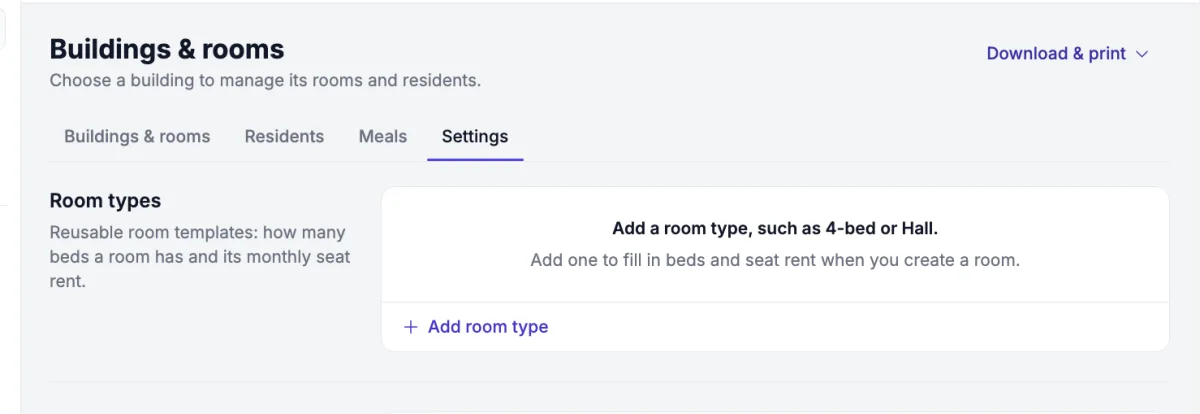
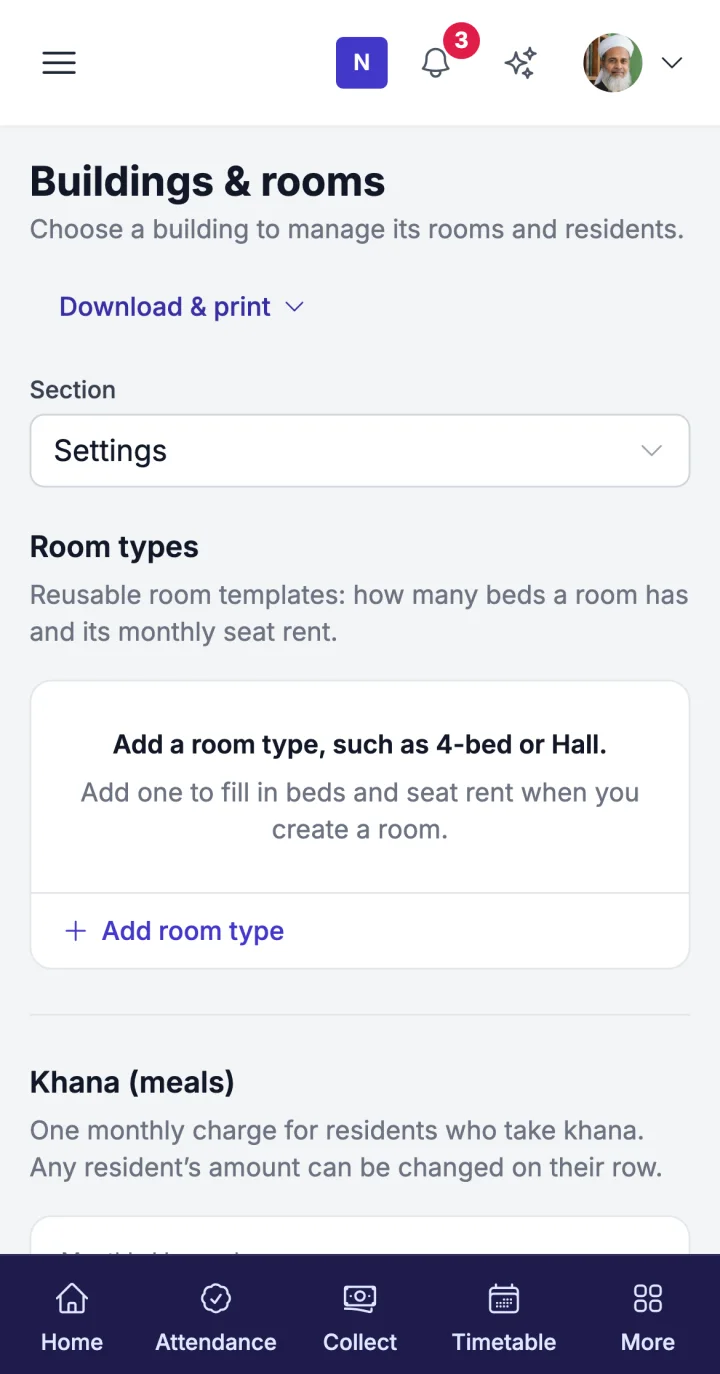
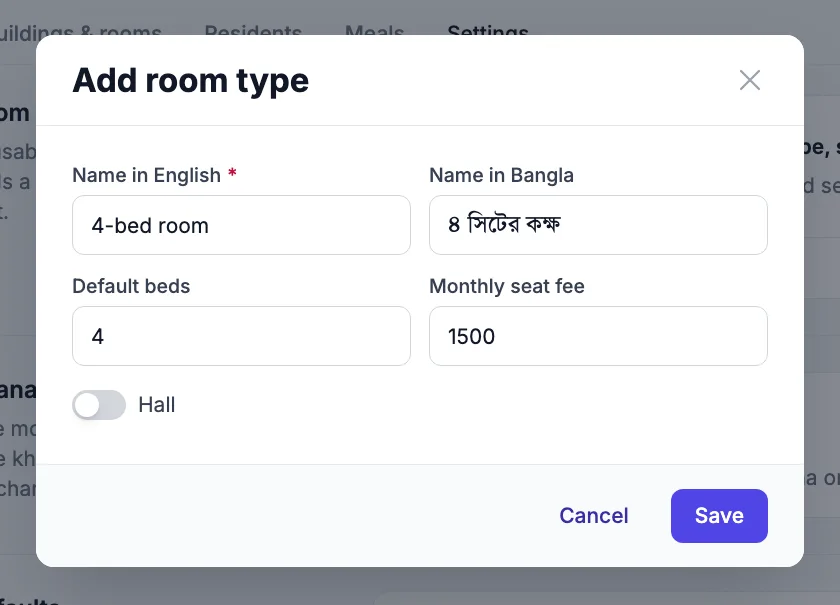
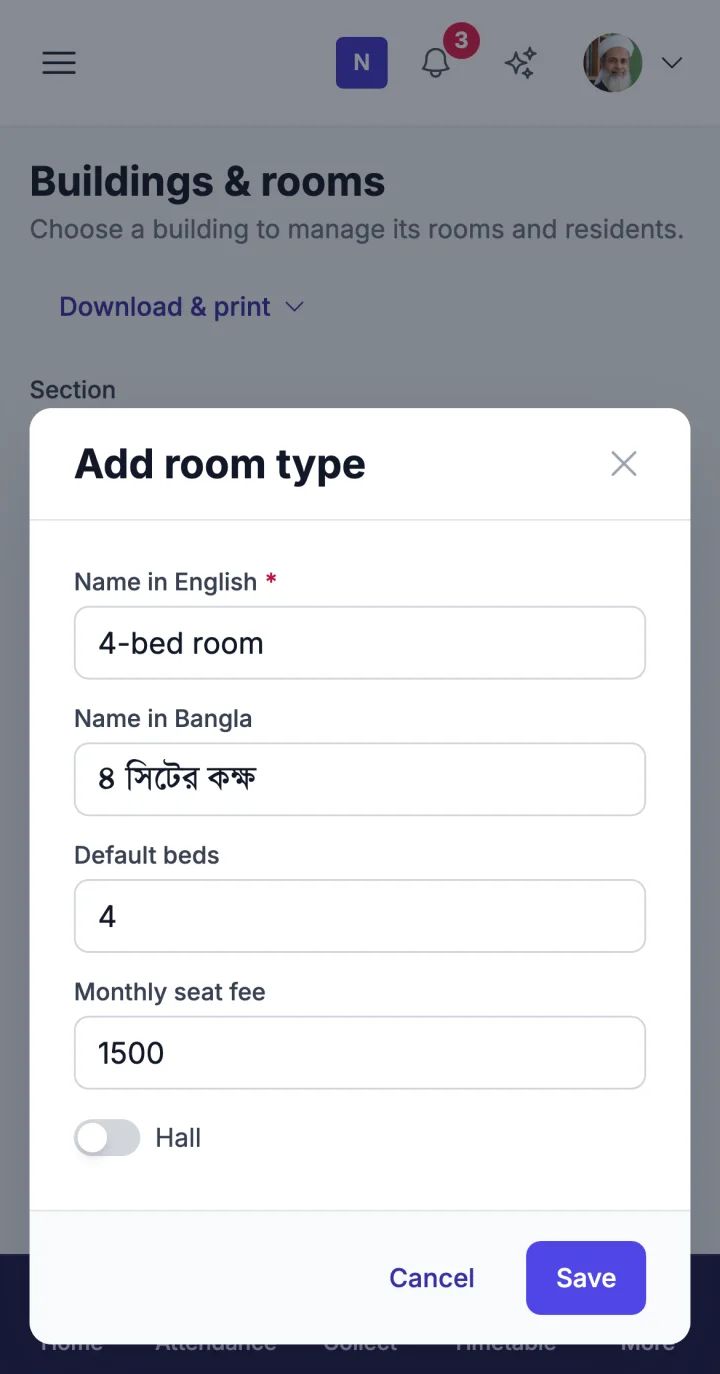
On the Settings tab, in the Room types part, press Add room type. In the Name in English box write 4-bed room, and in the Name in Bangla box ৪ সিটের কক্ষ. Give 4 in the Default beds box and 1500 in the Monthly seat fee box. Then press Save.
Once you make a type, the number of beds and the seat rent fill in by themselves when you add a new room. If many people live together in a big hall at your institution, turn on the Hall switch and make another type.

 12
- 1Room types
- 2Add room type

 12
- 1Room types
- 2Add room type

 123
- 1Default beds and Monthly seat fee
- 2Hall
- 3Save

 123
- 1Default beds and Monthly seat fee
- 2Hall
- 3Save
Tip: Making room types is not required. Without them, you must give the beds and rent yourself for each room.
Set the khana charge
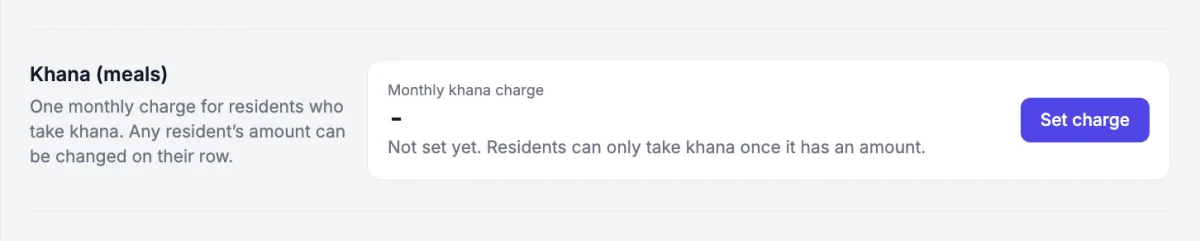
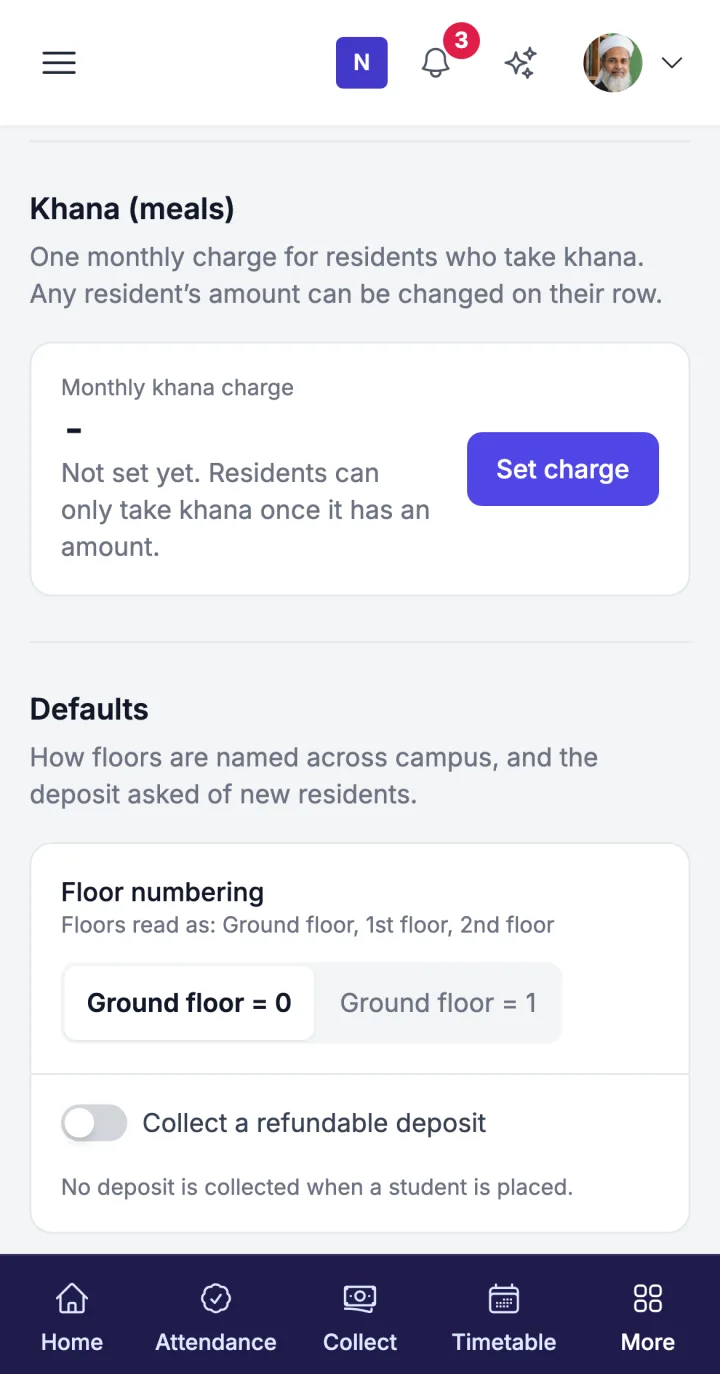
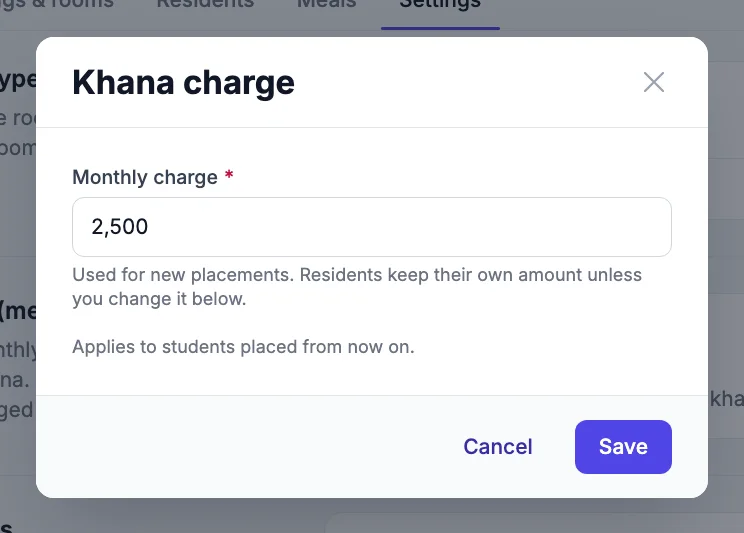
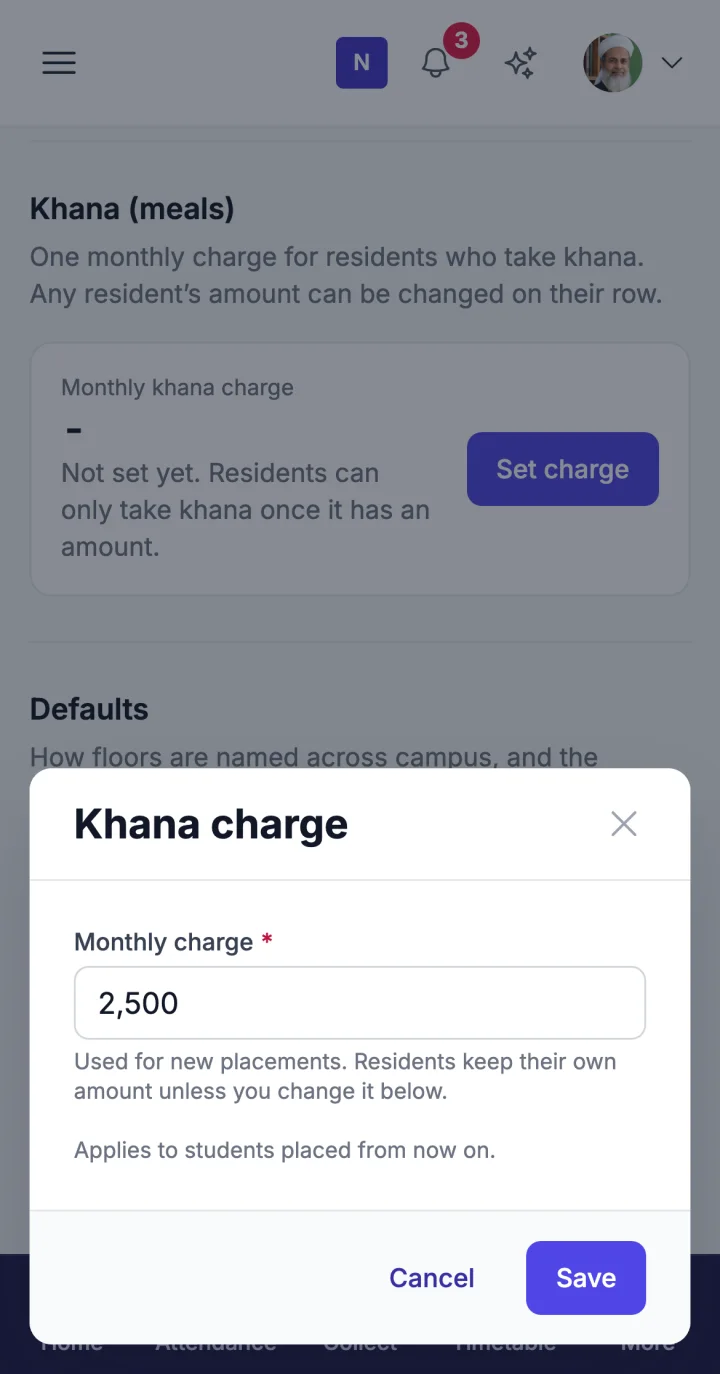
In the Khana (meals) part of the Settings tab, press Set charge. Type 2500 in the Monthly charge box and press Save.
Until this is given, no resident can take khana. To change the amount later, press Change amount. Then there is a tick box: to change it for all residents who take khana too, tick it and choose from which month. Without the tick, the new amount counts only for new residents.

 12
- 1Khana (meals)
- 2Set charge

 12
- 1Khana (meals)
- 2Set charge


Decide whether to take a deposit
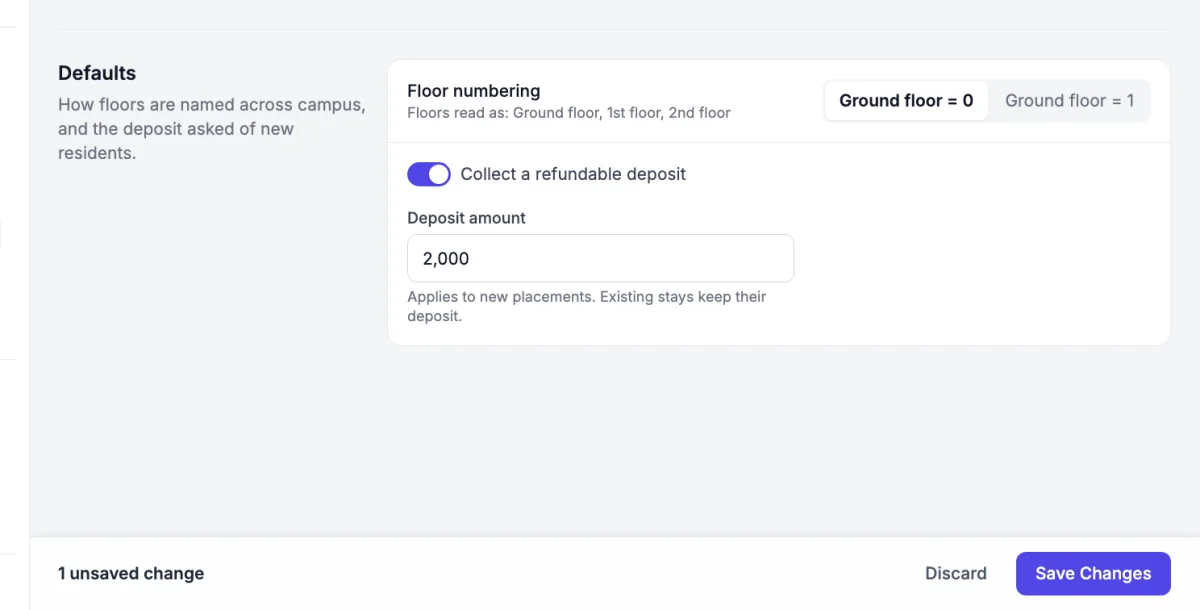
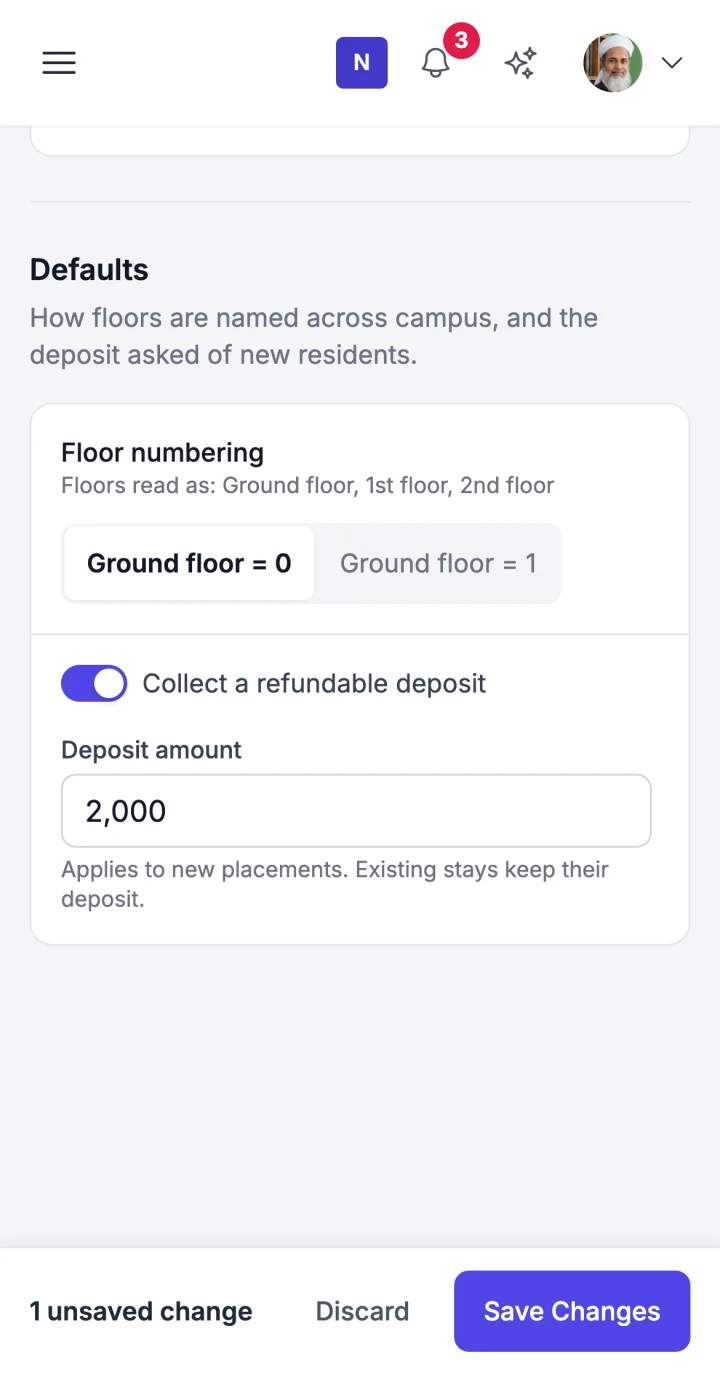
In the Defaults part of the Settings tab, turn on the Collect a refundable deposit switch. Type 2000 in the Deposit amount box. Then press Save Changes below.
If you do not take a deposit, keep the switch off; that is no problem. This amount counts only when a new bed is given. The deposit of those who got beds before stays as it is. Changing this part needs permission to change settings.

 123
- 1Collect a refundable deposit
- 2Deposit amount
- 3Save Changes

 123
- 1Collect a refundable deposit
- 2Deposit amount
- 3Save Changes
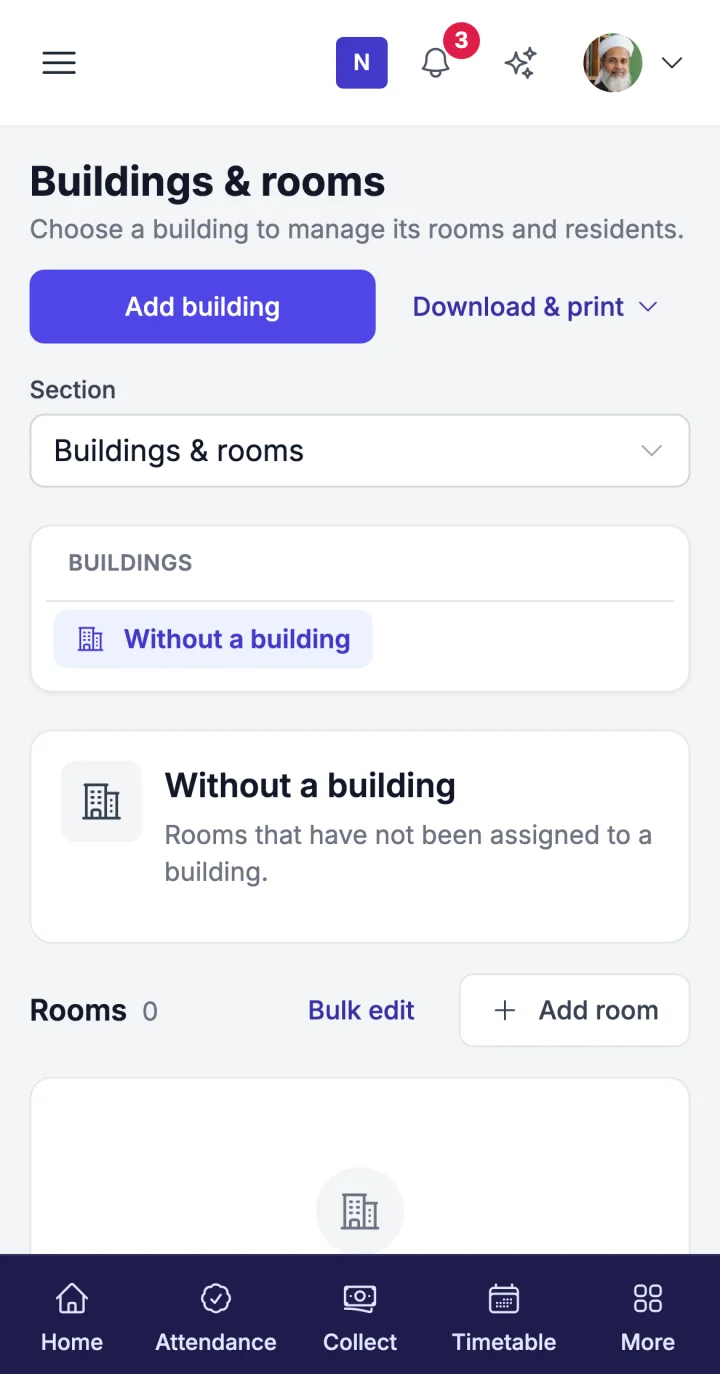
Add the hostel building
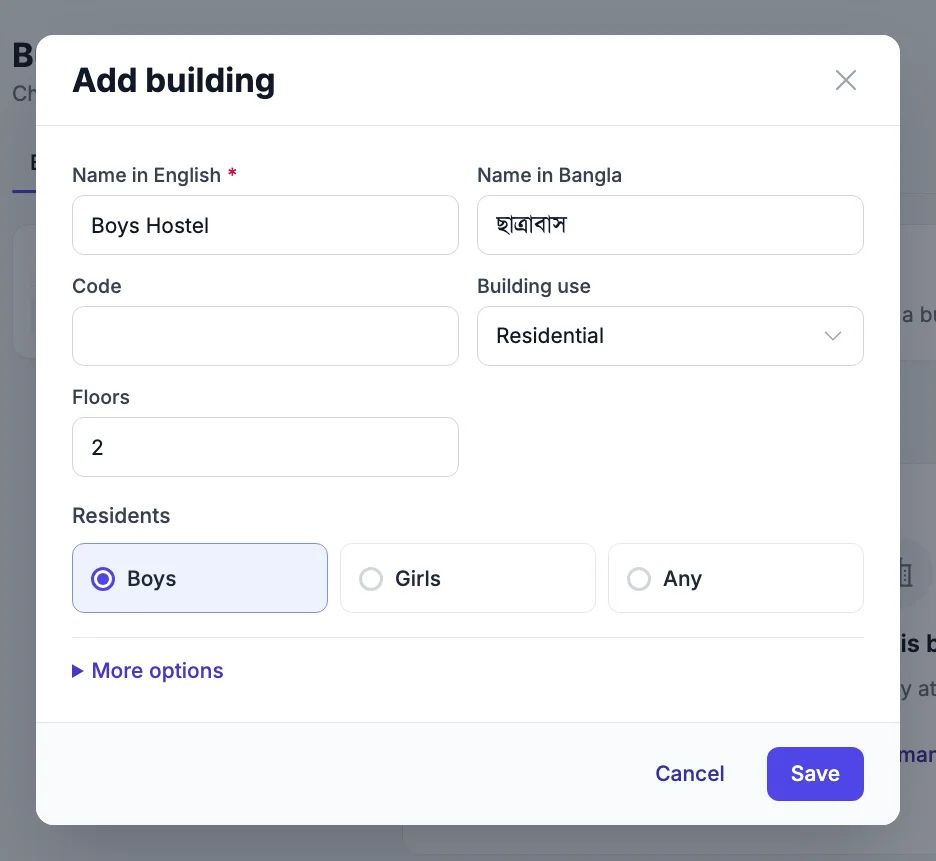
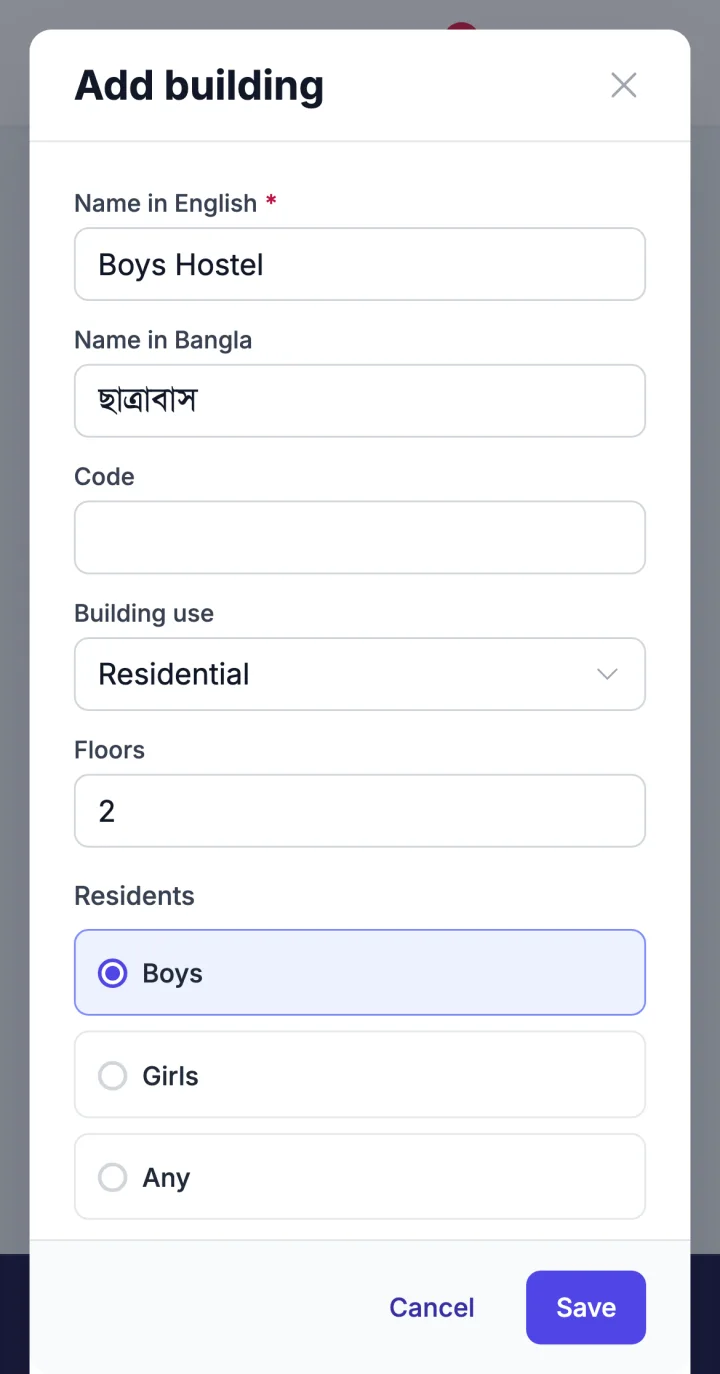
Go back to the Buildings & rooms tab and press Add building at the top right. Write Boys Hostel in the Name in English box and ছাত্রাবাস in the Name in Bangla box. In the Building use box, choose Residential. If the same building has both classrooms and a hostel, choose Mixed. Type 2 in the Floors box.
Now, under Residents, choose Boys, Girls or Any. Girls cannot be given beds in a boys' building, so choose this correctly. Then press Save.

 1
- 1Add building
 1
- 1Add building

 123
- 1Building use
- 2Residents
- 3Save

 123
- 1Building use
- 2Residents
- 3Save
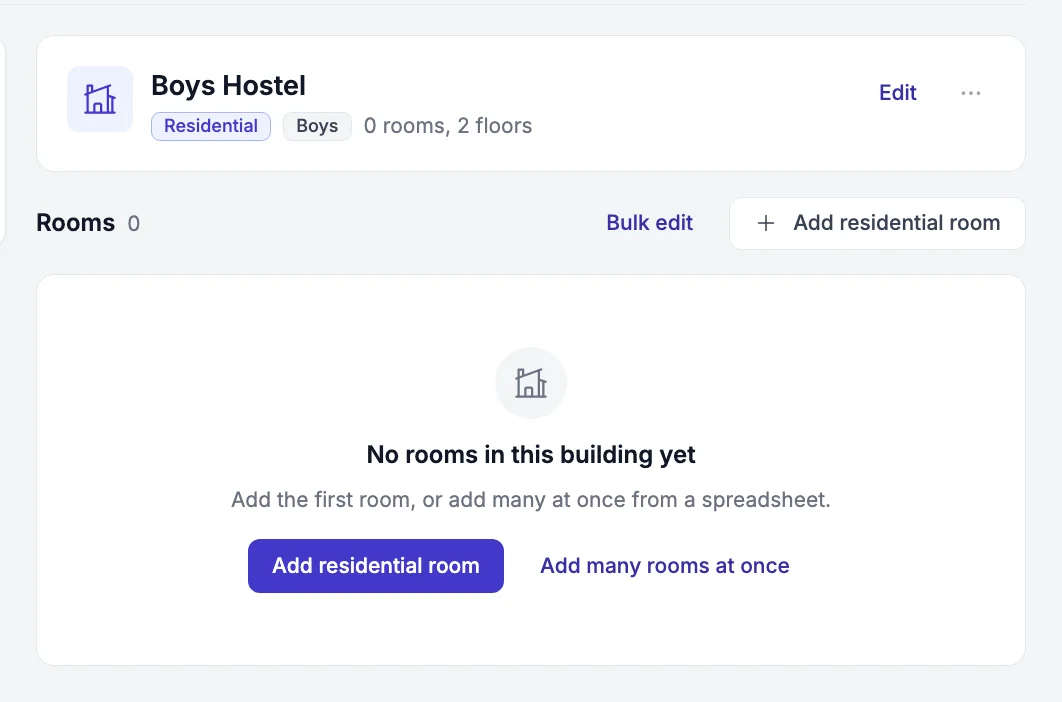
Add a residential room
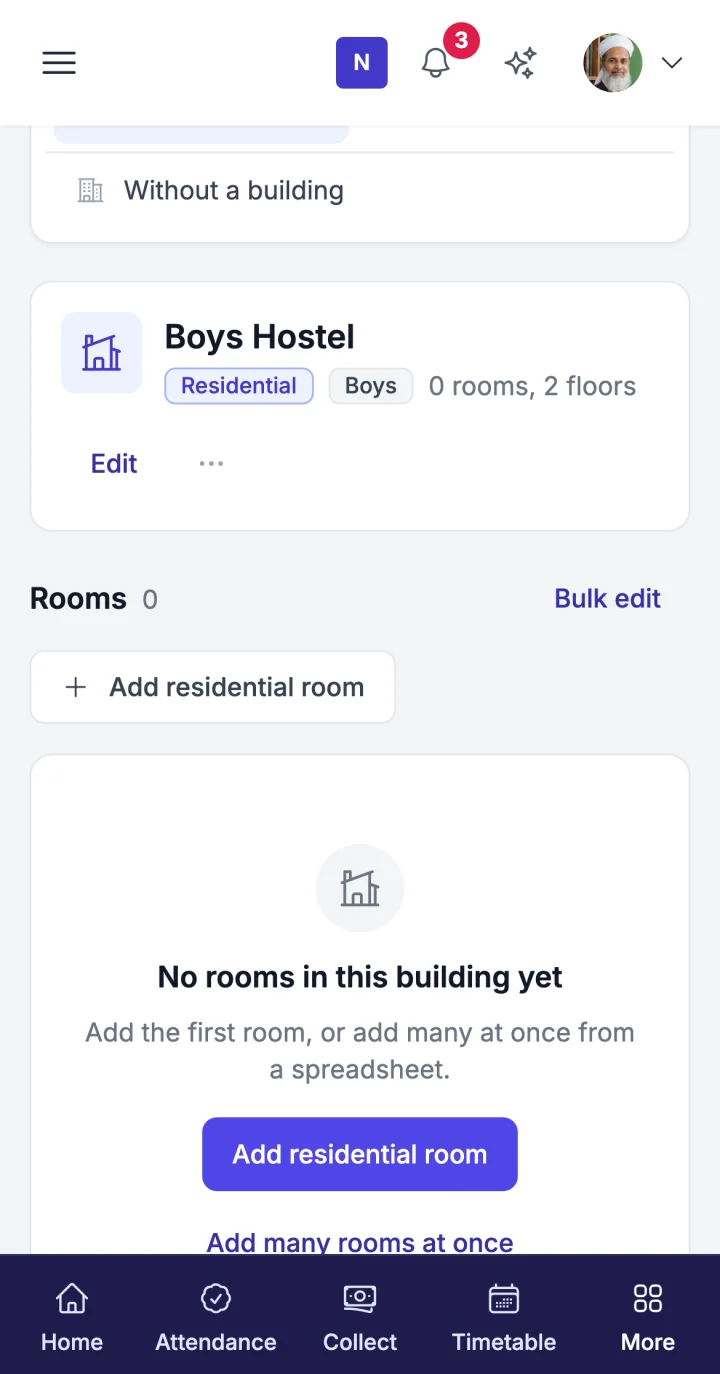
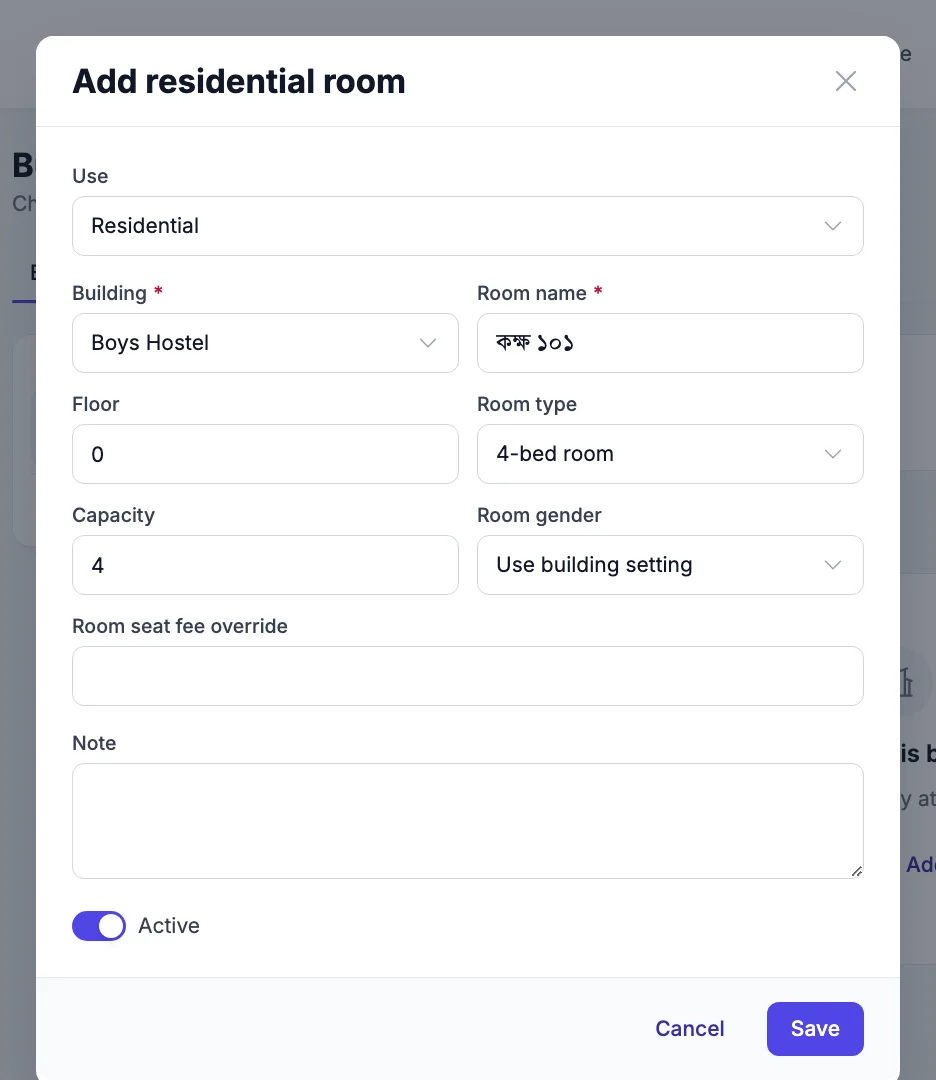
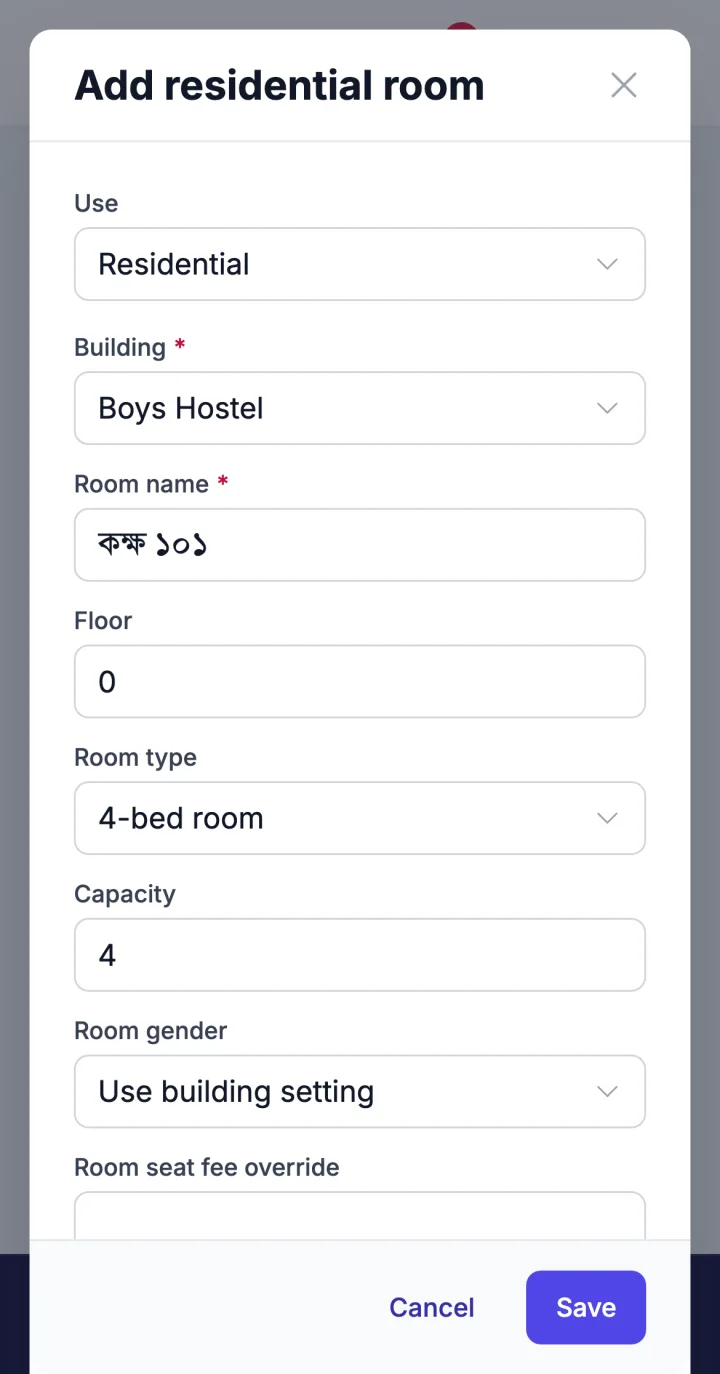
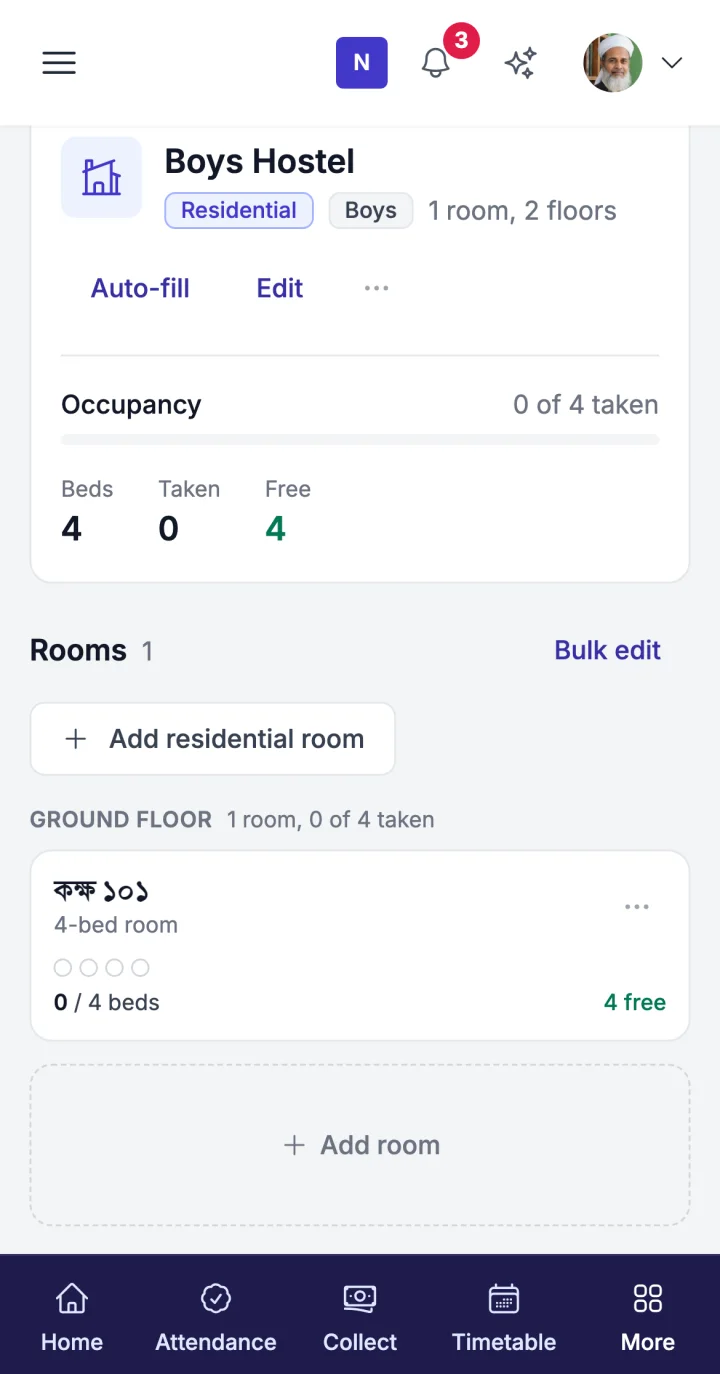
In the new building, press Add residential room. Residential is already in the Use box and Boys Hostel in the Building box.
Type কক্ষ ১০১ in the Room name box. If you keep 0 in the Floor box, the room shows on the ground floor. Choose 4-bed room from Room type. 4 fills in by itself in the Capacity box, and beds Bed 1 to Bed 4 are made in the room. Then press Save.
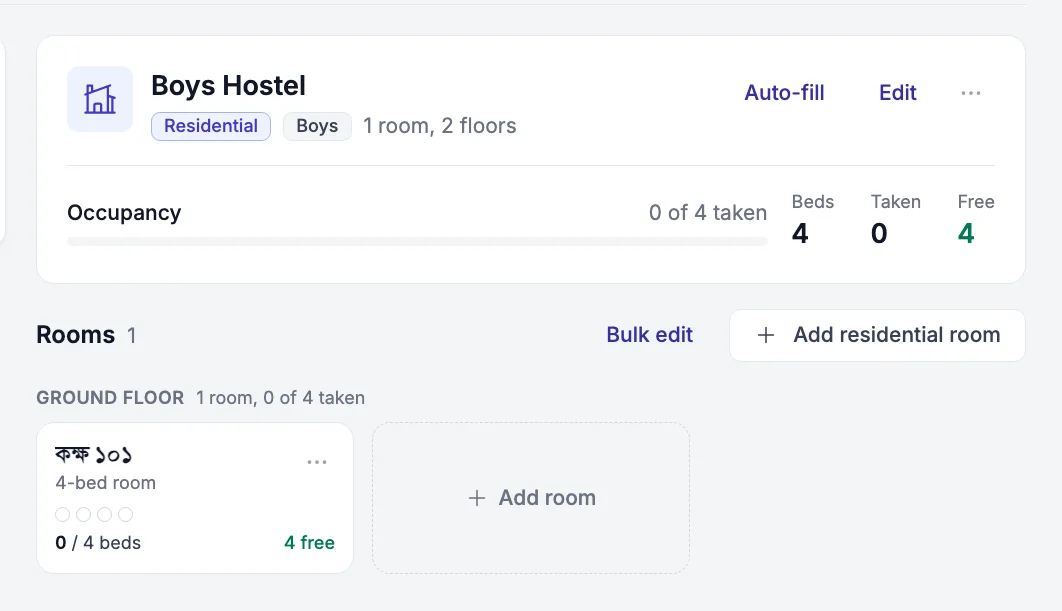
The room's card has one dot for each bed, and it says "0 / 4 beds" and "4 free". At the top of the building, three numbers show: beds, Taken and Free.

 1
- 1Add residential room

 1
- 1Add residential room

 12
- 1Room type
- 2Save

 12
- 1Room type
- 2Save

 12
- 1Bed dots
- 2Beds, Taken and Free

 12
- 1Bed dots
- 2Beds, Taken and Free
Tip: If a room's rent is different from the others, type that amount in the Room seat fee override box. To add many rooms together, press Bulk edit and type them in a spreadsheet-like sheet.
Give a student a bed
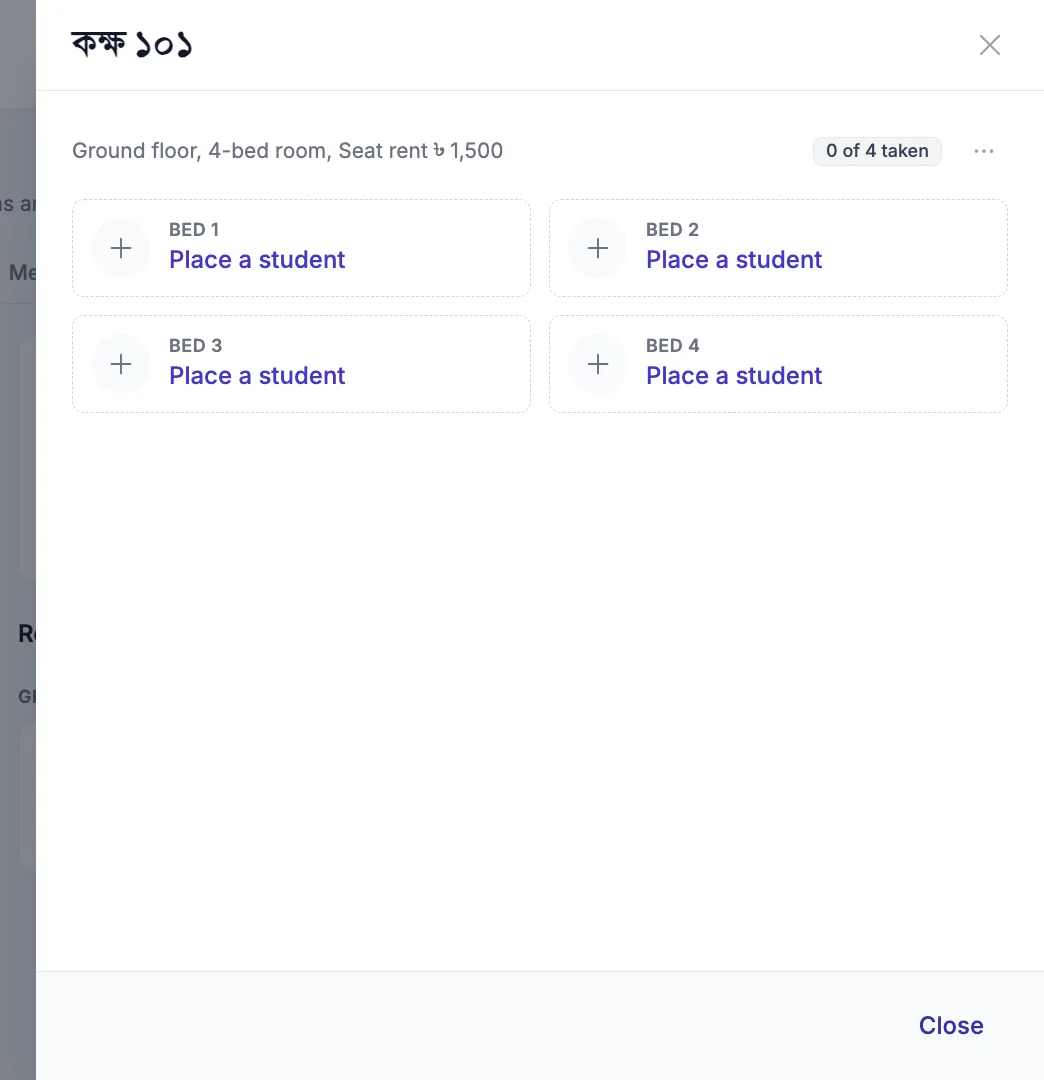
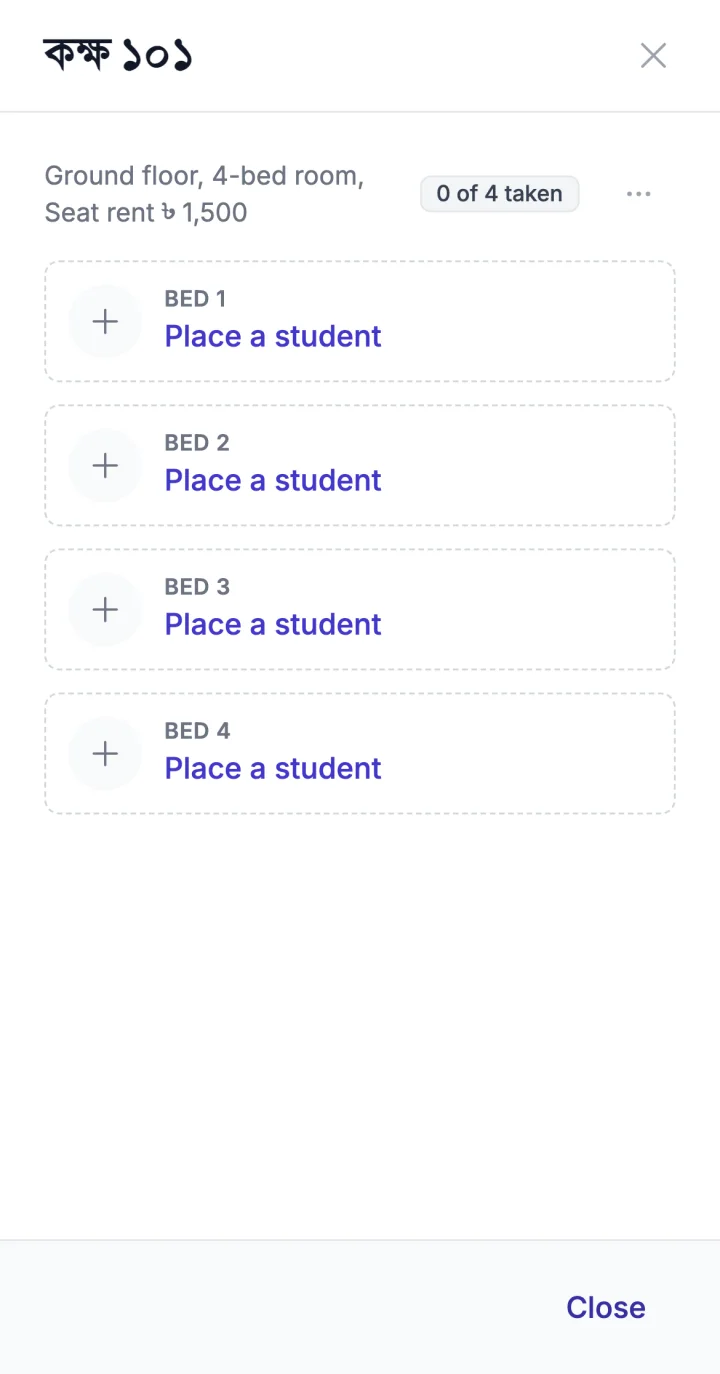
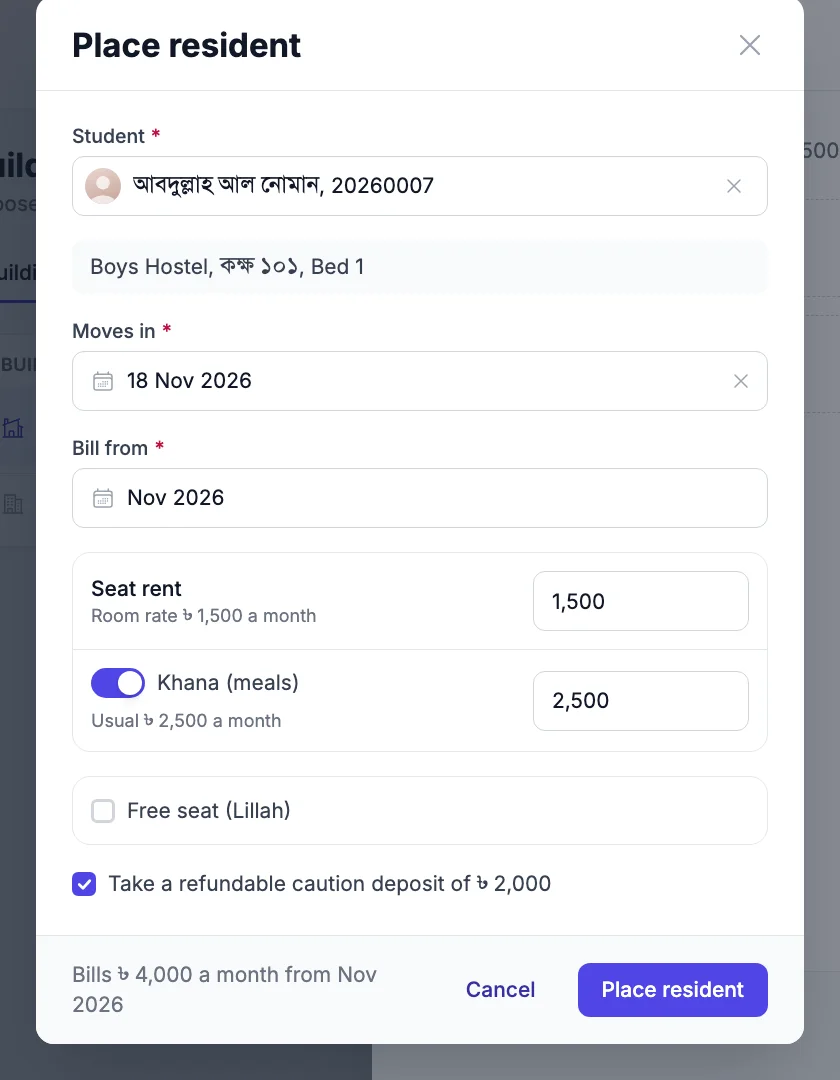
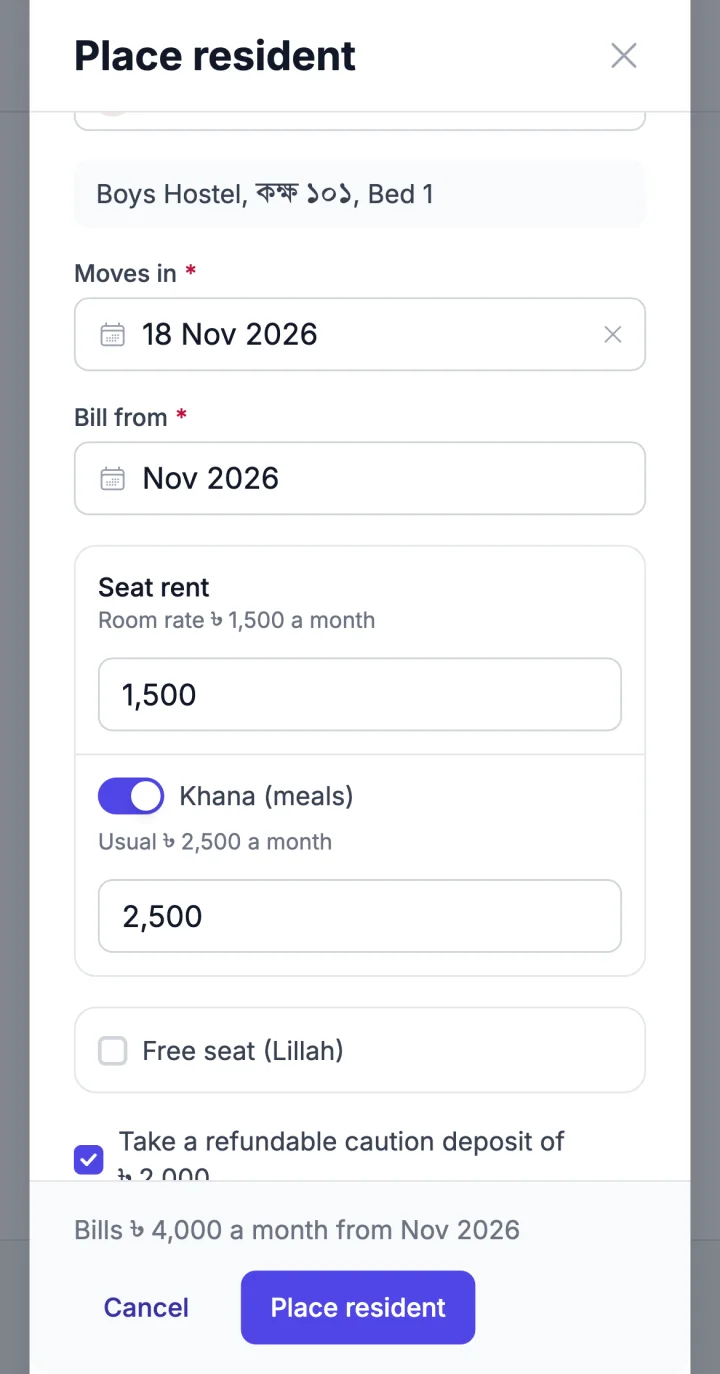
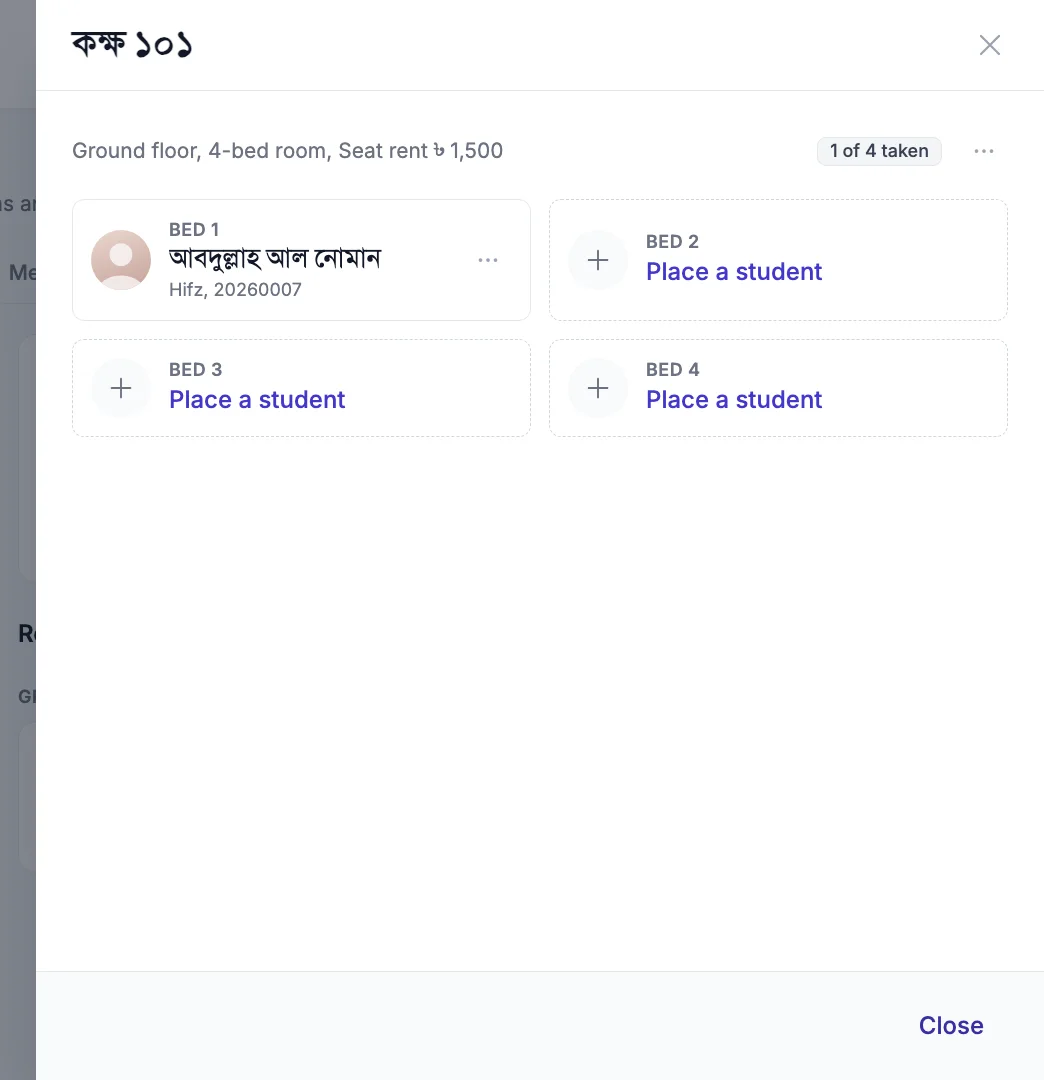
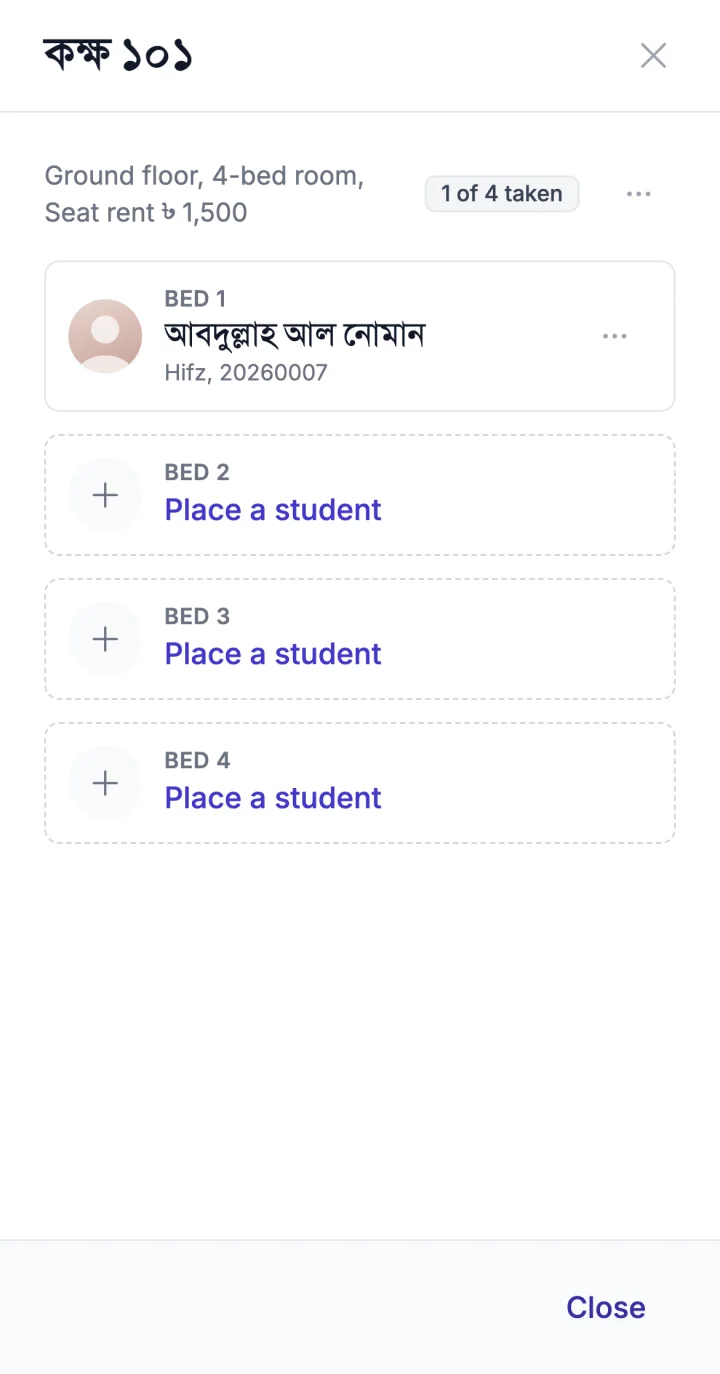
Press the room's card. All the room's beds open on the right. An empty bed says Place a student. Press Bed 1. The Place resident form opens, and at the top it says Boys Hostel, কক্ষ ১০১, Bed 1.
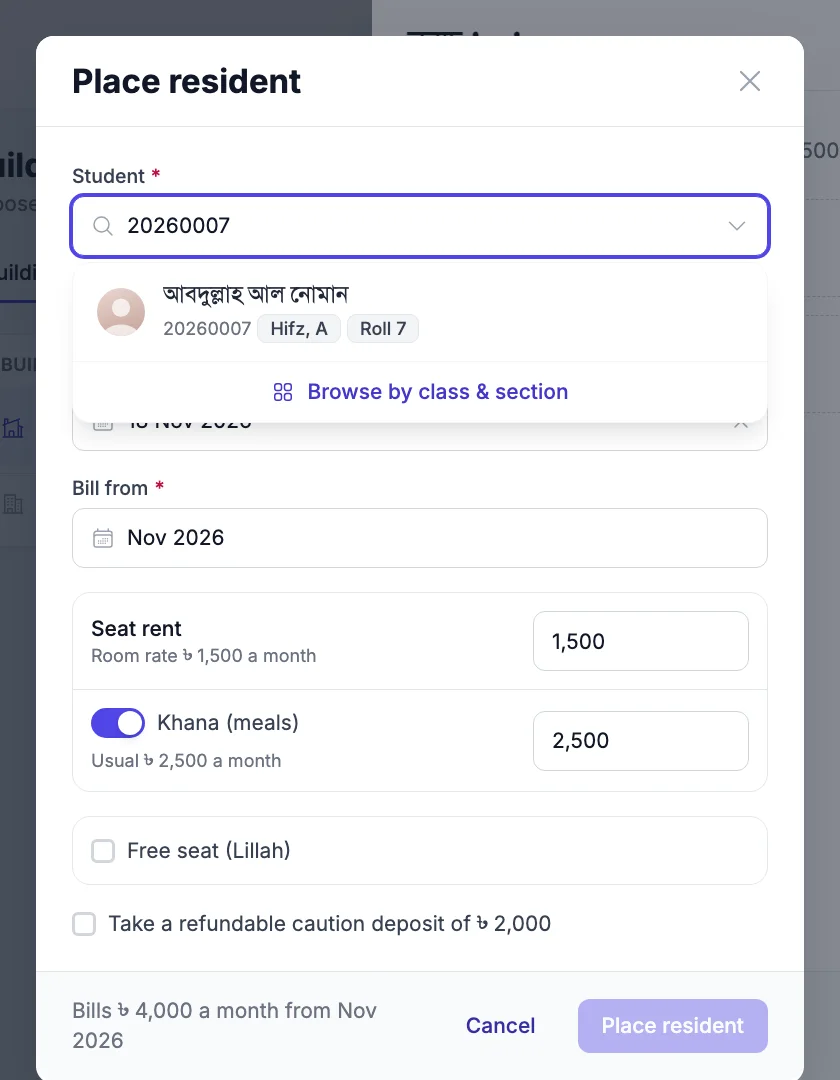
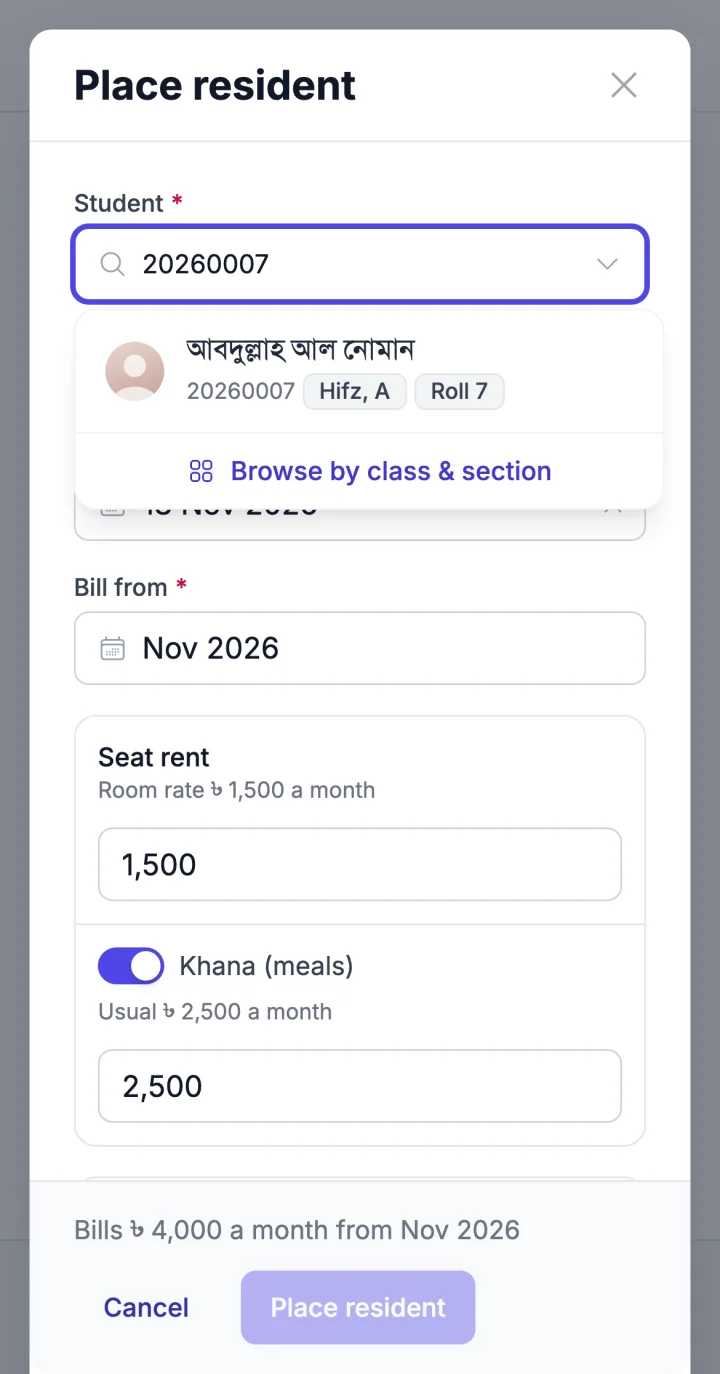
In the Student box, type a few letters of the name or ID, then choose from the list. If you do not remember the name, press Browse by class & section to find them by class.
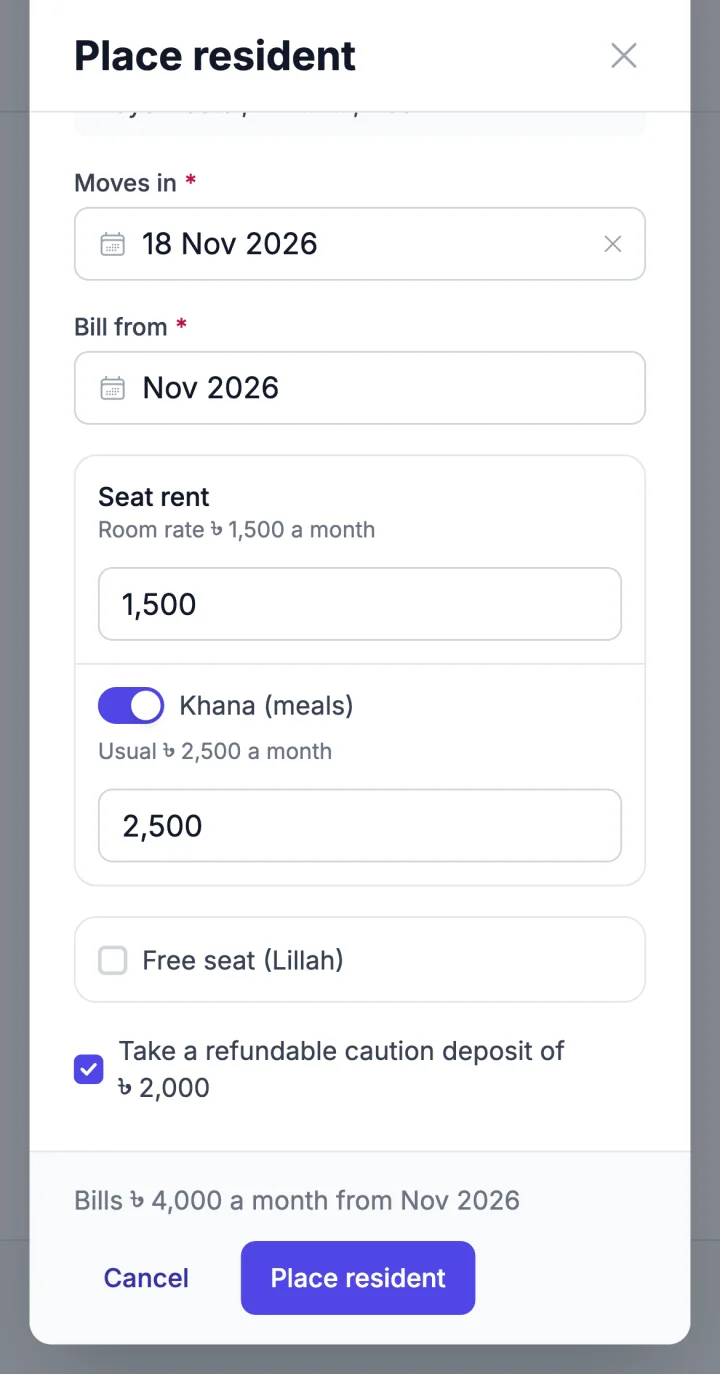
Moves in and Bill from are already filled with today's date and this month. Change them if needed.
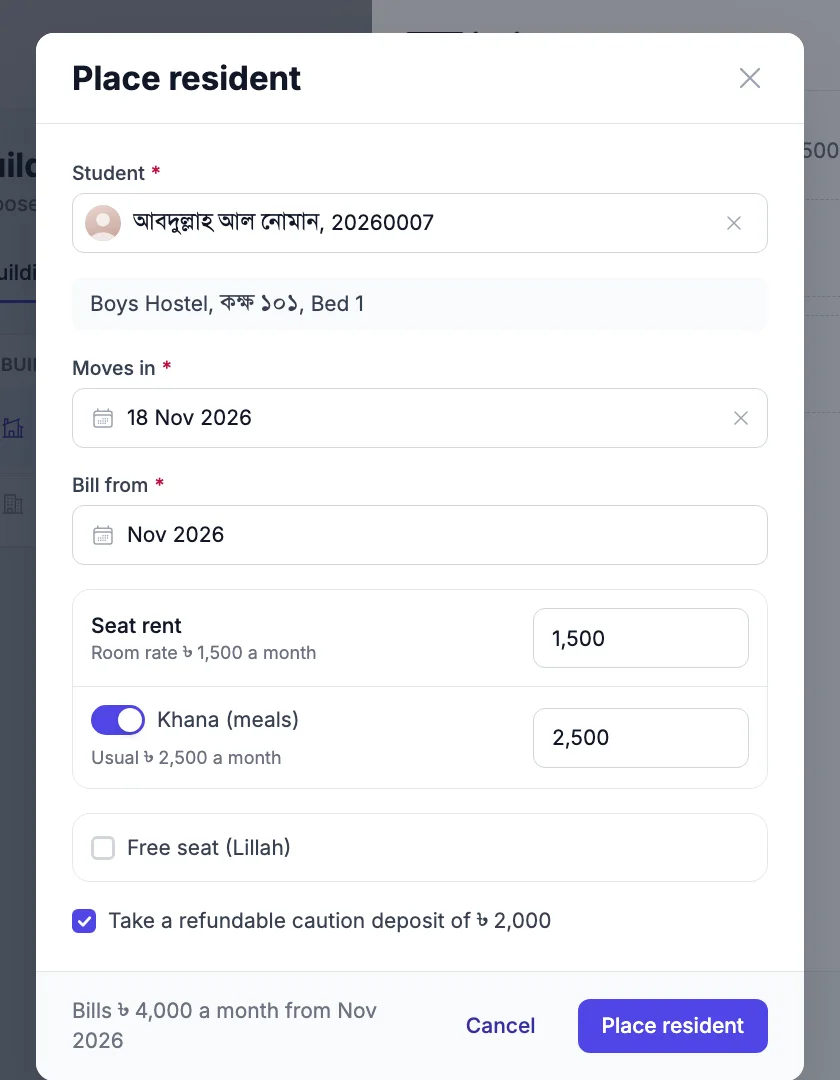
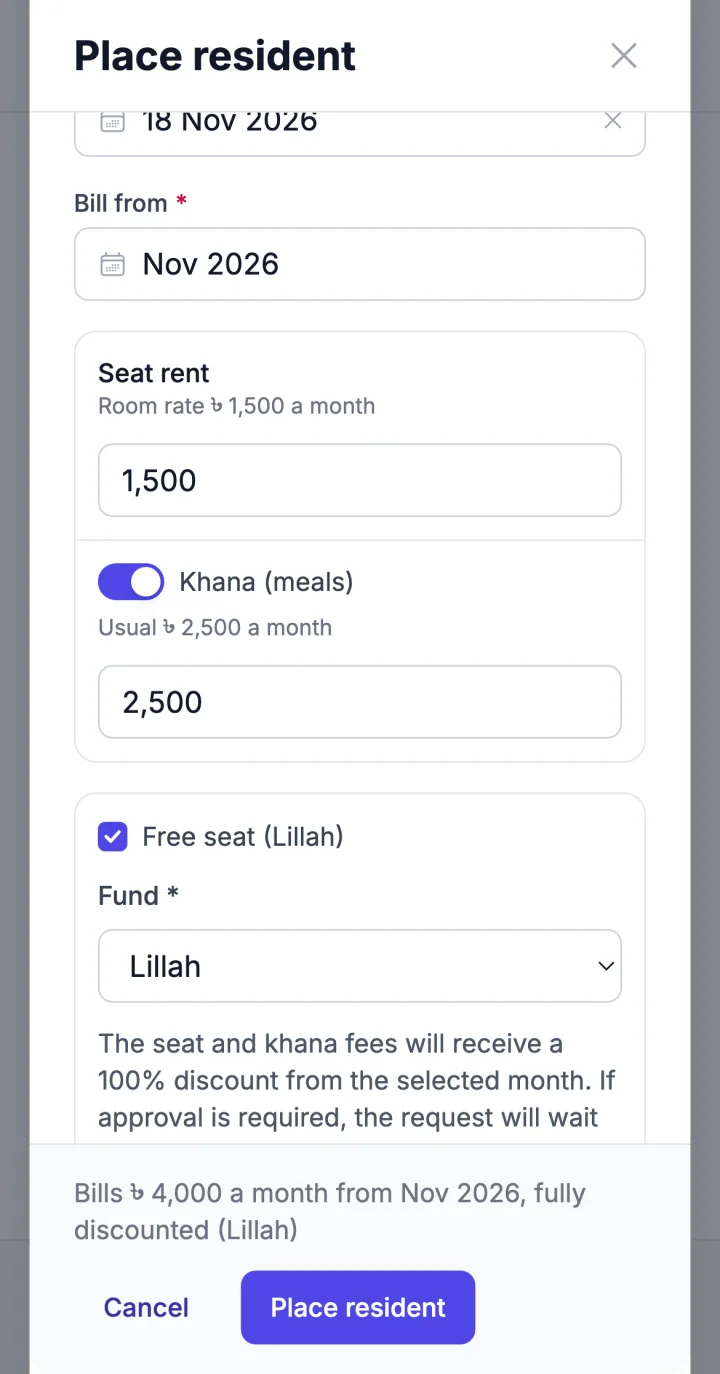
The Seat rent box has the room's rent (৳ 1,500). If the Khana (meals) switch is on, the khana ৳ 2,500 is added. If the student does not take khana, turn the switch off. To take a deposit, tick Take a refundable caution deposit of ৳ 2,000.
Below, it says from which month and how much will be billed each month, for example "Bills ৳ 4,000 a month from Nov 2026". If everything is right, press Place resident. The student's name and class show on the bed.

 1
- 1Empty bed

 1
- 1Empty bed

 1
- 1Student

 1
- 1Student

 123
- 1Moves in and Bill from
- 2Seat rent
- 3Khana switch

 123
- 1Moves in and Bill from
- 2Seat rent
- 3Khana switch

 12
- 1Monthly bill line
- 2Place resident

 12
- 1Monthly bill line
- 2Place resident


Give a Lillah or free seat
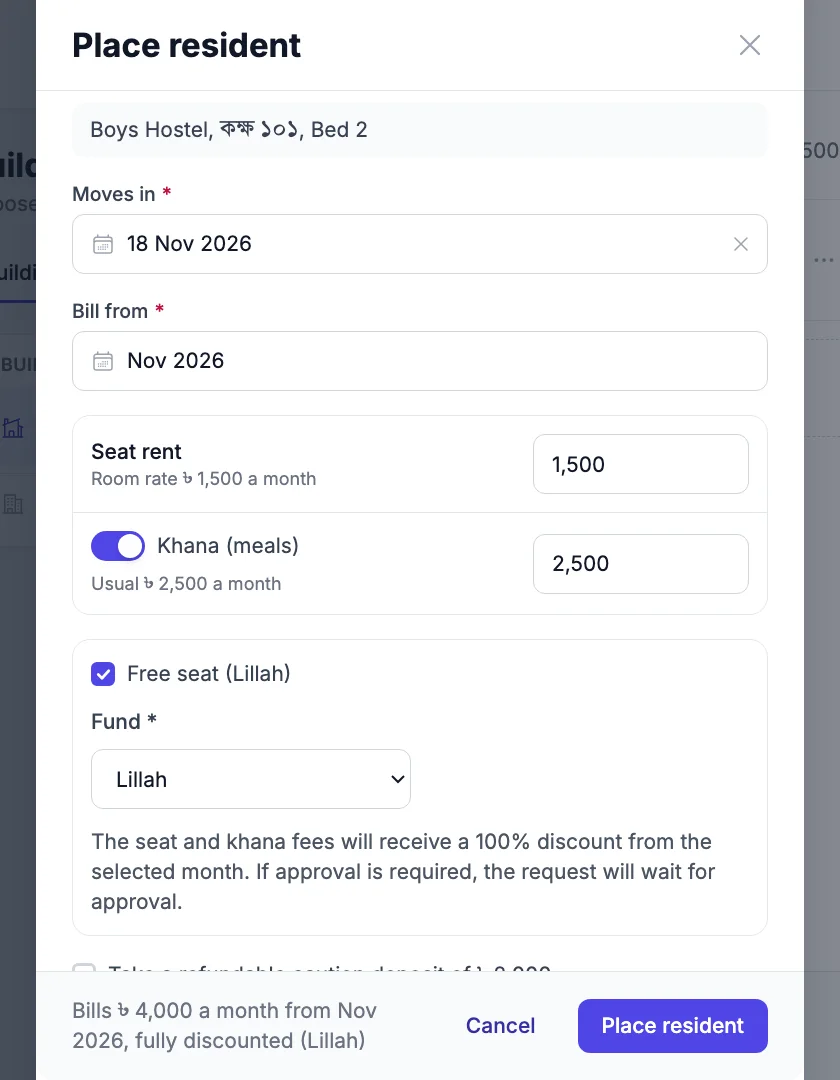
In the same way, choose Muhammad Yasin for Bed 2. This time tick Free seat (Lillah). The Fund box opens: Lillah, Zakat, Sponsor, School or Other. If you choose Sponsor, you must type the sponsor's name.
From the chosen month, a 100% discount is given on the seat and khana fees. The text below adds "fully discounted (Lillah)". Then press Place resident.
If your institution has approval turned on for discounts, the request waits for approval. In the residents list, "waiting for approval" shows next to their name. Giving a free seat needs the permission to request discounts in finance.

 123
- 1Free seat (Lillah)
- 2Fund
- 3Monthly bill line

 123
- 1Free seat (Lillah)
- 2Fund
- 3Monthly bill line
Look at the residents list
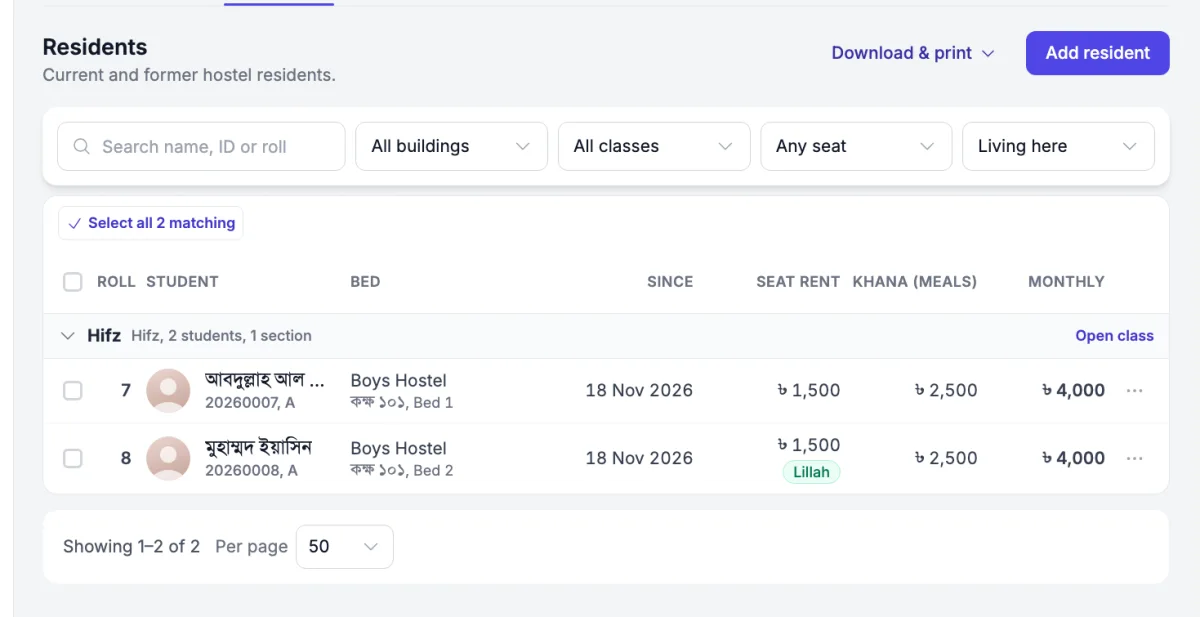
Press the Residents tab at the top. The residents list has all resident students arranged by class. Each row shows the bed (building, room, bed number), since when they have stayed, the seat rent, the khana and the monthly total. For those on Lillah, Lillah is written under the seat rent.
Use the filters at the top to see by building, class, free or paid seat, and whether they are living here now or have left the hostel. Press a name to open the student's profile. The profile also has a part called Hostel residence, where you can see their bed and hostel history.
You can add a new resident from here too: press Add resident, choose the student, then choose the building, room and bed.

 12
- 1Residents
- 2Filters

 12
- 1Residents
- 2Filters
How seat rent and khana go into the fees
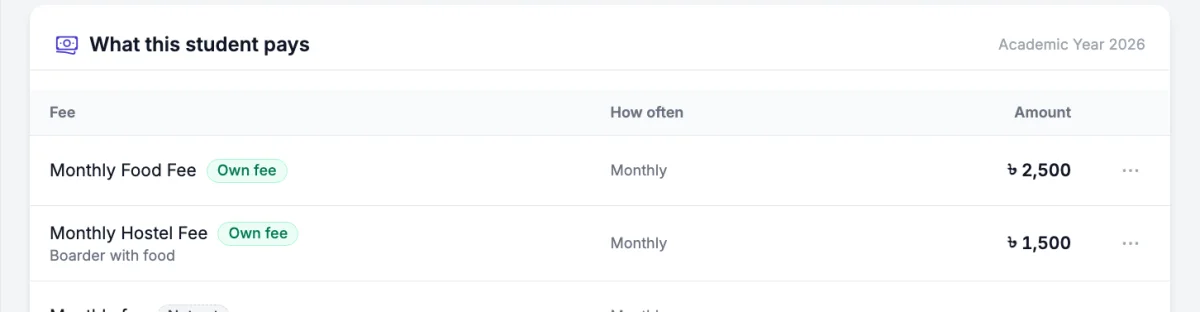
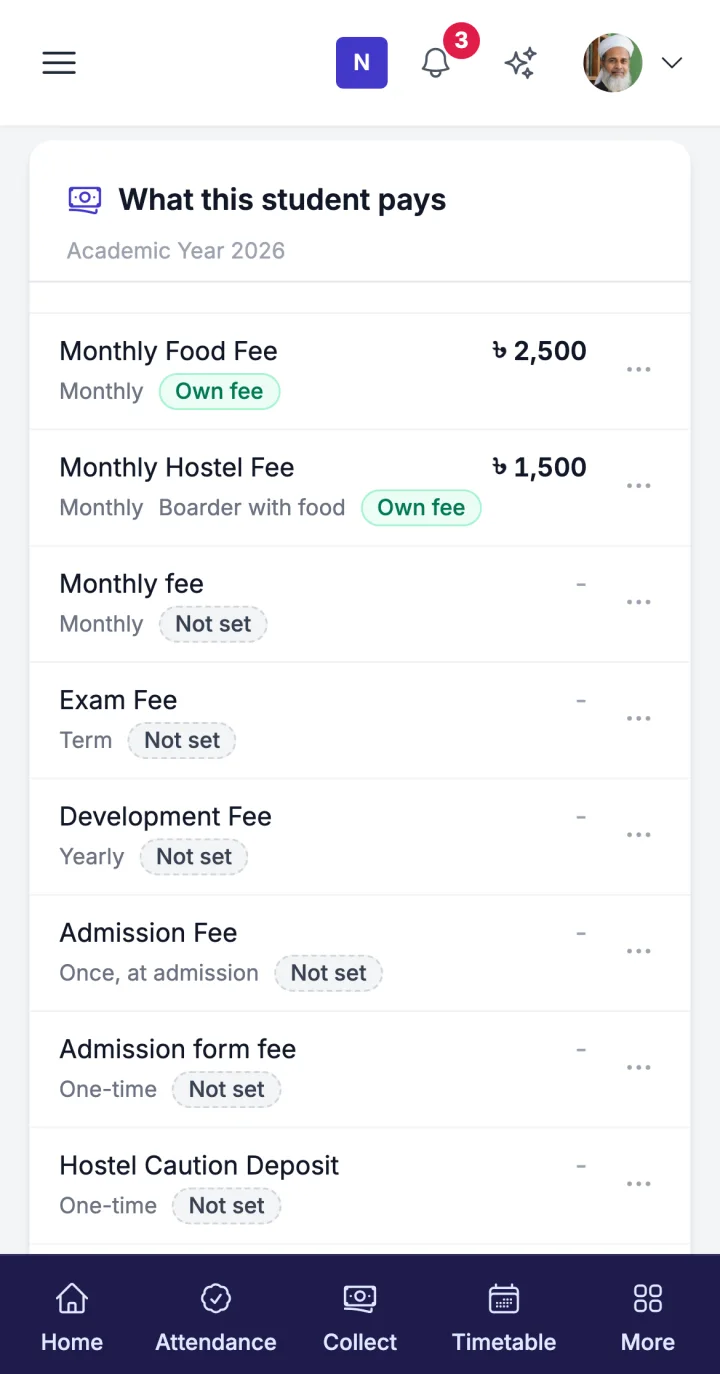
As soon as a bed is given, two monthly fees are added to the student's fees: Monthly Hostel Fee (seat rent) and Monthly Food Fee (khana). They are billed every month with the other monthly fees, and can be collected like any other fee. If you take a deposit, a one-time bill named Hostel Caution Deposit is made at once.
These fees show in the "What this student pays" part of the Fees tab on the student's profile.
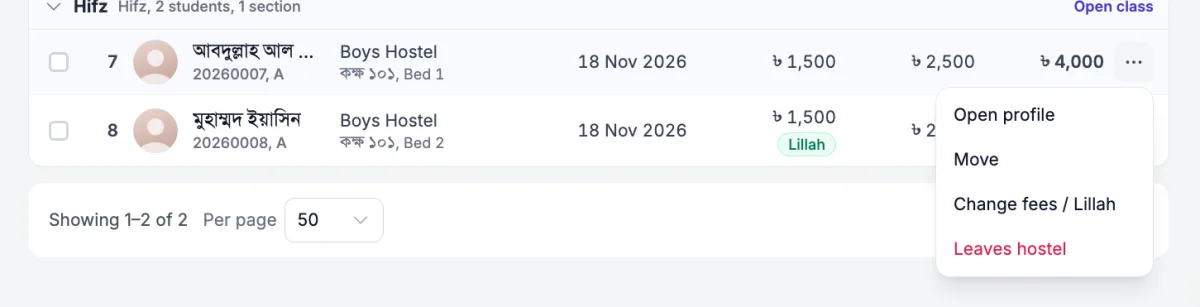
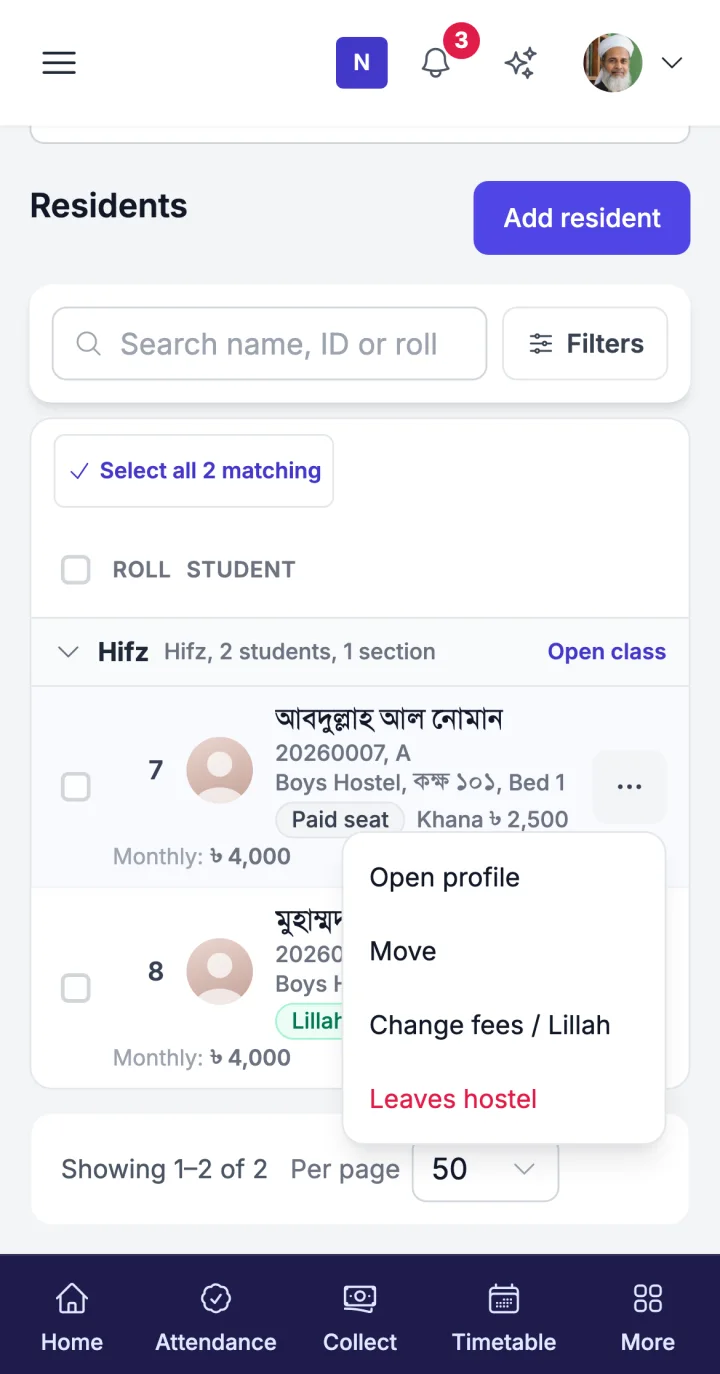
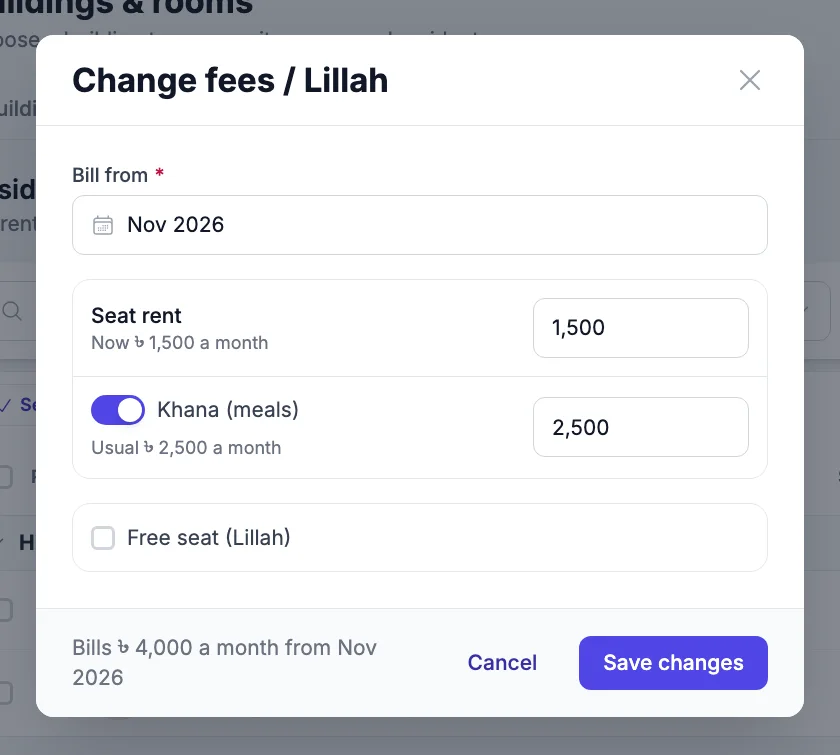
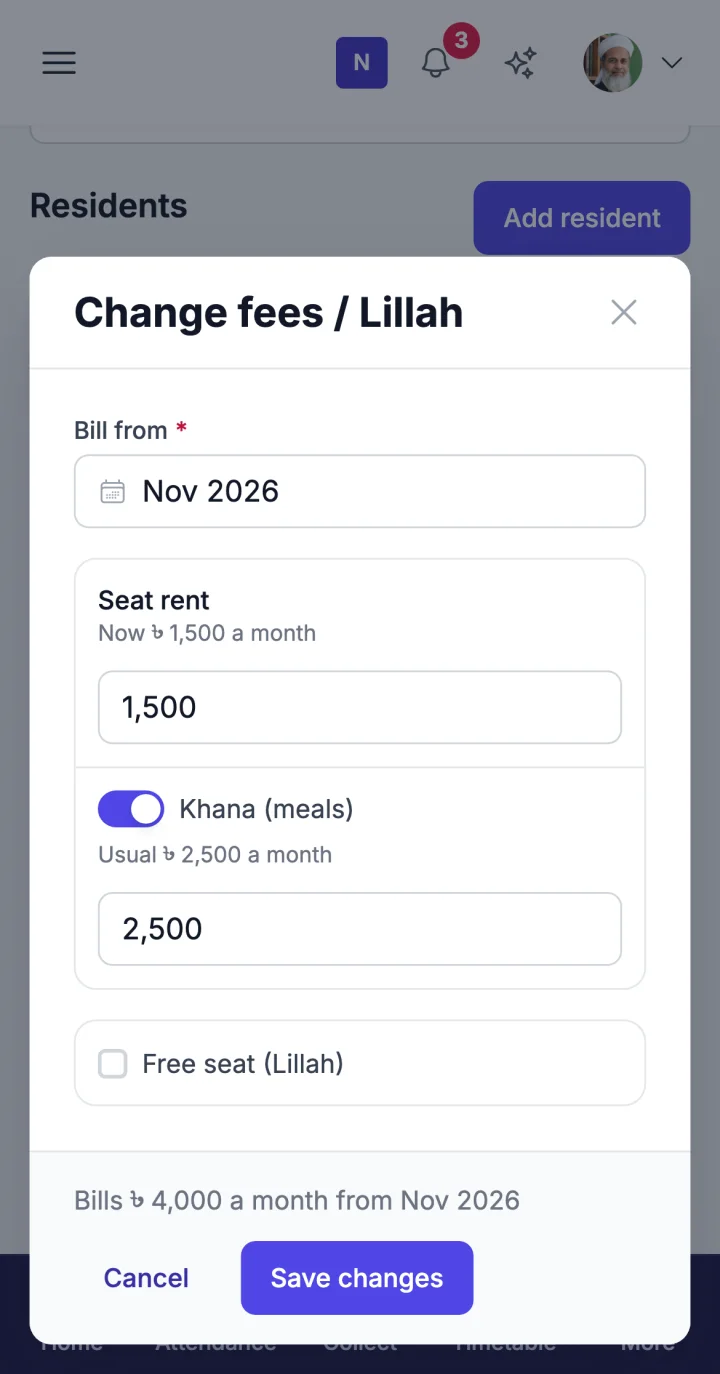
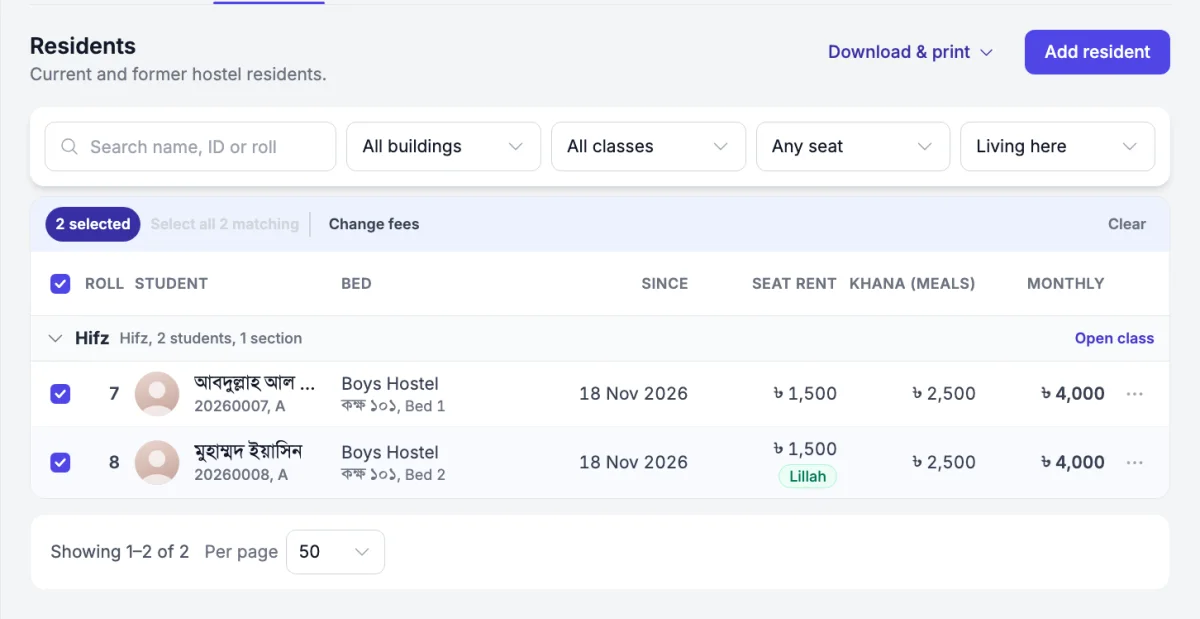
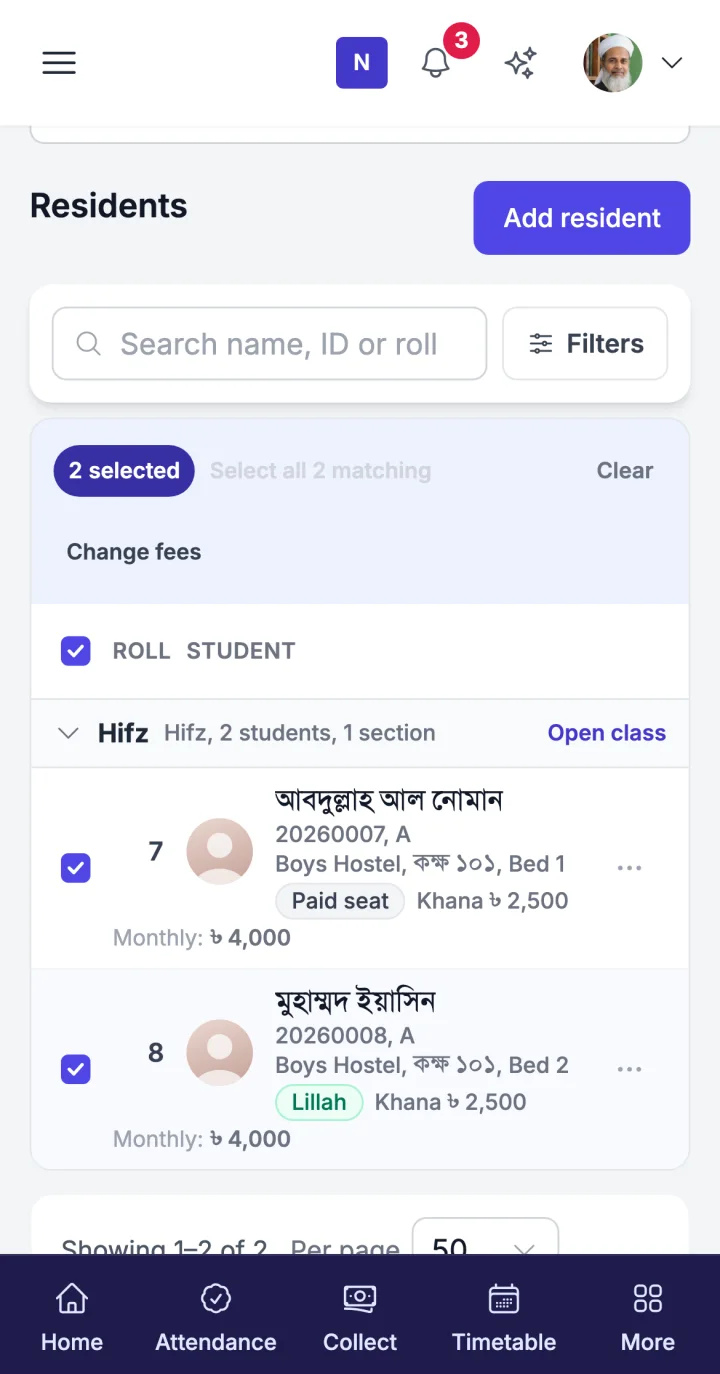
To change a resident's rent or khana, press Change fees / Lillah in the menu on the right of their row in the residents list. Give the new amount and from which month, then press Save changes. To change many people together, tick to the left of their names, then press Change fees in the bar above the list.

 1
- 1What this student pays

 1
- 1What this student pays

 1
- 1Row menu

 1
- 1Row menu



 1
- 1Change fees

 1
- 1Change fees
Tip: A hostel student's hostel and khana amounts cannot be changed from Fee Setup or the fee card. Always change them from the hostel page, so the two places stay in agreement.
Move a bed, or record leaving the hostel
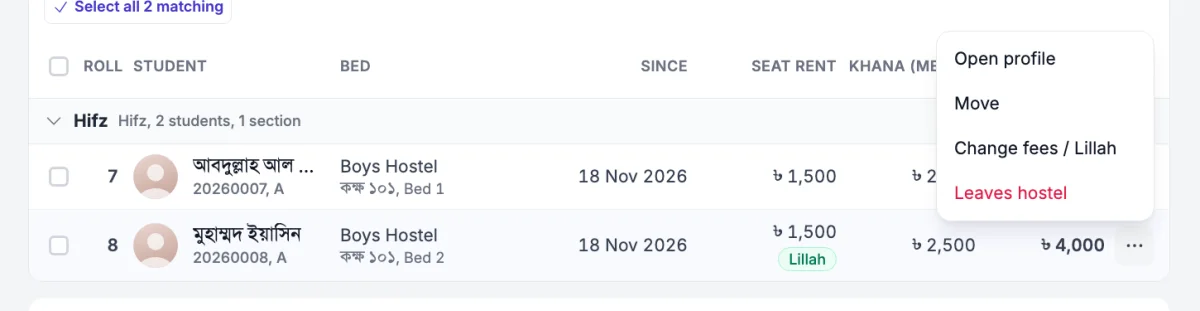
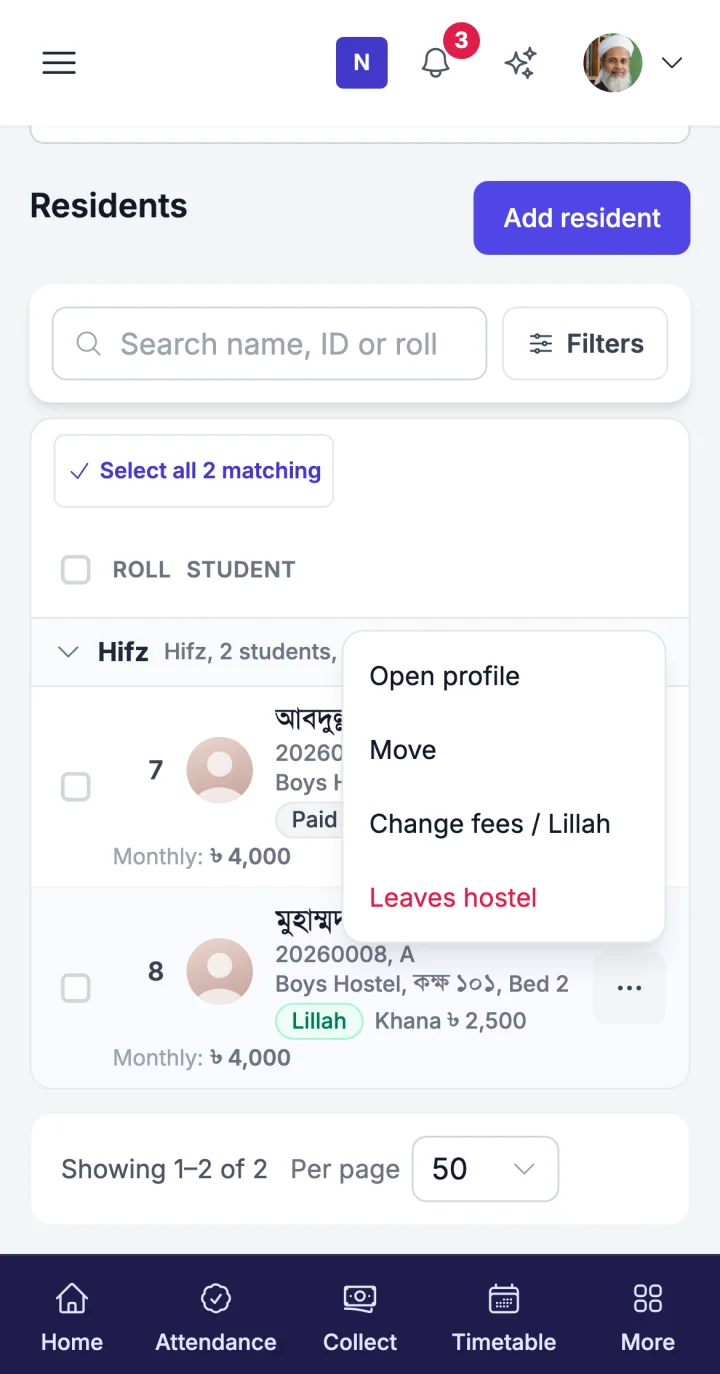
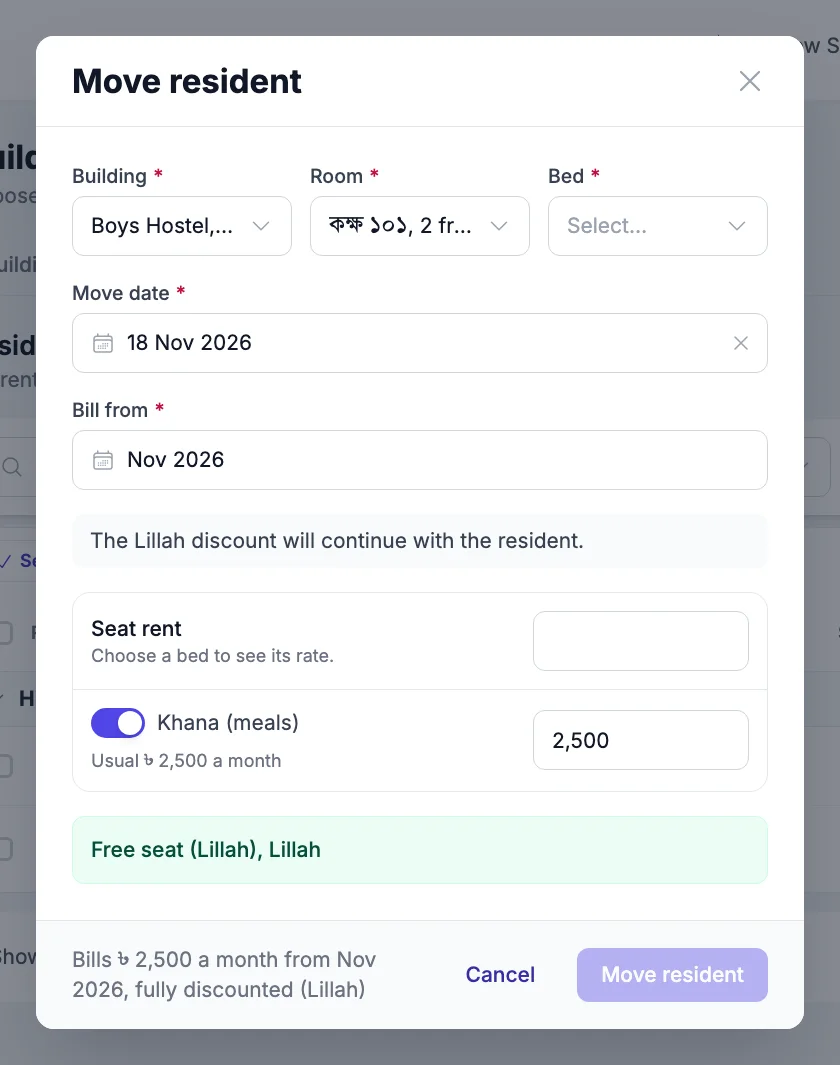
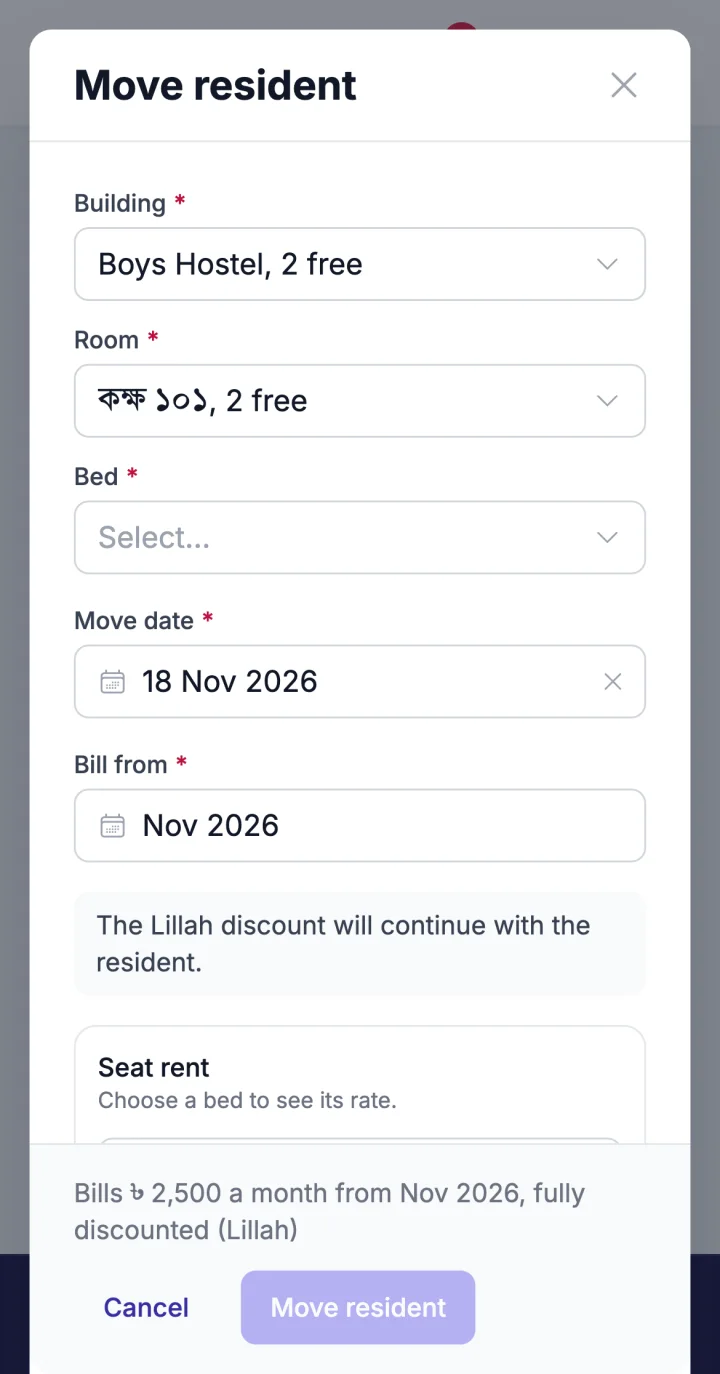
In the residents list, press Move in the row's menu. Choose the building, room and bed. Next to each it says how many are free. Give the move date and press Move resident. The khana amount stays the same. The Lillah discount also moves with the student to the new bed.
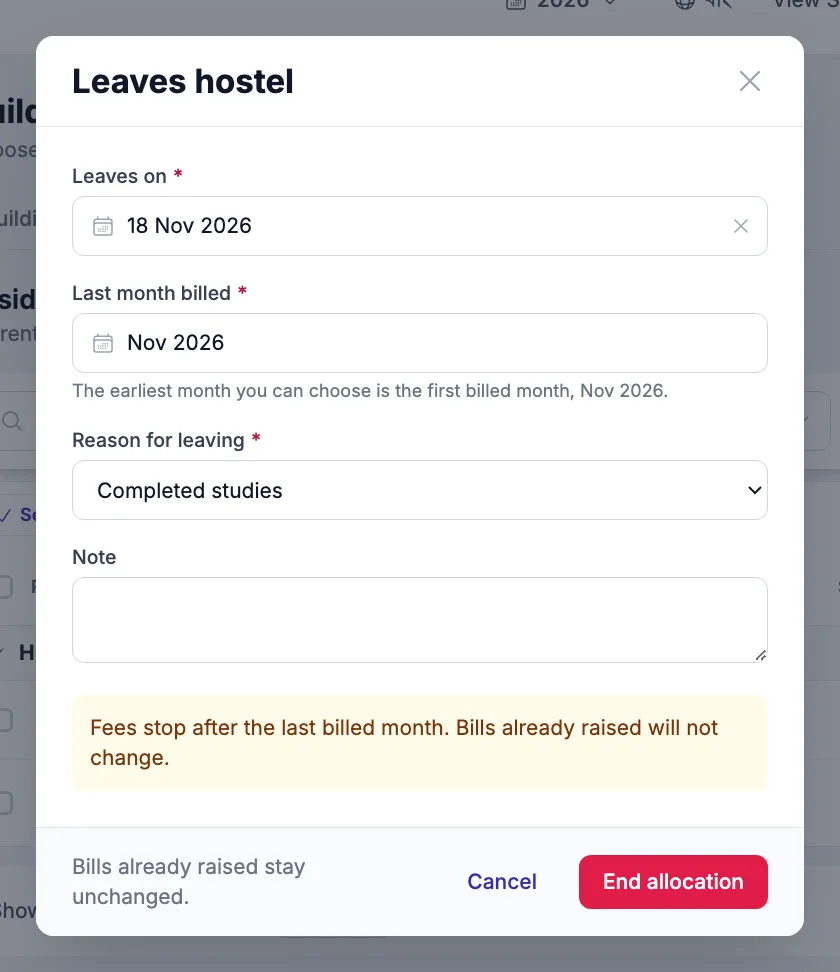
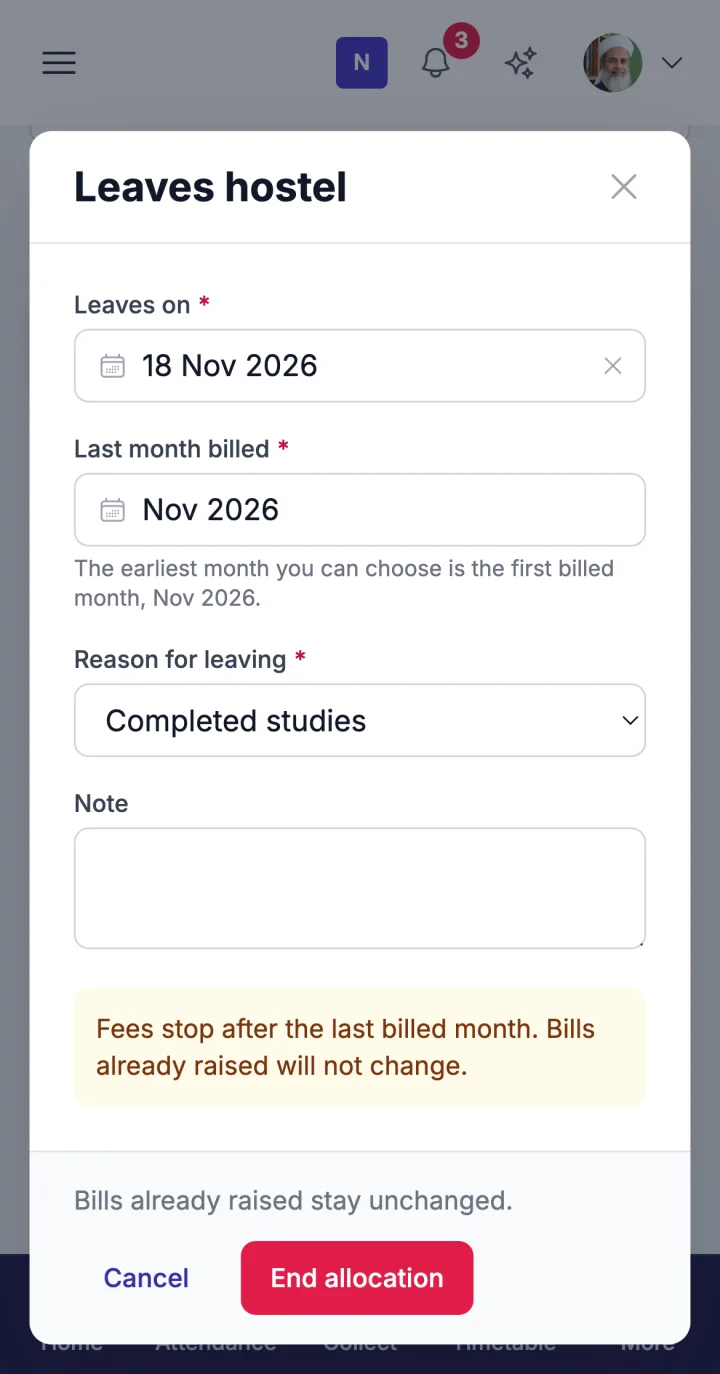
When someone leaves the hostel, press Leaves hostel in the menu. Choose the date of leaving, the last month billed and the reason for leaving, then press End allocation. No hostel fee is taken after the last billed month. Bills already made stay as they are.
There is no option to delete a resident. Even after they leave the hostel, the history of their stay remains. To see who stayed in a bed and when, open the room's beds and press Seat history in the bed's menu.

 1
- 1Leaves hostel

 1
- 1Leaves hostel

 1
- 1Move

 1
- 1Move

 1
- 1End allocation

 1
- 1End allocation
Refund the deposit
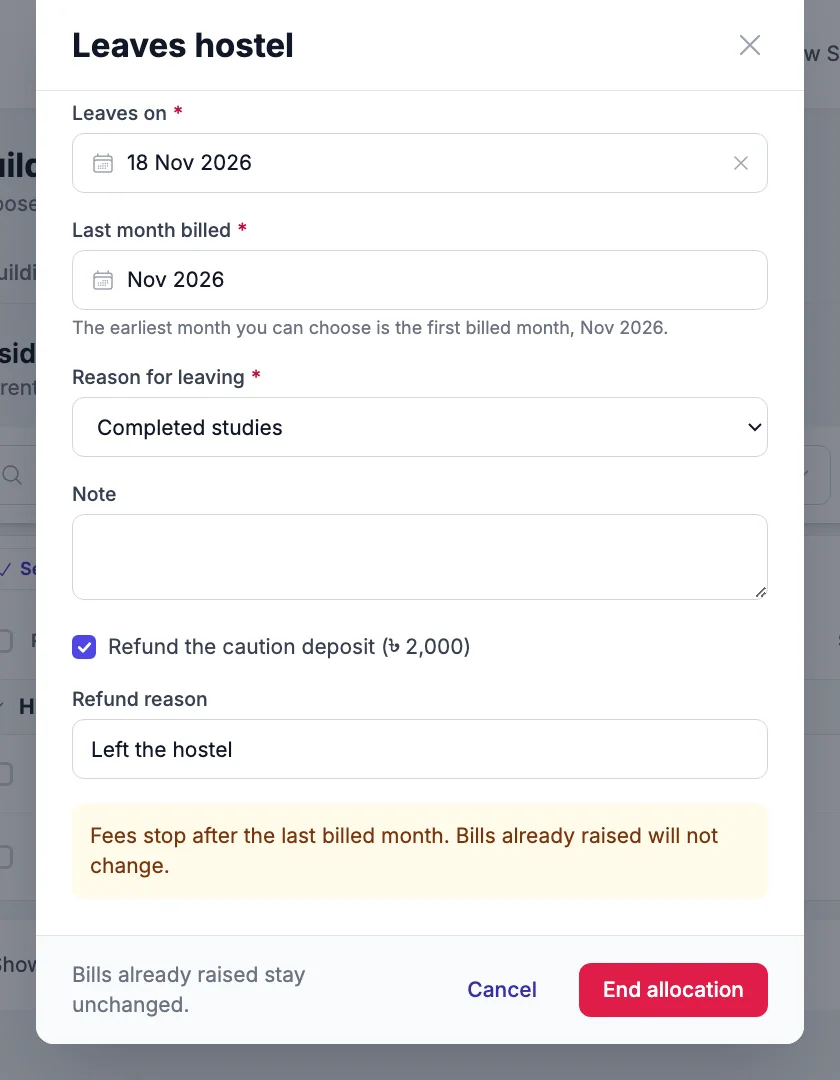
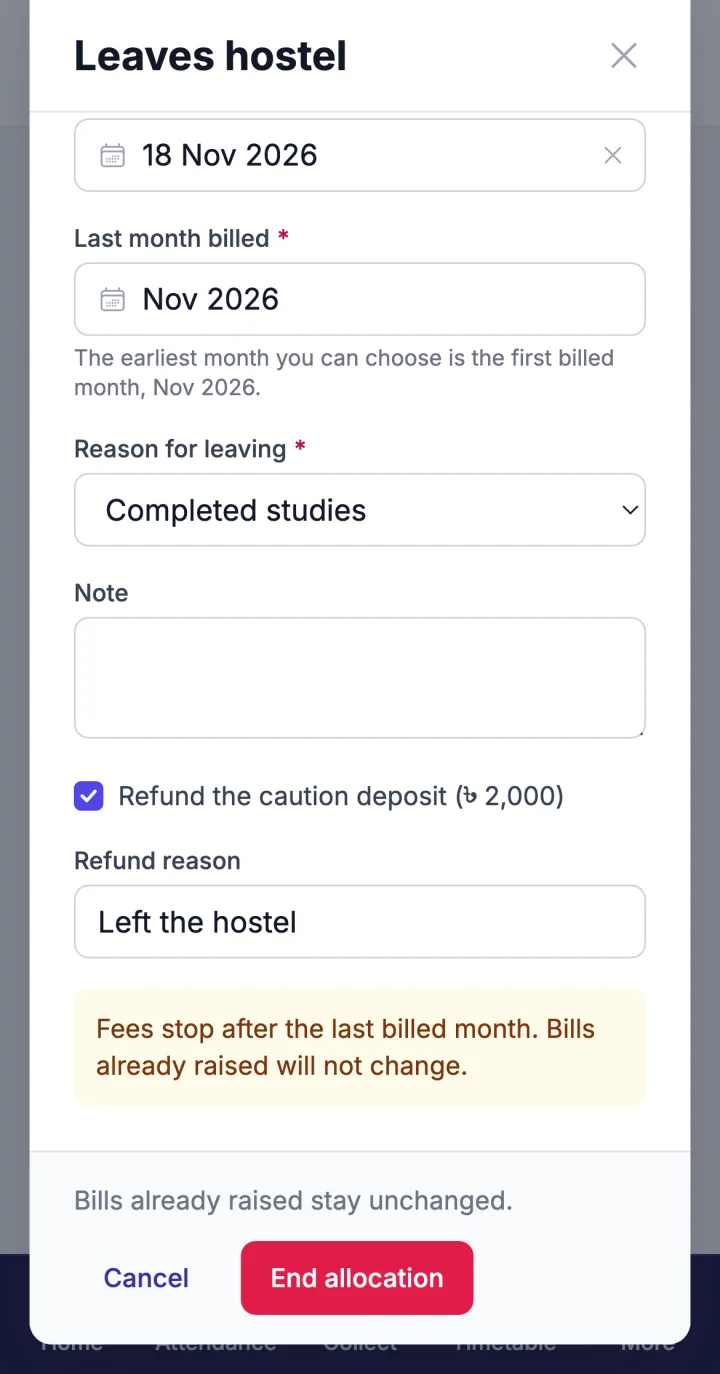
If the deposit money was collected, the form for leaving the hostel shows a Refund the caution deposit tick box. Tick it and write the reason for the refund, then press End allocation.
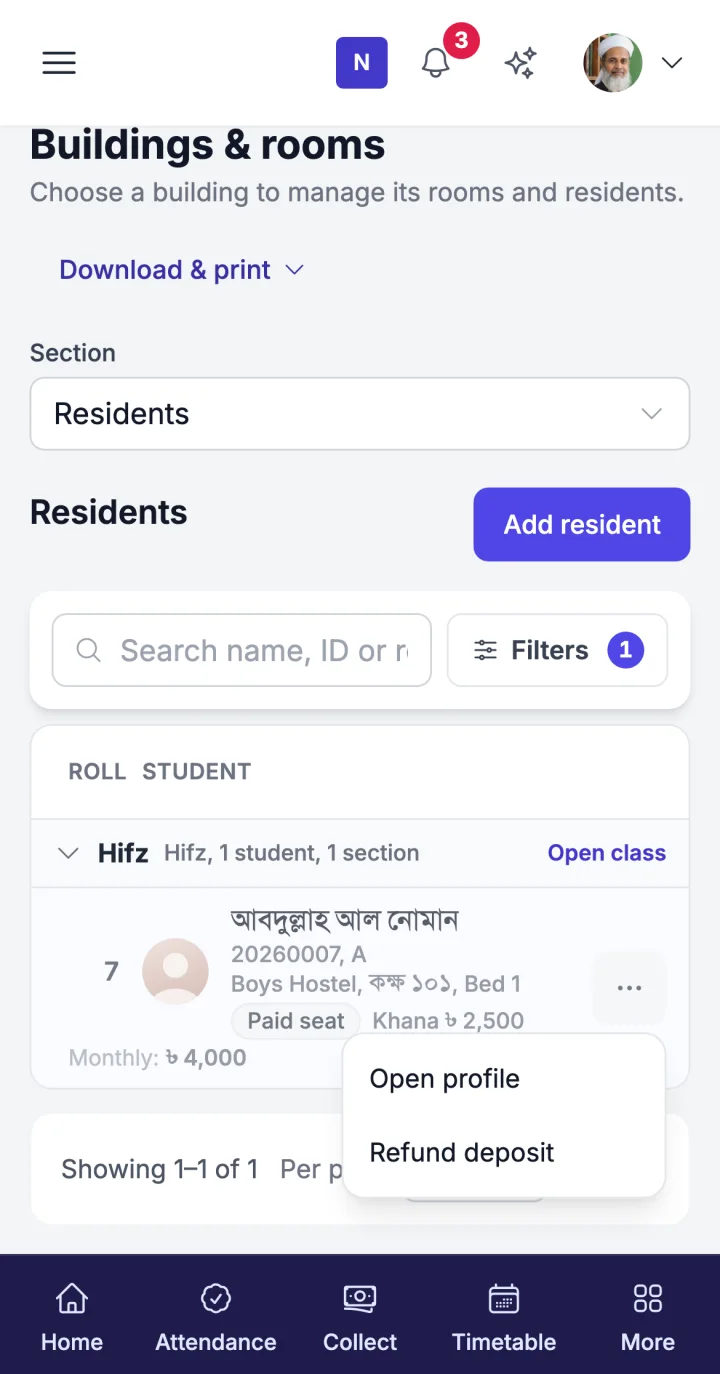
If you do not refund it then, you can do it later: choose Left hostel in the residents list, and press Refund deposit in their row's menu. The deposit is refunded from the cash or bank account it was paid into. The other fees on the same receipt do not change.
Refunding the deposit needs the refund permission in finance. If the deposit was not collected, the unpaid bill is cancelled by itself when they leave the hostel.

 12
- 1Refund deposit
- 2End allocation

 12
- 1Refund deposit
- 2End allocation

 1
- 1Refund deposit

 1
- 1Refund deposit
Wardens, the meal menu and reports
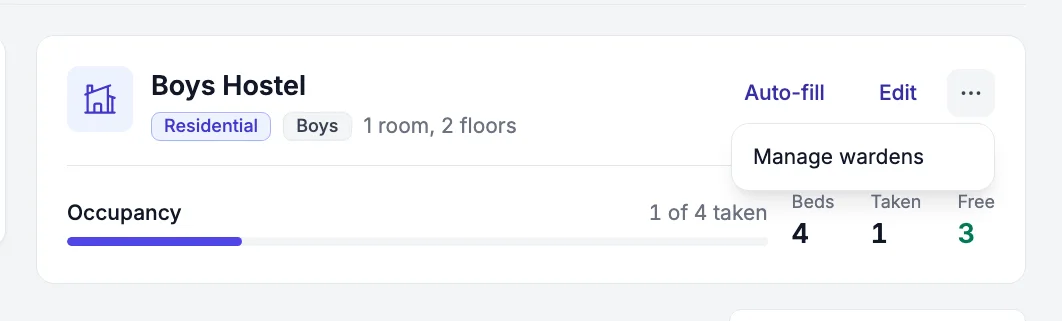
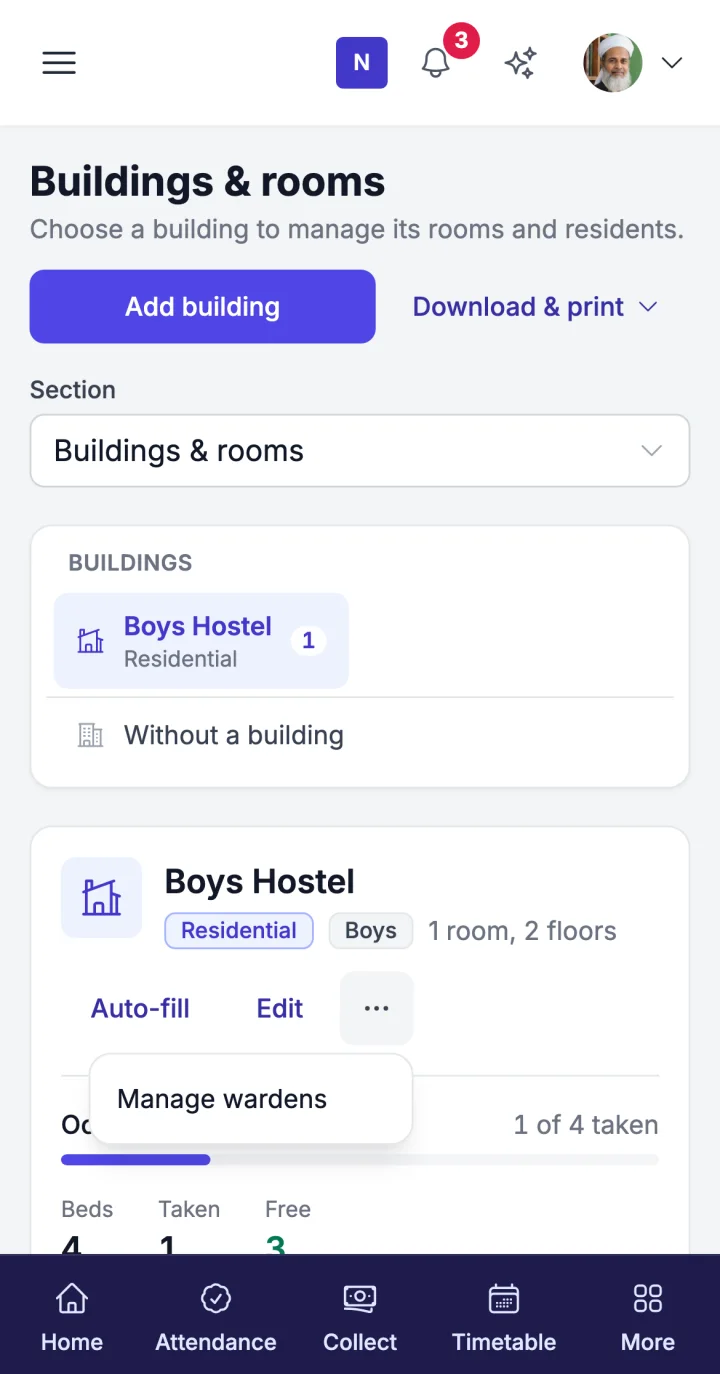
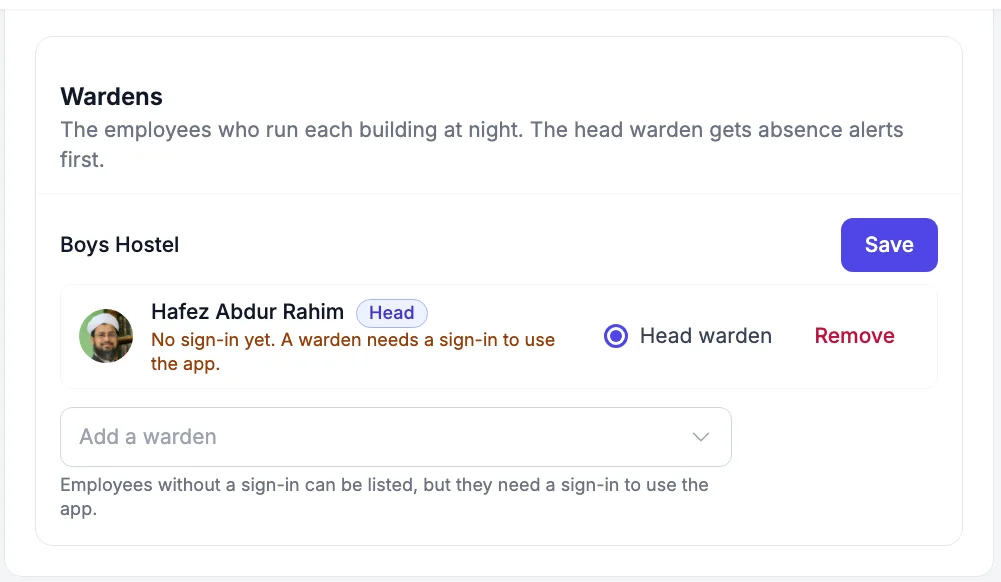
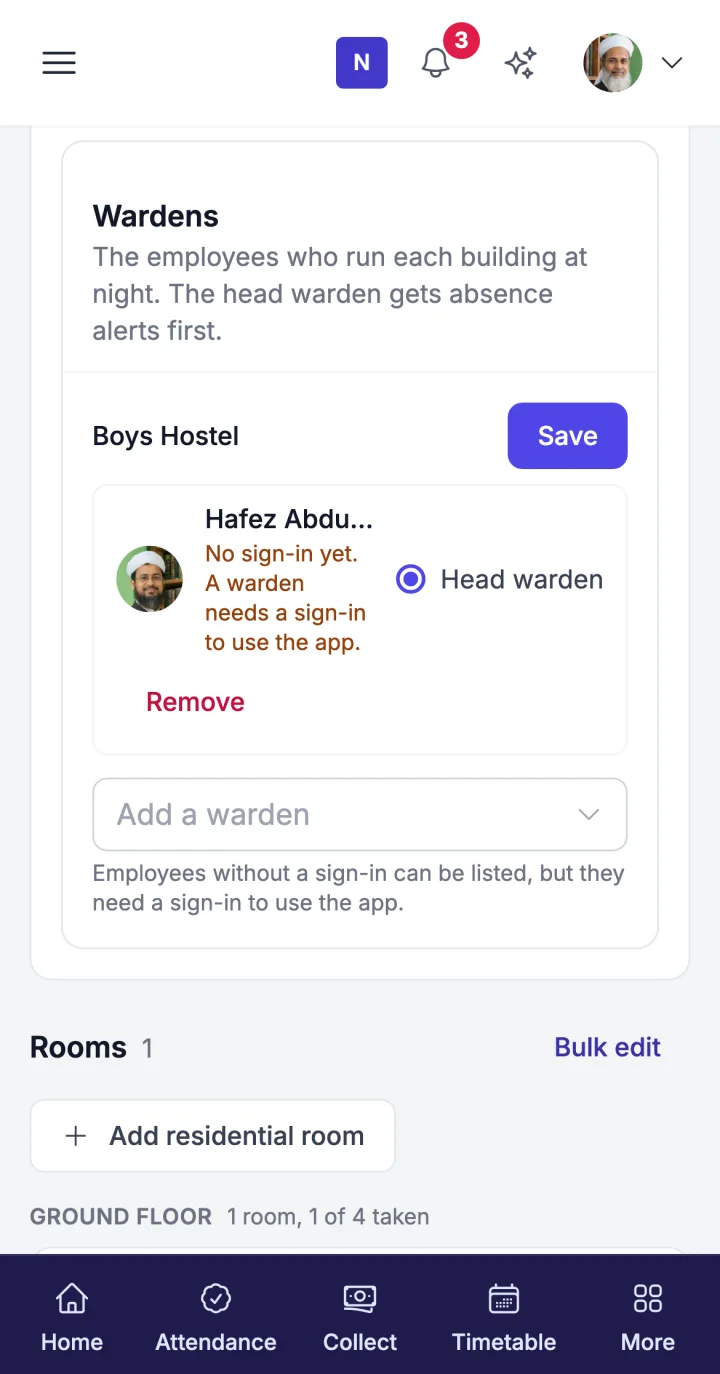
On the Buildings & rooms tab, open Boys Hostel, press the three dots to the right of the building's name, then press Manage wardens. In the Add a warden box, type the employee's name and choose them, for example Hafez Abdur Rahim. If there are several wardens, choose Head warden next to the one in charge. Then press Save. The warden's name shows under the building's name. Even without any permission, a warden can sign in and see only their own building's rooms and residents. For this, their sign-in must be on.
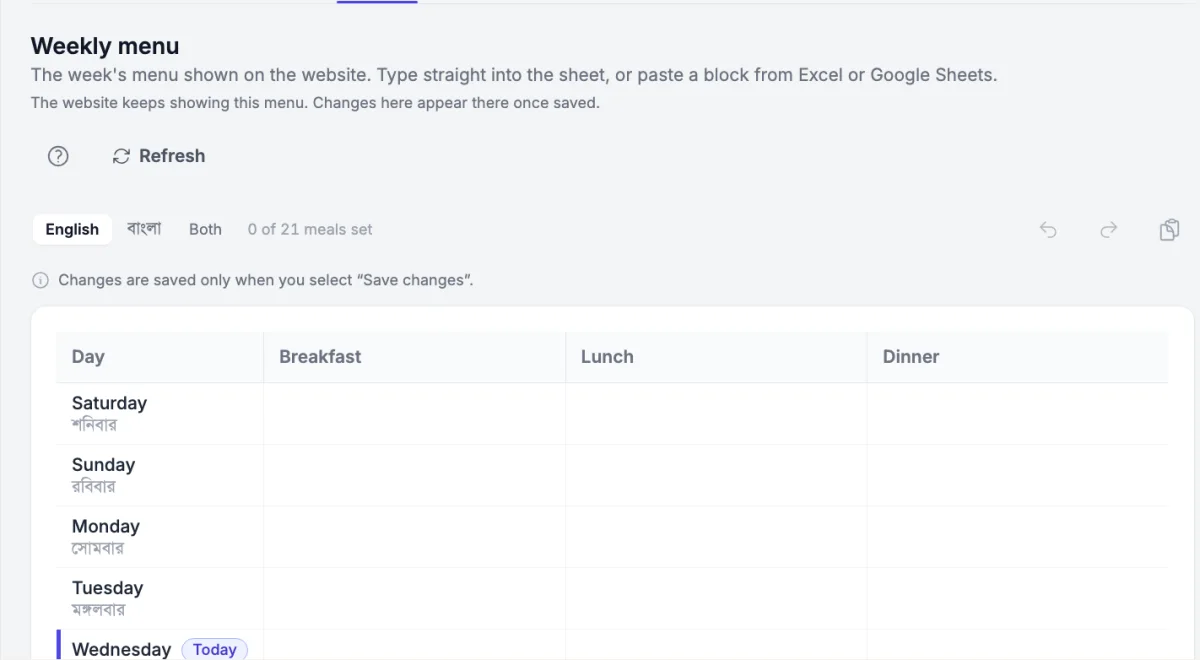
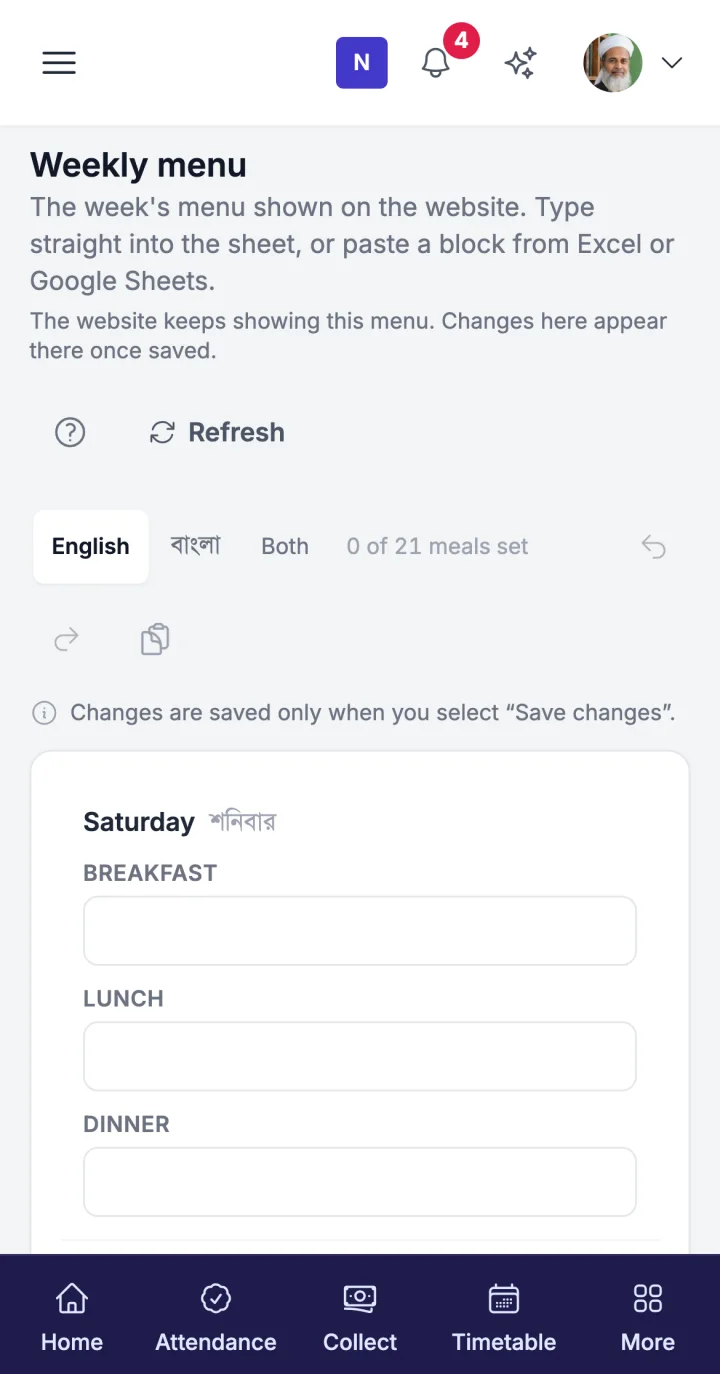
The Meals tab has the weekly menu: Saturday to Friday, Breakfast, Lunch and Dinner. Type straight into the boxes, or copy from Excel and paste, then press Save Changes. This same menu is shown on the institution's website.
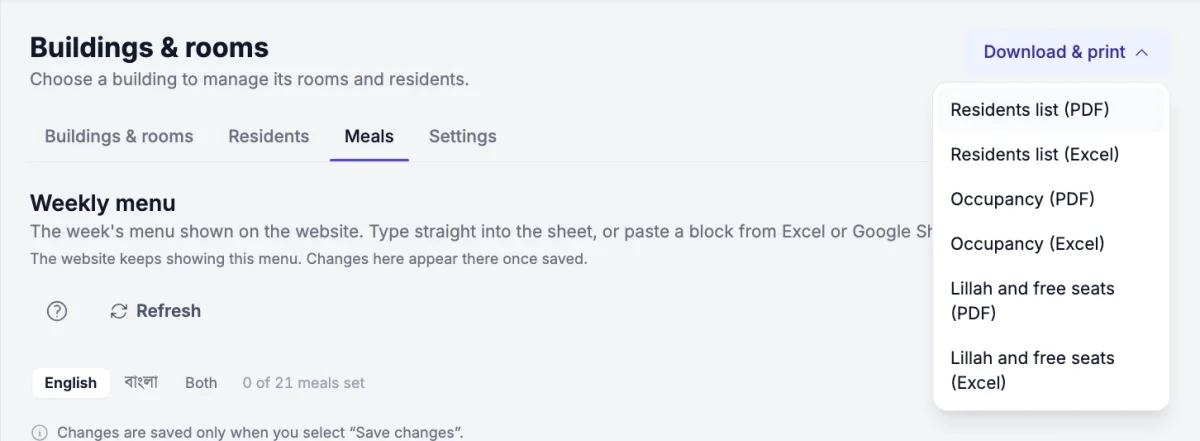
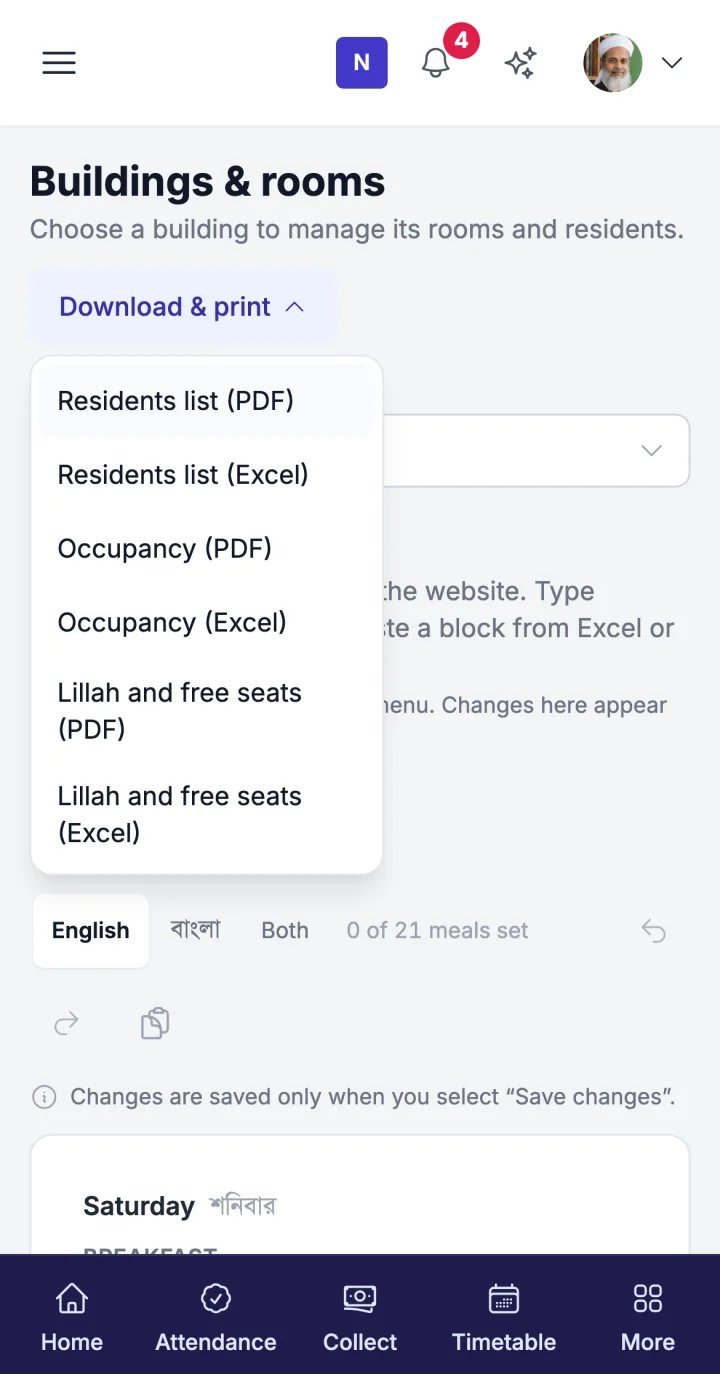
For reports, press Download & print at the top of the page. You get the Residents list, Occupancy and Lillah and free seats, each as PDF or Excel. The Lillah and free seats report needs a month to be chosen. It shows who got how much discount from which fund in that month.

 1
- 1Manage wardens

 1
- 1Manage wardens

 12
- 1Head warden
- 2Save

 12
- 1Head warden
- 2Save

 1
- 1Weekly menu

 1
- 1Weekly menu

 1
- 1Download & print

 1
- 1Download & print
What to do next
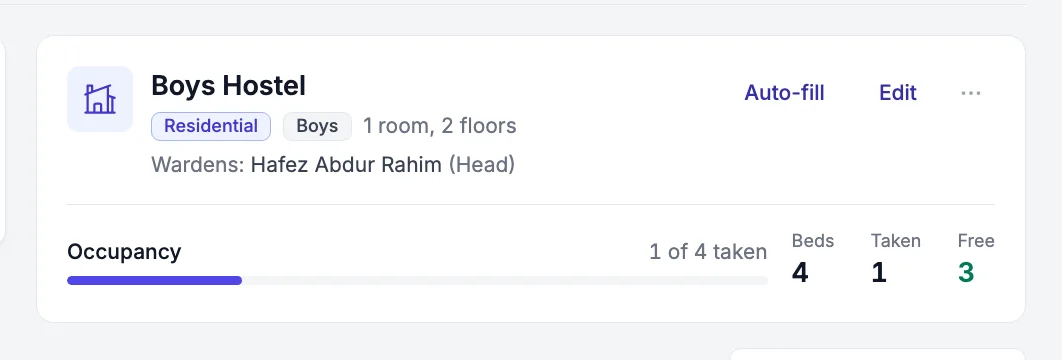
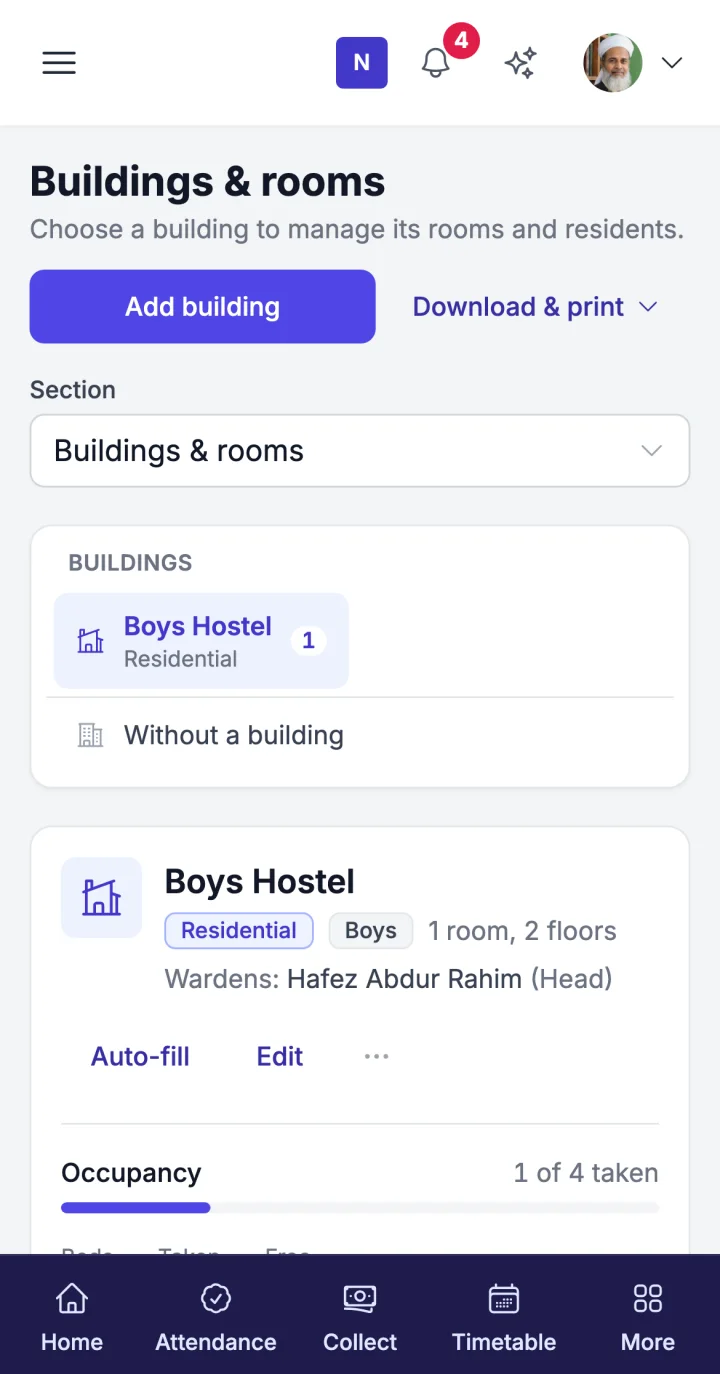
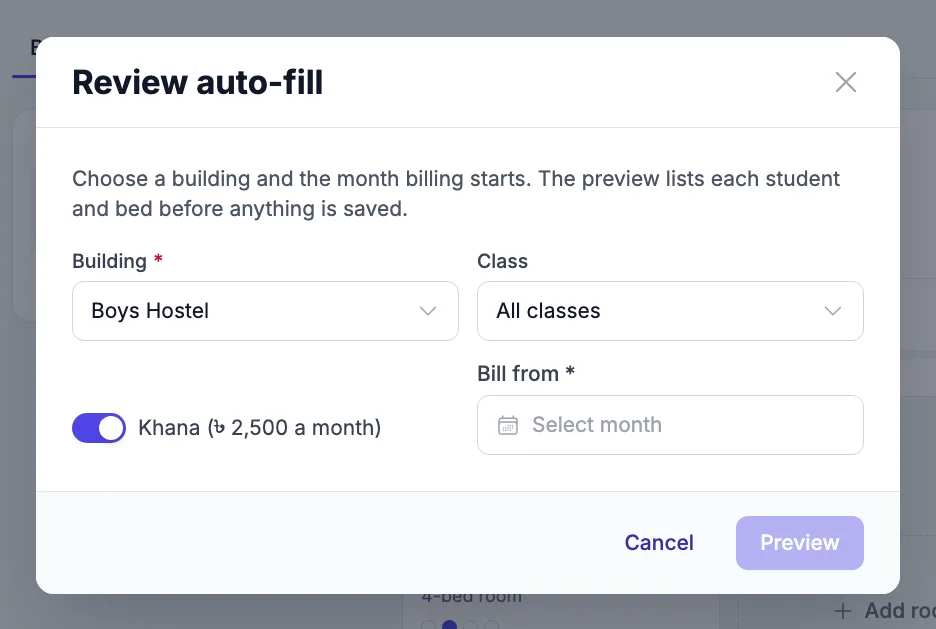
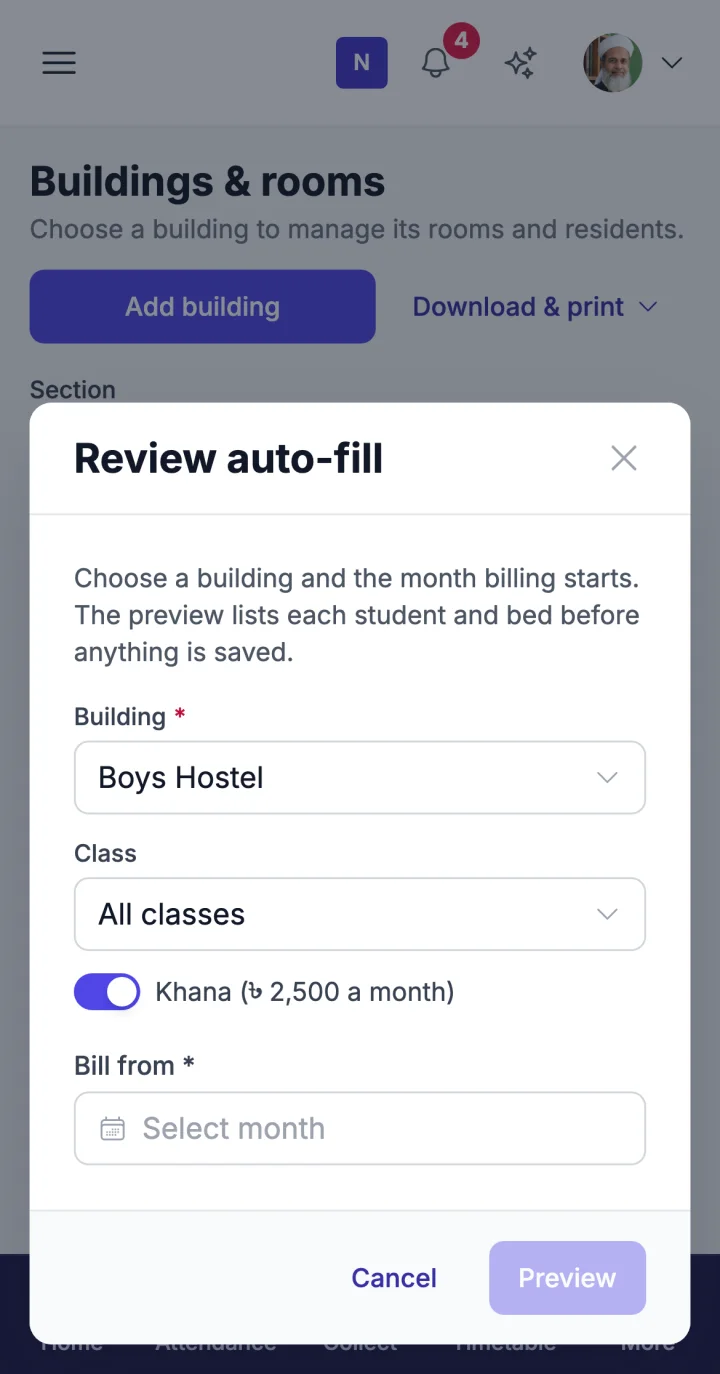
To give beds to many students together, press Auto-fill at the top of the building. Choose the building, class and the month billing starts, and press Preview: EduSine suggests a bed for each student. To leave someone out, untick them, then press "Place … students".
Students whose fees include the hostel fee but who have no bed yet are listed under the "… waiting for a bed" button at the top of the building. You can give them beds from there too by pressing Place.
When you promote students to the new academic year, the residents' hostel and khana fees move to the new year by themselves. You do not need to give beds again.

 1
- 1Auto-fill

 1
- 1Auto-fill


If something goes wrong
"Set a monthly seat fee for this room before placing a resident."
The room type or the room has no seat rent. Give the room type's Monthly seat fee on the Settings tab, or open Room details from the room card's menu and give the Room seat fee override. With the Fee Setup permission, you can type the seat rent in the bed form itself.
"Add this student's gender on their profile first."
If the profile has no gender, the student cannot be given a bed in a boys' or girls' building. Press the Open profile link under the message, add the gender, then try again.
"This building or room is for a different resident group."
Someone tried to give a girl a bed in a boys' building, or a boy in a girls' building. Choose the right building.
The khana switch cannot be turned on; it says "Set the khana charge in Settings first."
On the Settings tab, in the Khana (meals) part, press Set charge and give the monthly charge.
"The selected academic session is locked, so hostel fees cannot be changed."
The academic year of the Bill from month is locked. Choose this month or a later month, or ask someone who has permission to unlock the academic year.
More tutorials
See how to do the other jobs in EduSine, step by step.
Transport
List the students who use transport and set their monthly transport fee; the bills are made by themselves.
ReadPortals
Turn on the portals so guardians can sign in with an SMS code, and students with their ID, to see their own records.
ReadInstitution settings
Check and change your institution's name, logo, address, signatures, website language, weekly holiday and other settings.
ReadCan’t find what you’re looking for?