Discounts and waivers
To lower a student's fee you do not need to change the fee amount. Just give a discount in the student's name. A discount can be for one month, for the whole academic year, or until it is stopped, as an amount or a percentage.
Each discount records who gave it and why. If you like, you can make a rule that a second person must approve a discount. A discount that keeps running can be stopped with one press when it is no longer needed.
The accountant, the person in charge of the office and the admin can request a discount. The principal, the chairman, the accountant and the admin can approve it. The fees must be set before you start. This works on the Free plan too.
- Discount types
- One student
- Siblings, categories and a whole class
- Approval and the list
- Stopping a running discount
Decide these before you give a discount
Which student gets the discount, and on which fee
How much off: a fixed amount, or a percentage
For how long: one month, the whole academic year, or until stopped
The reason for the discount (for example "Tanvir Ahmed's sister")
What this tutorial covers
See which job comes when.
Discount types
Make the names of discounts such as Sibling or Teacher's child once
One student
A running discount on the monthly fee, or a discount on one bill
Siblings, categories and a whole class
What to do in each case
Approval and the list
Who approves, and where to see every discount
Stopping a running discount
How to stop a discount that runs until stopped, and what then happens to bills
Step by step
Follow along as each step appears on your screen.
Open the discounts page
In the menu on the left, go to Finance → Fee Register. Press More at the top right, then press All discounts. The page called Discounts opens.
The first time, it says "No discounts". There are two buttons at the top: Discount types and Request discount.

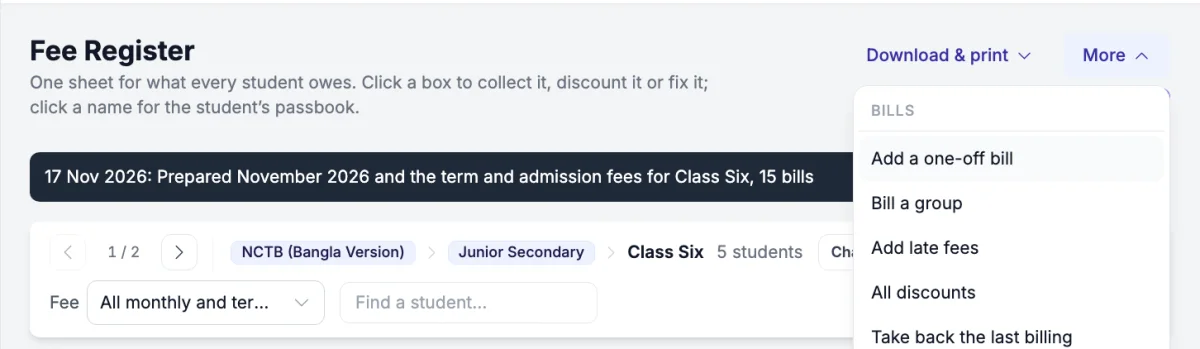 12
- 1More
- 2All discounts

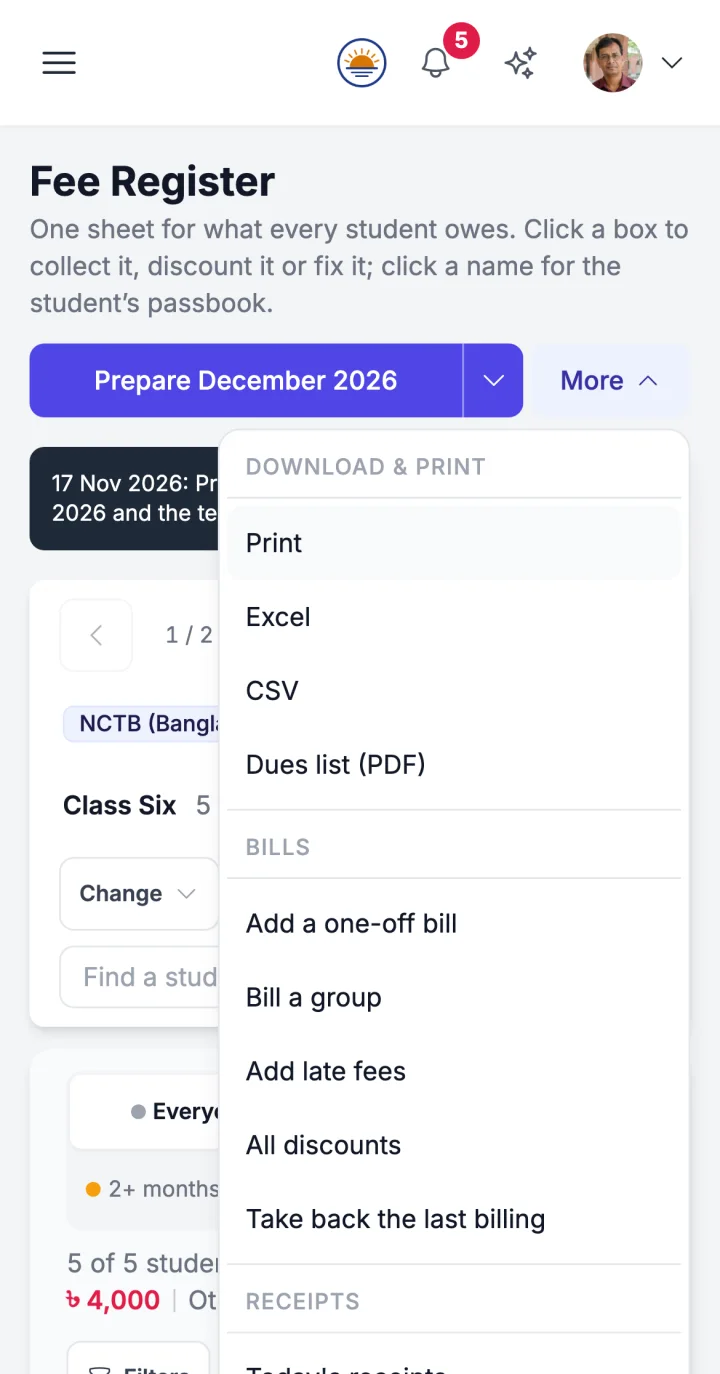 12
- 1More
- 2All discounts

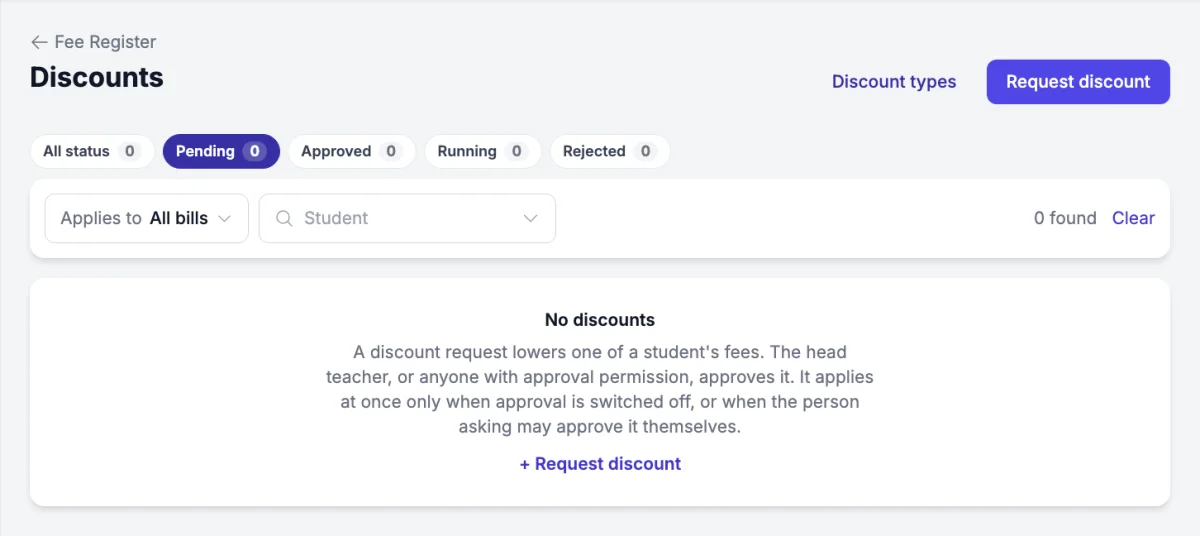 12
- 1Discount types
- 2Request discount

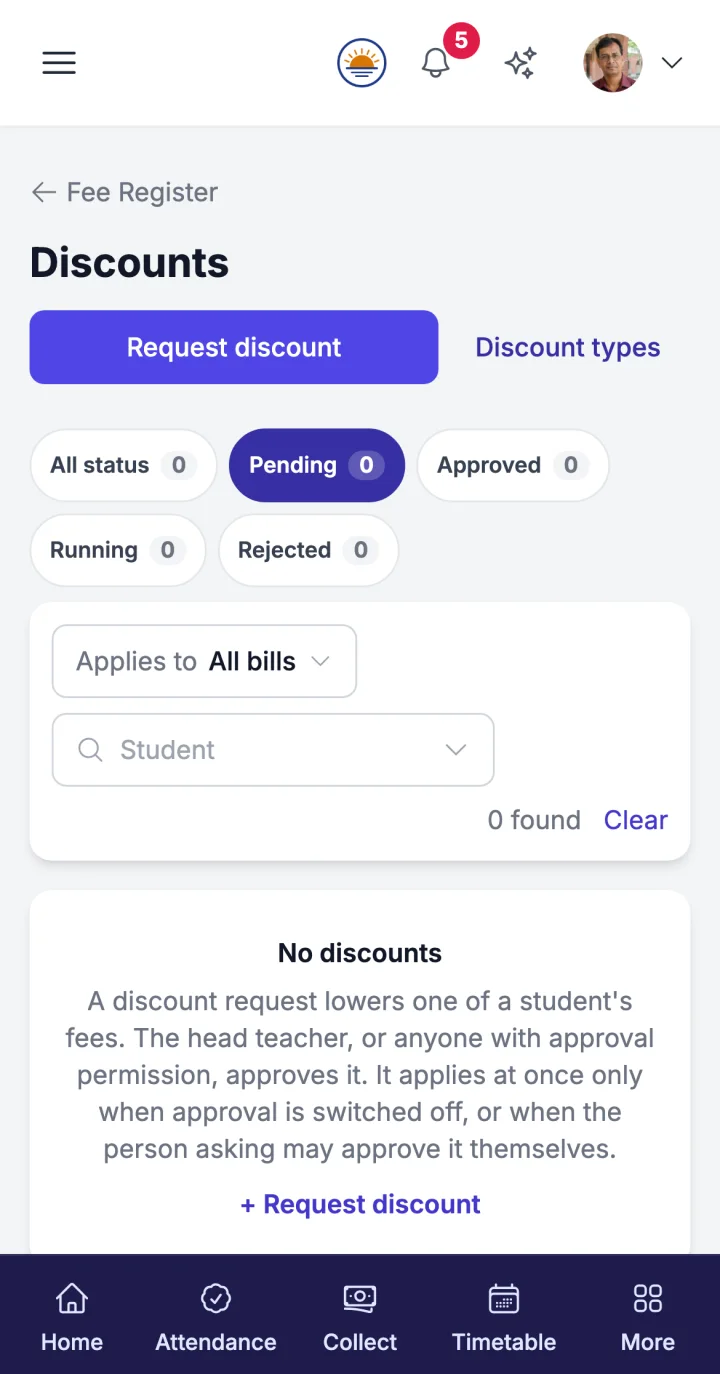 12
- 1Discount types
- 2Request discount
Make your discount types
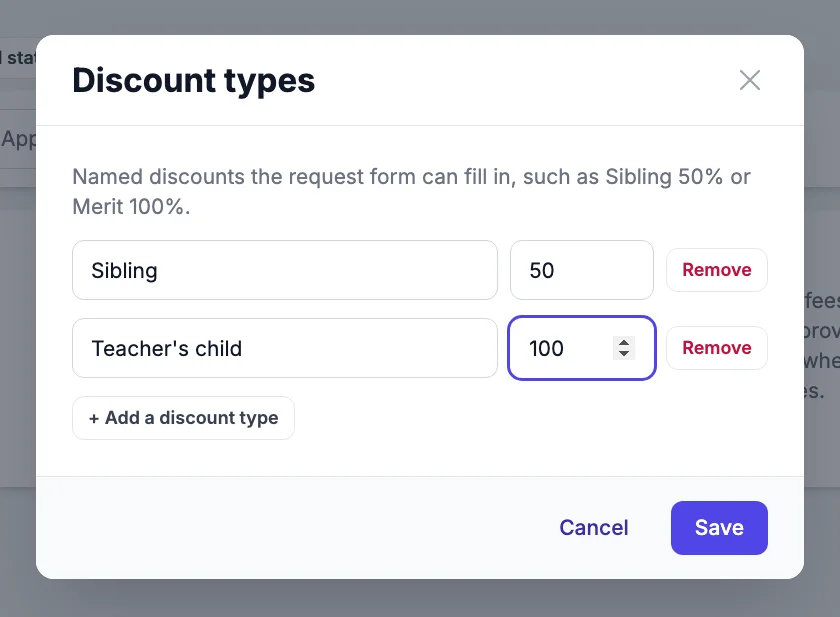
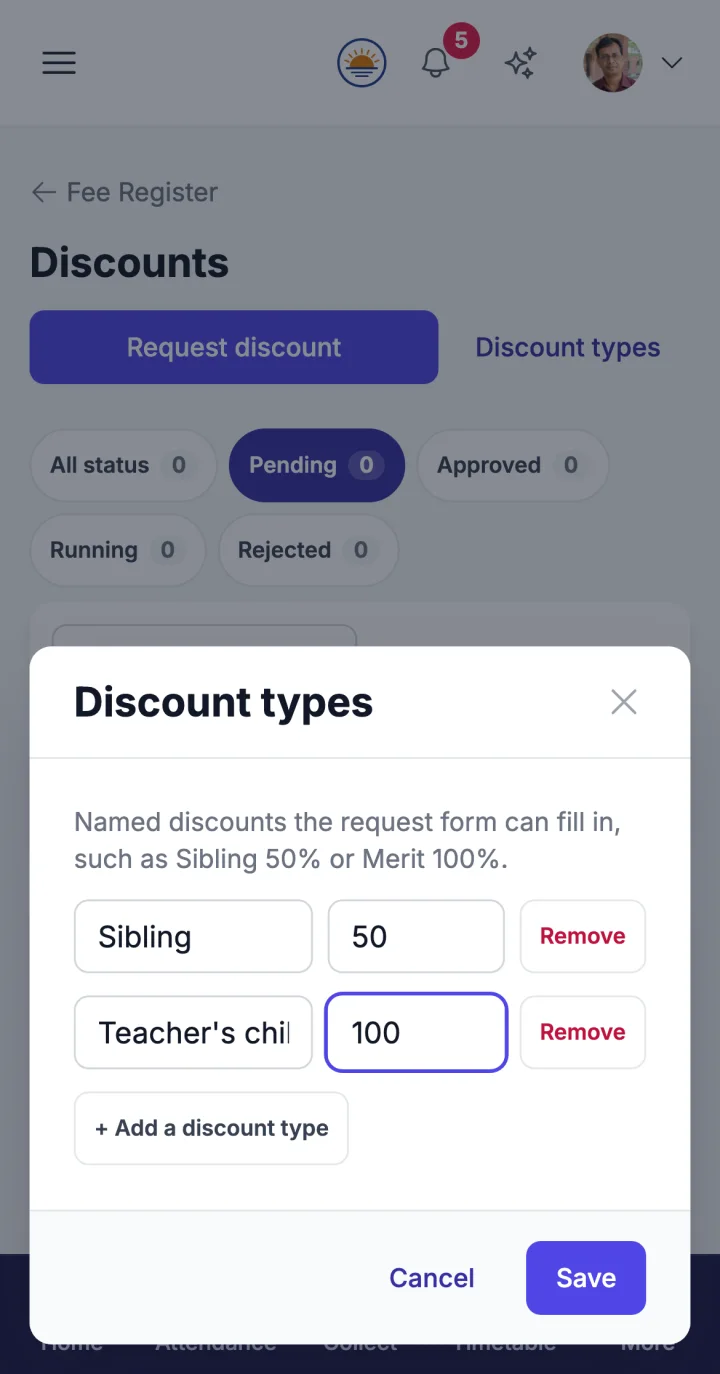
If you name the discounts your institution gives again and again once, you will not have to work them out every time. Press Discount types.
Press + Add a discount type. In the name box type Sibling, and 50 in the % box next to it. Add another and type Teacher's child, 100. Then press Save.
Now, in the discount request form, just choose "Sibling (50%)" and the percentage fills in by itself. These types are your institution's discount categories.

 12
- 1Add a discount type
- 2Name and percentage

 12
- 1Add a discount type
- 2Name and percentage
Tip: To make or change discount types you need the permission to approve discounts.
Request a discount for one student
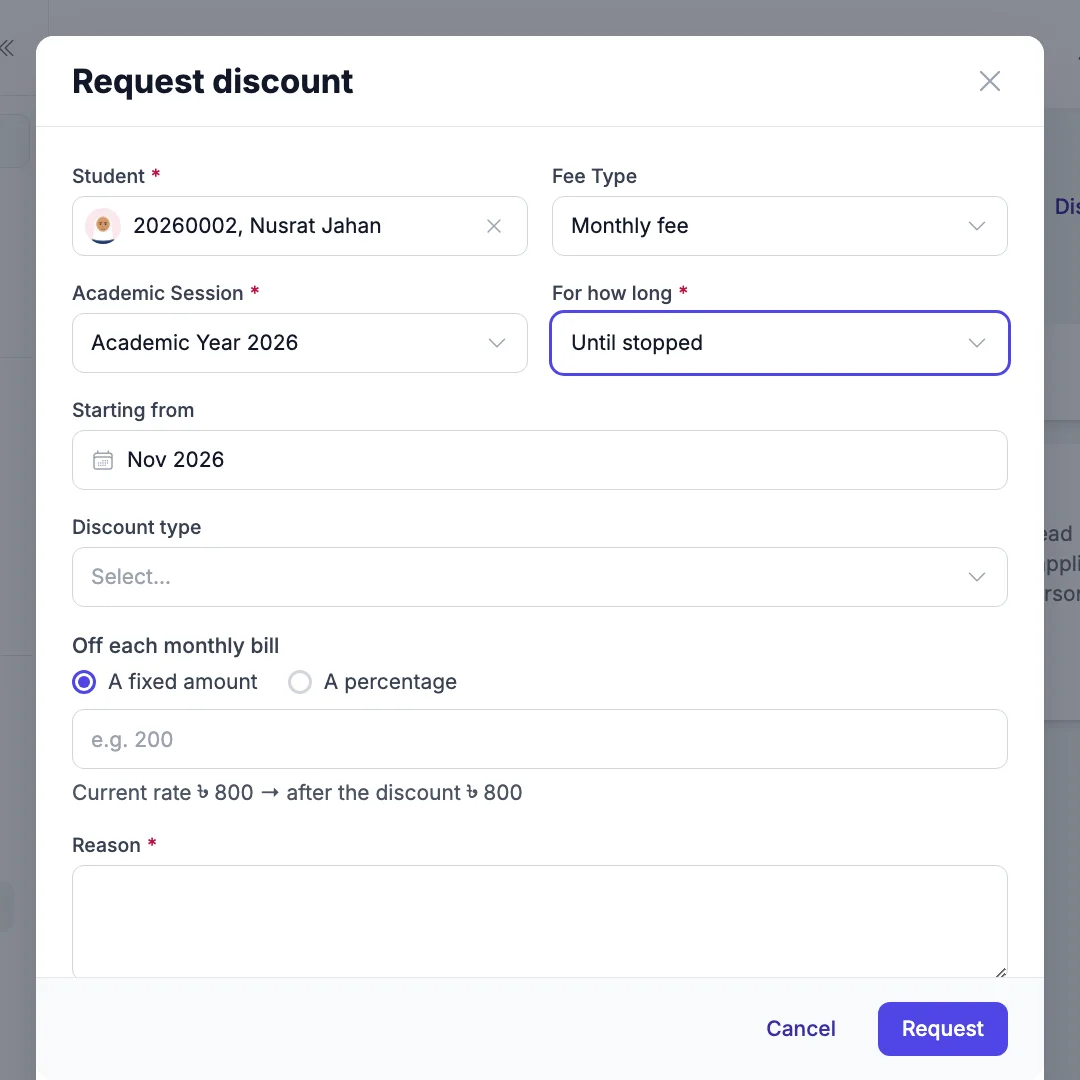
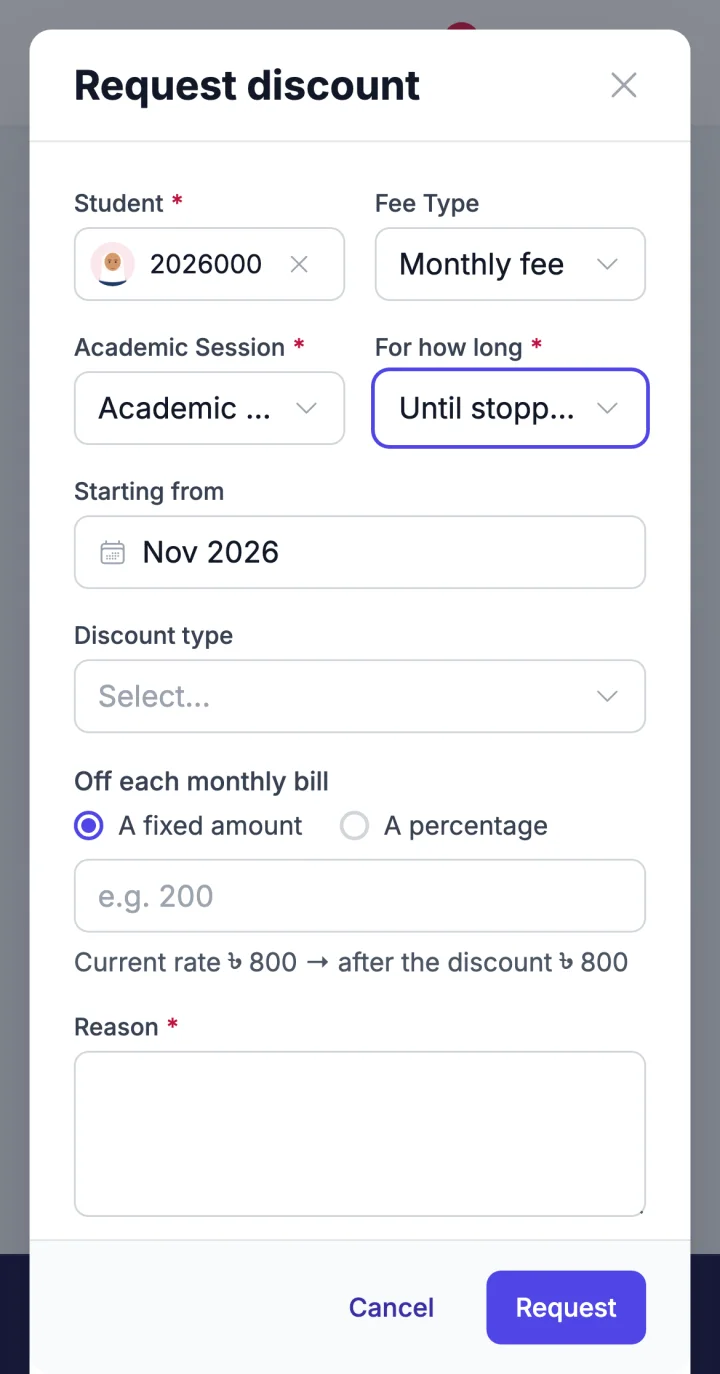
Press Request discount. A form opens.
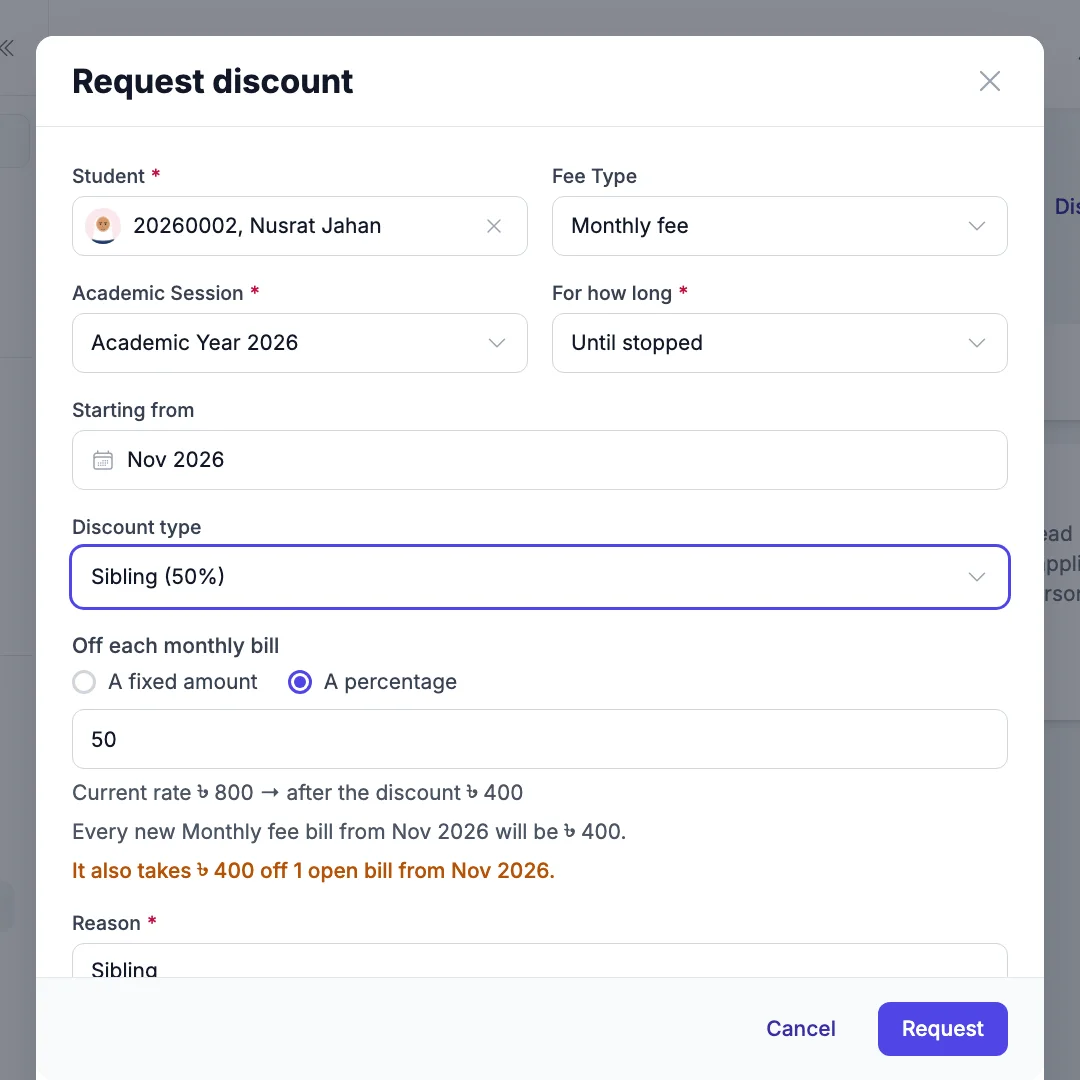
- Student - search by name or ID, then choose from the list. In the example, Nusrat Jahan.
- Fee Type - which fee the discount is on, for example Monthly fee. To give a discount on every fee at once, choose All fee types.
- Academic Session - the current academic year is already chosen.
- For how long - One month only, Whole academic year, or Until stopped. If you choose One month only, choose which month too.
- Starting from - the month a running discount starts from.
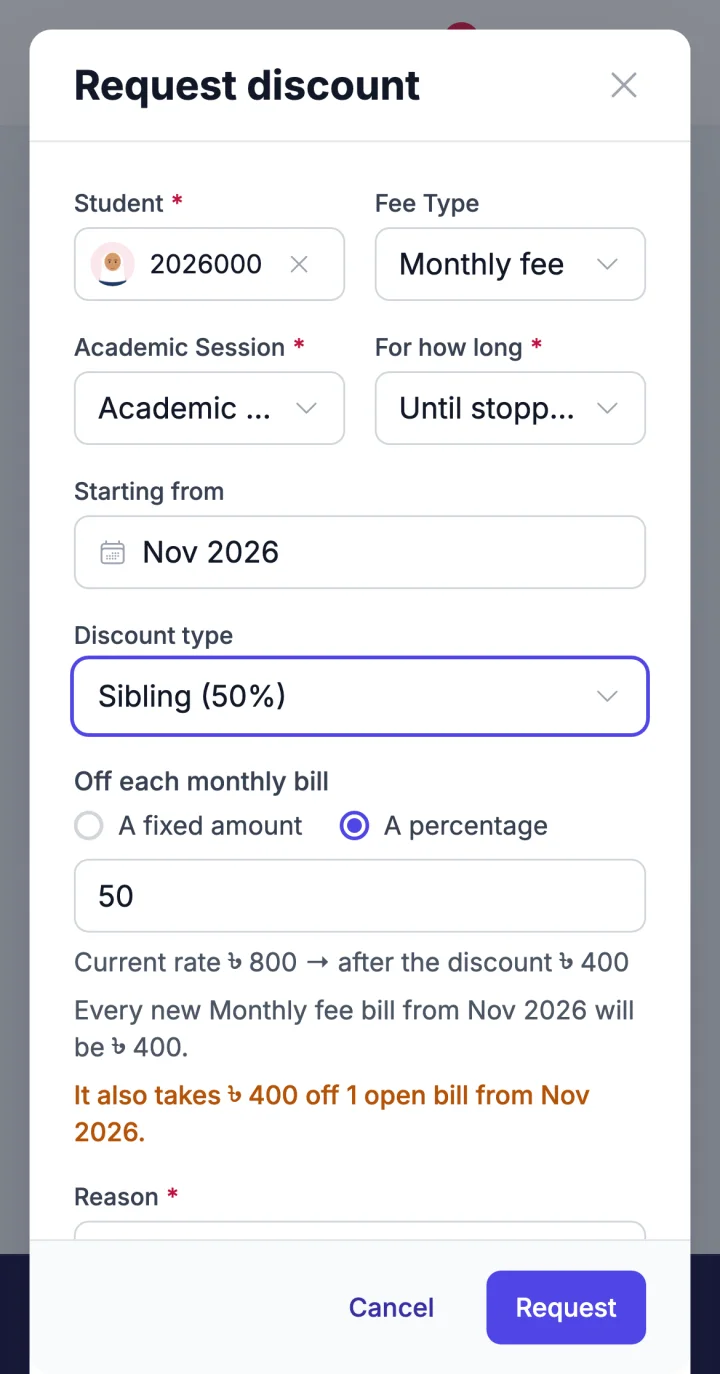
- Discount type - Sibling (50%). To give your own amount, choose "Custom".
- Off each monthly bill - a fixed amount, or a percentage. If you chose a discount type, this fills in by itself.

 123
- 1Student
- 2Fee Type
- 3For how long

 123
- 1Student
- 2Fee Type
- 3For how long

 12
- 1Discount type
- 2Off each monthly bill

 12
- 1Discount type
- 2Off each monthly bill
Check the discount's working, then send the request
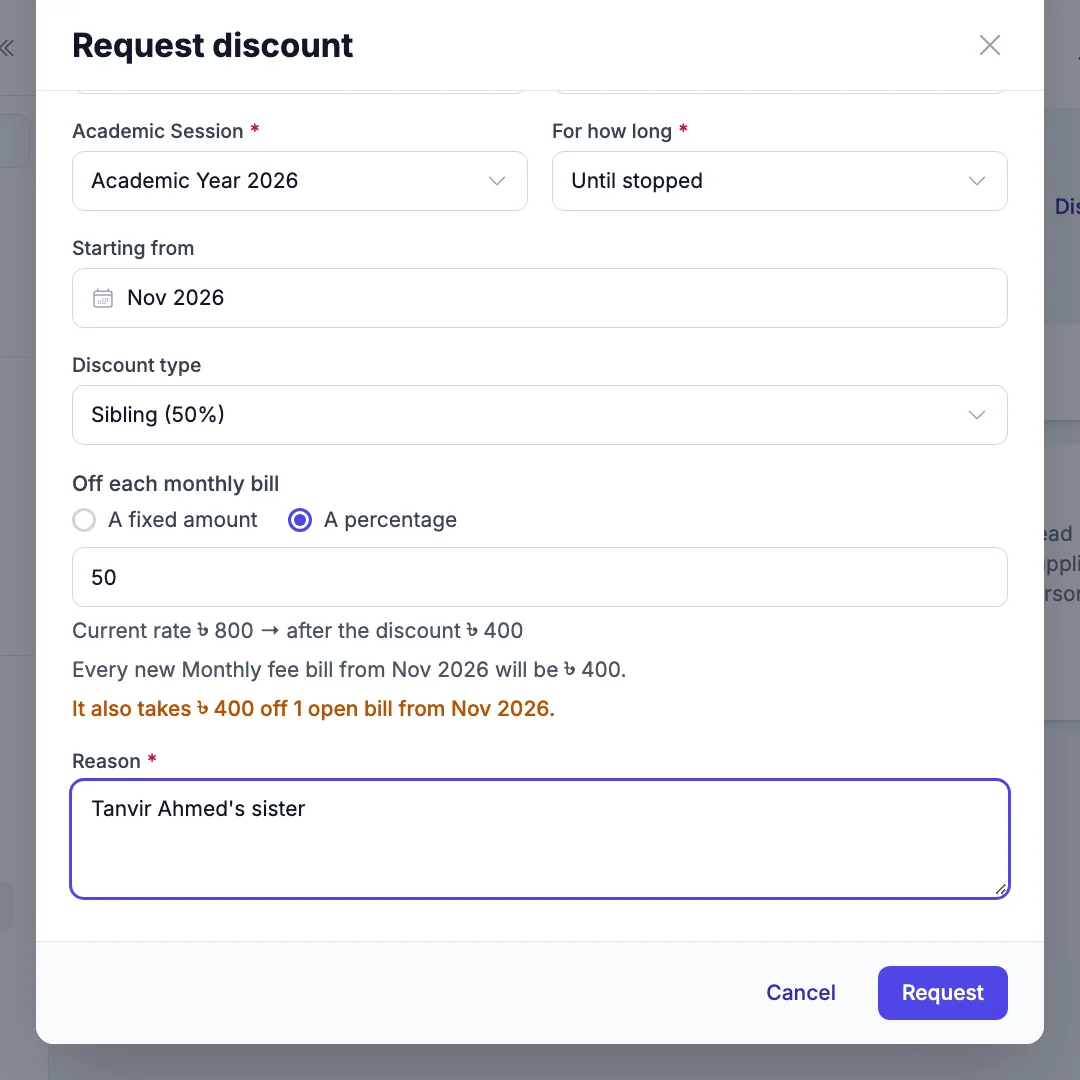
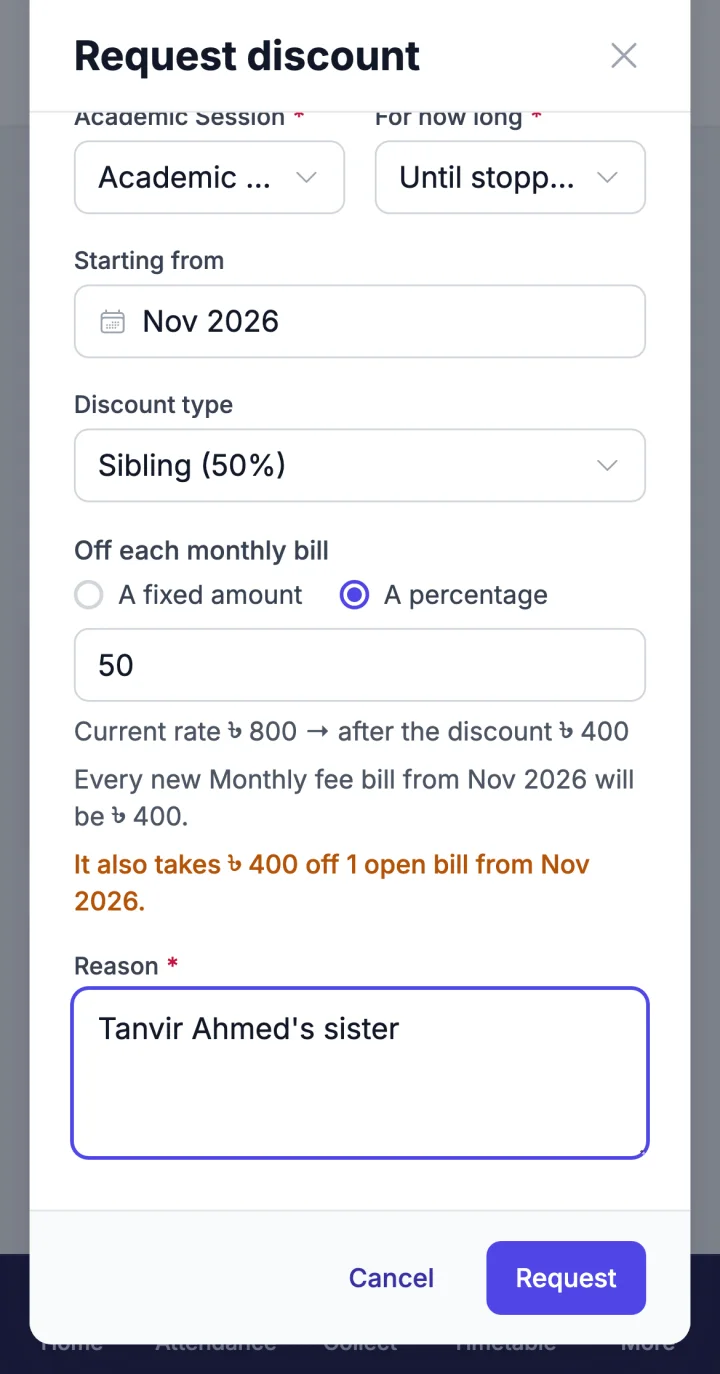
Under the amount, EduSine works it out and shows: "Current rate ৳ 800 → after the discount ৳ 400". Below that it says how much each new monthly fee bill will be from which month. If a bill already made is still unpaid, it also says how much will come off it.
In the Reason box, write the reason, for example "Tanvir Ahmed's sister". The reason shows in the list, the passbook and reports, so write it clearly. Then press Request.
If the approval rule is off, the discount applies at once. At the top it says how many bills it has been applied to now, and from which month it will apply to every new bill.

 123
- 1Current rate → after the discount
- 2Reason
- 3Request

 123
- 1Current rate → after the discount
- 2Reason
- 3Request



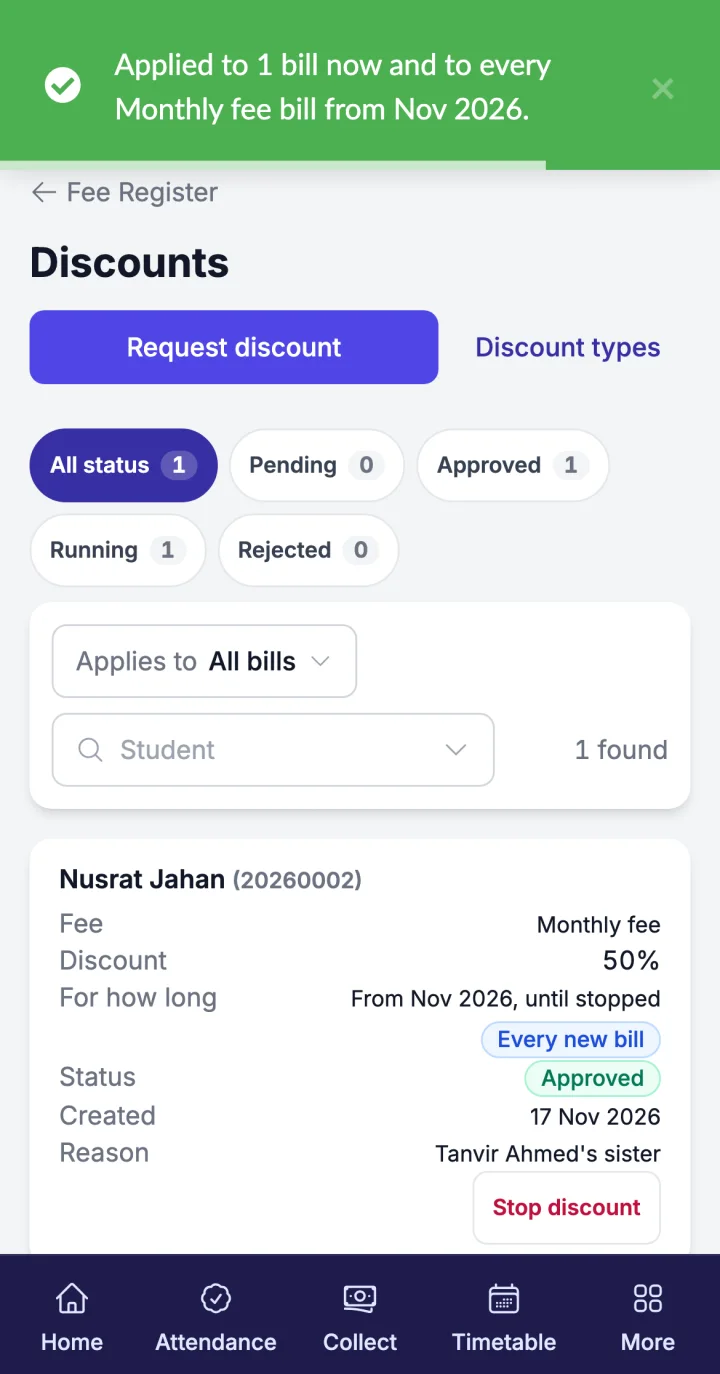
Give a sibling discount
If two or more children of the same guardian study with you, EduSine does not find the siblings and give the discount by itself. Give the discount separately in the name of the child who gets it, as was done for Nusrat above.
For three siblings, make a separate request for each. If you like, you can also make a separate type, for example "Sibling (third child)" at 100%.

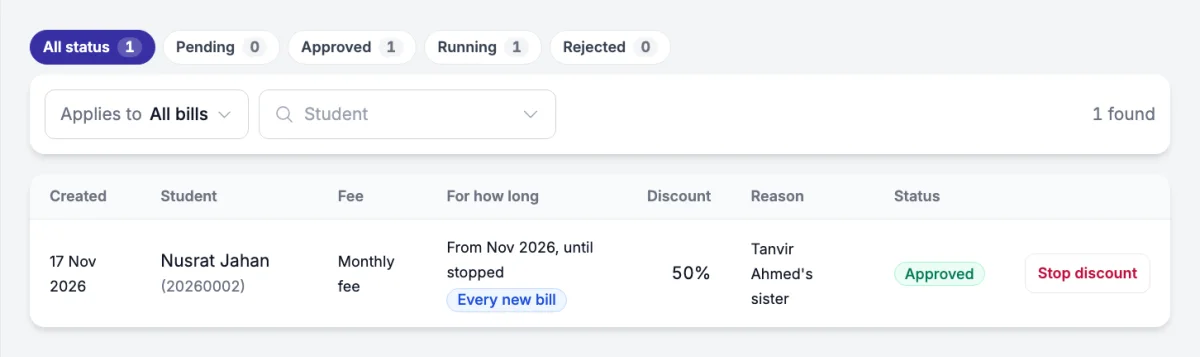

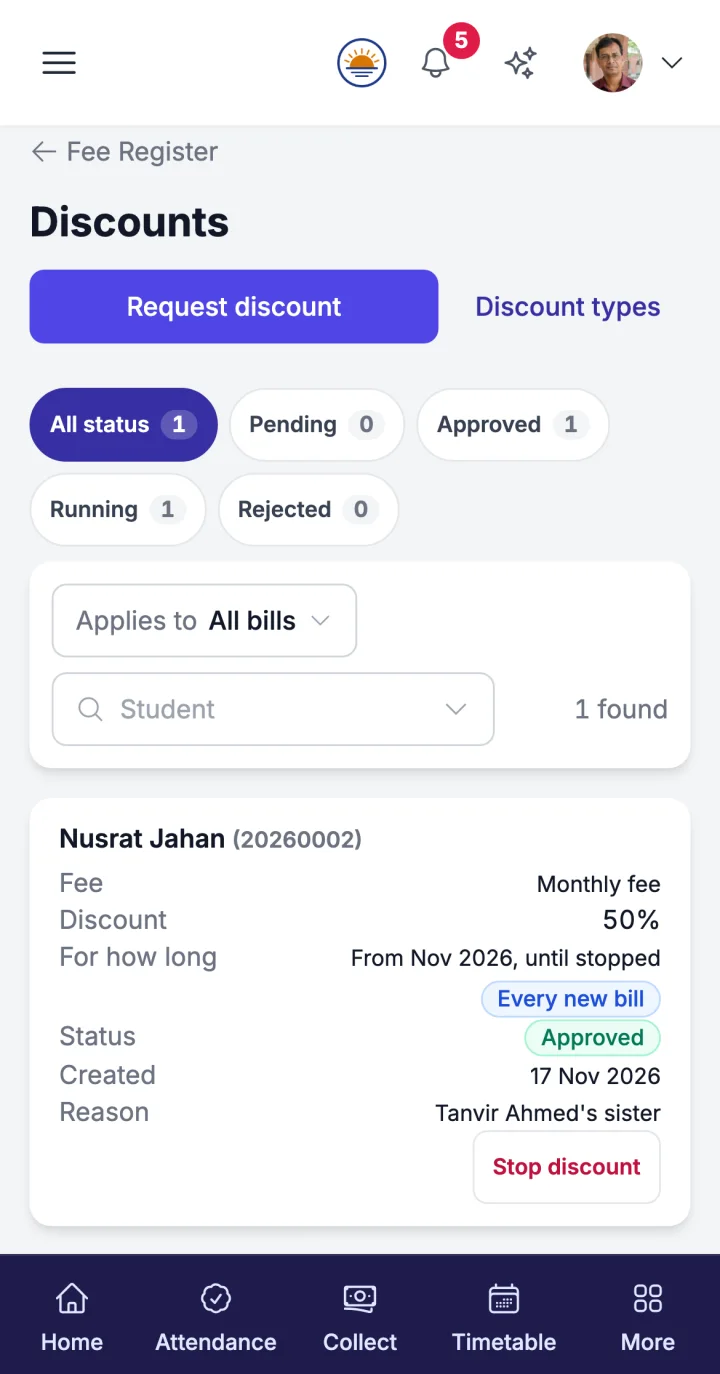
Tip: Write the elder brother's or sister's name in the reason box. Later, if someone leaves the institution, it will be easy to see which discount needs another look.
Give a discount on just one bill
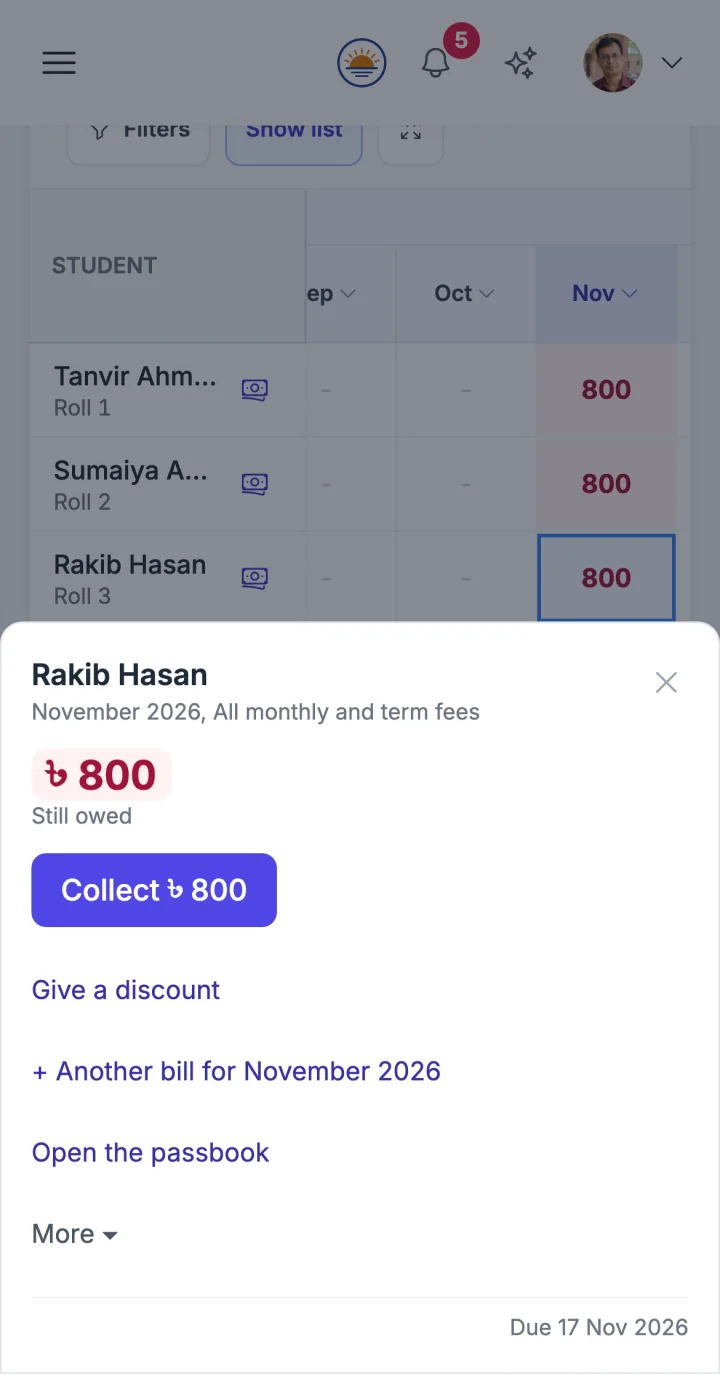
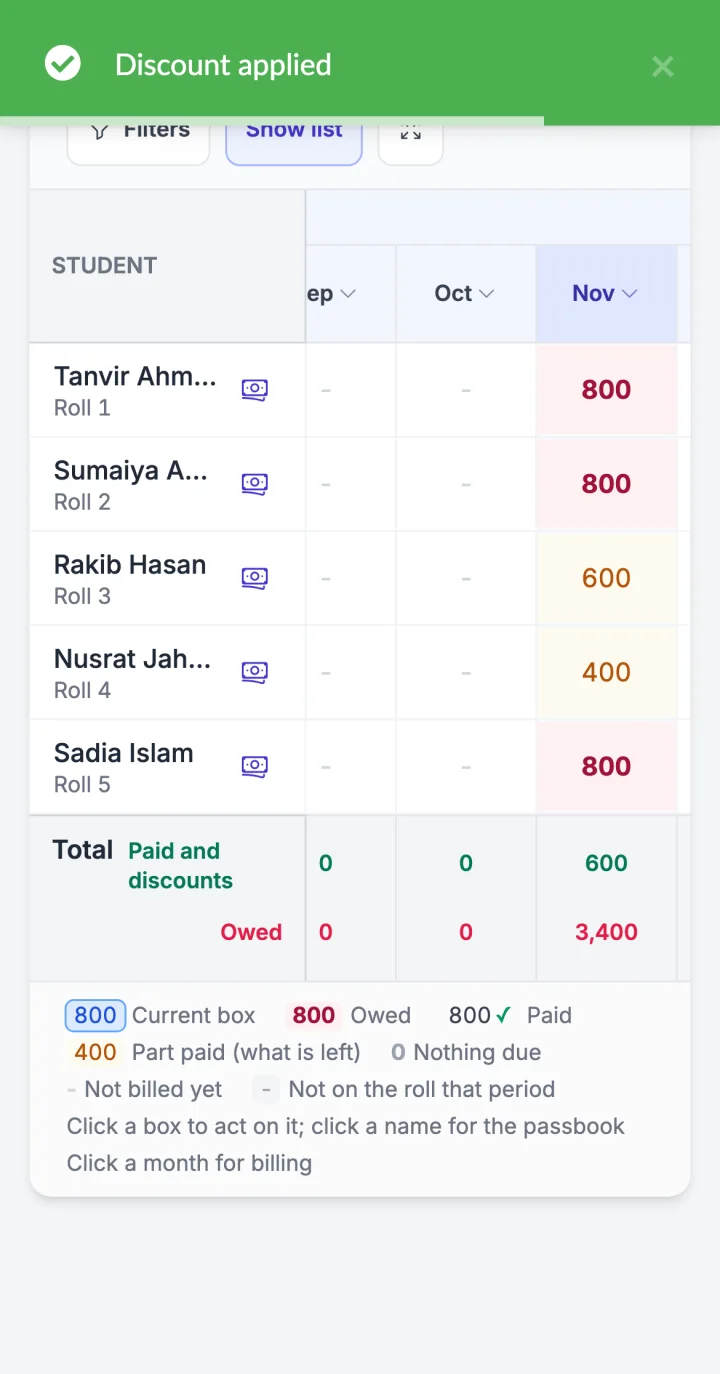
To give a discount on one month's bill, the Fee Register is the easiest. In the student's row, press that month's box. On a phone, press Show sheet first. A small box opens; press Give a discount there.
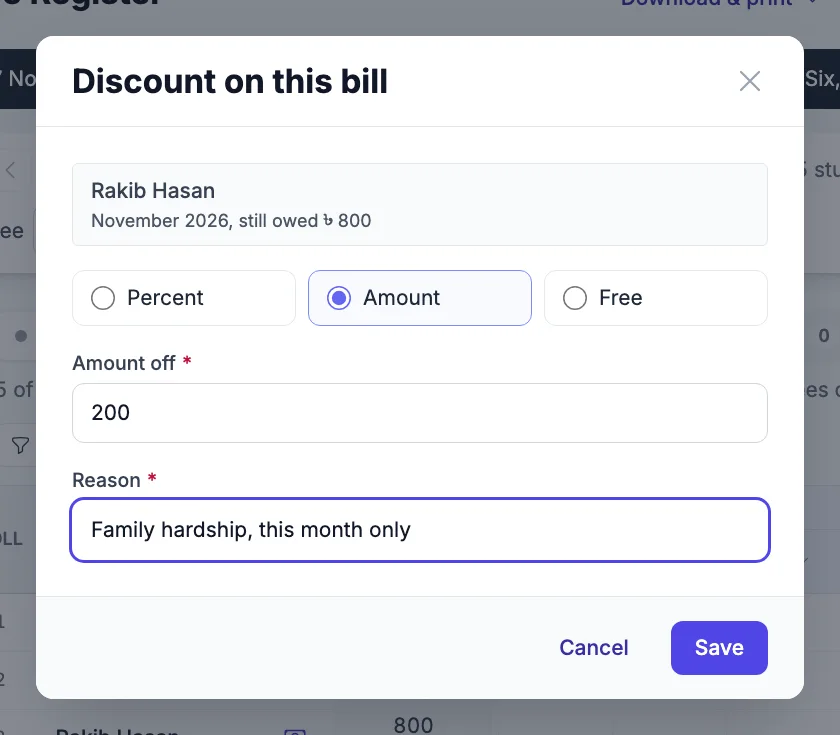
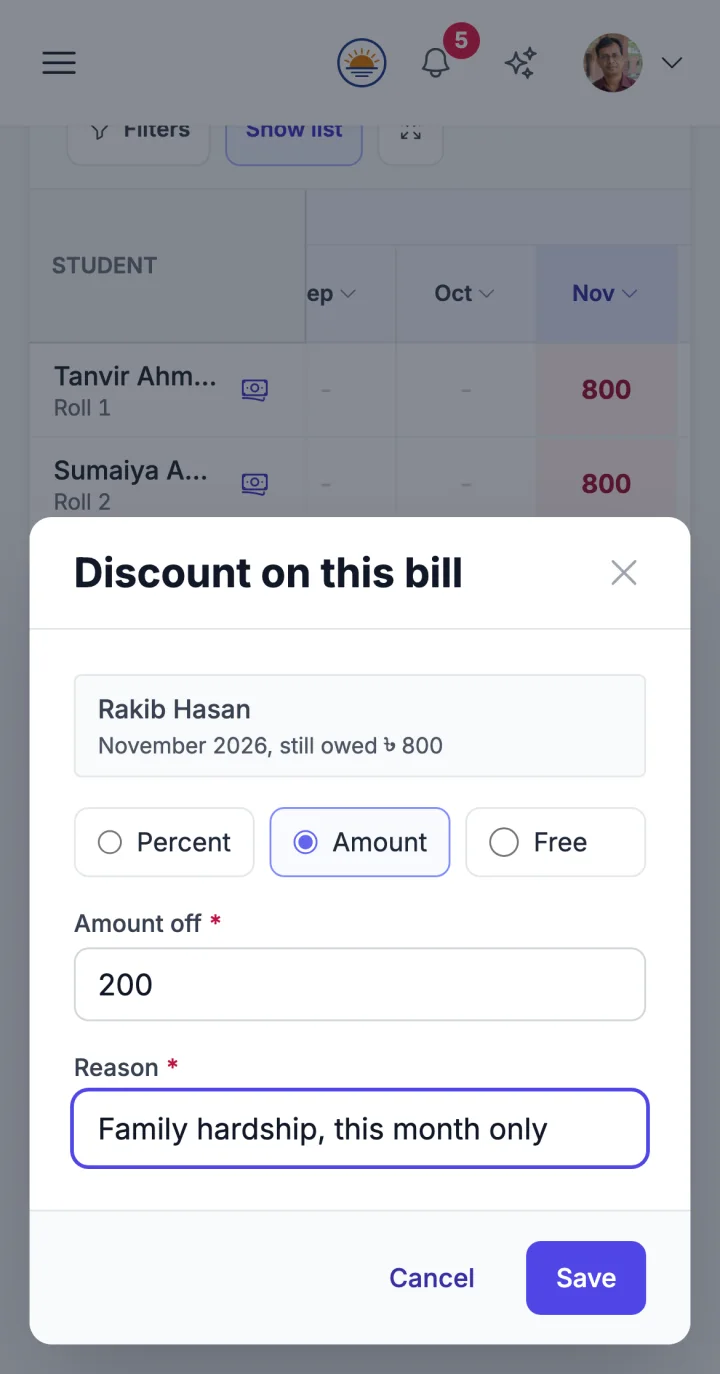
The "Discount on this bill" box has three options: Percent, Amount and Free. In the example, choose Amount and type 200 in the Amount off box. Write the reason and press Save.
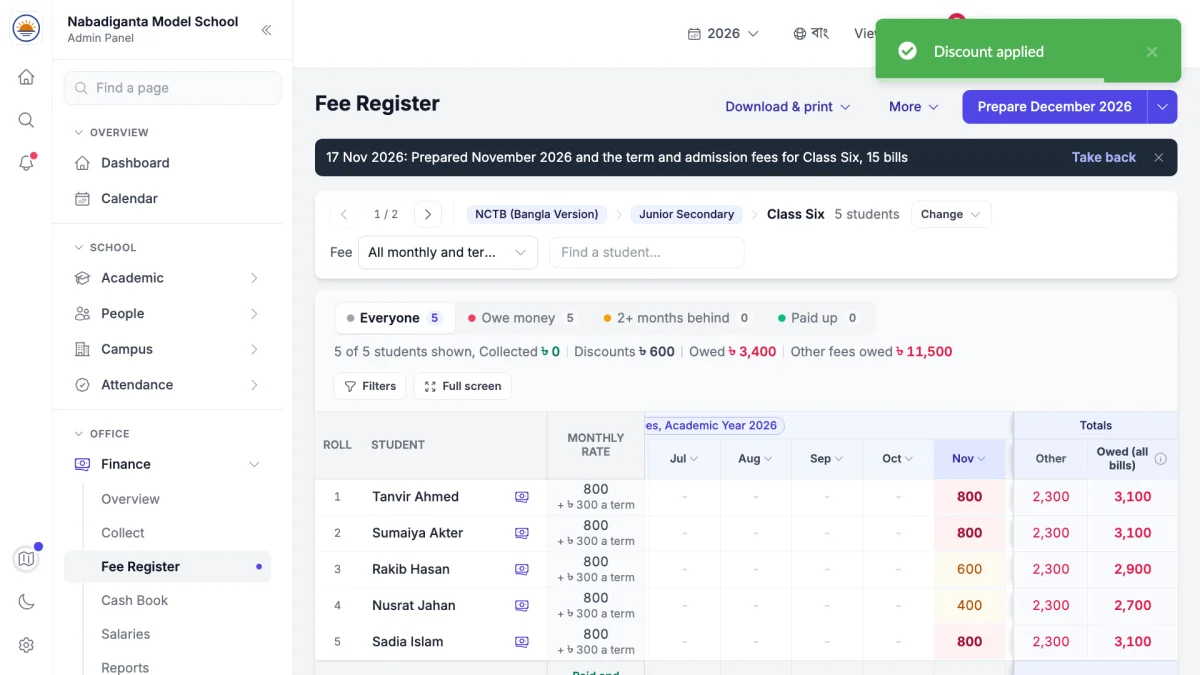
You will see "Discount applied", and the amount due in the box goes down to ৳ 600. To let off the whole bill, choose Free.

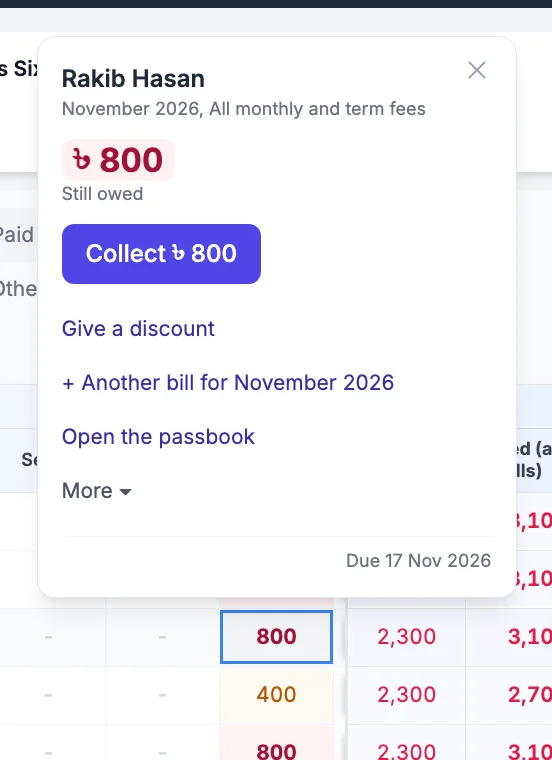 12
- 1The month's box
- 2Give a discount

 1
- 1Give a discount

 1
- 1Percent, Amount, Free

 1
- 1Percent, Amount, Free


See the discount in the student's profile
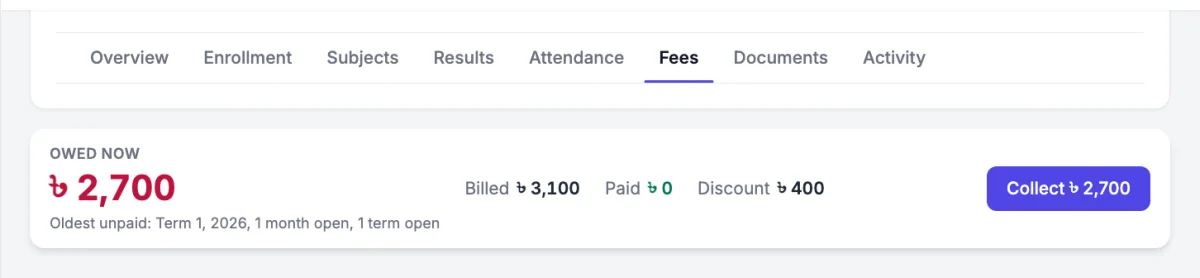
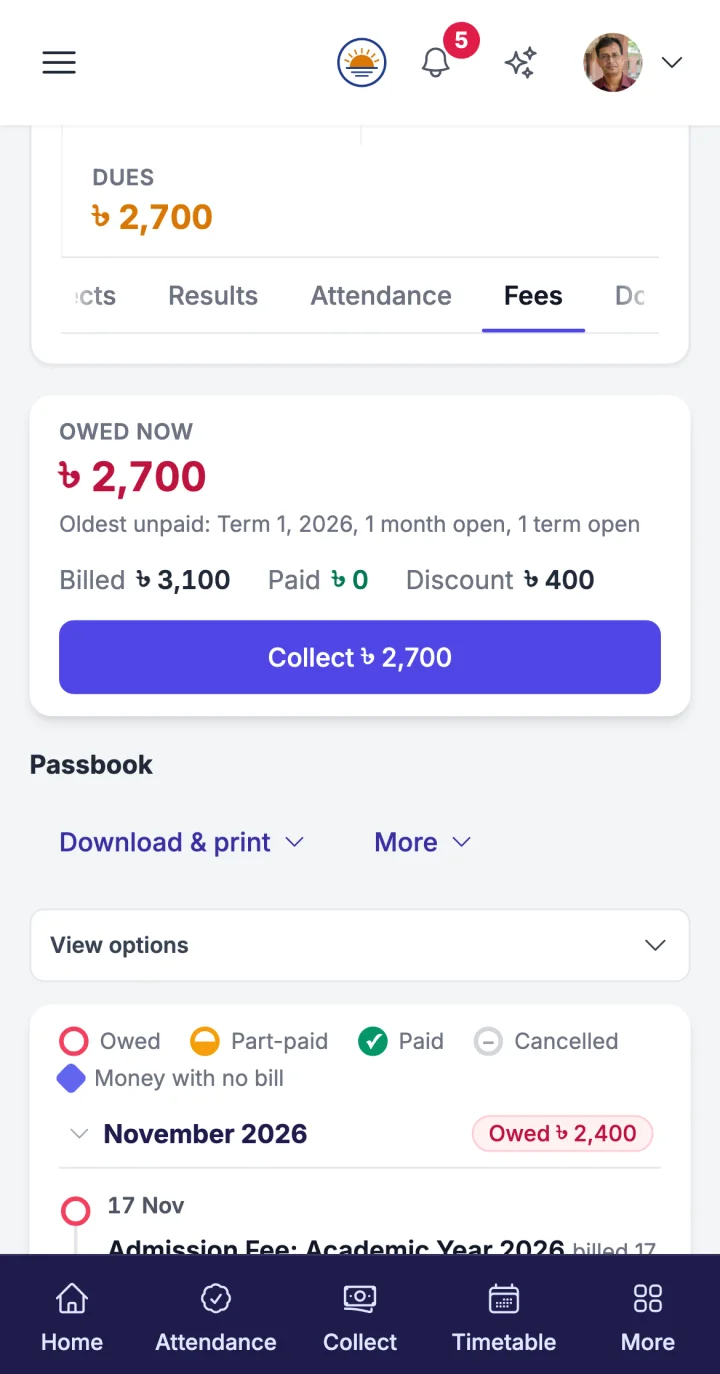
Go to the student's profile and open the Fees tab. At the top, the Discount box shows how much discount has been given in total.
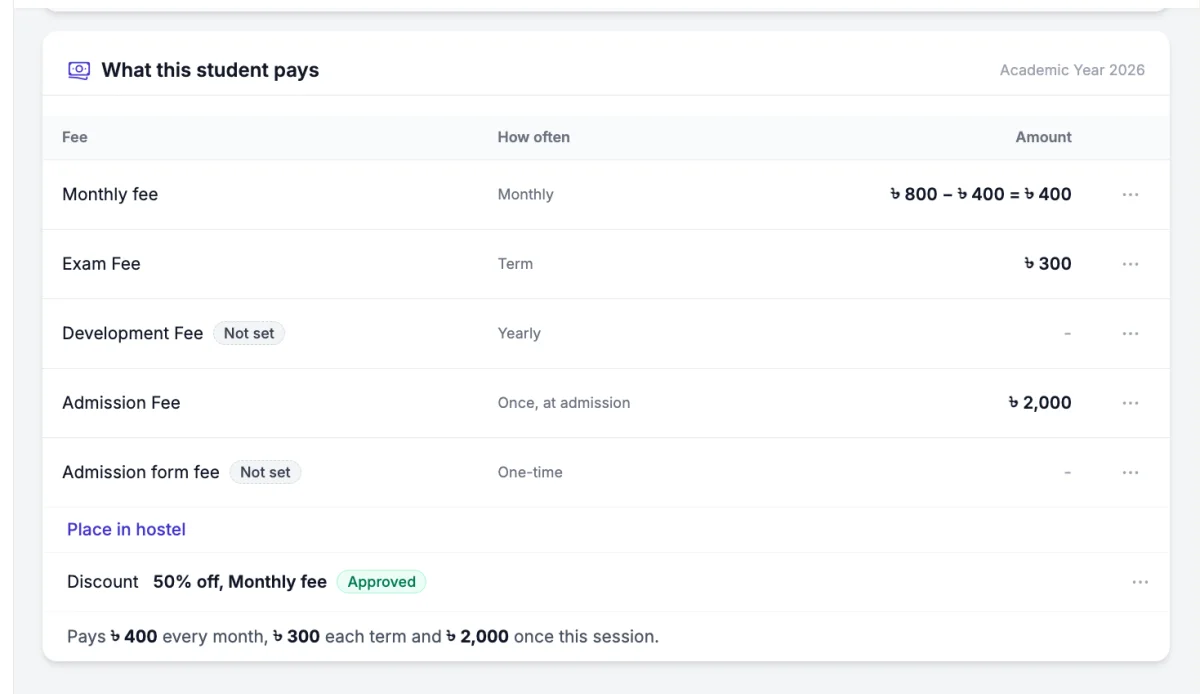
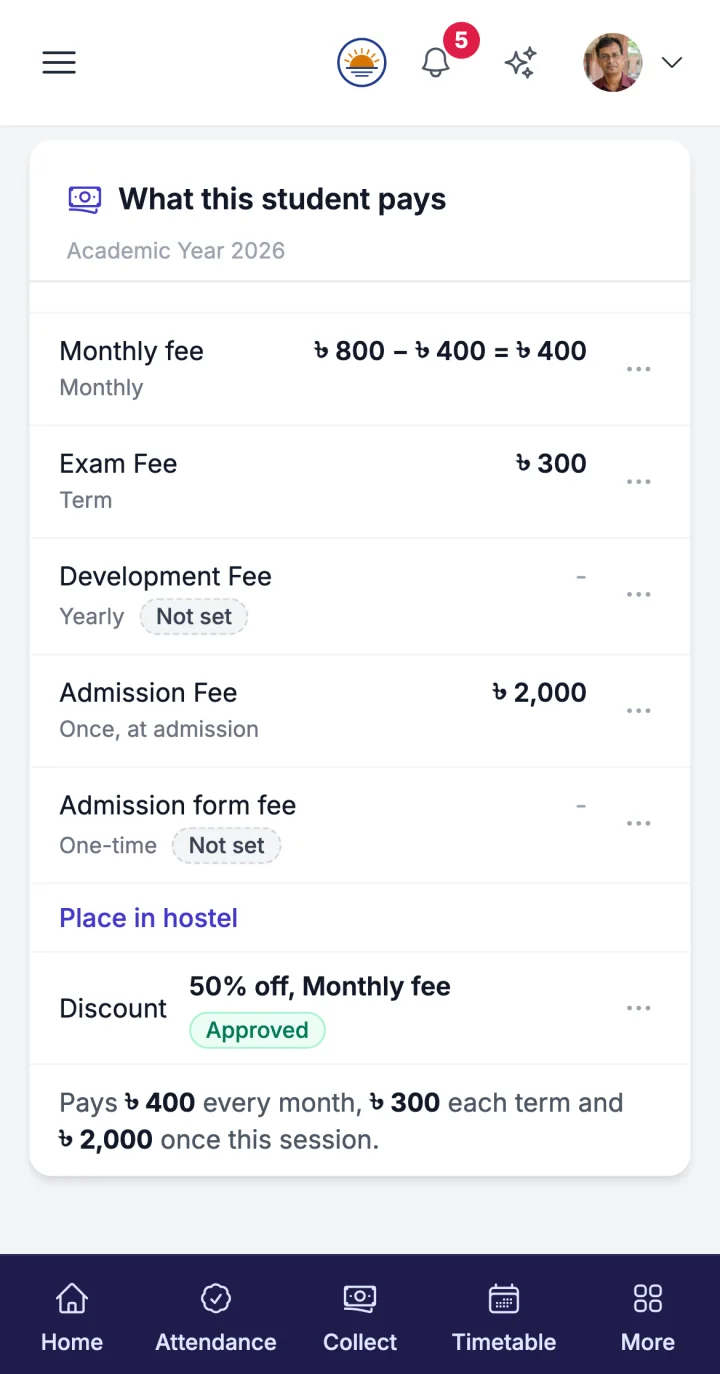
Below, in the "What this student pays" list, next to the monthly fee it says ৳ 800 − ৳ 400 = ৳ 400. Under it, the discount row says "50% off, Monthly fee", with Approved next to it.
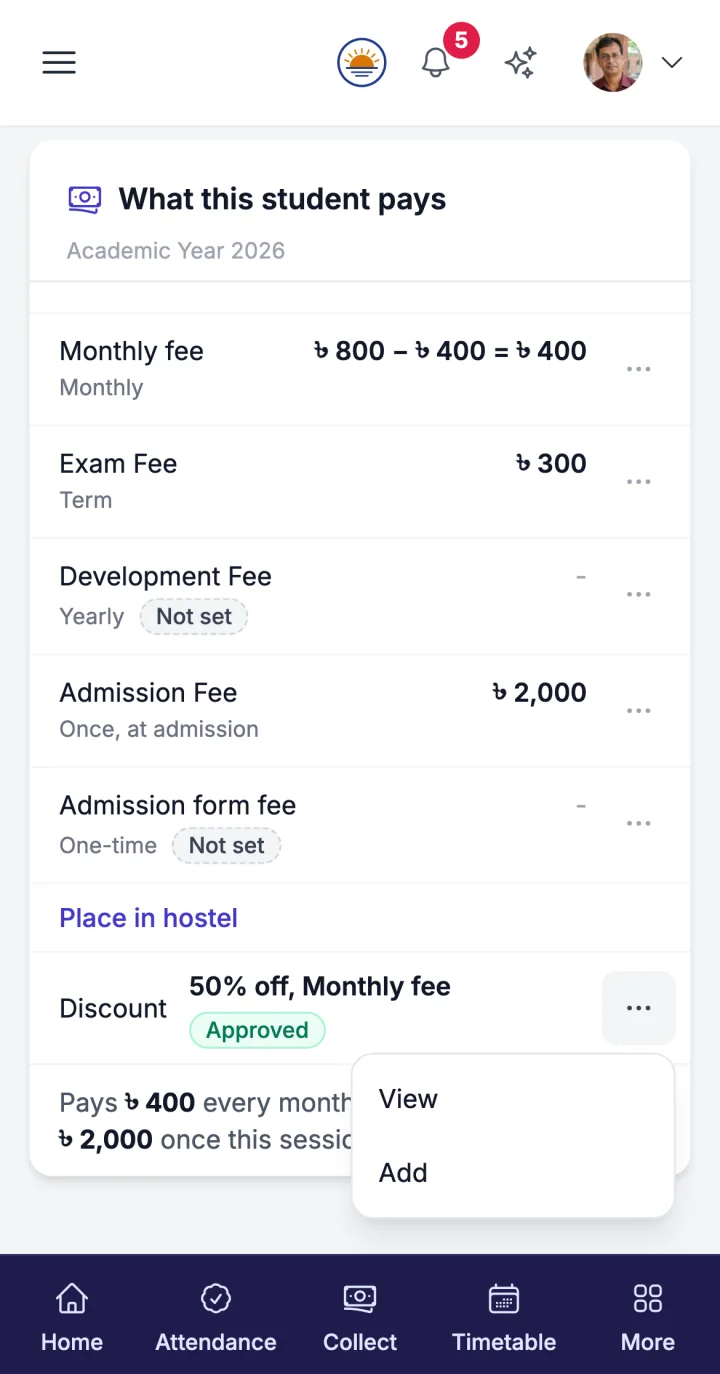
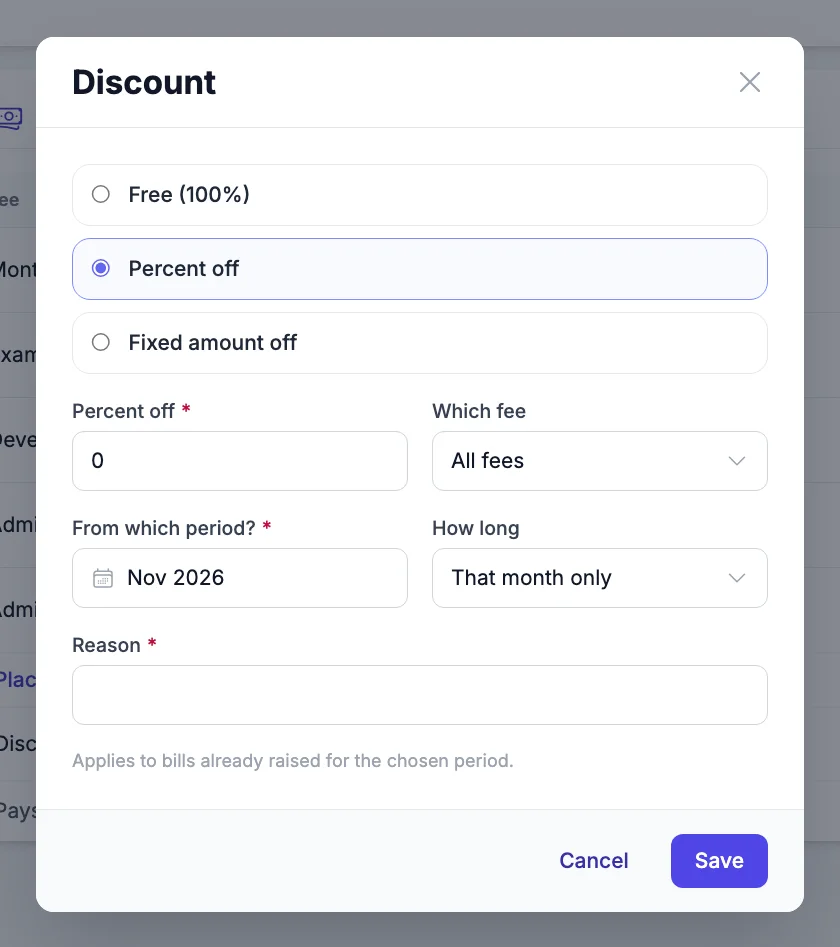
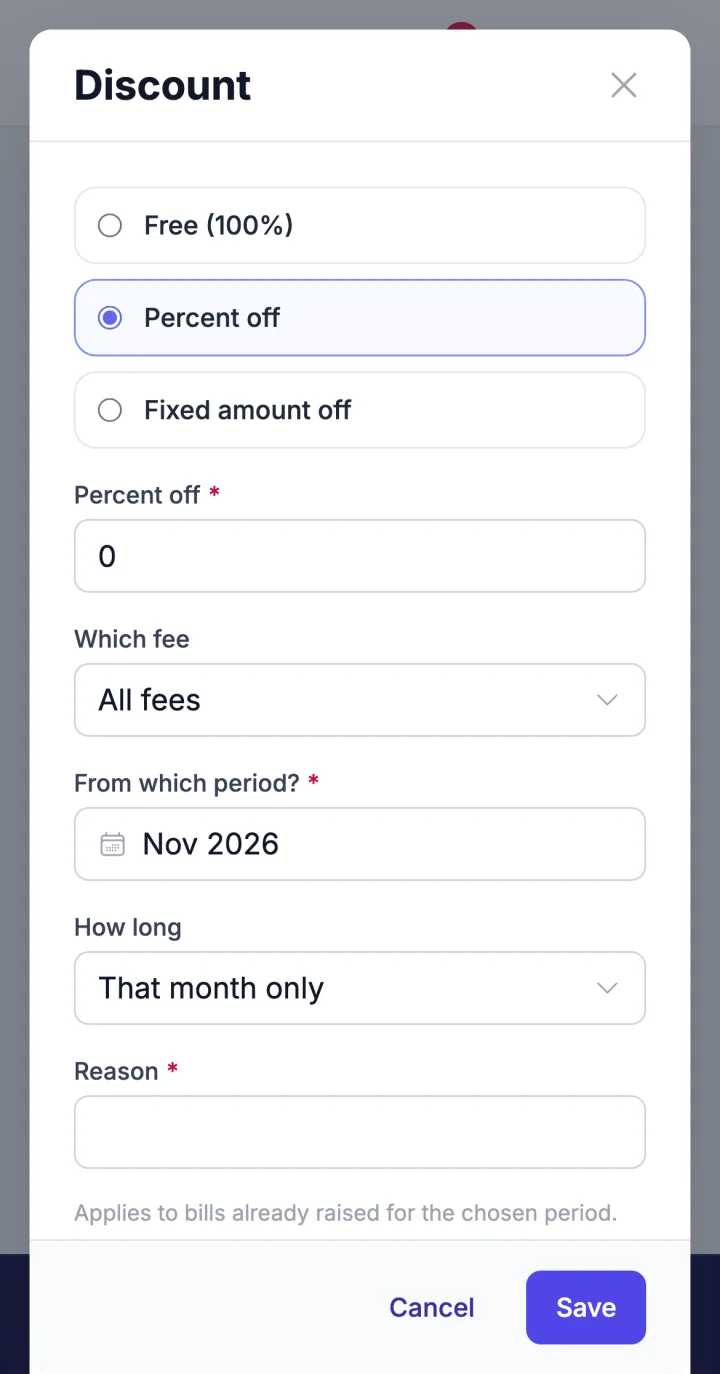
You can give a discount from here too: press the ⋯ on the discount row, then press Add. There you get three options: "Free (100%)", Percent off and Fixed amount off.

 1
- 1Fees tab

 1
- 1Fees tab

 12
- 1What this student pays
- 2Discount row

 12
- 1What this student pays
- 2Discount row





A discount for a category or a whole class
- A category (for example Teacher's child, Merit scholarship) - make a discount type, then choose that type in the request for each student of that category. Search the discount list by student to see who gets which discount.
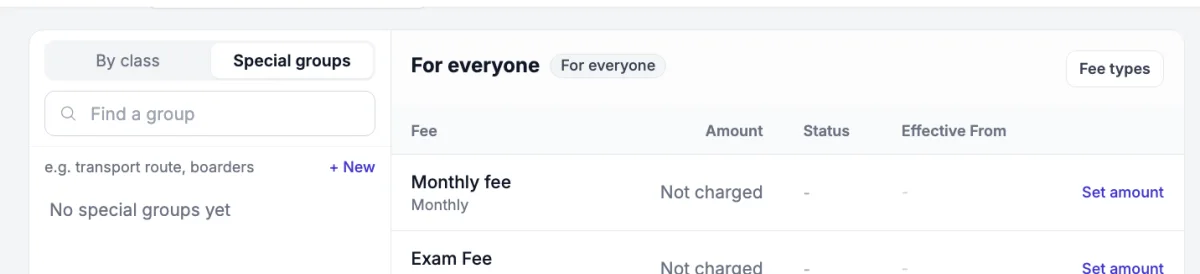
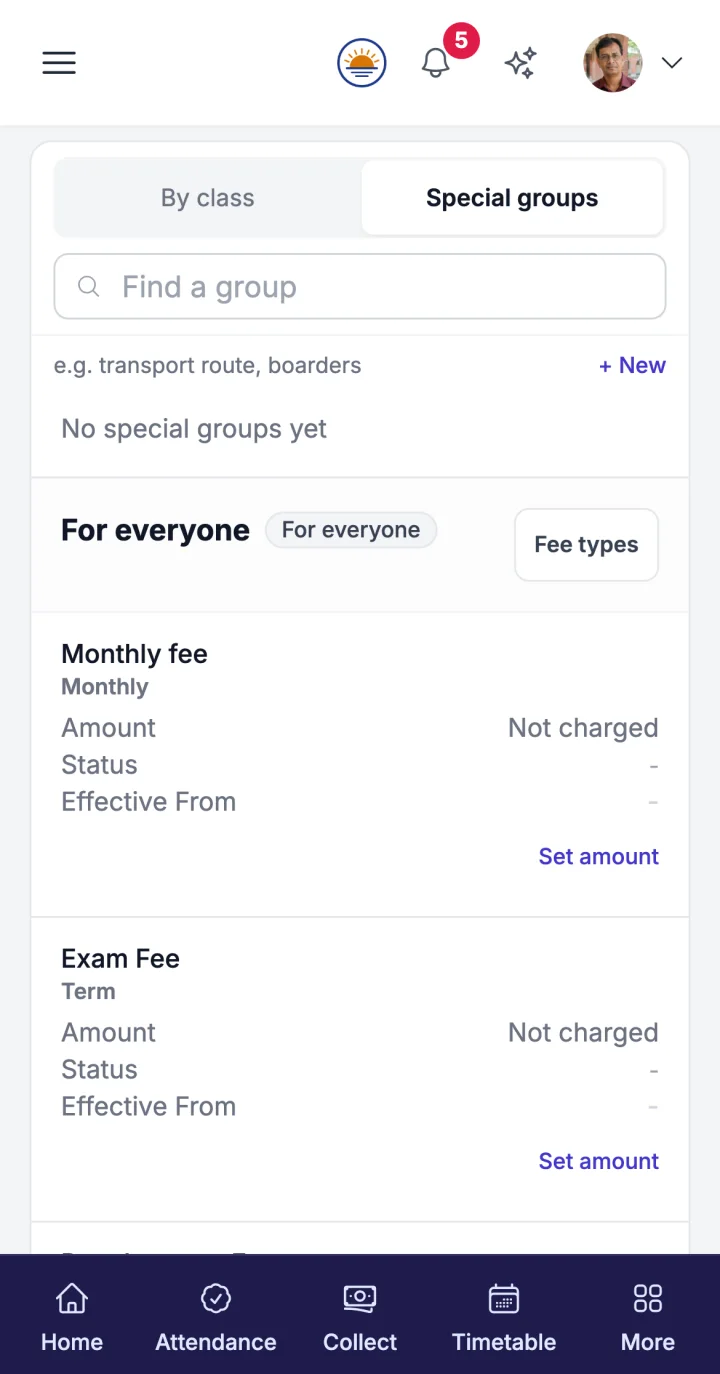
- A lower fee for a group - if some students always pay a lower fee (for example employees' children ৳ 400 a month), press Finance setup → Fee Setup → Special groups → + New to make a group. Add the students as members and give the group's amount.
- A whole class - to lower a whole class's fee you do not need a discount. Just change the class's amount in Fee Setup, and give the date the new amount starts from in the "Effective From" box.


Turn on the approval rule if needed
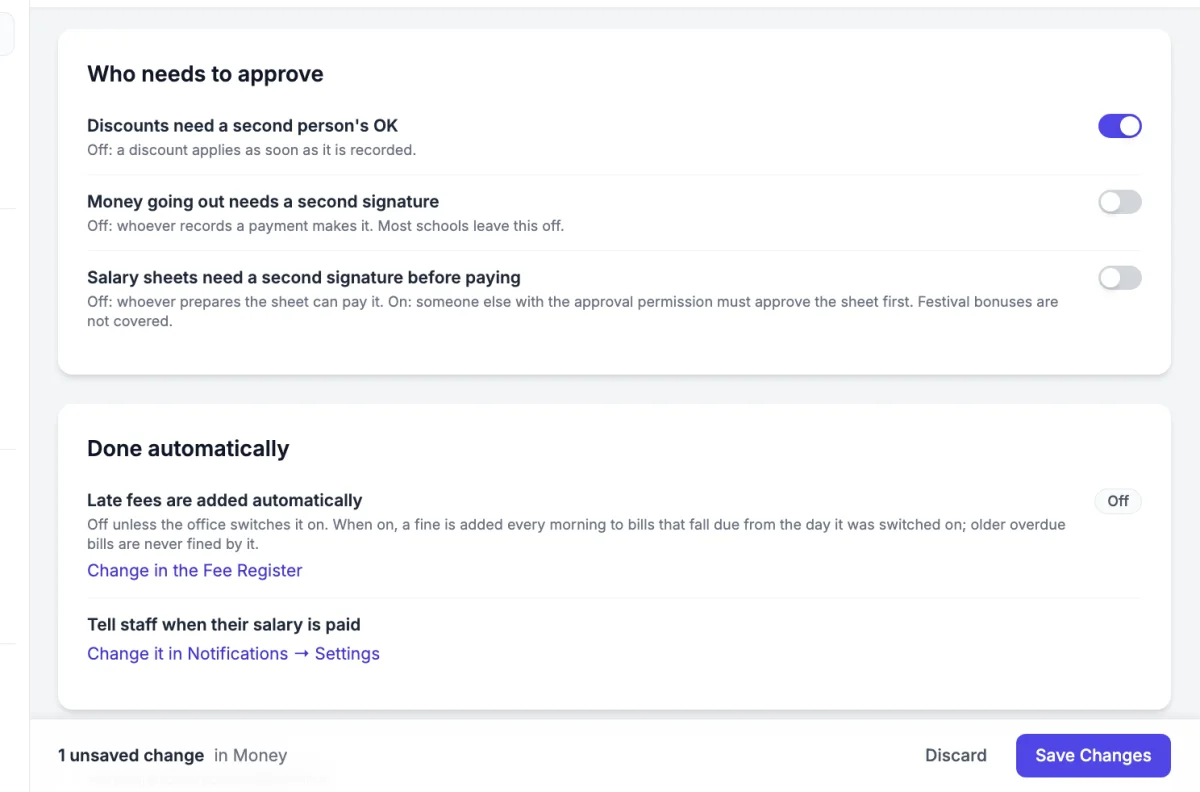
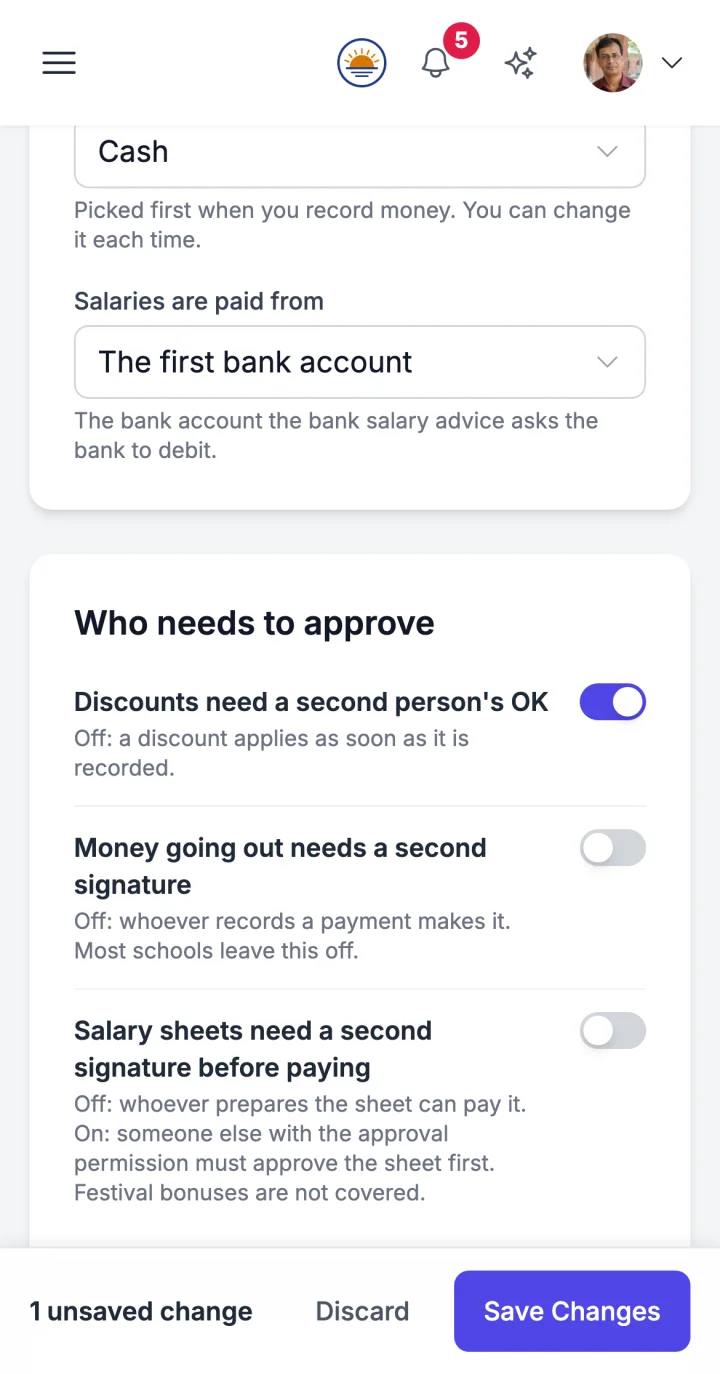
At first a discount takes effect as soon as it is written. If you want someone else to check each discount, go to Settings → Money, and in the Who needs to approve part, turn on "Discounts need a second person's OK". Then press the Save Changes button at the bottom.
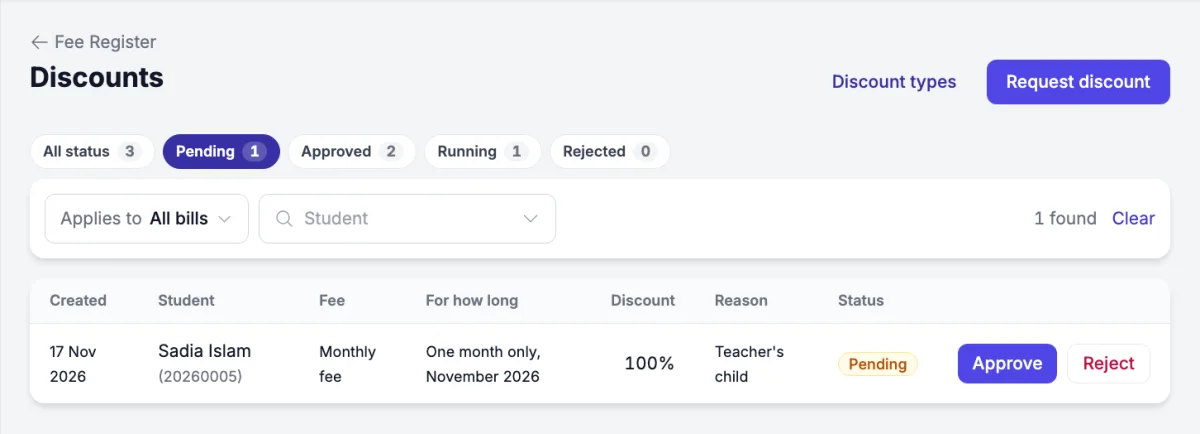
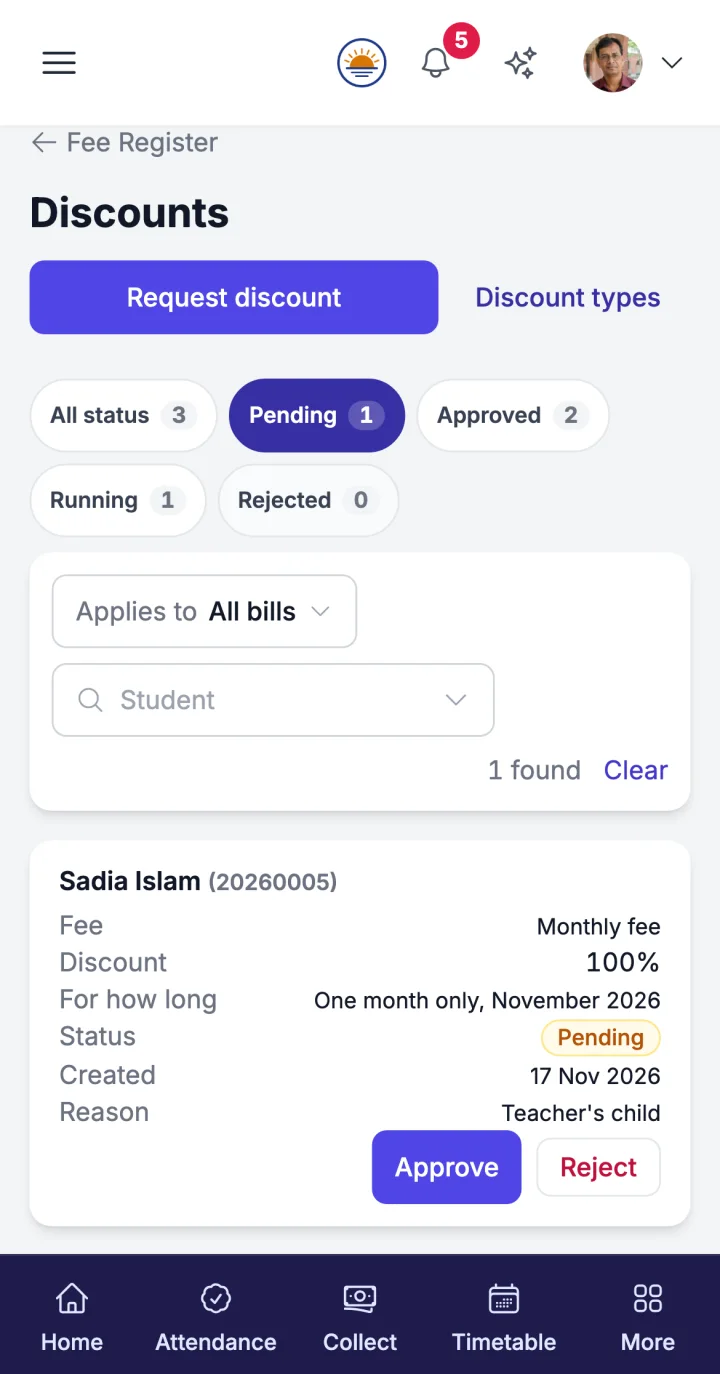
When it is on, new requests collect on the Pending tab of the Discounts page. Someone with permission to approve presses Approve or Reject there. To reject, a reason must be given.

 1
- 1Discounts need a second person's OK

 1
- 1Discounts need a second person's OK

 12
- 1Pending
- 2Approve, Reject

 1
- 1Approve, Reject
Tip: To change this switch you need the permission to approve discounts.
See all discounts in one place
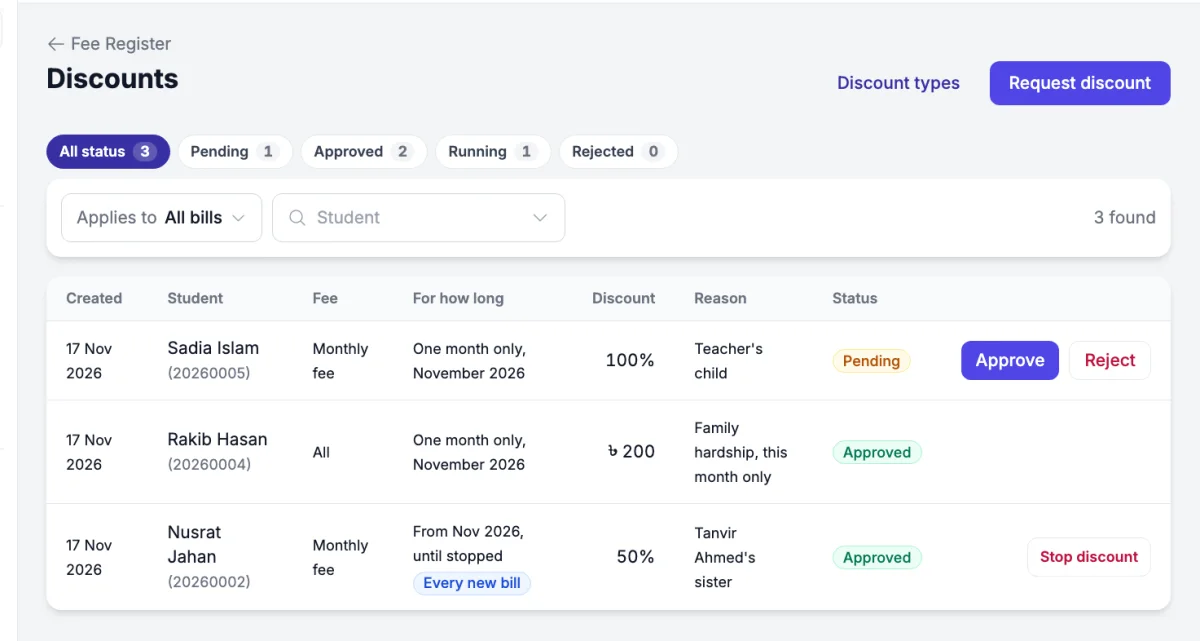
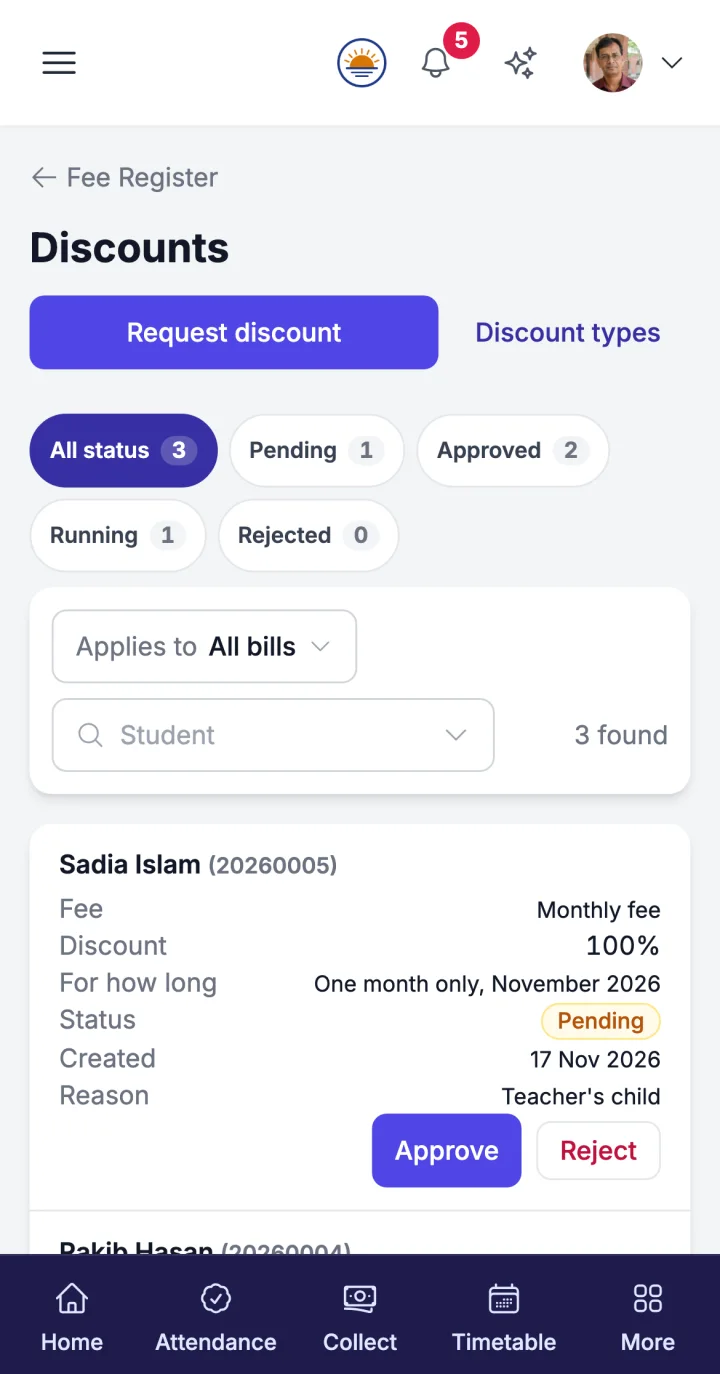
At the top of the Discounts page are the All status, Pending, Approved, Running and Rejected tabs, each with its count. Type a name in the Student box to see all of one student's discounts.
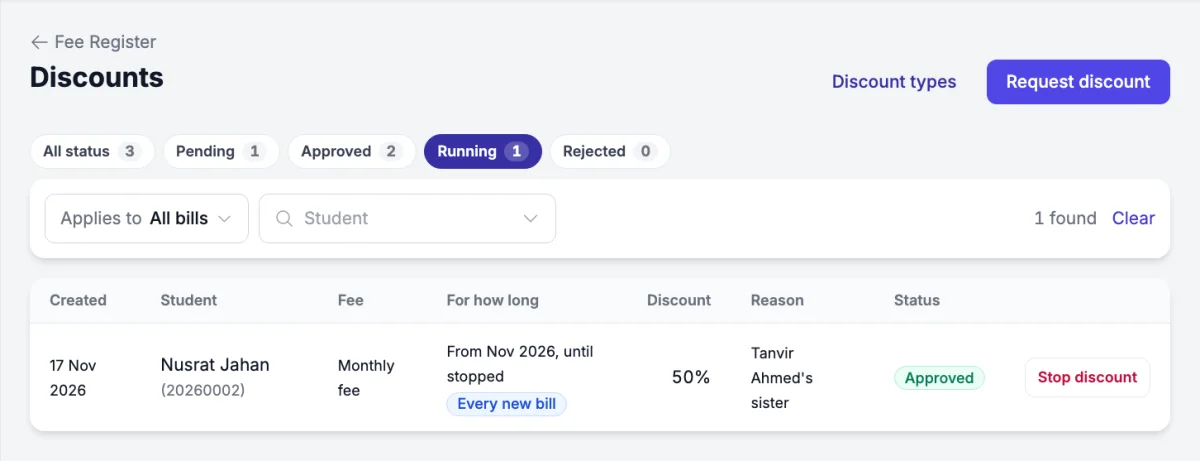
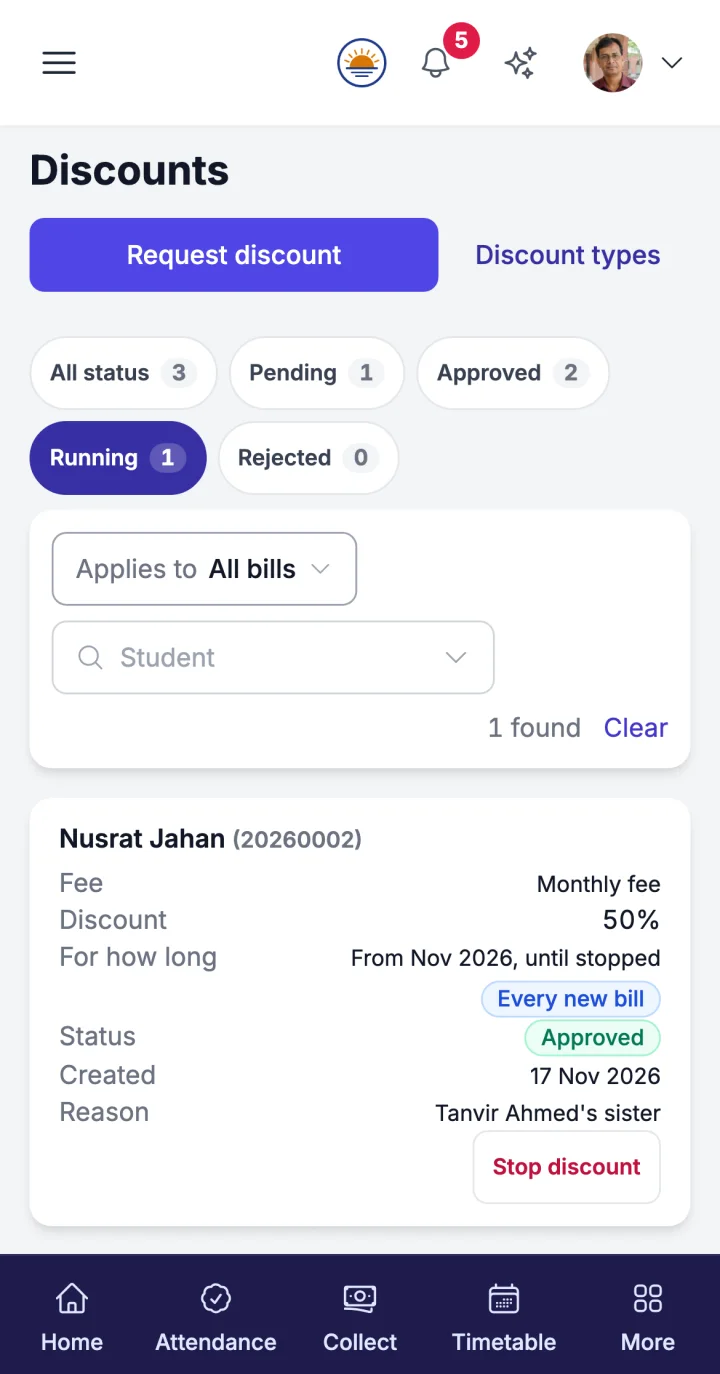
Each row shows the student, the fee, for how long, how much off, the reason and the status. A running discount says "Every new bill" next to it.
The Running tab shows the discounts that run until they are stopped.

 1
- 1Status tabs

 1
- 1Status tabs
Stop a running discount
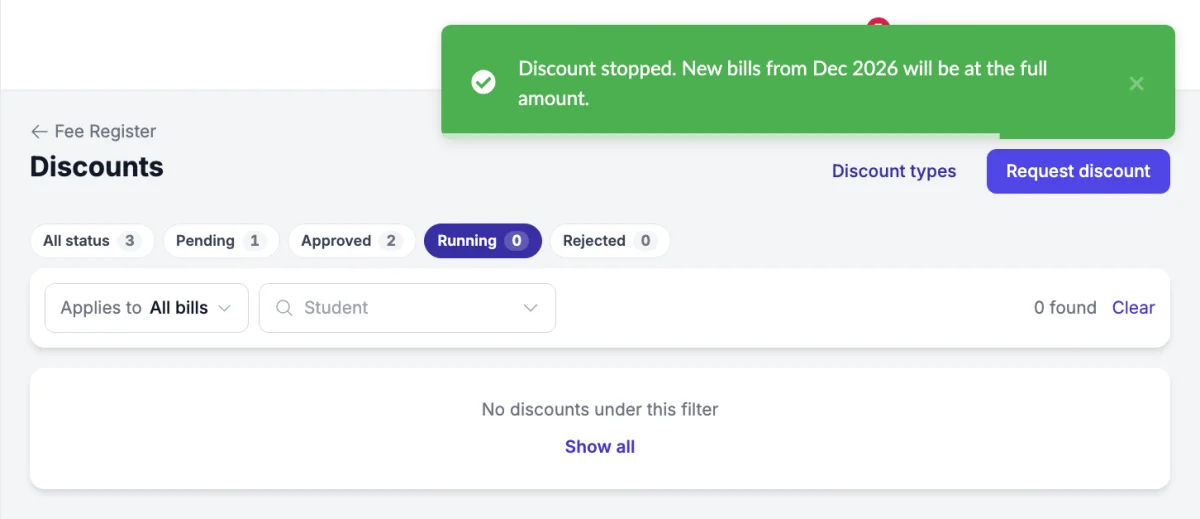
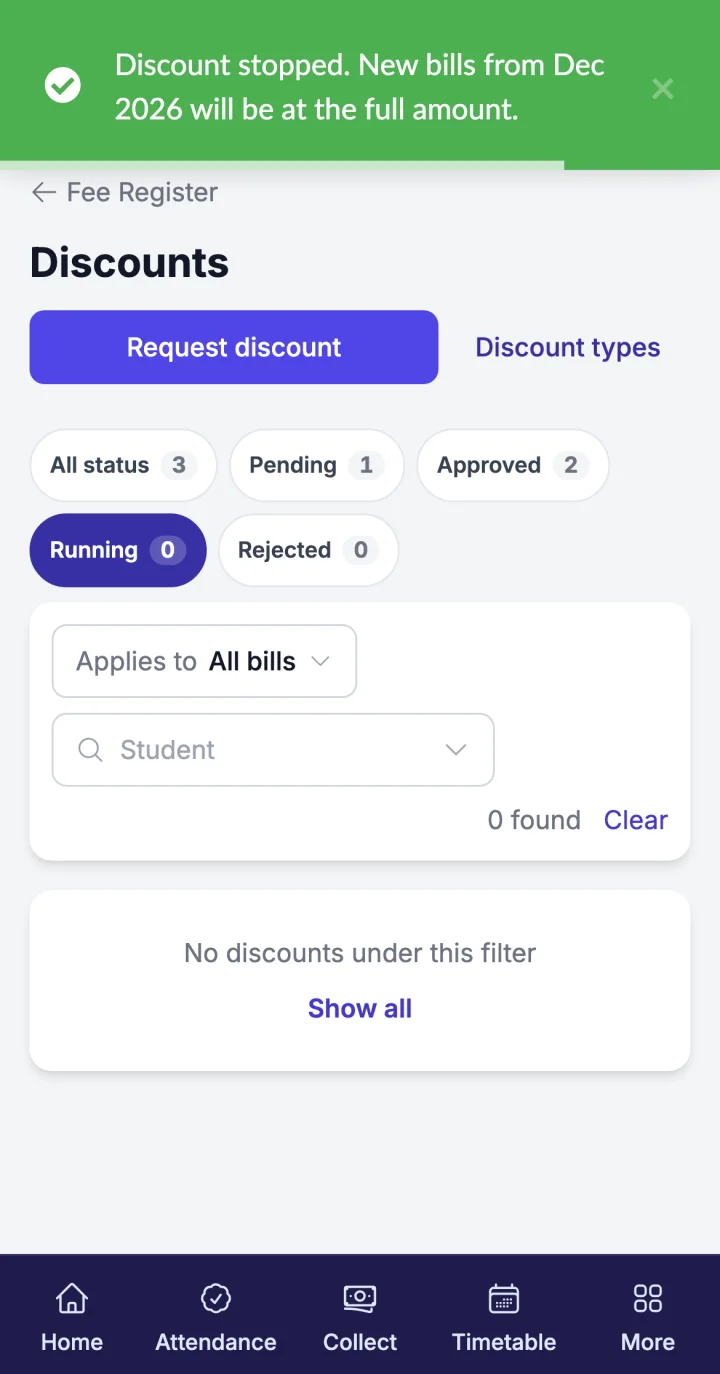
When a discount is no longer needed, press the Running tab on the Discounts page. In the row of the discount you want to stop, press Stop discount.
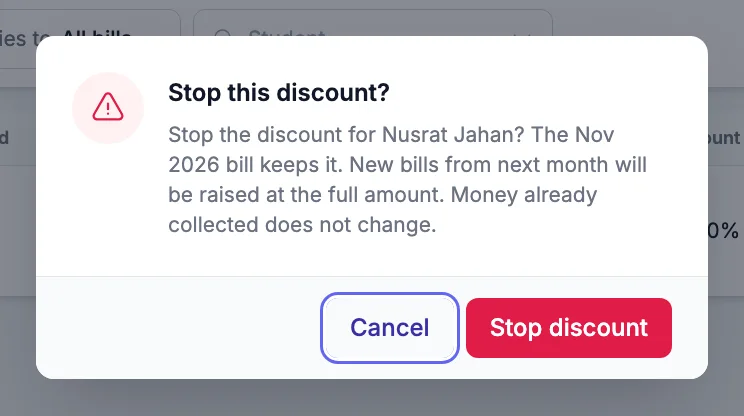
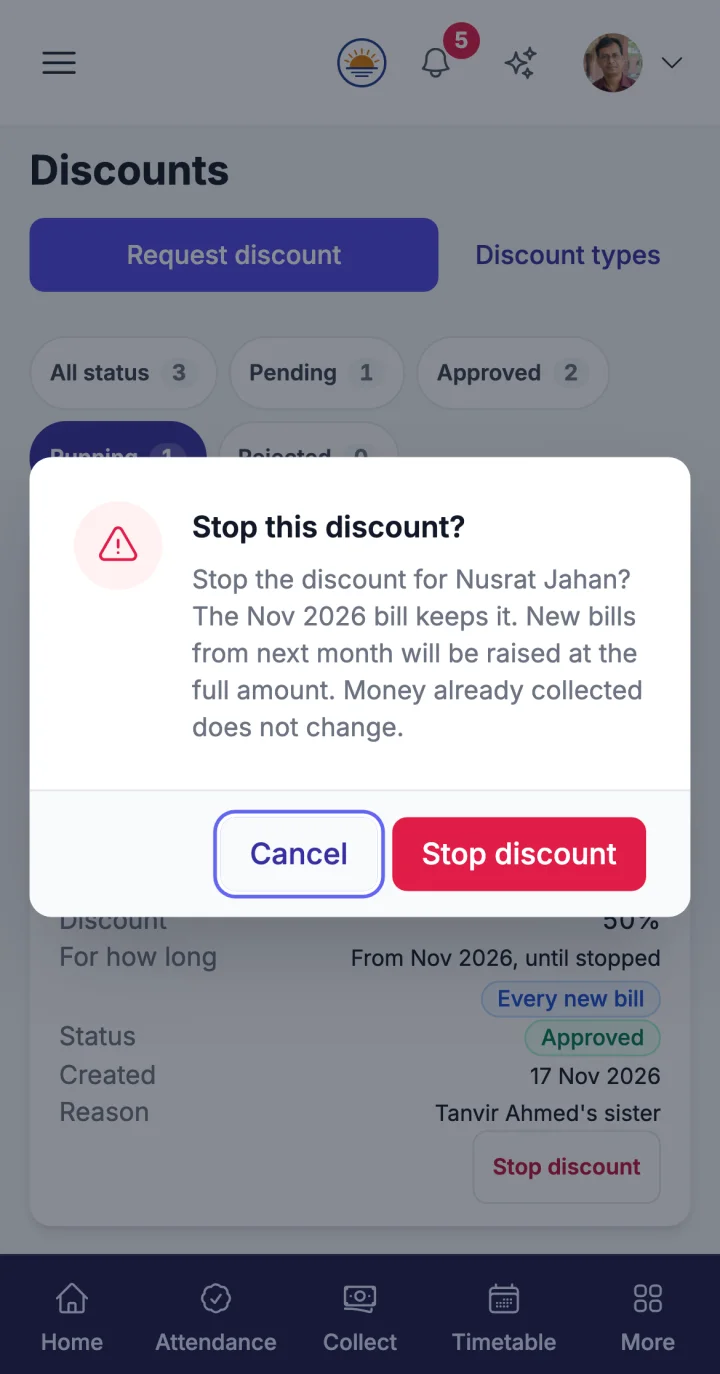
A box titled "Stop this discount?" opens. With the student's name, it says: "The Nov 2026 bill keeps it. New bills from next month will be raised at the full amount. Money already collected does not change." If that is right, press the box's Stop discount. If you change your mind, press Cancel.
After a moment you will see "Discount stopped.", with the month from which new bills will be at the full amount. The row leaves the Running tab. This month's bill keeps the discount, and money already collected does not change. When next month's bill is made, it has the full amount with no discount.
If a later month's bill was already made, the box names that month too: "The Dec 2026 bill was already raised and keeps its discount." In other words, a bill made before stopping does not change.

 12
- 1Running
- 2Stop discount

 1
- 1Stop discount

 1
- 1Stop this discount?

 1
- 1Stop this discount?


Tip: Who stopped a discount and when is written as "Discount stopped" on the More → Audit log page of Finance → Cash Book. Discounts can be stopped by people with permission to approve discounts.
Tip: A discount that comes from Lillah or a hostel free place has, instead of the button, the note "This discount comes from a Lillah or hostel free place. Stop it from the student's Lillah setting or the hostel page." That discount has to be stopped from there.
What to do next
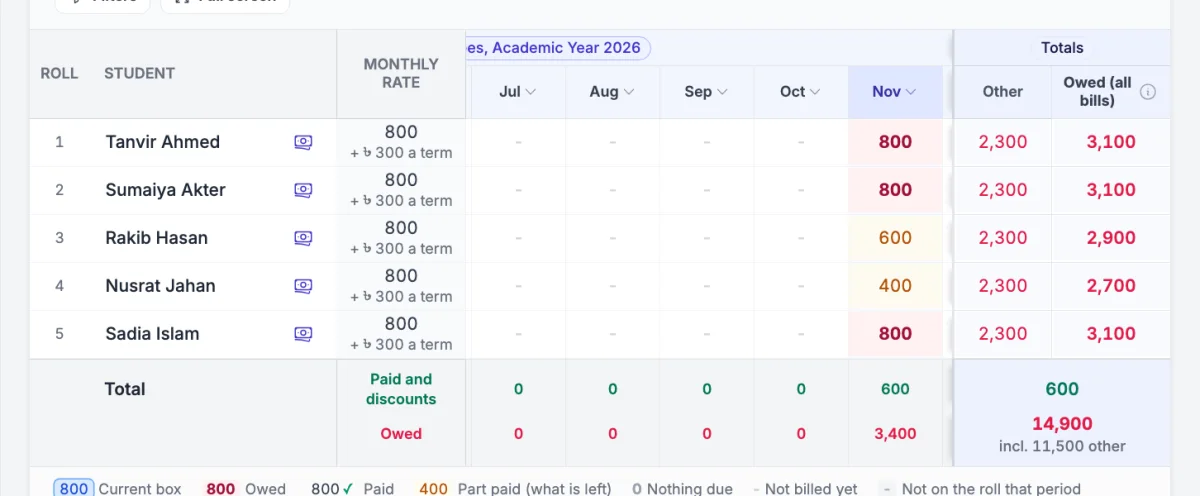
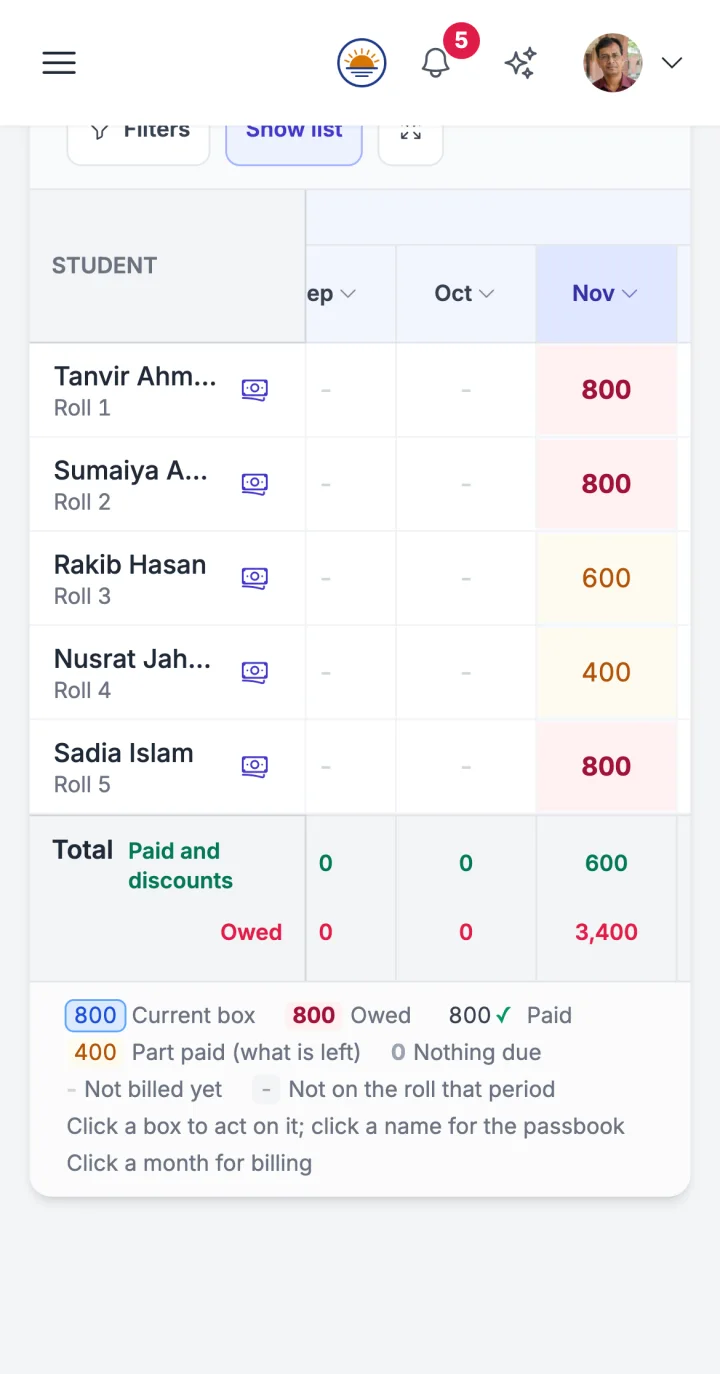
After the discount, that student's dues go down in the Fee Register, and at fee collection only the remaining amount shows. When a new month's bill is made, a running discount comes off by itself.
In the student's passbook, how much discount was given is also written separately under each bill.


If something goes wrong
I gave a discount, but I cannot see it in the list
The All status tab has every discount. With approval on, a new discount is on the Pending tab; with it off, on the Approved tab. If it is on no tab, check that the Applies to and Student filters at the top are right.
There is no Stop discount button; instead it says "This discount comes from a Lillah or hostel free place"
This discount is not stopped from the Discounts page. Stop it from the student's Lillah setting or the hostel page.
I stopped the discount, but one month's bill still has it
A bill already made when you stopped keeps the discount. The box names that month beforehand. New bills after it are made at the full amount.
"There is no bill of this fee yet. Raise it first, or choose a monthly fee."
To give a discount on a fee such as a term, yearly or admission fee, that fee's bill must exist first. Make the bill from the Fee Register and try again.
I sent the request, but the bill did not go down
With approval on, the discount waits. The discount row in the student's profile says "Pending". The bill goes down only after it is approved.
The Discount types button does not show
It shows only to people with permission to approve discounts. Ask the admin.
I gave a percentage discount, but it did not take the full amount off
A percentage discount never takes off more than what is left on the bill. If part of the money was already taken, the discount applies only to what is left.
More tutorials
See how to do the other jobs in EduSine, step by step.
Set salaries
Set each employee's basic pay, allowances and deductions once, and copy the same salary to several people.
ReadCollect fees
Find a student, see their dues, take full or part payment, and save and print the receipt.
ReadFee register and dues
See on one sheet what each student paid in each month and who owes how much. Print the dues list and send reminders to guardians.
ReadCan’t find what you’re looking for?