Hifz tracker
The work of the hifz register can now be done on a phone. Sabaq is today's new lesson, sabqi is the revision of the last few days' sabaq, and amukhta is the revision of paras memorised earlier. For each student, note in one place which para and from which page to which page today's sabaq, sabqi and amukhta covered, how many mistakes there were, and how the recitation went.
As soon as you save a sabaq, the para the student is on changes by itself on the 30-para board. At the end of the month, everyone's figures come into a report that can also be printed. If you write something wrong, you can open that day later and fix it.
The hifz tracker is free on every plan. The class teacher of a hifz class can make entries for their own class. The muhtamim or the admin can see and write for every class, and can also give permission to assistant ustaz if they like.
Check these are in place to make the entries quickly every day
Your institution has the Qawmi or Hifz curriculum added, and students are admitted to the hifz class
You have been made class teacher of the hifz class or section, or given permission as an assistant ustaz
Today's hifz register, or everyone's sabaq figures, at hand
What this tutorial covers
See which job is in which step.
Daily entry
Write the sabaq, sabqi, amukhta, how it went and the number of mistakes, and save
The 30-para board
See who is on which para, finish a para, record the khatm
Monthly report
See and print the figures for an English or Hijri month
Hifz settings
Sabaq twice a day, and permission for assistant ustaz
Step by step
Follow along as each step appears on your screen.
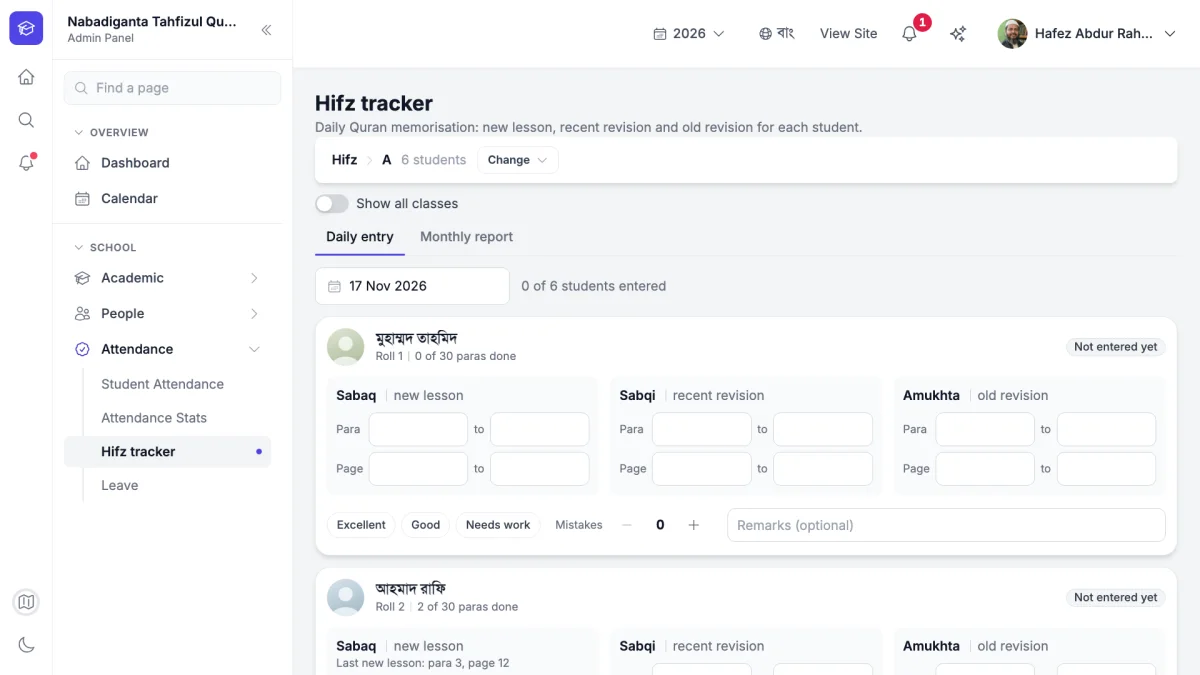
Open the Hifz tracker
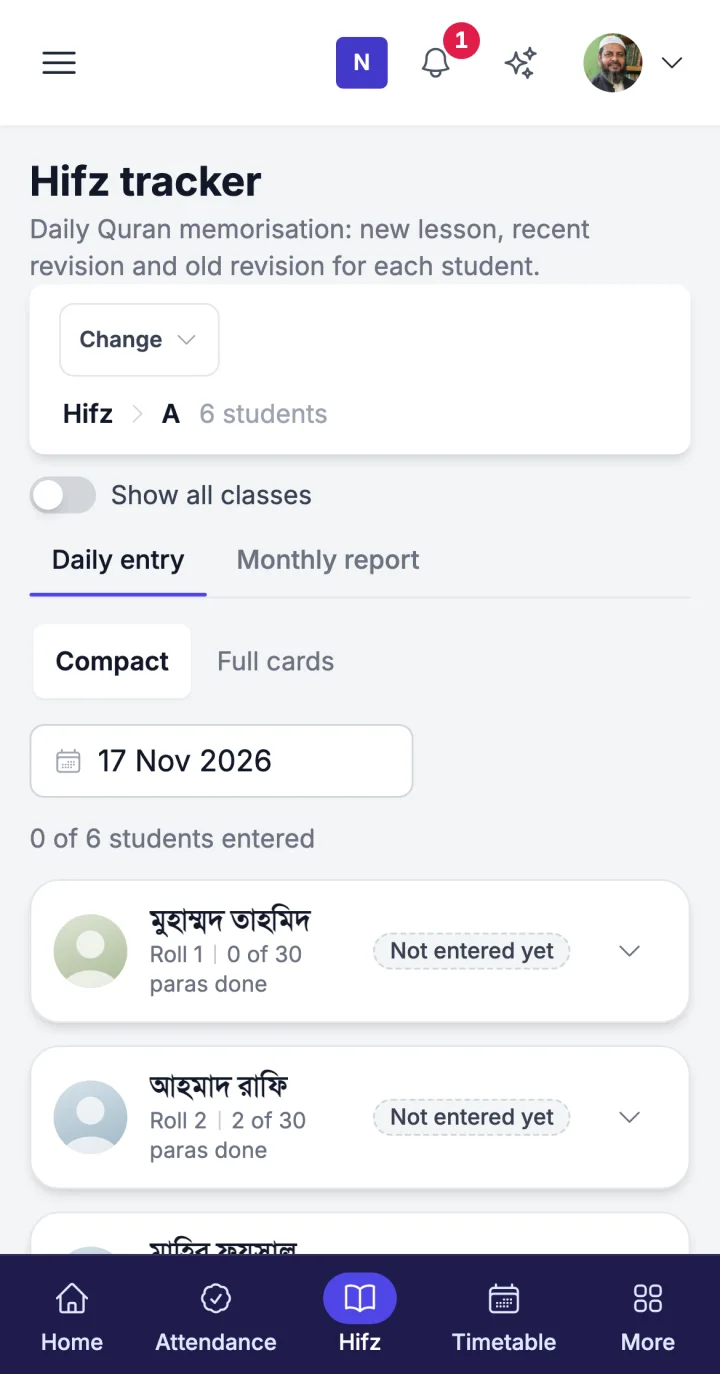
In the menu on the left, press Attendance → Hifz tracker. On a phone, hifz ustaz also have a button called Hifz in the bottom bar.
It shows in the menu only if your institution has the Qawmi or Hifz curriculum. A school or coaching centre does not have this menu.
There are two tabs at the top: Daily entry and Monthly report.

 12
- 1Attendance → Hifz tracker
- 2Daily entry and Monthly report

 12
- 1Hifz in the bottom bar
- 2Daily entry and Monthly report
Choose the class and section
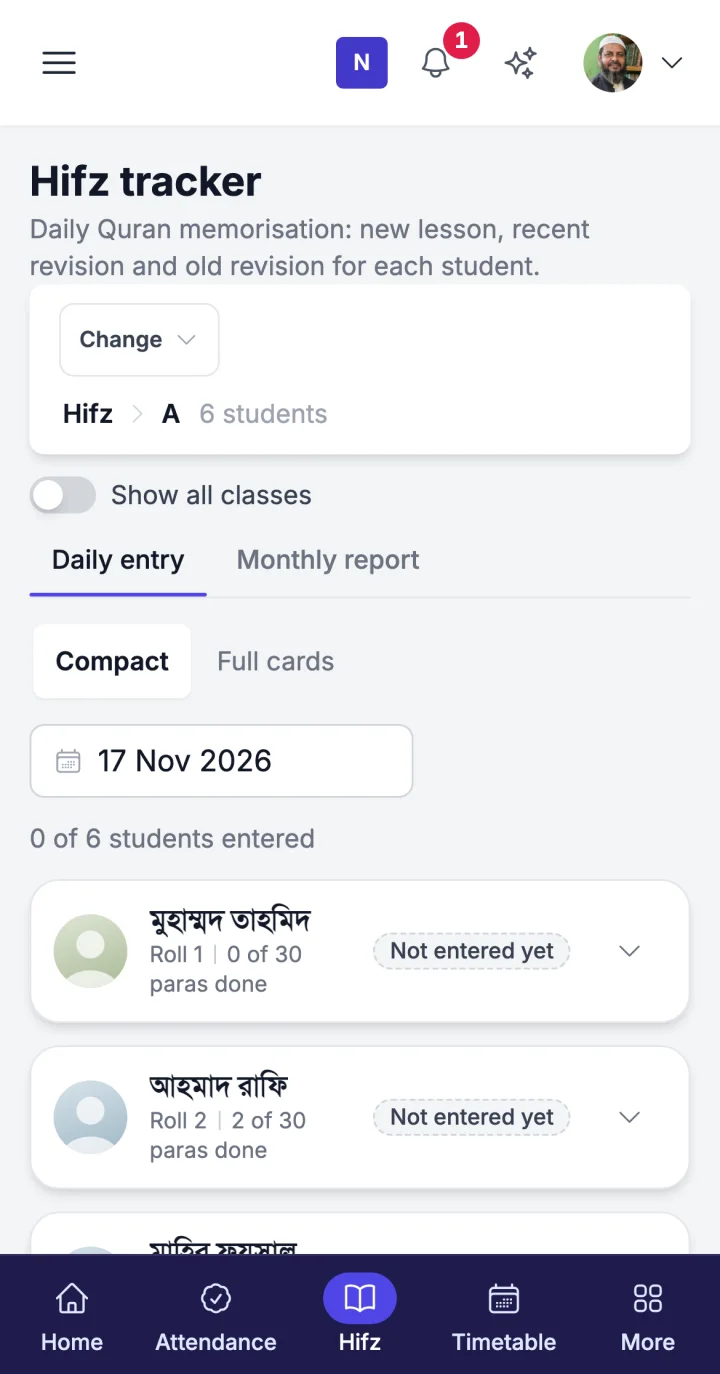
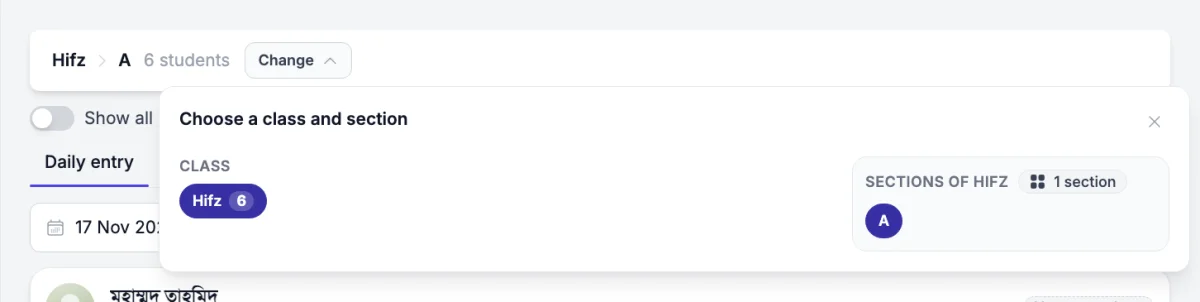
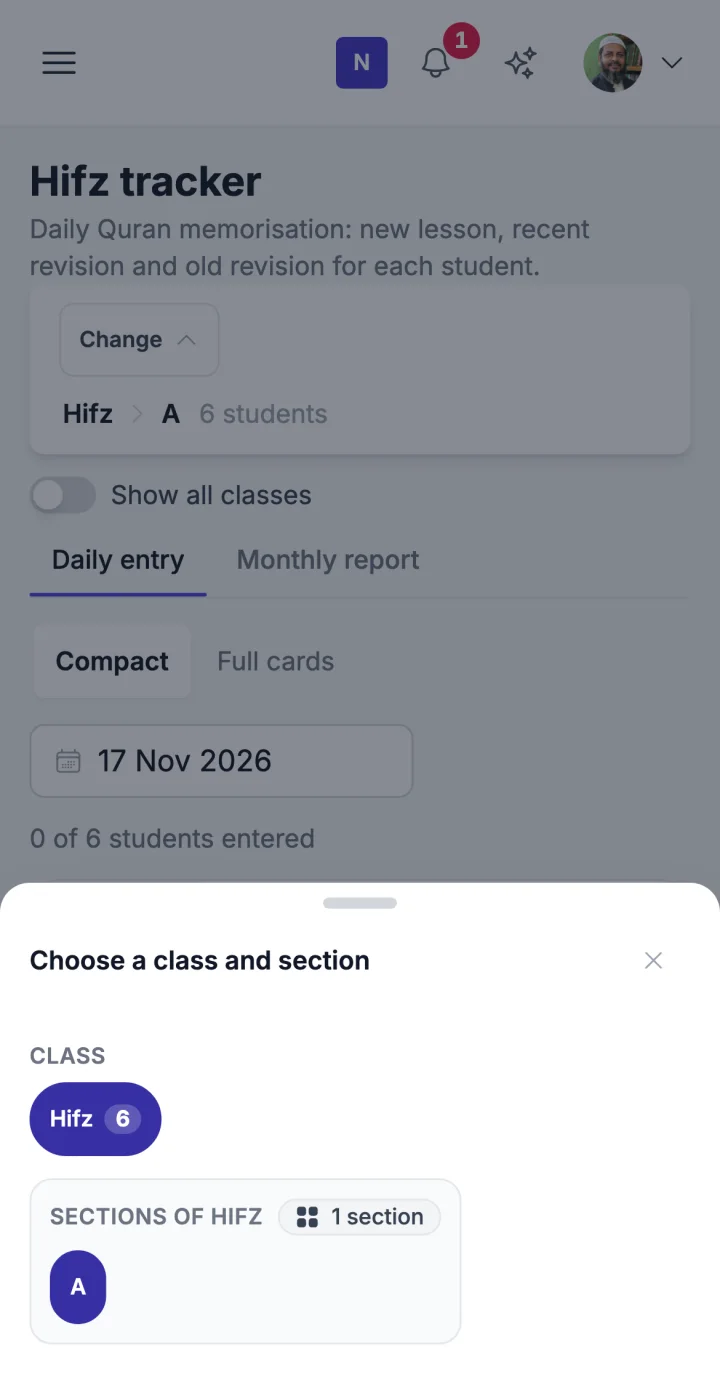
If you have only one hifz class, it is already open. If a class is open, press Change at the top; if not, press Choose class. A list slides up from the bottom; it shows only the hifz classes, for example Hifz. Press your class.
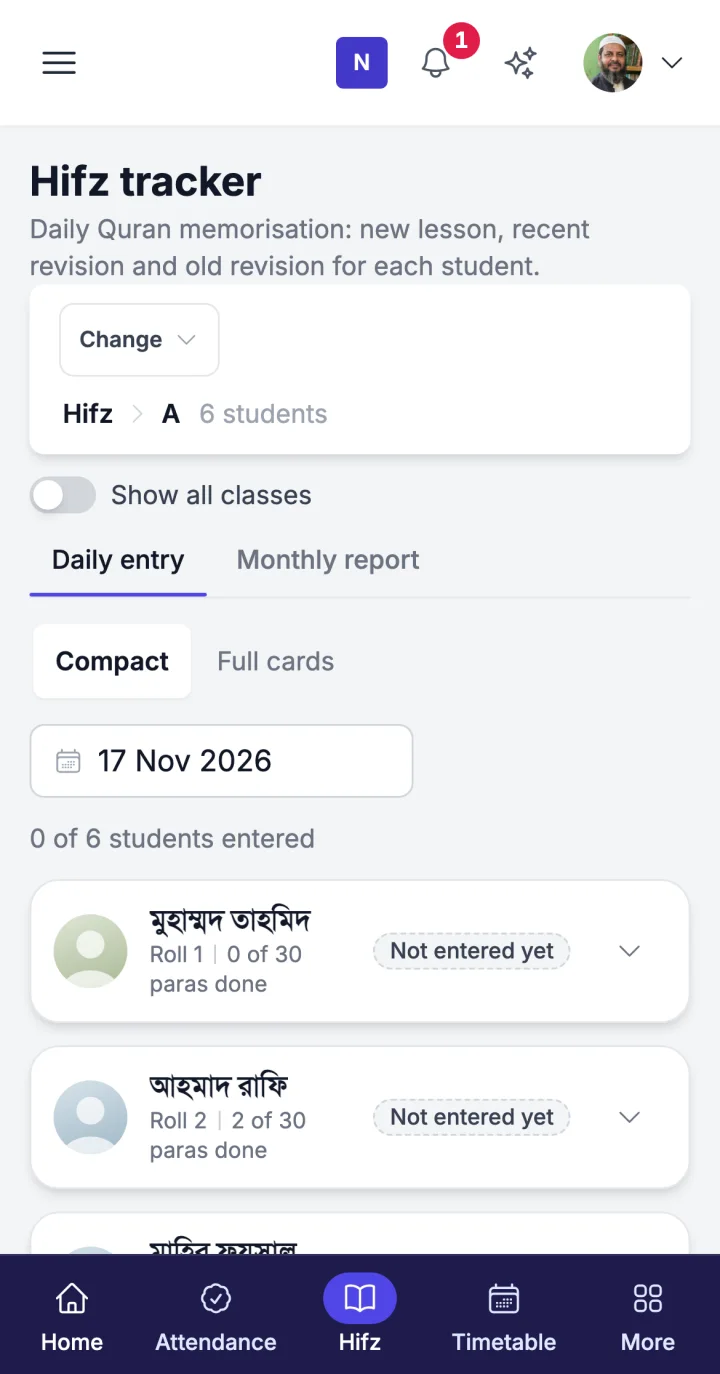
All the class's students come up in roll order. Under each name it says how many of the 30 paras are done.
To write hifz for another class, such as the Kitab section, turn on the Show all classes switch. The other classes then come into the list too.

 1
- 1Change
 1
- 1Change



 123
- 1Paras done
- 2Show all classes
- 3Date

 123
- 1Paras done
- 2Show all classes
- 3Date
Tip: Next time, EduSine remembers your last class. Today's date is already chosen. To make an earlier day's entry, press the date box and change the day. A day in the future cannot be chosen.
Write one student's sabaq
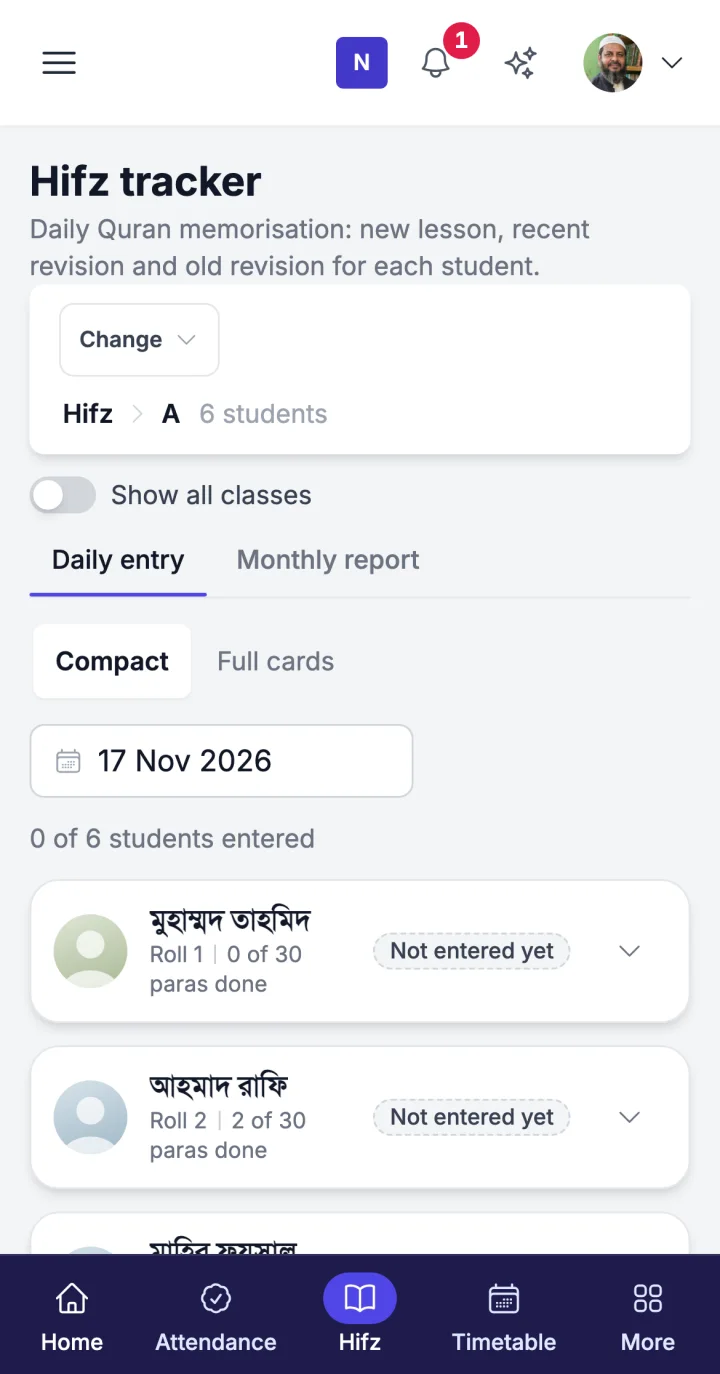
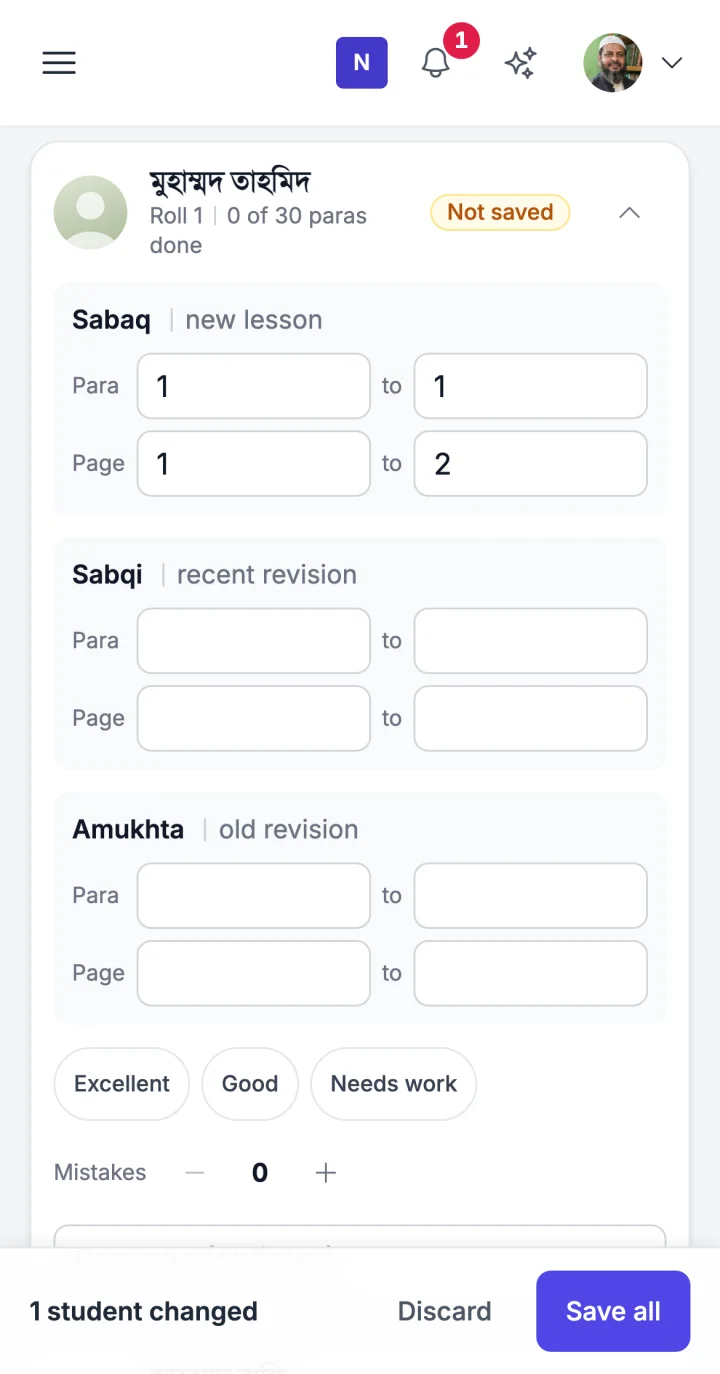
On a phone it starts compact: one line for each student, with "Not entered yet" next to it. Press the arrow on the right of a student's row to open their full card. To see everyone open together, press Full cards at the top.
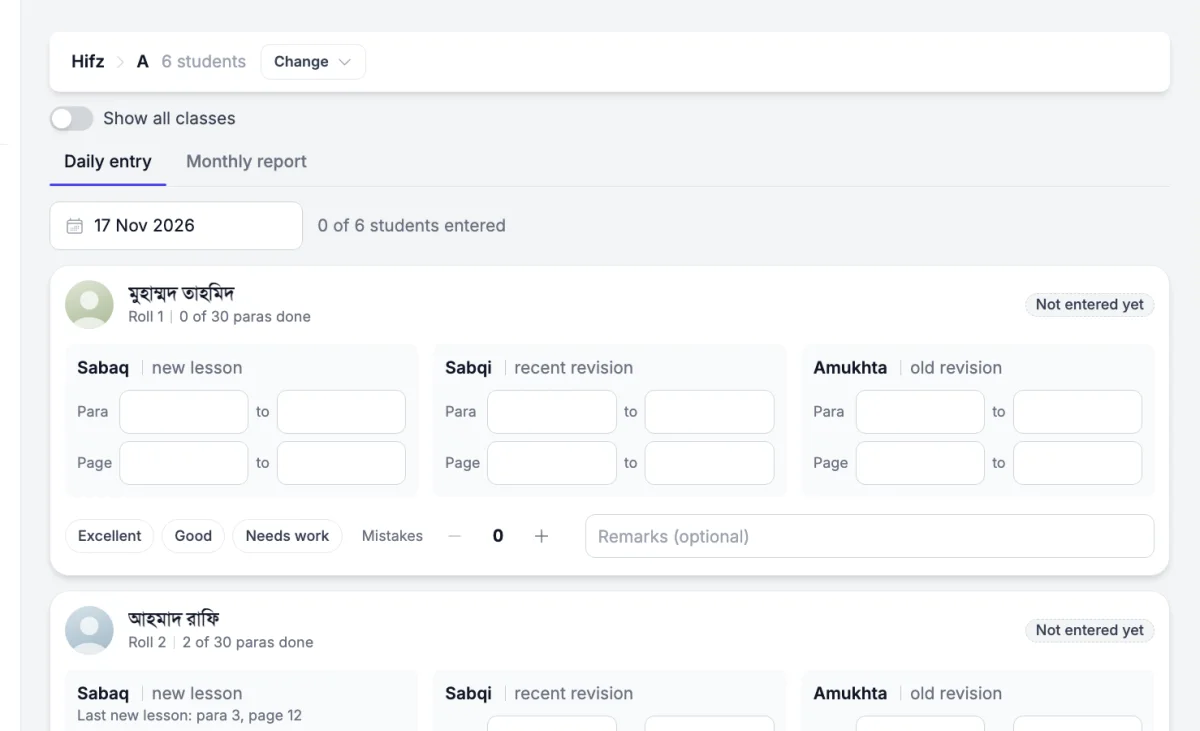
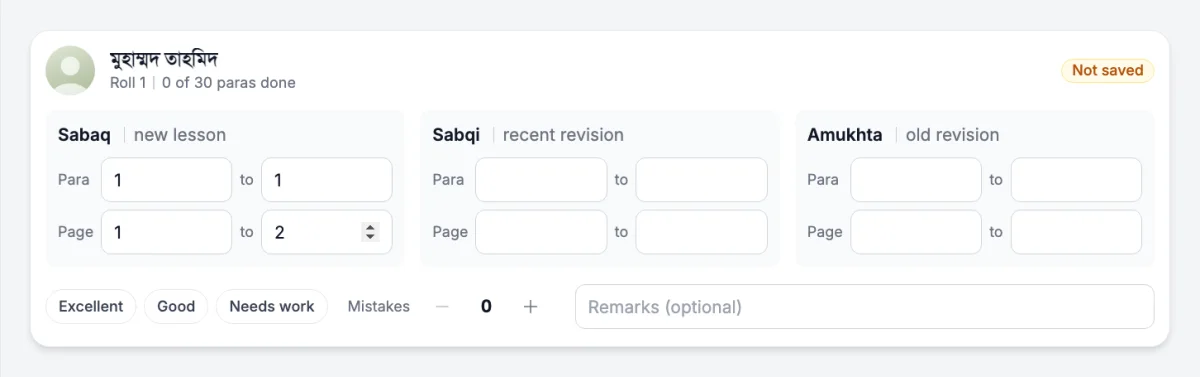
The card has three parts: Sabaq (new lesson), Sabqi (recent revision) and Amukhta (old revision). Each has "from" and "to" boxes for the para and the page.
In the Sabaq part, write today's new lesson, for example para 1 to 1, page 1 to 2. The page means the page number inside the para, not the page of the mushaf.
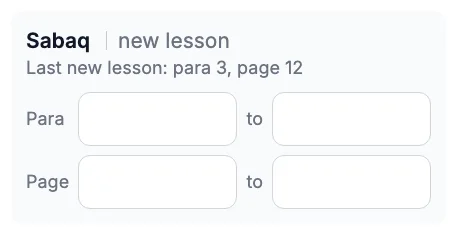
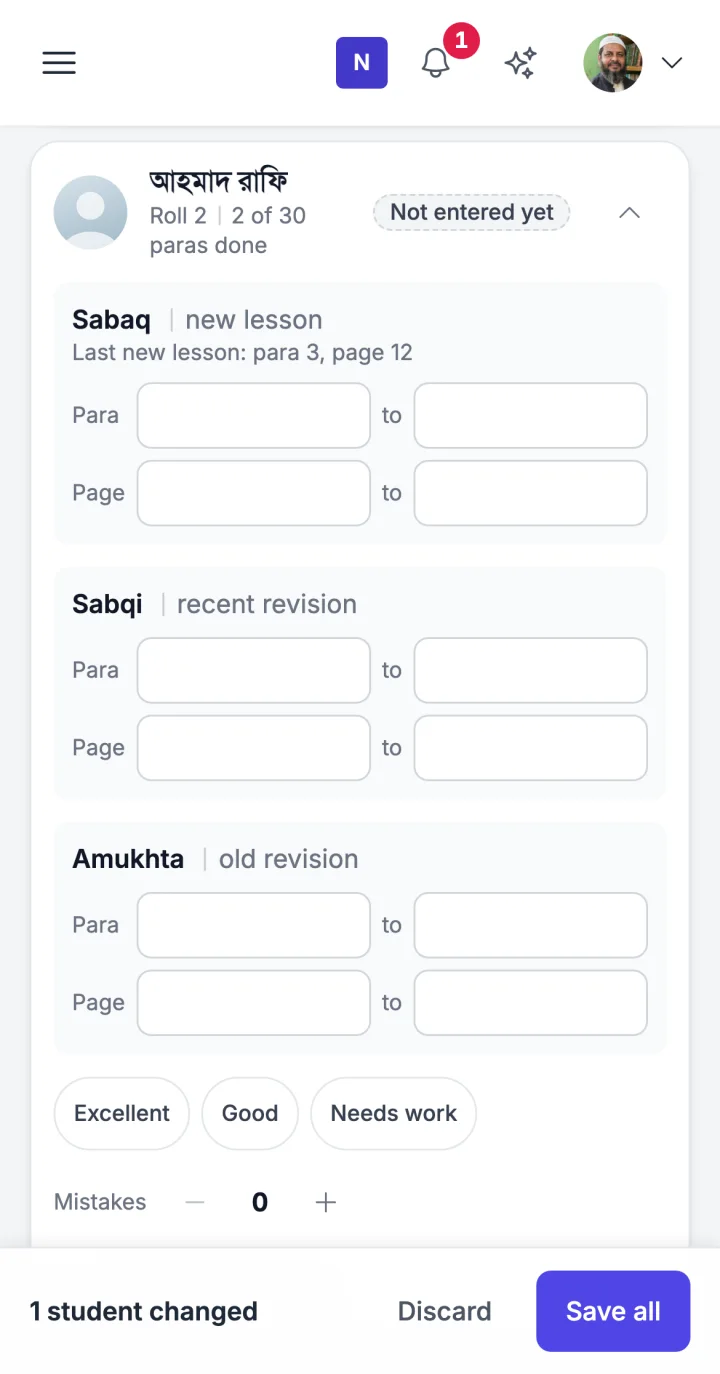
If a sabaq was written the day before, the Sabaq part says in small letters "Last new lesson: para …, page …". This makes it easy to check where today starts.
 1
There is no computer screenshot for this step. Showing the phone screen.
- 1Full cards
1- 1Full cards

 1
- 1Sabaq

 1
- 1Sabaq

 1
- 1Last new lesson

 1
- 1Last new lesson
Tip: If you have students memorise backwards from Amma para, you can also write para 30 to 29, like that.
Write the sabqi and amukhta
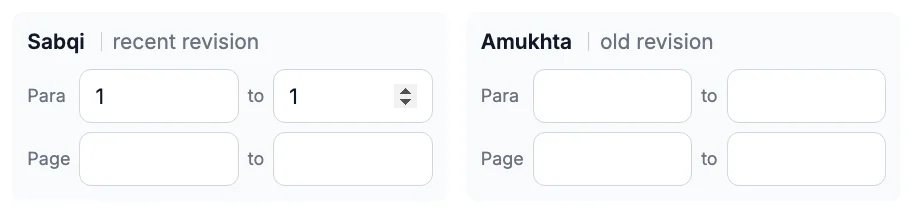
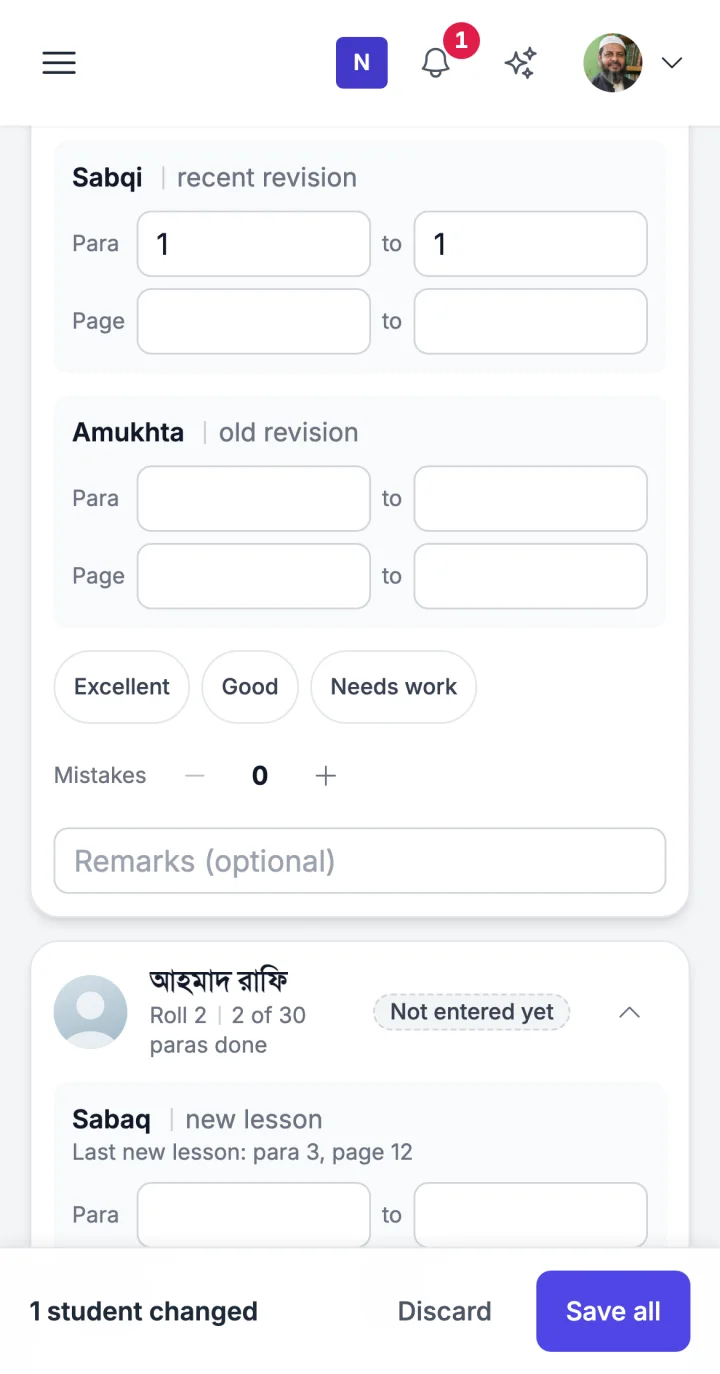
In the Sabqi part, write what was recited from the sabaq of recent days, and in the Amukhta part, what was recited from older paras.
If a whole para was recited, giving just the two para boxes is enough; you can leave the pages out. The report counts each para as 20 pages.
Leave empty any part that did not happen today. That is no problem.

 12
- 1Sabqi
- 2Amukhta

 12
- 1Sabqi
- 2Amukhta
Give how it went, mistakes and remarks
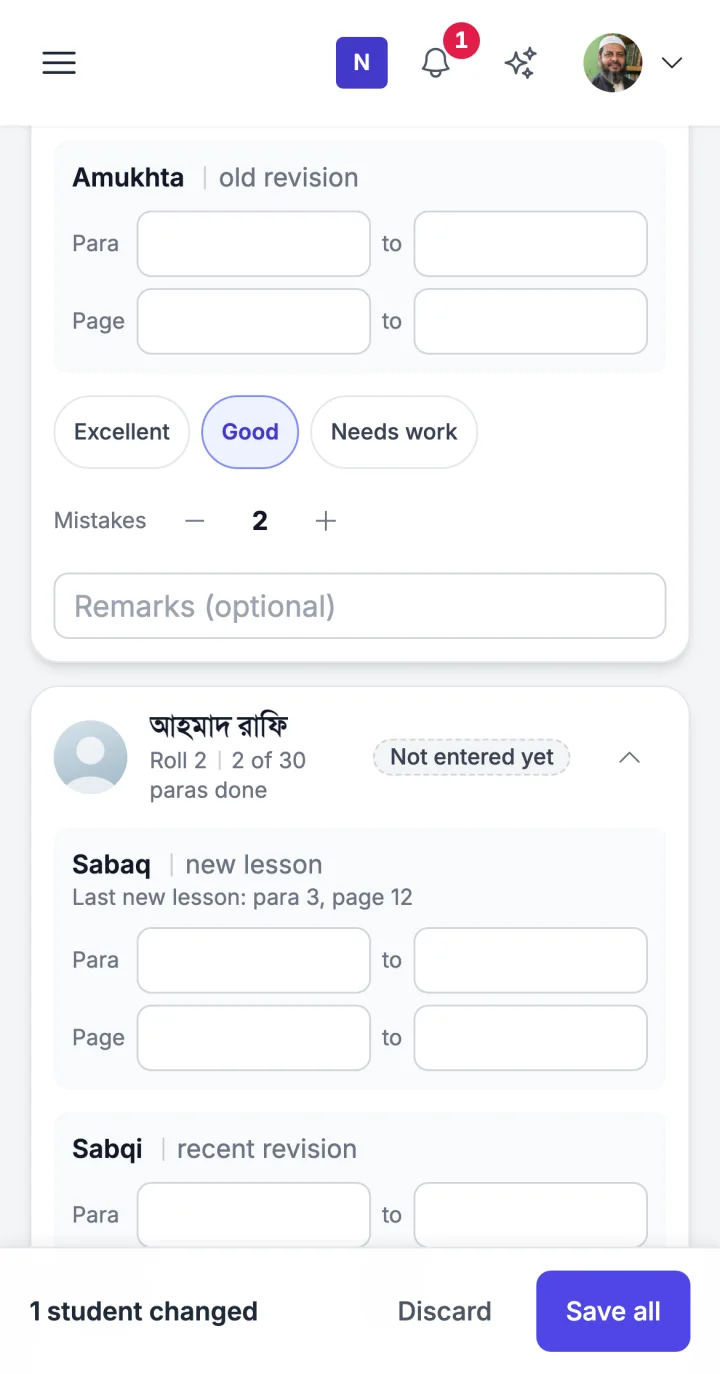
At the bottom of the card, choose how today's recitation went: Excellent, Good, or Needs work.
Press the + next to Mistakes to give how many mistakes there were, and − to lower it. To note a remark, write it in the box next to it; you can leave it empty.
How it went, mistakes and remarks are given only once for the whole day, not separately for the three parts.

 123
- 1How it went
- 2Mistakes
- 3Remarks

 12
- 1How it went
- 2Remarks
Save all
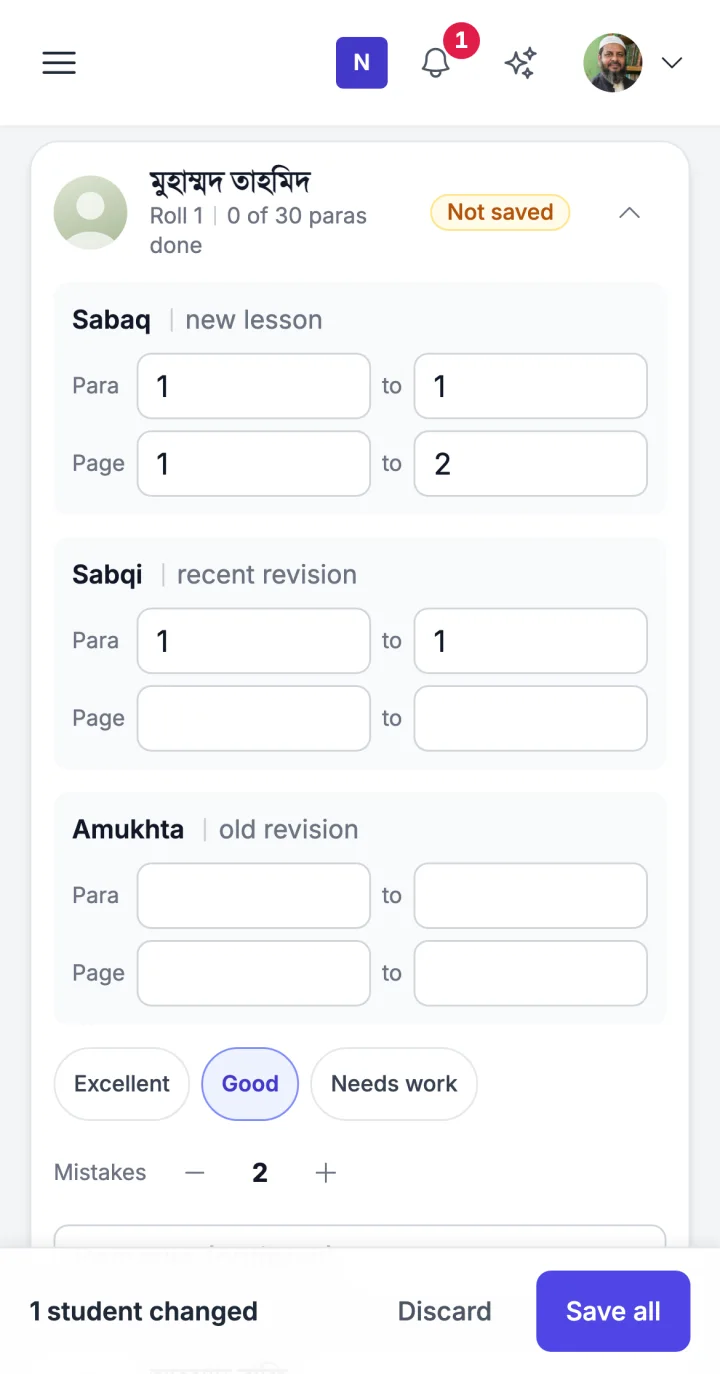
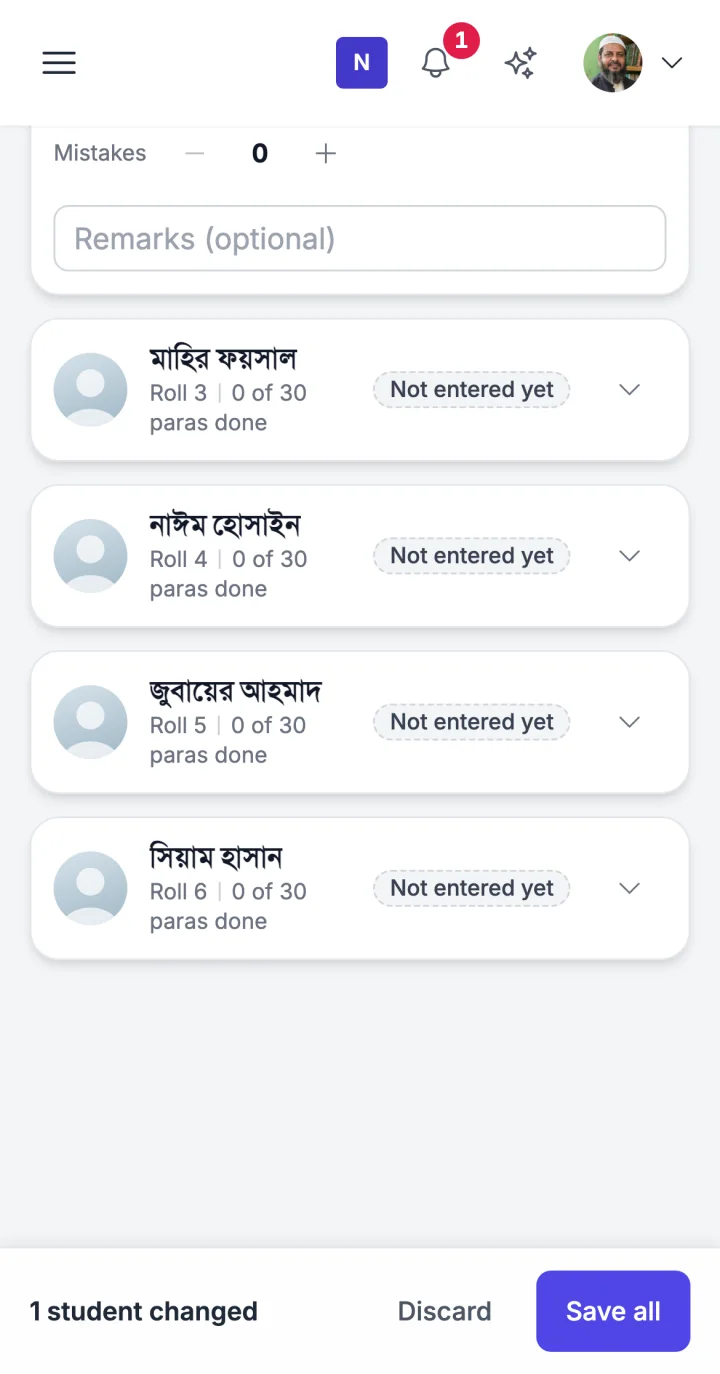
When you write something on a card, "Not saved" shows next to it. The bar at the bottom says how many entries have changed, for example "1 student changed".
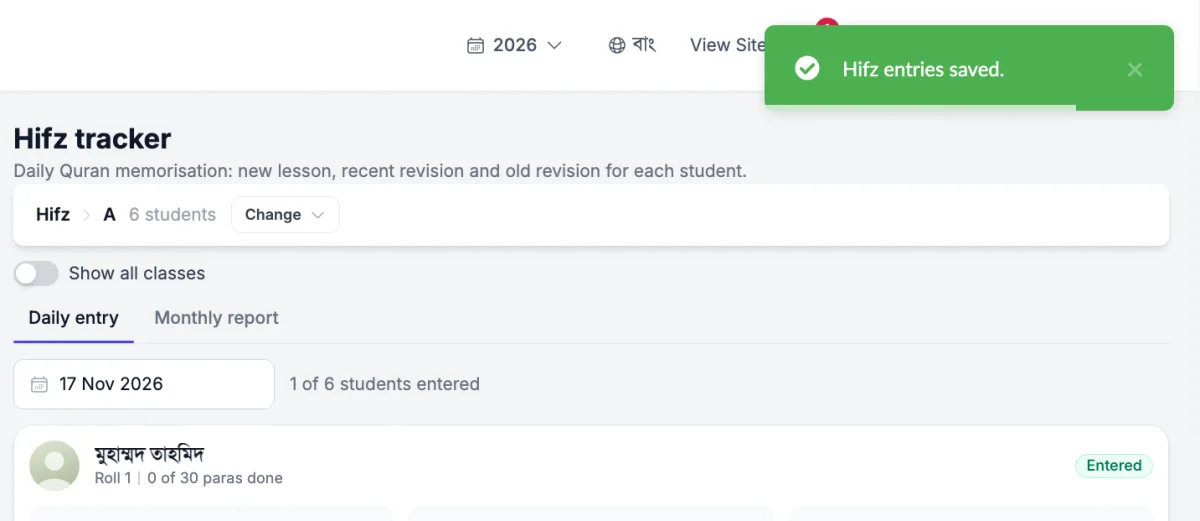
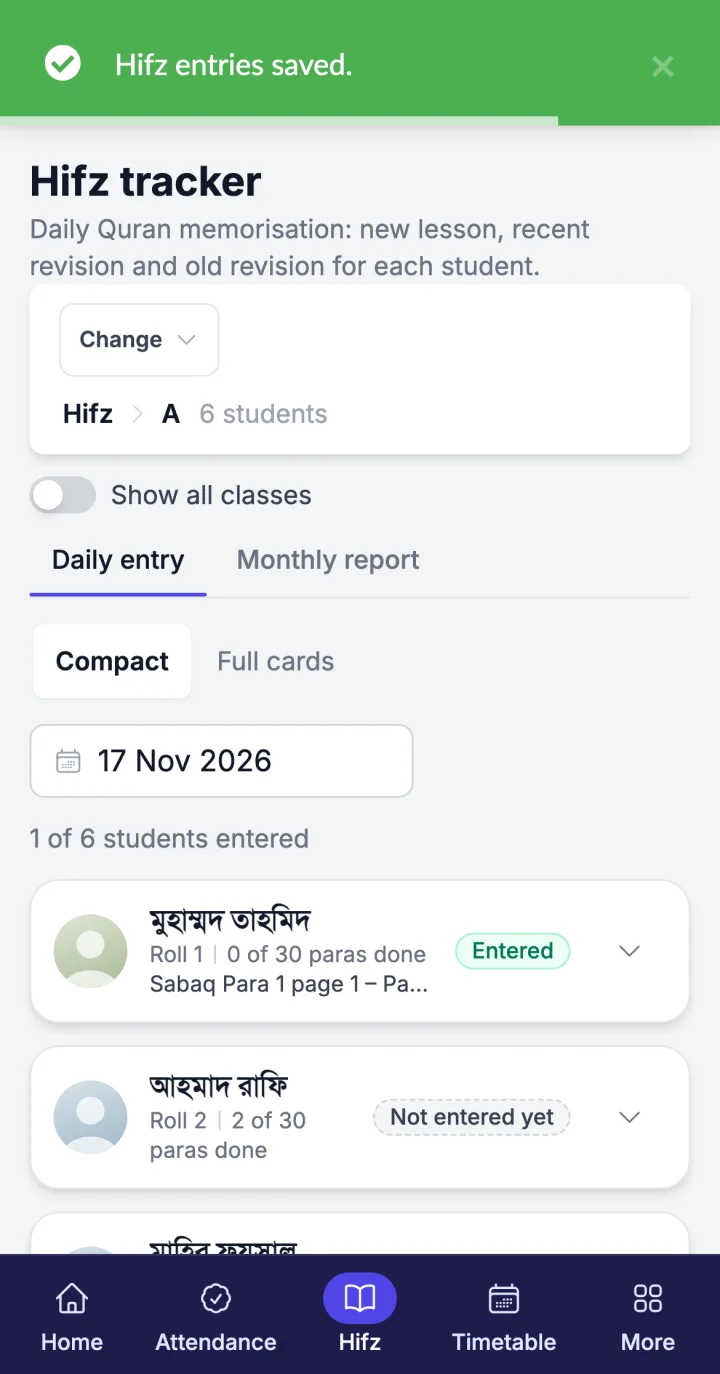
When everyone's entries are written, press Save all at the bottom. The message "Hifz entries saved." appears, and the card shows "Entered". The top says how many of how many students have been entered.
You do not need to save one by one. Make the whole class's entries and save once. If something wrong was saved, empty those boxes and save again; the entry is deleted.




 1
- 1Save all

 1
- 1Save all

 1
- 1Entered

 1
- 1Entered
See the 30-para board and finish a para
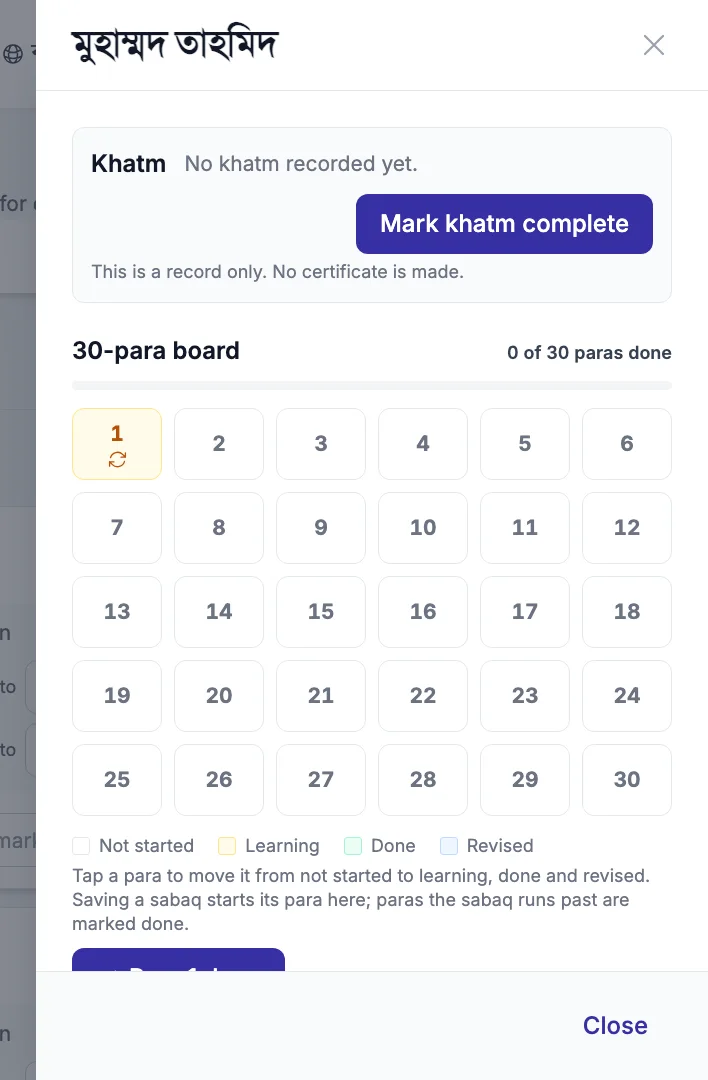
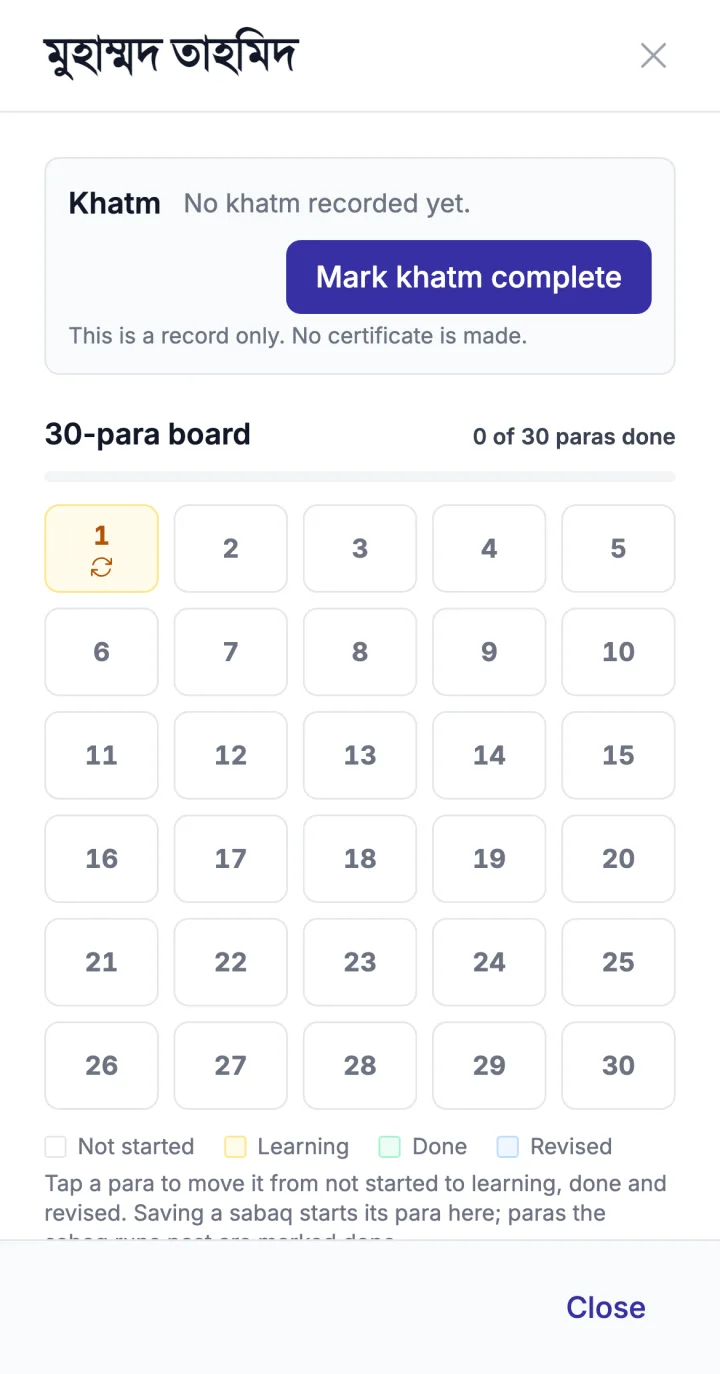
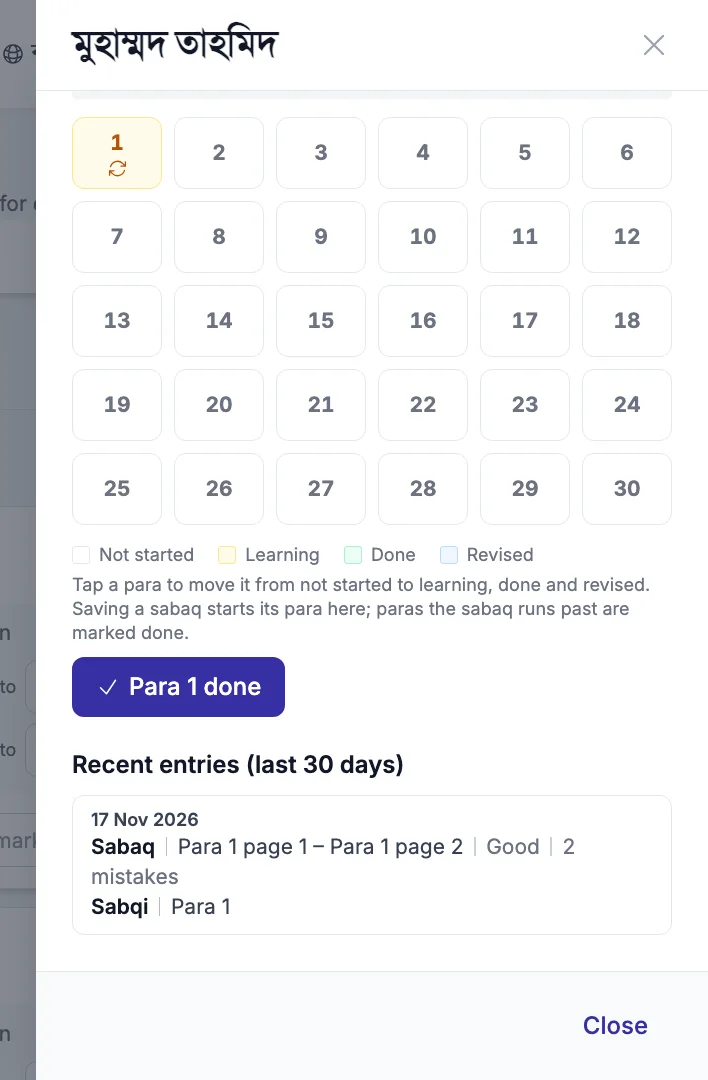
Press a student's name. Their page slides in from the right. It has the 30-para board, with boxes from 1 to 30.
Each para has four states: Not started, Learning, Done and Revised. As soon as you save a sabaq, that para becomes "Learning" by itself. When the sabaq passes one para and moves to the next, the earlier para becomes "Done".
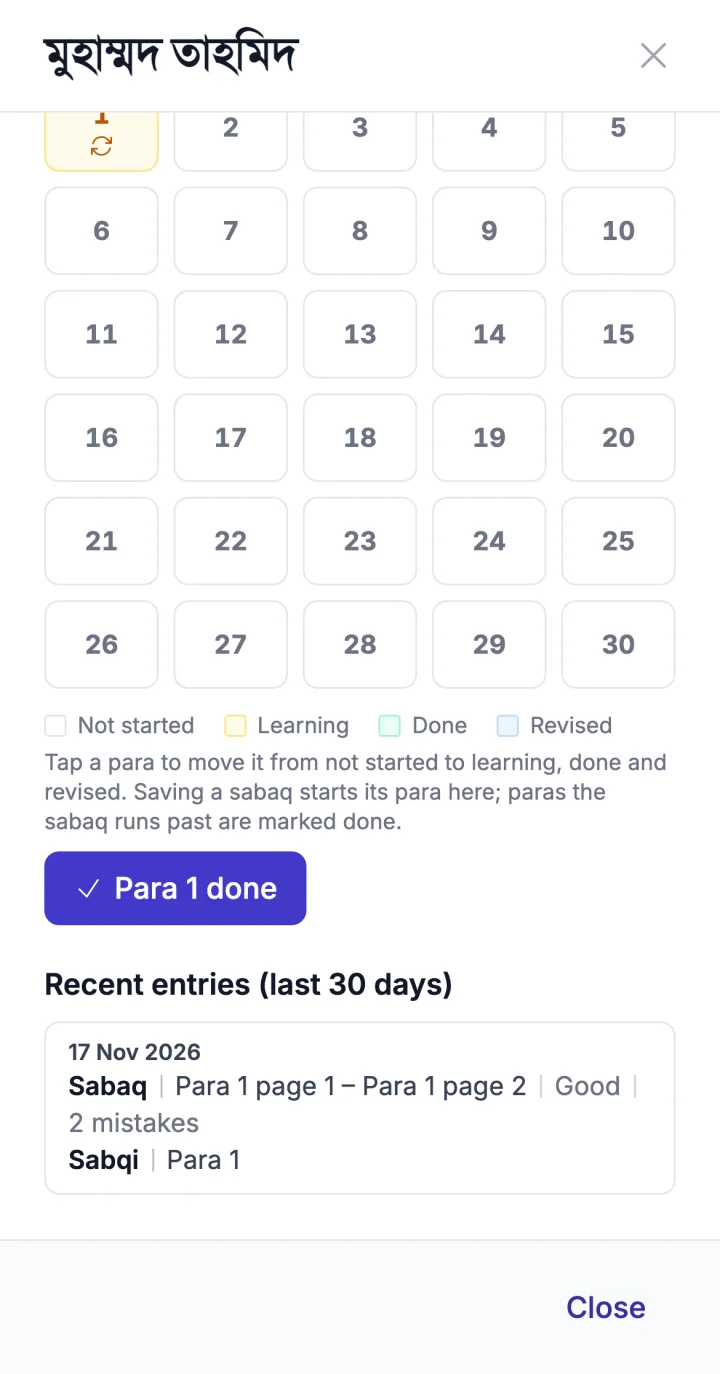
When a para is fully memorised, press the button like "Para 1 done" under the board. To change a para's state yourself, press that box. Each press moves the state to the next one, and it is saved at once.
Below, the Recent entries (last 30 days) part lists the student's daily sabaq, sabqi, how it went and mistakes.

 12
- 1Khatm
- 2The 30-para board

 12
- 1Khatm
- 2The 30-para board

 1
- 1Para done

 1
- 1Para done
Tip: When all 30 paras are done, press Mark khatm complete in the Khatm part at the top of this page. The date of the khatm is recorded. This is only for the record; no certificate is made.
See and print the monthly report
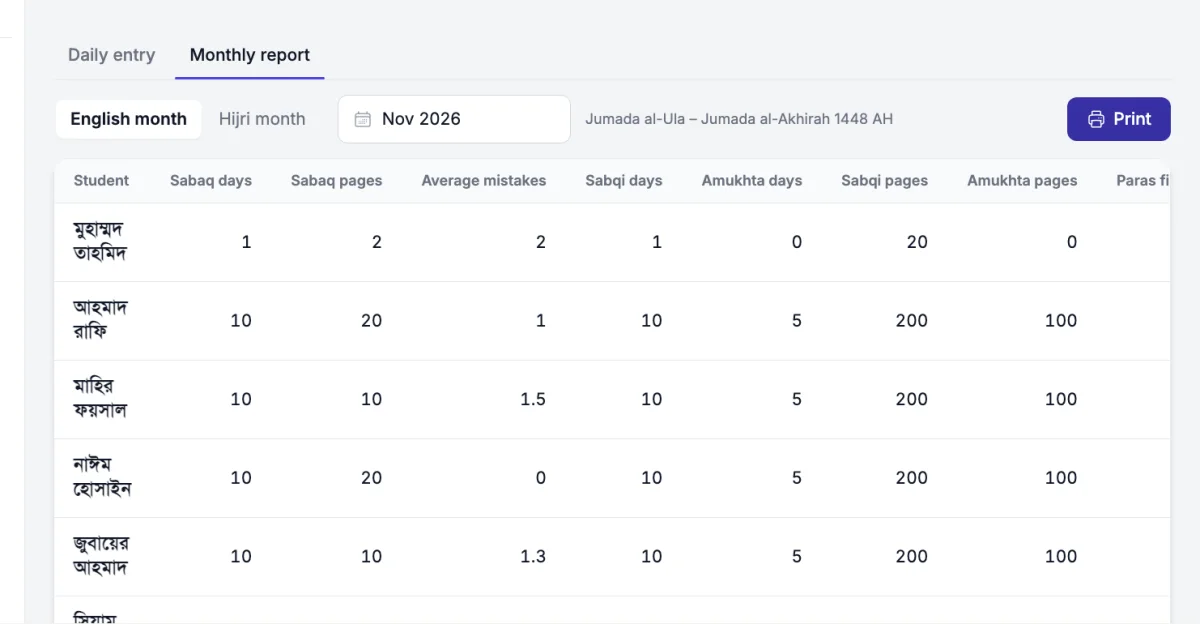
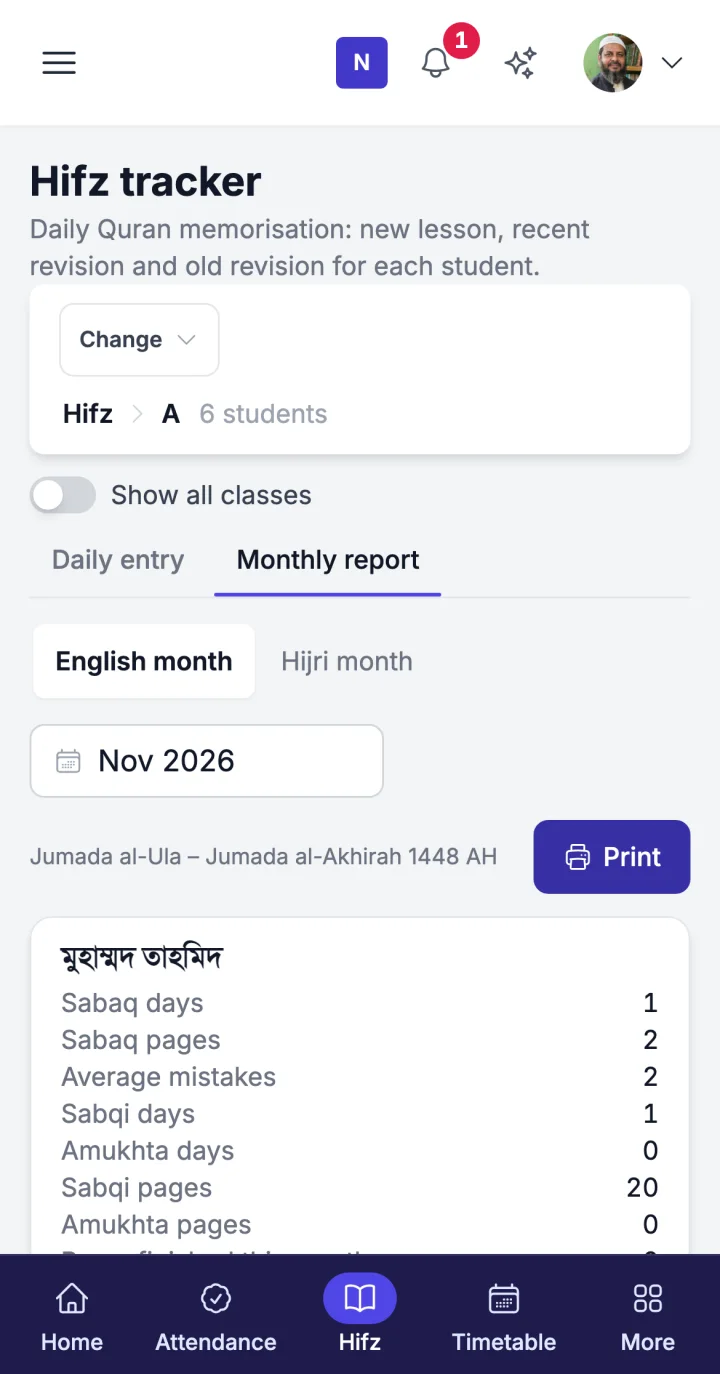
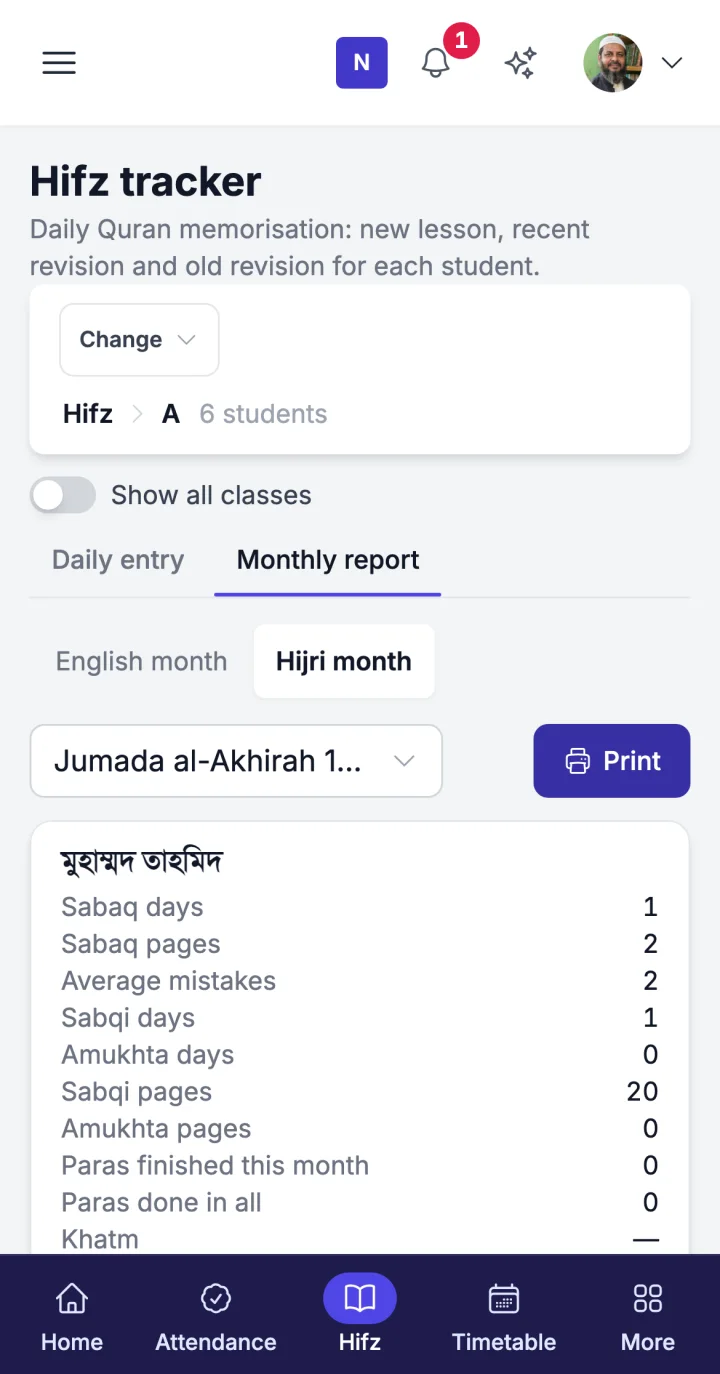
Press the Monthly report tab at the top. This month's figures for every student of the chosen class come up in one table.
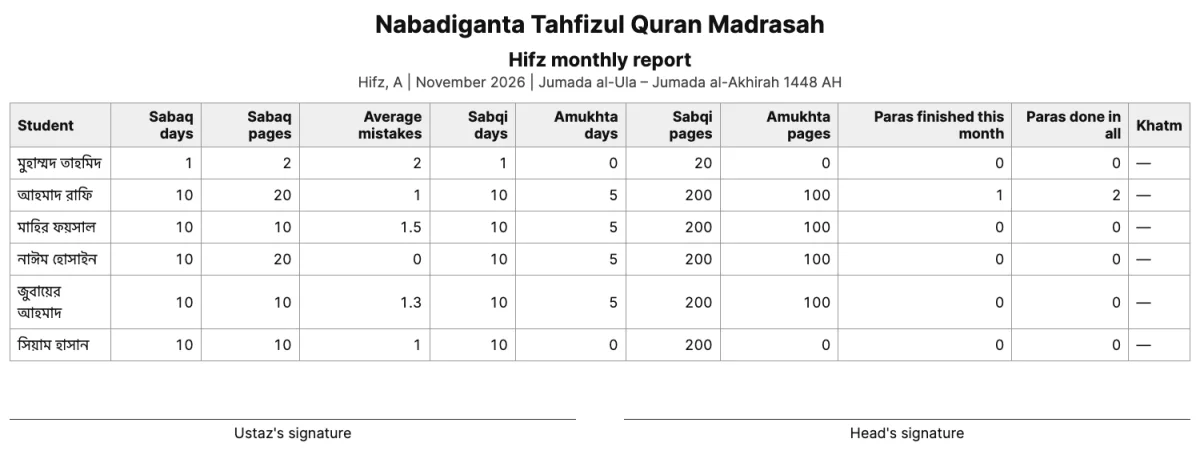
For each student there are: Sabaq days, Sabaq pages, Average mistakes, Sabqi days, Amukhta days, Sabqi pages, Amukhta pages, Paras finished this month, Paras done in all, and Khatm.
You can choose either the English month or the Hijri month. Press the month box to see earlier months too.
Press Print and a report ready to print on A4 paper opens. It has the institution's name and logo, the month, and spaces for the ustaz's signature and the muhtamim's / head's signature.

 123
- 1The month's figures
- 2English month and Hijri month
- 3Print

 123
- 1The month's figures
- 2English month and Hijri month
- 3Print




There is no phone screenshot for this step. Showing the computer screen.
Tip: If the print window does not open, allow pop-ups in your browser and press Print again.
Set the hifz settings (muhtamim or admin)
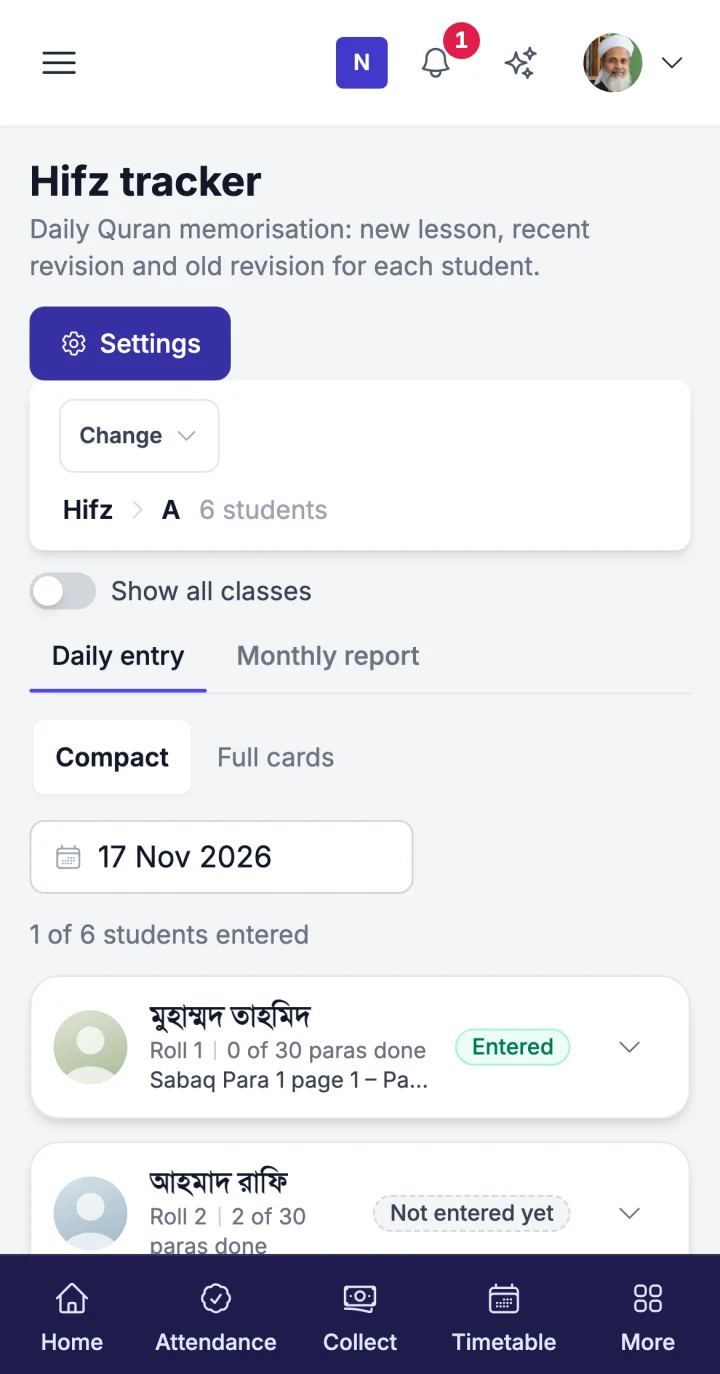
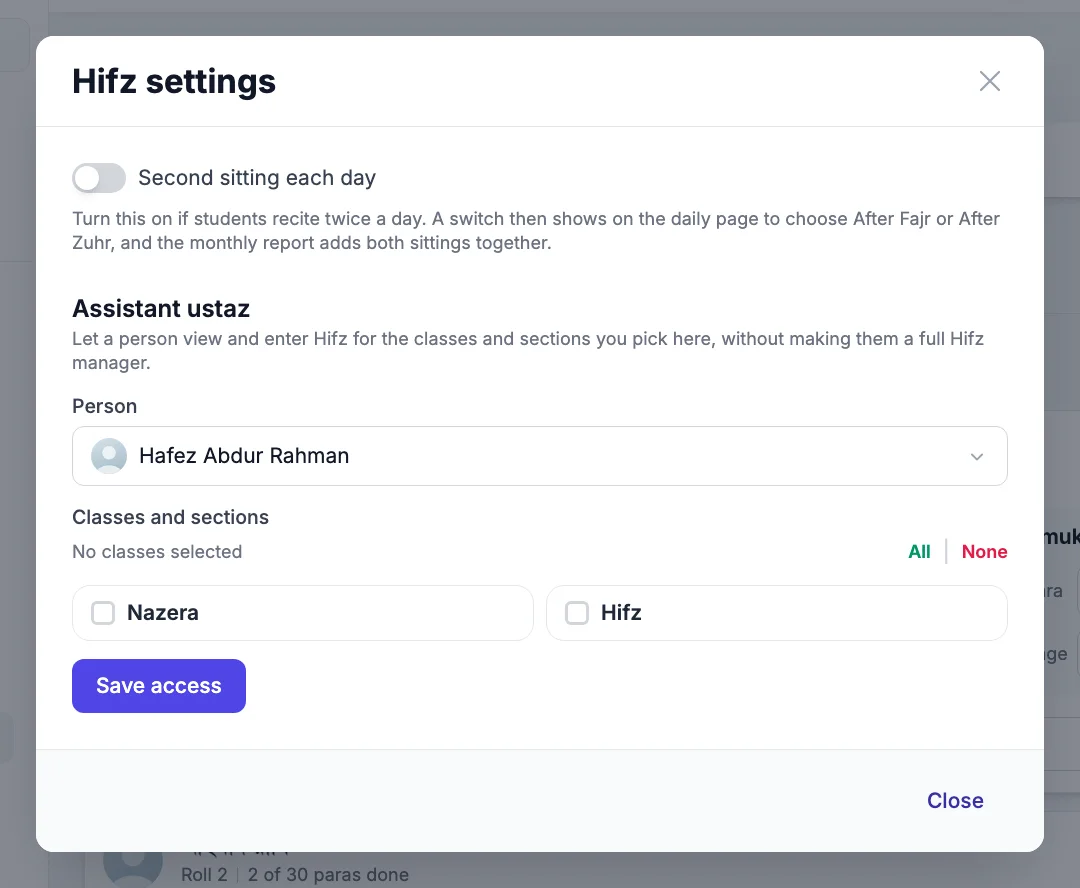
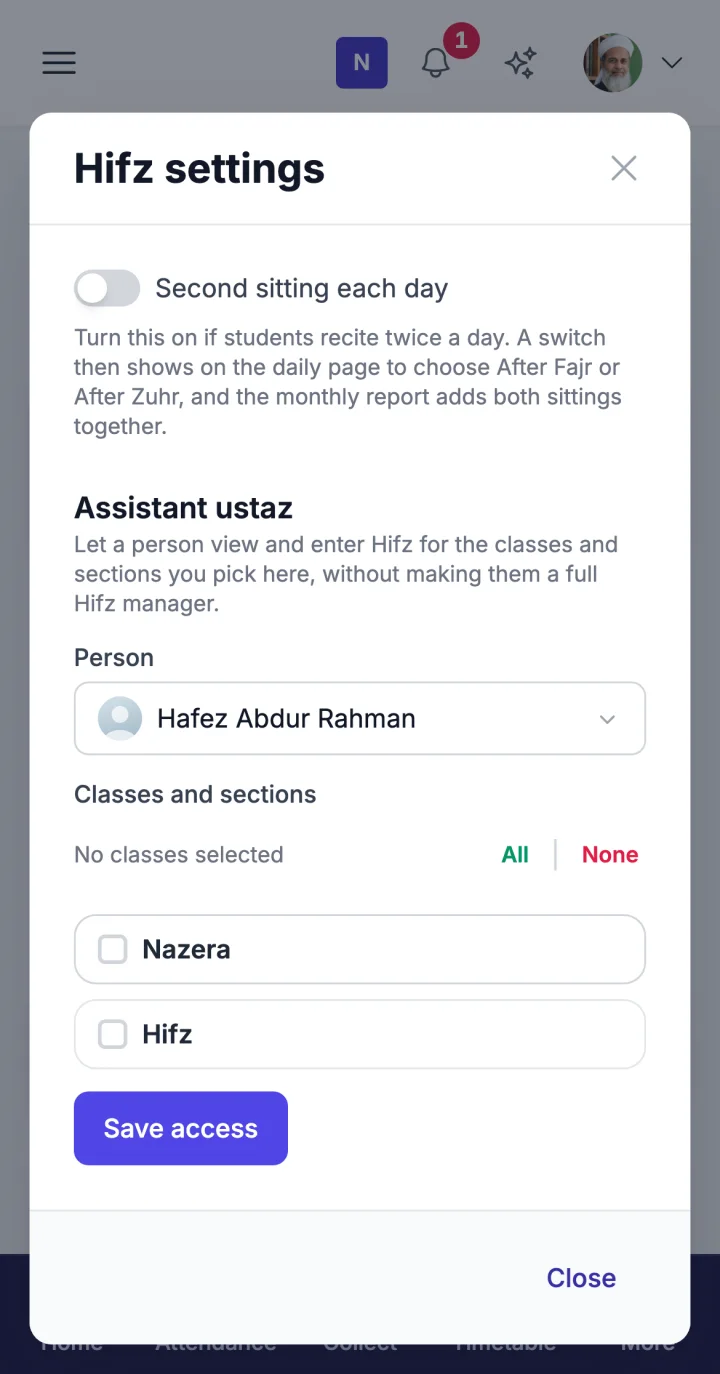
Press Settings at the top of the Hifz tracker. Hifz settings opens.
If students take sabaq twice a day, turn on Second sitting each day. The daily entry page then has buttons to choose After Fajr or After Zuhr, and the monthly report adds the two sittings together.
If more than one ustaz teaches the same halaqa, choose the person in the Assistant ustaz part, set their class and section, then press Save access. They can see and write that section's hifz, and nothing else.




 12
- 1Second sitting each day
- 2Assistant ustaz

 12
- 1Second sitting each day
- 2Assistant ustaz
What to do next
Keep making the entries after taking sabaq every day. At the end of the month, print the monthly report and hand it to the muhtamim.
If the guardian portal is on, guardians can see their child's 30-para board, recent sabaq and the month's figures in their portal. Guardians do not see the ustaz's remarks.
If something goes wrong
The Hifz tracker is not in the menu
If the Qawmi or Hifz curriculum has not been added to your institution, it does not show in the menu. It also does not show if you have not been made a class teacher of any class or an assistant ustaz. Tell the admin.
"No classes are available to you here yet."
You have not been made class teacher of any hifz class or section, or given permission as an assistant ustaz. The muhtamim or admin can give permission from Hifz settings.
"You can view this class but not change it."
You have permission to see this class's hifz, but not to write it. Ask for permission to write.
"Some para or page numbers are not right. Please correct them and save again."
A box has a para over 30, or within the same para the "to" page is smaller than the "from" page. Fix the box marked in red and press Save all again.
"Hifz cannot be entered for a future date."
A day in the future is chosen in the date box. Choose today or an earlier day.
More tutorials
See how to do the other jobs in EduSine, step by step.
Create an exam
Create one exam for several classes at once, and set how it is marked and graded.
ReadThe whole year's exams
Create the year's three exams, and decide how much each one counts in the year result.
ReadEnter marks
Enter a whole class's marks from a phone or computer, mark absences, and check the marks log.
ReadCan’t find what you’re looking for?