Leave requests
Teachers and staff can apply for leave right from their own phone. While applying, they can see how many days of leave are left. A guardian can also apply from the portal on behalf of a student.
As soon as a request is approved, those days come into attendance as "Leave" by themselves, so nobody has to write them separately. EduSine has already set up the leave types and quotas; you can change them any time to follow your institution's rules.
To change leave types and quotas, and to record someone else's leave, you need permission to manage leave. Staff leave is approved by the Principal or anyone given that permission. A student's leave can also be approved by their class teacher. Nobody can approve their own request.
Keep these at hand to set the leave rules
Your institution's leave policy: how many days of each leave a year, and the most days at a time
Which leave is paid and which is unpaid
After how many days of leave papers (such as a doctor's certificate) are needed
A list of people whose quota is different (for example someone who carried over last year's leave)
Leave requests are on every plan. Guardians and students can apply from the portal on the Standard plan.
What this tutorial covers
See which job is in which step.
Leave types and quotas
How many days of each leave a year, whether it is paid, who can take it
A different quota for someone
Change one employee's quota for the year
Staff requests
A teacher sends a request from their own page
Approval
See waiting requests, and approve or reject them
Student leave
Guardians' requests, and recording leave from the office
Step by step
Follow along as each step appears on your screen.
Open the Leave page
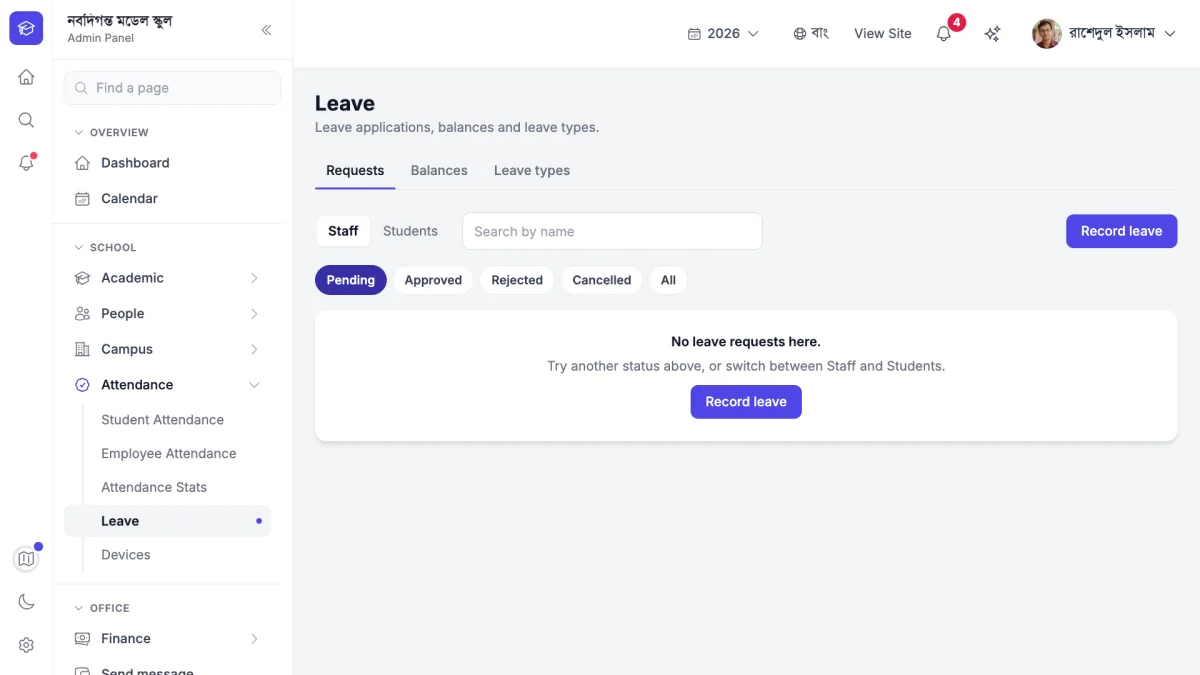
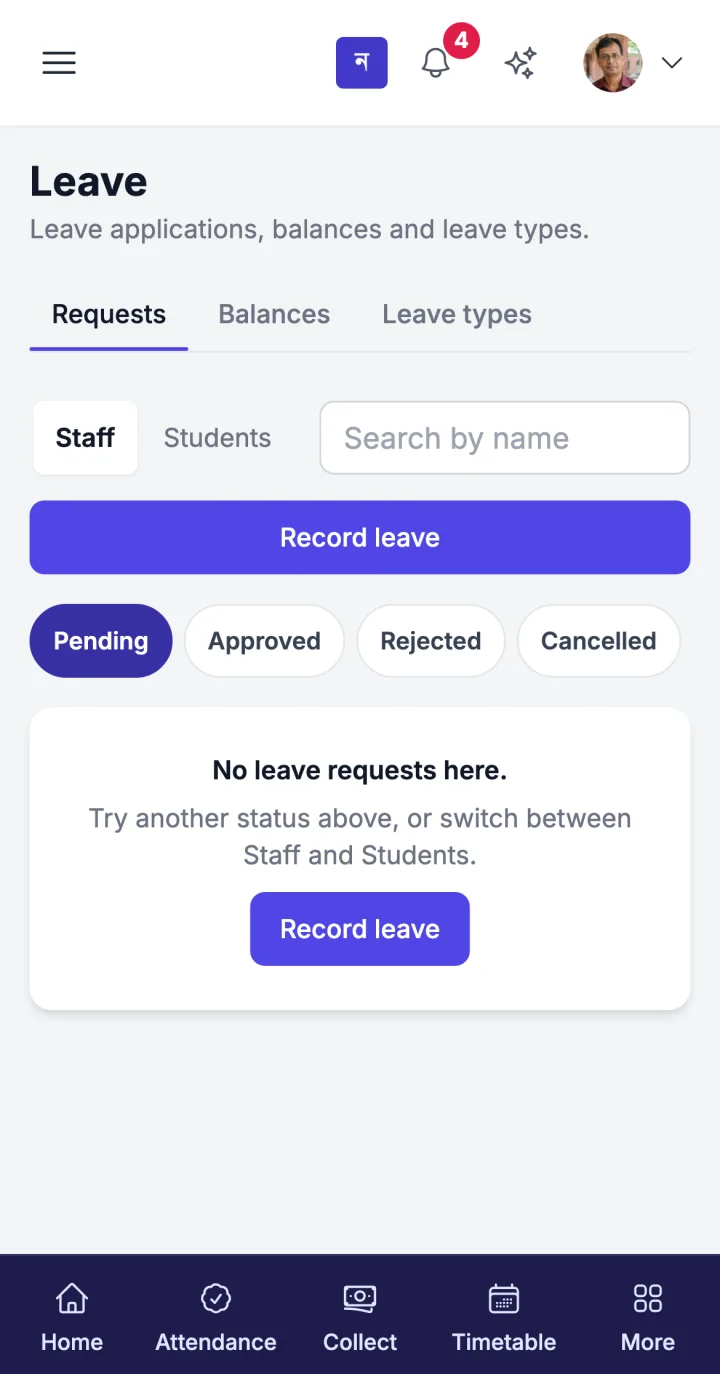
In the menu on the left, press Attendance → Leave. There are three tabs at the top: Requests, Balances and Leave types.
The Requests tab has two groups, Staff and Students. Below them, you can pick requests by status: Pending, Approved, Rejected, Cancelled and All. At the start there are no requests.

 123
- 1Attendance → Leave
- 2Requests, Balances and Leave types
- 3Filter by status

 1
- 1Requests, Balances and Leave types
Look over the leave types
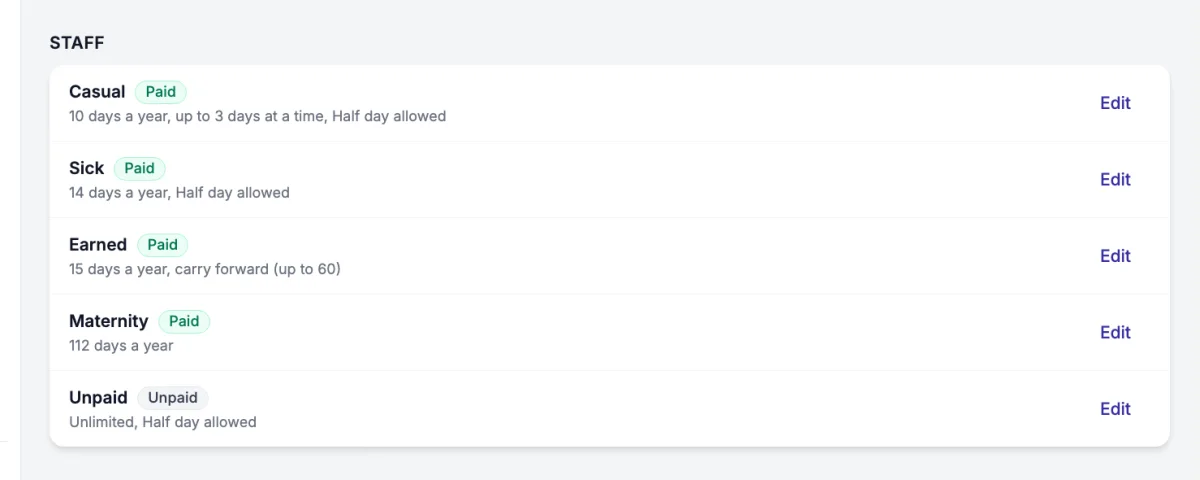
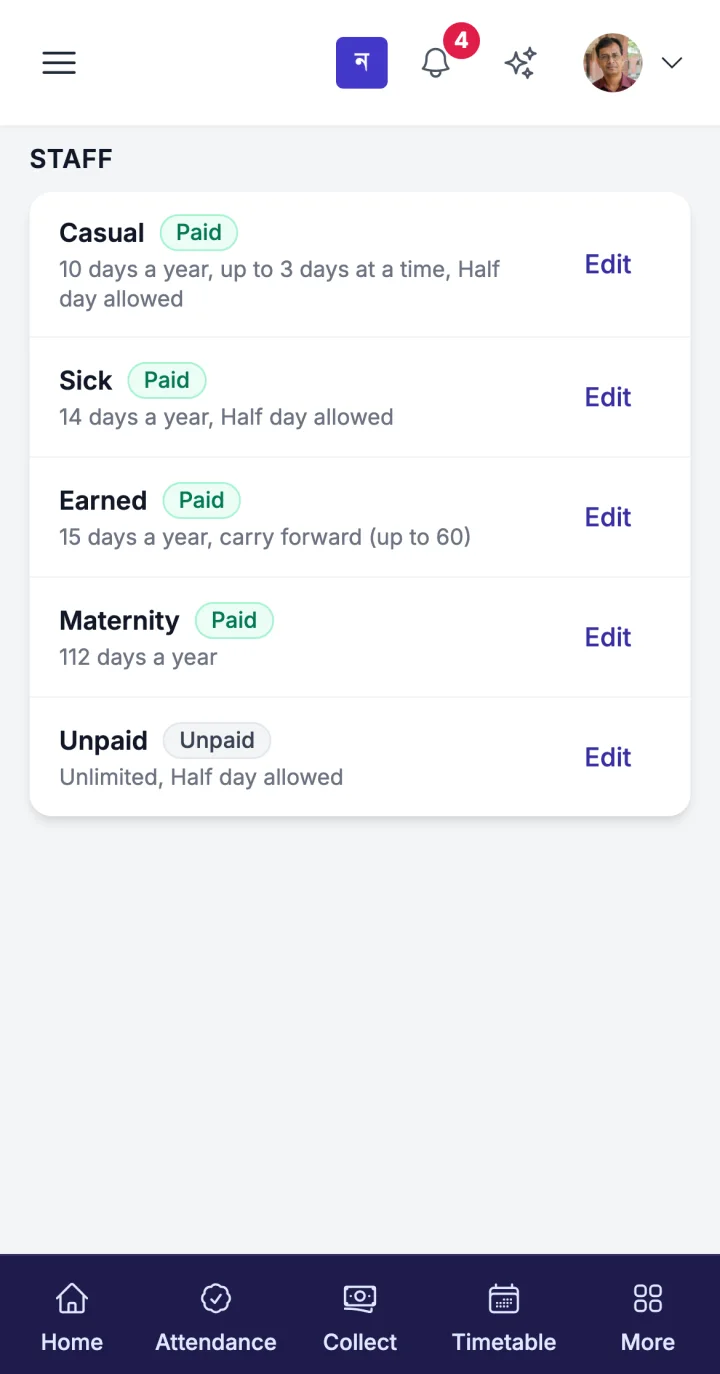
Press the Leave types tab. EduSine has already set up a few leave types.
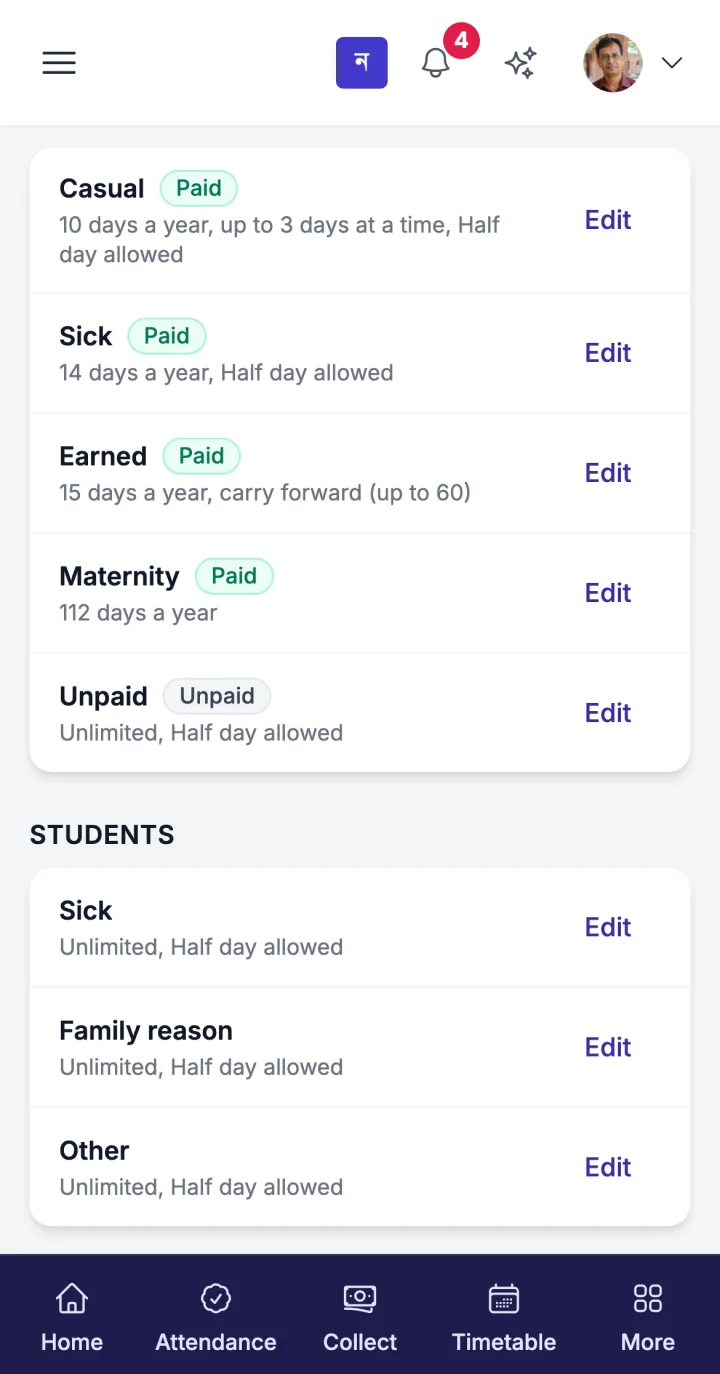
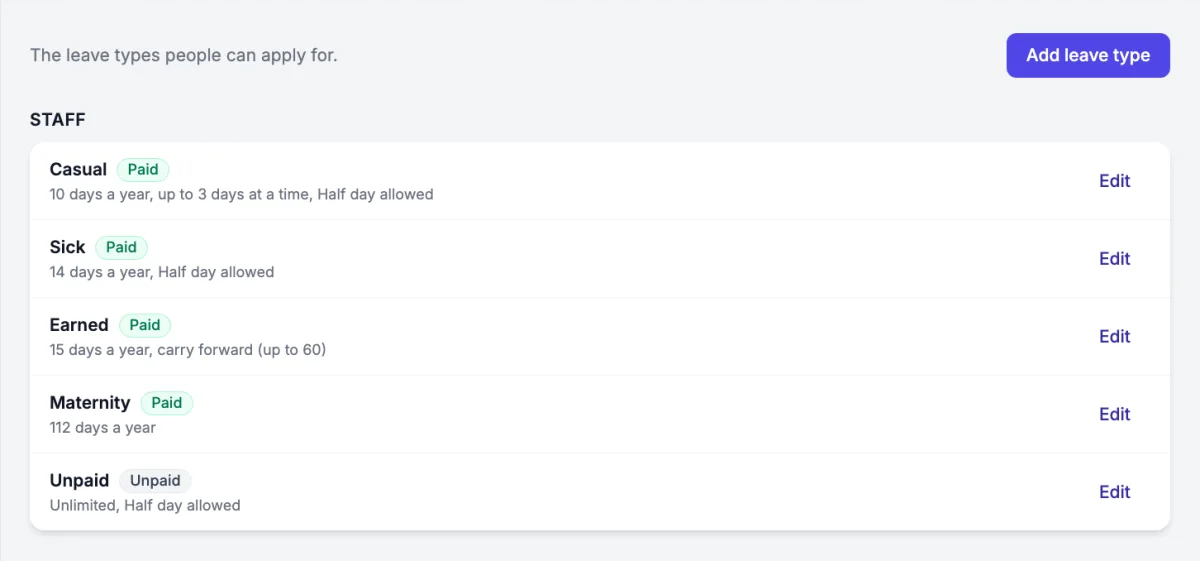
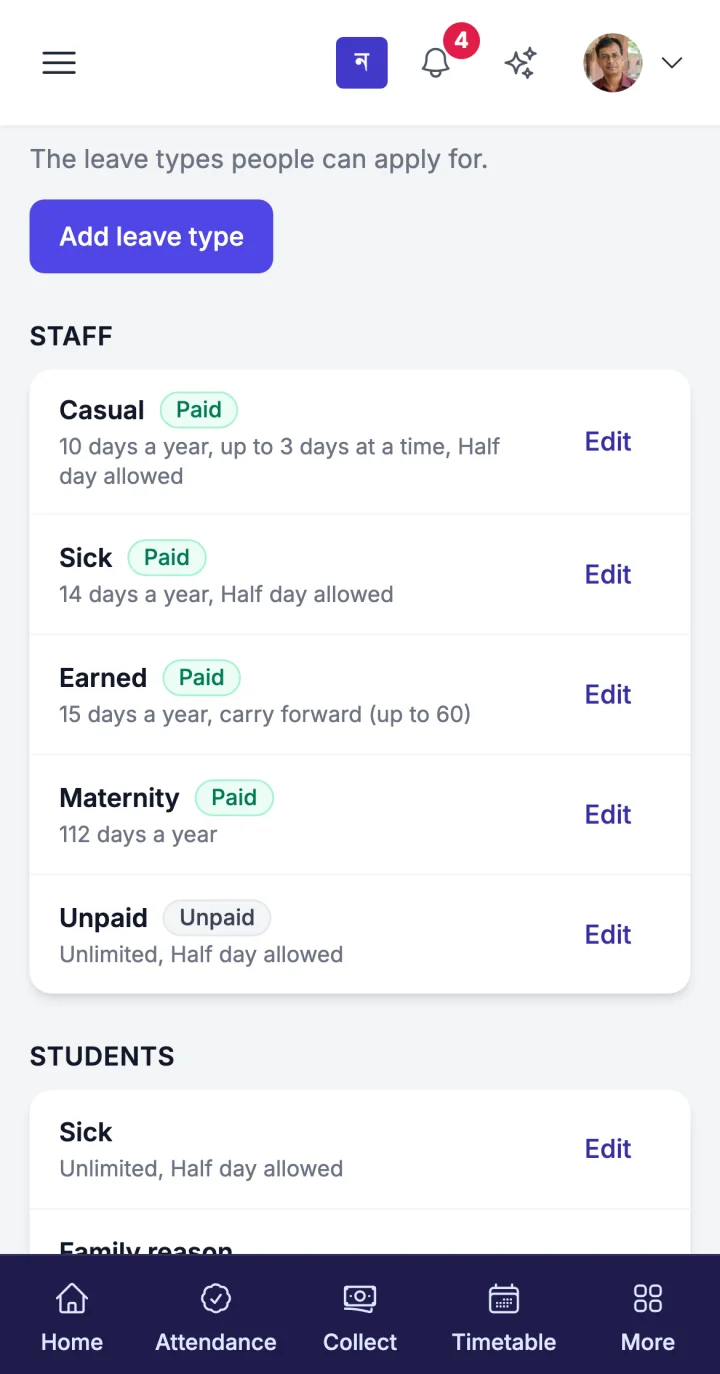
For staff: Casual (10 days a year, at most 3 days at a time), Sick (14 days a year), Earned (15 days a year; unused days go into the next year, up to 60 days), Maternity (112 days) and Unpaid (no limit).
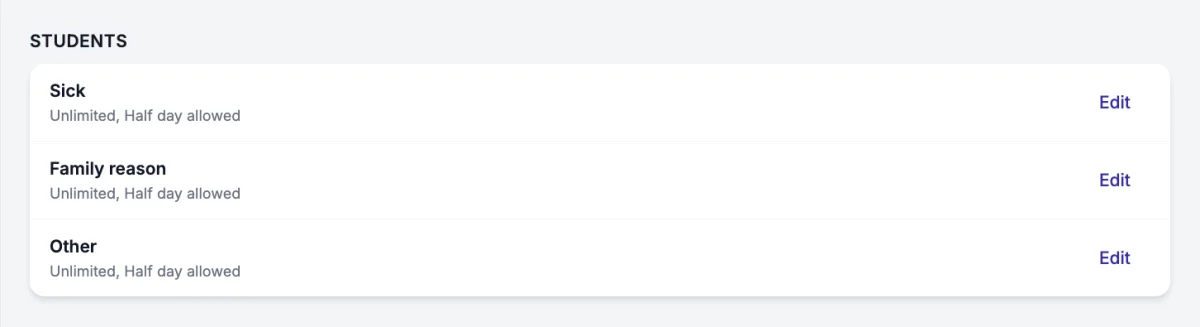
For students: Sick, Family reason and Other. There is no limit on student leave.
These usually do the job. But if your institution's rules are different, change them as in the next step.

 1
- 1The list of leave types

 1
- 1The list of leave types


Edit or add a leave type
Press Edit next to a type. If you need a new type, press Add leave type at the top. The same form opens.
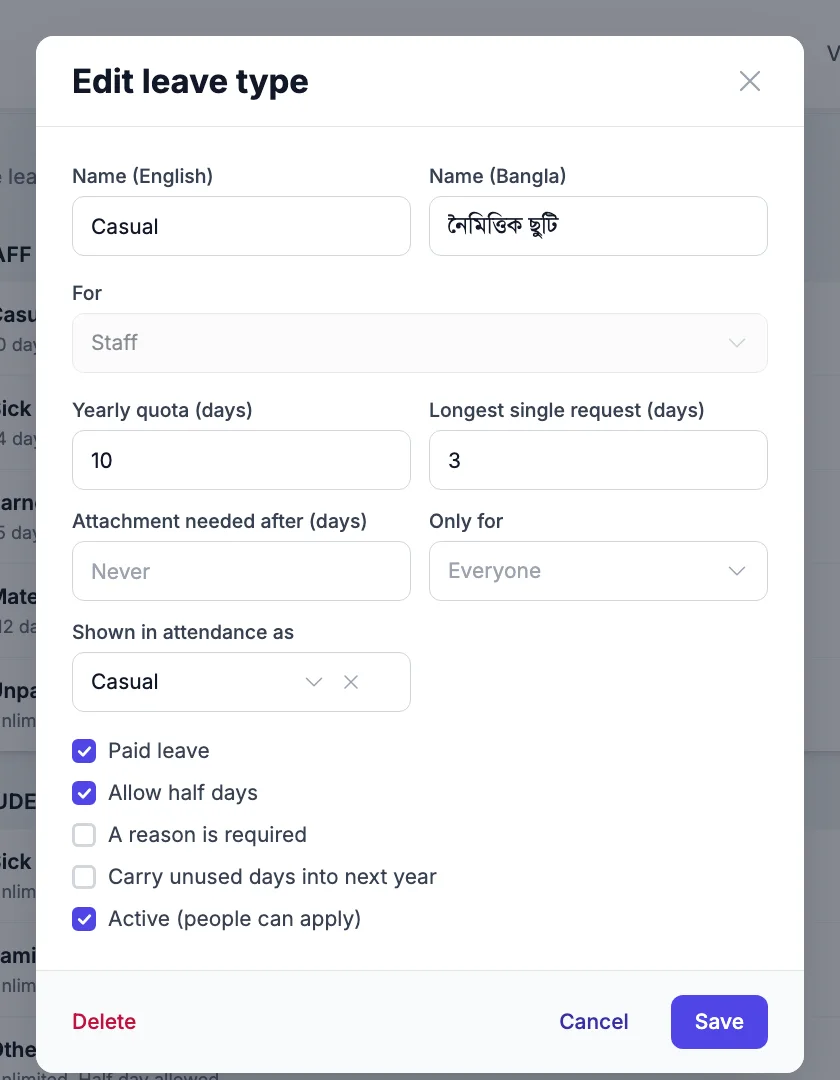
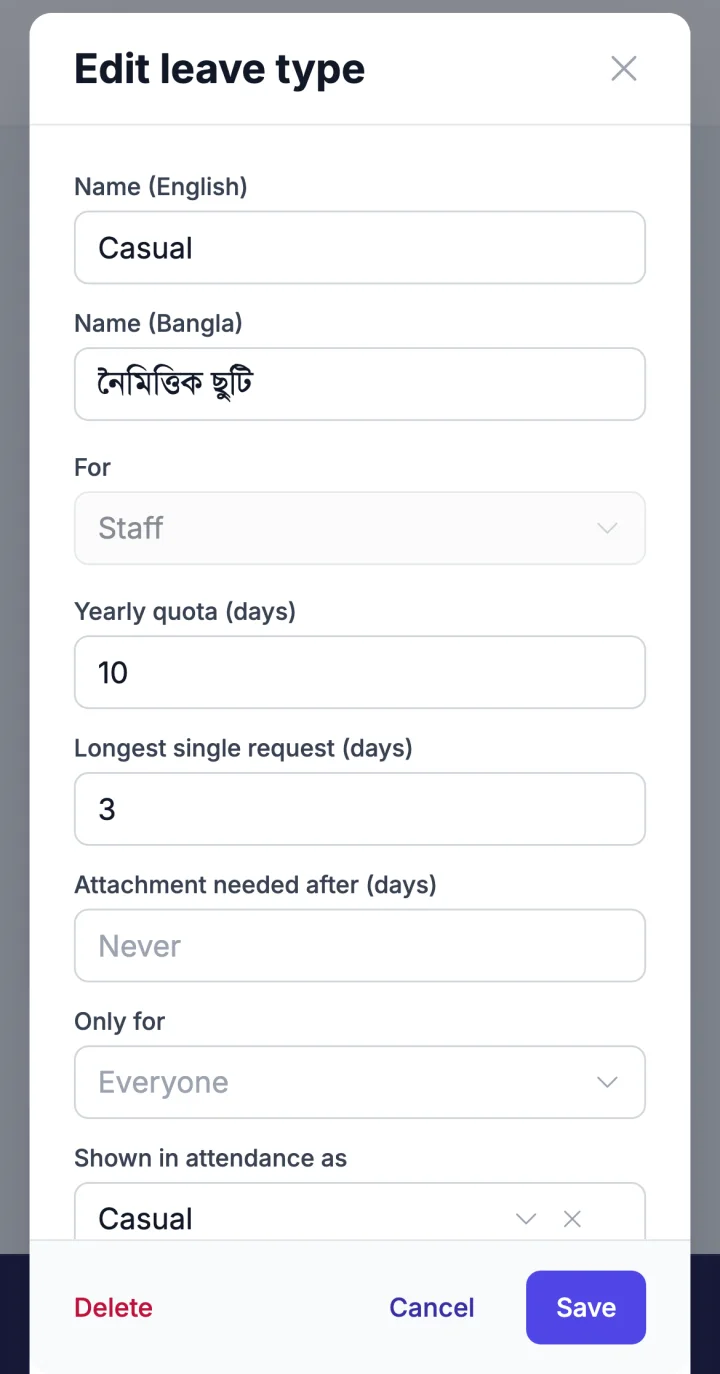
Type the Name (English) and Name (Bangla). In the For box, choose Staff or Students.
In the Yearly quota (days) box, type how many days a year can be given. The Longest single request (days) and Attachment needed after (days) boxes are optional. If you leave them empty, there is no limit.
In the Only for box you can choose Everyone, Men only or Women only; for example, maternity leave is for women only. In the Shown in attendance as box, choose the name the leave is written under in the attendance register.
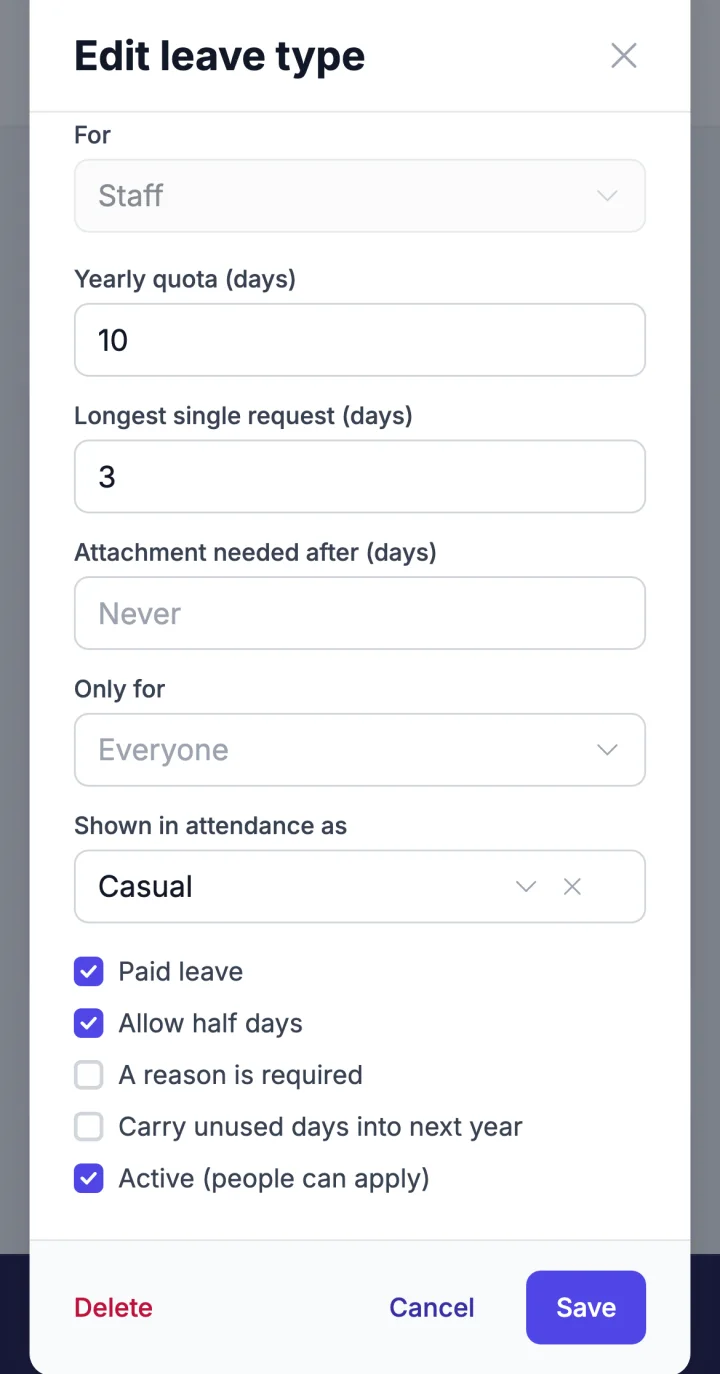
Check the ticks below: Paid leave, Allow half days, A reason is required, Carry unused days into next year, and Active (people can apply). Finally, press Save.

 12
- 1Edit
- 2Add leave type

 12
- 1Edit
- 2Add leave type

 12
- 1Yearly quota (days)
- 2Paid leave and the other ticks

 1
- 1Yearly quota (days)

 1
There is no computer screenshot for this step. Showing the phone screen.
- 1Paid leave and the other ticks
1- 1Paid leave and the other ticks
Tip: If you untick Paid leave, the days of that leave are cut from salary. If you no longer need a type, do not delete it: untick Active. A type that has been used cannot be deleted.
Give someone a different quota (if needed)
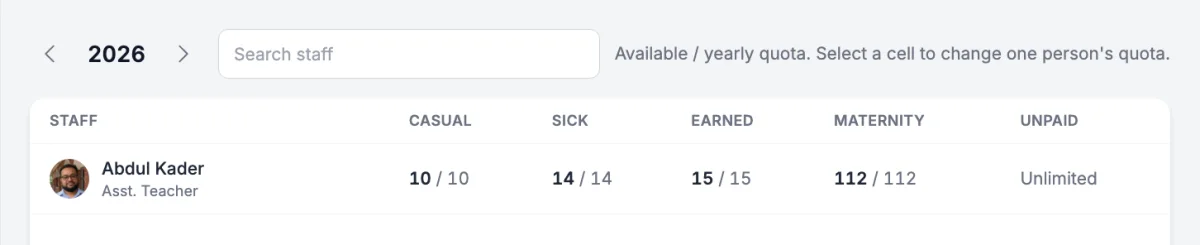
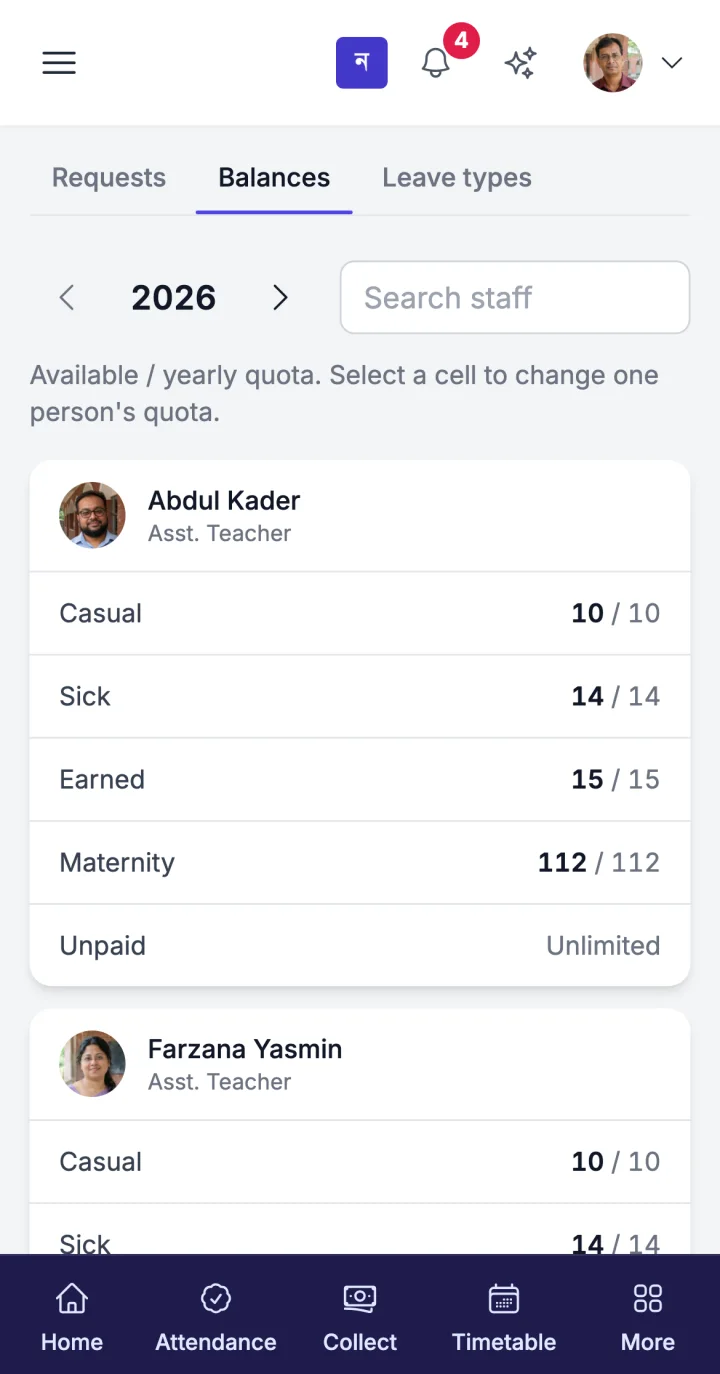
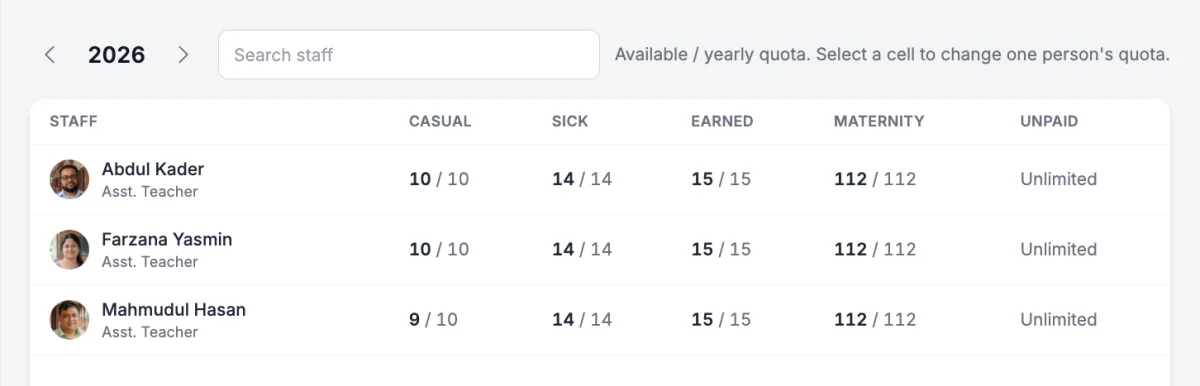
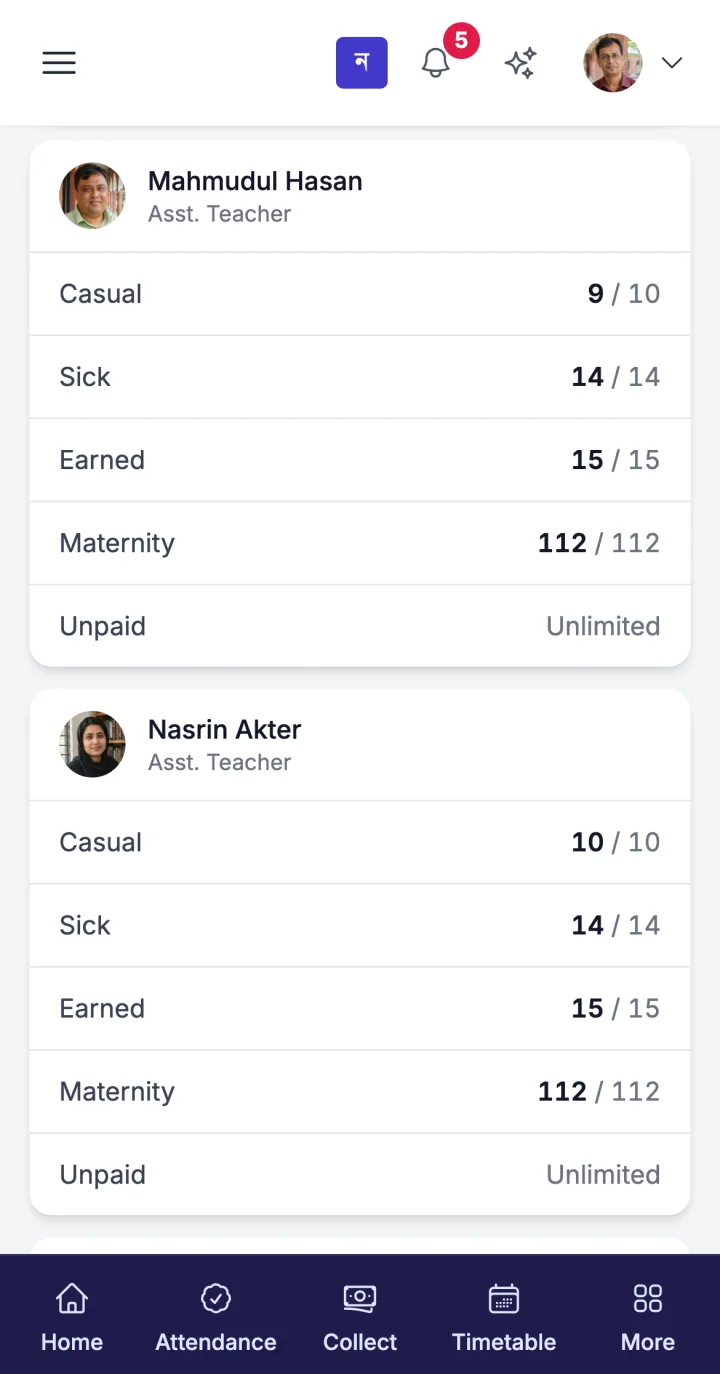
Press the Balances tab. Next to each employee, each kind of leave shows "left / quota for the year", for example 10 / 10.
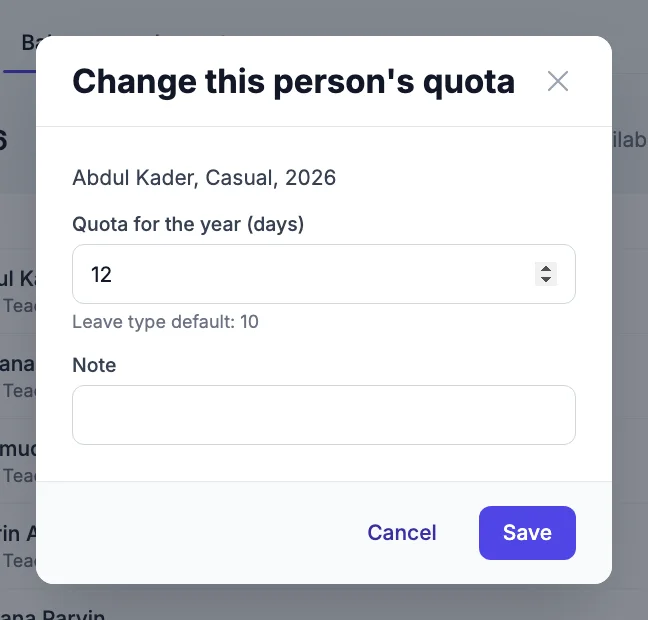
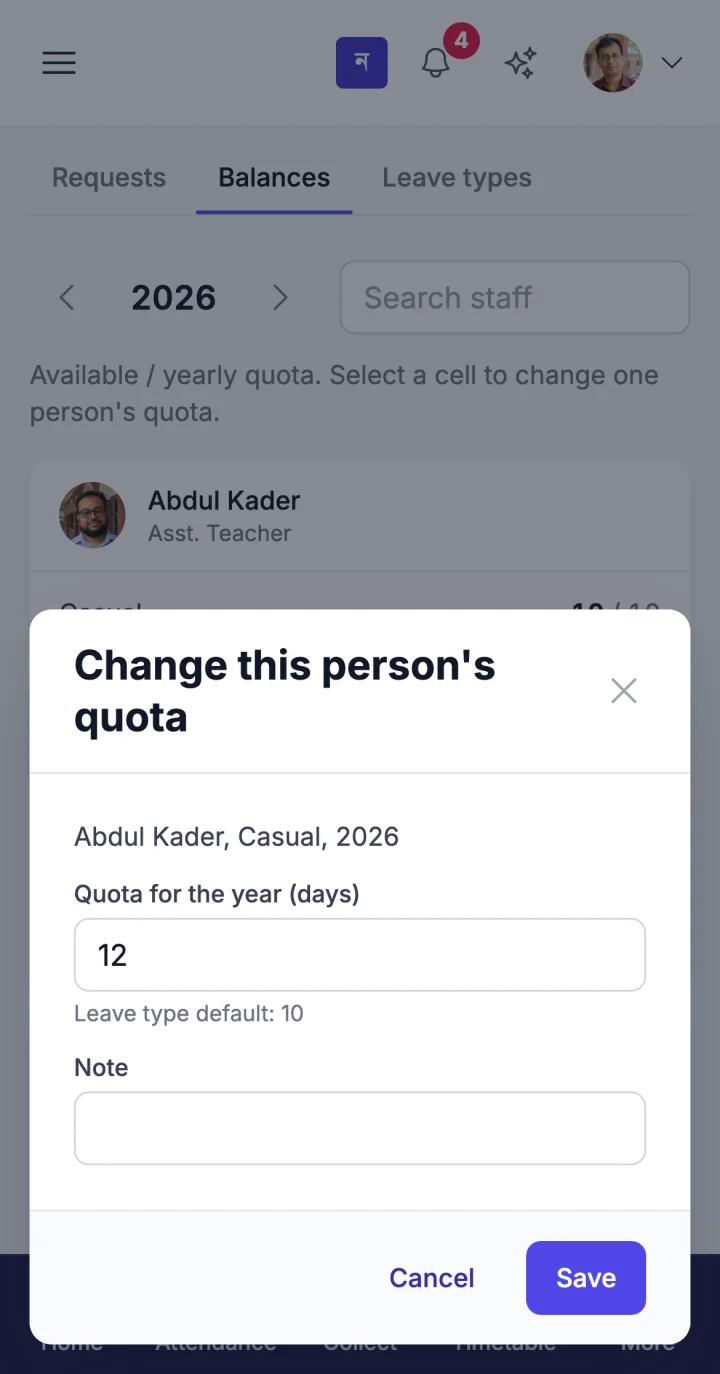
If someone's quota is different from everyone else's, press that box of theirs. A box called "Change this person's quota" opens. Type the new number of days and save.
To make it the same as everyone's again later, press the same box and press Back to default. Use Previous year and Next year at the top to see other years' figures too.

 1
- 1Left / quota for the year

 1
- 1Left / quota for the year

 1
- 1Change this person's quota

 1
- 1Change this person's quota
How a teacher or staff member applies
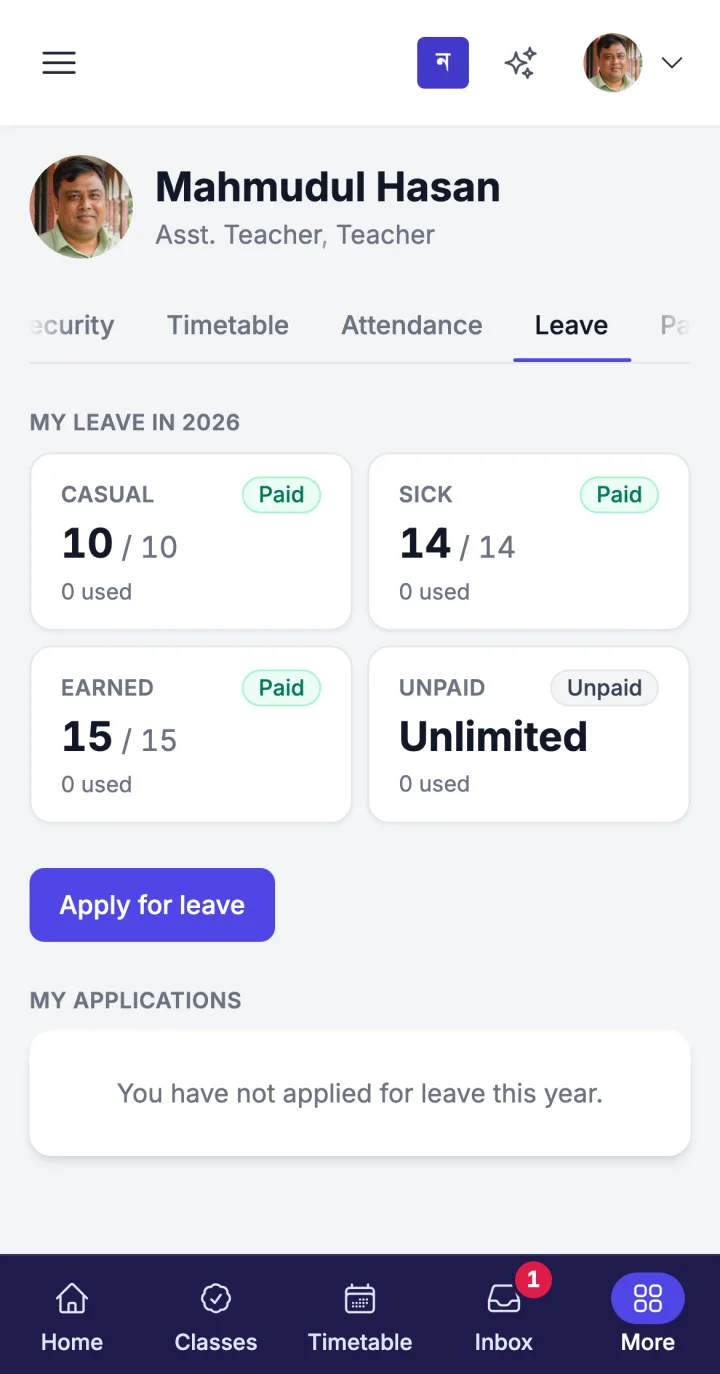
The teacher or staff member signs in themselves and goes to the Leave tab of their own page (My space). On a phone, their own page opens from More in the bottom bar.
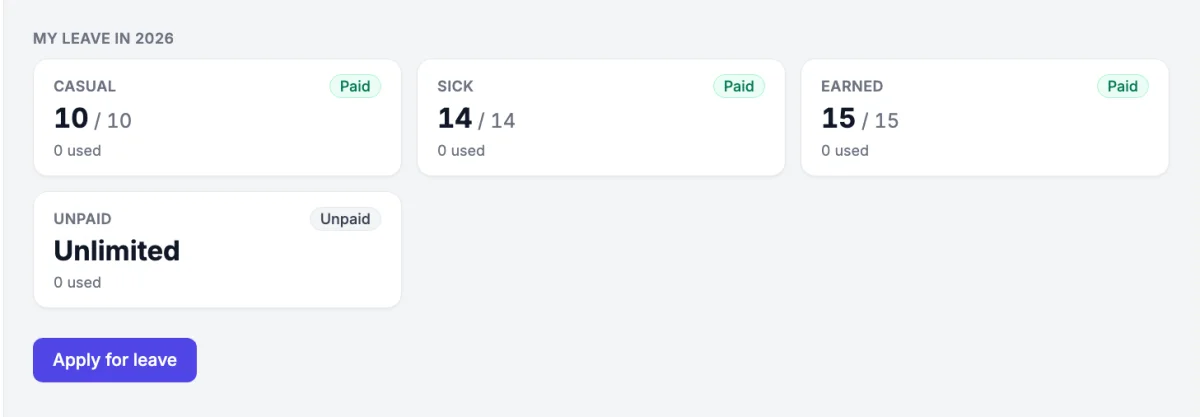
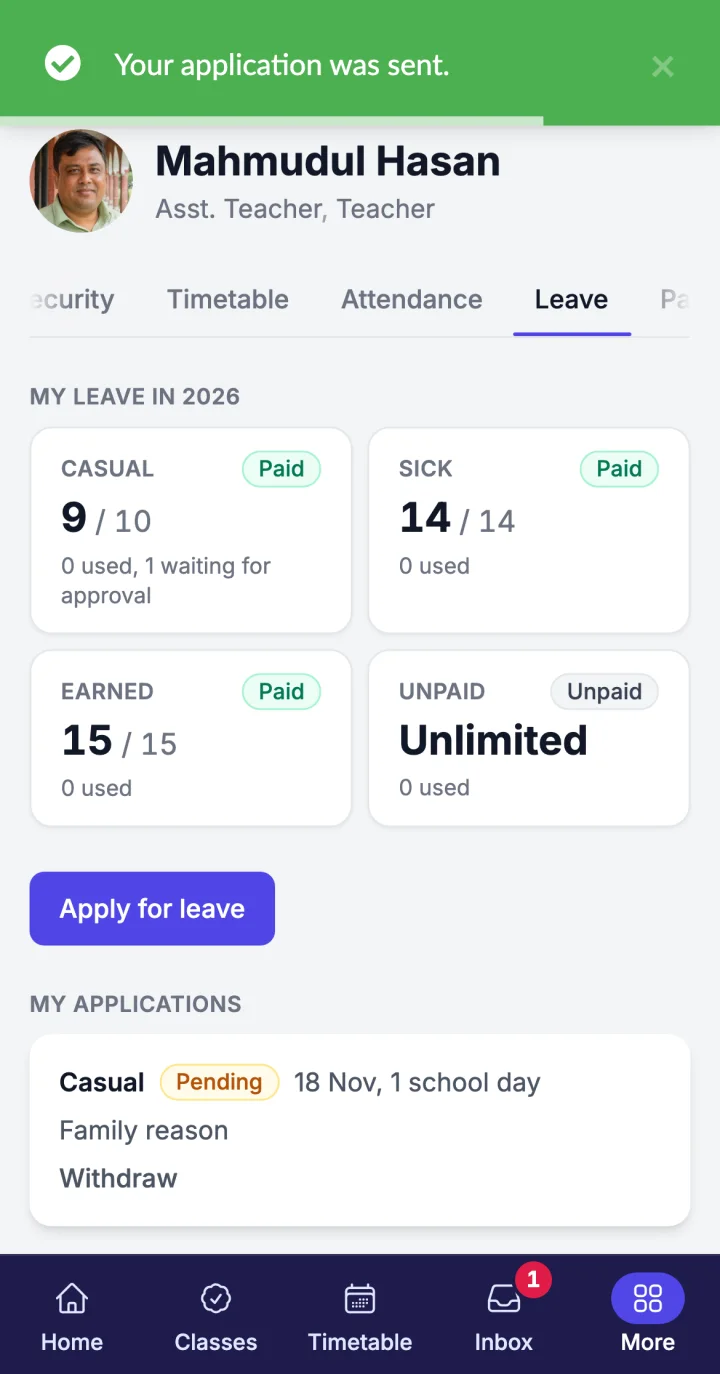
The "My leave in 2026" part at the top shows how many days of each leave are left and how many have been used.
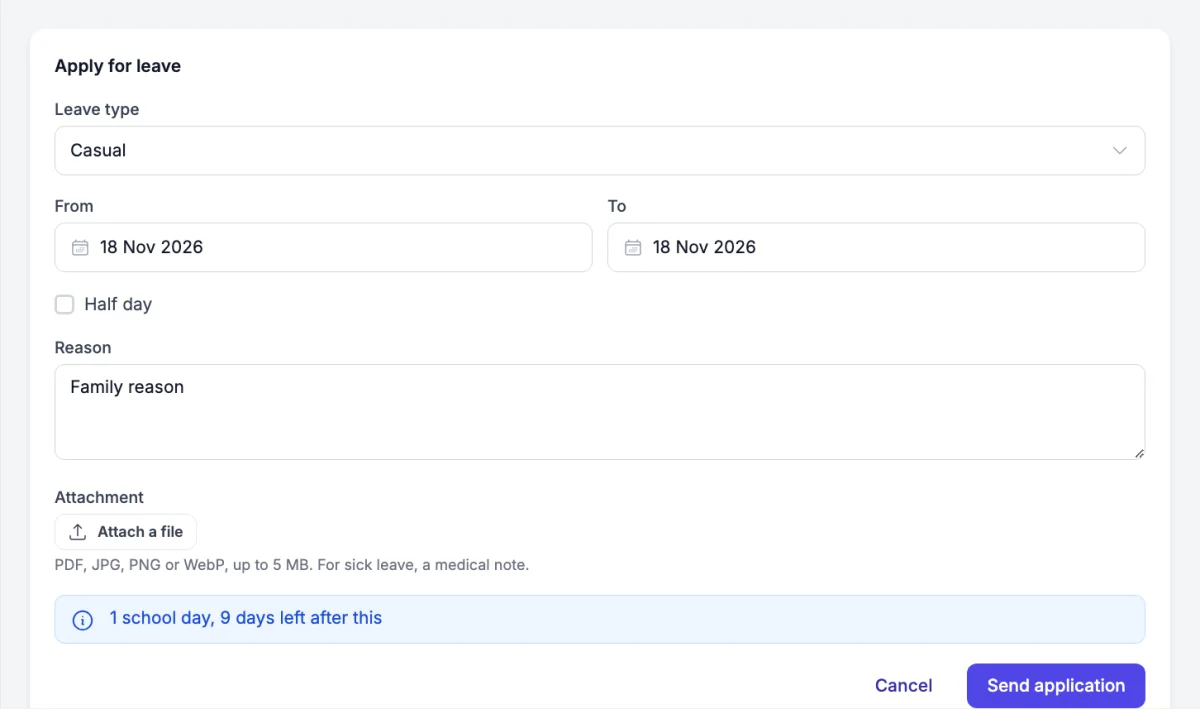
Press Apply for leave. Choose the leave type, for example Casual. Give the start and end dates. For one day of leave, giving the start date makes the end date the same day.
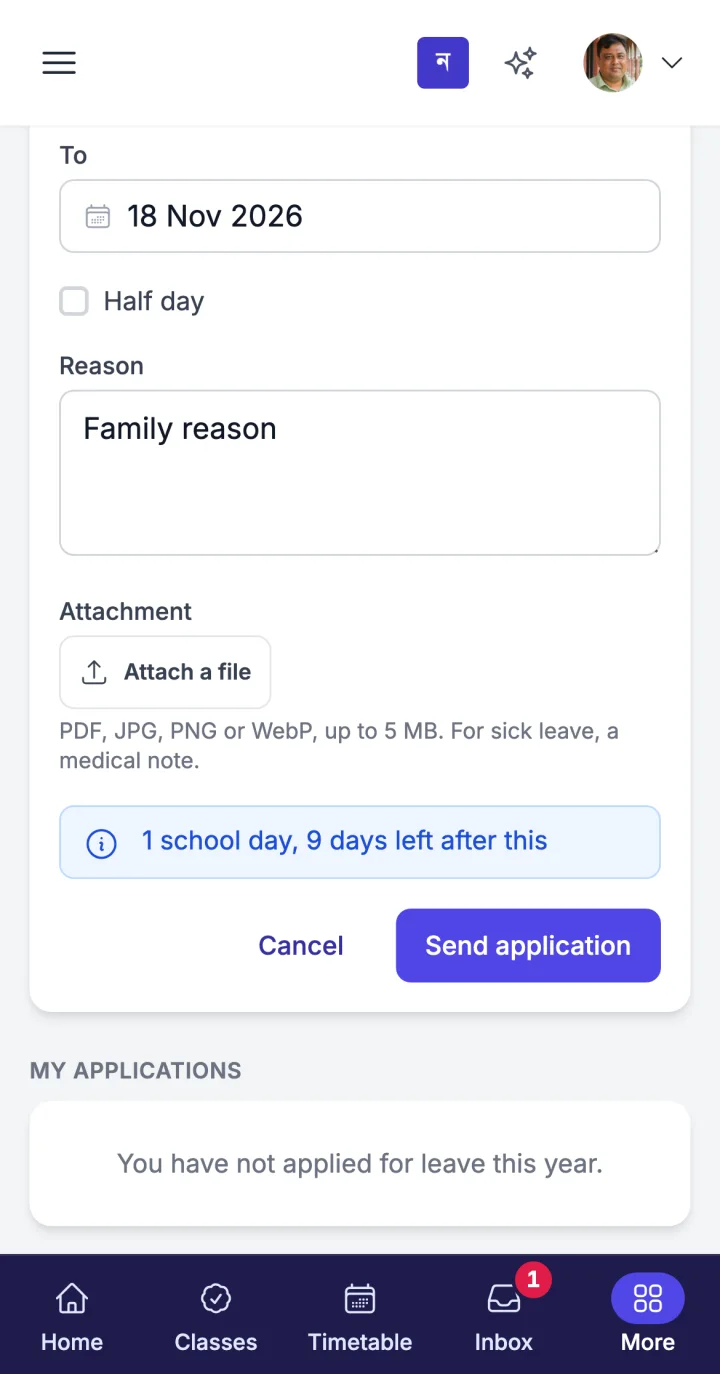
Type the reason. If there are papers, press Attach a file to add them (PDF, JPG, PNG or WebP, up to 5 MB).
Below, it says how many school days of leave this is and how many days will be left after it, for example "1 school day, 9 days left after this". Then press Send application.
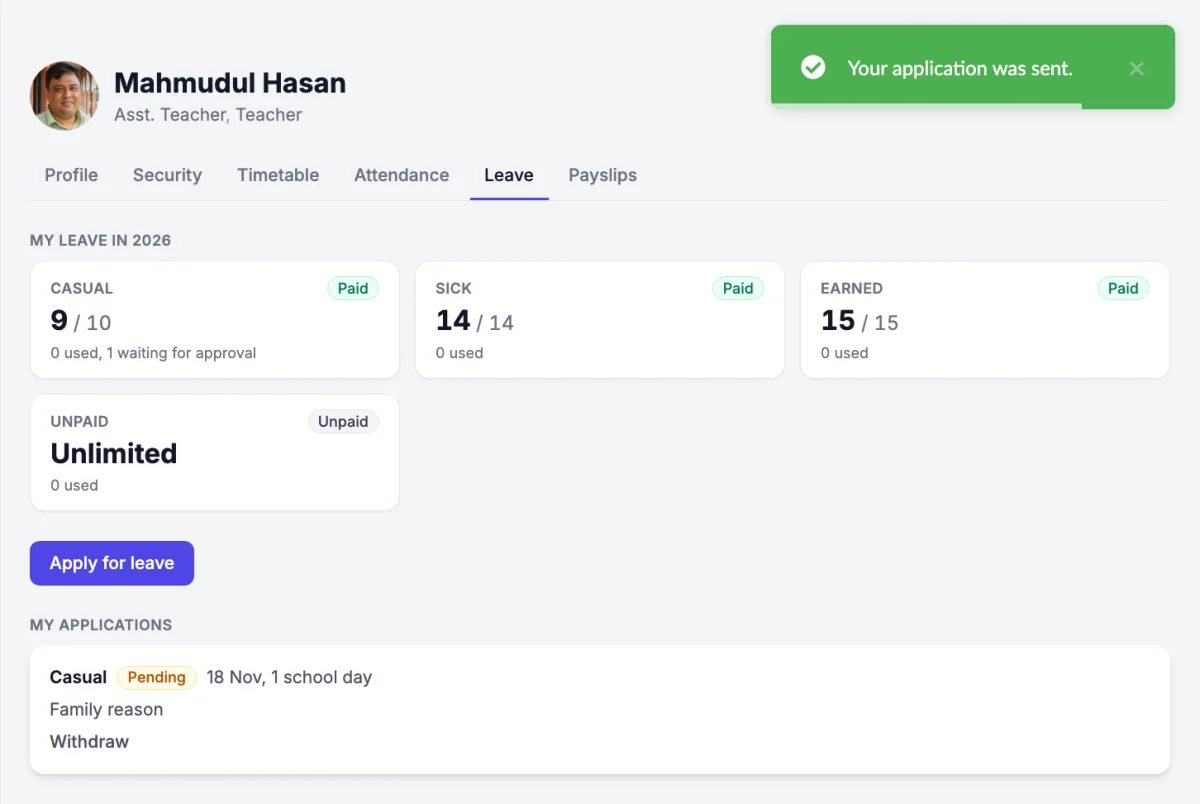
The message "Your application was sent." appears. In the My applications list, the request shows as Pending. If they change their mind, pressing Withdraw is enough.

 12
- 1My leave this year
- 2Apply for leave

 12
- 1My leave this year
- 2Apply for leave

 12
- 1School days, and days left after this
- 2Send application

 1
- 1School days, and days left after this


Tip: Weekly holidays and the calendar's holidays are not counted as leave; only school days are counted.
Approve or reject a request
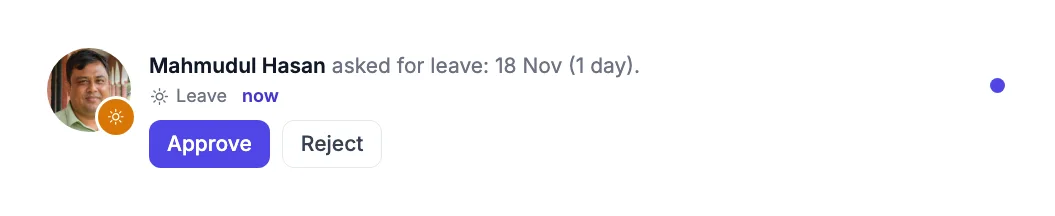
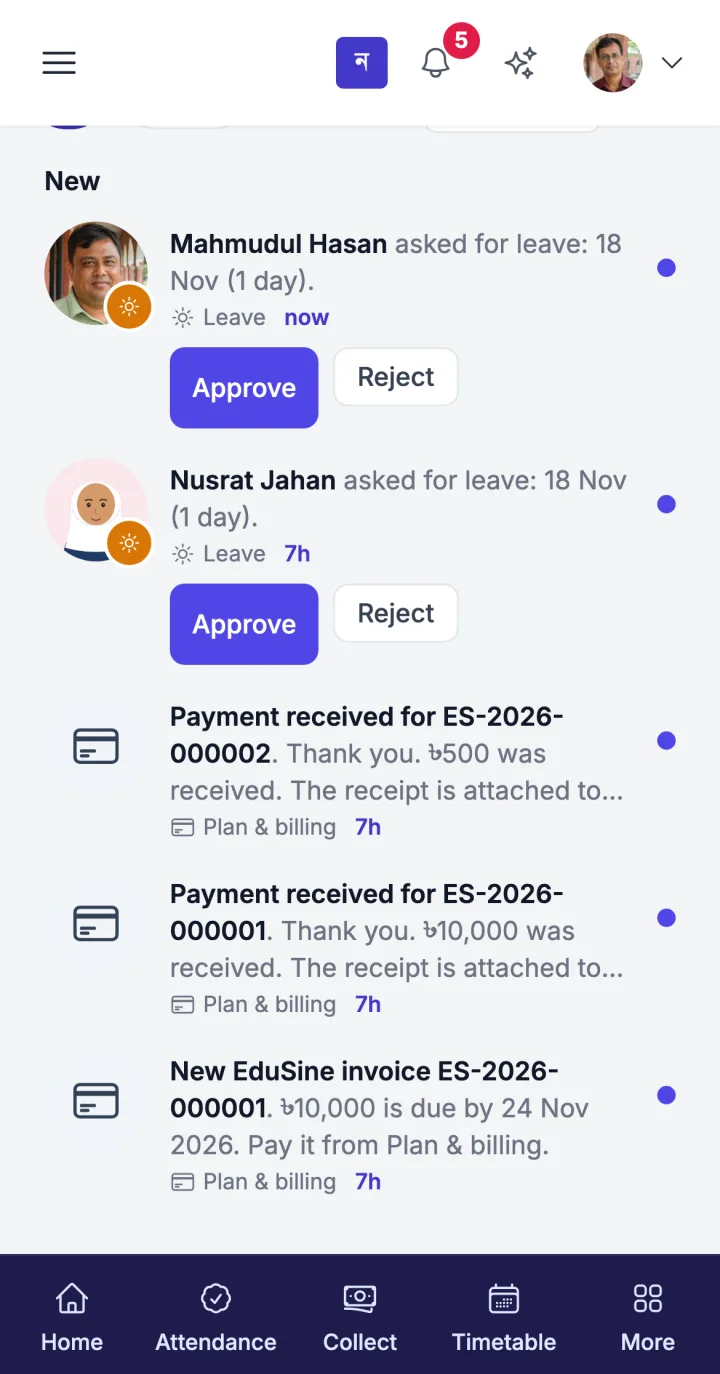
When a new request comes, the people who can approve it get a notification, for example "Mahmudul Hasan asked for leave". The request also shows in the Approvals part of the dashboard.
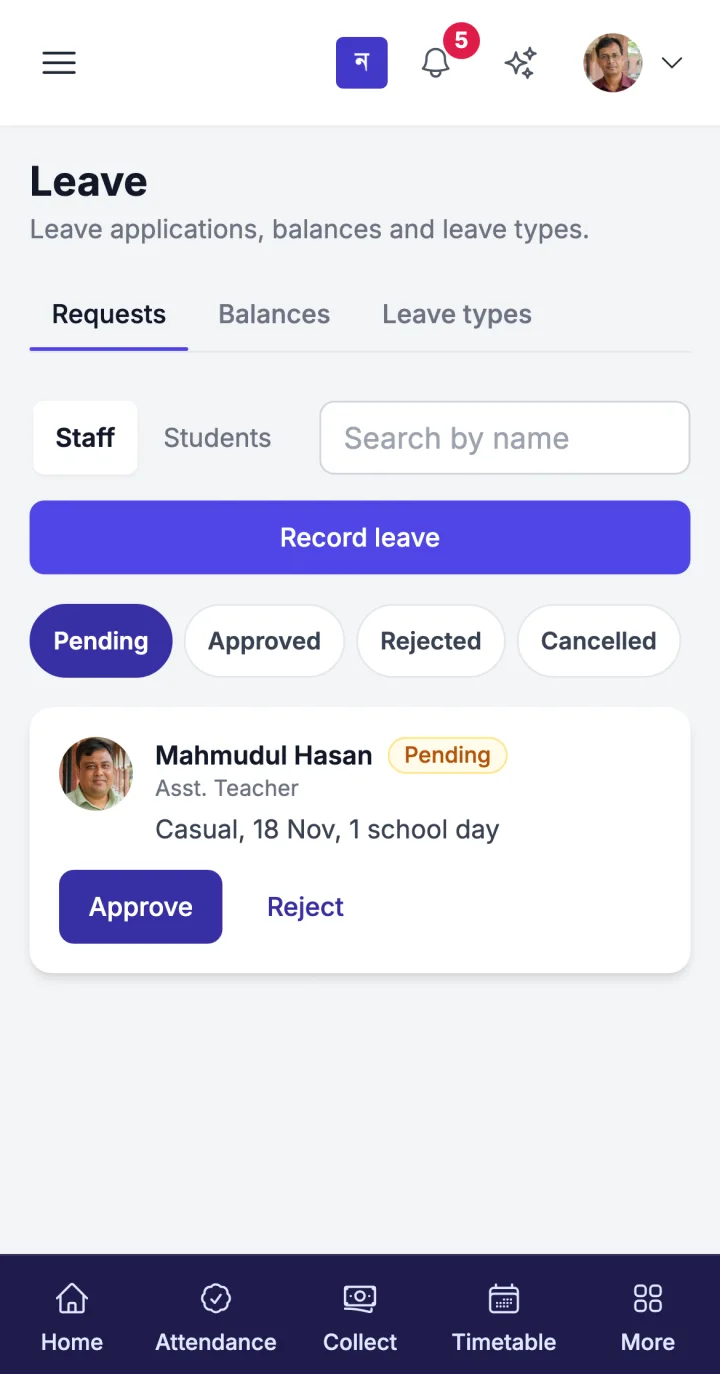
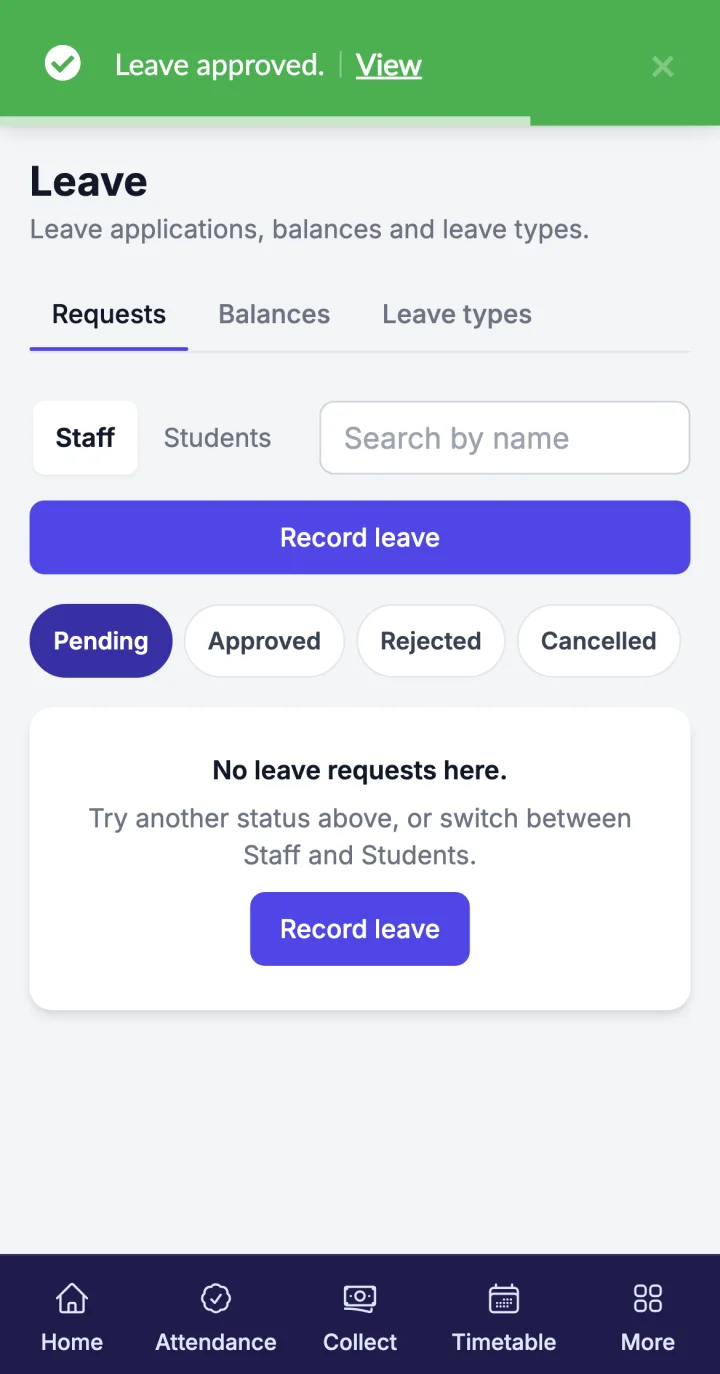
From the notification, the dashboard or the Attendance → Leave page, wherever you are, you can press Approve or Reject directly. To see the full request, the reason and the attachment, press the name.
When you approve, the message "Leave approved." appears. To reject, you must write a comment, which the applicant can see. Either way, the applicant gets a notification.
As soon as it is approved, the leave days are written into attendance as "Leave", and the days are taken off the leave left. If it is unpaid leave, those days are cut from salary.

 12
- 1Approve
- 2Reject

 12
- 1Approve
- 2Reject

 12
- 1Approve
- 2Reject

 12
- 1Approve
- 2Reject



Cancel approved leave (if needed)
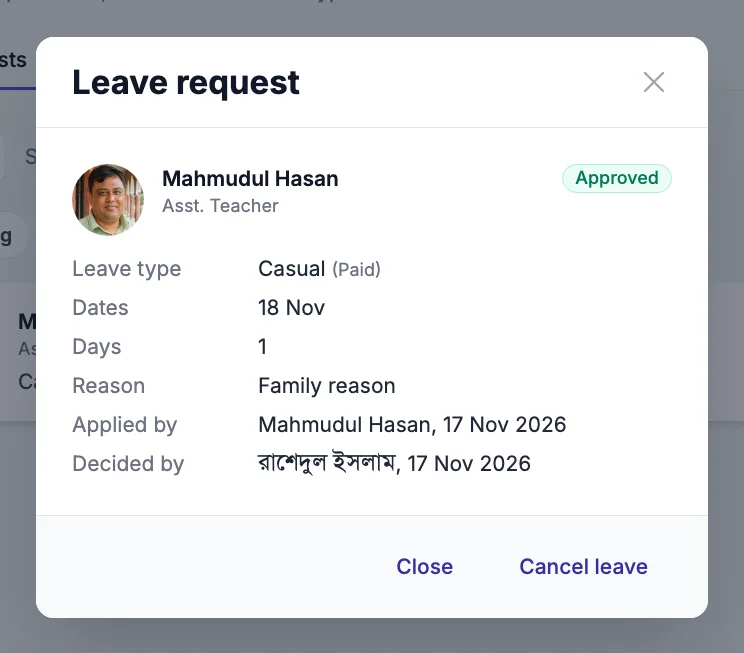
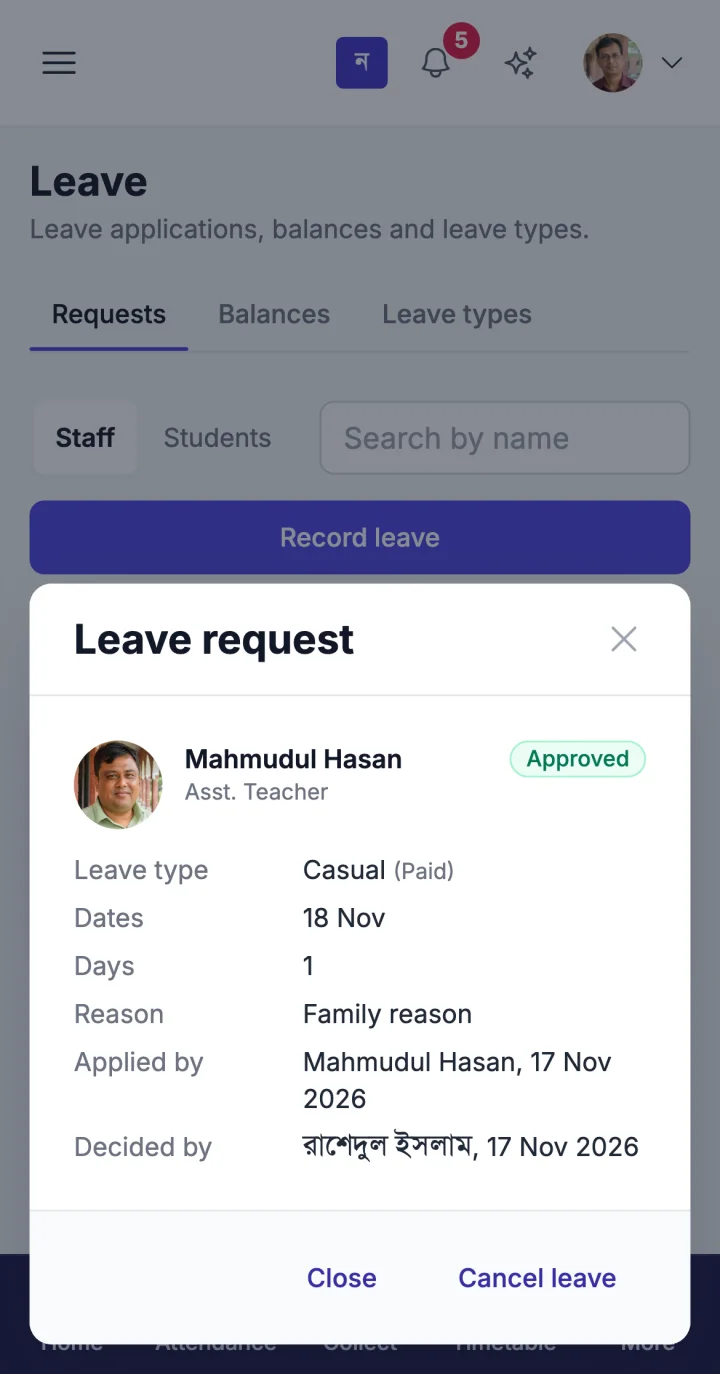
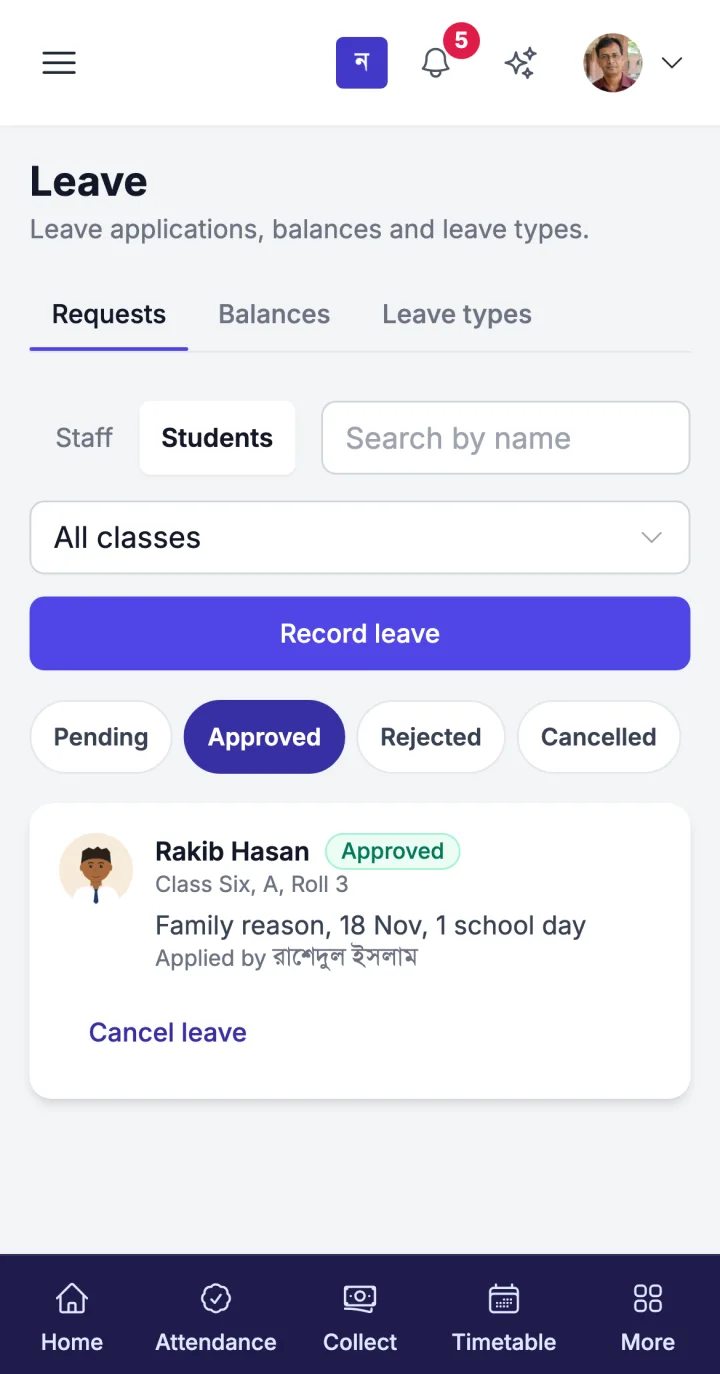
If someone does not take their leave after it is approved, press the request and press Cancel leave. Whatever was written in attendance for this leave goes back to how it was.
An approved request cannot be made "Pending" again. If you approved it by mistake, cancel it.

 1
- 1Cancel leave

 1
- 1Cancel leave
See students' leave requests
A guardian can apply for leave for their child from their portal, and a student can also apply from their own portal. When a request comes, the class teacher gets a notification.
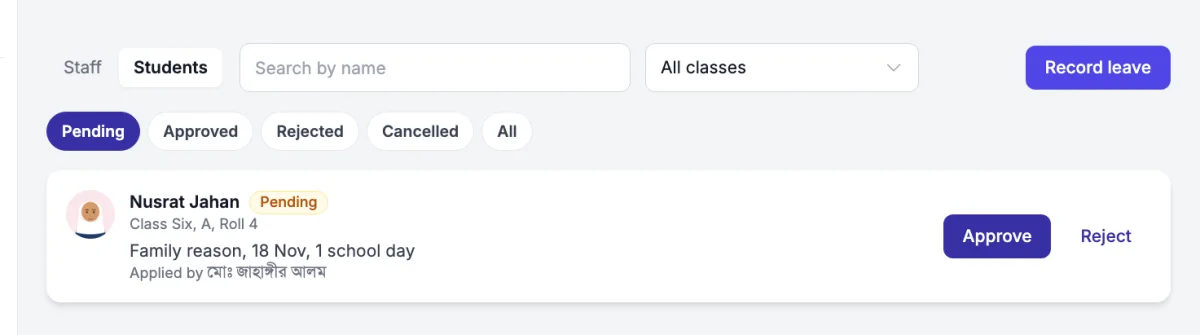
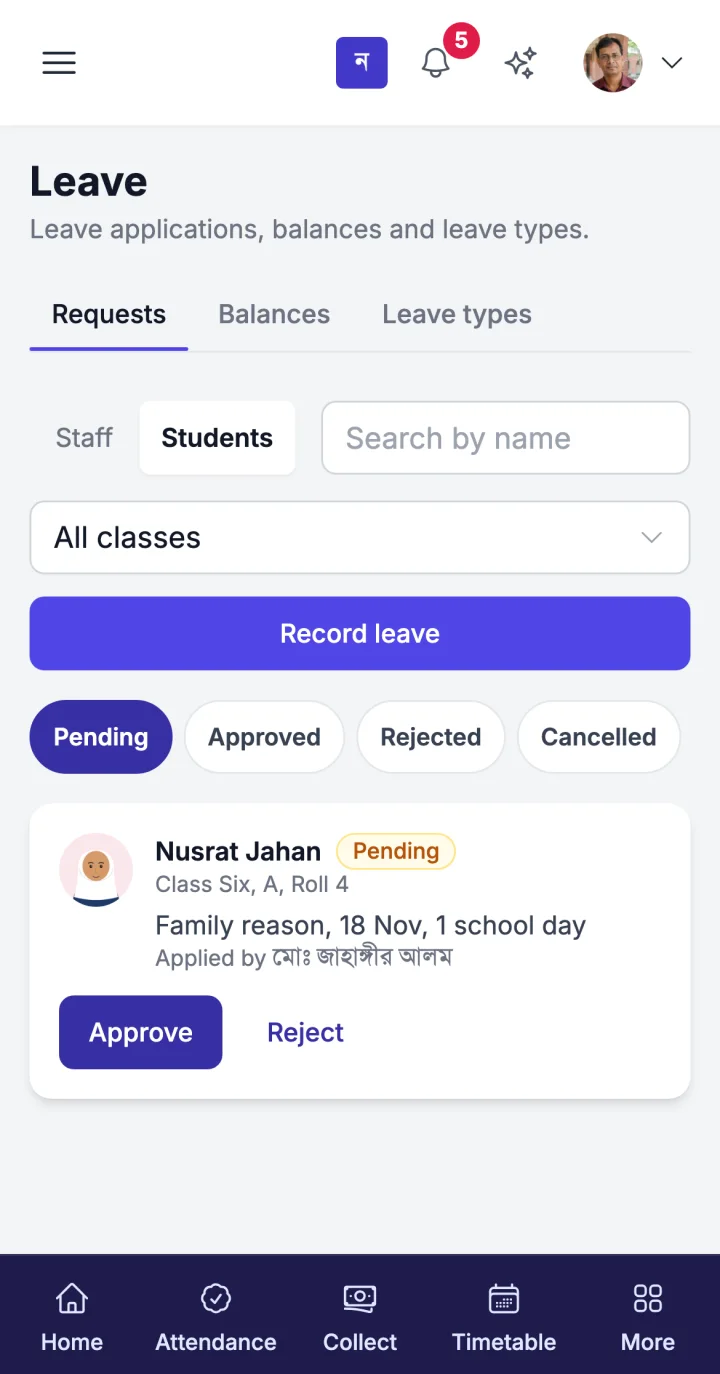
On the Leave page's Requests tab, press the Students group. Each request has the student's name, class, section, roll, leave type and dates. To filter by class, press All classes and choose the class.
A class teacher sees and approves requests only for students of their own class (or their own section). When it is approved, those days show as "On leave" in the class's attendance, and the guardian gets a notification.

 1
- 1Students

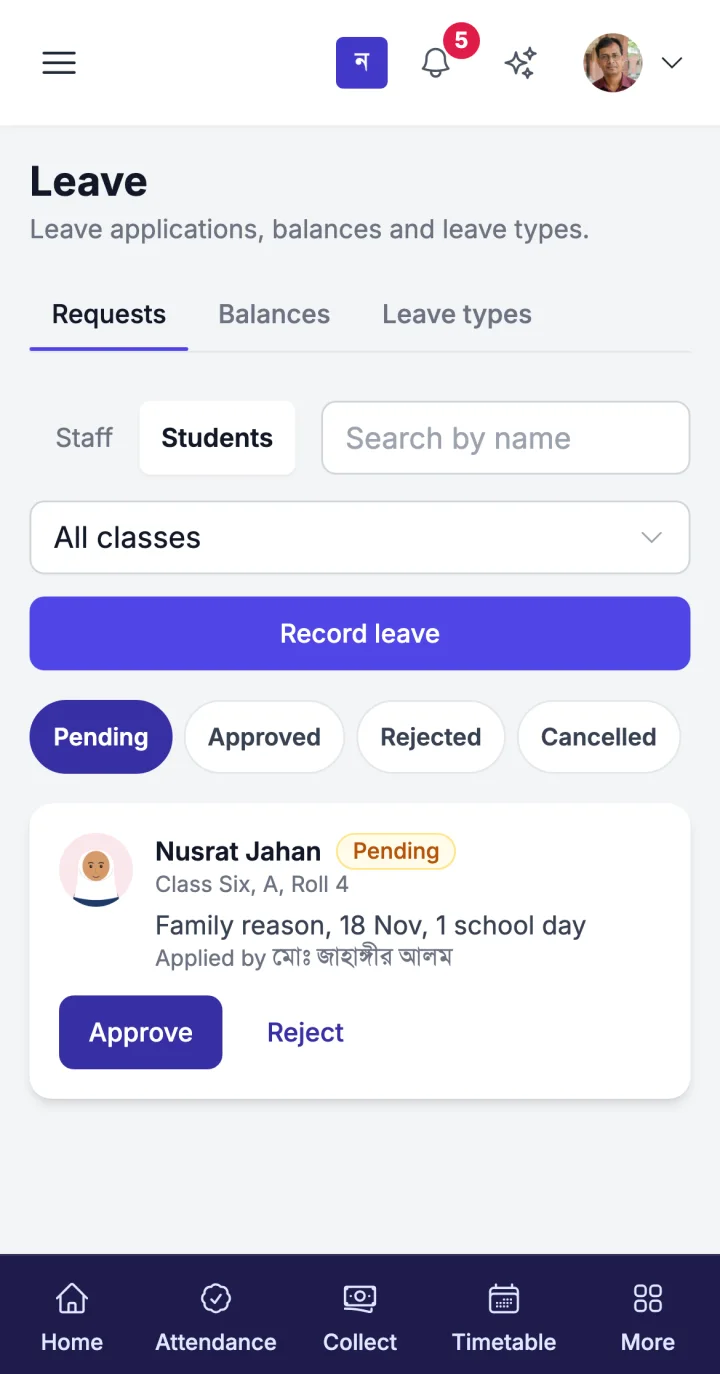
Tip: If you want to stop taking leave requests from the portal, you can turn it off in your institution's portal settings. Guardians then see that leave requests must be made at the office.
Record someone's leave from the office
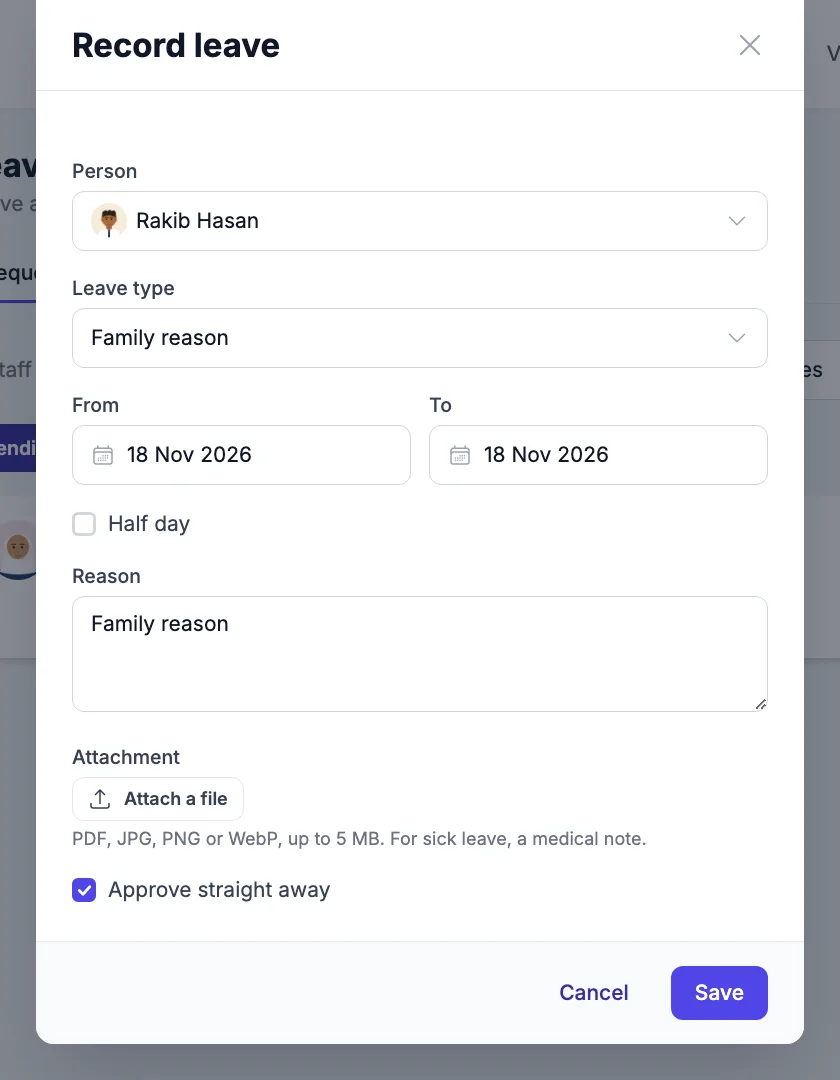
If a guardian phones or comes to the office about leave, you can record it yourself. Press Record leave at the top of the Leave page.
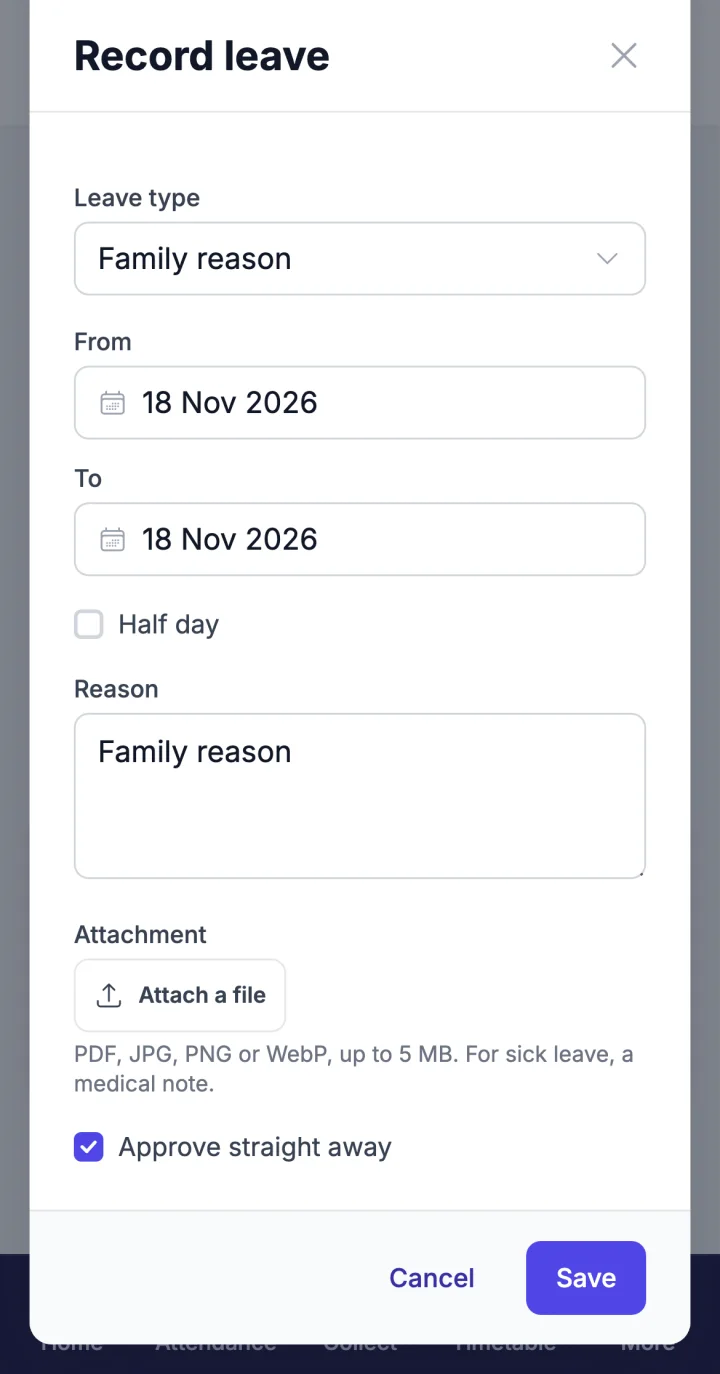
Choose Staff or Students. In the Person box, type a few letters of the name and pick them from the list, for example Rakib Hasan. Choose the leave type, for example Family reason. Then give the start and end dates, and type the reason.
The Approve straight away tick is on from the start. With it ticked, the leave is approved as soon as you save. If someone else will approve it, untick it. The request then stays Pending.
Finally, press Save. In the request list, it says below who recorded the request.

 1
- 1Record leave
 1
- 1Record leave

 1
- 1Approve straight away

 1
- 1Approve straight away



What to do next
When you take daily attendance, students and staff on approved leave already show as "Leave". You do not have to do anything separate about them.
In the middle or at the end of the year, open the Balances tab and see how many days of leave each person has left. Unused days of earned leave are added to the new year by themselves.


If something goes wrong
"Not enough leave left (2 days available)."
You cannot apply for more days than the quota. Make a separate request for the remaining days as Unpaid leave, or the office can raise their quota from the Balances tab.
"These dates have no school days"
Every chosen day is a weekly holiday or a calendar holiday. No leave request is needed for these days.
"You already have leave on some of these dates."
There is already another request for the same day. Look at the My applications list. If needed, withdraw the earlier one and apply again.
"This leave type allows at most 3 days at a time."
For example, casual leave cannot be taken for more than 3 days at a time. If you need more days, choose another type of leave, or tell the office.
"You cannot decide your own leave."
Even the Principal's own leave is approved by someone else, such as the Chairman or the Vice Principal, who has permission to approve staff leave.
More tutorials
See how to do the other jobs in EduSine, step by step.
Homework and class tests
Set homework and announce class tests, record hand-ins and marks, publish them, and add them to exam marks if you like.
ReadStudy materials
Share class notes, solutions, syllabuses or video links with a class's students and guardians in the portal.
ReadClass announcements
Send announcements to a class's students and guardians, free in the app, or by SMS or email.
ReadCan’t find what you’re looking for?