The head teacher's message and other messages
You can publish the messages of the head of the institution and the chairman on your institution's website. In EduSine each message has a page of its own. If you like, you can also show small cards with photos on the home page. Press a card and the full message opens.
When you open your account, EduSine writes a welcome message in the name of the head of the institution. Change it into your own words, and if needed, add the messages of the chairman, vice chairman or secretary too. Any message can be edited or hidden later.
The admin, or anyone with permission to edit content, can do this. To take a name and photo from a committee member's details, first add them in People → Managing committee.
Keep these at hand to give the messages quickly
The head of the institution's and the chairman's messages in writing (you can copy them from a Word file)
A photo of each person (best if square, with the face in the middle)
Each person's name and designation, in Bangla and English
What this tutorial covers
See which job is in which step.
The list of messages
Which messages there are, and which show on the website
The head teacher's message
Writing the welcome message your way, and giving a photo and designation
The chairman's message
Adding a new message, taking the name from the committee's details
Showing on the website
The order, the full page, the menu and the home page cards
Hiding and deleting
Removing for a while, or deleting for good
Step by step
Follow along as each step appears on your screen.
Open the Messages page
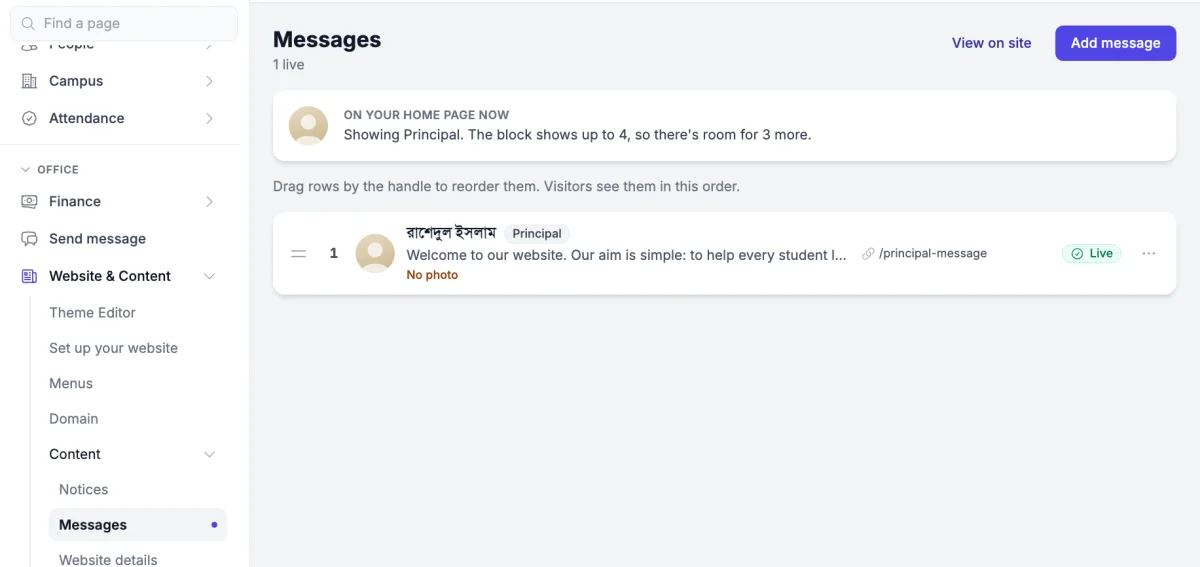
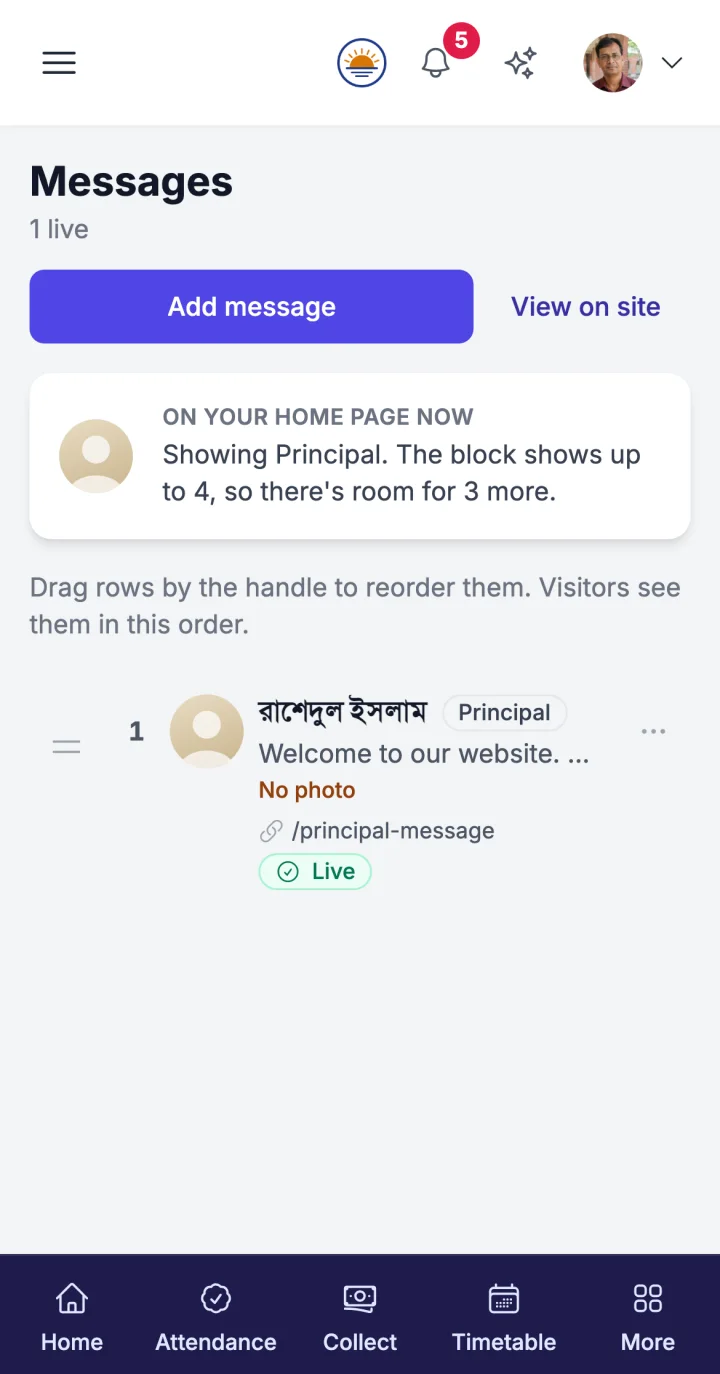
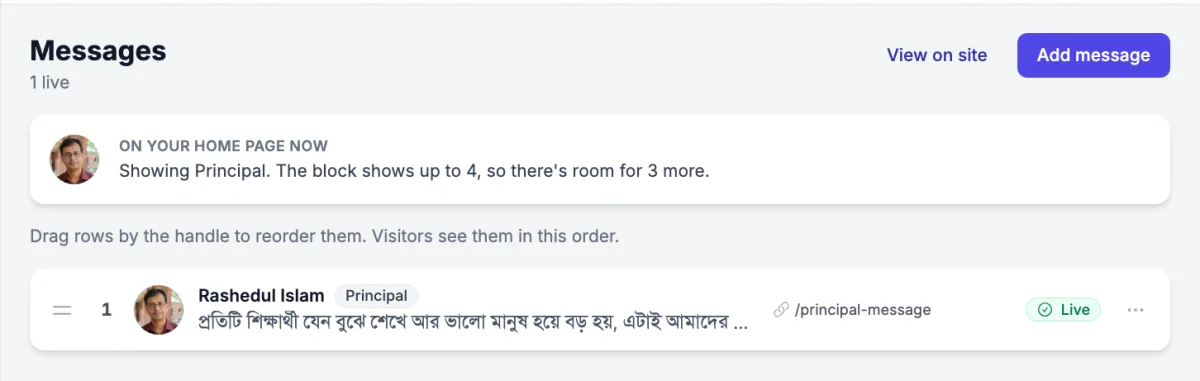
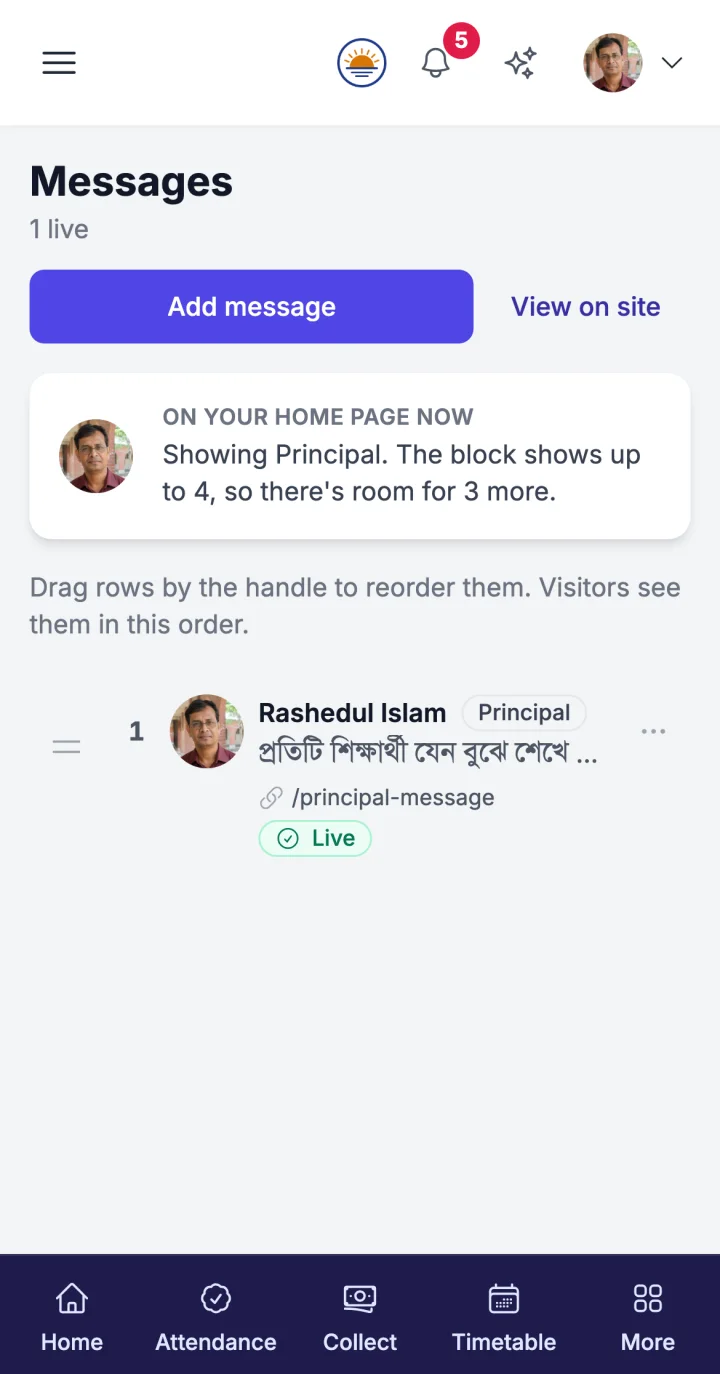
In the menu on the left, press Website & Content → Content → Messages. All your messages are arranged by number. Each row has the name, the role, the first few lines of the message, whether there is a photo, and the address the full message opens at (for example /principal-message).
At the start there is one message by Rashedul Islam, with "No photo" in its row. EduSine wrote this itself when you opened your account.
The On your home page now part at the top says whether messages are shown on the home page. What to do if they are not shown is in step 9.

 123
- 1Website & Content → Content → Messages
- 2On your home page now
- 3No photo

 12
- 1On your home page now
- 2No photo
Open the head teacher's message
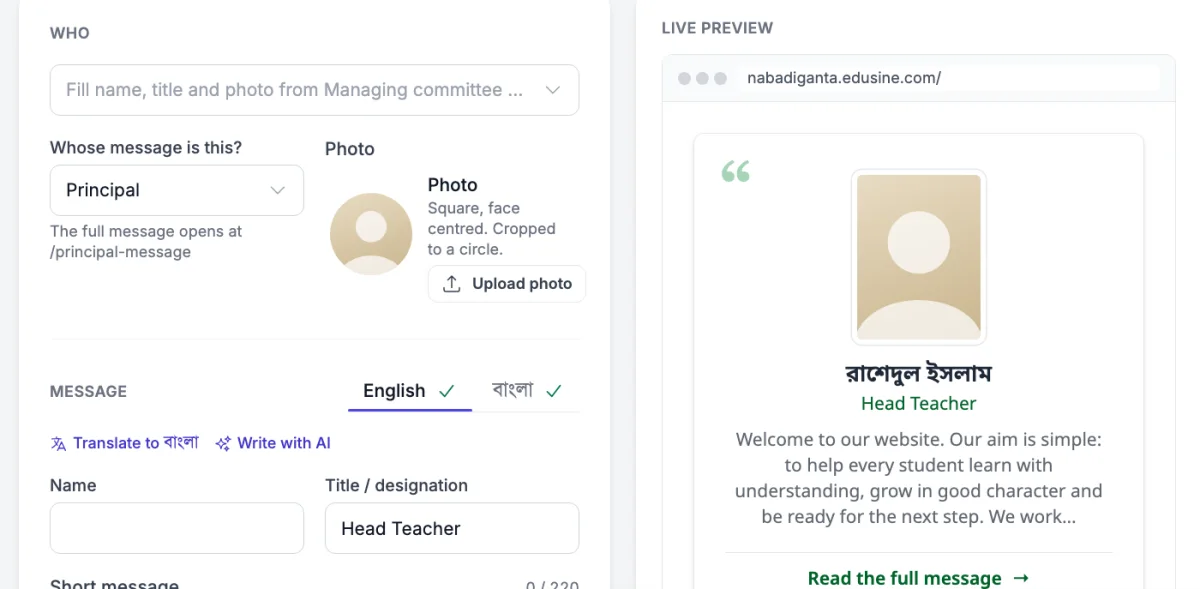
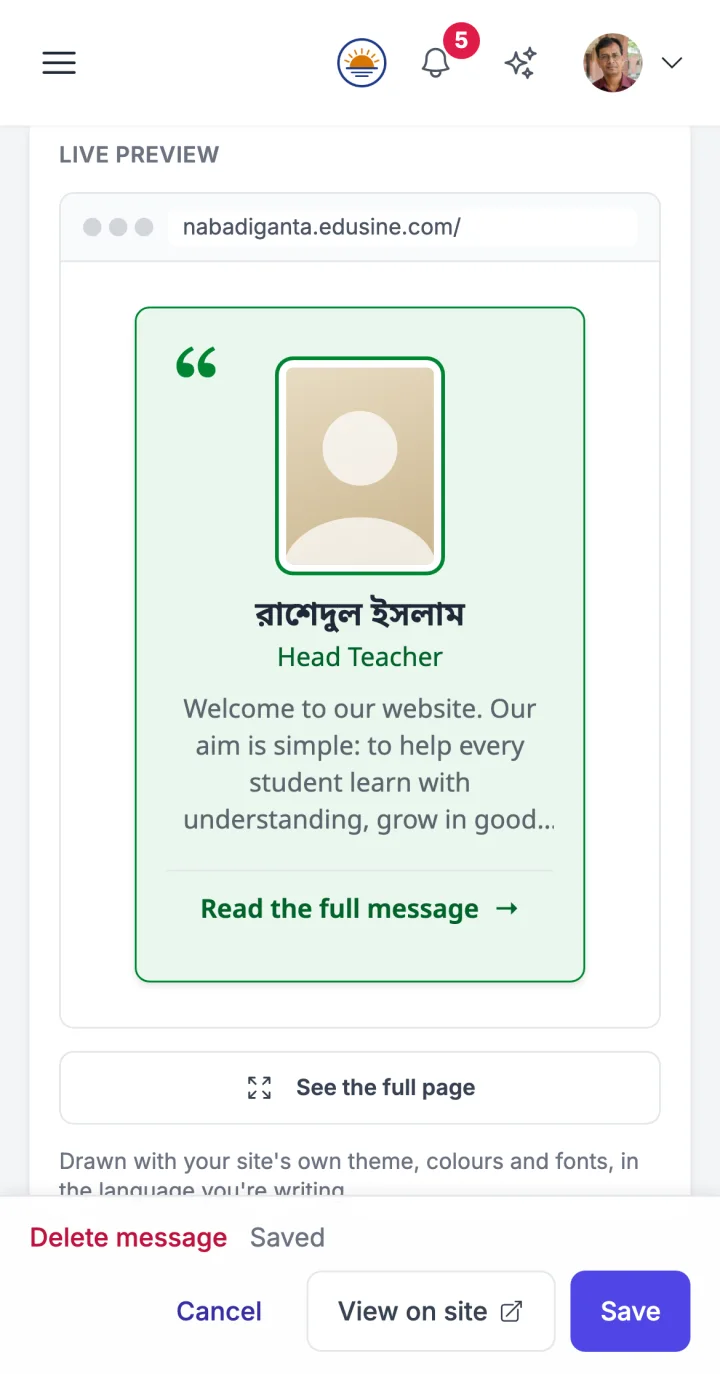
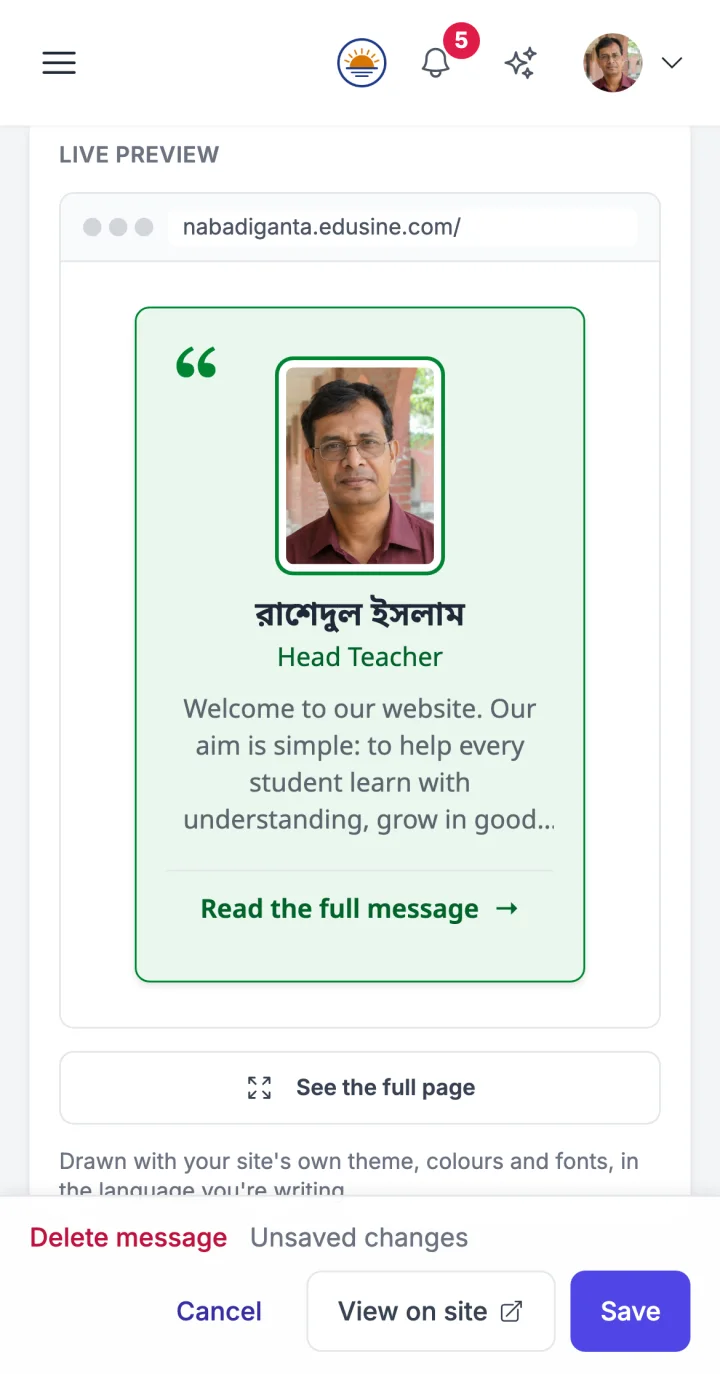
In the list, press the name Rashedul Islam. The Edit message page opens. On the right is a live preview, where you see how the home page card will look as you write.
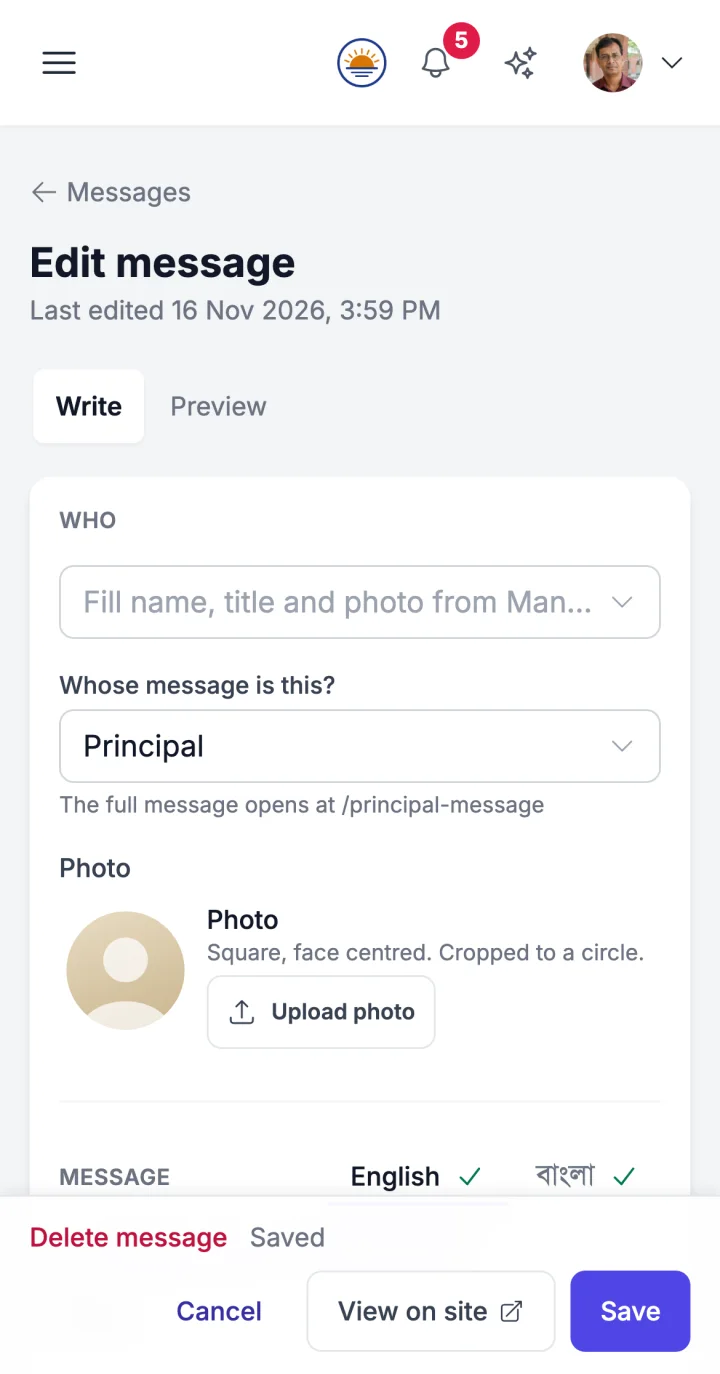
In the "Whose message is this?" box at the top, the role is already chosen. The list has Chairman, Vice chairman, Secretary, Principal and Someone else. For the head of the institution's message, choose Principal. Below it says which address the full message opens at, for example /principal-message.
On a phone, press Preview at the top to see the preview, and Write to go back to writing.

 12
- 1Whose message is this?
- 2Live preview

 1
- 1Whose message is this?

 1
There is no computer screenshot for this step. Showing the phone screen.
- 1Live preview
1- 1Live preview
Add the photo
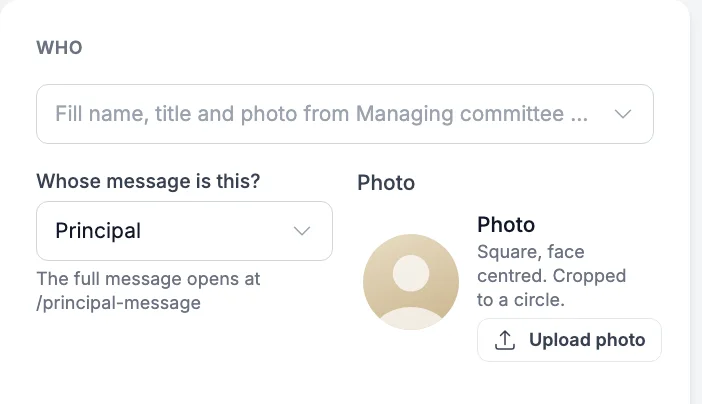
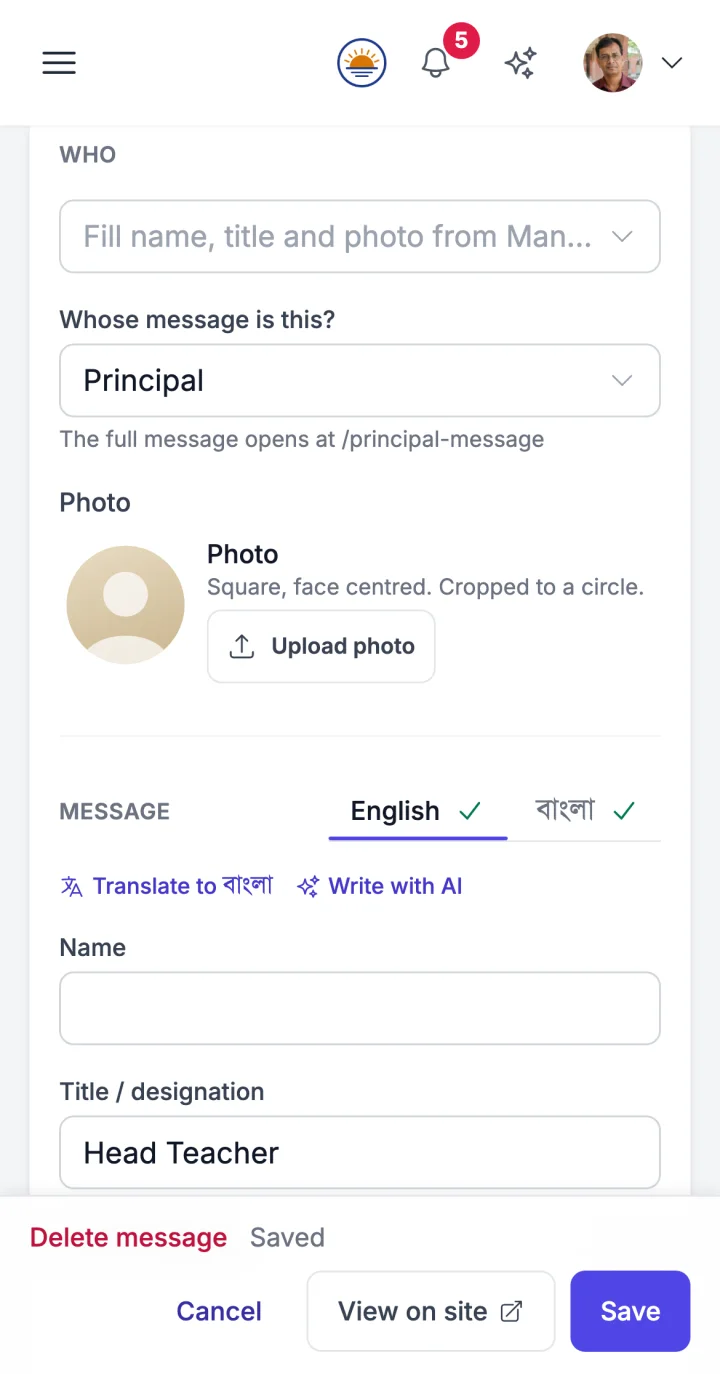
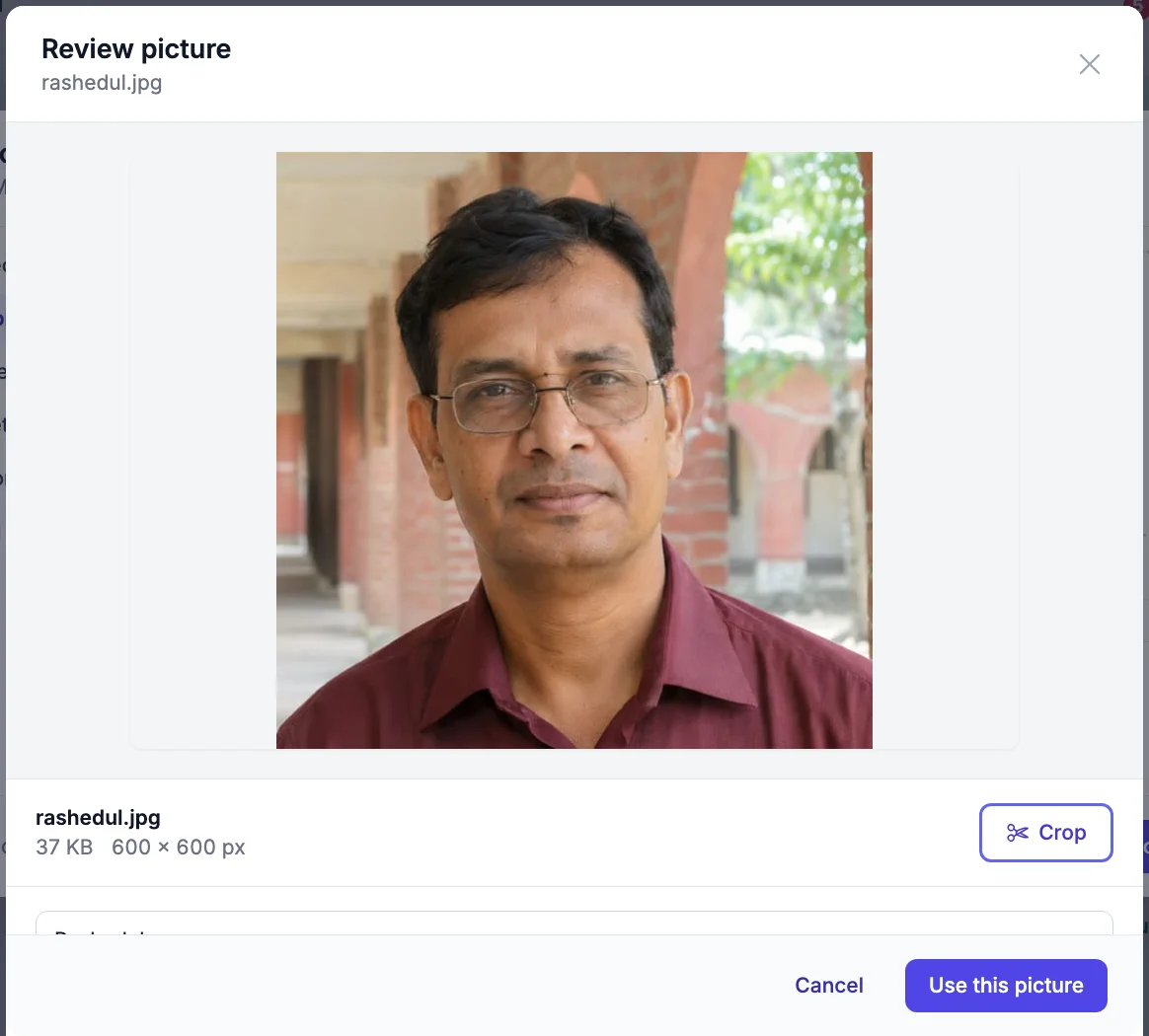
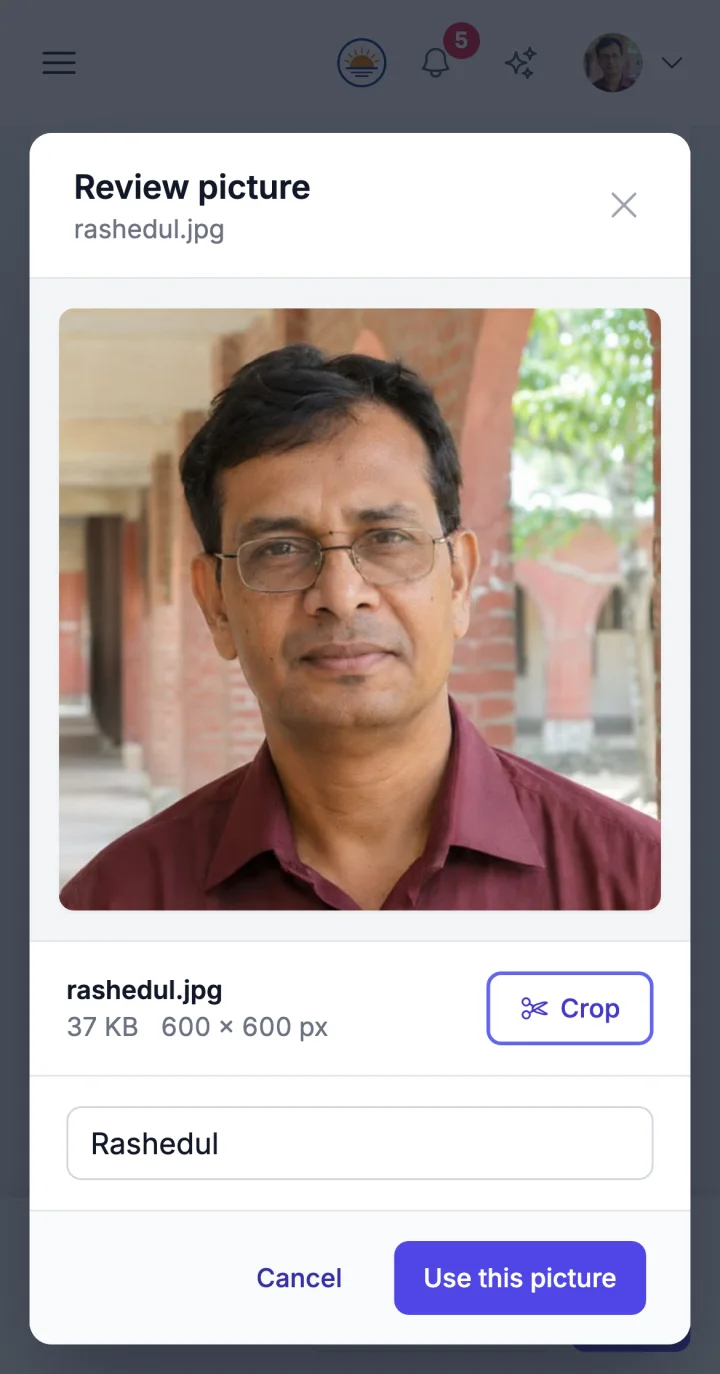
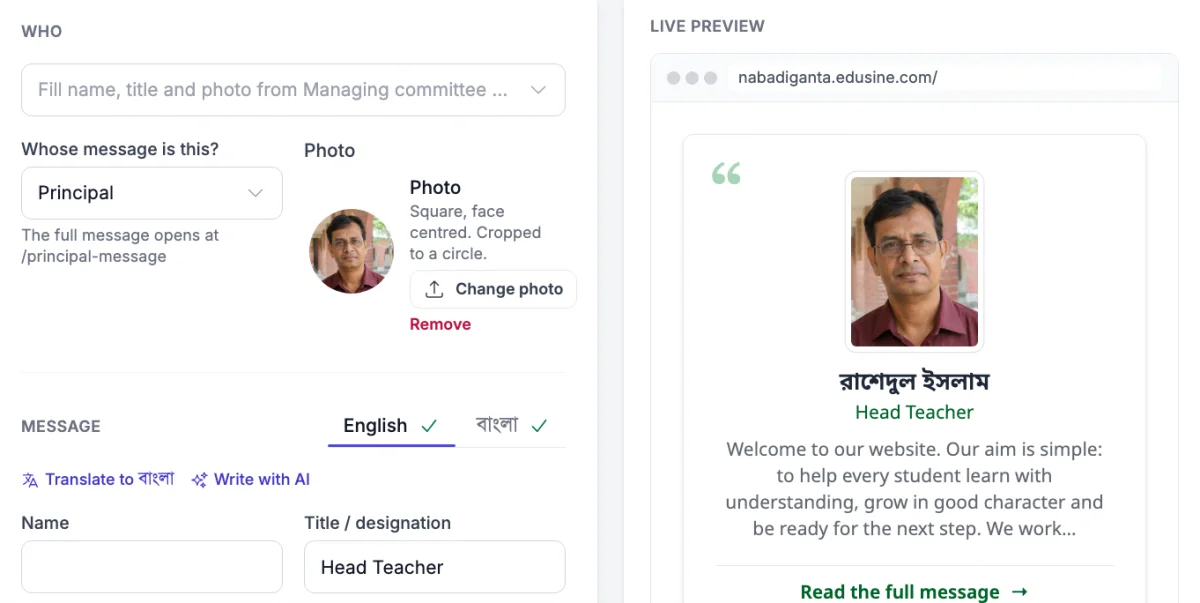
In the Photo part, press Upload photo. The "Choose a picture" window opens. Press Upload at the top and give the head of the institution's photo, then press Use this picture. If the photo is already uploaded, you can also choose it from the list. It is best if the photo is square, with the face in the middle. When shown on the website, the photo is cut into a circle.
The photo shows on the preview card on the right at once.

 1
- 1Upload photo

 1
- 1Upload photo




Give the name and designation
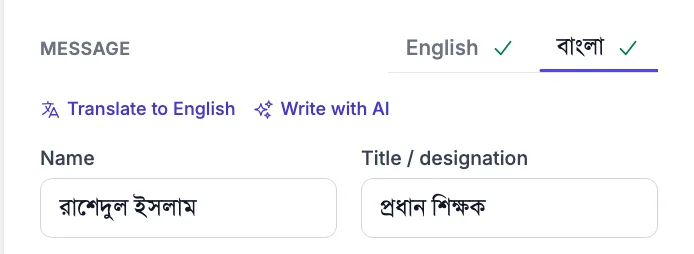
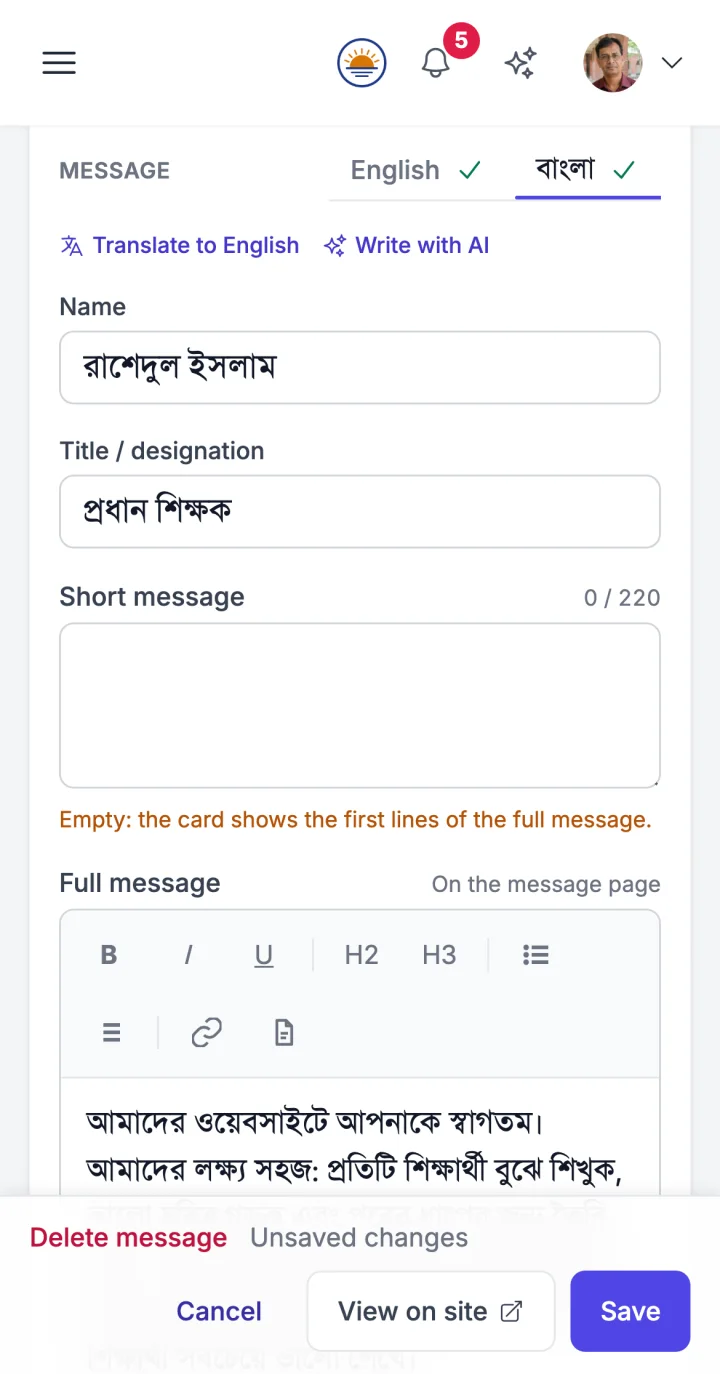
In the Message part, the বাংলা tab has the Name and Title / designation boxes. Write রাশেদুল ইসলাম in the Name box and প্রধান শিক্ষক in the designation box. This designation is what shows under the name on the website, so even if the role at the top is "Principal", you can write Head Teacher here.
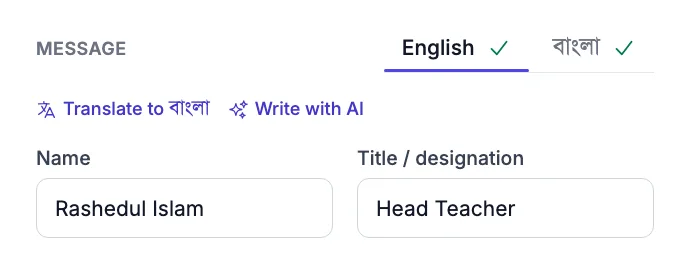
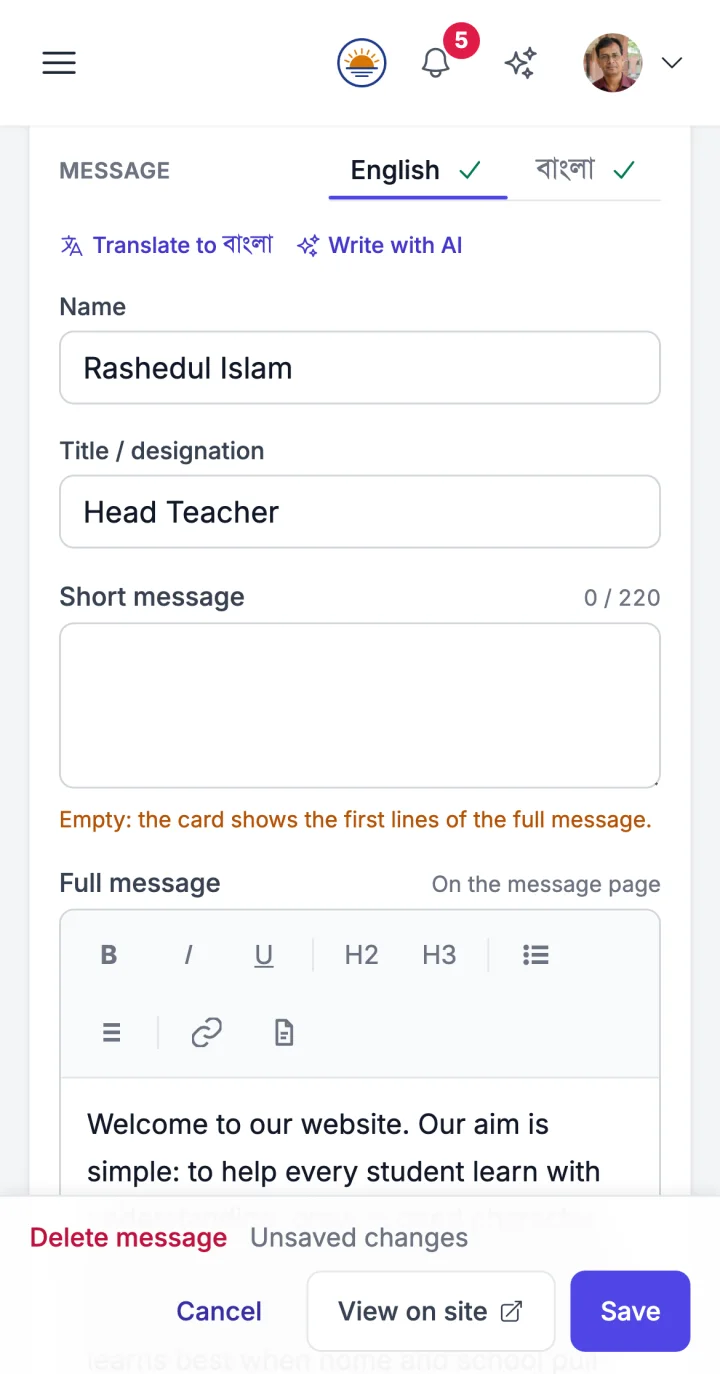
For the English website, give the same details in English in the English tab, or press Translate to English.

 123
- 1Name
- 2Title / designation
- 3Translate to English

 123
- 1Name
- 2Title / designation
- 3Translate to English


Write the message
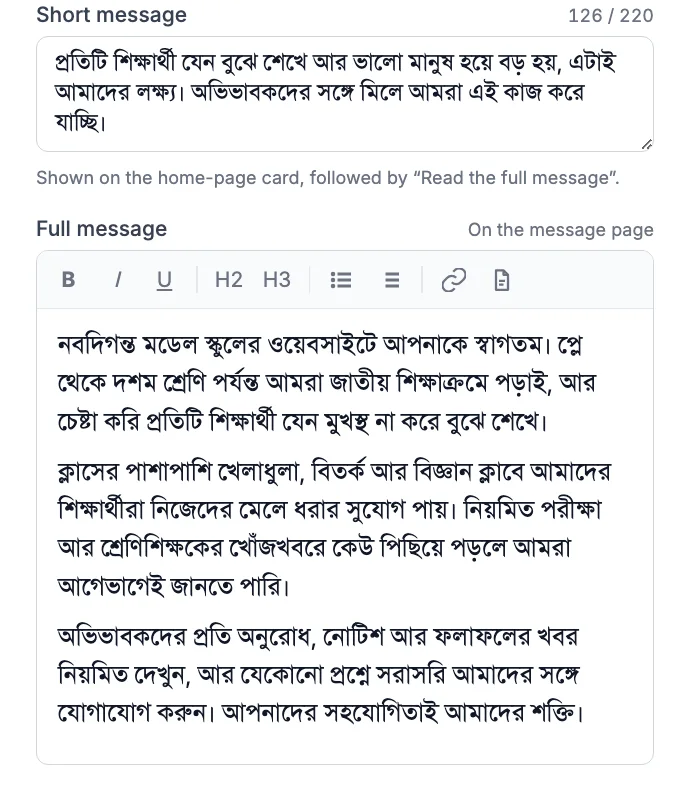
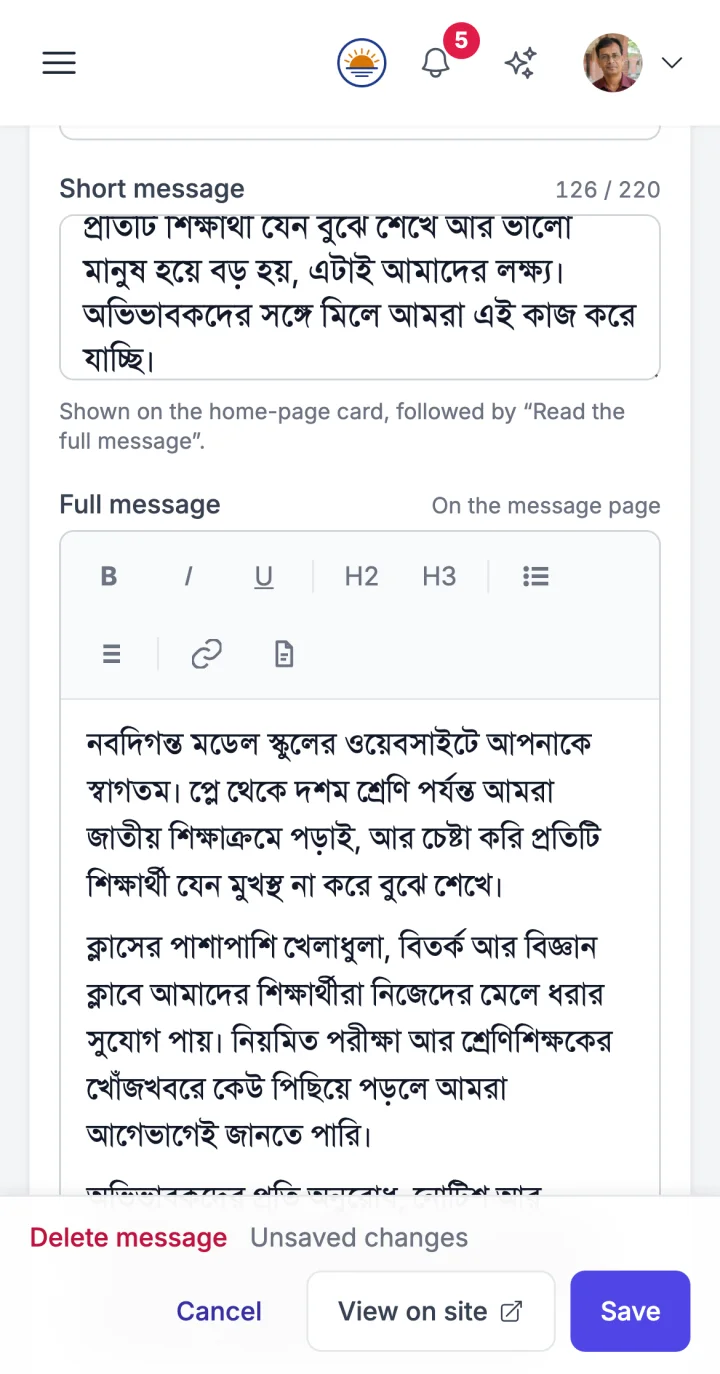
In the Short message box, write the main point in two or three lines, within 220 characters. This shows on the home page card. If you leave it empty, the card shows the first few lines of the full message.
In the Full message box below, write the whole text. This shows on the message's own page. You can use bold or italic text, small headings, lists and links.
Delete the welcome message's text and write your own words. The institution's aims, the way it teaches and a call to guardians: these few points are enough.

 12
- 1Short message
- 2Full message

 12
- 1Short message
- 2Full message
Save
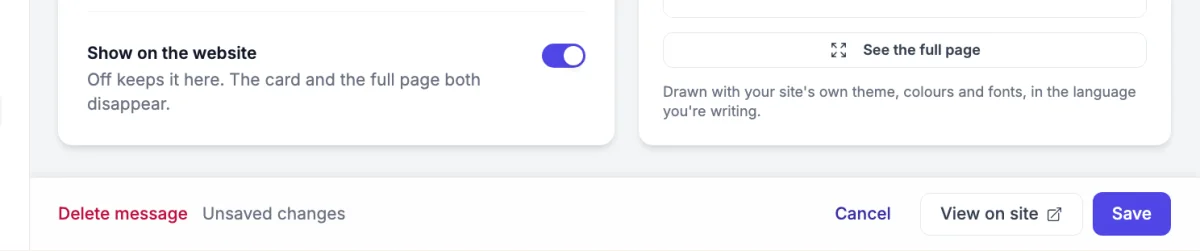
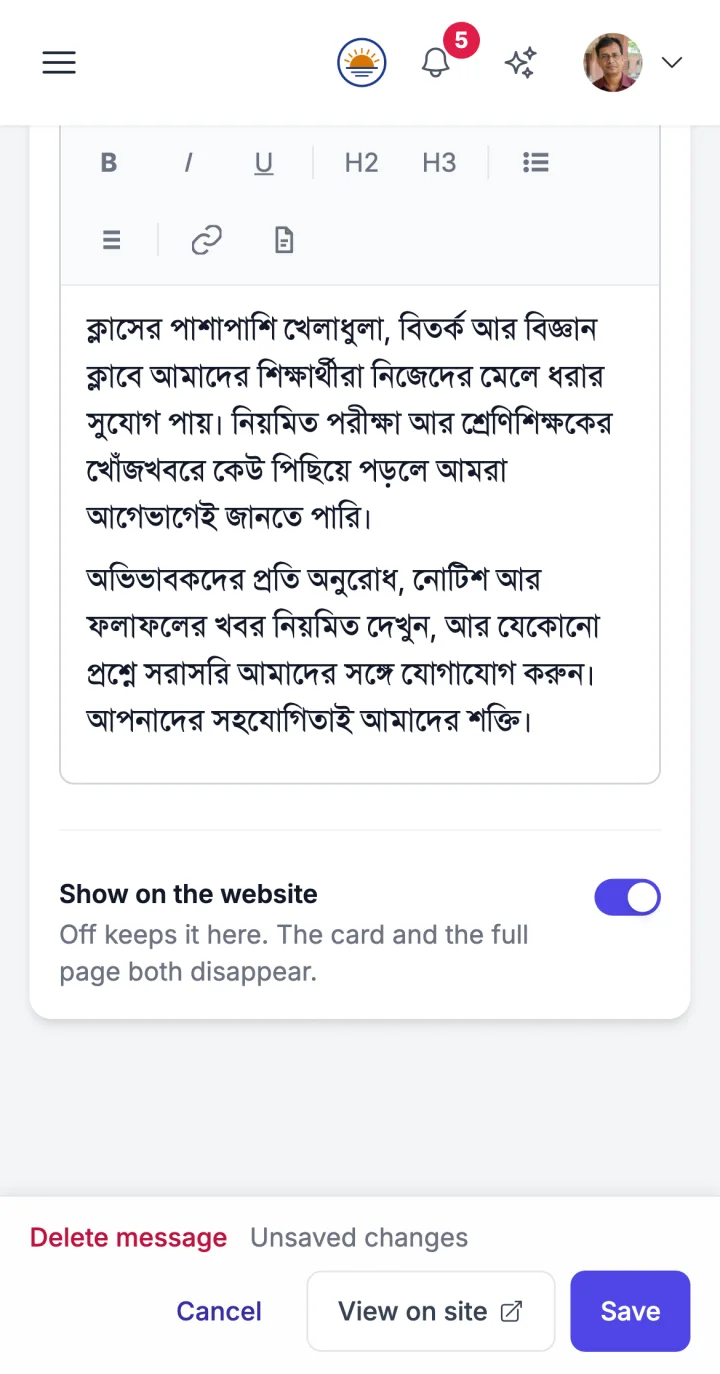
Check that the Show on the website switch is on. If it is off, the message stays here, but neither the card nor the full page shows on the website.
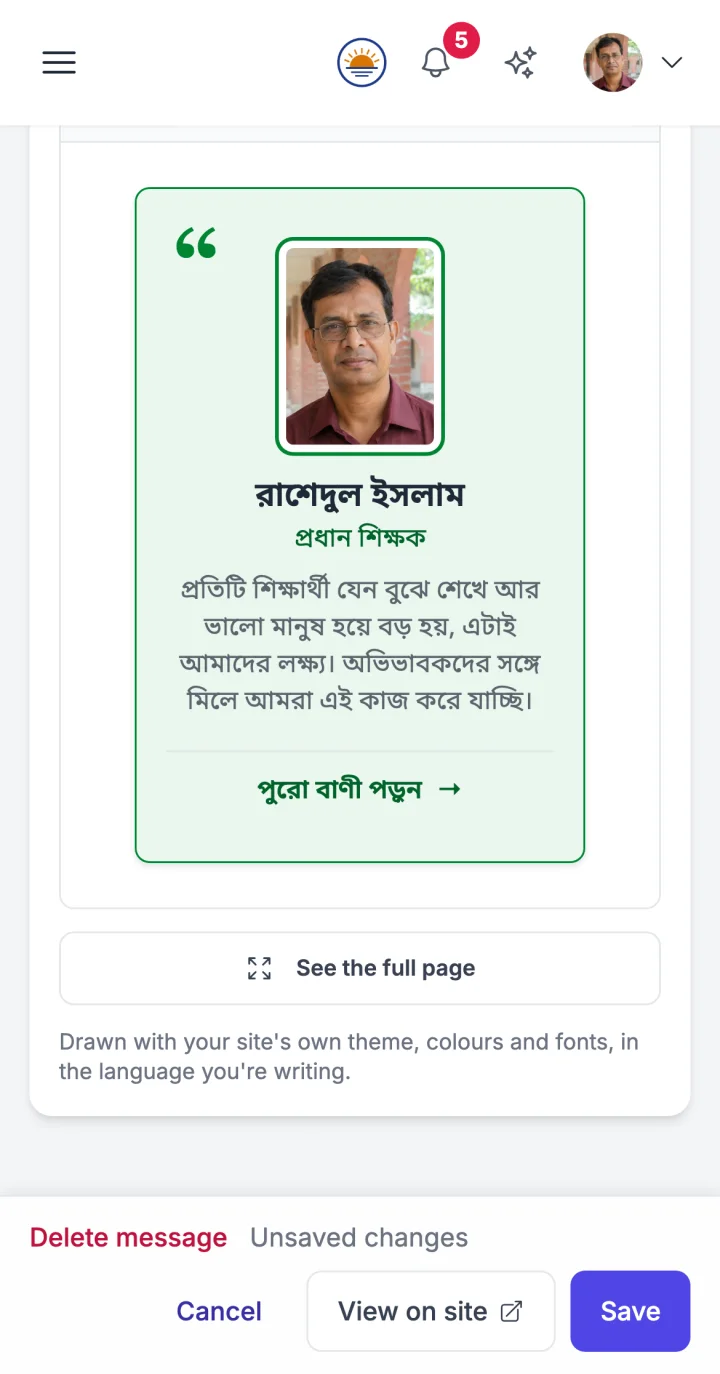
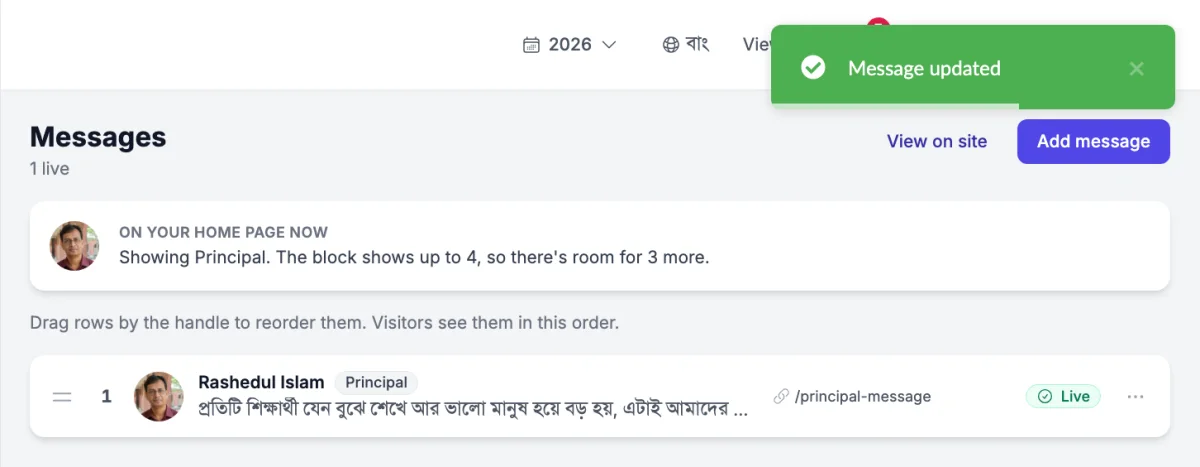
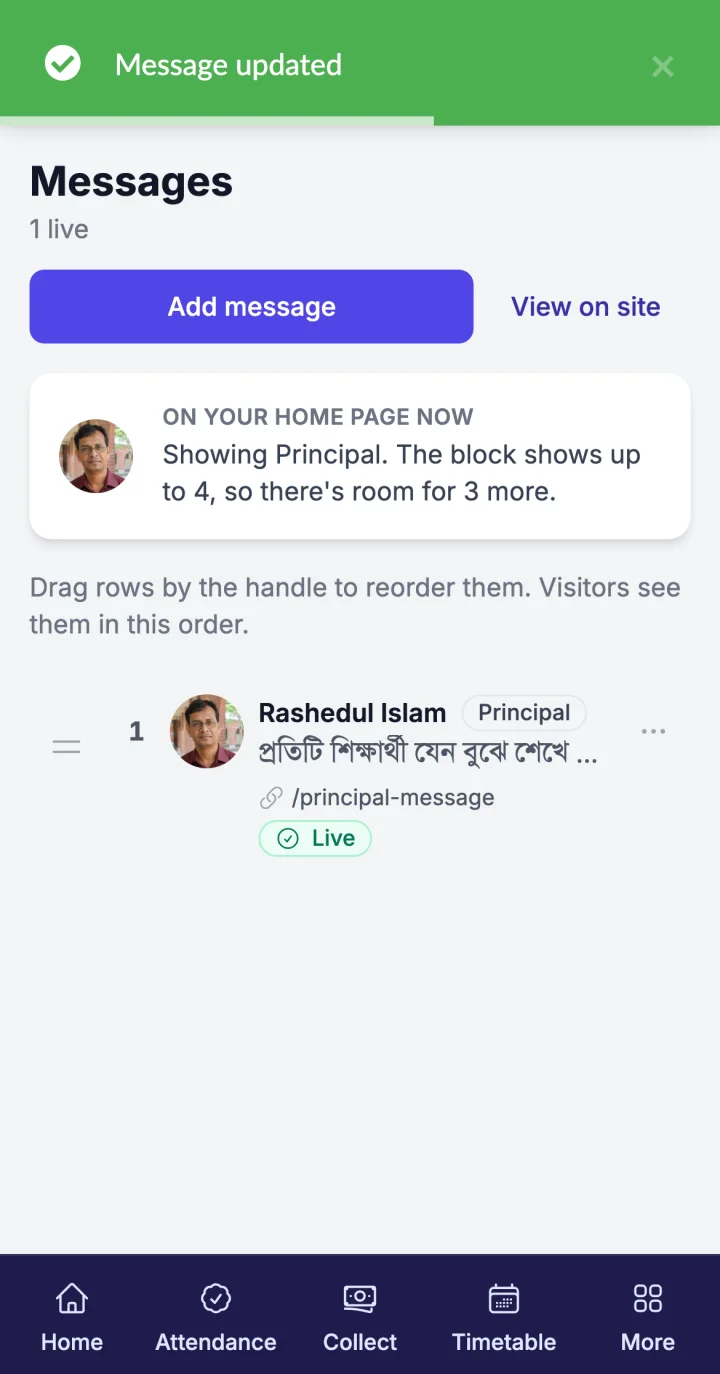
To see how the full page will look, press See the full page under the preview. Then press Save at the bottom. It says "Message updated", and the list of messages opens again.
On a phone, See the full page is on the Preview tab at the top.

 123
- 1Show on the website
- 2See the full page
- 3Save

 1
- 1Show on the website

 1
There is no computer screenshot for this step. Showing the phone screen.
- 1See the full page
1- 1See the full page


Add the chairman's message
Go back to the Messages page and press Add message at the top.
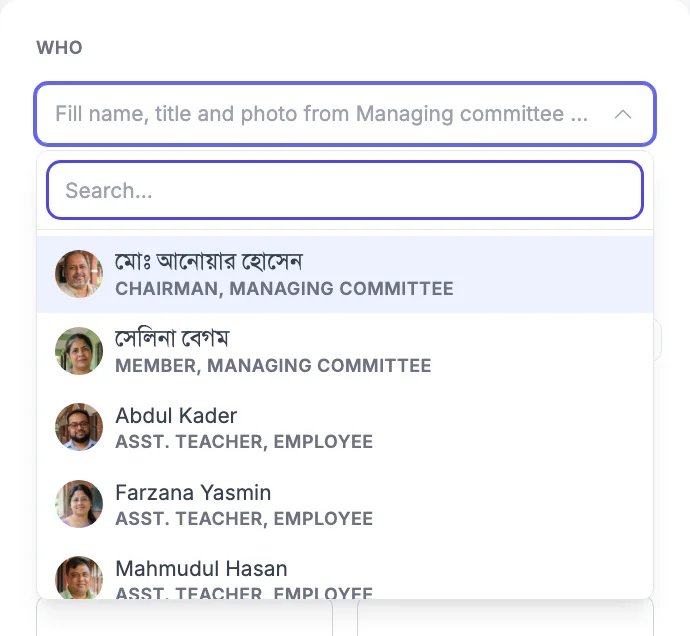
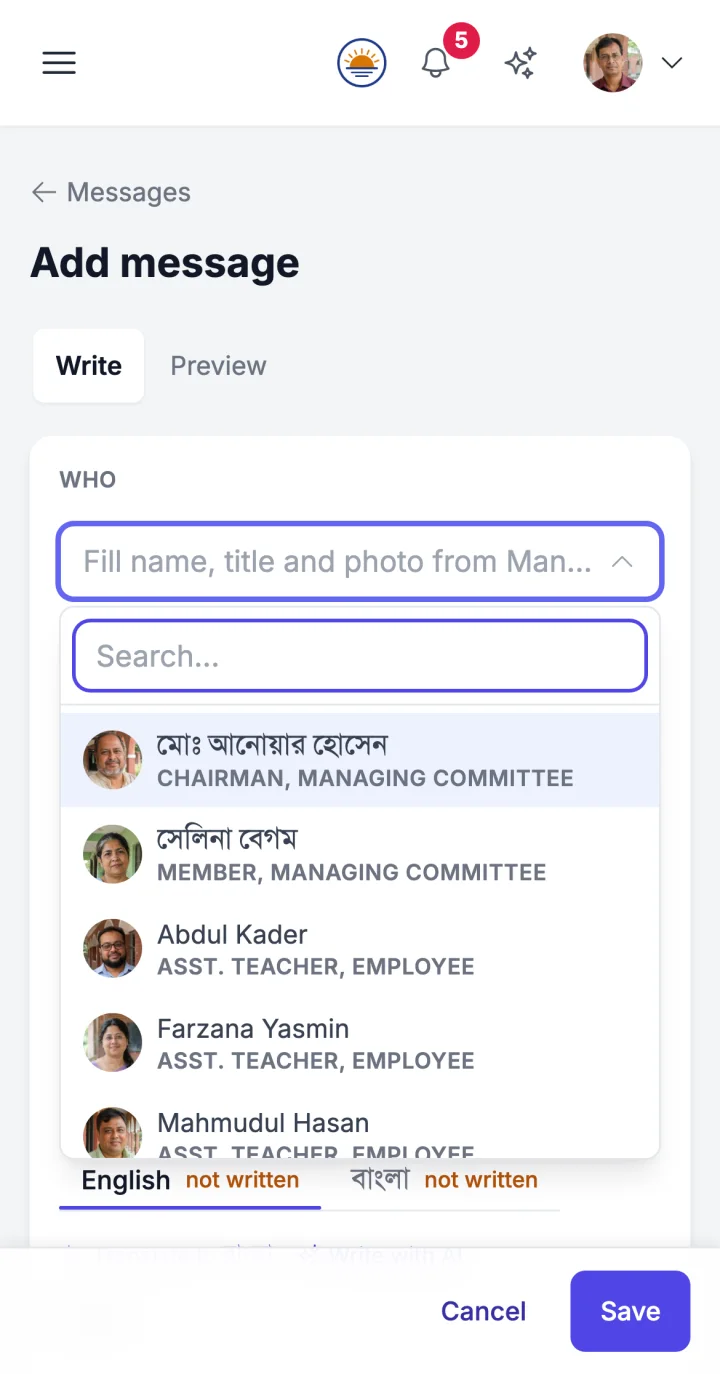
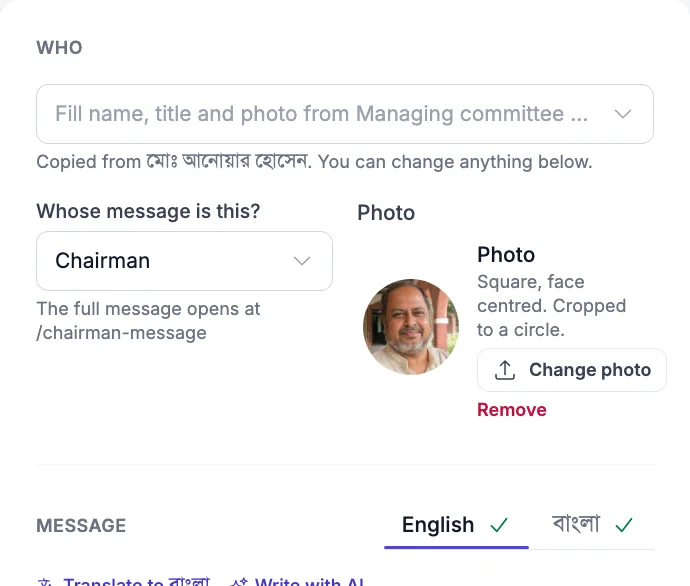
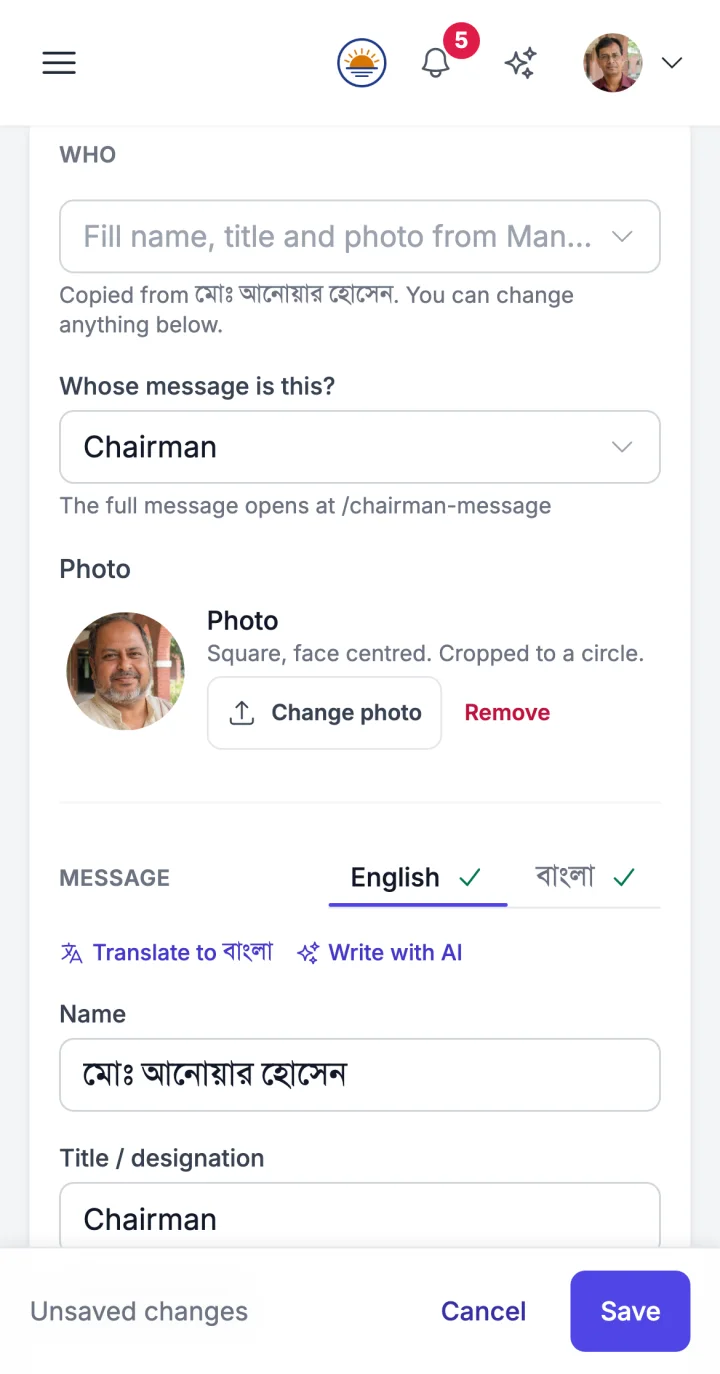
Press the "Fill name, title and photo from Managing committee or Employees" box at the very top. A list of the committee members and employees opens, with each person's role under their name. Choose Md. Anwar Hossain (Chairman, Managing committee). The Name and designation boxes are filled in by themselves, and if the committee details have a photo, it comes in too.
Check that Chairman is chosen in the "Whose message is this?" box. The full message then opens at the address /chairman-message.
Write the short message and the full message and press Save. It says "Message created", and the new message shows second in the list.

 1
- 1Add message

 1
- 1Add message

 1
- 1Fill from Managing committee or Employees

 1
- 1Fill from Managing committee or Employees

 1
- 1Whose message is this?

 1
- 1Whose message is this?

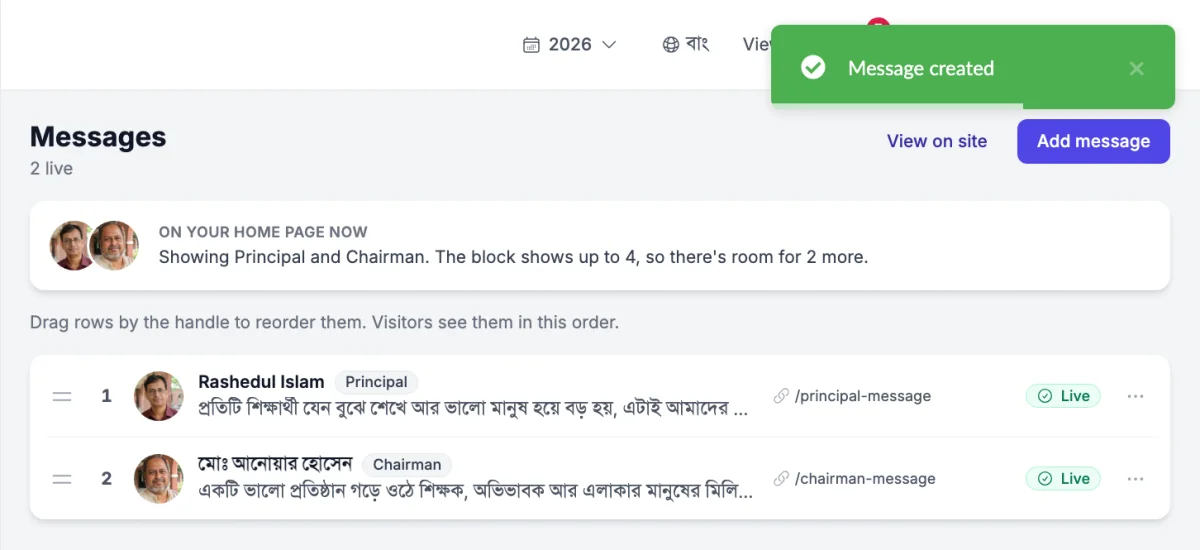

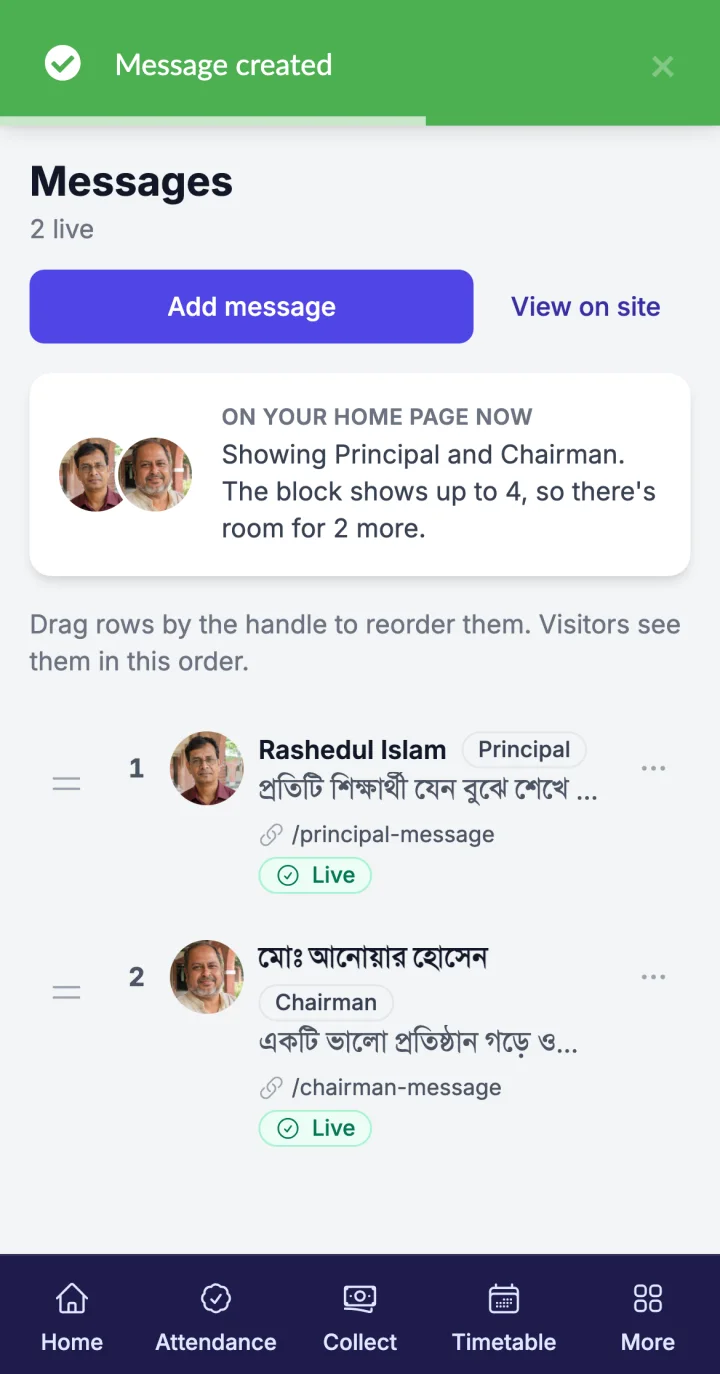
Tip: For the message of someone who is not a committee member or employee, skip the box at the top, write the name and designation yourself, and choose Someone else from the role.
Set the order
Visitors see the messages on the website in the same order as the list of messages. Usually the chairman's message comes first, then the head of the institution's.
Hold the handle on the left of a row and drag it to change the order. Or press the ⋯ on the right of the row and choose Move up or Move down. The new order is saved by itself.

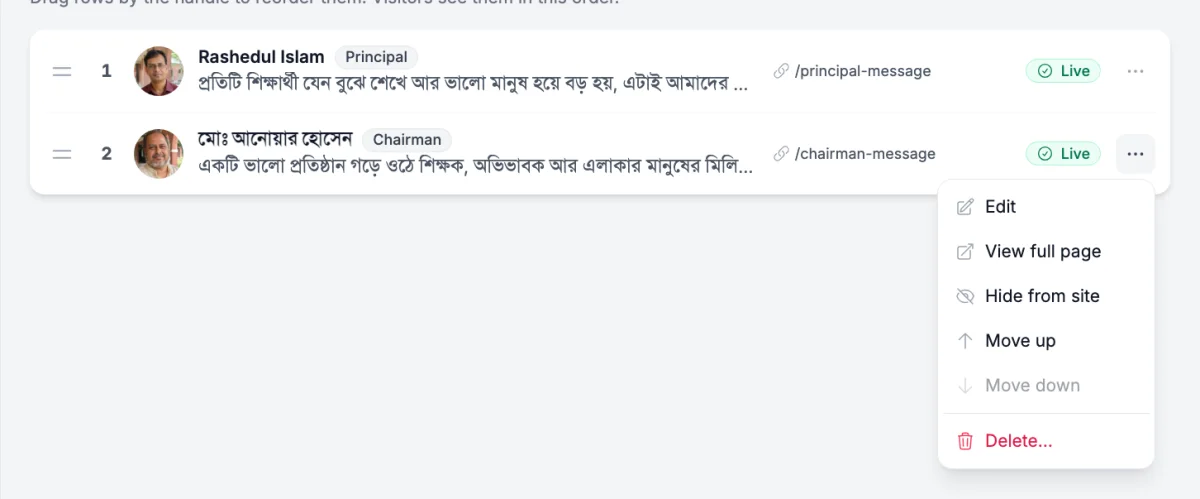 12
- 1Drag to reorder
- 2The row's ⋯ options

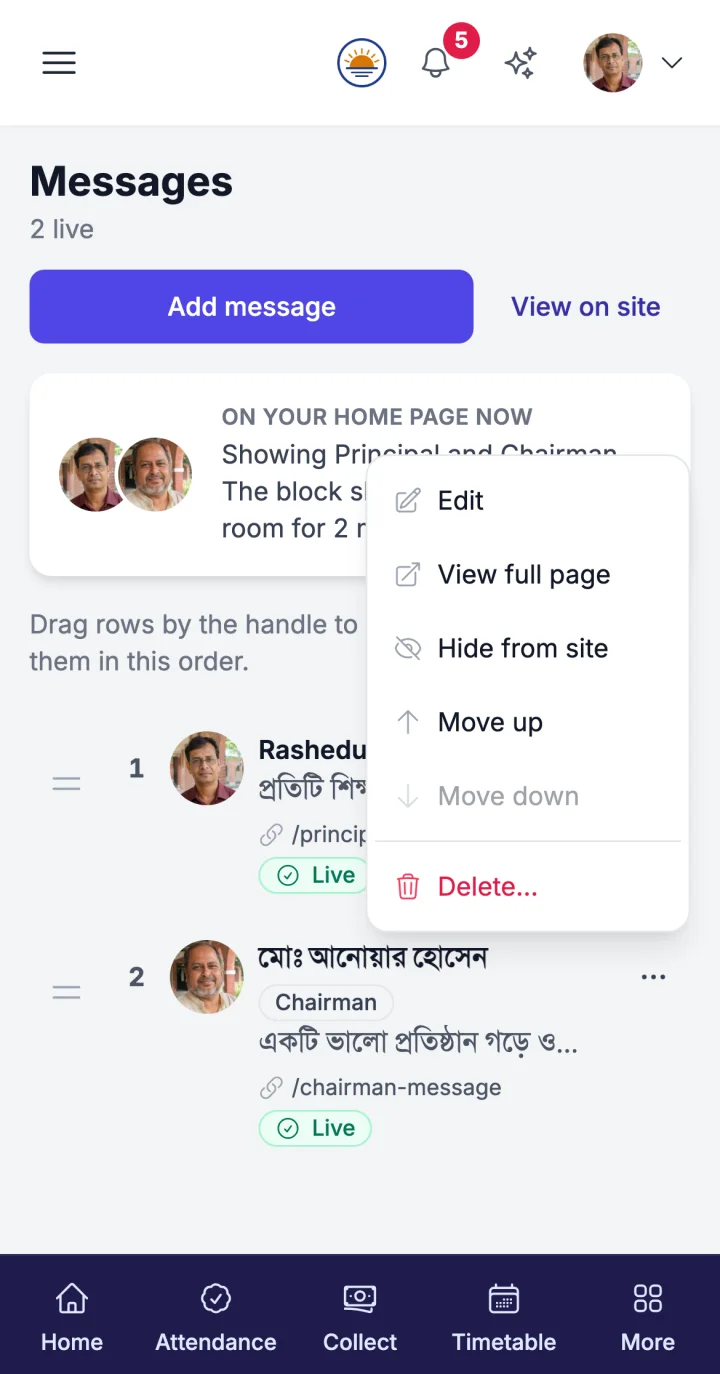 12
- 1Drag to reorder
- 2The row's ⋯ options
Show messages on the home page
Each message's own page is made at once. Visitors can reach the pages from About → Chairman's Message and Head Teacher's Message in the website's menu.
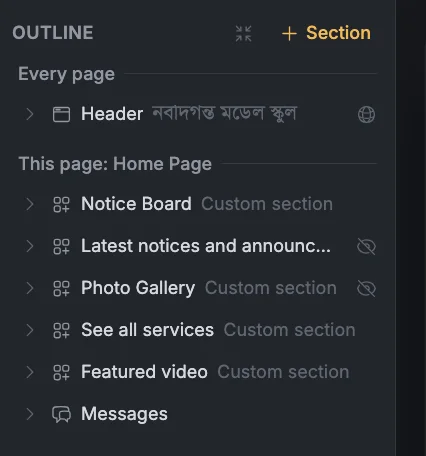
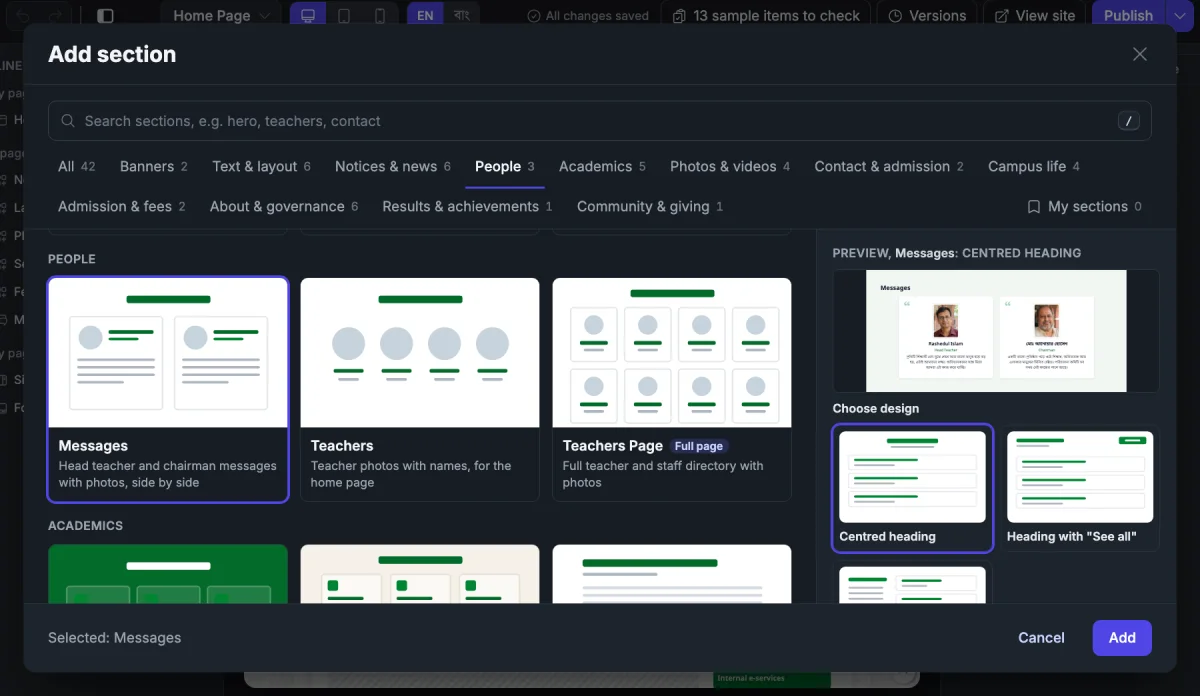
To show them as cards on the home page, and if the top of the Messages page says "Your home page doesn't show messages", you need to add a messages section to the home page. Press Website & Content → Theme Editor → Edit website. Press + Section at the top of the outline, choose Messages from the People group and press Add. Then press Publish.
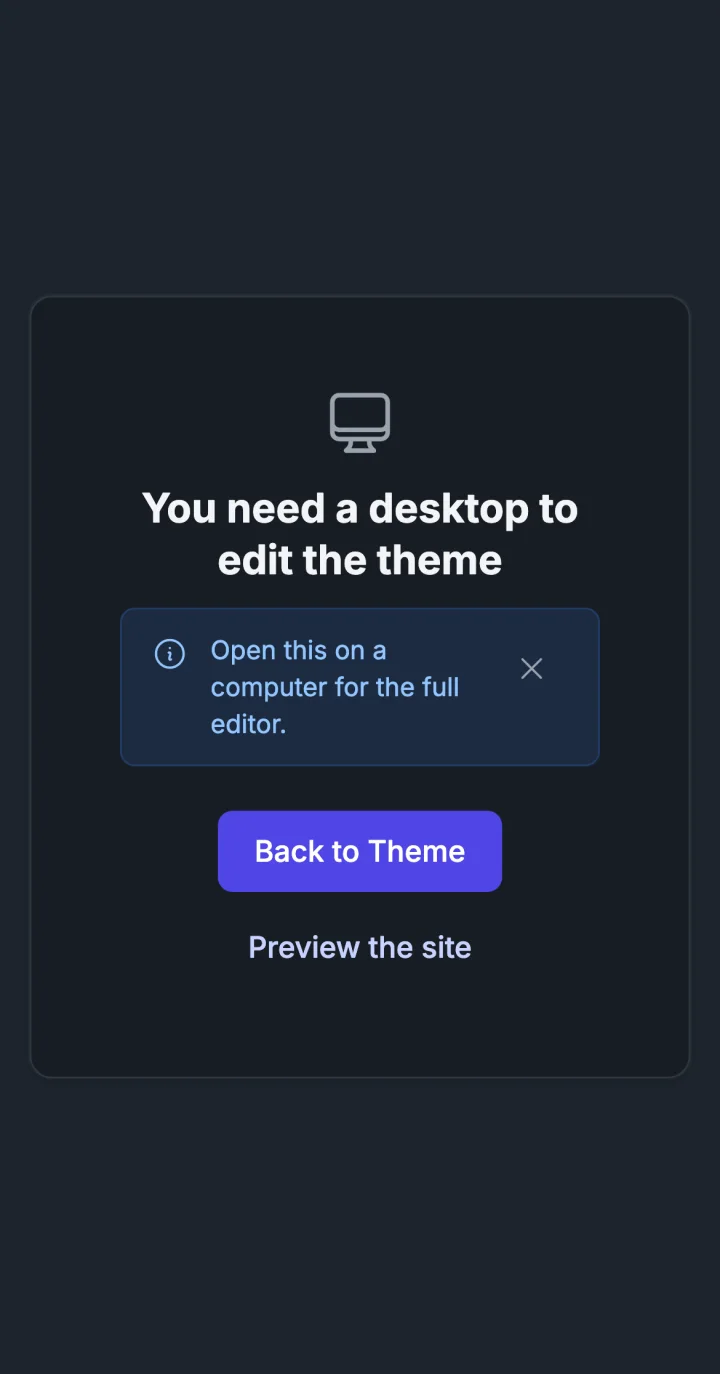
A phone does not open the theme editor (it shows "You need a desktop to edit the theme"), so do this on a computer.
From then on, when you write or change a message, the home page card changes by itself too.

There is no computer screenshot for this step. Showing the phone screen.

 1
- 1+ Section
1There is no phone screenshot for this step. Showing the computer screen.
- 1+ Section

There is no phone screenshot for this step. Showing the computer screen.
Hide or delete a message
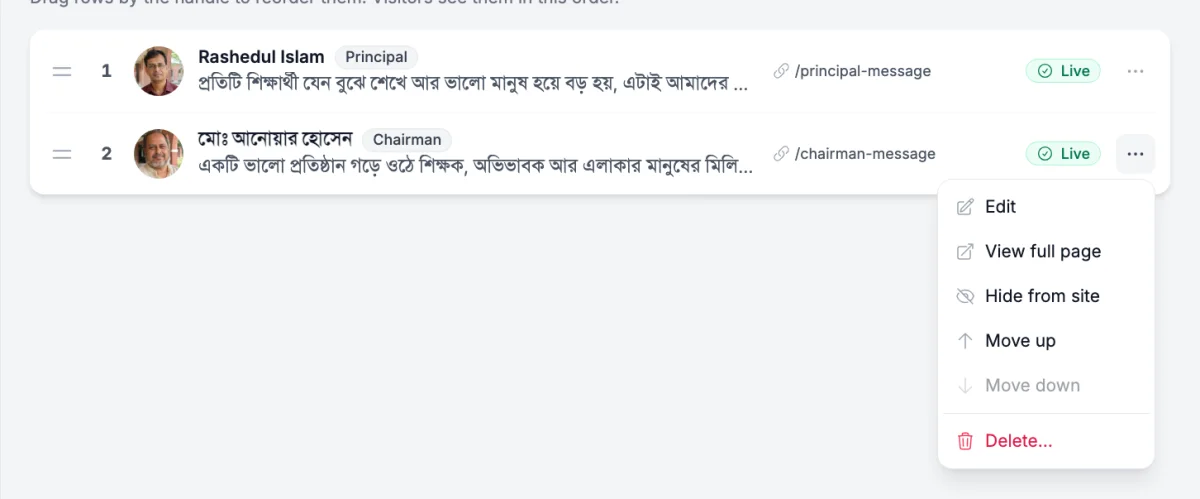
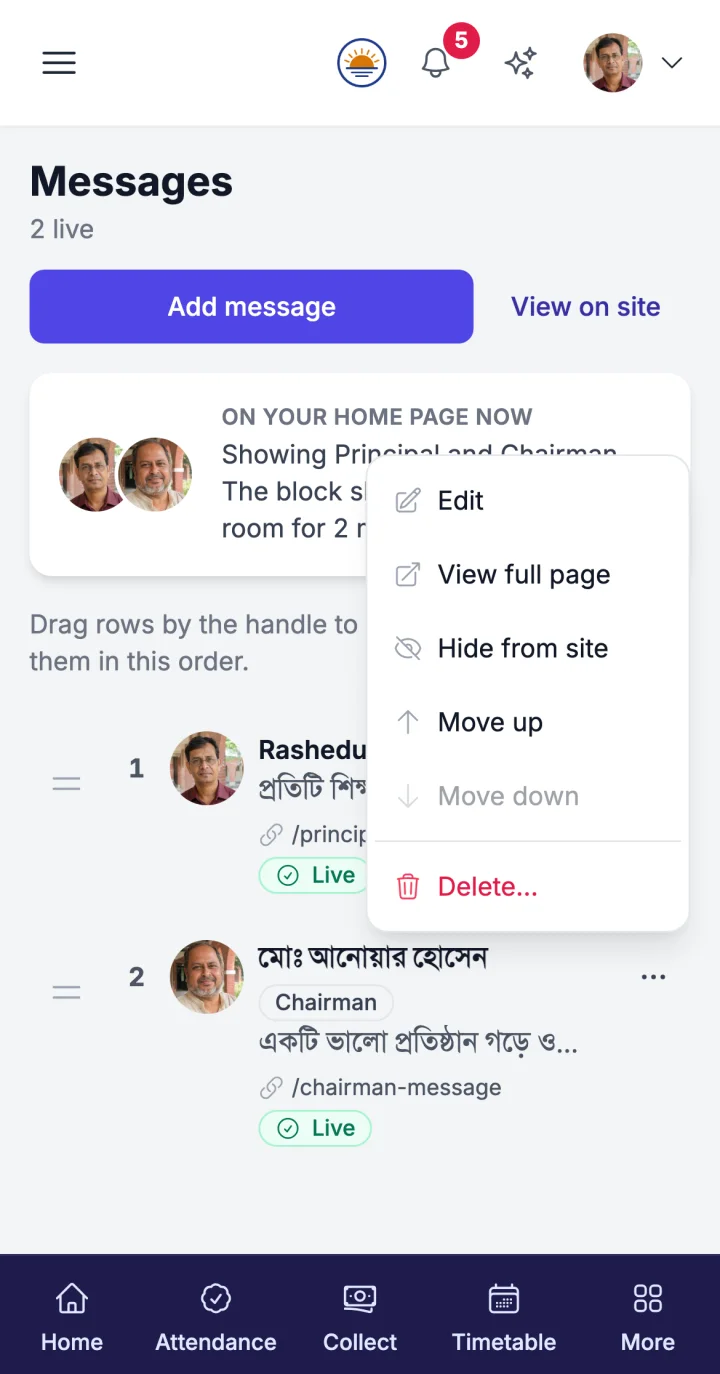
If the chairman changes, or to remove a message for a while, press the ⋯ of the row and choose Hide from site. The message stays in the list, and you can show it again later.
To get rid of it completely, choose Delete… from the ⋯. It asks once before deleting.
 12
- 1Hide from site
- 2Delete…

 12
- 1Hide from site
- 2Delete…
What to do next
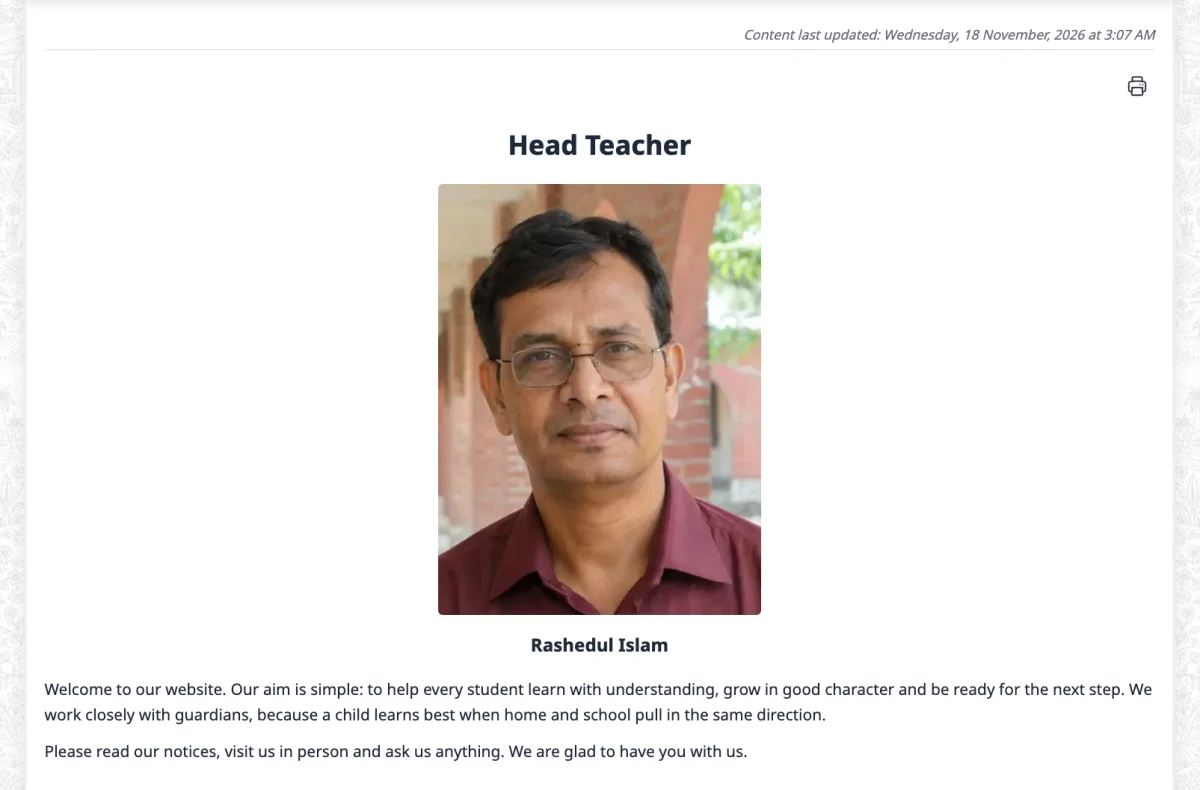
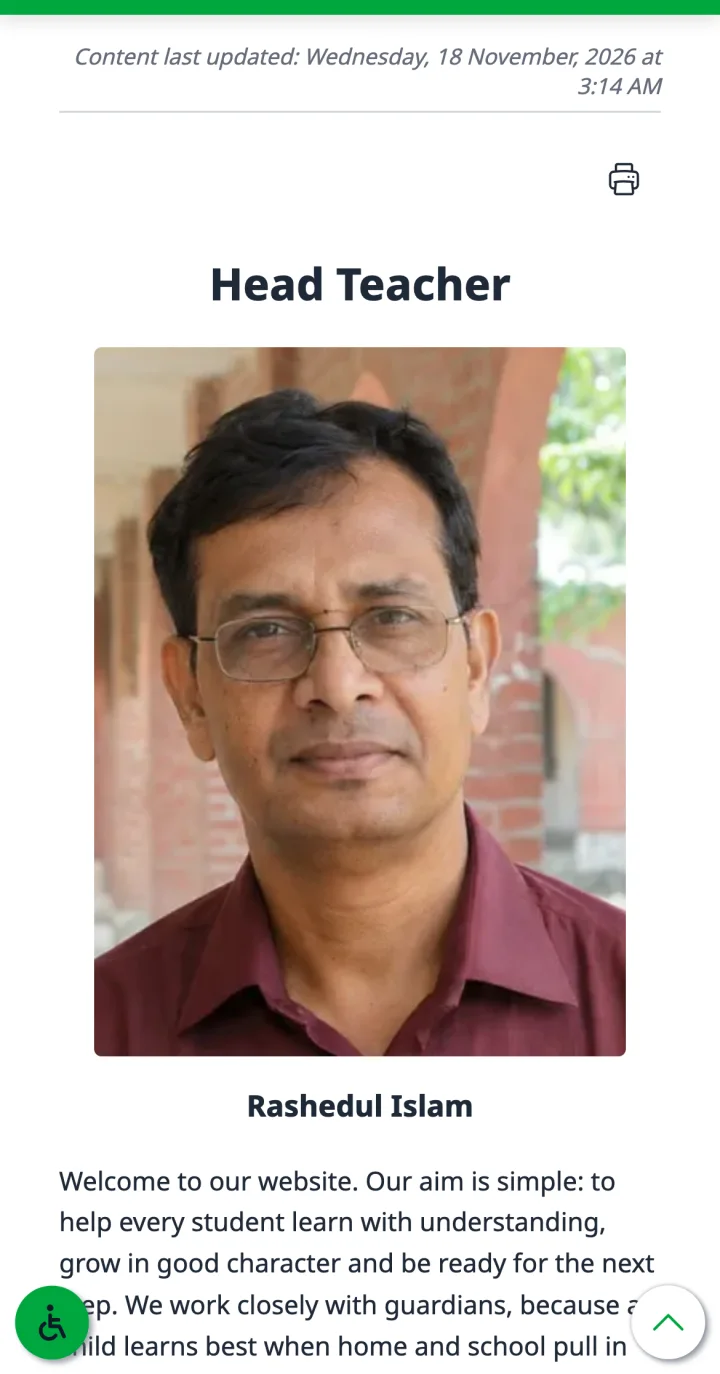
Open the website and read both messages' pages once from About in the menu: check that the name, designation, photo and text are right. On the English website (press English at the top), check the English text too.
The head of the institution card in the Batayon design's sidebar is separate. Its name and photo are changed from Sidebar → Person card in the theme editor.


If something goes wrong
"Choose whose message this is."
It does not save unless you choose a role in the "Whose message is this?" box. Choose one of Chairman, Vice chairman, Secretary, Principal or Someone else.
"Write the name in English or Bangla." / "Write the title in English or Bangla." / "Write the full message in English or Bangla."
The name, designation and full message must all be written in at least one language. If a tab says "Something on this tab needs fixing" beside it, open that tab and fill in the empty box.
"Keep the short message to 220 characters"
The short message is only for the card, so it must be kept short. Move the longer points into the Full message box.
The message does not show on the home page
Check that the message's Show on the website switch is on. Then check whether the home page has a messages section (step 9). After adding the section, do not forget to press Publish.
The home page does not show all the messages
The home page section shows a set number of messages at a time. In the list on the Messages page, a line shows how many come onto the home page. The rest can be opened on their own pages. Move the one you want on the home page up in the order.
More tutorials
See how to do the other jobs in EduSine, step by step.
Gallery, videos and files
Make albums of event photos, give YouTube video links, see every file in one place, and put forms on the Downloads page.
ReadBlog
Write blog posts about your institution's events and news, set them out with photos, categories and tags, and publish them on the website.
ReadCourses on the website
Add courses from a ready list, edit them and connect them to the admission form on your website.
ReadCan’t find what you’re looking for?