Academic year
In EduSine, attendance, exam marks, results, fees and promotion are all kept inside an academic year. When the account is opened, EduSine creates your first academic year itself and makes it current, so in the middle of the year there is almost nothing to do here.
At the end of the year there are three jobs: add the new academic year, make it current when the new year starts, and lock the old year. There is nothing to worry about: EduSine asks before each job, and a locked year can be unlocked later too.
To see this page you need permission to view academic sessions, and to add, edit, make current or lock you need permission to manage academic sessions. The admin has both.
Know these to finish the year-end jobs quickly
When the new academic year starts and ends (usually 1 January to 31 December)
Whether this year's fees stay the same next year
From which day you will start the new year's work (admission, attendance, salaries)
Whether all of last year's results and accounts are finished (before locking)
What this tutorial covers
See which job to do when.
Step by step
Follow along as each step appears on your screen.
Open the academic year page
In the menu on the left, press Administration → Academic Sessions. Or press the year button in the top bar (for example 2026) and press Manage sessions. On a phone, the year button is inside the menu that opens when you press your picture at the top right.
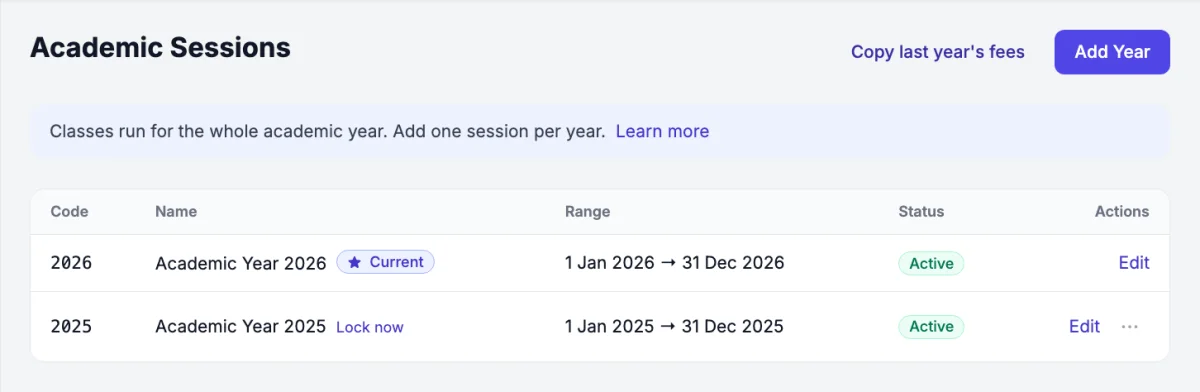
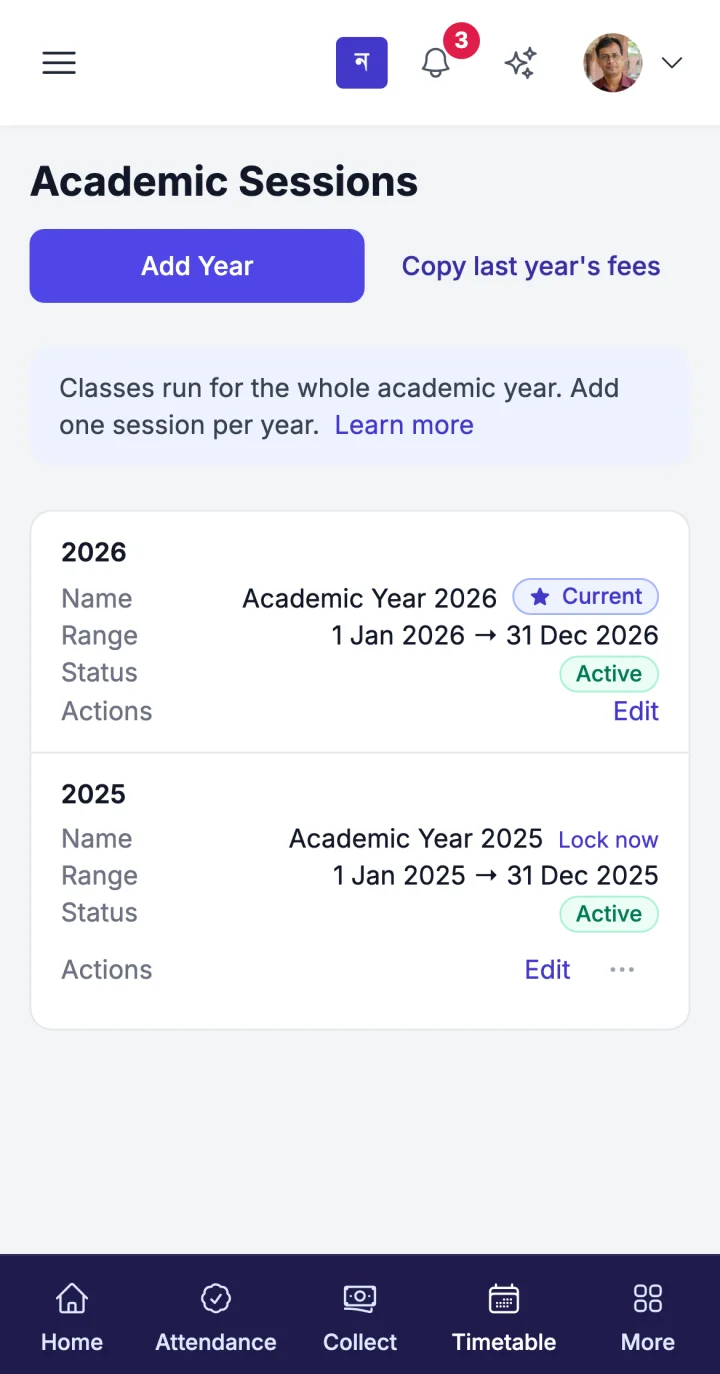
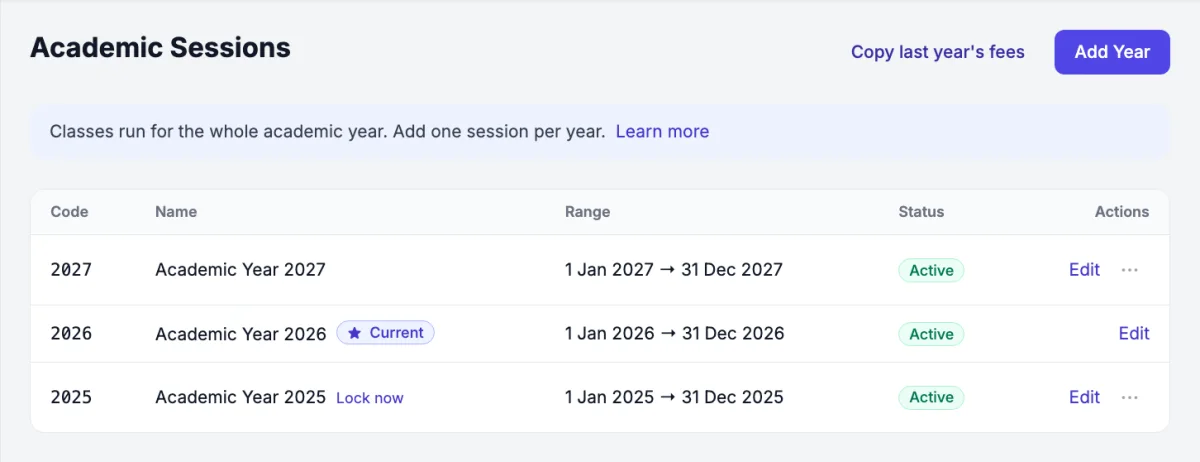
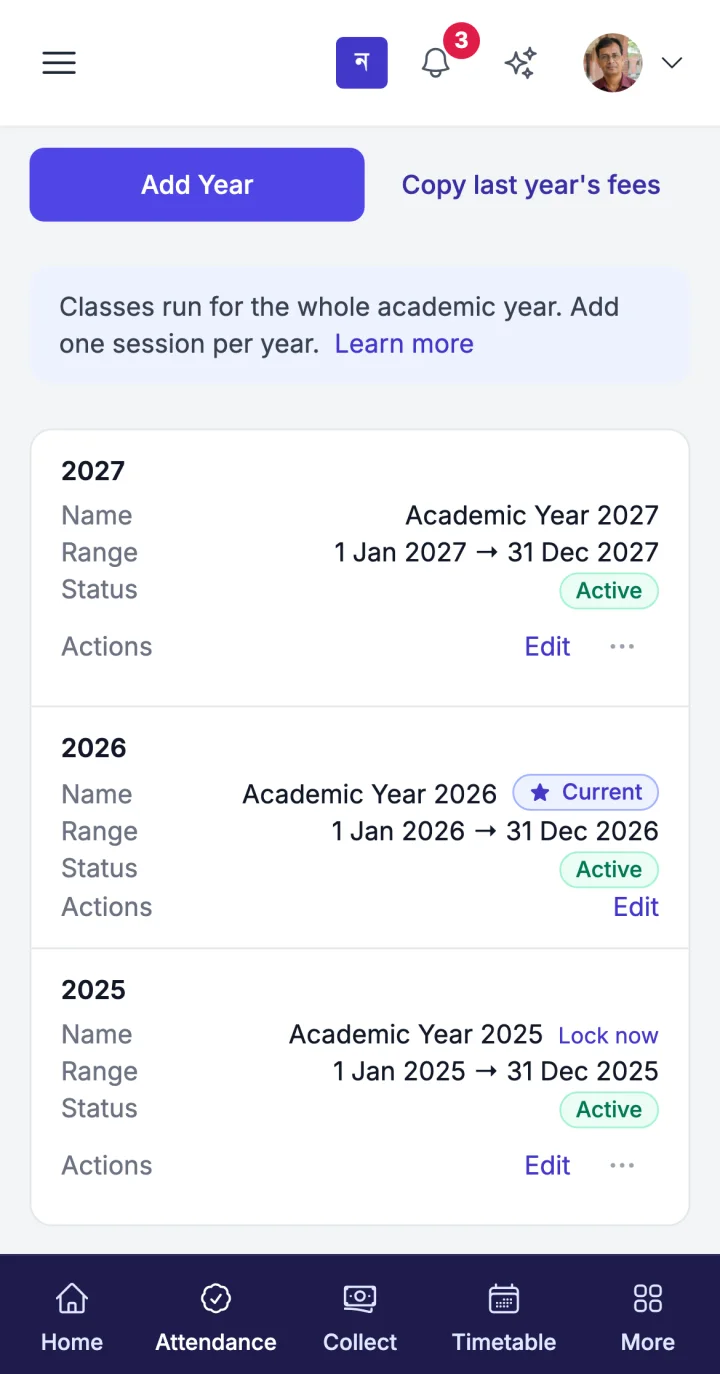
A list shows all your academic years: code, name, range and status. The year running now has "Current" next to its name. A new institution has only one row here, for example "Academic Year 2026, 1 Jan 2026 → 31 Dec 2026, Active".
Press "Learn more" at the top for a short note on how academic years work.

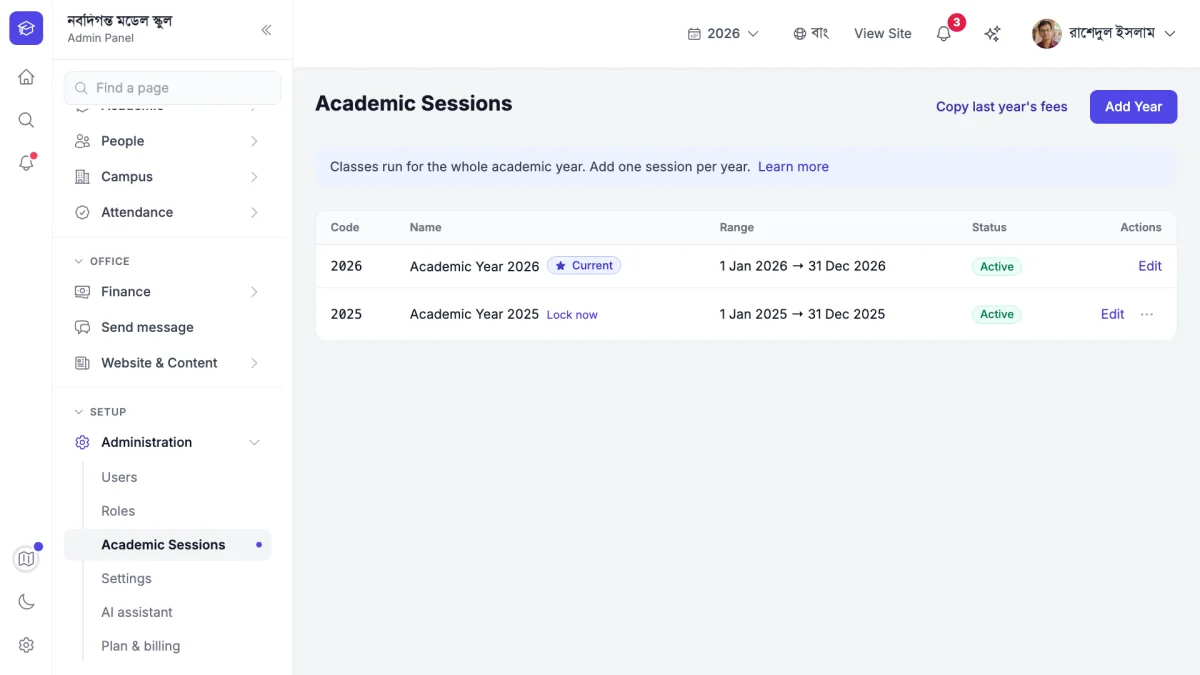 1234
- 1Administration → Academic Sessions
- 2The list of years
- 3Current
- 4Learn more

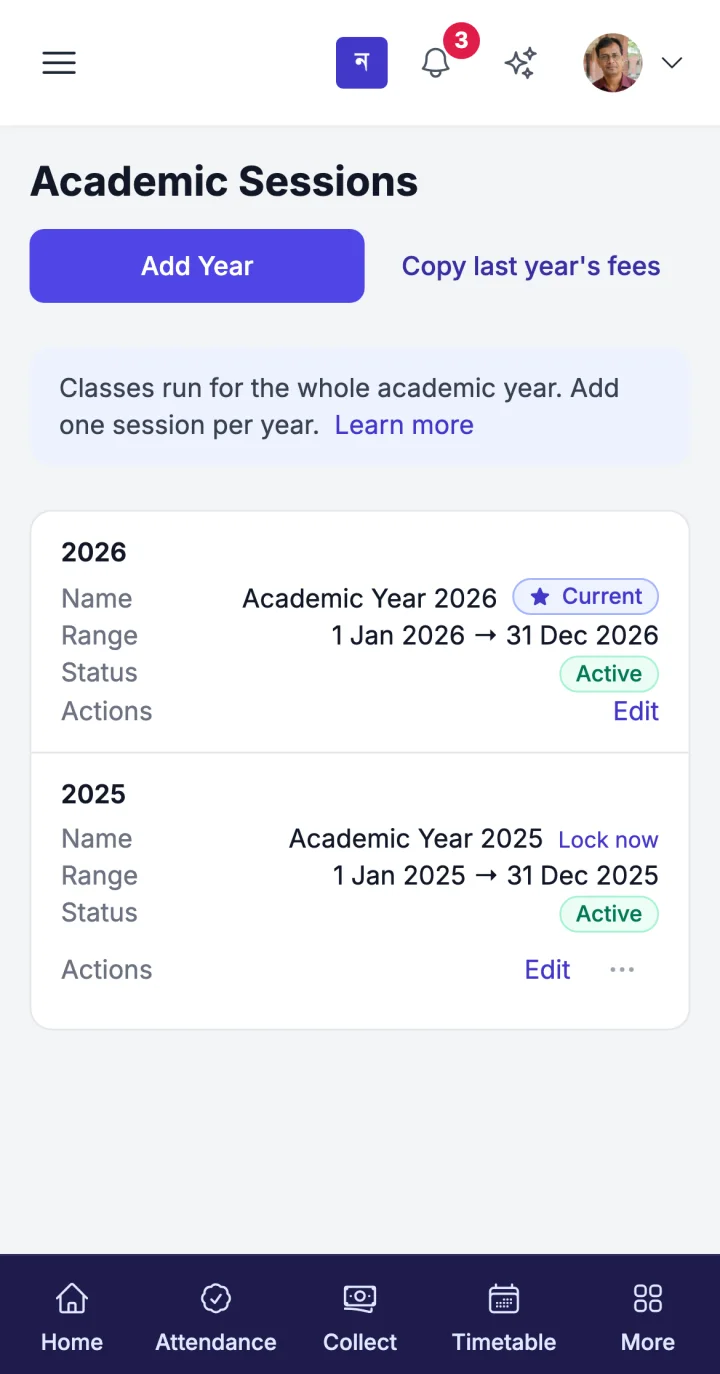 123
- 1The list of years
- 2Current
- 3Learn more
Change the year in the top bar to see earlier data
Press the year button in the top bar and the list of all academic years opens. The current year has "Current" next to it.
If you pick another year, that year's data shows only on your own screen, for example last year's attendance or results. This does not change the current academic year, and nothing changes on anyone else's screen either.

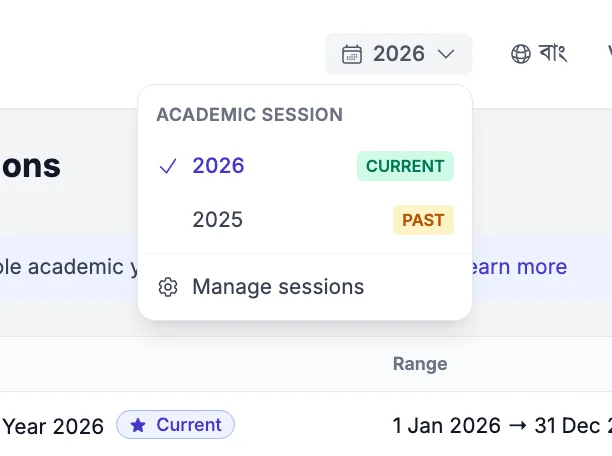 123
- 1The year button
- 2All years
- 3Current

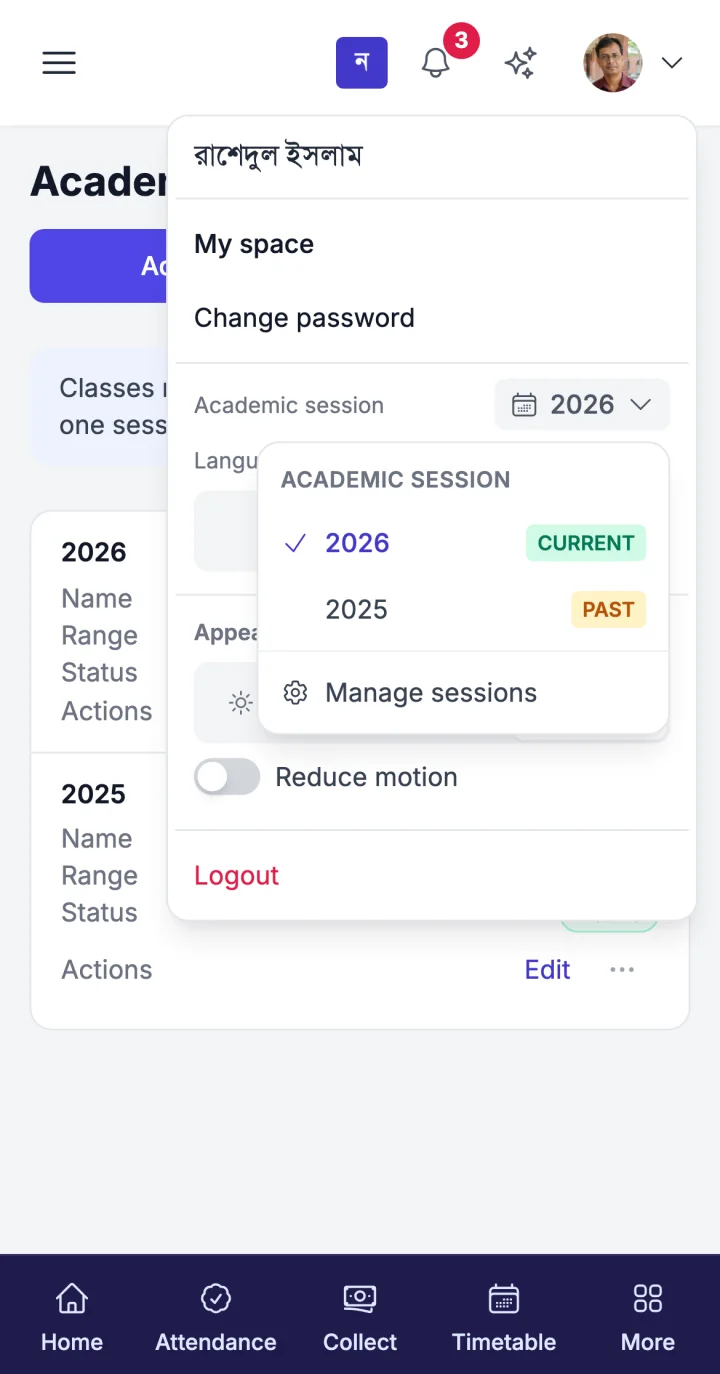 12
- 1The year button
- 2All years
Fix the dates or name (if needed)
Press Edit on a year's row. You can change the start date, the end date and the status (Upcoming, Active or Closed). On the current year's form, "Mark as current session" is ticked; do not untick it.
If you leave the Name (English) and Name (Bangla) boxes empty, the year shows with a plain name like "Academic Year 2026". If you want another name, type it. Then press Save.
On a locked year, "read-only" shows in place of the Edit button.

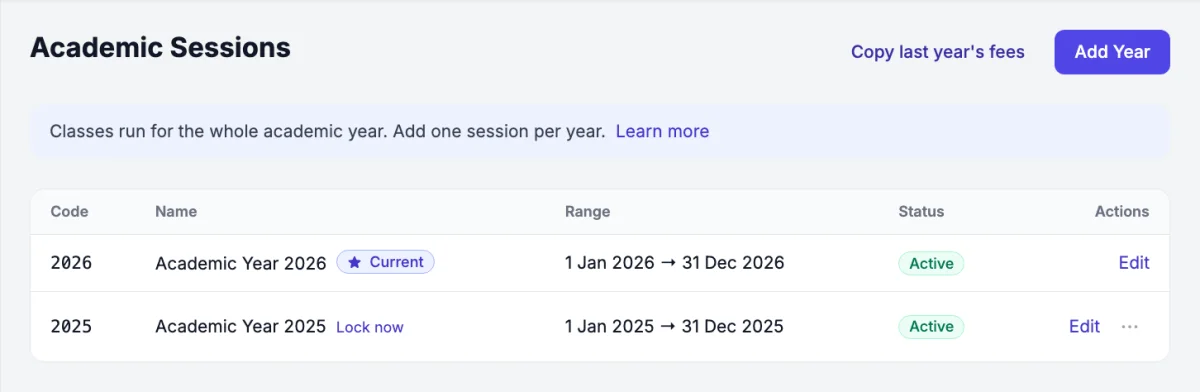 1
- 1Edit
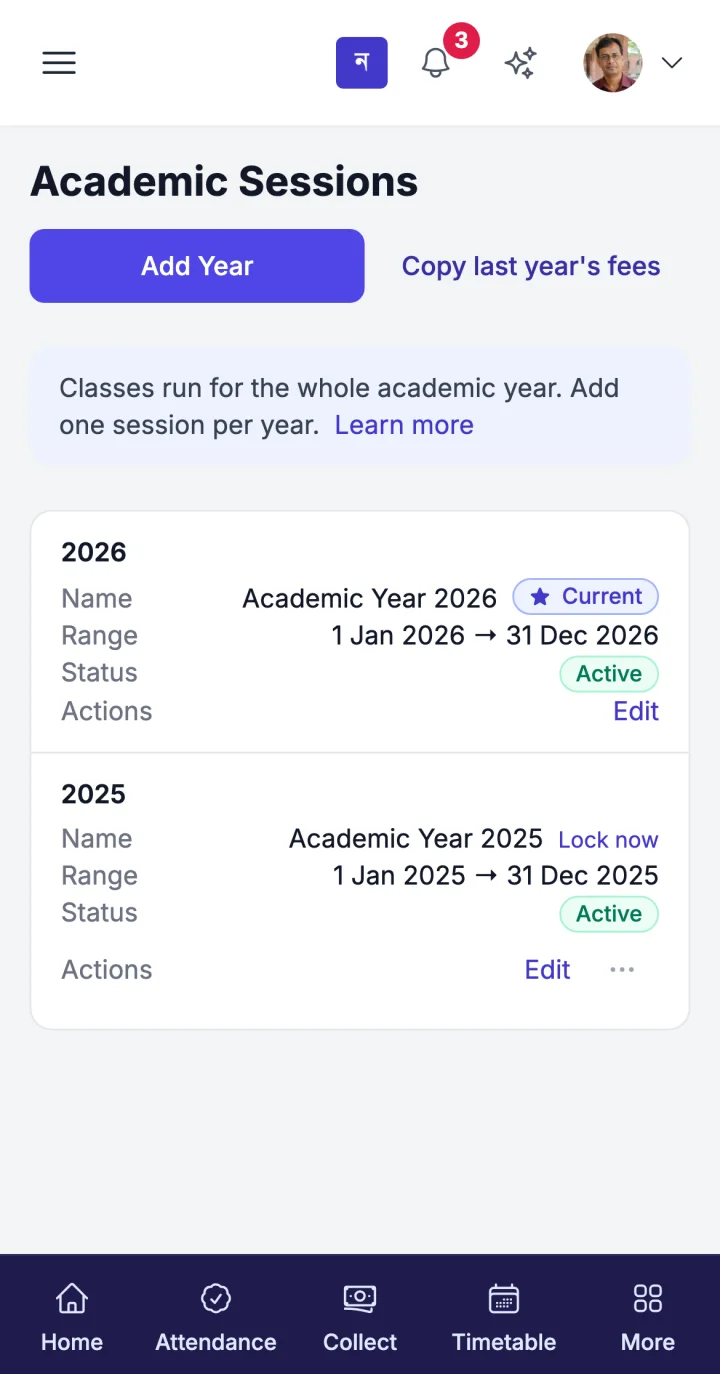 1
- 1Edit

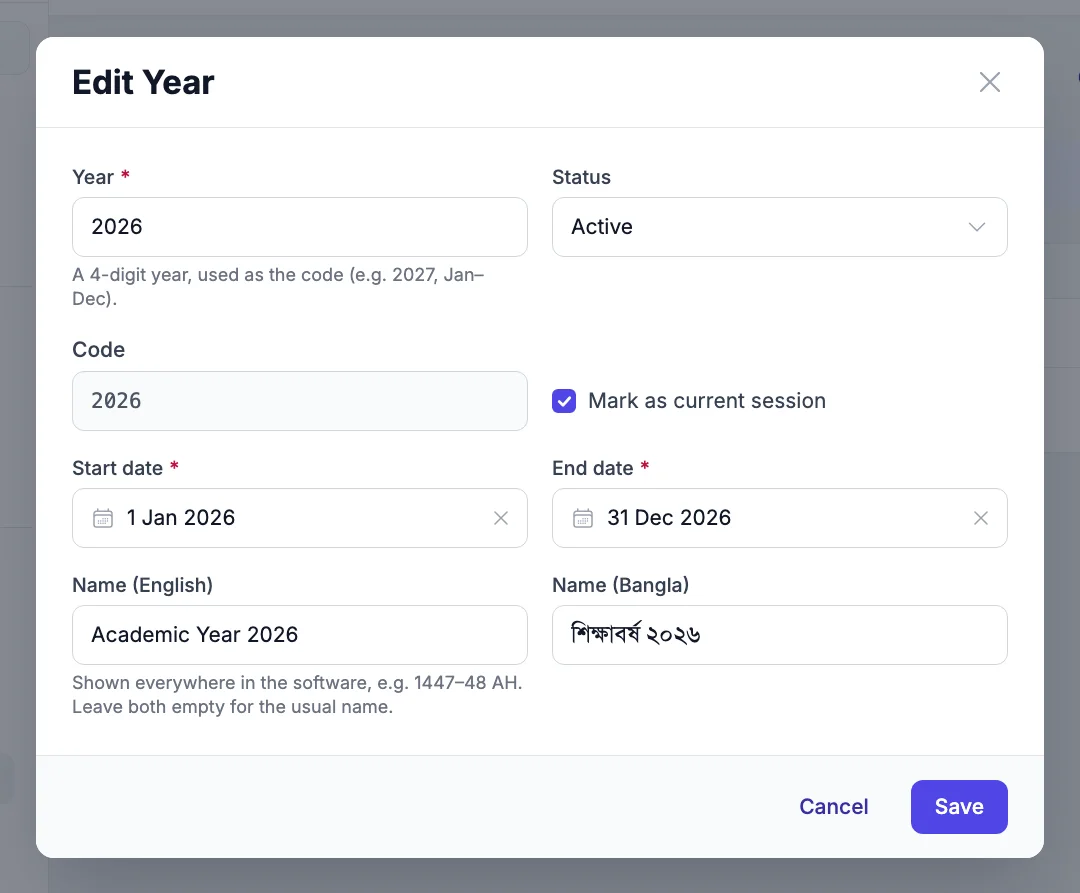 12
- 1Start date
- 2End date

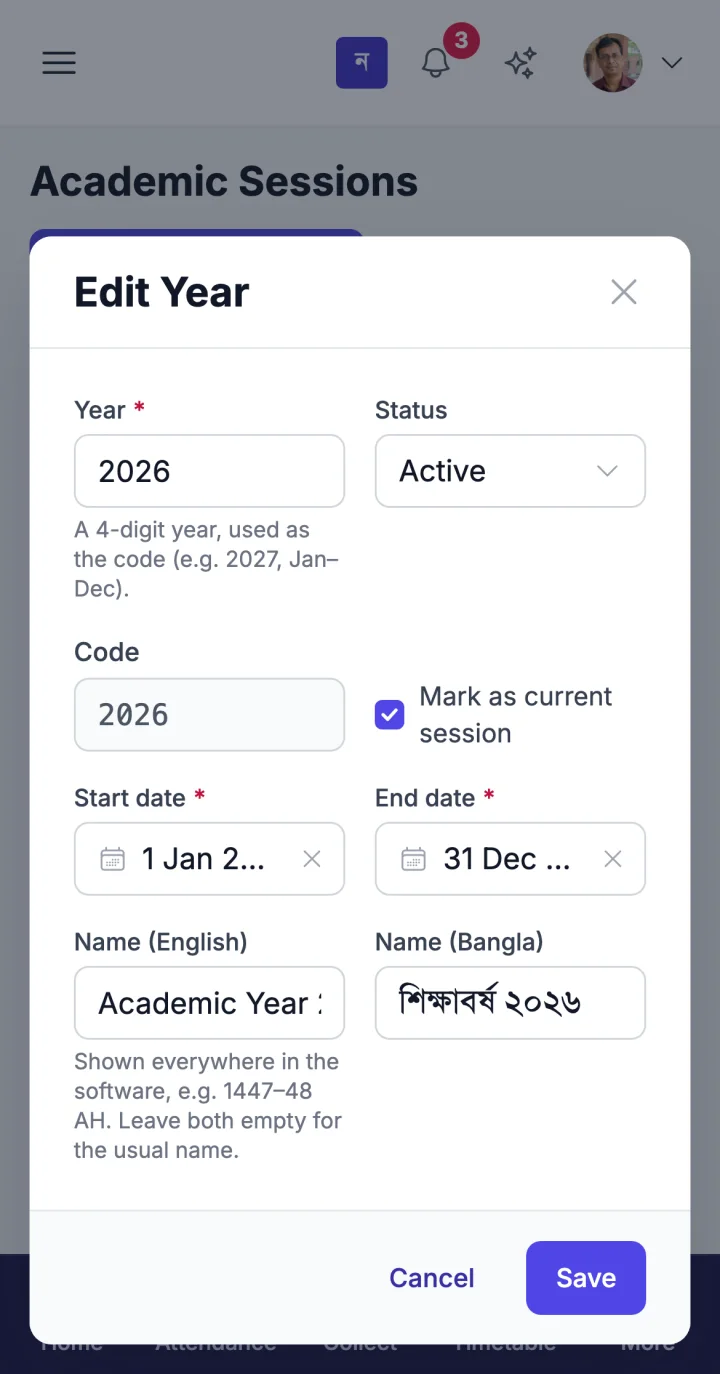 12
- 1Start date
- 2End date
Add the new academic year
A few weeks before the year ends, when it is time for the new year's admissions or setting fees, press Add Year.
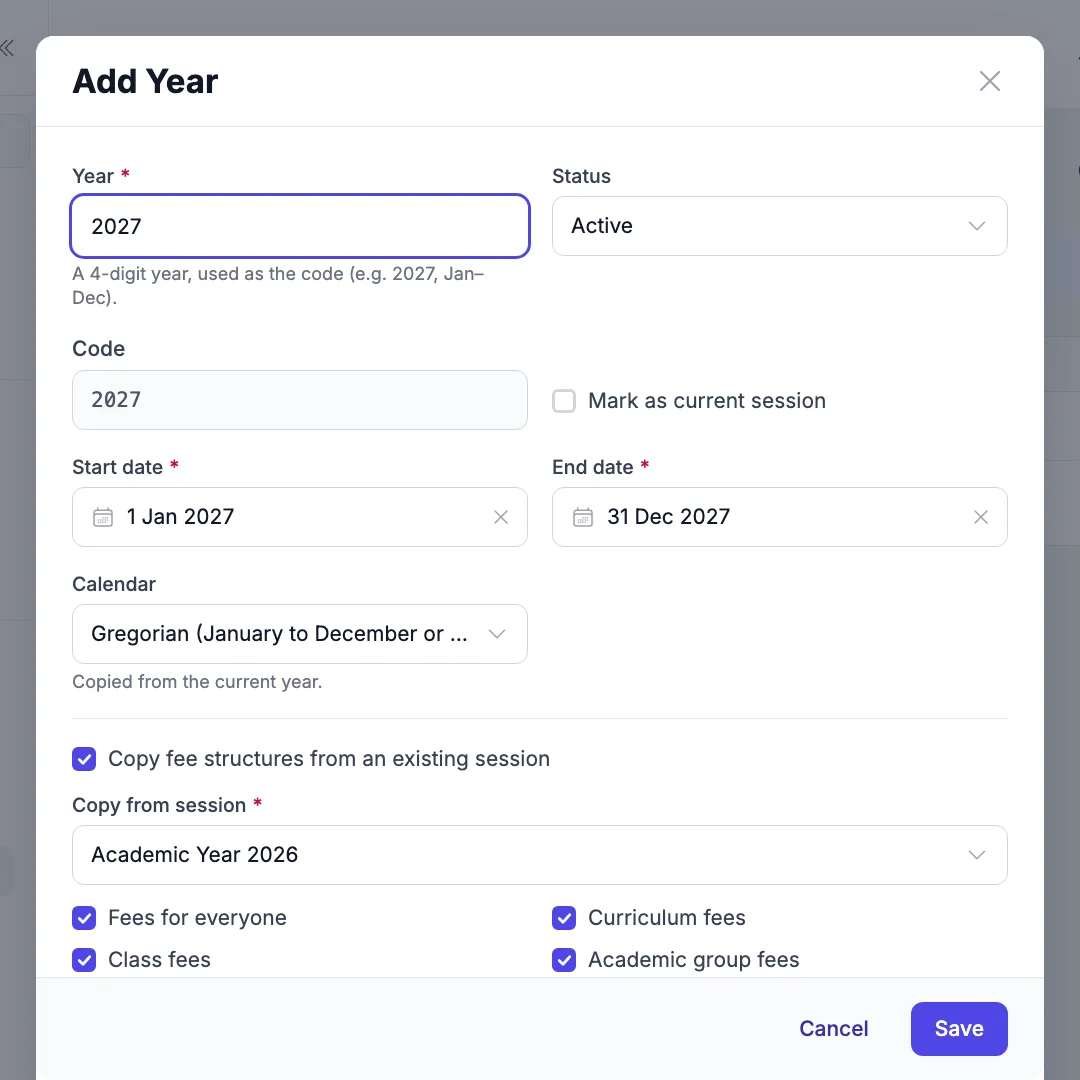
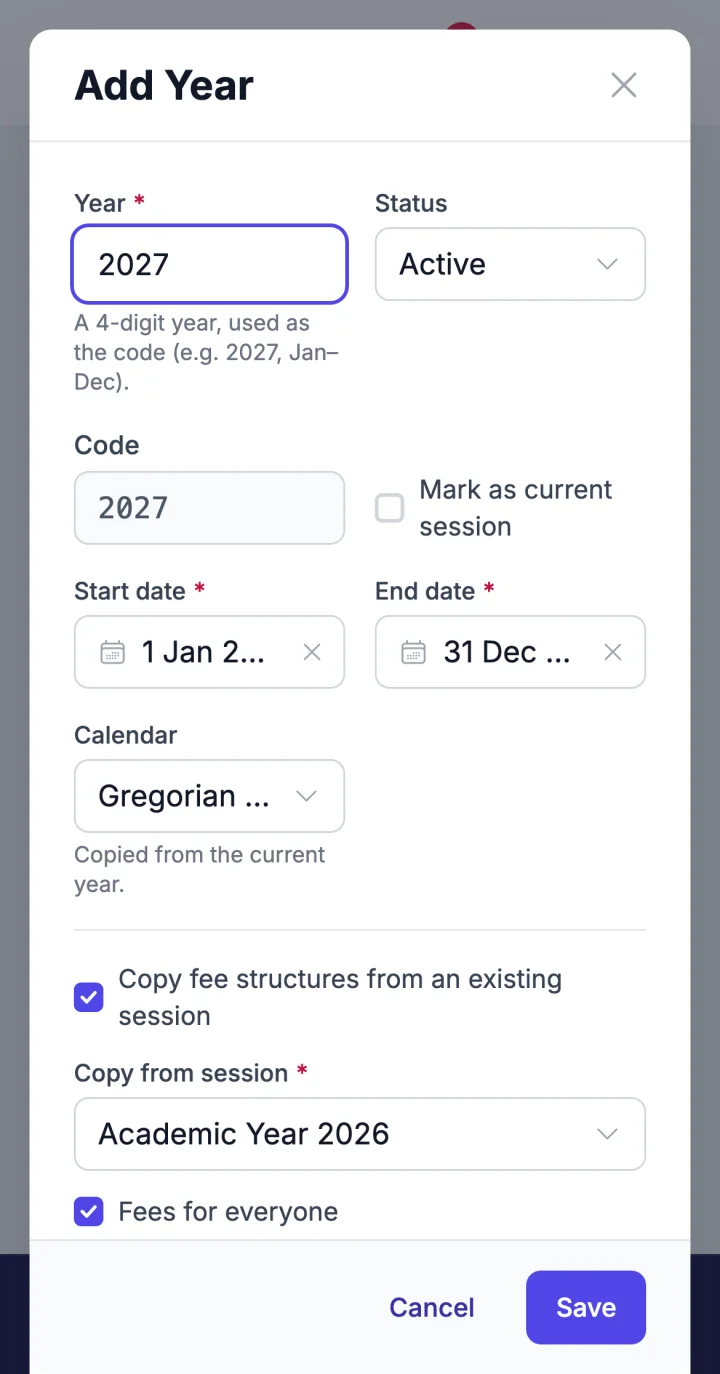
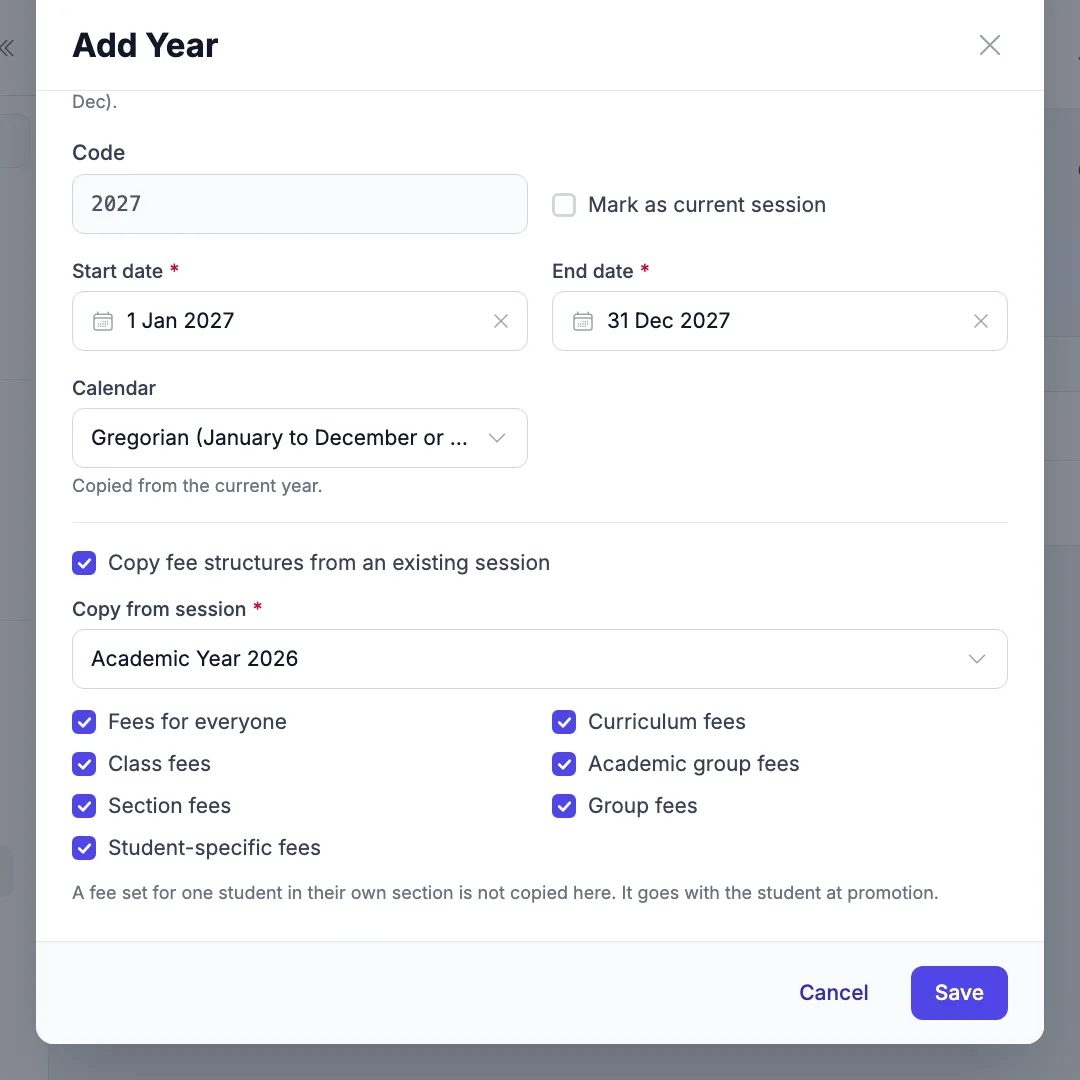
In the Year box, type the four-digit year, for example 2027. As you type, the start date 1 Jan 2027 and the end date 31 Dec 2027 fill in by themselves, and the Code box shows 2027 too. If your academic year starts in another month, change the two dates.
Do not tick "Mark as current session" now. If you tick it, every page moves to the new year at once, while work on the old year may still be left. When you add the new year ahead of time, keep this off.
 1
- 1Add Year

 1
- 1Add Year

 1234
- 1Year
- 2Start date
- 3End date
- 4Mark as current session

 1234
- 1Year
- 2Start date
- 3End date
- 4Mark as current session
Tip: The Calendar box is usually set to Gregorian. If your Qawmi or Hifz madrasah runs on the Hijri year, choose "Hijri (Qawmi / Hifz)".
Copy last year's fees
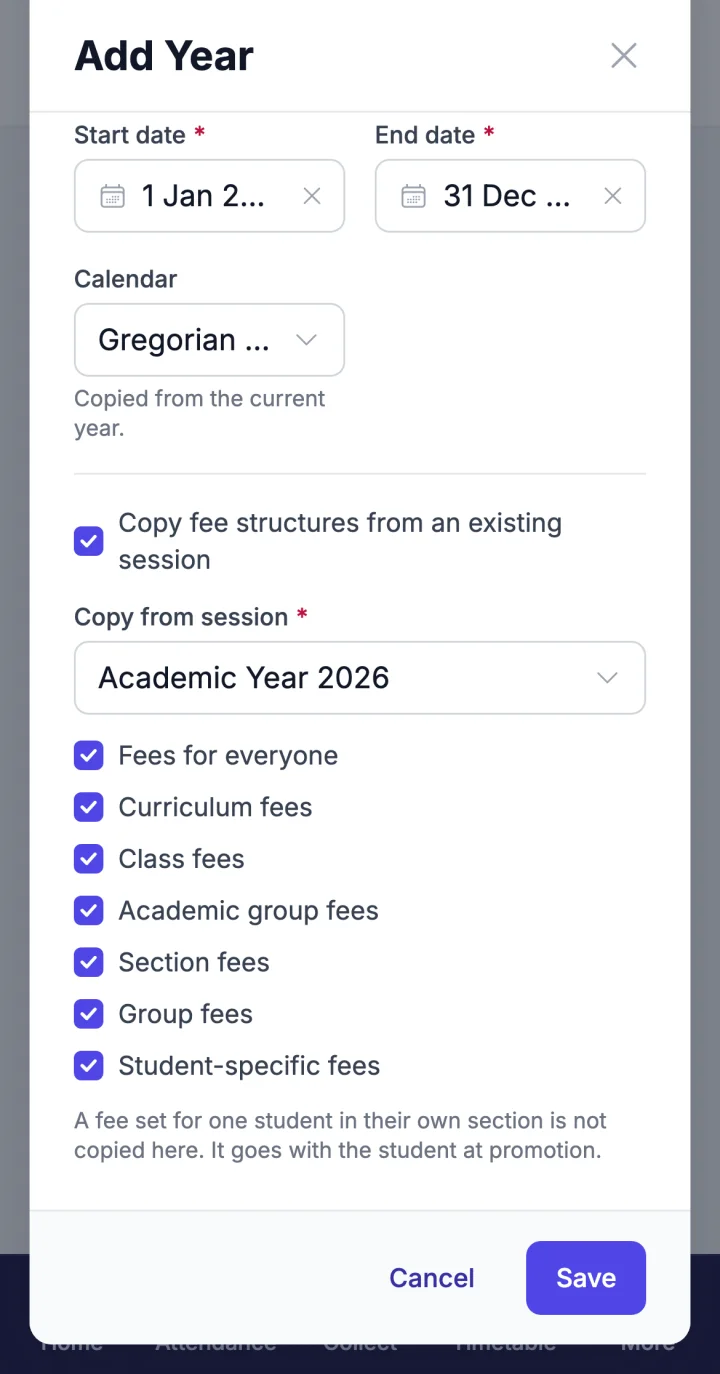
Lower in the same window, "Copy fee structures from an existing session" is already ticked, and the current year (for example Academic Year 2026) is chosen in the "Copy from session" box.
Below, Fees for everyone, Class fees, Section fees, Student-specific fees and so on are ticked. Untick the ones that will change in the new year. A student-specific fee is copied only if it is still active on the first day of the new year. But a fee set separately for a student in their section is not copied here; those go along at promotion.
Then press Save. The new year is added to the list, but "Current" stays next to the old year.

 12
- 1Copy fee structures from an existing session
- 2Which fees are copied

 12
- 1Copy fee structures from an existing session
- 2Which fees are copied

 1
- 1Current

 1
- 1Current
Tip: You do not have to copy the fees now. You can copy them any time later from "Copy last year's fees" at the top of the academic year page. It first shows how many fees will be copied and how many already exist.
Decide whether to promote students now
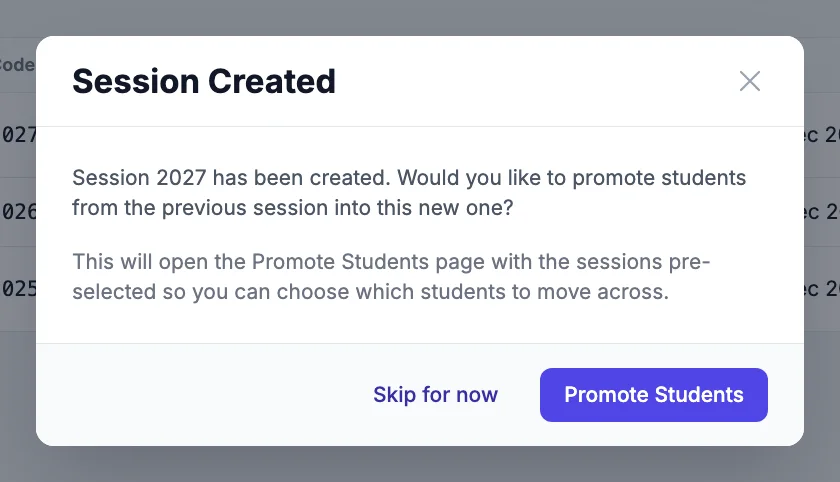
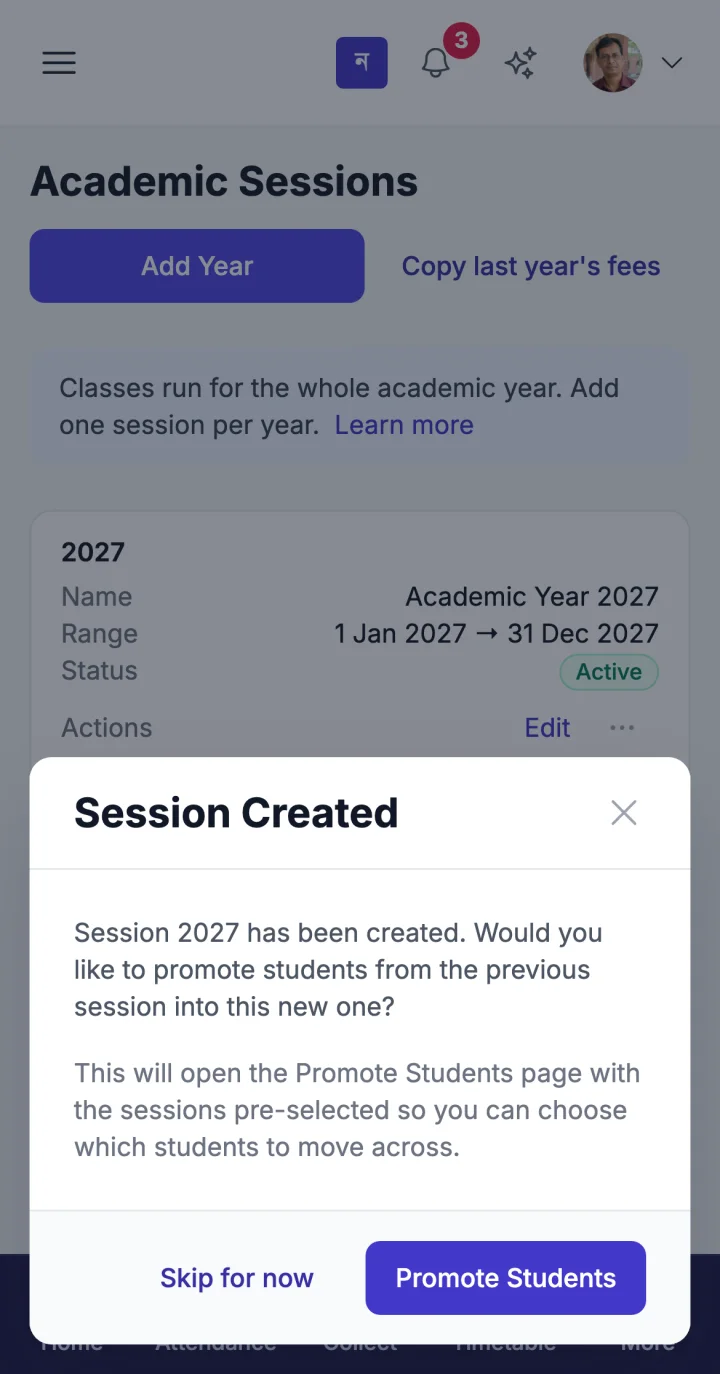
After the new year is saved, a window called "Session Created" appears. It says "Session 2027 has been created." and asks whether you want to promote last year's students into this new year.
If the annual exam results are ready, press Promote Students. The Promote Students page opens, with the two academic years already chosen. If the results are not ready yet, press Skip for now. You can do it later from Academic → Promote Students.

 12
- 1Promote Students
- 2Skip for now

 12
- 1Promote Students
- 2Skip for now
Make the new year current when it starts
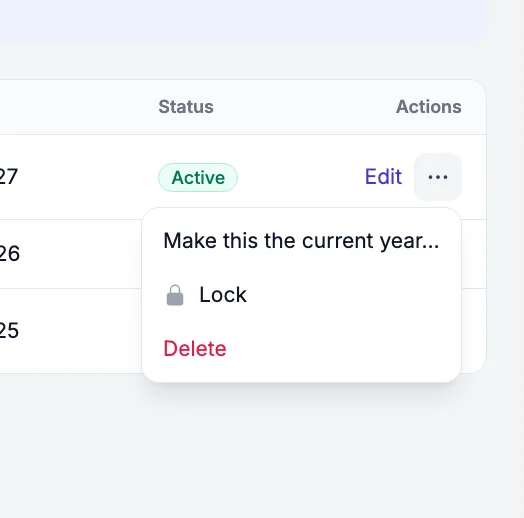
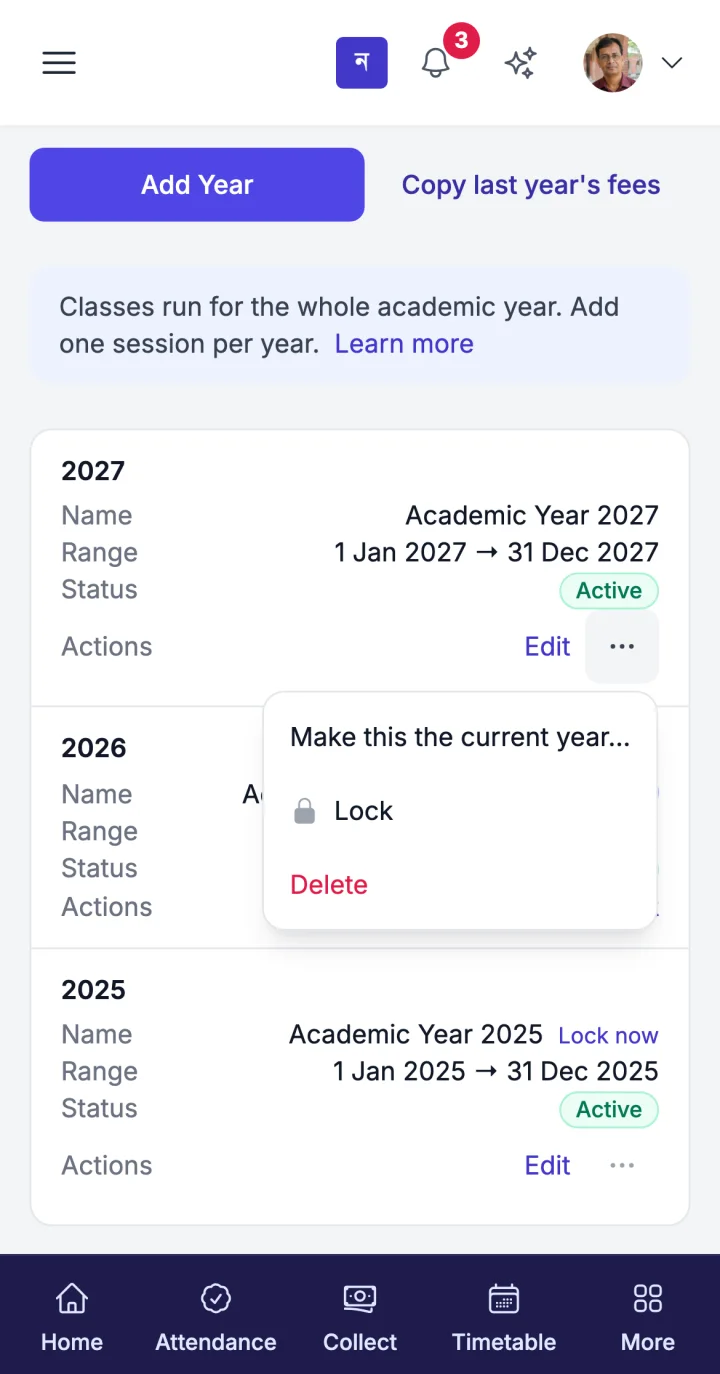
EduSine does not change the year by itself on 1 January. On the day you want to start the new year's work, press Actions (⋯) on the new year's row, then press "Make this the current year…".
A question comes: "Make Academic Year 2027 the current year?" It says the dashboard, the Fee Register, attendance and both portals will show the new year for everyone. Press Make current.
After that, "Current" shows next to the new year. The old year stays open until you lock it, so you can go there and finish the remaining work.

 12
- 1Actions (⋯)
- 2Make this the current year…

 12
- 1Actions (⋯)
- 2Make this the current year…

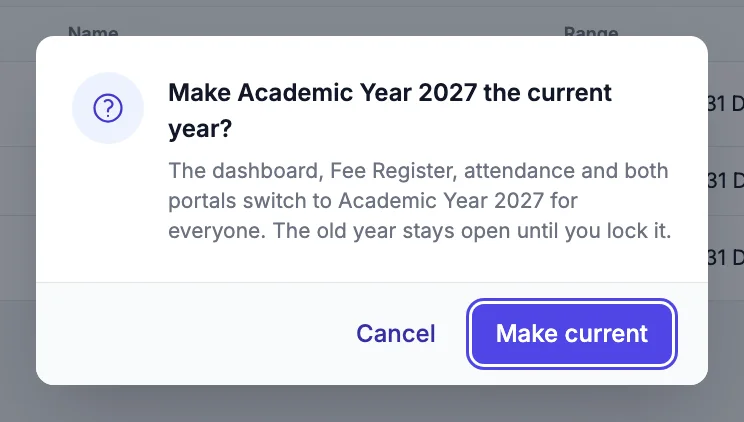 1
- 1Make current

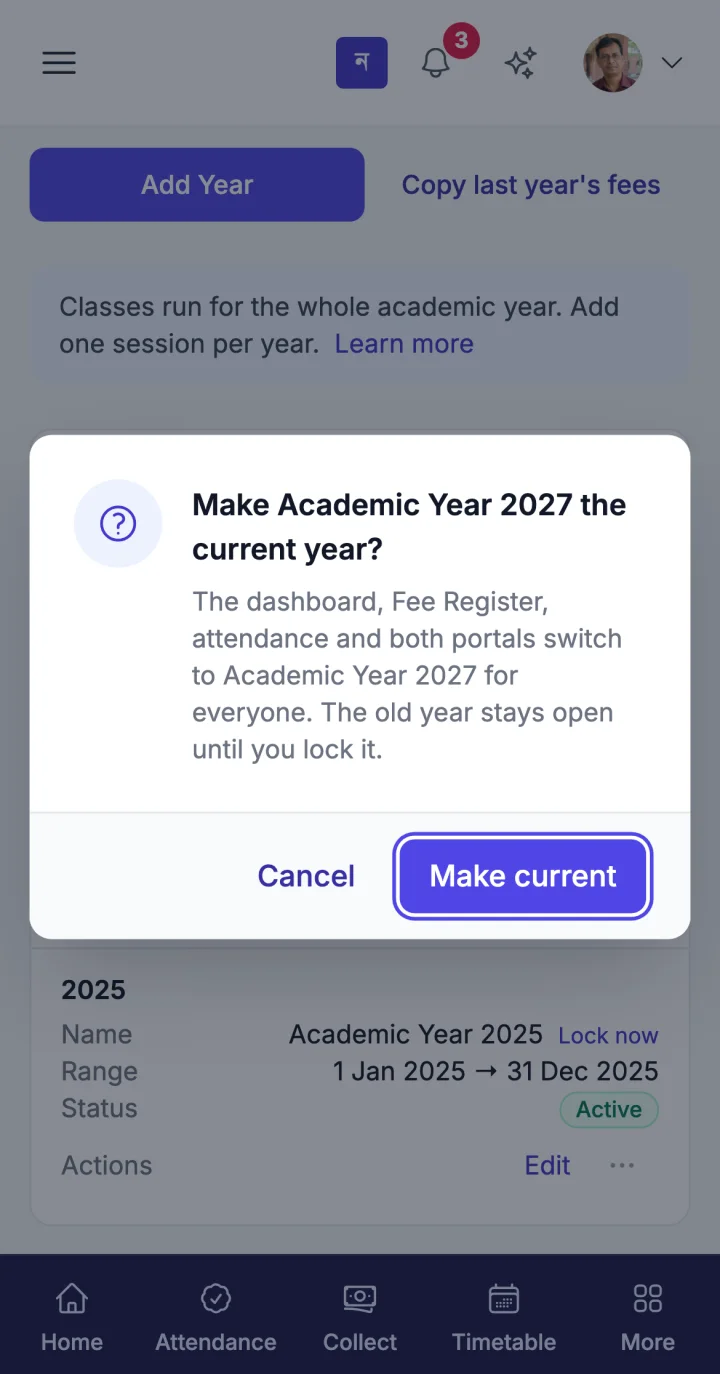 1
- 1Make current

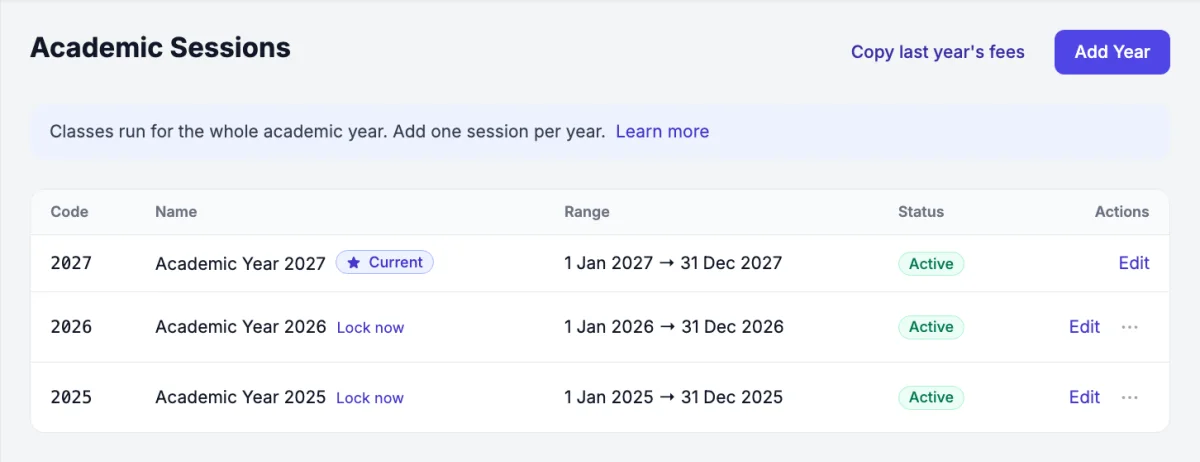 1
- 1Current

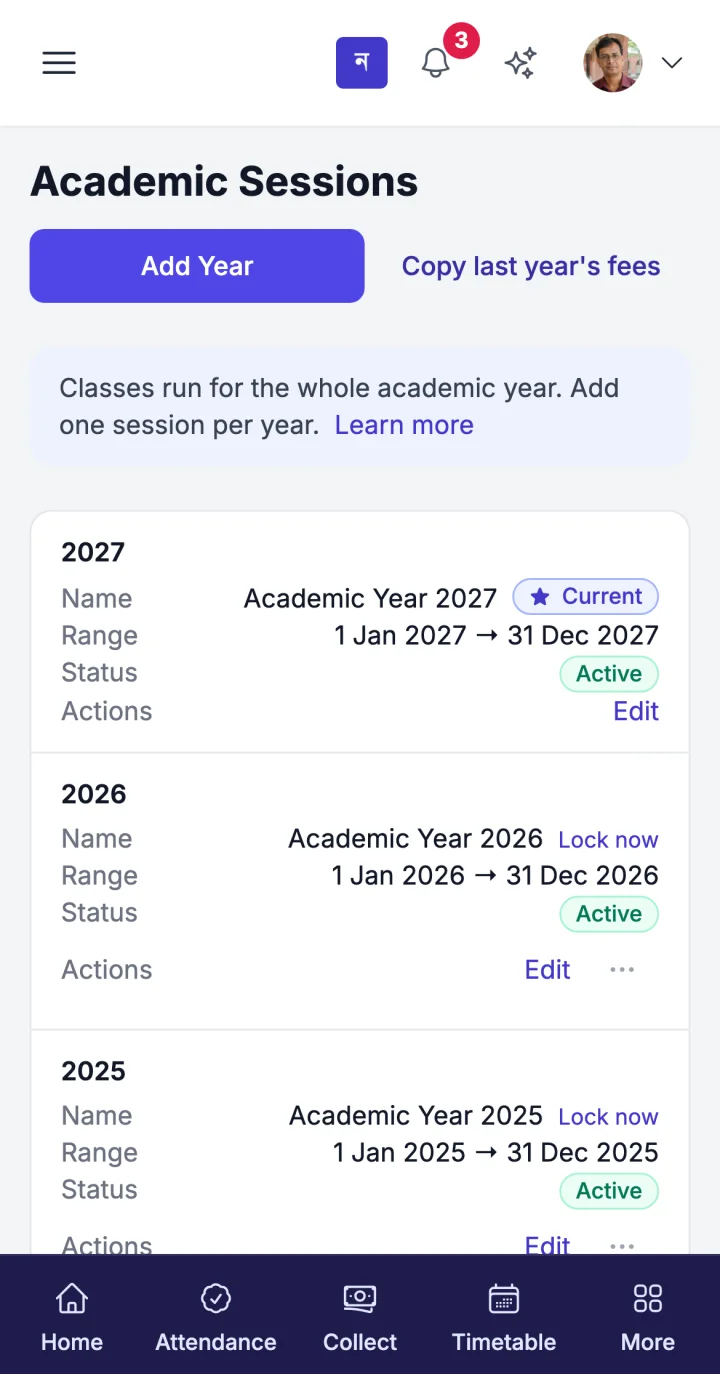 1
- 1Current
Tip: If EduSine is already open in someone else's browser, they are shown a message to move to the new year. As soon as they press it, they move to the new year.
Lock the year that has ended
When all of the old year's results, accounts and promotion are finished, lock the year so nobody can change old data even by mistake.
If "Lock now" shows next to the old year's name, press it, or press Lock from the row's Actions (⋯). A window says what locking does:
- Attendance, marks and results can no longer be changed.
- Fees, bills and payments in this period become read-only.
- Students cannot be promoted into or out of it until you unlock.
If that is fine, press Lock. "Locked" shows next to the year's status.
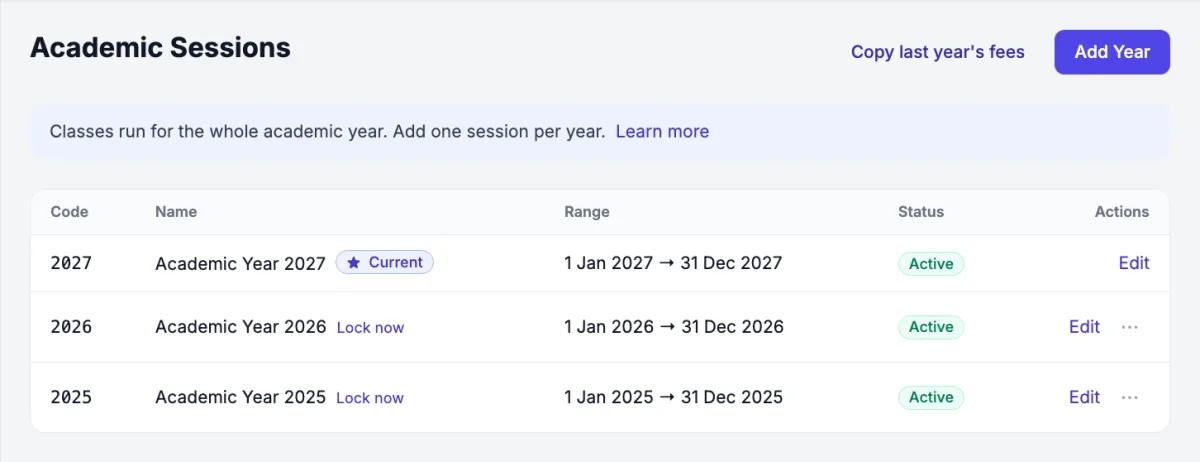 12
- 1Lock now
- 2Actions (⋯)

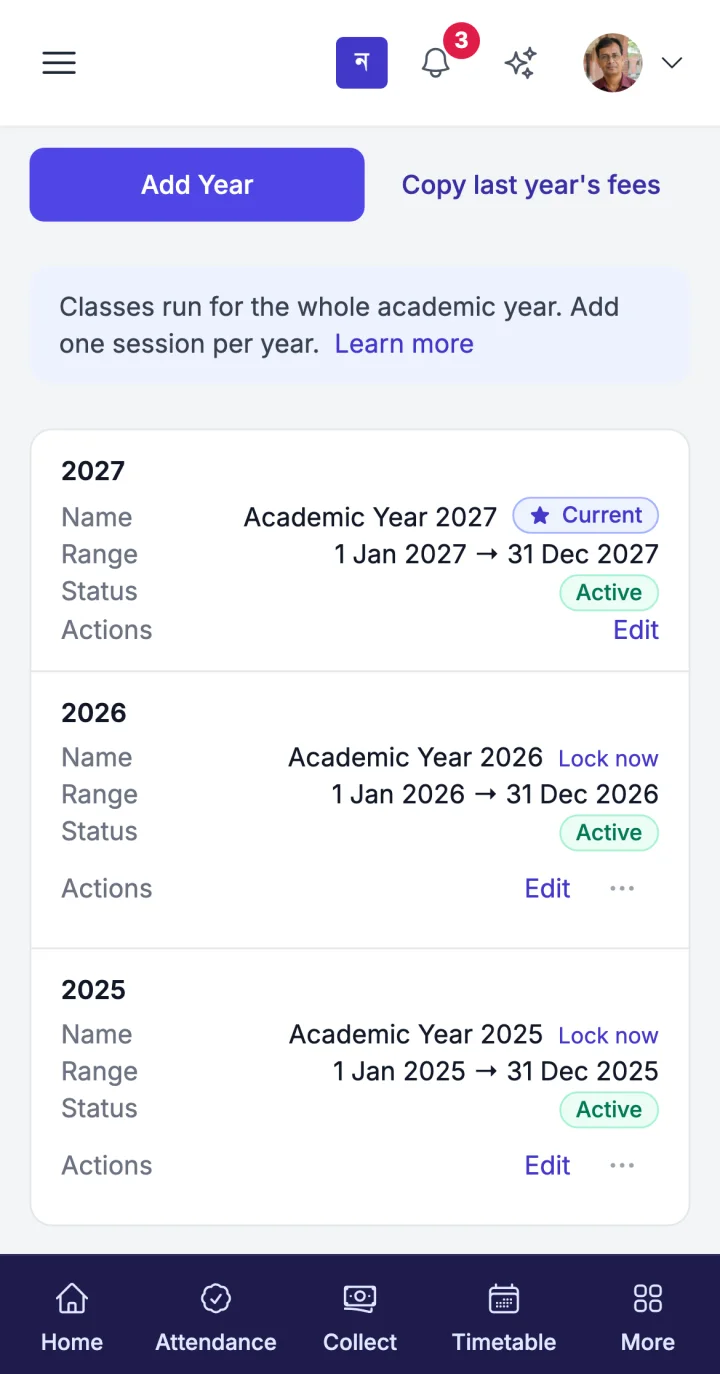 12
- 1Lock now
- 2Actions (⋯)

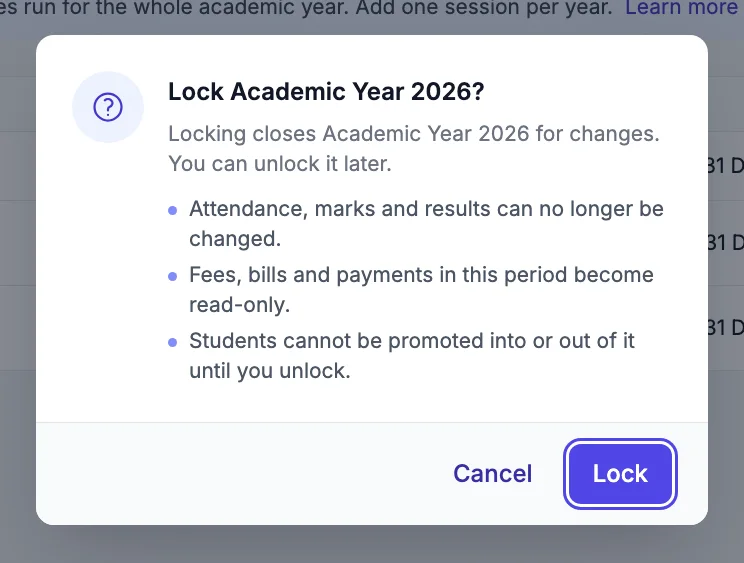 1
- 1What locking does

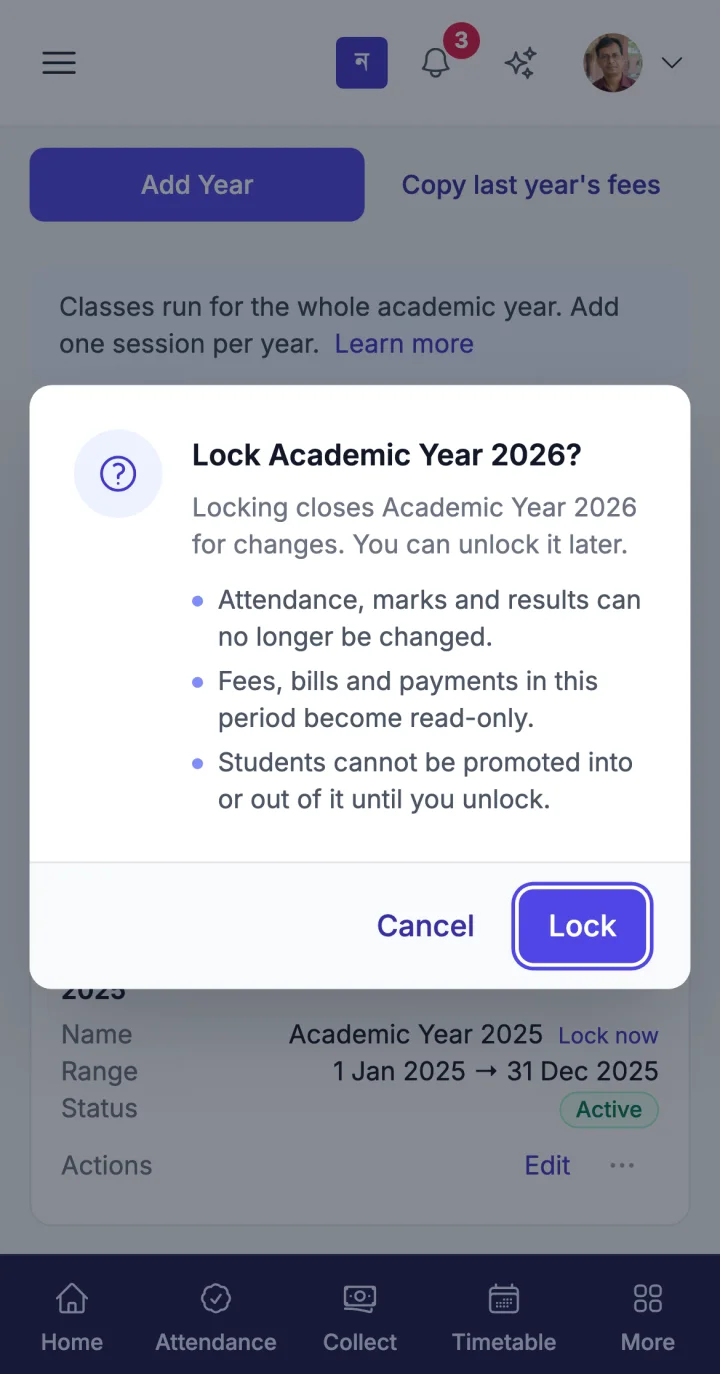 1
- 1What locking does

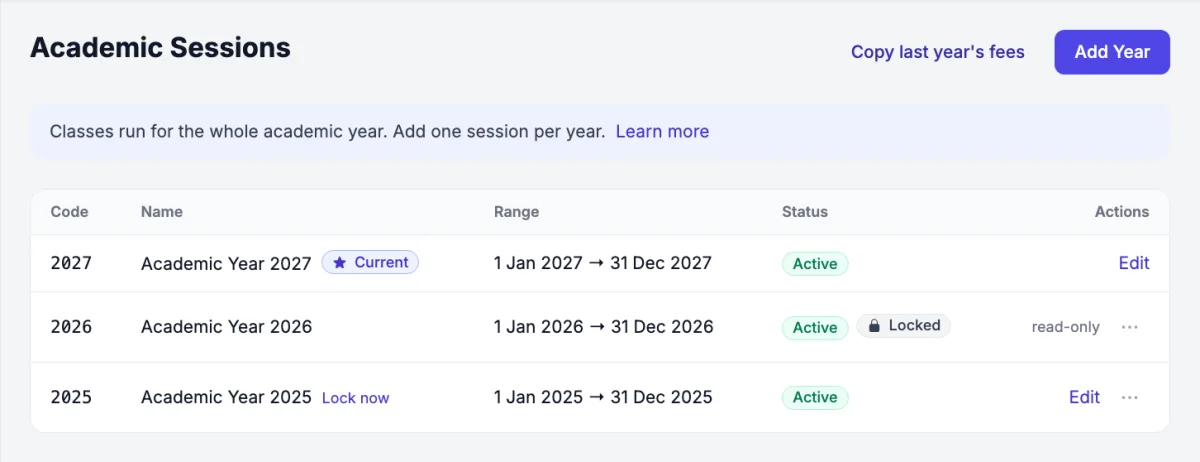

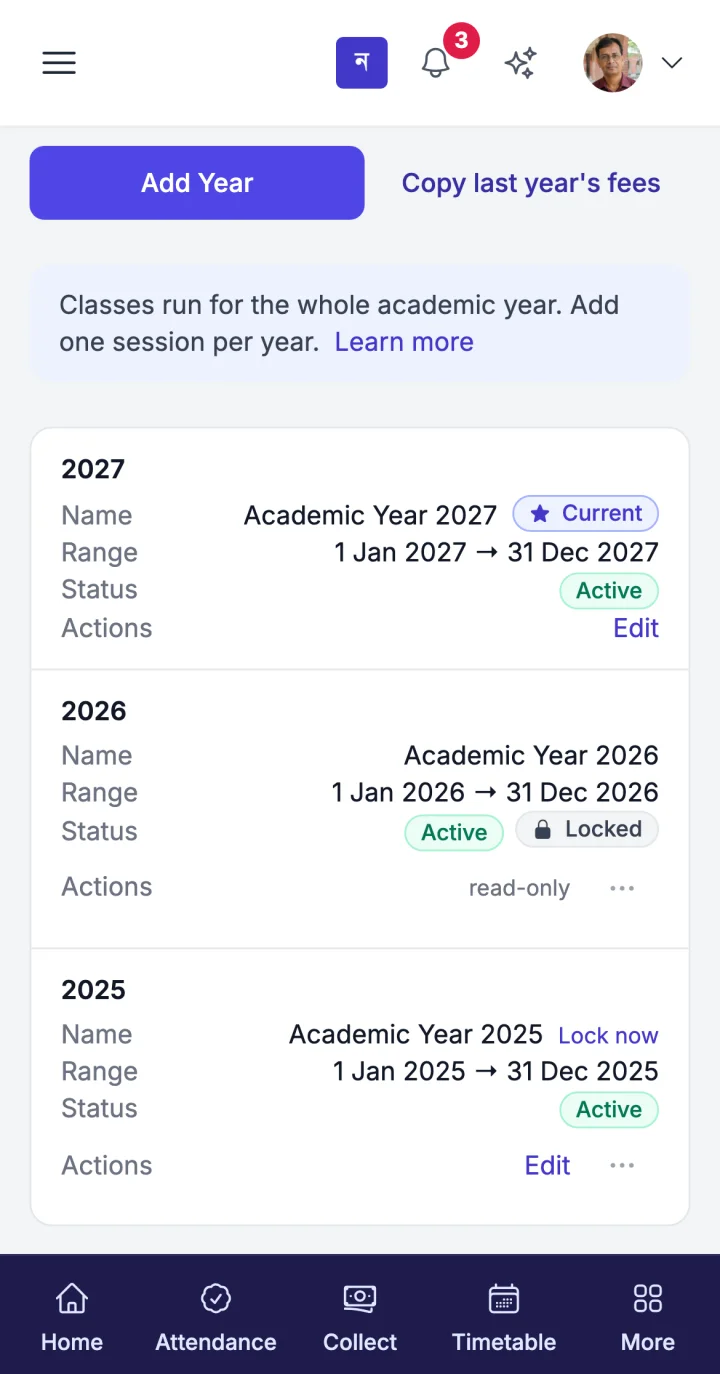
Tip: The current academic year cannot be locked. So first make the new year current (Step 7), then lock the old year.
Tip: When Class Ten students are waiting for their SSC result, the year shows "… waiting for board result" and "Lock now" does not show. Press "Extend to …" next to it, and the year stays open until the result comes.
Unlock if needed
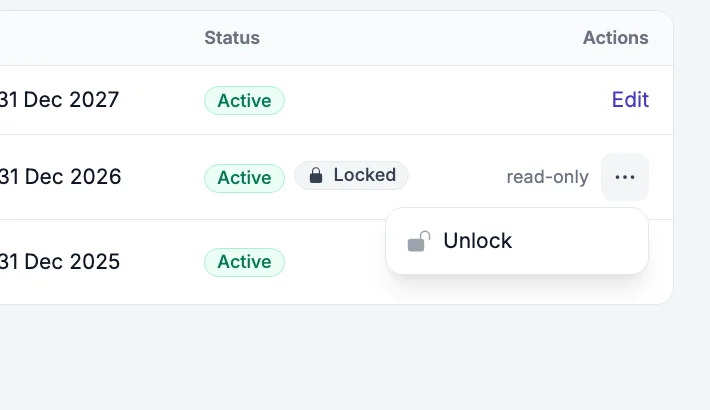
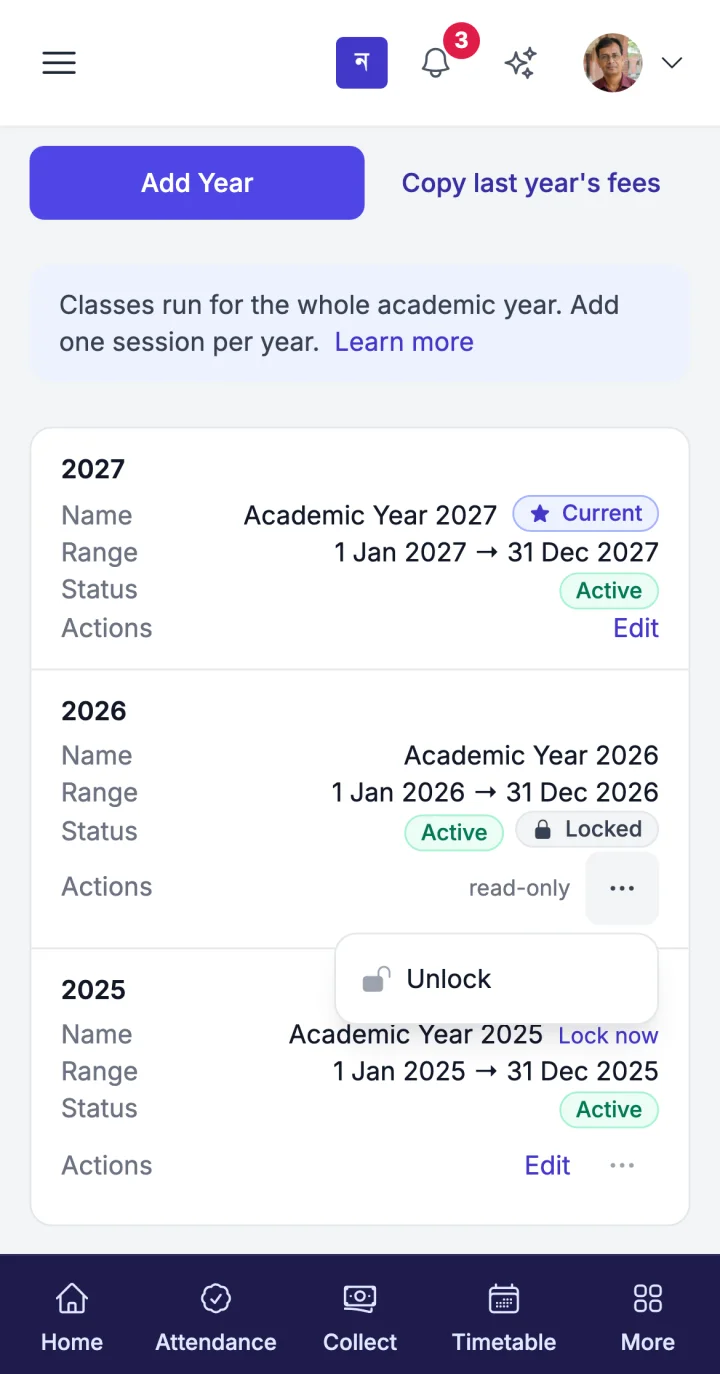
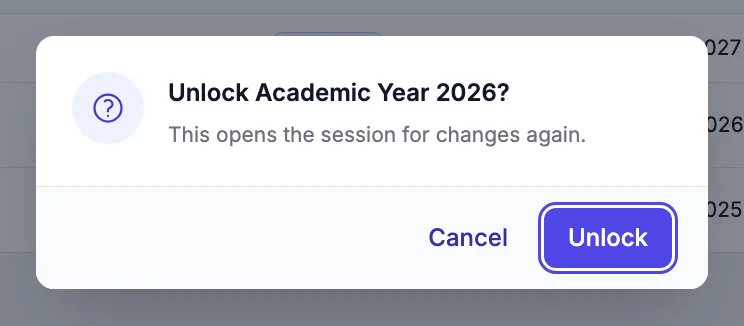
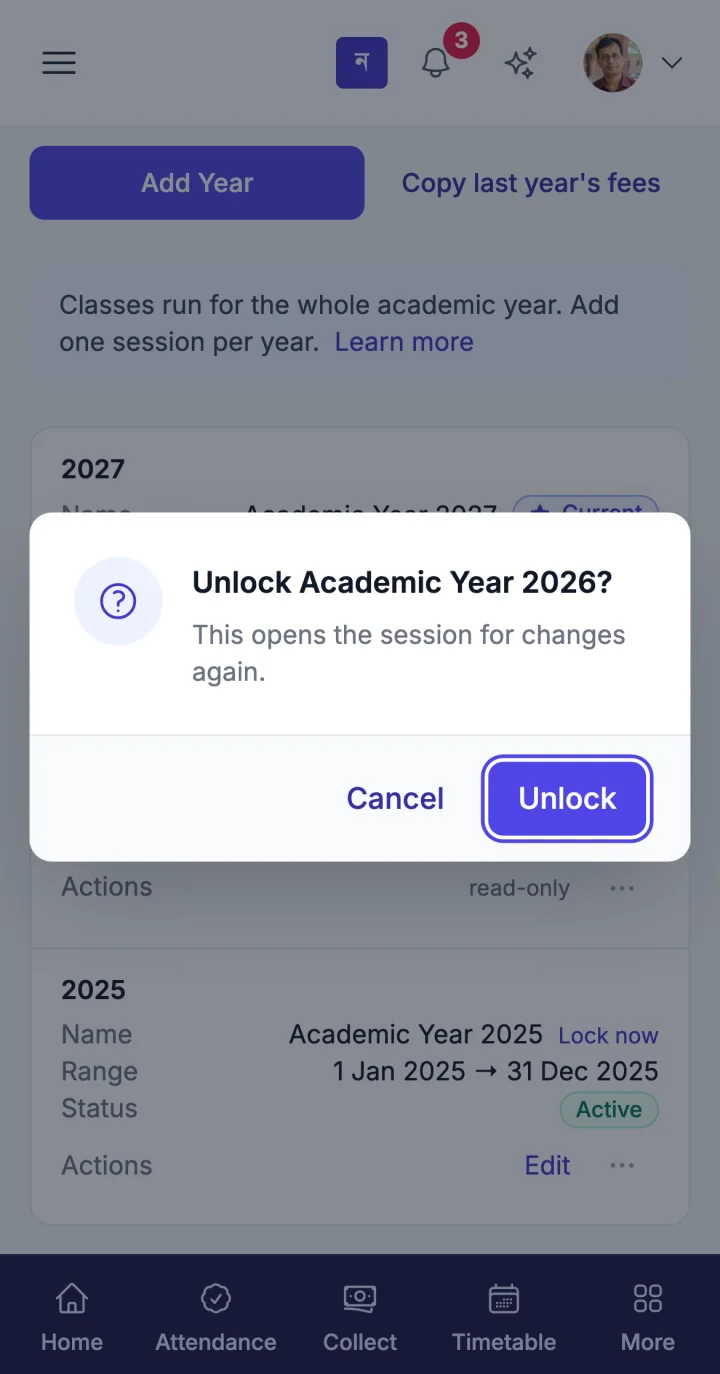
If something needs fixing in a locked year, press Unlock from the row's Actions (⋯). At the question "Unlock Academic Year 2026?", press Unlock and the year opens for editing again.
When you are done, lock it again.

 12
- 1Actions (⋯)
- 2Unlock

 12
- 1Actions (⋯)
- 2Unlock

 1
- 1Unlock

 1
- 1Unlock
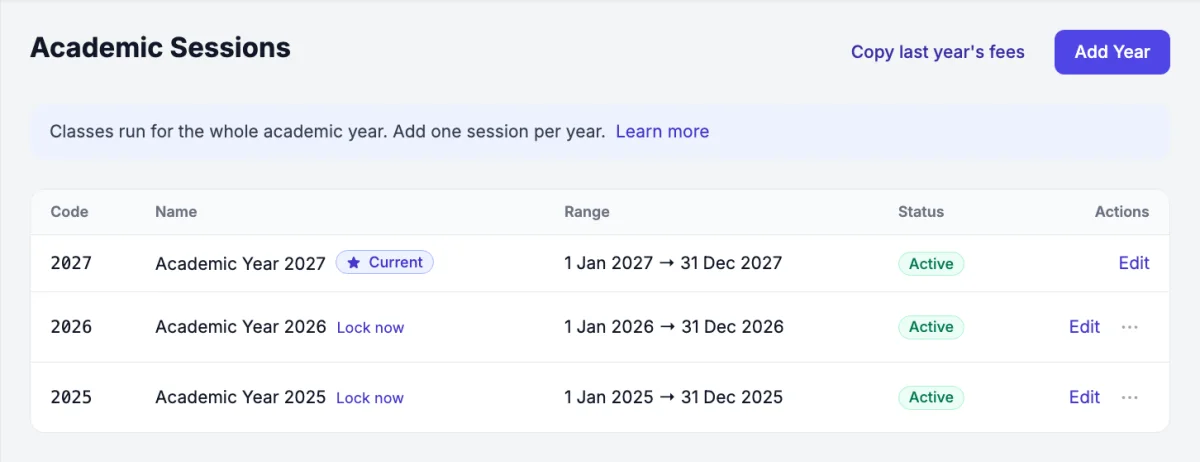
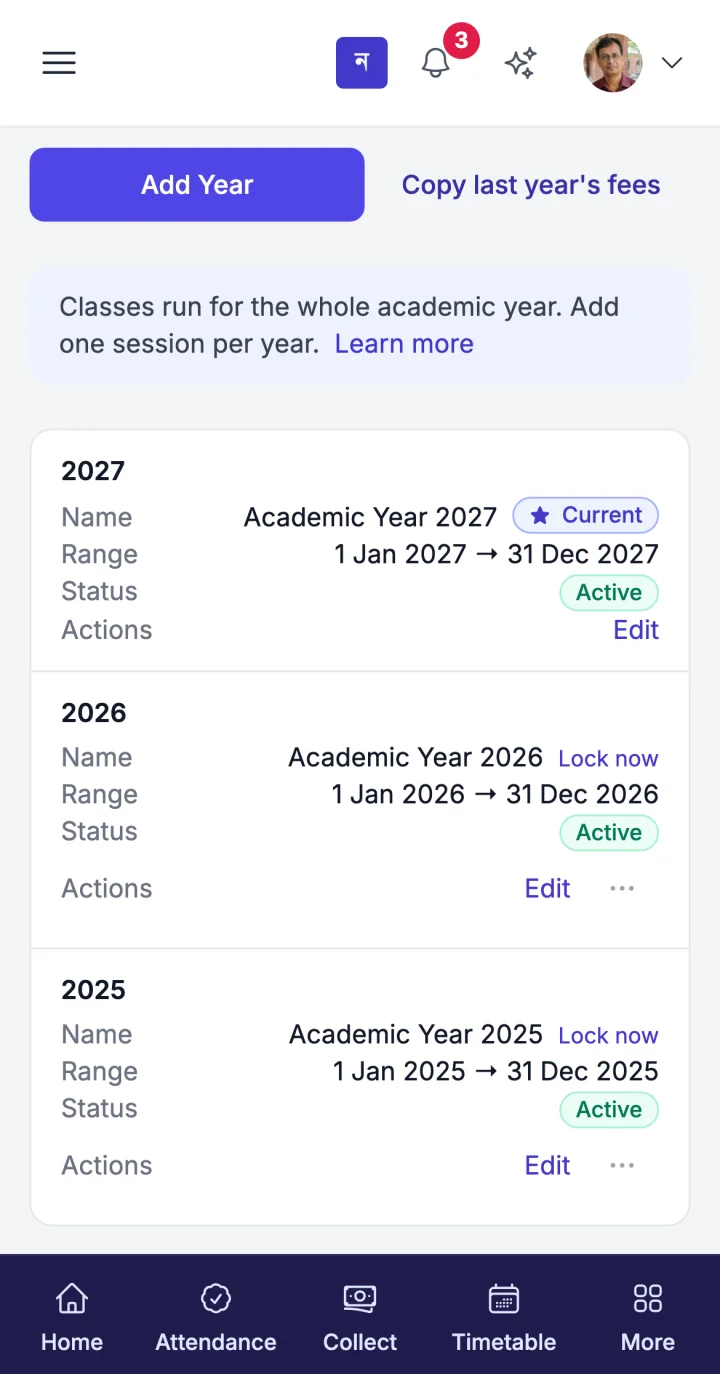
Tip: To delete a year added by mistake, press Delete from that year's row Actions (⋯). The question "Delete Academic Year …?" says that once deleted, the year cannot be brought back. Press Delete and "Deleted" appears. The row of the year running now has no delete option, so first make another year current (Step 7).
What to do next
After making the new year current, open the dashboard and the Fee Register once and check that the top bar shows the new year. If promotion is still left, move students into the new year from Academic → Promote Students.
Once the old year's accounts are settled, do not forget to lock the year.
If something goes wrong
I added the new year, but every page still shows the old year
Adding a new year does not make it current. As in Step 7, press "Make this the current year…" from the row's Actions.
On saving, it shows "An academic session with this code already exists." in English
An academic year for this year is already in the list. Do not make a new one; edit that row instead.
"Year must be a 4-digit year (e.g. 2027)."
Type only the four-digit year in the Year box, for example 2027. Something like "2027–28" or a name cannot be used.
The Lock option does not show on the old year
The current year cannot be locked, and if some students are waiting for their board result, "Lock now" does not show. First make the new year current, or press Lock from Actions (⋯).
The Delete option does not show on a year's row
The row of the year running now has no delete option. First make another year current (Step 7), then press Delete from the old year's row Actions (⋯).
Changing attendance, marks or fees says the year is locked
That year is locked. Unlock it as in Step 9, and lock it again when you are done.
More tutorials
See how to do the other jobs in EduSine, step by step.
Class routine
Build the weekly class routine, place periods and breaks, copy one day to the others, and print it.
ReadStudent attendance
Take your class's attendance on your phone: mark only the absent students and save, and message guardians if you like.
ReadStaff attendance
Take every teacher and staff member's attendance on one screen, and connect a fingerprint machine if you have one.
ReadCan’t find what you’re looking for?