A guide to fingerprint attendance in your institution
From buying the machine to enrolling fingerprints, syncing online and daily upkeep. The steps to run fingerprint attendance for staff and students.
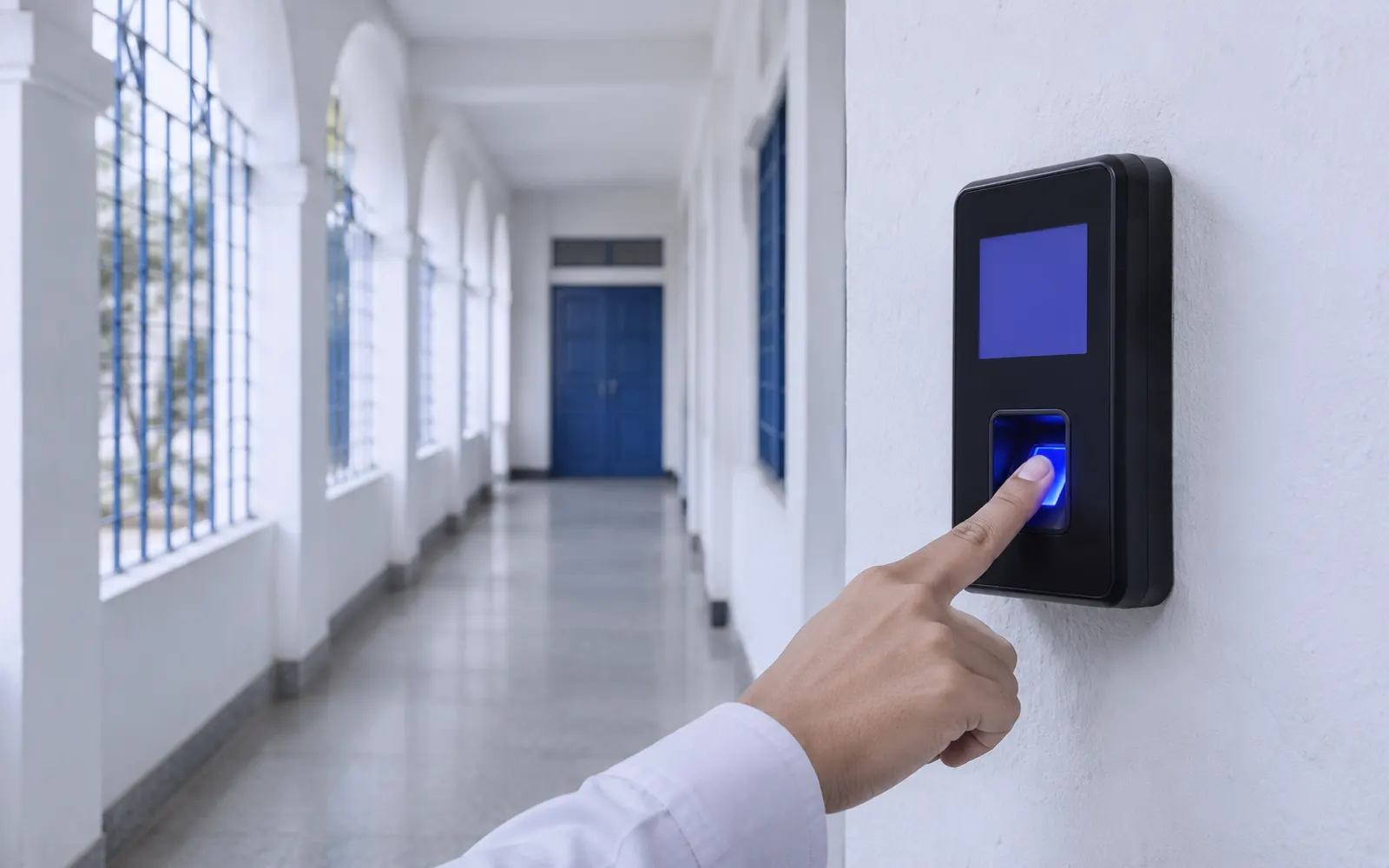
Mounting a fingerprint machine on the wall does not solve attendance by itself. Many institutions have a machine, but after a few months nobody looks at its data. The data stays in the machine, or on one office computer, and never reaches daily work.
This guide goes through setting up fingerprint attendance step by step, from start to finish, and where things usually go wrong.
First decide: for whom
- Teachers and staff only: the easiest start. Numbers are small, and arrival and leaving times also matter for salaries.
- Students as well: with many students the morning queue gets long. A machine takes a few seconds per person, so 500 students on one machine means many minutes. With large numbers you need more than one machine.
Many institutions start with teachers and staff and add students a few months later. Student attendance can also be taken in class from a teacher's phone.
Before you buy a machine
- The machine's software: find out how the machine connects to a computer and where it stores its data. Before you buy, make sure it works with the software or system you will use.
- Capacity: each machine has a limit on how many fingerprints and punch records it can hold.
- Power cuts: check whether it has a battery. If not, it needs a small UPS.
- After-sales service: where it can be repaired and how long the warranty lasts.
Where to put the machine
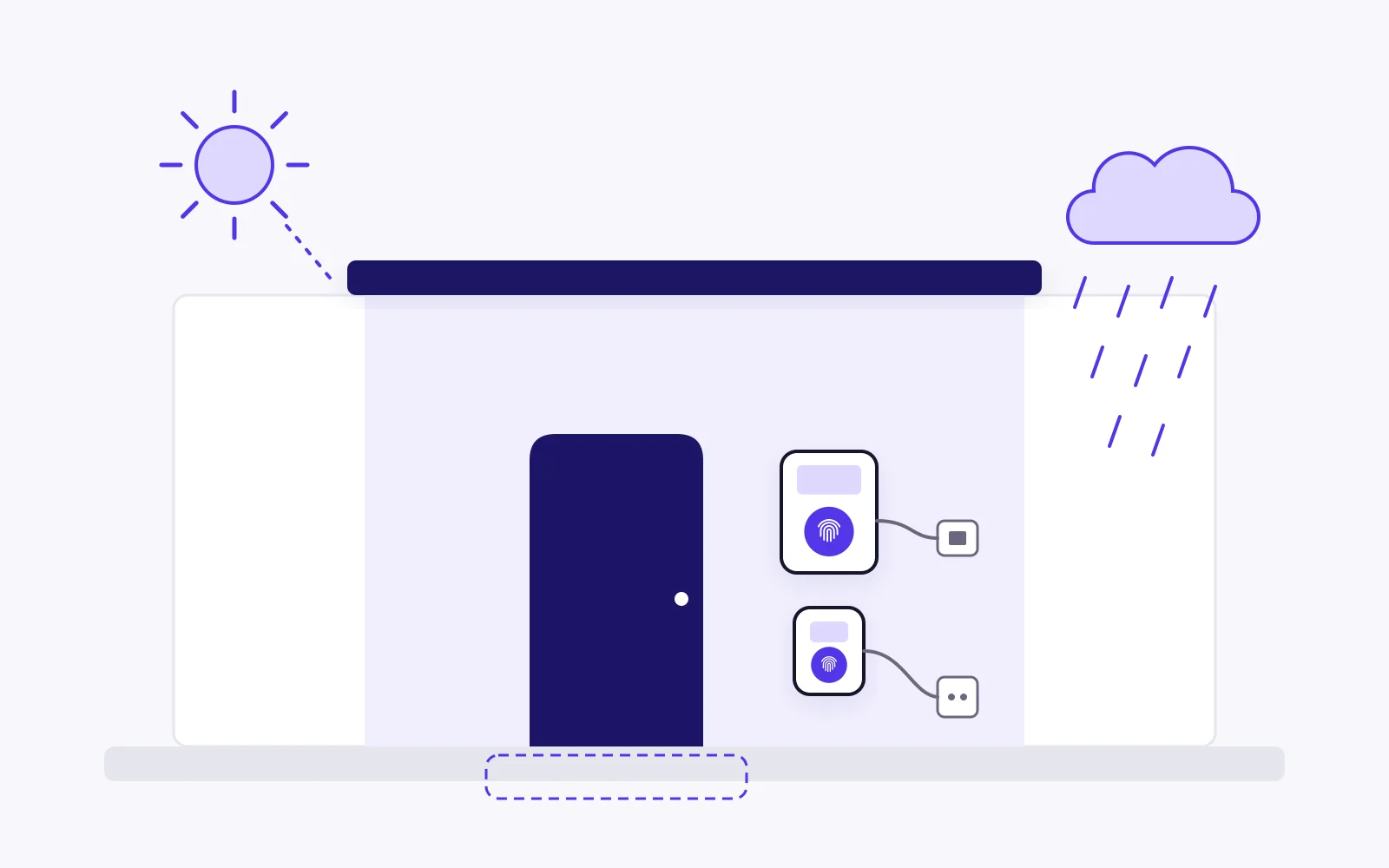
- Near the entrance, but out of direct sun and rain.
- At a height even small students can reach. If needed, mount a separate, lower machine for younger children.
- Near a power point and the network.
- With enough space that the queue does not block the door.
Enrolling fingerprints
- Give every person one ID number. The same number links the machine and the software, so match it to the student or staff ID.
- Enrol at least two fingers per person. If one finger is cut or bandaged, the other still works.
- Ask people to have clean, dry hands before enrolling.
- Test each enrolment straight away.
- Do not try to finish enrolment in one day. Spread it over a few days, class by class.
Young children: very young children's fingerprints often do not read well. For them, taking attendance on the teacher's phone is usually easier.
Consent and privacy
A fingerprint is personal data. Before enrolling students, send guardians a notice saying why it is taken, where it is kept and who can see it. Have another way to take attendance for anyone who does not agree.
Putting the machine's data to use
The machine only records times: who touched it and when. To turn that into present, late and absent, you need a few rules.
- When class starts, and after how many minutes someone counts as late.
- After what time no punch means absent.
- Which punch counts when someone punches several times in the morning.
- How holidays and people on leave are handled.
If the data stays on a computer, someone has to work this out by hand every day. If the data goes online to your software, it is worked out automatically, and the head can check it from a phone.
Daily upkeep
- Check each morning that the machine is on and data is coming in.
- Keep the computer that passes the data on running during school hours, with internet.
- Wipe the scanner with a soft cloth once a month.
- Check the machine's date and time now and then. A wrong clock means wrong late counts.
- Enrol new students and staff as soon as they join, and remove people who leave.
Common problems and fixes
- "Finger not recognised": wet, dusty or cut fingers. Use the second finger, or re-enrol if needed.
- Punches not reaching the software: the computer is off, there is no internet, or the machine is disconnected. Check these three one by one.
- Everyone shows as late: the machine's clock is wrong.
- One person's punch shows under another's name: the ID numbers do not match. Check that the machine and the software use the same ID.
How this works in EduSine
On EduSine's Standard plan, you connect fingerprint machines from the Attendance → Devices page (two machines on Standard). A small sync program runs on the computer where the machine's attendance software, TimeNet, keeps its records, and it sends new punches to EduSine regularly. So a machine works with EduSine when its punches are kept in TimeNet. If your machine comes with other software, check with us before you buy. You can also turn on automatic SMS to guardians of absent students, and late-arrival notices.
No machine? No problem. On every plan, teachers can take class attendance from their own phones. See Attendance for more.
A few details are all it takes to start your institution's website and software, free.
Create your website for freeRead next
Fingerprint attendance for teachers and staff: rules, leave and salaries
After the machine is on the wall: office hours, lateness, leave, missed punches and salaries, set so the rules are clear and fair to everyone.
5 min read
A guide to a fair admission lottery
When applications outnumber seats, a lottery is the simplest way. Announcing the rules first, drawing in public, running the waiting list and avoiding complaints.
5 min read
Running admission season: from notice to first class
The admission notice, applications, fees, admission test, merit list and waiting list. How a school or madrasah can organise admission step by step.
4 min read